Merged class · statistics closed · Data Visualisation running · Excel next

Every session,
written to be spoken.

Pick a session below. Each is a complete 90-minute script — the words to say, the commands to type, what appears on screen, and every Pandas or NumPy command taught from zero.

Statistics — 13 sessions

Module closed All 13 scripts written

Now running to 13 sessions, not 10. Day 2's material needed 2.2 sessions once taught properly, and that shifted everything after it. Nothing has been dropped — all 105 teach-live concepts still land, and binomial, Poisson and ANOVA stay on self-study. What changed is the budget: day 11 split into confidence intervals and hypothesis testing, which spent the buffer, so the module closed on 13 with nothing spare.

All 13 sessions are written, and the module has been trimmed for a fresher audience. Descriptive runs days 1–7, probability 8–9, inference 10–13.

What was cut, and why. Day 8 was rebuilt from scratch: the notation block is gone because you now teach the symbols in day 7, and the medical test and Bayes are gone as low value for a fresher. What that block existed to teach — that P(A given B) is not P(B given A) — survives, taught on the salary column instead. Anscombe is out of day 7, the t-distribution table out of day 11, and the interval-equals-test block out of day 12. That is about 50 minutes recovered, and it pays back roughly the one session already lost to overrun rather than shortening the module.

Day 11 split as predicted — confidence intervals and hypothesis testing are separate sessions, which spent the day 13 buffer. There is no spare statistics session left.

August B3 + September B2 — Python

Running now Merged 08 Oct · D29 next

These two batches became one class on 8 October — from D24 onward both playlists carry the same recording. Delivered since: file handling, error handling, then three sessions on classes and objects. D29 closes object orientation with all four pillars in one session, and NumPy starts the week after.

One thing to carry into every joint session. The September batch joined at file handling and skipped the whole functions block — across all eleven of their own recordings, def appears zero times and lambda zero. They have met methods inside a class and nothing else. D29 repairs that in its first fourteen minutes without announcing it; lambda still needs fifteen minutes before .apply() arrives in Pandas.

Data Visualisation

Running now 5 sessions · all scripts ready

Cut from nine sessions to five, deliberately. Power BI and Tableau follow this module and they draw the charts for you — so the matplotlib craft that a BI tool replaces has been dropped, and the time moved into reading charts and choosing them. That part transfers to every tool and it is what interviews actually test. Every chart comes from employees.csv, which they have known for thirteen sessions.

Where the course is right nowviz running · Excel written ahead

Statistics is closed — all 13 sessions delivered. Data Visualisation is running, and all five scripts plus the day 1 to day 3 beat sheets are ready. Excel day 1 is written and can be taught the day visualisation ends; days 2 to 6 are planned and not yet scripted.

Then Power BI, Tableau and projects. There is no machine learning module, and no Excel before Data Visualisation — the charting habits from viz are what make the Excel chart session short.

Excel

Follows Data Visualisation Days 1-3 scripts ready

Excel comes after Python on purpose, and that changes what the module is about. They already know every concept in it — mean, median, outliers, grouping, correlation, charts. Nothing here is new statistics. What is new is a grid, a formula bar, and a tool that recalculates itself the moment a cell changes. Six sessions, because the mechanical surface is real: the lookup family and pivot tables are a full session each, and those two are what a fresher analyst interview actually asks about. Every session runs on employees.csv — the same file they have had since statistics day 1, which is why day 1 opens with the fifty-two lakh salary sitting on row 5 where anybody can see it.

EXCEL 4

VLOOKUP, and What Replaced It

The single most-asked Excel question in a fresher interview. VLOOKUP, the three ways it breaks, then INDEX + MATCH, XLOOKUP and IFERROR.

Planned · script not written
EXCEL 5

Pivot Tables

This is groupby with a mouse, and they already know groupby. Rows, Columns, Values, Filters — then count against sum against average, and per cent of total.

Planned · script not written
EXCEL 6

One Sheet Somebody Else Can Read

Charts with a mouse, number formats, data bars, and a one-page summary built live from the cleaned file. Closes the module and hands over to Power BI.

Planned · script not written
What this module deliberately does not teach, so you can say so when asked. No macros and no VBA — it is a programming language, they already have a better one, and no fresher job asks for it. No Power Query, because Power BI does the same job in the next module and does it better. No array formulas. No OFFSET or INDIRECT.

What that time buys instead is a full session on the lookup family and a full session on pivot tables, which are the two things an interviewer will actually reach for. Day 1 also spends eighteen minutes on the dollar sign alone, because it is the one mistake in Excel that produces two hundred wrong rows and no error message.

NumPy and Pandas

Reference Pandas 1 delivered to B2

June B3 and July B2 are one class now, so the parity rule is retired and these six pages are a reference rather than a schedule. Pandas 1 was delivered to July B2. Pandas 2 is the parity session — 27 functions June B3 already had in D34 to D37. Pandas 3 holds the 30 functions neither batch has seen, verified absent from all seven B3 recordings and both B2 sessions. N1 to N3 are the NumPy sessions, and August B3 reaches the same ground from its own day 28.

Elsewhere

PREPARE

What to watch, in order

Each session mapped to the exact videos that prepare you for it, with links and timings.

Open →
REFERENCE

The full course plan

Both batches, notes for all 37 delivered sessions, and a 276-function lookup.

Open →

Coverage map · your notes → the 10-day plan

What gets taught,
and what gets skipped.

Every subsection of statistics_study_notes.md — all 31 sections — mapped to a day and marked. Priorities follow the notes’ own teaching notes wherever they state one.

168concepts
105teach live
48mention only
15skipped
teach Full treatment in session. Script covers it.
mention Name it, one to three minutes, move on.
skip Self-study or reference. Not spoken.
The plan does not change. Ten days, plus day 11 as buffer. Nothing below moves a session boundary — this is a map of the notes onto the plan you already approved, not a new plan.

How to read this

105 concepts are taught live. That is the real content of the ten days, and every one of them is in a script. 48 are mention-only — you name the thing, give it a sentence, and move on, so students recognise the word without losing session time to it. 15 are skipped: they go to self-study with a Udemy pointer, or they are reference material you would look up rather than recall.

Where the notes state a priority themselves — “the highest-yield slide”, “do not compress this”, “deserves 15–20 minutes” — that judgement wins over mine, and the reason is printed under the row.

1. What Statistics Is§ mapped to D1
Definition
D1
mention
The core problem statistics solvesOpen with the 400-of-10-million question, not a definition.
D1
teach
Why a data analyst specifically needs it
D1
mention
Where it sits vs neighbouring fieldsReference only.
—
skip
2. Descriptive vs. Inferential§ mapped to D1
Descriptive statisticsSummarising data you HAVE. Never prediction.
D1
teach
Inferential statisticsA claim about people you never measured.
D1
teach
The distinction in one line
D1
teach
Comparison table for slidesA large sample does not make descriptive become inferential.
D1
teach
3. Population and Sample§ mapped to D2
DefinitionsPopulation is defined by the research question, not geography.
D2
teach
Parameters vs. statisticsHeavily tested. Greek = population, Roman = sample.
D2
teach
Census vs. sampling5 reasons. The soup analogy lives here.
D2
mention
Representativeness and biasLiterary Digest 1936 + the dartboard diagram.
D2
teach
Sampling frame, unit, sampling vs non-sampling errorFour terms, ninety seconds.
D2
mention
4. Sampling Techniques§ mapped to D2
Probability vs non-probability — the splitThe organising idea. Gates whether inference is even legal.
D2
teach
4.1 Simple random
D2
teach
4.2 SystematicThe periodicity failure is the whole reason it is taught separately.
D2
teach
4.3 StratifiedHomogeneous within, heterogeneous between.
D2
teach
4.4 ClusterThe exact opposite of strata.
D2
teach
4.5 Stratified vs cluster tableThe notes call this the highest-yield slide in the section.
D2
teach
4.6 MultistageCluster applied twice. Name it.
D2
mention
4.7 ConvenienceWhat most real surveys actually are.
D2
teach
4.8 Judgmental / purposiveName it.
D2
mention
4.9 QuotaStratified with the randomness removed.
D2
mention
4.10 SnowballHidden populations. Name it.
D2
mention
Determining sample sizeFormula is Day 9. Today: why polls use ~1,000 regardless of country size.
D2
mention
5. Types of Data§ mapped to D2
The primary split — qualitative vs quantitative
D2
teach
Qualitative (categorical)
D2
teach
Quantitative — discrete vs continuousDiscrete is not the same as categorical.
D2
teach
Other classificationsCross-sectional, time-series, panel.
D2
mention
6. Scales of Measurement§ mapped to D2
6.1 NominalThe shuffle test.
D2
teach
6.2 OrdinalRace positions: order real, distance invisible.
D2
teach
6.3 IntervalCelsius-to-Fahrenheit on the board. Notes call it the cleanest way in.
D2
teach
6.4 RatioDoes zero mean none?
D2
teach
6.5 Summary table
D2
teach
6.6 Why this matters in practiceBridge to one-hot vs ordinal encoding. Stops it being trivia.
D2
teach
6.7 Converting between scalesYou can always go down, never up.
D2
mention
7. Frequency Distributions§ mapped to D4
7.1 Frequency distribution
D4
teach
7.2 Choosing bin widthShow 5 / 20 / 100 bins on the same data.
D4
mention
7.3 Core chart typesNamed only — drawing them is the Data Visualisation module.
D4
mention
7.4 Histogram vs bar chartExam favourite.
D4
teach
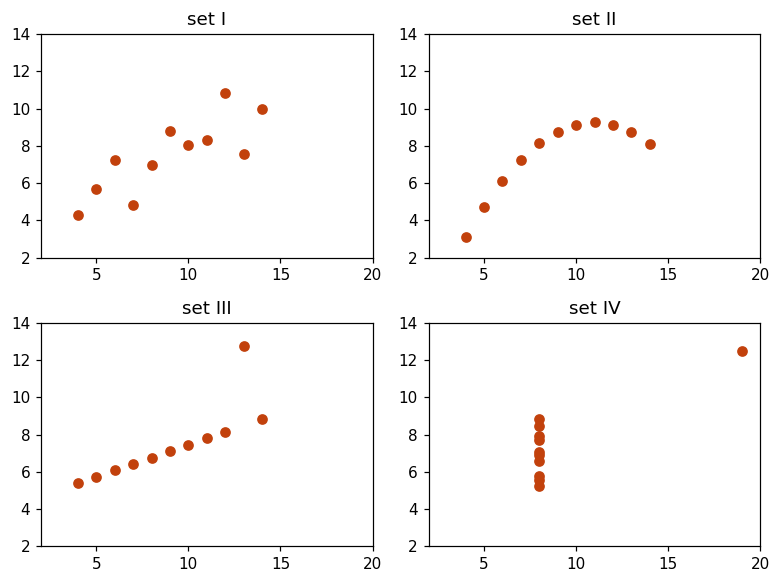
7.5 Anscombe's QuartetLands hardest next to correlation — four datasets, identical r.
D5
teach
8. Central Tendency§ mapped to D3
8.1 Arithmetic mean
D3
teach
8.2 MedianThe 52-lakh earner finally gets explained.
D3
teach
8.3 ModeThe only measure valid on nominal data.
D3
teach
8.4 Choosing between the three
D3
teach
8.5 Mean/median/mode under skewThe most-referenced visual in descriptive statistics.
D3
teach
8.6 Geometric and harmonic meansGrowth rates and average speeds. Name them.
D3
mention
9. Dispersion§ mapped to D3
9.1 Range
D3
teach
9.2 IQR
D3
teach
9.3 Variance
D3
teach
9.4 Bessel's correction (n−1)NumPy defaults to population, Pandas to sample. The ddof trap.
D3
teach
9.5 Standard deviation
D3
teach
9.6 Empirical rule 68-95-99.7
D3
teach
9.7 Chebyshev's inequalityThe distribution-free fallback.
D3
mention
9.8 Coefficient of variationComparing spread across different units.
D3
mention
9.9 Mean absolute deviationRarely used in practice.
—
skip
9.10 Standard error previewFull treatment is Day 8. Flag the SD-vs-SE confusion now.
D3
mention
10. Percentiles, Quartiles, Outliers§ mapped to D4
10.1 Percentiles
D4
teach
10.2 Quartiles and five-number summary
D4
teach
10.3 The box plotConcept and board sketch. Drawing it is the viz module.
D4
teach
10.4 The 1.5 × IQR rule
D4
teach
10.5 Z-score method for outliersPlus the robust modified z-score.
D4
mention
10.6 What to actually do about outliersLet them argue before revealing there is no universal answer.
D4
teach
11. Shape§ mapped to D4
11.1 Skewness
D4
teach
11.2 KurtosisName it, show the shapes, move on.
D4
mention
12. Covariance and Correlation§ mapped to D5
12.1 CovarianceUnits make it unreadable — which motivates r.
D5
teach
12.2 Pearson correlation
D5
teach
12.3 The big caveatsCorrelation is not causation — the notes call it the most important sentence in the course.
D5
teach
12.4 Spearman rank correlation0.079 vs 0.612 with one row removed; Spearman never notices.
D5
teach
12.5 Choosing a correlation measure
D5
teach
12.6 The correlation matrix
D5
mention
13. Probability Fundamentals§ mapped to D6
13.1 Core vocabulary
D6
teach
13.2 Definition of probability
D6
teach
13.3 Kolmogorov axiomsState them, do not dwell.
D6
mention
13.4 Law of large numbersSimulate live. Kills the gambler's fallacy.
D6
teach
13.5 Combinations of eventsAddition, multiplication, independent vs mutually exclusive.
D6
teach
13.6 Permutations and combinationsCounting only. Keep it short.
D6
mention
14. Conditional Probability and Bayes§ mapped to D6
14.1 Conditional probabilityTeach it as filtering a dataframe.
D6
teach
14.2 Law of total probability
D6
mention
14.3 Bayes' theorem
D6
teach
14.4 The medical testing exampleThe notes give this 15-20 minutes on its own. Natural frequencies after the formula.
D6
teach
15. Random Variables§ mapped to D7
15.1 Random variables
D7
teach
15.2 PMF (discrete)
D7
teach
15.3 PDF (continuous)Density = mass per unit volume. Height at a point is not a probability.
D7
teach
15.4 CDF
D7
teach
15.5 Expected value and variance
D7
mention
16. Discrete Distributions§ mapped to D7
16.1 Discrete uniform
D7
mention
16.2 BernoulliOne trial. Sets up binomial.
D7
mention
16.3 BinomialUdemy §7. Ten-minute Q&A on Day 7.
self
skip
16.4 PoissonUdemy §7.
self
skip
16.5 Geometric / negative binomial
—
skip
16.6 Normal approximation to binomial
—
skip
17. Continuous Distributions§ mapped to D7
17.1 Continuous uniform
D7
mention
17.2 The normal distributionEverything downstream needs this.
D7
teach
17.3 ExponentialUdemy §7.
self
skip
17.4 Log-normalUdemy §7. Worth naming — salary data is log-normal.
self
skip
17.5 Power law / ParetoUdemy §7.
self
skip
17.6 Distributions used for testingt, chi-square, F. Introduce where they are used.
D10
mention
18. Standard Normal and Z-Scores§ mapped to D7
18.1 The standard normal
D7
teach
18.2 Z-score
D7
teach
18.3 Using z-scores to find probabilitiesAlways sketch and shade before computing.
D7
teach
18.4 Comparing across different scalesThe reason z-scores exist at all.
D7
teach
19. Standardization vs Normalization§ mapped to D7
19.1 Standardization (z-score scaling)
D7
mention
19.2 Normalization (min-max)
D7
mention
19.3 Robust scaling
—
skip
19.4 Comparison
D7
mention
19.5 Two rules that prevent real bugsFit on train only. This one causes real production bugs.
D7
teach
20. Sampling Distributions and the CLT§ mapped to D8
20.1 The sampling distributionThree distributions side by side. Worth ten minutes on its own.
D8
teach
20.2 Properties of the distribution of x̄Standard error and the √n rule.
D8
teach
20.3 The Central Limit TheoremThe conceptual hinge. The notes say do not compress this.
D8
teach
20.4 Sampling distribution of a proportionNeeded for A/B testing on Day 10.
D8
mention
20.5 Finite population correction
—
skip
21. Checking Normality§ mapped to D8
21.1 Visual methods and Q-Q plotsDo these before any test.
D8
teach
21.2 Statistical tests for normalityShapiro-Wilk, Anderson-Darling.
D8
mention
21.3 The large-sample trapAt large n every normality test rejects. Important and rarely taught.
D8
teach
21.4 If the data is not normalTransform, non-parametric, or lean on the CLT.
D8
mention
22. Point Estimates and Confidence Intervals§ mapped to D9
22.1 Point estimation
D9
teach
22.2 Confidence intervals
D9
teach
22.3 Interpreting a CI correctlyThe single most common misstatement in all of statistics. Ring-toss analogy.
D9
teach
22.4 What affects the width
D9
teach
22.5 The link to hypothesis testingA CI that excludes the null value = a significant test.
D9
teach
23. The Hypothesis Testing Framework§ mapped to D9
23.1 The logicThe courtroom analogy. One of three things that must land.
D9
teach
23.2 The two hypotheses
D9
teach
23.3 One-tailed vs two-tailedWhy one-tailed is tempting and why you decide before seeing data.
D9
teach
23.4 Significance level α0.05 is arbitrary. Say so — it motivates everything about p-hacking.
D9
teach
23.5 Test statistic and p-valuep = P(data | H₀), NOT P(H₀ | data). Board, all session.
D9
teach
23.6 The critical value approachHistorical. Mention alongside p-values.
D9
mention
23.7 The six-step procedureThe deliverable students keep.
D9
teach
23.8 Language disciplineFail to reject, never accept.
D9
teach
24. Type I / II Errors and Power§ mapped to D9
24.1 The error matrix
D9
teach
24.2 Type I error (α)
D9
teach
24.3 Type II error (β)
D9
teach
24.4 The trade-off
D9
teach
24.5 Statistical powerConcept now; the calculation is optional.
D9
mention
24.6 Effect sizeCohen's d. Pairs with practical significance.
D10
mention
25. Z-Tests§ mapped to D10
25.1 When to use a z-testσ known or n large. In practice, rarely.
D10
mention
25.2 One-sample z-test
D10
mention
25.3 Two-sample z-test
—
skip
25.4 One-proportion z-test
D10
mention
25.5 Two-proportion z-testThe A/B testing workhorse. Carries the whole session.
D10
teach
26. T-Tests§ mapped to D10
26.1 Why the t-distribution exists
D10
teach
26.2 One-sample t-test
D10
teach
26.3 Independent t-testUse Welch (equal_var=False) as the default.
D10
teach
26.4 Paired t-testRun paired vs independent on the same data to show the power gain.
D10
teach
26.5 Choosing the right t-test
D10
teach
27. Chi-Square Tests§ mapped to D10
27.1 Goodness of fit
D10
mention
27.2 Test of independenceThe categorical workhorse.
D10
teach
27.3 Test of homogeneitySame arithmetic, different framing.
—
skip
27.4 Assumptions and cautionsExpected count ≥ 5.
D10
mention
28. ANOVA and the F-Distribution§ mapped to self
28.1 The multiple comparisons problemCompute the inflation live for 3, 5, 10 groups. Worth three minutes.
D10
mention
28.2–28.8 ANOVA properUdemy §8, four lectures. Named on Day 10, not derived.
self
skip
29. Non-Parametric Tests§ mapped to D10
29.1 When to use
D10
mention
29.2 The parametric ↔ non-parametric mapOne table. Mann-Whitney, Wilcoxon, Kruskal-Wallis.
D10
mention
29.3 Trade-offs
—
skip
30. Choosing the Right Test§ mapped to D10
30.1 The decision questions
D10
teach
30.2 The decision tablePrint as a one-page handout. The thing they keep.
D10
teach
30.3 Assumptions by test
D10
teach
31. Common Pitfalls§ mapped to D10
31.1 Statistical vs practical significance
D10
teach
31.2 P-hacking
D10
teach
31.3 Multiple comparisons
D10
mention
31.4 Misinterpreting non-significanceAbsence of evidence is not evidence of absence.
D9
teach
31.5 The base rate fallacySame shape as the medical test.
D6
teach
31.6 Simpson's paradoxOne of the most important ideas in the notes.
D5
teach
31.7 Regression to the mean
D5
mention
31.8 Survivorship biasWald's bombers.
D2
teach
31.9 Correlation vs causation
D5
teach
31.10 Other pitfalls worth naming
D10
mention
31.11 Checklist for reviewing any analysisHandout. The most job-useful page in the notes.
D10
teach
The four biggest self-study blocks. Binomial and Poisson (§16), the non-normal continuous distributions (§17.3–17.5), and ANOVA (§28) all go to Udemy §7–§8 with a ten-minute Q&A on the day that needs them. Together they would cost roughly three live sessions, which is most of what the 15→10 compression bought.

Day 1 · both batches merged · 90 minutes · full script

The Toolkit,
and Why Statistics

Everything below is written to be spoken. The bordered passages are the actual words; the italic lines are what to do while saying them. Every Pandas command is taught from zero, because half the room has never opened Pandas.

90minutes
8blocks
11Pandas commands
1idea that matters

If only one thing lands

df["dept_id"].mean() returns 2.32. Valid arithmetic, meaningless answer — there is no average department. Everything tomorrow builds on that absurdity. Do not rush past it.

This session has now been delivered. The recording runs 78 minutes and the running order was: import and pandas → dictionary → head → columns → statistics intro → descriptive and inferential → DataFrame → loc → read_csv → tail → shape → info → describe → std → median → value_counts → groupby. The descriptive-versus-inferential explanation was correct — “descriptive means you are sure, inferential means you are assuming” — and the value_counts framing (“you cannot take the mean of a department, but you can count them”) already lands the day 2 hook. Four functions were missed; they are listed in the function section below.

Before you walk in

  1. Open a terminal and run every command in this script once. Twenty minutes. It is the difference between demonstrating and discovering live.
  2. Have employees.csv in the folder you will run Python from. Check with import os; os.getcwd().
  3. Write the board blocks up before anyone arrives (below).
  4. Have the file open in a spreadsheet too, minimised. When someone cannot picture a DataFrame, showing them the same file as a grid takes ten seconds and settles it.
On the board, before the room fills
DESCRIPTIVE   →  summarise the data you HAVE
INFERENTIAL   →  claim something about data you DON'T


TODAY'S TOOLKIT
   read_csv    head    shape    columns
   dtypes      info    describe
   df["col"]   .mean() .median() .std()
   value_counts()      filtering      groupby
0 – 6

Open, and set the room up

Establish who you are, name the mixed levels honestly, and give the sprint an end date. Six minutes, no code.

Stand away from the laptop. Nothing on screen yet.

Good morning, everyone. Before we start on today's content, two minutes on what is happening with these sessions, because some of you are wondering.

I am taking over the sessions from here. I have gone through everything that has been covered with you so far — all of it — so I know where you have reached. But I was not in the room for those sessions. So if I repeat something you have already done, tell me and I will move on. And if I assume something you have not covered, tell me faster, because that one is worse.

Second thing. There are two batches sitting in this room today. Some of you finished Pandas already. Some of you started NumPy last week and have not touched Pandas at all. I know that, and it is fine.

Here is how we handle it. Today I am going to teach eight commands. That is all. Eight. If you already know them, you will find today easy, and I am going to use you — you will be coaching the person next to you in the last fifteen minutes. If you have never seen them, by the end of today you will have used every one of them at least once.

And for the next six days, the July batch has one extra session each day to close the gap on NumPy and Pandas. From day seven, everybody is on exactly the same page and there are no extra sessions. Six days. There is an end date.

Say the date out loud. People work harder for a sprint that finishes than for a gap that might go on forever. The June batch also needs to hear why some of this week will feel like revision to them.

Now, today's actual subject. We are starting statistics. And I want to start by telling you what statistics is for, because if I open with formulas you will write them down and never use them again.

Transition: walk to the board, put your hand on the two lines you wrote before class, and go straight into the next block.
6 – 18

What statistics actually is

Install the descriptive / inferential split. Twelve minutes, still no code. This is the spine of the next ten sessions and it cannot be rushed.

Suppose you join a company on Monday as a data analyst. Your manager walks over and says: what is the average salary in this company?

What do you do? You open the employee file, you find the salary column, you add it all up and divide by how many people there are. Done. Fifteen seconds.

Now — is that answer certain? Could anybody argue with it?

Wait for someone to say no. If nobody does, ask directly: "Could I check your answer and get something different?"

No. It is exact. You had every single employee in that file, you did the arithmetic, and there is no argument to have. That is called descriptive statistics. You are describing data that you actually have in front of you.

Now the manager comes back and asks a second question: what is the average salary of every data analyst in India?

Stop and think about that one. Where is that file?

Genuinely pause here. Let the room work out that the file does not exist.

There is no file. Nobody has it. There is no database anywhere containing the salary of every analyst in this country, and there never will be. That number exists in reality — every analyst has a salary, so an average exists — but nobody can compute it.

And yet companies decide what to pay you based on that number. Salary surveys publish it every year. Job sites quote it. So how do they get it?

They ask a few thousand people. And from those few thousand, they make a careful claim about the whole country. That is inferential statistics — using the data you have to say something about the data you do not have.

And notice what has to change when you do that. The first answer was exact. The second answer can never be exact. It comes with a range, and a level of confidence, and a chance of being wrong. Learning to state that honestly is most of this course.

Point at the two lines on the board and read them out.

Descriptive: summarise the data you have. Inferential: make a claim about data you do not have.

These ten sessions walk from the left of that board to the right. Roughly the first half is descriptive — we get very good at describing what is in front of us. Then we cross over, and everything after that is about making claims under uncertainty.

Ask: "An exit poll on election day — descriptive or inferential?"
Inferential. They asked maybe twenty thousand people and made a claim about six hundred million voters. If someone says descriptive, ask them: "did they ask everybody?" That usually settles it.
Follow up: "The final result declared by the Election Commission — which one?"
Descriptive. Every vote was counted. That is a census, not a sample — and it is why the final result has no margin of error while the exit poll does. This pair is the cleanest illustration you have; use both.

One more thing before we touch a keyboard. Notice that the difference is not the amount of data. If I count all six hundred million votes, that is still descriptive — enormous, but descriptive. If I survey four hundred people and make a claim about ten million, that is inferential with a tiny dataset.

The difference is the claim you are making, not the size of the file. Hold onto that, because students get this wrong every year.

Transition: "Right. Now let us look at some actual data, because everything I just said is abstract until you see a table." Sit down at the laptop.
18 – 30

What a DataFrame is

Get the July batch from dictionaries to DataFrames. The June batch watches and is given something specific to look for. Twelve minutes.

Everything we do for the next three months happens inside one library, called Pandas. So let us start there.

For those of you who have not used it — Pandas gives you one thing, and that thing is a table. Rows and columns, exactly like a spreadsheet, except it lives in memory and you talk to it with code instead of a mouse. That table is called a DataFrame.

And the good news for the July batch is that you already know how to build one, you just do not know it yet. You have done dictionaries. Watch.

Type this
import pandas as pd

data = {
    "name":   ["Ramesh", "Mahesh", "Suresh"],
    "salary": [50000, 60000, 55000],
    "dept":   ["Sales", "Tech", "Sales"]
}

df = pd.DataFrame(data)
print(df)
What appears
name salary dept 0 Ramesh 50000 Sales 1 Mahesh 60000 Tech 2 Suresh 55000 Sales

Look at what happened. I gave it a dictionary — keys on the left, lists on the right — and it gave me back a table. The keys became the column headings. The lists became the columns.

That is the whole idea. A dictionary of lists is almost a table already. Pandas just makes it official and gives you a few hundred useful functions on top.

Pandas commands taught in this block
import pandas as pd
Loads the library. pd is the universal nickname — every tutorial, every answer on the internet uses it. Do not invent your own.
pd.DataFrame(dict)
Builds a table from a dictionary. Every list must be the same length, because they are becoming columns of one table and a table cannot have ragged columns.
print(df)
Displays it. In a notebook you can just type df on its own and it renders nicer.

One thing to notice, because somebody always asks. See that column on the far left with 0, 1, 2? I did not create that. Pandas added it.

That is called the index. It is the label for each row. If you do not give Pandas labels it just numbers them from zero. For now, that is all you need to know about it — it is a name tag on each row.

Do not go further into the index. loc versus iloc is a full block on another day and it will derail you here.
Then, so nobody is guessing
type(df)              # pandas.core.frame.DataFrame
type(data)            # dict

Different types. The dictionary is still a dictionary. Pandas made a new object out of it.

Now — June batch. You have seen all of this. Do not switch off, because I want you watching for something specific. In about twenty minutes I am going to run one command, and that single command is going to contain the entire syllabus for the next ten sessions. See if you spot it before I tell you.

That line genuinely keeps the experienced half engaged. It costs nothing and it stops them opening their phones.
Transition: "But nobody types data by hand. Real data arrives as a file. So let us open a real one."
30 – 42

Load the file, and look at it

Teach the four-command first-look ritual, arriving at dtypes — which sets up the session's punchline. Twelve minutes.

This is a file of two hundred employees from a company. I did not clean it. It is the kind of thing that actually lands in your inbox.

And I want to start with a rule that sounds obvious and that almost nobody follows. When a new dataset arrives, the first thing you do is not analysis. It is looking.

You would not sign a contract without reading it. Do not analyse a file you have not looked at. There are four commands, you run them in the same order every single time, and it takes about twenty seconds.

Type this — slowly, one line at a time
df = pd.read_csv("employees.csv")

df.head()

First command. read_csv, and the name of the file in quotes. That is it — the whole file is now in memory as a table.

Second, head. That gives you the first five rows. Why five? Because somebody who wrote Pandas decided five was a sensible default. You can ask for ten by putting ten in the brackets.

And look at what you learn in one second. What the columns are called. What kind of thing is in them. Whether the file loaded correctly at all. If you had the wrong separator, or the header row was wrong, you would see it here immediately.

Then
df.shape        # (201, 12)
df.columns
df.dtypes

shape gives you two hundred and one rows, twelve columns. Rows first, then columns — always that order, and you will use this constantly to check that an operation did what you expected.

Now notice something. head had brackets. shape does not. That is not a typo and it is not random.

Write on the board: brackets = it does something · no brackets = it already knows something. Leave it there for the rest of the module.

head() has brackets because it goes and does a job for you — it fetches rows. shape has no brackets because it is just a fact the table already knows about itself, sitting there waiting to be read.

You will get this wrong for about a week and then never again. If you type df.shape() you will get an error saying a tuple is not callable, and now you know what that means.

Pandas commands taught in this block
pd.read_csv("f.csv")
Reads a comma-separated file into a DataFrame. If the path is wrong you get FileNotFoundError — the most common error of today.
df.head(n)
First n rows, default 5. Has brackets — it does something.
df.tail(n)
Last n rows. Worth running too — junk and total rows hide at the bottom of files.
df.shape
A tuple of (rows, columns). No brackets — it is a stored fact.
df.columns
The column names. Useful when you cannot remember the exact spelling.
df.dtypes
The type of each column. object means text; int64 and float64 mean numbers.
Now the fourth one
df.info()

info gives you the types and something more valuable — how many values are actually present in each column.

Look at the age column. Two hundred non-null. And shape just told us there are two hundred and one rows. So one age is missing. Look at salary — a hundred and ninety-nine. Two salaries missing.

That subtraction is how you find missing data. You do not need a special command. Compare the count in info against the row count in shape, and the gap is your missing values.

Now the turn. Slow down, and change your tone — the next ninety seconds are the point of the whole session.

Right. Come back to dtypes for a second. I want you to look at one column.

There is a column called dept_id. Department ID. One for Sales, two for Tech, three for HR, four for Marketing. And Python has looked at it and decided it is int64 — a number.

So let me treat it like a number.

Type this
df["dept_id"].mean()
2.3233830845771144
Say nothing for a beat. Let it sit on the screen.

Two point three two.

The average department in this company is two point three two.

Now — what is two point three two? Sales is one. Tech is two. HR is three. What is two point three two? Is it a department? Can I go and sit in it?

Ask: "Did Python do anything wrong here?"
No. It was handed a column of numbers and asked for an average, and it computed one perfectly. The arithmetic is flawless. Push until someone says this out loud, because the next sentence depends on it.

Python did nothing wrong. It cannot tell the difference between a number that measures something and a number that is just a label. To Python, one two three four is one two three four.

The mistake was mine. I asked a meaningless question and got a meaningless answer, and nothing warned me. There was no error. No red text. Just a confident, useless number that I could have put straight into a report.

Knowing which columns you are allowed to average is your job. Not the computer's. And that sentence is the whole of tomorrow's session.

Ask: "Give me another column in this file where the mean would be meaningless."
emp_id — the average employee ID is 1100.1, which identifies nobody. If someone offers join_date, that is a thoughtful answer worth two minutes: you can average dates and it occasionally makes sense, but it is rarely what anyone wants.
Transition: "Hold that thought. I am going to show you one more command, and June batch — this is the one I told you to watch for."
42 – 58

describe() — the whole module in one line

The centrepiece. Sixteen minutes: reveal the summary, hunt two real bugs with it, and plant the mean-versus-median question that Day 3 answers.

Type this
df.describe()
The two columns to talk about
age salary count 200.0 199.0 mean 38.2 95648.4 std 16.6 364031.9 min -4.0 33085.0 25% 28.0 59003.5 50% 37.0 68647.0 75% 47.0 80599.5 max 210.0 5200000.0

June batch — this is the one. This single command is the syllabus for the next ten sessions, already computed, sitting on the screen.

Let me read it to you, top to bottom, and tell you which session each row belongs to.

Count. How many values are actually there. Two hundred ages out of two hundred and one rows. A hundred and ninety-nine salaries. That is missing data, and handling it is a session on its own.

Mean. The average. Day three is built on this row — and on when it lies to you.

Std. Standard deviation. How spread out the values are. Same day — day three covers centre and spread together, because you should never report one without the other.

Min and max. Smallest and largest.

Twenty-five per cent, fifty per cent, seventy-five per cent. Those are the quartiles. The fifty per cent row is the median. Those three plus min and max are called the five-number summary, and that is day four.

So you have not learned statistics yet. But you are already reading it. Every number in this output is a topic we are going to spend ninety minutes on.

Now stop teaching and start hunting. Change posture — lean in at the screen as though you are inspecting it for the first time.

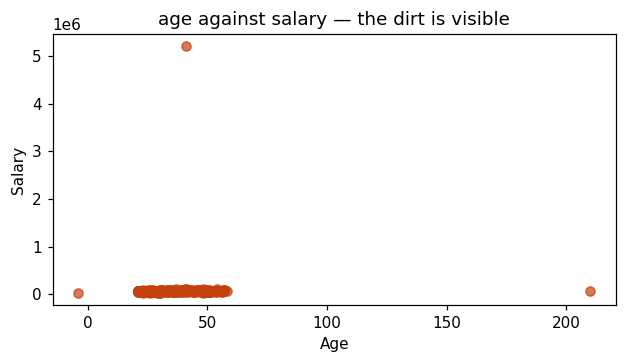
But before all that, this output does something more immediately useful. Look at the age column. Just look at it for a moment and tell me if anything is wrong.

Wait for them to find it. Do not point.
Minimum age −4. Maximum age 210. Somebody will spot one of them within about fifteen seconds. If nobody does after thirty, say "look at the minimum" and wait again. Do not tell them. Finding it themselves is worth ten times being shown.

Minus four years old. And two hundred and ten years old.

Now think about what just happened. I did not write a loop. I did not write a filter. I did not inspect two hundred rows by hand. I typed one command on a file I had never opened and it handed me two data quality problems.

That is why you look before you analyse. If you had gone straight to computing the average age, you would have got a number, it would have looked fine, and it would have been wrong — and nothing would have told you.

Then the salary column — a different kind of problem
df["salary"].mean()      # 95648
df["salary"].median()    # 68647

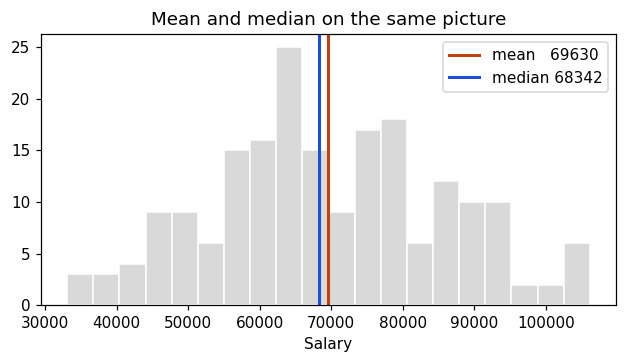
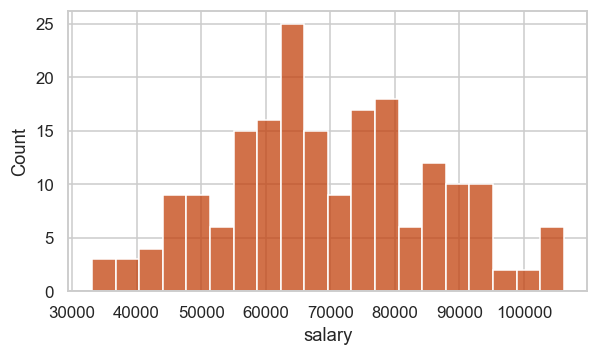
Same column. Same hundred and ninety-nine people. And two completely different answers about what a normal salary looks like here.

Ninety-five thousand, or sixty-eight thousand. The gap is twenty-seven thousand rupees — the first number is thirty-nine per cent higher than the second.

So if your manager asks what people earn at this company, which one do you say? Because one of these two numbers is lying to you, and you need to know which.

Do not answer it. Write both numbers in the corner of the board. This is Day 3's opening and it works far better if it has been hanging in the air for two days.

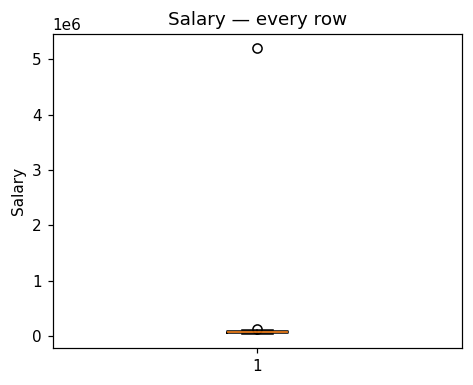
I am not going to tell you today. Look at the maximum salary in that output though — fifty-two lakh. Keep that in the back of your mind and we will come back to it.

Ask the June batch: "When you handled missing salaries, you were told to fill with median rather than mean. Anybody remember why?"
Whoever answers has taught day three for you. It also hands the experienced half a moment of expertise in front of the new half, which is exactly what you want in a merged room. If nobody remembers, say "you will by Thursday" and move on.
Pandas commands taught in this block
df.info()
Column names, types, and non-null counts. Compare against shape to find missing data.
df.describe()
Eight summary statistics for every numeric column. Numeric only by default — pass include="object" for the text columns.
Transition: "That was all eight numbers at once. Now let me show you how to ask for them one at a time, because that is what you will actually do most days."
58 – 70

One column, and five numbers from it

Teach column selection and the individual statistics. Reinforce that text columns take different tools. Twelve minutes.

Everything so far worked on the whole table. Most of the time you want one column. Here is how you pull one out.

Type this
df["salary"]

Square brackets, and the column name in quotes. That is the pattern, and you are going to type it ten thousand times.

What comes back is one column with the row labels attached. Pandas calls that a Series. A DataFrame is the whole table; a Series is a single column out of it. That is the only distinction you need today.

And once you have a column, you hang a dot on the end and ask it for things.

Type these one at a time, saying each out loud
df["salary"].mean()      # 95648.4   the average
df["salary"].median()    # 68647.0   the middle value
df["salary"].std()       # 364031.9  how spread out
df["salary"].min()       # 33085.0
df["salary"].max()       # 5200000.0

Notice these are the same numbers describe already gave us. Nothing new has been computed. describe is a convenience that runs all of them at once — but when you want one number to put in a variable, this is how you get it.

The pattern is always the same. Table, square brackets, column name, dot, what you want. Say that with me once.

Genuinely have them say it. In a mixed-level room, a shared phrase gives the July batch something to hold onto when they lose the thread later.
Then quantiles
df["salary"].quantile([0.25, 0.5, 0.75])
0.25 59003.5 0.50 68647.0 0.75 80599.5

Quantile takes a list of positions between zero and one. Nought point five is the median. Nought point seven five means the value that seventy-five per cent of people are below.

Read those three numbers as a sentence: half this company earns between fifty-nine thousand and eighty thousand six hundred. That is a much more useful statement than any single average, and it is one line of code.

Now a text column
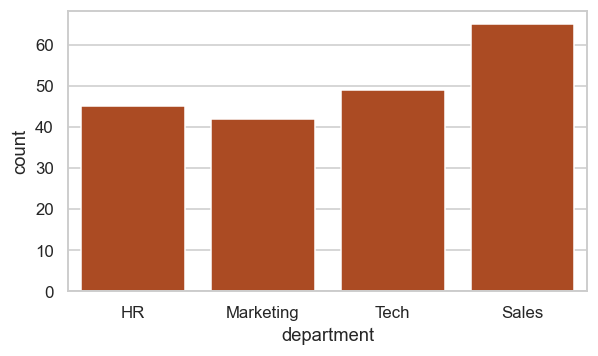
df["department"].value_counts()
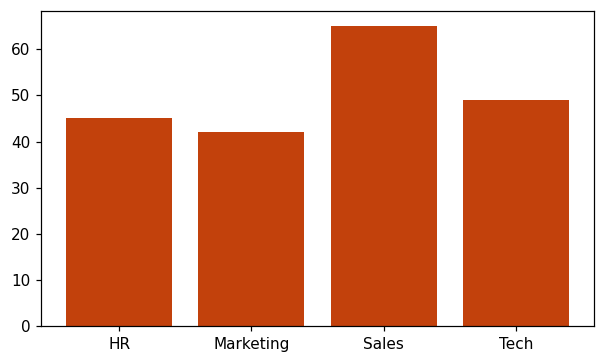
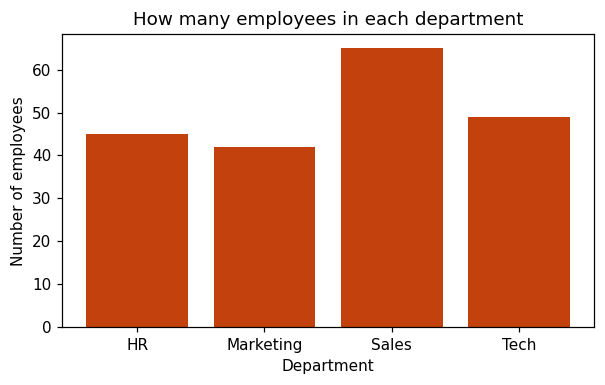
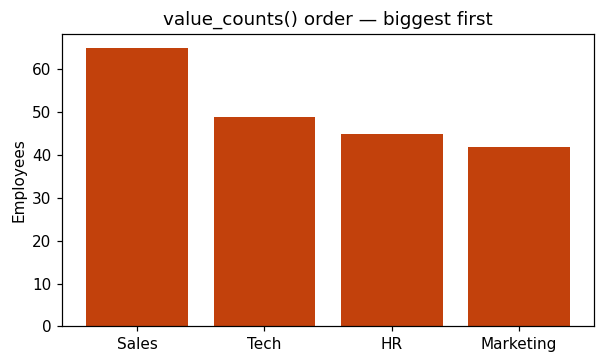
Sales 65 Tech 49 HR 45 Marketing 42

For text you cannot ask for a mean. What you ask for is how often each value appears, and that is value_counts.

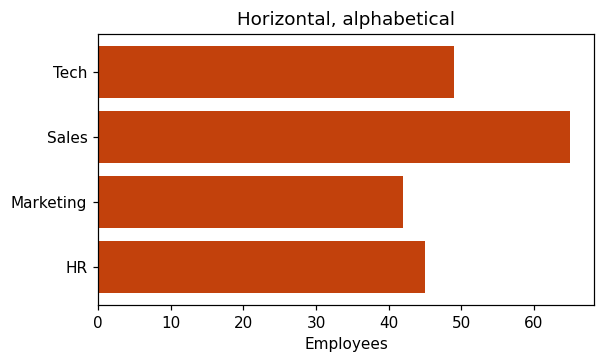
Sixty-five people in Sales, forty-two in Marketing. One line, and you know the shape of the organisation.

Now watch what happens if I forget which kind of column I am dealing with.

Break it on purpose
df["department"].mean()
This raises a TypeError. Let the red text sit on screen. Do not scroll past it.

There is the error. Pandas refuses, because you cannot average the words Sales and Tech.

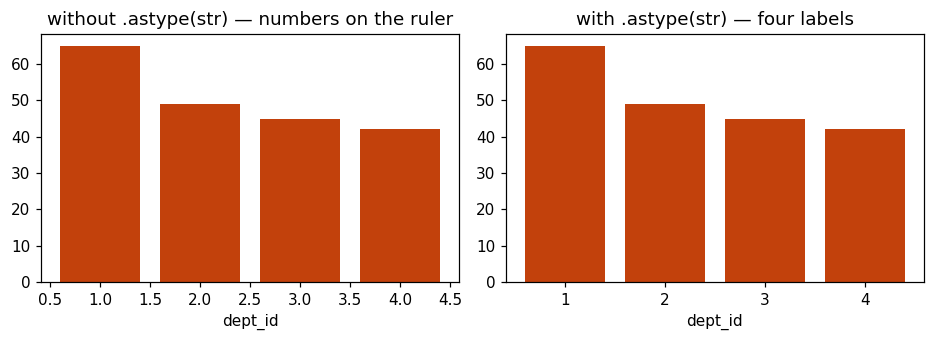
But hold on — twenty minutes ago I averaged dept_id and it worked perfectly. Same information. Departments. One version errors and one version hands me two point three two.

The only difference is that one was stored as words and one was stored as numbers. When it is words, Pandas protects you. When somebody has coded it as one two three four, nothing protects you at all.

That is the trap, and tomorrow we learn the rule that gets you out of it.

Pandas commands taught in this block
df["col"]
Pulls out one column. What comes back is a Series.
.mean() .median() .std()
Average, middle value, spread. Numeric columns only.
.min() .max()
Smallest and largest. These do work on text — alphabetically.
.quantile([...])
Pass a list of positions from 0 to 1. 0.5 is the median.
.value_counts()
Counts each distinct value. The tool for text columns. Add normalize=True for percentages.
Transition: "So far everything has been about the whole file. Now the two commands you will use more than any others — asking questions about part of it."
70 – 80

Filtering and grouping

The only genuinely new mechanic for the July batch. Show it in two separate steps before combining. Ten minutes.

Almost every real question is about a subset. Not "what is the average salary" but "what is the average salary in Tech". So you need to be able to keep some rows and throw away the rest.

I am going to show you this in two steps, because if I do it in one line it looks like magic.

Step one — ask the question
df["salary"] > 80000
0 False 1 True 2 False 3 True ... Name: salary, Length: 201

Look carefully at what came back. Not a number. Not a list of salaries. Two hundred and one Trues and Falses.

I asked one question — is the salary above eighty thousand — and Pandas asked it of every single row at once and gave me back every answer. Row zero, no. Row one, yes.

Step two — use the answers
df[df["salary"] > 80000]

Now I take that entire column of yes-and-no answers and put it inside the table's square brackets. And Pandas keeps only the rows where the answer was yes.

Read the line out loud from the inside out: salary greater than eighty thousand — that is the question. Wrap it in df square brackets — that means keep those rows.

It looks strange for about two days and then it becomes the most natural thing in the world. You will write this line more than any other line in your career.

Two conditions at once
df[(df["salary"] > 80000) & (df["department"] == "Tech")]
# 29 rows

Twenty-nine people in Tech earning over eighty thousand.

Two rules here, and you are going to break both of them this week, so let me say them clearly.

One. Use the ampersand, not the word "and". The word "and" expects one true-or-false, and you are handing it two hundred and one of them. It will throw an error about the truth value being ambiguous, and now you know what that message means.

Two. Brackets around every single condition. Not optional. The ampersand binds tighter than the greater-than sign, so without brackets Python groups it wrongly and the whole thing breaks.

Ampersand instead of "and". Brackets around each condition. Write both down.

Then grouping
df.groupby("department")["salary"].mean()
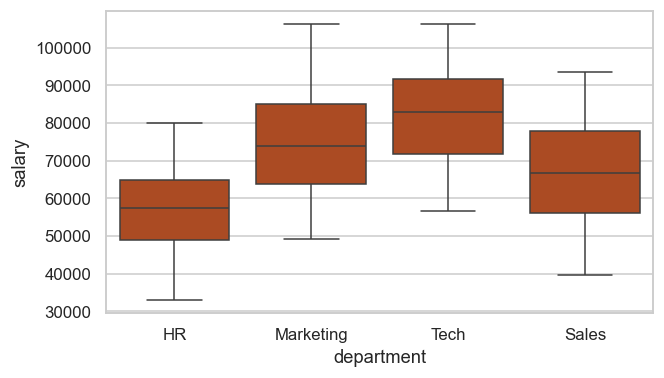
HR 56705 Marketing 73954 Sales 66535 Tech 189754

One line, and I have four answers instead of one. Read it left to right: group by department, take the salary column, give me the mean. Pandas splits the rows into four piles, computes the average inside each pile, and stacks the results.

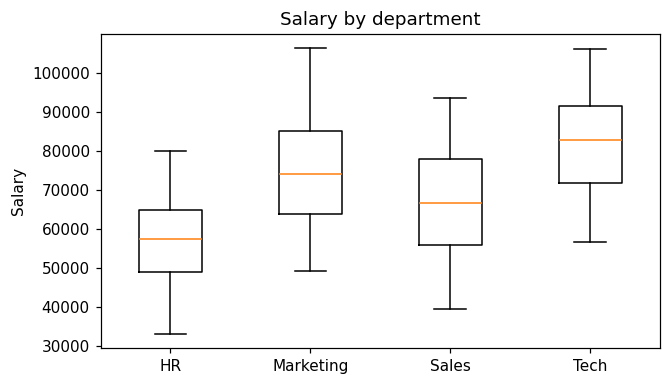
Now look at the numbers. HR fifty-six thousand. Sales sixty-six. Marketing seventy-three. Tech one lakh eighty-nine thousand.

Ask: "Is Tech really paid three times better than HR at this company?"
Let them think. The answer is no — the fifty-two lakh earner sits in Tech and has dragged that one group's average into nonsense. Point back at the max row in describe(). Do not resolve it further — say "day three" and move on. You now have the mean-versus-median hook planted twice from real data.
Pandas commands taught in this block
df["col"] > value
Asks a question of every row at once. Returns a column of True/False called a mask.
df[ mask ]
Keeps only the rows where the mask said True.
& and |
And / or. Never the words. Brackets around every condition.
df.groupby("c")["v"].mean()
Split into groups, compute per group, combine. The single most useful line in Pandas.
Transition: "That is all eight. Now you type them, because watching me type is not the same as knowing them."
80 – 90

Lab and close

Pair them explicitly. One June student with one July student at each machine, and say the roles out loud — the July student types, the June student coaches and does not touch the keyboard.

Last ten minutes. Pair up — if you have done Pandas before, sit with somebody who has not.

And here are the rules. The person who has not done Pandas is the one typing. If you already know this, your job is to talk, not to grab the laptop. Explaining it is going to do more for your revision than watching me would have.

Four tasks on the screen. Get through what you can.

On screen
1.  Load the file. Report its shape.

2.  Run describe(). Find one impossible value
    and say which column it is in.

3.  Report the mean AND median salary.
    Which would you put in a report to your manager?

4.  groupby department and find the highest paying one.
    Then tell me whether you believe it.
Circulate. Expect FileNotFoundError at least twice — it is almost always the working directory. Have them run import os; os.getcwd() and move the file.

Question four is a trap and I will tell you now so you are ready for it. The highest paying department is Tech, on paper. Anybody who tells me "Tech, but I do not trust that number because one person is distorting it" has understood everything I taught today.

Two minutes left. Stop the lab and close standing up, at the board.

Two things before you go.

First — every single thing we typed today was descriptive statistics. Averages, spreads, counts, groupings. You were doing statistics for the last hour and I only used the word twice. It is not a new subject. It is a name for what you were already doing.

Second — I left two questions unanswered on purpose, and they are both on the board. Why is the average department two point three two? And why are the mean and median salary twenty-seven thousand rupees apart?

Tomorrow we answer the first one. And the answer turns out to be a rule that decides, for every column you will ever work with, which statistics you are actually allowed to compute. See you then.

Every function in this session, explained

All 23 functions with a plain definition, a worked example and the real output. Four of them were not covered in the recorded delivery and are marked below.

What the recording missed

Series was never taught. The word appears twice in 78 minutes, both times as “TV series” in the Netflix analogy. Students have been using DataFrames without knowing what a single column is.
Also absent: iloc (loc was taught alone), mode, and unique / nunique. All four are below, and together they need about twelve minutes.

1. import pandas as pd
Definition
Brings the pandas library into your notebook and gives it the short name pd.
How it works

Written once at the top. Everyone writes pd — it is a convention, not a rule.

Type this
import pandas as pd print(pd.__version__)
You get
2.3.3
Watch out for
If this errors, pandas is not installed. Install it before class, not during.
2. pd.Series() — ONE column
Definition
A Series is a single column of data with a label on every row.
How it works

Give it a list. Pandas adds the row labels 0, 1, 2 automatically. That left-hand column is the index, not your data.

Type this
s = pd.Series([72000, 95000, 58000]) print(s) print() print('just the values:', s.values) print('the index :', list(s.index))
You get
0 72000 1 95000 2 58000 dtype: int64 just the values: [72000 95000 58000] the index : [0, 1, 2]
Watch out for
This was not covered in the recorded session. Teach it BEFORE DataFrame — a DataFrame only makes sense once they know what one column is.
3. Series with your own labels
Definition
You can name the rows instead of using 0, 1, 2.
How it works

Pass an index list of the same length. Now you look values up by name.

Type this
s = pd.Series([72000, 95000], index=['Rahul', 'Priya']) print(s) print() print(s['Rahul'])
You get
Rahul 72000 Priya 95000 dtype: int64 72000
Watch out for
This is the bridge from dictionary to Series — both look things up by a key rather than a position.
4. Series and DataFrame — the relationship
Definition
A DataFrame is many Series joined side by side, sharing one index.
How it works

Show it directly. Pull one column out of the table and check its type.

Type this
print(type(df['salary'])) print(type(df[['salary']])) print() print('columns in the table:', df.shape[1])
You get
<class 'pandas.core.series.Series'> <class 'pandas.core.frame.DataFrame'> columns in the table: 12
Watch out for
One pair of brackets gives a Series. Two pairs give a DataFrame. That single difference confuses students for weeks — show it, do not just say it.
5. pd.DataFrame() from a dictionary
Definition
Builds a table. Each key becomes a column name.
How it works

This is how the recorded session introduced it, and it works well because they already know dictionaries.

Type this
data = {'name': ['Rahul', 'Priya', 'Amit'], 'salary': [72000, 95000, 58000]} d = pd.DataFrame(data) print(d)
You get
name salary 0 Rahul 72000 1 Priya 95000 2 Amit 58000
Watch out for
Every list must be the same length. Unequal lists raise an error.
6. pd.read_csv()
Definition
Loads a CSV file from disk into a DataFrame.
How it works

Give it the file name. The most used function in the whole library.

Type this
df = pd.read_csv('../employees.csv') print(type(df)) print(df.shape)
You get
<class 'pandas.core.frame.DataFrame'> (201, 12)
Watch out for
Check your own path before class. If the notebook sits elsewhere, this line fails in front of the room.
7. head() and tail()
Definition
The first or last few rows.
How it works

Five rows by default. Put a number inside to change it.

Type this
print(df.head(3)) print() print(df.tail(2))
You get
emp_id dept_id name department city education rating \ 0 1001 3 Rahul Sharma HR Hyderabad Masters Poor 1 1002 4 Karthik Kumar Marketing Bangalore Diploma Poor 2 1003 2 Karthik Reddy Tech Bangalore Masters Good experience age height_cm salary join_date 0 4 53.0 169.5 47764.0 2018-01-03 1 13 57.0 169.5 86052.0 2024-07-02 2 1 56.0 166.5 62990.0 2025-03-04 emp_id dept_id name department city education rating \ 199 1200 2 Kavya Singh Tech Chennai Masters Average 200 1021 1 Anita Patel Sales Pune Masters Average experience age height_cm salary join_date 199 5 47.0 168.1 66075.0 2024-02-05 200 5 51.0 171.7 59760.0 2025-06-05
Watch out for
Always the first thing you run on a new file. Never assume you know what is inside it.
8. shape
Definition
How many rows and how many columns.
How it works

Gives a pair: (rows, columns).

Type this
print(df.shape) print('rows :', df.shape[0]) print('columns:', df.shape[1])
You get
(201, 12) rows : 201 columns: 12
Watch out for
No brackets. df.shape() is an error, and it is the most common typo in this session.
9. columns
Definition
The list of column names.
How it works

Use it to check spelling before typing a column name.

Type this
print(list(df.columns))
You get
['emp_id', 'dept_id', 'name', 'department', 'city', 'education', 'rating', 'experience', 'age', 'height_cm', 'salary', 'join_date']
10. dtypes
Definition
The data type held in each column.
How it works

object means text. int64 and float64 are numbers.

Type this
print(df.dtypes)
You get
emp_id int64 dept_id int64 name object department object city object ... experience int64 age float64 height_cm float64 salary float64 join_date object Length: 12, dtype: object
Watch out for
A column of numbers showing as object means something non-numeric is hiding in it. This was not covered in the session and is worth adding.
11. info()
Definition
Column names, how many values are filled, and the data types, all at once.
How it works

The single most useful first look at a file.

Type this
df.info()
You get
<class 'pandas.core.frame.DataFrame'> RangeIndex: 201 entries, 0 to 200 Data columns (total 12 columns): # Column Non-Null Count Dtype --- ------ -------------- ----- 0 emp_id 201 non-null int64 1 dept_id 201 non-null int64 2 name 201 non-null object 3 department 201 non-null object 4 city 201 non-null object 5 education 201 non-null object 6 rating 201 non-null object 7 experience 201 non-null int64 8 age 200 non-null float64 9 height_cm 201 non-null float64 10 salary 199 non-null float64 11 join_date 201 non-null object dtypes: float64(3), int64(3), object(6) memory usage: 19.0+ KB
Watch out for
Point at the Non-Null Count. Where it is lower than the row count, values are missing. That is the whole reason to run it.
12. describe()
Definition
Summary statistics for every numeric column.
How it works

Count, mean, standard deviation, min, max and the quartiles.

Type this
print(df[['age', 'experience', 'salary']].describe().round(1))
You get
age experience salary count 200.0 201.0 199.0 mean 38.2 7.8 95648.4 std 16.6 4.5 364031.9 min -4.0 0.0 33085.0 25% 28.0 4.0 59003.5 50% 37.0 8.0 68647.0 75% 47.0 12.0 80599.5 max 210.0 15.0 5200000.0
Watch out for
It also averages emp_id and dept_id, which is meaningless. That is the day 2 hook, so let it happen and do not explain it yet.
13. isnull().sum()
Definition
Counts the missing values in each column.
How it works

isnull() marks every cell True or False. Summing counts the Trues.

Type this
print(df.isnull().sum())
You get
emp_id 0 dept_id 0 name 0 department 0 city 0 .. experience 0 age 1 height_cm 0 salary 2 join_date 0 Length: 12, dtype: int64
Watch out for
Run this straight after info(). It gives the same information but as a number you can act on.
14. loc[] — select by NAME
Definition
Picks rows and columns using labels.
How it works

Write df.loc[rows, columns].

Type this
print(df.loc[0, 'name']) print() print(df.loc[0:2, ['name', 'salary']])
You get
Rahul Sharma name salary 0 Rahul Sharma 47764.0 1 Karthik Kumar 86052.0 2 Karthik Reddy 62990.0
Watch out for
loc INCLUDES the last row. 0:2 gives three rows, not two.
15. iloc[] — select by POSITION
Definition
Picks rows and columns using numbers only.
How it works

Write df.iloc[rows, columns].

Type this
print(df.iloc[0, 2]) print() print(df.iloc[0:2, 0:3])
You get
Rahul Sharma emp_id dept_id name 0 1001 3 Rahul Sharma 1 1002 4 Karthik Kumar
Watch out for
iloc EXCLUDES the last position. 0:2 gives two rows. The session covered loc but never iloc — add it, because the difference is examinable.
16. mean()
Definition
The average of a numeric column.
How it works

Add everything up, divide by how many.

Type this
print(round(df['salary'].mean()))
You get
95648
Watch out for
It quietly skips missing values, so the count behind it may be lower than the row count.
17. median()
Definition
The middle value when the column is sorted.
How it works

Half the rows are above it, half below.

Type this
print(round(df['salary'].median()))
You get
68647
Watch out for
Mean is 95,648 and median is 68,647. Put both on the board together — the gap is day 3.
18. mode()
Definition
The most common value. The only average that works on text.
How it works

Returns a Series, because there can be more than one most-common value.

Type this
print(df['department'].mode()[0]) print(df['rating'].mode()[0])
You get
Sales Poor
Watch out for
Not covered in the recorded session. Worth adding, because it is the only one of the three that works on a text column.
19. std()
Definition
Standard deviation — how spread out the values are.
How it works

Roughly, the typical distance from the mean.

Type this
print(round(df['salary'].std()))
You get
364032
Watch out for
The value here is huge because one person earns 52 lakh. Note it and move on; the explanation is day 3.
20. min(), max(), sum(), count()
Definition
The other basic summaries of a column.
How it works

count() counts only the filled values, not the missing ones.

Type this
print('min :', df['salary'].min()) print('max :', df['salary'].max()) print('sum :', df['salary'].sum()) print('count:', df['salary'].count(), 'of', len(df), 'rows')
You get
min : 33085.0 max : 5200000.0 sum : 19034033.0 count: 199 of 201 rows
Watch out for
The gap between count() and len(df) is exactly the number of missing salaries.
21. value_counts()
Definition
Counts how many times each value appears in a column.
How it works

The correct summary for a text column, where mean and median make no sense.

Type this
print(df['department'].value_counts())
You get
department Sales 65 Tech 49 HR 45 Marketing 42 Name: count, dtype: int64
Watch out for
The session explained this well: you cannot take the mean of a department, but you can count them. Keep that framing.
22. unique() and nunique()
Definition
The distinct values, and how many there are.
How it works

Run these before grouping by a column, to see what you are about to group into.

Type this
print(df['city'].unique()) print('distinct cities:', df['city'].nunique())
You get
['Hyderabad' 'Bangalore' 'Chennai' 'Pune'] distinct cities: 4
Watch out for
Not covered in the session. Useful because it catches spelling variations before they become separate groups.
23. groupby()
Definition
Splits the table into groups, then summarises each group.
How it works

Say what to group by, choose a column, then say how to summarise it.

Type this
print(df.groupby('department')['salary'].mean().round(0))
You get
department HR 56705.0 Marketing 73954.0 Sales 66535.0 Tech 189754.0 Name: salary, dtype: float64
Watch out for
Split, apply, combine. The session reached this at 70 minutes — if you are short on time, this is the block to protect.

Questions you will get, with answers to say

Why not just use Excel for all this?

"Excel is genuinely better for a quick look and for handing something to someone who does not code. It falls over on three things. Files too big to open. Work you have to repeat every month — in Excel you redo the clicks, here you change one filename. And proving what you did six months ago; a script is a written record, a spreadsheet is not."

Why does shape have no brackets but head() does?

"Brackets mean it goes and does something. No brackets means it is a fact the object already knows. head() fetches rows for you. shape is just sitting there being true."

What is the difference between describe() and info()?

"info tells you about the structure — names, types, how many values are present. describe tells you about the numbers themselves. Use info to find missing data, describe to find impossible data."

Why is the standard deviation of salary 3.6 lakh?

"Because one person earns fifty-two lakh. Standard deviation measures distance from the average, and that one value is enormously far from everything else. Same reason the mean and median are so far apart. Day three."

Can I use single quotes instead of double?

"Yes, Python does not care. Pick one and be consistent."

Why did describe() skip the text columns?

"Because a mean of the word Sales does not exist. If you want a summary of the text columns, pass include='object' and you get counts and the most frequent value instead."

Something statistical you genuinely cannot answer

Say: "Good question, I will confirm it tonight and open with it tomorrow." Then actually do it. With a batch that does not know you yet, following through on that builds more credibility than a confident guess that turns out to be wrong.

If things go sideways

  • July batch drowning around minute 70 — drop groupby and keep filtering. Filtering is needed on day two; grouping is not needed until day six.
  • June batch visibly bored — start the lab early and make them coaches. Do not add advanced material; splitting your attention loses the other half.
  • Running long — cut the dictionary-to-DataFrame block at 18–30. They can meet DataFrames purely through read_csv.
  • Running short — run describe() on height_cm and experience and ask how those columns differ in shape from salary. Previews day four at no cost.
  • FileNotFoundError — the working directory, almost every time. import os; os.getcwd(), then move the CSV there.
  • You lose your place — go back to df.describe(). Everything today connects to it, so it is always a safe place to restart from.

Optional video

The script above is self-contained. These are reinforcement only — the last two are really tomorrow's material.

Udemy §5Introduction To Statistics10:06 Udemy §5Types Of Statistics12:36

The other days

Days 2 to 7 are in the navigation above and cover the full descriptive block. They are currently written as detailed outlines rather than in this fully-spoken format — ask Claude to rewrite any of them to match this page.

← Full syllabus  ·  Statistics prep track

Summary — every line from today

22 functions

Put this on screen in the last two minutes, or paste it into a cell and let them keep it. Every command from the session, in order, with what it does.

import pandas as pd

df = pd.read_csv("employees.csv")     # load the file

# ---- THE TWO OBJECTS ----
pd.Series([72000, 95000, 58000])               # ONE column + an index
pd.Series([87, 92], index=["Rahul", "Priya"])  # your own row labels
pd.DataFrame({"name": ["Rahul"], "age": [28]}) # a TABLE from a dictionary
type(df["salary"])                             # Series      one pair of brackets
type(df[["salary"]])                           # DataFrame   two pairs

# ---- LOOK AT THE FILE: run these on EVERY new file ----
df.head(3)                    # first rows          always first
df.tail(2)                    # last rows
df.shape                      # (201, 12)           no brackets
df.columns                    # the column names
df.dtypes                     # object = text
df.info()                     # types + non-null counts
df.describe()                 # the numeric summary
df.isnull().sum()             # missing values per column

# ---- PICK ROWS AND COLUMNS ----
df.loc[0, "name"]             # by LABEL      end INCLUDED
df.iloc[0, 2]                 # by POSITION   end EXCLUDED

# ---- SUMMARISE A NUMBER COLUMN ----
df["salary"].mean()           # 95648   the average
df["salary"].median()         # 68647   the middle value
df["salary"].std()            # spread around the mean
df["salary"].min()            # smallest
df["salary"].max()            # largest
df["salary"].sum()            # total
df["salary"].count()          # filled values only, missing not counted

# ---- SUMMARISE A TEXT COLUMN ----
df["department"].mode()[0]        # Sales  the only average that works on text
df["department"].value_counts()   # you cannot mean a department, but you can count it
df["city"].unique()               # the distinct values
df["city"].nunique()              # how many distinct

# ---- GROUP ----
df.groupby("department")["salary"].mean()    # split, apply, combine

Day 2 · both batches merged · 90 minutes · full script

Types of Data,
and Where Data Comes From

Two halves. First, why the average department was 2.32 — the rule that decides which statistics are legal. Then where data comes from, how to sample properly, and why 2.4 million people once lost to fifty thousand. Covers sections 3–6 of your study notes in full.

90minutes
4scales
9sampling methods
28ready examples

The two ideas today has to land

One — the scale of a column decides which statistics are legal on it. Not your preference, not what Python allows.
Two — bias is not fixed by more data. A bigger broken sample just makes you confident about a wrong number.

Before you walk in

  1. Read “Understand this yourself first” below, once, slowly. It teaches the material from zero rather than assuming it — the scales, the two tests, sampling and bias, plus the four questions students actually ask. If statistics is new to you, this is the part to read.
  2. Practise two things out loud: the Celsius-to-Fahrenheit conversion (30°C is 86°F, 15°C is 59°F) and the two archery targets. Those two carry more of the session than any definition does.
  3. Run the five-seed sampling block yourself. The numbers are dramatic and you should not meet them for the first time in front of the room.
  4. Know why they vary so much — the 52-lakh salary is sometimes in the sample and sometimes not. A sharp student will ask.
  5. Have your answer ready for “can I average a rating?” It gets asked every time and the honest answer is not a flat no. It is in the primer.
  6. Rehearse the Literary Digest story. Ten million mailed, 2.4 million replied, predicted the wrong winner by 46 states — because the addresses came from phone books and car registrations during the Depression. Your notes call it the single best story in the section, and it is.
  7. Leave the stratified-vs-cluster board up. Your notes call it the highest-yield slide here. The one-liner is every stratum, but only some clusters.
  8. Do not teach the fix today. Confidence intervals are day 9. Today ends on an open question on purpose.
On the board, before anyone arrives
NOMINAL    names, no order          count, mode
ORDINAL    ordered, gaps unequal    + median, percentiles
INTERVAL   equal gaps, no true zero + mean, standard deviation
RATIO      equal gaps, true zero    everything

TEST:  does zero mean NONE?

POPULATION  everyone you care about   ->  PARAMETER
SAMPLE      the part you measured     ->  STATISTIC

Understand this yourself first

Written for someone meeting these ideas fresh. Read it once and you will understand the material, not just the delivery. Every idea comes with an everyday example you can hand straight to the room.

Part one · why “types of data” is a real subject
The problem in one sentence

To a computer, every number looks the same. To the world, they do not. A column of whole numbers might be a quantity, or a rank, or a name wearing a number costume. Python cannot tell the difference — it will happily average all three. Only you can tell the difference, and that is what today is for.

The example to open with

Kohli wears jersey 18. Dhoni wears 7. Rohit wears 45. The average jersey number of those three is 23.33.

Now ask the room: who is that? Nobody. It describes no player and no thing. The number is real, the arithmetic is correct, and the answer is garbage — because a jersey number is a name, not an amount. It just happens to be written with digits.

That is the whole of the first half. The scale of a column decides which statistics are legal on it. Not your preference, not what the software allows. And yesterday’s dept_id average of 2.32 is exactly the jersey-number mistake, sitting in their own dataset.

Nominal — names

Categories with no order at all. You can count how many of each, and say which is most common. Nothing else.

Everyday examples

Blood group · mobile brand · city · bus route number · jersey number · pin code.

The test: shuffle the labels around. If nothing is lost, it is nominal. Swapping “Samsung” and “Apple” loses nothing, because neither was ever greater than the other.

Ordinal — order, but the gaps are unknown

There is a genuine ranking, but the distance between the steps is not equal and not known. This is the scale students find hardest, because the order feels so much like a number.

The example that makes it land

A race finishes. Someone came 1st, someone 2nd, someone 3rd.

Now ask: did 1st beat 2nd by a hair, or by a mile? The positions cannot tell you. The order is completely real — 1st genuinely did beat 2nd — but the gap is invisible. First may have won by 0.01 seconds and second may have beaten third by four minutes.

That is ordinal in one picture: the order is real, the distance is not.

More everyday examples

Movie ratings out of five stars · spice level: mild / medium / hot · T-shirt size: S / M / L · education level · Poor / Average / Good / Excellent — which is the rating column in their own file.

Interval — equal gaps, but zero is made up

Now the gaps are equal, so subtraction finally means something. But zero was chosen by a human rather than meaning “none of it”, so division still lies.

The demo — do the arithmetic live

It is 30°C today and it was 15°C yesterday. Is today twice as hot?

It sounds fine. So convert both to Fahrenheit: 30°C is 86°F, 15°C is 59°F. And 86 is not twice 59.

The same two days, the same real weather — and “twice” evaporated the moment you changed the unit. So it was never a fact about temperature. It was an accident of where someone put the zero.

Notice what did survive: the difference. 15 degrees apart in Celsius stays 27 apart in Fahrenheit — consistently, for every pair. Differences are real on interval data; ratios are not. Other examples: calendar years (the year 2000 is not twice the year 1000), clock time, IQ scores.

Ratio — equal gaps and a real zero

Zero genuinely means none. Everything is now permitted, including “twice”.

Everyday examples

Salary · age · weight · distance · number of items sold.

₹0 means no money. ₹40,000 is twice ₹20,000 — and it stays twice in dollars, in euros, in anything. The relationship survives the unit change, which is exactly what failed for temperature.

The one question that separates interval from ratio: does zero mean none?
Zero rupees means no salary → ratio. Zero degrees Celsius is just a cold day, not the absence of temperature → interval.
Two tests worth giving them

Rules are hard to remember; tests are easy to apply. Give them both.

The shuffle test separates nominal from ordinal. Rearrange the categories — if nothing is lost, nominal. Shuffling Small / Medium / Large clearly destroys something, so it is ordinal.

The unit-change test separates interval from ratio. Say “twice as much”, then change the unit. If the claim dies, the zero was fake, so it is interval.

The other split: discrete or continuous

Separate from the four scales, and easier. Discrete is what you count — whole things, no halves. Continuous is what you measure — there is always a finer decimal available.

The line that settles it

Number of children is discrete — nobody has 2.4 children, even though the national average is 2.4. Height is continuous — 170 cm, 170.3 cm, 170.34 cm, and you only stop because the measuring tape does.

Why any of this matters in practice

Do not leave scales as classification trivia — give them the payoff, because it is the reason an analyst is paid to know this.

The bridge to what they will actually do

Nominal columns need one-hot encoding — a separate column per category — because any single number you assign invents an order that is not there.

Ordinal columns can use label encoding, 1 / 2 / 3 / 4, because the order is real. That is legal here and illegal above.

Interval and ratio columns can be scaled and used directly.

So the scale you assign today decides the preprocessing they write later. Get it wrong and the model learns that Chennai is greater than Bangalore.

Can you convert between scales?

Downward, always. Upward, never. You can take salary (ratio) and bucket it into Low / Medium / High (ordinal) — you are throwing information away, which is allowed. You cannot take Poor / Average / Good and manufacture the real distances between them.

Worth saying out loud, because binning is common and students should know it is a one-way door.

Part two · where data comes from
Population and sample

The population is everyone you actually care about. The sample is the part you managed to measure. Almost always you cannot reach the population — too expensive, too slow, or it does not fully exist yet.

The analogy to use — it carries the whole second half

You are cooking a large pot of soup and want to know if it needs salt. You do not drink the pot. You taste one spoonful.

The pot is the population. The spoon is the sample.

And there is one condition: you have to stir first. Take your spoonful off the top without stirring and you learn about the top of the pot, not the soup. Stirring is what random sampling is for — and skipping it is exactly what bias is.

Why we sample instead of counting everyone

A census means measuring every single member of the population. A sample means measuring only some of them.

So the obvious question is: if a census gives you the actual truth, why would anyone ever sample instead? There are three answers worth giving.

Reason one — you simply cannot. Ten seconds.

Cost and time. You cannot survey 1.4 billion people, and if you tried, conditions would have changed before you finished.

Reason two — measuring destroys the thing. Twenty seconds, and it sticks.

Ask it as a question: “You have to find the average lifespan of the bulbs this factory makes. Testing a bulb means running it until it dies. Do you want to test all of them?”

Wait for it to land, then: “congratulations — you now have very accurate data and no bulbs.”

Reason three — the surprising one. Sixty seconds, and it is the real one.

A well-run sample often beats a badly-run census. That sounds wrong, so work it through with a fixed budget of ₹10 lakh.

Spend it on a census. All 50,000 employees, which is ₹20 per person. So: one email, an online form, no reminders, nobody chasing anyone. About 40% reply.

You now have 20,000 responses and a 30,000-person hole — and that hole is not random. People who ignore surveys are busier, more junior, less engaged. Your census has quietly become a biased sample that you are still calling a census.

Spend it on a sample instead. 1,000 randomly chosen people, which is ₹1,000 per person. Now you can afford trained interviewers, phone calls, five call-backs to anyone who does not pick up, and verified answers. About 95% reply.

You have 950 responses and almost no hole. And this wins. Not despite being smaller — because the money bought quality instead of quantity.

Look at what kind of error each one has. The census’s error is bias — a systematic hole where the non-responders should be, and you cannot chase 30,000 of them. The sample’s error is noise, which is small at n = 950 and measurable from day 9.
This is the archer, arriving early. Say so when you get there.
Parameter and statistic

Same number, two names, depending on where it came from. From the population it is a parameter. From the sample it is a statistic. P with P, S with S.

The other mnemonic, which students find easier: Greek letters for the population you cannot see; Roman letters for the sample you can.

Put this on the board — it is directly examinable

Mean — μ vs x̄  ·  Std dev — σ vs s  ·  Variance — σ² vs s²

Proportion — P vs p̂  ·  Correlation — ρ vs r  ·  Size — N vs n

One more framing, and it pays off enormously on day 8: a parameter is a fixed constant that happens to be unknown. A statistic is a random variable — it changes every time you draw a new sample. That is exactly what they are about to watch happen five times in a row.

The entire second half of this module is one move: use a statistic you can see to estimate a parameter you never will. Everything from day 8 onward is machinery for doing that honestly.
The split that organises everything: probability vs non-probability

Teach this before the list of methods, because it is the reason the list is divided the way it is.

In probability sampling, every unit has a known, non-zero chance of being selected — and that is what makes statistical inference legal.
In non-probability sampling, it does not. You can still learn things, but a confidence interval or a p-value computed from it is not valid, because the mathematics assumes a randomness that was never there.

This is the sentence that connects day 2 to day 9. Everything you do from day 8 onward silently assumes the first family.

The four probability methods

Same task in all four examples: a company has 2,000 employees. You need to survey 200 of them. Only the way you pick the 200 changes.

1. Simple Random Sampling
Definition
Every person in the group has an equal chance of being picked.
How it works

Take a full list of everyone. Use a computer or a lottery draw to pick the number you need.

Example

The company has 2,000 employees. You need 200.

Put all 2,000 employee IDs into the computer. It picks 200 at random.

Every person had a 1 in 10 chance.
Best used when
You have a complete list of everyone, and the group is not too large.
Watch out for
You must have the full list before you start. Also, by chance, you may still miss a small department.
Why it matters
All the formulas in this course assume you sampled this way. Every other method is compared to this one.
2. Systematic Sampling
Definition
You pick every n-th person from a list.
How it works

Divide the group size by the sample size. This gives your step.

Pick a random starting point. Then count forward in steps.

Example

2,000 employees. You need 200.

2,000 ÷ 200 = 10 → your step is 10 Random start between 1 and 10 → say 7 Pick employee 7, 17, 27, 37, 47 ...
Best used when
The list is long, and the order is neutral or random.
Watch out for

If the list repeats a pattern every 10 items, you pick the same type every time.

Example: on a factory line, every 10th item comes from the same machine. You would test one machine, not the factory.

3. Stratified Sampling
Definition
You split the group into subgroups, then take a sample from each subgroup.
How it works

Find a trait that matters — department, age, city.

Split people by that trait.

Take a random sample inside each subgroup, based on its size.

Example

2,000 employees: 1,200 Engineering, 500 Sales, 300 HR. You need 200.

Engineering 60% → 120 people Sales 25% → 50 people HR 15% → 30 people ---------- 200 total
Best used when
The group is mixed, and you want every subgroup included.
Watch out for
You must already know which subgroup each person belongs to.
Why it matters
You get a more accurate answer than simple random sampling, using the same 200 people. Random picking might have given you only 8 people from HR.
4. Cluster Sampling
Definition
You split the group into sections, then pick a few whole sections at random.
How it works

Divide the population into groups, usually by location.

Randomly select a few whole groups.

Survey everyone inside the groups you picked.

Example

2,000 employees in 40 offices. 50 people per office. You need 200.

Pick 4 offices at random (out of 40) Survey all 50 people in each 4 × 50 = 200 people, from 4 cities instead of 40
Best used when
People are spread over a wide area, and travel or contact is expensive.
Watch out for
People in one office are similar to each other — same manager, same local culture. So 200 people from 4 offices give you less information than 200 people from 40 offices.
The one line that separates the last two:
Stratified — you use every group, and take some people from each.
Cluster — you use some groups, and take everyone in them.

How to choose. Use stratified when you have a list and you want the most accurate answer. Use cluster when reaching people is expensive, and you accept a less accurate answer to afford the study at all.

Stratified vs cluster — put this table on one slide

Your notes call this the highest-yield slide in the sampling section, and the distinction is asked in almost every exam and interview. Students confuse these two constantly, because both start by dividing the population into groups.

The comparison

Groups formed by — stratified: a characteristic you choose · cluster: natural or geographic grouping

Within a group — stratified: similar · cluster: mixed

Between groups — stratified: different · cluster: similar

Which groups get used — stratified: all of them · cluster: some of them

Who is sampled — stratified: a sample from every stratum · cluster: everyone (or a sample) inside the chosen clusters

Precision vs simple random — stratified: better · cluster: worse

Cost — stratified: higher · cluster: lower

Why you would do it — stratified: accuracy and subgroup coverage · cluster: economy

The one-line version worth repeating: you use every stratum, but only some clusters.

On allocation — proportional allocation gives each stratum its population share. If a subgroup is small but important (a 2% enterprise segment), you can deliberately oversample it and apply weights when combining back. That is disproportionate, or Neyman, allocation.

The non-probability methods

Use them for exploratory or qualitative work, or when nothing else is possible. Name them so students recognise the words; do not spend long.

One line each, then move on

Convenience — whoever is easiest to reach. What most real surveys actually are.

Quota — the non-random cousin of stratified. “Get 50 men and 50 women” — but which 50 is up to the interviewer, and interviewers approach approachable-looking people.

Judgmental / purposive — an expert picks who to include. Fine when the expertise is real and the population is tiny.

Snowball — participants recruit others from their networks. Often the only option for hard-to-reach populations, and biased toward the well-connected.

And multistage, which is a probability method: stratify by state, then cluster to districts, then to villages, then sample households. Standard for national surveys. Name it, move on.

Bias versus noise — today’s most important idea

Students consistently believe that any problem in the data is solved by collecting more of it. That belief is half right, and the half that is wrong is expensive.

The archer — draw this on the board

Draw two targets.

Target one: arrows scattered all around the bullseye, none of them on it, but spread evenly in every direction. That is noise — the aim is true, the hand is shaky. Fire a hundred more arrows and their average lands on the centre.

Target two: arrows in a tight little cluster, up and to the left, nowhere near the centre. That is bias — the hand is steady, the sight is crooked. Fire a hundred more and you get a tighter cluster in the same wrong place.

Now the question: which archer does more arrows help?

More data fixes noise. More data never fixes bias. A bigger broken sample does not move you closer to the truth — it just makes you more confident about a wrong number.
The six kinds of bias — name them, do not just describe them

You will teach most of these by example anyway. Giving them the names costs a minute and it is what an interviewer will ask for.

Six names, one example each

Selection bias — the method favours certain members. Surveying gym members to estimate national fitness.

Self-selection / volunteer bias — people opt in. Online reviews collect the delighted and the furious; the merely satisfied never write one.

Non-response bias — those who ignore you differ from those who reply. If busy people skip your survey, you over-represent people with free time.

Survivorship bias — you only see what made it. Studying only current customers to understand churn is exactly backwards.

Undercoverage — part of the population is unreachable. A phone survey misses people without phones.

Healthy-user bias — people who sign up for the wellness programme were already healthier.

The story that seals it — Literary Digest, 1936

Your notes call this the single best story for making the point stick, and it is, because the numbers are absurd.

Tell it in this order

In 1936 Literary Digest mailed out ten million surveys and got back 2.4 million responses. They predicted a Landon landslide.

Roosevelt won 46 of the 48 states.

Ask what went wrong before telling them. The answer: the addresses came from telephone directories and car registrations — and this was the Great Depression. They had surveyed the wealthy, very thoroughly.

Then the punchline: George Gallup polled about fifty thousand people using proper methods, and got it right.

A biased sample of 2.4 million lost to an unbiased sample of 50,000. That is the archer, in one historical fact.
And a second one, if the room is with you

In the Second World War, engineers mapped bullet holes on bombers returning from missions — wings and tail. The obvious conclusion: armour the wings and tail.

Abraham Wald said the opposite — armour the engines, where there were no holes. Because those were the planes that came back. Planes hit in the engine were at the bottom of the sea and were never in the data. That is survivorship bias with a name attached.

Four words they will meet again
Ninety seconds, board only

Sampling frame — the actual list you draw from. Ideally the population; in practice never quite. The gap between population and frame is exactly where undercoverage lives — and it is precisely what went wrong in 1936.

Sampling unit — the thing being selected: a person, a household, a transaction.

Sampling error — natural variation from having taken a sample. Unavoidable, quantifiable, and it shrinks as n grows.

Non-sampling error — bad measurement, data entry, question wording. Not fixed by a bigger sample, and often larger than sampling error in real work.

“So how many people do I need?”

The formula is day 9. But there is one result worth giving them today, because it is genuinely surprising and it reframes the whole session.

The number that surprises everyone

For 95% confidence and a ±3% margin of error, the required sample size is about 1,068 people.

Then the question: “and how much bigger does that get for a country of 1.4 billion instead of 30 million?”

Essentially not at all. Population size barely enters the formula. That is why national opinion polls sample about a thousand people whatever the country’s size.

Which closes the loop on the whole session: it was never about how many. It was about how you chose them.

Questions you will be asked, and the honest answers
“Can I take the average of a rating?”

You will get this one every time. Textbooks say never. Industry does it constantly — every satisfaction score you have ever seen averaged is ordinal data treated as interval.

The defensible answer is not a flat no. It is “only if you say out loud what you are assuming”: that the step from Poor to Average is the same size as Good to Excellent. Often that is roughly fine. Sometimes it is badly wrong. State it either way.

Students who hear an absolute prohibition and then watch the entire industry ignore it will trust you less, not more.

“Then why does Python let me do it?”

Because Python checks the storage type, not the meaning. int64 is all it sees. Meaning lives in your head and in the documentation, never in the dtype. This is precisely why the job exists.

“How big should a sample be?”

Deflect honestly: there is a real formula and it arrives on day 9. Today the answer is that size matters far less than people expect and fairness matters far more — a well-drawn 500 beats a biased 50,000. Do not teach the formula today.

“Is a pin code nominal? It is a number.”

Nominal. Apply the shuffle test out loud. Also worth noting that ZIP codes are ordered geographically, so they can look ordinal — but averaging two of them still points at no place at all.

The session, minute by minute

0 – 6

Reopen, and one correction

Recover the hook and turn it into today's question. Eight minutes.

Type this immediately, before saying anything
df["dept_id"].mean()      # 2.32
df["emp_id"].mean()       # 1100.1
Before the code — ninety seconds of correction. Do not skip this; the whole module is built on the distinction and last session blurred it.

One correction from last session before we start.

I described descriptive statistics using an example that sounded like prediction. Let me make the line sharper, because everything we do for the next two weeks sits on it.

Descriptive statistics describes the data you have.199 employees in this file, average salary ninety-five thousand six hundred and forty-eight. Full stop. No claim about anybody outside this file.

Inferential statistics makes a claim about people you never measured. That is a completely different act, and it needs machinery we do not have yet.

And one thing that catches people: a bigger file does not turn descriptive into inferential. A million rows described is still description. What changes it is the claim you make, not the size of the data.

Everything until day eight is describing. After that we start generalising, carefully.

The average department in this company is two point three two. The average employee is one thousand one hundred point one.

Both of those are real numbers. Neither of them means anything at all.

And I said yesterday that Python did nothing wrong — it was handed a column of numbers and asked for an average, and it computed one perfectly. The mistake was ours.

So today: how do you know, before you type it, whether a statistic is legal on a column? There is a rule, it takes about twenty minutes to learn, and you will use it for the rest of your career.

Do not re-explain yesterday beyond this. Eight minutes, then straight in. Long recaps are where merged batches lose energy.
Say this before the rule — it buys you the whole first half

“Kohli wears eighteen. Dhoni wears seven. Rohit wears forty-five. So the average jersey number is twenty-three point three three.

Who is that?”

Let them answer — nobody. Then: “the arithmetic is perfect and the answer is meaningless, because a jersey number is a name that happens to be written with digits. And that is exactly what dept_id is.”

6 – 16

Two splits before the four scales

Establish the coarse distinctions first. Twelve minutes, board not screen.

Before we get to four categories there are only two. Look at any column and ask: is this describing a quality — what kind of thing it is? Or a quantity — how much of something there is?

Department is a quality. Salary is a quantity. That is the first split, and it is usually obvious.

Now, if it is a quantity, one more question. Can you count it, or must you measure it? Number of children you count — there is nothing between three and four. Height you measure, and between 168 and 169 centimetres there are infinitely many possible values.

Counted is called discrete. Measured is continuous.

Work the real file on the board, not the screen. Call out five column names and have the room answer aloud.
Call these out one at a time
department qualitative. salary quantitative continuous. experience quantitative discrete. city qualitative. height_cm quantitative continuous.
The trap worth setting — ask about experience
Someone will call it categorical because it holds small whole numbers like 3 and 7. It is not. It is a count, and averaging it is perfectly valid. Discrete is not the same as categorical — catch this now or it causes trouble all module.
16 – 34

The four scales

The core of the first half. Eighteen minutes.

Now the finer classification, and there are four. They are cumulative — each one can do everything the one above it can, plus one more thing.

Nominal — names with no order
df["department"].value_counts()
Sales 65 Tech 49 HR 45 Marketing 42

Sales is not more than Tech. Bangalore is not greater than Chennai. There is no order here at all, so the only things you can do are count them and name the most common one.

Give them the test, not just the definition

“Shuffle the categories. If nothing is lost, it is nominal.”

Swap Sales and Tech in that list — nothing was destroyed, because neither was ever greater than the other. Same for blood group, mobile brand, city, pin code.

Ordinal — and the demonstration that lands it
df["rating"].value_counts()
Poor 58 Good 51 Excellent 49 Average 43
Do not explain. Ask the question and wait.
Ask: “What is wrong with the order of that output?”
It reads Poor, Good, Excellent, Average — which is not the logical order at all. It is sorted by frequency. Pandas has no idea that Poor is worse than Average. To the computer these are four unrelated words.

So the order exists — you all know Poor is worse than Good — but it exists in your head, not in the data. That is exactly what makes this column ordinal rather than nominal. There is a rank, but the computer cannot see it.

And because there is a rank, you can do one more thing than with nominal data: you can take a median. There is no median department. There is a median rating.

The example that makes ordinal click — use it here

“A race finishes. Someone came first, someone second, someone third.

Did first beat second by a hair, or by a mile?”

Wait for it. The positions cannot tell you — first may have won by a hundredth of a second while second beat third by four minutes.

Then land it: “the order is completely real. The distance is invisible. That is ordinal — and that is why you can rank it and take a median, but the average is on thin ice.”

Same shape: star ratings, spice level, T-shirt sizes S / M / L.

Now interval and ratio — the zero test

The last two are both proper numbers with equal gaps. The difference between them is a single question: does zero mean none?

Zero rupees means no salary. So salary is ratio, and I can say one person earns twice another.

Zero degrees does not mean no temperature. It is just a point somebody chose. So temperature is interval, and twenty degrees is not twice as warm as ten.

Do not assert this — prove it on the board in ninety seconds

“It is thirty degrees today. Yesterday it was fifteen. So today is twice as hot, yes?” Most of the room will accept it.

Then convert, out loud, writing it up:

30°C → 86°F  ·  15°C → 59°F

“Is eighty-six twice fifty-nine?” No. “Same two days. Same real weather. I only changed the unit — and ‘twice’ evaporated. So it was never a fact about temperature. It was an accident of where somebody put the zero.”

Then show what did survive: 15 degrees apart in Celsius, 27 apart in Fahrenheit — consistent for every pair. Differences are real here. Ratios are not.

Now run the same test on salary: ₹40,000 is twice ₹20,000, and it stays twice in dollars. The relationship survives. That is ratio.

Put salary, age, height_cm, experience, join_date on the board and ask for interval or ratio on each.
The answers
First four are ratio — zero genuinely means none of each. join_date is interval — there is no year zero meaning "no time", so 2024 is not twice 1012.
Genuine interval data is rare in business datasets. Do not hunt for more examples than you have. Temperature and dates are enough — most analyst columns are nominal, ordinal or ratio.
34 – 42

The rule, and watching it bite

Convert four definitions into something they can act on. Twelve minutes.

Point at the board table and read it out, top to bottom.

Nominal gets counts and mode. Ordinal adds median and percentiles. Interval adds mean and standard deviation. Ratio gets everything.

Notice it is cumulative. Move down the list and you unlock more statistics.

Now watch the rule bite — run all three
df["department"].mode()[0]     # Sales   legal
df["salary"].mean()             # 95648   legal
df["dept_id"].mean()            # 2.32    RUNS, but illegal in meaning

There it is again. The third line runs. No error, no warning. Python cannot stop you.

The scale lives in your understanding of what the data represents, not in the file.

But sometimes it does stop you — run this
df["rating"].median()
TypeError: Cannot convert ['Poor' 'Poor' 'Good' ...] to numeric

Interesting. Here Pandas does refuse. Because the ratings are stored as words, it cannot rank them — it does not know the order.

So notice the pattern. When your categories are stored as text, Pandas protects you. When somebody has helpfully coded them as one, two, three, four, nothing protects you at all.

That is the whole danger of dept_id. The information is identical. Only the storage changed, and with it, whether the computer will catch your mistake.

Ask: “So how would we get a median rating if we wanted one?”
You would have to tell Pandas the order — convert it to an ordered category. Do not teach the syntax today; the point is that the order has to come from you, because it is not in the data.
42 – 54

The second half — population and sample

Pivot cleanly, and install four words. Twelve minutes.

Change position in the room. Signal that a new topic is starting.

Right. Completely different question for the second half.

Everything we have done so far is about a file that is sitting in front of us. Now: what is the average salary of every data analyst in India?

Not in this file. In the country. Take a moment — can anyone compute that?

Genuinely wait. Let the room work out that the file does not exist.

Nobody can. That file does not exist and never will. And yet companies decide what to pay you based on that number every year.

So how do they get it? They ask a few thousand people, and from those few thousand they make a careful claim about the whole country.

Four words for that, and interviews test them. The group you care about is the population. The part you actually measured is the sample. A number describing the population is a parameter. The same number from a sample is a statistic.

P with P, S with S.

The analogy to give here — it carries the rest of the session

“You are cooking a big pot of soup and you want to know if it needs salt. Do you drink the pot?”

“No. You taste one spoon. The pot is the population. The spoon is the sample.”

Then add the condition, because it is the whole second half in one line: “but you have to stir first. Take your spoon off the top without stirring and you have learned about the top of the pot, not about the soup.”

Keep the pot on the board. Stirring is random sampling. Not stirring is bias — and you will point back at it in fifteen minutes.

Treat our file as the whole population
pop = df.dropna(subset=["salary"])

len(pop)                     # 199
pop["salary"].mean()       # 95648  ← a PARAMETER

Ninety-five thousand six hundred and forty-eight. Remember that number.

In real life you would never know it. Today we do, and that is what makes the next ten minutes work — we can check every estimate against the truth.

54 – 66

How to sample — the methods

Board only, no code. Lead with the split. Twelve minutes.

There are a lot of named sampling methods. Before any of the names, one division that matters more than all of them put together.

In some methods, every person has a known, non-zero chance of being picked. Those are called probability sampling. In the rest, they do not.

Here is why you should care. Everything we do from day eight onward — every confidence interval, every p-value — assumes the first kind. Sample the second way and you can still learn things, but you cannot put a confidence interval on it and call it valid. The mathematics is assuming a randomness that was never there.

On the board — the four probability methods
SIMPLE RANDOM   everyone equally likely     the baseline; formulas assume it
SYSTEMATIC      every kth item, k = N/n     check the list for a hidden rhythm
STRATIFIED      sample within EVERY group   MORE precise than simple random
CLUSTER         pick SOME whole groups      LESS precise, but much cheaper
Ask before explaining systematic: “when would every 10th item go wrong?”
A production line where every 10th item comes off the same machine head — you have measured one head, not the line. Or a seven-day shift roster sampled every 7th day: the same weekday forever. Always look at how the list is ordered before taking every k-th thing.
Now the highest-yield board of the session. Students confuse stratified and cluster constantly, because both begin by dividing into groups. Take four minutes and leave it up.
Stratified vs cluster
                    STRATIFIED            CLUSTER
groups formed by    a trait you choose    natural / geographic
within a group      similar               mixed
between groups      different             similar
groups used         ALL of them           SOME of them
precision vs SRS    better                worse
cost                higher                lower
motive              accuracy              economy

The one line to remember: you use every stratum, but only some clusters.

Stratified — this company is twenty-four percent Tech, so I make my sample twenty-four percent Tech deliberately instead of hoping it works out. And I get a more accurate answer than plain random sampling for the same number of people.

Cluster — I need to survey students across the whole state and I cannot visit every school. So I pick thirty schools at random and survey those. Far cheaper, and less accurate, because students inside one school resemble each other.

Then the non-probability family. Two minutes, names only, do not linger.
On the board — not valid for inference
CONVENIENCE   whoever is easiest to reach    most real surveys
QUOTA         "50 men, 50 women" - but the   the non-random
              interviewer picks WHICH 50     cousin of stratified
JUDGMENTAL    an expert chooses              fine if expertise is real
SNOWBALL      participants recruit others    hidden populations
If you are running short, cut judgmental and snowball. Never cut the stratified-vs-cluster board.
66 – 80

When sampling goes wrong

The centrepiece of the second half. Fourteen minutes.

Type this
for seed in [1, 2, 3, 4, 5]:
    s = pop["salary"].sample(30, random_state=seed)
    print(seed, round(s.mean()))
1 70032 2 244006 3 239817 4 65149 5 235447 true population mean = 95648
Let it sit. Do not explain immediately.

Same company. Same method. Thirty people drawn honestly at random, five separate times.

Answers from sixty-five thousand to two hundred and forty-four thousand. Not one of them is right.

And nobody made a mistake. No bug. This is simply what sampling is. An estimate moves.

Remember what I said earlier — a parameter is a fixed constant that happens to be unknown. A statistic is a random variable. You are watching that sentence happen.

A sharp student will ask why the spread is so extreme. Answer honestly.
One person in this company earns 52 lakh. When they land in your thirty, the average leaps. When they do not, it does not. One extreme value dominates a small sample — which is a preview of days 3 and 4.
Now bias — nothing random at all
# take the 30 lowest-paid people
bad = pop.sort_values("salary").head(30)
round(bad["salary"].mean())      # 45179

Forty-five thousand, against a true average of ninety-six. Off by more than half.

And every single salary in that sample is real. Nobody faked anything. The data is perfect. The method was broken.

Now the move that matters. Ask before you run it.
Ask: “Would taking 100 of them instead of 30 fix it?”
Let them answer, then run head(100) — it gives 56,689. Better, and still nowhere near 95,648. More data did not fix it.
Draw this — two targets, thirty seconds, and the idea is permanent

Target one: arrows scattered all around the bullseye, none on it, spread evenly in every direction. “The aim is true. The hand is shaky.” That is noise.

Target two: arrows in a tight little cluster, up and to the left, nowhere near the centre. “The hand is perfectly steady. The sight is crooked.” That is bias.

Then ask: “which archer does firing a hundred more arrows help?”

The first — their average walks onto the centre. The second just gets a tighter cluster in the same wrong place. That is what you both just watched happen with head(100).

Point back at the soup pot: “target two is the spoon off the top. We never stirred.”

More data fixes noise. It never fixes bias. A bigger broken sample just makes you more confident about a wrong number.

So the first question about any survey is never how many people they asked. It is how they chose them.

Name the six — board, ninety seconds
SELECTION       method favours some people    gym members -> fitness
SELF-SELECTION  they opt in                   online reviews
NON-RESPONSE    non-repliers differ           busy people skip surveys
SURVIVORSHIP    you only see what survived    only current customers
UNDERCOVERAGE   part is unreachable           phone survey, no phone
HEALTHY-USER    joiners were already fine     wellness programmes
Now the story. This is the one that makes it permanent — tell it in this order and ask the question before giving the answer.

Nineteen thirty-six, American presidential election. A magazine called the Literary Digest mails out ten million surveys and gets back two point four million replies.

Two point four million. That is not a poll, that is practically a census. They predict Landon wins comfortably.

Roosevelt won forty-six of the forty-eight states.

Ask: “Two point four million people. What could possibly go wrong?”
Let them try. The answer: the addresses came from telephone directories and car registrations — in the middle of the Great Depression. They had surveyed the wealthy, extremely thoroughly. Their sampling frame was not the population.

And in the same election, George Gallup polled about fifty thousand people using proper methods, and got it right.

So: a biased sample of two point four million lost to an unbiased sample of fifty thousand.

That is the two targets, as a historical fact.

Four words, on the board
SAMPLING FRAME    the list you actually draw from
                  the gap from the population = undercoverage
SAMPLING UNIT     the thing selected: person, household, order
SAMPLING ERROR    natural variation. shrinks as n grows
NON-SAMPLING      bad measurement / wording / entry
ERROR             does NOT shrink as n grows
Optional, two minutes, only if the room is with you — Wald's bombers, for survivorship bias with a name attached.

Second World War. Engineers map the bullet holes on bombers coming back from missions — wings and tail. Obvious conclusion: armour the wings and the tail.

A statistician called Abraham Wald says the opposite. Armour the engines — where there are no holes at all.

Why? Because those are the planes that came back. The ones hit in the engine are at the bottom of the sea and were never in the data.

80 – 90

Lab and close

Ten minutes. Cut question 5 if short.

Pairs, June with July.
On screen
1.  Classify all 12 columns by scale: nominal, ordinal,
    interval or ratio.
2.  Find the TWO columns that look numeric but are not.
3.  Compute the population mean age.
4.  Draw three random samples of 25 and report each mean.
    How far off is the worst one?
5.  Build a deliberately biased sample of 25 and say in
    one sentence why it fails.
Answer key for question 1
emp_id, dept_id        NOMINAL   ← the answer to question 2
name, department, city NOMINAL
education, rating      ORDINAL
experience, age,
height_cm, salary      RATIO     (experience is discrete)
join_date              INTERVAL

Two things to take away, and they are the two halves of today.

First — every dataset you ever open, the first question is now: what is each column, and what am I allowed to compute on it? Python will not ask you that. You have to.

Second — an estimate from a sample moves. Five samples, five answers, and that is normal rather than broken.

And one number before you go. For ninety-five percent confidence and a three percent margin of error, you need about one thousand and sixty-eight people.

Now — how much bigger does that get for a country of one point four billion instead of thirty million?

Essentially not at all. Population size barely enters the formula. That is why national opinion polls sample around a thousand people whatever the country. Which is the whole session in one fact: it was never about how many. It was about how you chose them.

Which leaves an obvious question hanging. If every sample gives a different answer, how does anybody ever report a number honestly? Hold that. The answer is day nine, and it is called a confidence interval.

Tomorrow is simpler. You have seen the mean and median of salary sitting twenty-seven thousand rupees apart since day one. Tomorrow we finally find out which one is lying.

Do not resolve the sampling question. The open loop is what makes day 9 land. Resisting the urge to explain now is the most valuable thing you do today.

Questions you will get

Can I average an ordinal column?

"You can, and people do it constantly with satisfaction scores. But you are assuming the gaps are equal, and you should say so. If that assumption feels uncomfortable, use the median instead — it needs only the order, not the spacing."

Why does it matter if Python lets me do it anyway?

"Because nobody checks your code, they check your conclusion. Presenting an average department ID in a meeting is how you lose credibility in a way no error message would have prevented."

Is a phone number or pin code numeric?

"No — nominal. Both are labels made of digits. Same trap as dept_id. Good one to raise yourself if nobody asks."

How big should a sample be?

"It depends on how much variation is in the population and how precise you need to be. There is a formula and we reach it on day 8. The rule of thumb people quote is 30, but that is about shape, not a guarantee of accuracy."

Why does random_state exist if we want randomness?

"So results are reproducible. Without it you could not rerun your own analysis and get the same answer, and neither could anyone checking your work. It fixes which random sample you get, not whether it is random."

Is this file a population or a sample?

"Both, depending on the question. For 'what is the average salary in this company' it is the population. For 'what do analysts earn in India' it is a very small and probably biased sample. The population is defined by your question, not by the file."

Are the four scales universally agreed?

"No. Some statisticians consider the taxonomy too rigid, particularly around ordinal data. It is standard in teaching and interviews, so learn it — but it is a useful convention, not a law of nature."

If things go sideways

  • Running long — compress interval and ratio into one block. Teach the zero test, give the two examples, and skip hunting for further interval columns. Then cut the five sampling methods to three: random, stratified, convenience.
  • Running short — have pairs classify the columns of a completely different dataset. Transfer to unfamiliar data is the real test of the rule.
  • The room disputes ordinal averaging — that is a good sign. Let it run three minutes, land on "state your assumption and move on", and do not pretend there is a clean answer.
  • The first half runs over — sampling is the half you can compress. Cut to the five-seed demo plus the bias demo and skip the method names entirely; they are recoverable later.
  • Someone insists sampling is unreliable and pointless — agree that it is uncertain, then point out every medical trial and election forecast works this way. The alternative is not certainty, it is having no answer at all.

Video reference for this session

Day 2 maps onto all six lectures of Udemy §5 — that section exists to cover exactly these two topics. Neither of your own playlists covers this ground, so Udemy is the only source.

First half — types of data
Udemy §5Introduction To Statistics10:06 Udemy §5Types Of Statistics12:36 Udemy §5Types Of Data8:30 Udemy §5Scales Of Measurement Of Data22:40
Second half — sampling
Udemy §5Population And Sample Data15:59 Udemy §5Types Of Sampling Techniques23:01
1 hour 33 minutes for the whole section. If you are short tonight, watch Scales Of Measurement (22:40) and Types Of Sampling Techniques (23:01) — those two carry the material the script leans on hardest. The other four are reinforcement.

Summary — every line from today

14 lines

Put this on screen in the last two minutes, or paste it into a cell and let them keep it. Every command from the session, in order, with what it does.

import pandas as pd
df = pd.read_csv("employees.csv")

# ---- WHY SCALE MATTERS ----
df["dept_id"].mean()         # 2.32               valid arithmetic, no meaning
df["emp_id"].mean()          # 1100.1             same problem
df.dtypes                    # int64 tells you the storage, NOT the meaning

# ---- NOMINAL: count and mode only ----
df["department"].value_counts()   # Sales 65, Tech 49, HR 45, Marketing 42
df["department"].mode()[0]        # Sales         the only average that is legal

# ---- ORDINAL: ranked, but the computer cannot see the rank ----
df["rating"].value_counts()  # sorted by FREQUENCY, not Poor -> Excellent
df["rating"].unique()        # the four levels
# df["rating"].median()      # TypeError          text has no order to Pandas

# ---- RATIO: everything is legal ----
df["salary"].mean()          # 95648              true zero, so all maths works

# ---- POPULATION vs SAMPLE ----
pop = df.dropna(subset=["salary"])
len(pop)                     # 199                treat this as the POPULATION
pop["salary"].mean()         # 95648              a PARAMETER - the truth

# ---- FIVE SAMPLES, FIVE ANSWERS ----
for seed in [1, 2, 3, 4, 5]:
    pop["salary"].sample(30, random_state=seed).mean()
    # 70032 / 244006 / 239817 / 65149 / 235447     not one of them is right

# ---- BIAS: real data, broken method ----
pop.sort_values("salary").head(30)["salary"].mean()    # 45179   30 lowest paid
pop.sort_values("salary").head(100)["salary"].mean()   # 56689   MORE DATA DIDN'T FIX IT
df["department"].value_counts(normalize=True)          # proportions, for stratifying

Statistics day 3 · merged class · 90 minutes · full script

How to build a sample,
and the three averages

Day 2 finished on population and sample without saying how you actually pick one. This session fills that hole, then turns to mean, median and mode — and why the average can be perfectly correct and still describe nobody.

90minutes
60min on sampling
8methods
3averages

The two ideas today has to land

One — more data fixes noise, but never bias. A bigger broken sample just makes you confident about a wrong number.
Two — the mean uses every value, so one extreme value can make it describe nobody. That is what the median is for.

Before you walk in

  1. Read “Understand this yourself first” below, slowly. It teaches you the material rather than the delivery. If statistics is new to you, that section is the one that matters — the script will only feel natural once those five ideas are clear.
  2. Run the five-seed block and the nsmallest block yourself. The numbers carry the whole first hour and you should not meet them for the first time in front of the room.
  3. Rehearse the two archery targets out loud. Thirty seconds of drawing, one question, and the idea is permanent. It is the single most important thing in the session and it has never been taught.
  4. Nothing in the first hour is revision. Not one sampling method has been named in either delivered session, and neither has bias, noise, or mode. Pace it as new material throughout.
  5. Do not answer the outlier question at the end. “Should we remove the 52 lakh salary?” is day 4. Leave it hanging.

Understand this yourself first

Read this once before you write anything on a board. It teaches you the ideas, not the delivery. If statistics is new to you, this is the part that matters — the script after it will make sense only once these five ideas are clear.

Part one · why sampling has methods at all
The question the whole session answers

Last session ended with population and sample. You told them a sample is the part you measured, and a population is everyone you care about. Fine. But you left a hole, and a sharp student will find it: who decides which people end up in the sample?

That is what today is. Not what a sample is — how you build one, and why two people building a sample from the same population can end up with completely different answers.

The one idea underneath everything else

There are two families of sampling method, and the difference between them is not a detail.

In probability sampling, every person has a known, non-zero chance of being picked.
In non-probability sampling, they do not.

Why does that matter so much? Because every formula in the rest of this course assumes the first kind. On day 9 you will teach confidence intervals. The maths behind them works out how much an estimate is likely to move, and it can only do that if it knows the chance each person had of being selected. Take away that known chance and the formula has nothing to stand on.

So it is not that non-probability sampling is lazy. It is that you literally cannot compute a valid p-value or confidence interval from it. You can still learn things — it is often all you can afford — but you must not dress the result up in statistics that assume randomness you never had.

Teach the split before the list of methods. Otherwise the four methods look like four arbitrary techniques to memorise, instead of four ways of achieving the same thing.

The four probability methods, and what actually separates them

Students memorise the definitions and still cannot tell them apart, because the definitions all sound alike. What separates them is the problem each one solves.

Simple random — the baseline

Everyone has an equal chance. A computer picks from a full list.

The problem it solves: nothing, really. It is the ideal that the others are measured against. Every textbook formula assumes this.

What it costs you: you need a complete list of everybody before you start, and pure luck can still hand you a bad draw — 200 names that all happen to come from one department.

Systematic — solves a practical problem

Take every k-th person, where k is the group size divided by the sample size.

The problem it solves: you do not need the full list up front. You can stand at a factory line, or a shop door, and take every tenth thing that passes. Simple random cannot do that.

What it costs you: if the list has a repeating rhythm that matches your step, you sample the same kind of thing every single time. Every 10th item off a line where 10 machines take turns means you have measured one machine. This failure mode is the entire reason it is taught as a separate method.

Stratified — solves an accuracy problem

Split into groups that matter, then take a proportional share from every group.

The problem it solves: a fluke draw. If HR is 22% of the company, simple random might give you 22% HR, or it might give you three people. Stratified guarantees the proportion.

The part people miss: this does not just guarantee representation, it makes the estimate genuinely more accurate than simple random with the same number of people. You removed a source of variation, so the answer wobbles less. That is a real statistical gain, not just tidiness.

What it costs you: you must already know which group every person belongs to, for the whole population, before you start.

Cluster — solves a money problem

Pick a few whole groups at random, then survey everyone inside them.

The problem it solves: cost. Simple random across a whole state gives you people scattered across two hundred villages. If you have to physically travel, that is unaffordable. Pick thirty villages and survey everyone there instead.

What it costs you: accuracy. People in one village resemble each other, so 500 people from 30 villages carry less information than 500 people from everywhere. You are trading precision for affordability, deliberately.

Stratified against cluster — why students confuse them

Both start the same way: divide the population into groups. That shared first step is why they blur together. The difference is entirely in step two.

Stratified — you use every group, and take some people from each.
Cluster — you use some groups, and take everyone in them.

And there is a second difference worth knowing, because it explains why one is more accurate. In stratified sampling you want each group to be internally similar — all the engineers together — because then a few from each tells you a lot. In cluster sampling you want the opposite: each cluster should ideally be a small copy of the whole population, because you are only visiting a few of them and you need each one to be representative on its own.

That is the deeper reason stratified beats simple random and cluster loses to it.

Bias and noise — the idea the whole half is built on

This is the one that matters most, and it is the one most likely to be skipped for time. Do not skip it.

There are two completely different ways an estimate can be wrong, and students assume both are fixed the same way. They are not.

Noise

Your method is fair, but any single sample happens to land off the true value. Draw another sample and it lands somewhere else. The errors are scattered in every direction with no pattern.

More data fixes this. The scatter averages out. This is exactly what day 8 is about.

Bias

Your method systematically favours a certain kind of person. Every sample you draw is wrong in the same direction.

More data does not fix this at all. A bigger broken sample gives you a tighter, more confident answer that is still wrong. You end up more certain about something false, which is worse than being uncertain.

The archery picture is the fastest way to make this land, and you will use it in the script: a shaky hand scattering arrows all round the bullseye is noise; a steady hand with a crooked sight putting them all in a tight bunch off to one side is bias. Firing more arrows helps the first archer and does nothing for the second.

The sentence to say out loud, and the one they must leave with: more data fixes noise. It never fixes bias.

This has never been said in either delivered session. It is the point of the entire sampling half.

Why sample size surprises everyone

Students assume a bigger population needs a proportionally bigger sample. It does not. For 95% confidence and a 3% margin of error you need about 1,068 people — and that number is almost identical whether the population is thirty million or 1.4 billion.

The reason, in plain terms: the accuracy of an estimate depends on how many people you asked, not on what fraction of the population they represent. Once the population is large, adding more to it changes nothing about how much your sample of 1,000 wobbles.

Do not derive it today. Just give them the number and let it be surprising. It closes the session perfectly: it was never about how many. It was about how you chose them.

Part two · the three averages
What an average is actually for

An average answers one question: if I had to describe this whole column with a single number, what would it be? There are three sensible answers, and which one is right depends on the data.

They already know the mean. They have seen the median as a row in describe(). They have never heard the word mode — it appears zero times across both delivered sessions.

Mean, median, mode — and when each one is the honest choice
Mean

Add everything, divide by the count. It uses every value, which is its strength and its weakness: every value gets a vote, including the absurd ones.

Median

Sort, take the middle. It only cares about position, not size. Change the largest value from 40 to 4,000,000 and the median does not move at all, because it is still the same value sitting in the middle.

Mode

The most common value. The only one of the three that works on words. There is no mean department and no median department, but there is definitely a most common one.

Why this is not academic

Your file has one person earning 52 lakh. That single row pulls the mean up to 95,648 while the median sits at 68,647 — a gap of twenty-seven thousand rupees. Almost nobody in that company earns the mean. If you reported it as the typical salary you would be wrong about nearly every employee, and the number would still be arithmetically perfect.

That is why house prices and salaries are reported as medians in the news. Not convention — necessity.

Skew, in one sentence

When the mean sits well above the median, it means a few very large values are dragging it up, and the data is lopsided rather than symmetric. The word for that is skew. They have never heard it.

Do not teach the formula and do not show the curve today. One sentence is enough: a big positive gap between mean and median means a few very large values. The shape of it is day 4, once they have quartiles to describe it with.

What you can assume, and what you cannot

They already have: population and sample, parameter and statistic, the four scales of measurement, and the mean, median and standard deviation as rows in the describe() output.

They have never heard: any sampling method by name, probability versus non-probability, bias against noise, mode, variance, quartiles, IQR, outlier, skew, or the empirical rule. Not one of those words appears anywhere in the two recorded sessions.

So treat the first forty-five minutes as new teaching, not revision. Nothing in it has been said before.

The session, minute by minute

Everything in a speech box is meant to be said more or less as written. Everything in a grey box is a direction for you, not words to say.

0 – 8

Reopen, and find the hole

Recover last session and turn it into today's question. Eight minutes.

Do not re-teach day 2. Two minutes of recall, then straight into the gap.

Last time we finished on two words. Population and sample. Somebody remind me — what is the population?

Right. Everyone you care about. And the sample?

The part you actually measured. Good. And I said the whole of statistics is one move: you use the sample to say something about the population you can never fully see.

Now. I left something out, and I left it out on purpose.

Slow down here. This is the hinge of the session.

I told you what a sample is. I never told you how you build one.

Think about that for a second. If I ask you to survey a thousand people in Bangalore, who exactly do you ask? The first thousand you meet? Your friends? People outside a mall? People who answer their phone?

Every one of those gives you a thousand people. Every one of them is a sample. And they will give you completely different answers.

So today is one question: how do you choose who goes into the sample, and does it actually matter?

Let me show you that it matters, before I tell you anything.

8 – 16

Show them it matters

Two demonstrations, no theory yet. Eight minutes.

Type this. Do not explain it first.
pop = df["salary"].dropna()
print("the real answer:", round(pop.mean()))

for seed in [1, 2, 3, 4, 5]:
    s = pop.sample(30, random_state=seed)
    print(seed, round(s.mean()))
the real answer: 95648 1 70032 2 244006 3 239817 4 65149 5 235447
Let it sit. Say nothing for a few seconds.

Same company. Same file. Thirty people picked completely at random, five separate times.

Sixty-five thousand. Two hundred and forty-four thousand. Two hundred and thirty-nine thousand. Not one of them is the real answer of ninety-five thousand.

And listen — nobody made a mistake here. There is no bug. I did nothing wrong five times in a row. This is just what sampling is. Every time you take a sample you get a slightly different answer, and sometimes a very different one.

Now the second demo. This one is deliberately unfair. Ask before you run it.

Now watch this one. This time I am not going to pick at random. I am going to pick the thirty lowest paid people in the company, on purpose.

Before I run it — what do you think the average will be?

Type this
bad = pop.nsmallest(30)
print(round(bad.mean()))
45179

Forty-five thousand, against a real answer of ninety-five. Off by more than half.

And here is the thing I want you to notice. Every single salary in that sample is real. Nobody faked anything. The data is perfect. The arithmetic is perfect.

The method was broken. That is the difference between these two demos, and it is what the next forty minutes is about.

Write on the board and leave it there for the rest of the session: the data was fine. the method was broken.
16 – 22

The split that organises everything

Teach the division before the list. Six minutes, board only.

There are a lot of named sampling methods, and I am going to give you several. But before any of the names, there is one division that matters more than all of them put together.

In some methods, every person has a known chance of being picked. I can tell you, before I start, that Rahul has a one in ten chance. Those are called probability sampling methods.

In the others, I cannot. I have no idea what Rahul's chance was, because it depended on whether he happened to walk past me.

On the board
PROBABILITY SAMPLING       everyone has a KNOWN chance
                           -> the maths of day 9 works

NON-PROBABILITY SAMPLING   they do not
                           -> you can still learn things,
                              but no valid confidence interval

Why does this matter so much? Let me tell you where this comes back.

On day nine I am going to teach you confidence intervals — how to say “the average is ninety-five thousand, give or take four thousand.” That give-or-take is calculated. And the calculation only works if it knows what chance each person had of being in your sample.

Take that away and the formula has nothing to stand on. You can still do the survey. You just cannot put statistics on top of it and pretend.

So this is not a small classification. Everything we do from day eight onwards silently assumes you sampled the first way.

Ask: “the thirty lowest paid people — which family was that?”
Neither, strictly — it was not sampling at all, it was selection. But push them towards the point: what chance did the highest paid person have of being picked? Zero. Not small. Zero. That is what makes it useless for inference.
22 – 38

The four probability methods

Four methods, four minutes each. Use one running example throughout.

Use the same scenario for all four so the comparison is visible: a company of 2,000 employees, and you need to survey 200. Write it on the board and leave it.

Same job every time, so you can see what actually changes. Two thousand employees. You need two hundred of them. Only the way you pick changes.

Method one — on the board
SIMPLE RANDOM
   put all 2,000 names in, let the computer pick 200
   every person: 200/2000 = 1 in 10 chance

Simple random sampling. Every name goes into the computer, it picks two hundred. That is the whole method. The old way to picture it is two thousand slips of paper in a drum — shake it, pull out two hundred.

Everybody had exactly the same one in ten chance. Not because I was careful and fair-minded, but because the method makes it impossible for me to favour anybody. That is the important part. Fairness is built in, not promised.

This is the baseline. Every formula in this course assumes you did it this way, and every other method gets compared back to it.

What does it cost you? You need a complete list of all two thousand people before you can start. And bad luck is still possible — you could draw two hundred people who all happen to sit in Sales.

Method two — on the board
SYSTEMATIC
   step k = 2000 / 200 = 10
   random start between 1 and 10, say 7
   take 7, 17, 27, 37, 47 ...

Systematic sampling. Line everybody up. Two thousand divided by two hundred is ten, so ten is my step. I pick a random starting point between one and ten — say seven — and then I take person seven, seventeen, twenty-seven, and keep going.

Why would you do this instead of simple random? Because you do not need the list up front. You can stand at a factory line and take every tenth item as it goes past. You can stand at a shop door and take every tenth customer. Simple random sampling cannot do that — it needs everybody listed before it starts.

Now the failure mode. Ask before you tell them — it is the whole reason this method is taught separately.
Ask: “when would taking every tenth item go badly wrong?”
If the list has a repeating pattern that matches your step. A factory line where ten machines take turns — every tenth item comes off the same machine, so you have measured one machine, not the factory. Or a seven-day shift roster sampled every seventh day: the same weekday, forever. Always look at how the list is ordered before you take every k-th thing.
38 – 46

Stratified and cluster

The two that get confused. Eight minutes, and leave the board up.

Method three — on the board
STRATIFIED
   2,000 staff = 1,200 Tech, 500 Sales, 300 HR
   Tech  1200/2000 = 60%  -> take 120
   Sales  500/2000 = 25%  -> take  50
   HR     300/2000 = 15%  -> take  30
                             --------
                                  200

Stratified sampling. Now I split the company into groups first — here, by department.

Tech is sixty percent of the staff, so I decide up front that sixty percent of my sample will be Tech. That is a hundred and twenty people. Sales is twenty-five percent, so fifty. HR is fifteen percent, so thirty. Then I do a simple random draw inside each department separately.

Why bother? Think back to simple random. If I draw two hundred at random, I might get only eight people from HR just by bad luck. And then I cannot say anything at all about HR — which was probably one of the things I was asked about.

Now the part that is usually missed. Say it slowly.

But there is something better here than just guaranteed representation, and this is the bit people skip.

Stratified sampling gives you a more accurate answer than simple random sampling, using exactly the same two hundred people.

Same effort. Same cost. Better estimate. Why? Because I removed a source of randomness. With simple random, part of the wobble in my answer comes from not knowing how many Tech people I happened to draw. I have deleted that uncertainty by fixing it in advance.

What does it cost? I have to already know which department all two thousand people are in, before I start.

Method four — on the board
CLUSTER
   2,000 staff across 40 offices, 50 people each
   pick 4 offices at random, survey ALL 50 in each
   4 x 50 = 200 people, from 4 cities instead of 40

Cluster sampling. Change the situation slightly. Those two thousand people are now spread across forty branch offices, fifty people in each, all over India. And you have to go in person.

Simple random sampling would give you two hundred people scattered across all forty cities. That is forty trips to interview a handful of people each. Nobody is paying for that.

So instead: pick four offices at random, and survey everyone in them. Four times fifty is two hundred. Same sample size, four cities instead of forty.

And you only needed a list of offices to start, not a list of every employee.

What does it cost you? Accuracy. People in one office share a manager, share a local culture, share office conditions. So two hundred people from four offices genuinely tells you less than two hundred people from everywhere. You are trading precision for affordability — and that is a reasonable trade, as long as you know you are making it.

Now the highest-value board of the session. Students mix these two up constantly because both start by dividing into groups. Take four minutes and leave it up.
Leave this on the board
                  STRATIFIED           CLUSTER
groups you use    ALL of them          SOME of them
who you sample    a few from each      EVERYONE inside
accuracy          better than random   worse than random
cost              higher               lower
why do it         accuracy             money

Both of these start the same way — divide everyone into groups. That is why people mix them up. The difference is entirely in what you do next.

One line. Remember this one line and you will never confuse them again:

You use every stratum, but only some clusters.

Every department appears in a stratified sample. Only four of the forty offices appear in a cluster sample.

Check they have it — ask both
“I want to survey students across Karnataka and I cannot travel much.” → cluster, pick some colleges and survey them fully.
“I want to be sure every department is fairly represented.” → stratified, take a share from each.
46 – 50

The non-probability four

Names only. Four minutes. Do not linger.

Fast. They need to recognise the words, nothing more.
On the board
NOT valid for inference:

CONVENIENCE  whoever is easiest to reach    most real surveys
QUOTA        "50 men, 50 women" - but the   the non-random
             interviewer picks WHICH 50     cousin of stratified
JUDGMENTAL   an expert picks who to ask     fine if the expert is right
SNOWBALL     people recruit their friends   for hard-to-find groups

Four more, quickly, and these are the other family — the ones where you do not know anybody's chance.

Convenience sampling is asking whoever is easiest. Standing outside your own office. A pop-up on your website. This is what most real surveys actually are, if we are honest.

Quota sampling looks like stratified — get me fifty men and fifty women — but which fifty is left to the interviewer. And interviewers approach people who look approachable. So the groups are right and the people inside them are not random.

Judgmental is when an expert picks. Snowball is when the people you find introduce you to more, which is often the only way to reach a hidden group.

All four are legitimate ways to learn something. None of them lets you compute a confidence interval and call it valid. That is the only distinction I want you to hold on to.

50 – 60

Bias against noise — the archer

The most important ten minutes of the session. Do not cut this.

Draw two archery targets on the board before you say anything.

Two targets. Two archers.

The first archer's arrows are all over the place — above the bullseye, below it, left, right. None of them are on it, but they are scattered evenly all the way round.

The second archer's arrows are in a tight little group. Beautiful grouping. All of them up and to the left, nowhere near the centre.

Which archer is better?

Let them argue for a moment. Most will say the second, because the grouping looks skilful. That is exactly the intuition you want to break.

The first archer has a true aim and a shaky hand. Their mistakes go in every direction and cancel each other out.

The second archer has a perfectly steady hand and a crooked sight. Every single shot is wrong in the same direction.

Now the question that matters. Which archer does firing a hundred more arrows help?

Wait for the answer. Do not give it.

The first one. Fire enough arrows and their average lands right on the centre, because the errors cancel.

The second one just gets a tighter bunch, in the same wrong place. More arrows makes them more confident and no more correct.

The first archer is what we call noise. The second is bias. And this is the whole lesson of today.

Now go back to the code from the start of the session and prove it. Ask before you run it.

Remember the thirty lowest paid people? That gave us forty-five thousand instead of ninety-five. That is archer number two — wrong in the same direction every time.

So here is my question. If I take a hundred of them instead of thirty, does it get better?

Ask first. Then run.
print("30 lowest :", round(pop.nsmallest(30).mean()))
print("100 lowest:", round(pop.nsmallest(100).mean()))
print("the truth :", round(pop.mean()))
30 lowest : 45179 100 lowest: 56689 the truth : 95648

Forty-five thousand became fifty-six thousand. It moved a little. And it is still nowhere near ninety-five.

I more than tripled the sample and I am still wrong by forty thousand rupees. More data did not fix it.

Say this, write it on the board, and leave it there:
More data fixes noise. It never fixes bias.

A bigger broken sample does not get you closer to the truth. It just makes you more confident about a wrong number, which is worse than being unsure.

So when somebody shows you a survey, the first question is never “how many people did you ask?” It is “how did you choose them?”

60 – 66

Literary Digest, and how many people you need

The story, then the number that surprises them. Six minutes.

Tell the story in this order. Ask the question before giving the answer.

Nineteen thirty-six. American presidential election. A magazine called the Literary Digest runs the biggest poll anyone has ever attempted.

They mail out ten million surveys. They get back two point four million replies.

Two point four million people. That is not a poll, that is nearly a census. They predict Landon wins comfortably.

Roosevelt won forty-six of the forty-eight states.

Ask: “two point four million people. What could possibly go wrong?”
Let them try. The answer: the addresses came from telephone directories and car registration lists — in the middle of the Great Depression. Who owned a telephone and a car in 1936? The wealthy. They had surveyed rich people, extremely thoroughly.

And in the same election, a man called George Gallup asked about fifty thousand people using proper random methods. He got it right.

So: a biased sample of two point four million lost to an unbiased sample of fifty thousand.

That is the two archers, as a real historical fact.

Now close the sampling half with the number that surprises everyone.

Which brings me to the question you are all going to ask eventually. How many people do I actually need?

The formula is day nine. But let me give you the answer now, because it will surprise you.

For ninety-five percent confidence and a three percent margin of error, you need about one thousand and sixty-eight people.

Now — how much bigger does that number get for a country of one point four billion instead of thirty million?

Wait. Let them guess. They will guess much bigger.

It barely changes at all. Still around a thousand.

That is why national opinion polls ask about a thousand people, whatever the size of the country. The accuracy depends on how many you asked, not on what fraction of the population they were.

Which is the whole of the last hour in one sentence: it was never about how many. It was about how you chose them.

66 – 78

The three averages

Switch topics cleanly. Small numbers only. Twelve minutes.

Change position in the room. Signal that a new topic is starting.

Right. Completely different thing for the last part of today.

You now know how to get a sample. Now: once you have your data, how do you describe it with a single number?

There are three answers, and choosing the wrong one is how people mislead without lying.

Write on the board, not the screen
marks = 10, 20, 30, 40, 50

Five numbers. Small enough to do in your head.

The mean is the one you already call the average. Add everything up — that is a hundred and fifty — and divide by how many there are, which is five. Thirty.

The median is different. Sort the numbers, then take the middle one. They are already sorted, and the middle one is thirty.

Same answer here. Hold on to that, because it is about to stop being true.

Ask: “what if there are four numbers — 10, 20, 30, 40?”
There is no single middle, so take the two in the middle and average them: twenty and thirty gives twenty-five. Note that twenty-five is not even in the list — that is fine and normal.

And the third one is the mode. That is just the value that appears most often.

Now, mode looks like the boring one, but it is the only one of the three that works on words. There is no mean department. There is no median department. But there is definitely a most common one.

Type this
print(df["department"].mode()[0])
print(df["rating"].mode()[0])
Sales Poor

Remember day two, when I said you cannot take the mean of a department? This is what you do instead.

78 – 88

Why the mean can lie

The centrepiece. Small numbers first, then the file. Ten minutes.

Board, not screen. This must be doable in their heads.
Write these two rows on the board
20, 25, 30, 35, 40      ->  mean 30      median 30
20, 25, 30, 35, 400     ->  mean ?       median ?

Top row. Five salaries in thousands. Mean is thirty, median is thirty. They agree.

Now the bottom row. I have changed exactly one number. The forty became four hundred — one person got a huge raise. Everything else is identical.

Work out the new mean. Add them up: twenty, forty-five, seventy-five, a hundred and ten, five hundred and ten. Divided by five is a hundred and two.

Now the median. Sort them — already sorted. Middle one is thirty.

Let that land before saying anything else.

The mean jumped from thirty to a hundred and two. The median did not move at all.

Why? Because the mean uses every single value, so one enormous number gets a vote. The median only cares about position. Thirty is still the number sitting in the middle, whether the largest value is forty or four hundred or four million.

And look at what the mean is now telling you. It says the typical salary here is a hundred and two thousand. Four of the five people earn less than half that. The number is arithmetically perfect and it describes nobody.

Now the same thing on the real file.
Type this
print("mean   :", round(pop.mean()))
print("median :", round(pop.median()))
print("gap    :", round(pop.mean() - pop.median()))
print("highest:", int(pop.max()))
mean : 95648 median : 68647 gap : 27001 highest: 5200000

There it is in our own file. The mean says ninety-five thousand. The median says sixty-eight. Twenty-seven thousand rupees apart.

And there is the reason, on the last line. One person in this company earns fifty-two lakh.

So if your manager asks what a typical employee earns and you say ninety-five thousand, you have just been wrong about almost everybody in the building — using a number that is completely correct.

Put the three rules on the board. This is the takeaway.
On the board
numbers, evenly spread   ->  MEAN
numbers, a few extreme   ->  MEDIAN
words / categories       ->  MODE

Three rules. That is the whole decision.

And this is not a classroom rule. It is why house prices in the news are always reported as a median, never an average. A handful of enormous properties would drag the mean somewhere meaningless.

88 – 90

Close

Two minutes. Name the gap and leave it open.

One last thing on screen
print(round(pop.mean() - pop.median()))
print(round(pop.skew(), 2))
27001 14.06

One word before you go. That gap between the mean and the median has a name. When the mean sits well above the median, we say the data is skewed.

All it means is: lopsided. A few very large values pulling one side out into a long tail.

That second number, fourteen, is a measurement of how lopsided. You do not need the formula today. Just know that big and positive means a few very large values.

And that leaves an obvious question hanging. I have shown you that the fifty-two lakh salary wrecks the average. So — should we remove it?

Hold that. It is a genuinely hard question and it is the whole of next session.

Do not answer the outlier question today. The open loop is what makes day 4 land. Resisting the urge to resolve it is the most useful thing you do in the last two minutes.

Questions you will get

“Why not just always use the median then?”

“Because the mean uses every value, and when there are no extremes that is a strength — it carries more information. The median throws most of the data away and keeps only the middle. Use the mean when it is safe, and it usually is.”

“How do I know if my data has extremes without checking every row?”

“Compare the mean and the median. If they are close, you are fine. If they are far apart, something is pulling. That one comparison is your early warning, and it takes two seconds.”

“Can a dataset have more than one mode?”

“Yes. If two values tie for most common, both are modes. That is why pandas gives you back a list rather than a single value, and why we wrote mode()[0] to take the first one.”

“Is stratified always better than simple random?”

“Statistically yes, but only if you already know which group everybody belongs to. If you do not have that information for the whole population, you cannot use it at all. Simple random needs nothing but a list.”

“Our sample of thirty gave a wrong answer. Was thirty too small?”

“Partly, and that is honest noise — it is why the five random samples all differed. But notice the biased sample of a hundred was still wrong. Size and fairness are two separate problems, and only one of them is fixed by asking more people.”

“Which method do companies actually use?”

“Convenience, most of the time, and they rarely admit it. Which is exactly why you should ask how a survey chose its people before you trust its numbers.”

End of session — put this on screen
# ---- HOW TO SAMPLE ----
# PROBABILITY  (a known chance for everyone -> day 9 maths is valid)
#   simple random   computer picks from a full list      the baseline
#   systematic      every k-th, k = N/n                  no list needed up front
#   stratified      a share from EVERY group             MORE accurate than random
#   cluster         SOME whole groups, everyone inside   cheaper, LESS accurate
#
# NON-PROBABILITY  (no known chance -> no valid confidence interval)
#   convenience, quota, judgmental, snowball
#
# you use EVERY stratum, but only SOME clusters

# ---- BIAS AGAINST NOISE ----
# noise  scattered round the target   -> more data FIXES it
# bias   tight bunch, off to one side -> more data does NOT
# Literary Digest 1936: 2,400,000 biased lost to 50,000 unbiased
# for 95% confidence and 3% error you need ~1,068 people, whatever the country

pop = df["salary"].dropna()
pop.sample(30, random_state=1).mean()   # 70,032   honest sample, still wrong
pop.nsmallest(30).mean()                # 45,179   biased sample
pop.nsmallest(100).mean()               # 56,689   3x the data, still wrong

# ---- THE THREE AVERAGES ----
df["salary"].mean()            # 95,648   add up, divide by count
df["salary"].median()          # 68,647   sort, take the middle
df["department"].mode()[0]     # Sales    most common - the only one for words

# numbers, evenly spread  ->  MEAN
# numbers, a few extreme  ->  MEDIAN
# words / categories      ->  MODE

df["salary"].mean() - df["salary"].median()   # 27,001  the gap
df["salary"].max()                            # 5,200,000  the reason
df["salary"].skew()                           # 14.06   big and positive = lopsided
Note on the plan. Absorbing day 2's sampling half means spread — range, IQR, variance, standard deviation, the n−1 trap and the 68-95-99.7 rule — moves to day 4, and shape and outliers to day 5. Everything after shifts by one session. Day 11 was booked as buffer for exactly this.

Statistics day 4 · merged class · 90 minutes · full script

The three averages,
and why one number is never enough

Fifteen minutes to close the sampling story, then mean, median and mode — and the discovery that an average on its own can be perfectly correct and describe nobody. Ends on range, quartiles and IQR, with the outlier question left open for day 5.

90minutes
3averages
3spread measures
1open question

The two ideas today has to land

One — the mean uses every value, so one extreme number can make it describe nobody. That is what the median is for.
Two — an average always needs a second number beside it. Two groups with the same average can be nothing alike.

Before you walk in

  1. You stopped on the archer yesterday. The first fifteen minutes finish that story — Literary Digest and how sample size is actually decided — then sampling is closed. Say so out loud and change position in the room, or students carry the wrong frame into the second half.
  2. Read “Understand this yourself first” below. Four ideas, and the fourth — why an average alone is never enough — is what the rest of the module rests on.
  3. The board does the work in this session, not the screen. Both centrepieces — the 400 demo and the two teams — are five numbers the students can add in their heads. That is what makes them convincing. Do not move them to the screen to save time.
  4. Warn them about the quartile discrepancy before they meet it. By hand gives a different IQR to pandas on small datasets, and somebody will otherwise spend the evening convinced their computer is broken. The wording is in the script.
  5. Do not answer the outlier question at the end. “Should we remove the 52 lakh salary?” is the whole hook for day 5. You can only teach the 1.5×IQR rule tomorrow because they got the IQR today — that setup is deliberate.

Understand this yourself first

Read this before you write anything on a board. It teaches you the ideas, not the delivery. Four ideas today, and the fourth one — why an average alone is never enough — is the one the rest of the module is built on.

Part one · the three averages
What an average is actually for

An average answers one question: if I had to describe this whole column with a single number, what would it be? There are three sensible answers, and which one is honest depends on the data.

They already use the word mean. They have seen median as a row in describe(). They have never heard the word mode — it appears zero times across all three delivered sessions.

The three, and what separates them
Mean — uses every value

Add everything, divide by the count. Using every value is its strength and its weakness: every value gets a vote, including the absurd ones.

Median — cares only about position

Sort, take the middle. It does not care how big the biggest value is, only that it is the biggest. Change the largest number from 40 to four million and the median does not move, because the same value is still sitting in the middle.

Mode — the only one that works on words

The most common value. There is no mean department and no median department, but there is certainly a most common one. This is what you reach for on any text column.

Why this is not academic

Your file has one person earning 52 lakh. That single row pulls the mean up to 95,648 while the median sits at 68,647 — twenty-seven thousand rupees apart. Almost nobody in that company earns the mean. Report it as the typical salary and you are wrong about nearly every employee, using a number that is arithmetically perfect.

That is why house prices and salaries are reported as medians in the news. Not convention — necessity.

Skew, in one sentence

When the mean sits well above the median, a few very large values are dragging it up and the data is lopsided rather than symmetric. The word is skew. Do not teach the formula and do not draw the curve today — one sentence is enough: a big positive gap between mean and median means a few very large values.

Part two · why an average is never enough on its own
The idea the whole second half rests on

This is the most important thing in the session, and it is easy to under-sell because it sounds obvious once said.

Two groups can have exactly the same average and be nothing alike.

Five people scoring 48, 49, 50, 51, 52 average fifty. Five people scoring 10, 30, 50, 70, 90 also average fifty. Same number, completely different situations — one team is uniform, the other is wildly inconsistent. If you report only the average you have hidden the more interesting fact.

So every average needs a second number beside it saying how spread out the values are. That second number is what the rest of today, and much of day 5, is about.

Range — the obvious one, and why it disappoints

Largest minus smallest. Simple, and everybody invents it themselves.

The problem: it uses only two numbers out of your entire dataset, and by definition those two are the most extreme ones you have. One data-entry error decides the whole answer.

On your file the range is 5,166,915 — driven entirely by the 52-lakh salary. It tells you almost nothing about what a normal employee earns.

Percentiles and quartiles — the fix

A percentile is a cut point: the 25th percentile is the value that 25% of the data falls below.

Quartiles are just three specific percentiles that cut the sorted data into four equal parts. Q1 at 25%, Q2 at 50% — which is the median, they are the same thing — and Q3 at 75%.

They have already seen these three. They are the 25%, 50% and 75% rows of the describe() output you have been running since day one. Point at that output and name them; it lands much faster than introducing them cold.

IQR — the honest measure of spread

Q3 minus Q1. The range of the middle half of your data.

Why it matters: it deliberately ignores the top 25% and the bottom 25%, so no extreme value can affect it at all. On your file, range is 5,166,915 and IQR is 21,596. Same column. The second number actually describes the company.

The pairing worth teaching explicitly:
mean goes with range — both use every value, both get wrecked by extremes.
median goes with IQR — both care about position, both ignore extremes.
One thing that will confuse them, so handle it first

The textbook way to find Q1 by hand is: take the median, then take the median of the lower half. For 10, 20, 30, 40, 50, 60, 70 that gives Q1 = 20, Q3 = 60, IQR = 40.

Pandas gives Q1 = 25, Q3 = 55, IQR = 30 for the same data.

Neither is wrong. There are several accepted methods for cutting a small dataset into quarters, and pandas interpolates between the two nearest values rather than picking one. On seven numbers the difference is visible; on two hundred it is negligible.

Tell them this before they run the code, or somebody will spend the evening convinced their computer is broken.

What you can assume, and what you cannot

They now have: population and sample, parameter and statistic, the four scales, all four probability sampling methods, the non-probability family, and bias against noise — you finished on the archer.

They have never heard: Literary Digest, how sample size is decided, mode, quartiles, IQR, percentile, variance, standard deviation as a calculation rather than a describe() row, outlier, or skew.

The first fifteen minutes finish the sampling story you left open yesterday. Everything after that is new.

The session, minute by minute

Everything in a speech box is meant to be said more or less as written. Everything in a grey box is a direction for you, not words to say.

0 – 8

Finish the story — Literary Digest

You ended yesterday on the archer. This is the proof. Eight minutes.

Open by recalling yesterday's last sentence in one line, then straight into the story. Do not re-teach the archer.

Yesterday we finished on one sentence. More data fixes noise, it never fixes bias.

Today I want to start by showing you that this is not a classroom idea. It has actually happened, on the largest possible scale, and it is one of the most famous mistakes in the history of statistics.

Nineteen thirty-six. American presidential election.

A magazine called the Literary Digest decides to run the biggest opinion poll anybody has ever attempted. They mail out ten million surveys.

They get back two point four million replies.

Let that number sit. Two point four million is genuinely enormous — make sure they feel it before the reveal.

Two point four million people. That is not a poll any more, that is close to a census.

Based on that, they confidently predict that a man called Landon will win comfortably.

Roosevelt won forty-six of the forty-eight states.

Ask, and genuinely wait: “two point four million people. What could possibly go wrong?”
Let them guess. Somebody usually says “not enough people” — point out it was two point four million, so that cannot be it. The answer: the addresses came from telephone directories and car registration lists. This was the middle of the Great Depression. Who owned a telephone and a car in 1936? They surveyed rich people, extremely thoroughly.

And here is the part that finishes it. In the same election, a man called George Gallup asked about fifty thousand people, using proper random methods.

He got it right.

So a biased sample of two point four million lost to an unbiased sample of fifty thousand.

That is the two archers from yesterday, as a real historical fact. The Digest had a beautifully steady hand and a crooked sight.

8 – 15

So how many people do you need?

The number that surprises everyone, and it closes the sampling half. Seven minutes.

Which brings me to the question all of you are going to ask eventually. Fine — so how many people do I need?

The actual formula is day nine. But let me give you the answer now, because it will surprise you.

For ninety-five percent confidence and a three percent margin of error — which is what most professional surveys aim for — you need about one thousand and sixty-eight people.

Now the question. Let them guess before you answer. They will guess much bigger.
Ask: “how much bigger does that get for a country of 1.4 billion instead of 30 million?”
Almost everyone guesses a much larger number, often proportionally larger. The answer is that it barely changes at all — still around a thousand.

It barely changes. Still about a thousand people.

Why? Because the accuracy of your estimate depends on how many people you asked, not on what fraction of the population they represent. Once the population is big, making it bigger does not change how much a sample of a thousand wobbles.

That is why national opinion polls ask about a thousand people, whatever the size of the country. It is not laziness. It is the maths.

Close the sampling half here. Write the line on the board.

So that is the whole of the last two sessions in one sentence.

It was never about how many. It was about how you chose them.

Sampling ends here. Everything from this point is a new topic. Change position in the room, clear the board, and say so out loud — otherwise students carry the sampling frame of mind into a section where it does not apply.
15 – 30

The three averages

Small numbers only. Nothing on the screen yet. Fifteen minutes.

Completely different question now.

You know how to get a sample. Now: you have your data in front of you. How do you describe the whole thing with a single number?

There are three sensible answers. And picking the wrong one is how people mislead other people without ever telling a lie.

On the board, not the screen
10, 20, 30, 40, 50

Five numbers. Small enough that you can all do this in your head.

The mean is the one you already call the average. Add everything up — that is a hundred and fifty. Divide by how many there are, which is five. Thirty.

The median is a different idea. Sort the numbers first, then take the middle one. They are already sorted, and the middle one is thirty.

Same answer. Remember that they agreed here, because in about ten minutes they are going to stop agreeing very dramatically.

Ask: “what if I give you four numbers — 10, 20, 30, 40?”
There is no single middle value. Take the two in the middle, twenty and thirty, and average them: twenty-five. Worth pointing out that twenty-five is not in the list at all — that is completely normal and catches people out.

And the third one is the mode. That is simply the value that appears most often.

Now, mode looks like the boring one of the three. It is not, and here is why.

It is the only one of the three that works on words.

Now go to the screen
print(df["department"].mode()[0])
print(df["rating"].mode()[0])
Sales Poor

There is no mean department. There is no median department. But there is definitely a most common one, and it is Sales.

Remember day two, when I showed you that the average department ID was two point three two and it meant nothing? This is what you do instead.

That callback matters. It closes a loop you opened five sessions ago and it is the moment mode stops looking like the useless one.
30 – 48

Why the mean can lie

The centrepiece of the session. Board first, file second. Eighteen minutes.

Board only for the first five minutes. They must be able to do this arithmetic themselves — that is what makes it convincing.
Write both rows on the board
20, 25, 30, 35, 40      ->  mean 30    median 30
20, 25, 30, 35, 400     ->  mean ?     median ?

Top row. Five salaries, in thousands. Mean is thirty, median is thirty. They agree, like before.

Bottom row. I have changed exactly one number. The forty has become four hundred — one person got an enormous raise. Everything else is identical.

Work out the new mean with me. Twenty. Forty-five. Seventy-five. A hundred and ten. Five hundred and ten.

Five hundred and ten divided by five is a hundred and two.

Now the median. Sort them — they are already sorted. The middle one is thirty.

Stop. Let it land before you explain it.

The mean jumped from thirty to a hundred and two. The median did not move at all.

Why? Two different reasons, and this is the whole idea.

The mean uses every single value. So one enormous number gets a vote, and it is a very loud vote.

The median only cares about position. Thirty is still the number sitting in the middle — whether the biggest value is forty, or four hundred, or four million. The median never even looks at how big it is.

Now the part that makes it matter. Point at the bottom row.

Now look at what the mean is actually claiming. It says the typical salary here is a hundred and two thousand.

Count how many of those five people earn less than half of that. Four out of five.

So the mean is arithmetically perfect and it describes nobody in the room. Nobody earns a hundred and two. Four people earn far less and one earns far more.

Now move to the screen and show the same thing on the real file.
Type this
sal = df["salary"].dropna()

print("mean   :", round(sal.mean()))
print("median :", round(sal.median()))
print("gap    :", round(sal.mean() - sal.median()))
print("highest:", int(sal.max()))
mean : 95648 median : 68647 gap : 27001 highest: 5200000

There it is in our own file. The mean says ninety-five thousand. The median says sixty-eight thousand. Twenty-seven thousand rupees apart.

And the last line is the reason. One person in this company earns fifty-two lakh.

One row. Out of two hundred. Moving the answer by twenty-seven thousand rupees.

Make it concrete with a scenario. This is the moment students realise it is not an exam question.

So here is the situation you will actually be in. Your manager asks you: what does a typical employee here earn?

You run .mean(), because that is what everybody does. You say ninety-five thousand.

You have just been wrong about almost everybody in the building — using a number that is completely, provably correct.

That is the difference between computing something and understanding it. And it is roughly the whole job.

Put the three rules on the board and leave them there
numbers, evenly spread   ->  MEAN
numbers, a few extreme   ->  MEDIAN
words / categories       ->  MODE

Three rules. That is the entire decision, every time.

And this is not a classroom rule. It is why house prices in the news are always reported as a median, never an average. A handful of enormous properties would drag the mean somewhere that describes no house anybody could buy.

Somebody will ask: “why not just always use the median then?”
“Because when there are no extremes, using every value is a strength — the mean carries more information. The median throws most of your data away and keeps only the middle. Use the mean when it is safe, and usually it is.”
48 – 58

An average is never enough on its own

The hinge into the second half. Ten minutes.

Board, not screen. Two rows of five numbers.
Write these two teams on the board
Team A:  48, 49, 50, 51, 52
Team B:  10, 30, 50, 70, 90

Two teams. Five people each, and these are their test scores.

Work out the average for team A. Two hundred and fifty divided by five. Fifty.

Now team B. Ten, forty, ninety, a hundred and sixty, two hundred and fifty. Divided by five. Fifty.

Pause. Let somebody notice.

Same average. Exactly the same. Fifty and fifty.

Now tell me honestly — are these the same team?

Let them answer. Then push: “which team would you rather manage?”
Team A is completely consistent — everybody performs the same. Team B has somebody failing badly at ten and somebody excellent at ninety. Those are completely different management problems, and the average hides the difference entirely.

Team A is uniform. Everybody is doing the same thing.

Team B has somebody drowning at ten and somebody excellent at ninety, and the average has quietly erased both of them.

So here is the rule that the rest of today and all of tomorrow is built on.

Never report an average on its own. It always needs a second number beside it saying how spread out the values are.

The average tells you where the middle is. The second number tells you how far people are from that middle. You need both, always.

So for the rest of today: how do we measure spread?

58 – 68

Range — the obvious idea, and why it fails

Let them invent it, then break it. Ten minutes.

Ask before telling: “how would you measure how spread out team B is?”
Somebody will say “biggest minus smallest” almost immediately. Take it — it is the right first instinct and it has a name.

Biggest minus smallest. That is called the range, and you just invented it, which is a good sign.

Team A: fifty-two minus forty-eight is four. Team B: ninety minus ten is eighty.

And look at that — it works. Same average of fifty, but ranges of four and eighty. The second number has told you something the first one hid completely.

Now break it, on the real file. Ask them to predict first.

So let us use it on our salary column. What do you think the range of salaries is?

Type this
print("lowest :", int(sal.min()))
print("highest:", int(sal.max()))
print("range  :", int(sal.max() - sal.min()))
lowest : 33085 highest: 5200000 range : 5166915

Fifty-one lakh, sixty-six thousand. That is the range of salaries in this company.

Now — is that useful? Does that number tell you anything at all about what a normal employee here earns?

Let them say no. Then name the reason precisely.

No. And here is exactly why.

The range uses two numbers out of two hundred. And not two random ones — by definition, the two most extreme values you have.

So one person, or one typing mistake, decides the entire answer. Everybody else in the file might as well not exist.

Notice this is the same problem the mean had. The range is to the mean what we need next is to the median. It gets destroyed by extremes.

68 – 82

Quartiles and IQR

The fix. Point at describe() — they have been staring at these for a week.

Run describe() first. They have seen this output since day one without knowing what three of the rows meant.
Type this
print(sal.describe().round(0))

You have been looking at this output since day one. Look at those three rows in the middle — twenty-five percent, fifty percent, seventy-five percent.

You never asked me what they were. Today they become the most useful thing on the screen.

On the board
sort everyone by salary, then cut into four equal groups

   |------|------|------|------|
         Q1     Q2     Q3
        25%    50%    75%

Line everybody up in order of salary and cut the line into four equal groups.

The three cut points are called quartiles. Q1 is the value that twenty-five percent of people fall below. Q3 is the value seventy-five percent fall below.

And Q2, in the middle — what is that the same as?

Wait for it. Somebody will get it.
The median. Q2 and the median are exactly the same thing, two names for the value with half the data on each side. Worth saying out loud because it makes quartiles feel familiar rather than new.
Type this
print("Q1 (25%):", round(sal.quantile(0.25)))
print("Q2 (50%):", round(sal.quantile(0.50)), "  <- the median")
print("Q3 (75%):", round(sal.quantile(0.75)))
Q1 (25%): 59004 Q2 (50%): 68647 <- the median Q3 (75%): 80600

So a quarter of this company earns below fifty-nine thousand. Three quarters earn below eighty thousand six hundred.

Now — the middle half of the company, everyone between Q1 and Q3, sits between fifty-nine thousand and eighty thousand. How wide is that?

Type this
q1 = sal.quantile(0.25)
q3 = sal.quantile(0.75)
print("IQR:", round(q3 - q1))
IQR: 21596

Twenty-one thousand five hundred. That is called the interquartile range, or IQR. Q3 minus Q1. The spread of the middle half.

Now put the two numbers side by side.

On the board, side by side
range   5,166,915
IQR        21,596

Same column. Same two hundred people. Five million against twenty-one thousand.

Which of those two numbers actually describes this company?

The IQR. And the reason is simple: it throws away the top twenty-five percent and the bottom twenty-five percent before it measures anything. The fifty-two lakh salary is in the discarded part. It cannot touch the answer.

The pairing to write on the board:
mean goes with range — both use every value, both get wrecked by extremes.
median goes with IQR — both care about position, both ignore extremes.
Now warn them about the by-hand discrepancy, before they find it tonight and think their computer is broken.

One warning before you go and try this yourselves.

If you look up how to find Q1 by hand, you will be told: take the median, then take the median of the lower half. For the numbers ten to seventy that gives you Q1 of twenty and Q3 of sixty, so an IQR of forty.

Pandas will give you twenty-five and fifty-five, so an IQR of thirty. On the same numbers.

Neither is wrong. There are several accepted ways to cut a small dataset into quarters, and pandas slides between the two nearest values instead of picking one. On seven numbers you can see the difference. On two hundred it is invisible.

So do not panic when the textbook and the computer disagree by a little. They are both right.

82 – 90

Skew, and the question for tomorrow

Name one word, then open the loop and leave. Eight minutes.

Type this
print("mean - median:", round(sal.mean() - sal.median()))
print("skew         :", round(sal.skew(), 2))
mean - median: 27001 skew : 14.06

One word before we finish. That gap between the mean and the median has a name.

When the mean sits well above the median, we say the data is skewed. All that means is lopsided — a few very large values pulling one side out into a long tail.

The second number, fourteen, is a measurement of how lopsided. You do not need the formula today. Just know that big and positive means a few very large values.

And you already know exactly which value is doing it.

Bring the 52-lakh row up on its own. This is the setup for tomorrow.

This one person. Fifty-two lakh.

They have wrecked the mean. They have wrecked the range. They are the entire reason the skew is fourteen instead of nearly zero.

So the obvious question, and I want you to actually think about it before tomorrow:

Should we just remove them?

Do not answer. Let the silence sit, then close the session.

Think about it tonight. It sounds like an easy yes. It is not, and there is a name for what that person is — an outlier — and a proper method for deciding what to do about them.

That is tomorrow.

Do not resolve the outlier question. It is the entire hook for day 5, where they get the 1.5×IQR rule and the box plot. Notice you can only teach that rule because they now have the IQR — today set it up deliberately.

Questions you will get

“Why not just always use the median?”

“Because when there are no extremes, using every value is a strength — the mean carries more information. The median throws most of the data away and keeps only the middle. Use the mean when it is safe, and usually it is.”

“How do I know if my data has extremes without checking every row?”

“Compare the mean and the median. Close together, you are fine. Far apart, something is pulling. That one comparison is your early warning and it takes two seconds.”

“Can there be more than one mode?”

“Yes. If two values tie for most common, both are modes. That is why pandas hands you back a list rather than one value, and why we wrote mode()[0] to take the first.”

“Why 25 and 75 percent? Why not thirds?”

“You can cut anywhere you like — those are called percentiles, and quantile(0.9) gives you the ninetieth. Quarters are just the convention because they give you the middle half, which turns out to be the most useful single chunk.”

“My textbook gives a different IQR to pandas.”

“Both are right. There are several accepted methods for cutting a small dataset into quarters and pandas interpolates between values rather than picking one. Visible on seven numbers, invisible on two hundred.”

“Is the range ever useful then?”

“Yes — when you specifically want to know the extremes. Quality control cares about the worst item, not the typical one. It is only misleading when you use it to describe what is normal.”

End of session — put this on screen
# ---- FINISHING THE SAMPLING STORY ----
# Literary Digest 1936: 10,000,000 mailed, 2,400,000 replied, predicted the WRONG winner
#   addresses came from phone books and car registrations, during the Depression
#   Gallup asked 50,000 properly and got it right
#   -> a biased 2,400,000 LOST to an unbiased 50,000
# for 95% confidence and 3% margin you need ~1,068 people, whatever the country size
# it was never about how many. it was about how you chose them.

sal = df["salary"].dropna()

# ---- THE THREE AVERAGES ----
sal.mean()                     # 95,648   add up, divide by count - uses EVERY value
sal.median()                   # 68,647   sort, take the middle - cares only about POSITION
df["department"].mode()[0]     # Sales    the only average that works on words

# numbers, evenly spread  ->  MEAN
# numbers, a few extreme  ->  MEDIAN
# words / categories      ->  MODE

sal.mean() - sal.median()      # 27,001   the gap
sal.max()                      # 5,200,000   the reason for the gap
sal.skew()                     # 14.06    big and positive = a few very large values

# ---- AN AVERAGE IS NEVER ENOUGH ALONE ----
# team A  48 49 50 51 52  -> mean 50, range  4   uniform
# team B  10 30 50 70 90  -> mean 50, range 80   wildly inconsistent
# same average, completely different teams

# ---- SPREAD ----
sal.max() - sal.min()          # 5,166,915   RANGE - uses only 2 values, both extreme
sal.quantile(0.25)             # 59,004   Q1  a quarter earn less than this
sal.quantile(0.50)             # 68,647   Q2  same thing as the median
sal.quantile(0.75)             # 80,600   Q3  three quarters earn less than this
sal.quantile(0.75) - sal.quantile(0.25)   # 21,596   IQR - the middle half

# range 5,166,915  vs  IQR 21,596   - same column, same 200 people
# IQR discards the top 25% and bottom 25% BEFORE measuring, so extremes cannot touch it

# mean   goes with RANGE  - both use every value, both wrecked by extremes
# median goes with IQR    - both care about position, both ignore extremes

# NOTE: by hand Q1 = median of the lower half. pandas interpolates instead,
#       so small datasets give slightly different answers. Both are correct.
Where this goes next. Day 5 takes the quartiles you just taught and turns them into the box plot and the 1.5×IQR rule for finding outliers, then variance and standard deviation. The 52-lakh salary stops being a nuisance and becomes the worked example.

Statistics day 5 · merged class · 90 minutes · full script

Outliers — and why
the rule cannot decide for you

You ended day 4 asking whether to delete the 52-lakh salary and refused to answer. Today you answer it. The five-number summary, the box plot, the 1.5×IQR rule — and the discovery that the same rule gives two opposite correct answers on two columns of the same file.

90minutes
5number summary
1.5× IQR
2values flagged

The one idea today has to land

The rule flags. You decide. One and a half times IQR will find unusual values in any column in three lines of code. It will never tell you whether they are typing mistakes, the CEO, or the fraud you were hired to catch. That judgement is the analyst's, and it is why the job exists.

Before you walk in

  1. Take their answers first, genuinely. You asked them overnight whether to delete the 52-lakh salary. Spend the first ten minutes collecting positions and pushing back on both sides before you teach anything. The session works far better if they have committed to a view.
  2. Draw the box plot live, piece by piece. Do not show a finished one and do not open a plotting library — charting is the visualisation module. Every part of the drawing is one of the five numbers they just calculated, and building it in that order is what stops it being a diagram to memorise.
  3. Work the eight-number example by hand on the board before touching the file. They must be able to follow the arithmetic themselves or the rule stays magic.
  4. Be honest about the 1.5. It is a convention, not a derivation. A student will look it up, and if you claimed it was derived you lose them.
  5. Do not explain standard deviation today. You use the number twice as a contrast, which is fine. Deriving it is day 6, and it lands better after a session of watching it behave strangely.

Understand this yourself first

You ended yesterday by asking whether to delete the 52-lakh salary and refusing to answer. Today you answer it — and the answer is more interesting than either yes or no.

Part one · what an outlier actually is
The definition, and the trap inside it

An outlier is a value that sits far away from the rest of the data. That is the whole definition, and it is deliberately vague, because “far away” is not a fact about the number. It is a judgement about the context.

Here is the trap students fall into, and a lot of working analysts too: they assume outlier means error. It does not. An outlier is unusual, and unusual has three completely different possible causes:

Three reasons a value can be extreme

It is a mistake. Somebody typed an extra zero, or entered age in months, or the sensor failed. This value should not exist and the honest thing is to fix or remove it.

It is real and it matters. The CEO genuinely earns 52 lakh. Deleting them makes your analysis a lie about the company. The company has a CEO.

It is real and it is the whole point. In fraud detection, the outlier is the thing you are looking for. Removing outliers there means deleting your answer.

So there is no universal rule for what to do. There is only a rule for finding them. What to do next is a decision you make with knowledge of the business, and you must be able to defend it.

The sentence to leave them with: the rule flags. You decide.
Why “just delete it” is the wrong instinct

Deleting an inconvenient value because it spoils your average is not cleaning. It is choosing your answer and then editing the data until you get it.

The professional standard is: you may remove a value, but you must say that you did, say how many, and say why. An analysis that quietly dropped six rows is not reproducible and is not trustworthy, even if the six rows deserved to go.

The five-number summary

Five numbers that describe any distribution: minimum, Q1, median, Q3, maximum.

They already have all five — they are literally the rows of describe() minus the count, mean and standard deviation. The value of naming them as a set is that those five numbers can be drawn, and a drawing is easier to compare than a table of figures.

The box plot — the five-number summary made visible

The box plot is nothing more than those five numbers drawn on a line. Once students see that, it stops being a chart to memorise:

What each part of the box is

The box runs from Q1 to Q3. So the box is the IQR — the middle half of your data. They learned the IQR yesterday, so this is the same idea in picture form.

The line inside the box is the median. Not the mean. This catches people.

The whiskers stretch out to the furthest value that is still not an outlier.

The dots beyond the whiskers are the flagged outliers.

The one thing worth stressing: a box plot shows you the shape of your data in about a second. A long tail on one side is visible instantly, where a table of numbers hides it. That is why this is the chart analysts reach for first.

You are drawing it on the board today, not plotting it. Charting is the visualisation module.

Part two · the 1.5 × IQR rule
What the rule is

Two boundaries, called fences:

The two fences

Lower fence = Q1 − 1.5 × IQR

Upper fence = Q3 + 1.5 × IQR

Anything outside those two numbers is flagged as a potential outlier.

Notice what it is built from: Q1, Q3 and the IQR — all three of which they learned yesterday. Today's rule is only possible because yesterday happened. Say that out loud; it makes the sequence feel deliberate rather than arbitrary.

Where does 1.5 come from? — and the honest answer

Somebody will ask. The honest answer is that 1.5 is a convention, not a derivation. It was proposed by John Tukey, the statistician who invented the box plot, and it was chosen because it works well in practice — on normally distributed data it flags roughly 0.7% of values, which is a useful amount: enough to catch genuine oddities, not so many that you are drowning in flags.

Some people use 3 × IQR for a stricter test. Neither is more correct. Do not pretend 1.5 is sacred, because a sharp student will find out otherwise and stop trusting you.

Why this rule and not standard deviations

The other common method is to flag anything more than 3 standard deviations from the mean. It has a fatal weakness, and your file demonstrates it perfectly.

Your salary column has a standard deviation of 364,031 — and it is that large because of the 52-lakh salary. So the outlier has inflated the very measure you are using to detect it. Three standard deviations from the mean is over a million rupees; the outlier hides inside its own detection threshold.

The IQR rule does not have this problem, because Q1 and Q3 ignore the extremes by construction. The outlier cannot influence the boundary that catches it.
What the rule actually finds in your file — and why it is the perfect example

Run it on salary and it flags two values: 116,894 and 5,200,000. Both are real salaries.

Run it on age and it flags −4 and 210. Both are impossible.

That contrast is the entire lesson and it is sitting in your own dataset. Same rule, same arithmetic, two completely different correct responses. The ages must be dealt with. The salaries must be kept.

What removing them actually does

Worth showing, because the effect is dramatic and it explains why the temptation exists:

Salary, with and without the two flagged values

With: mean 95,648 · median 68,647 · standard deviation 364,031

Without: mean 69,630 · median 68,342 · standard deviation 16,066

The standard deviation falls by a factor of more than twenty. The mean drops to almost exactly the median.

The data looks beautiful afterwards. That is precisely why you have to be disciplined about it — the reward for deleting inconvenient rows is immediate and visible, and it is still wrong if the rows were real.

What you can assume, and what you cannot

They now have: the three averages, the mean-median gap, skew as a word, range, quartiles, Q2 as the median, and IQR. They know the mean/range and median/IQR pairing.

They have never heard: five-number summary, box plot, whisker, fence, outlier as a defined term, or the 1.5 × IQR rule. They also have not met variance or standard deviation as calculations — that is day 6, so today mention the standard-deviation method only as a contrast, do not teach it.

They are owed an answer. You ended yesterday on “should we remove them?” and asked them to think about it overnight. Open by taking answers — genuinely take them — before you teach anything.

The session, minute by minute

Everything in a speech box is meant to be said more or less as written. Everything in a grey box is a direction for you, not words to say.

0 – 10

Take their answers first

You asked them a question overnight. Honour it. Ten minutes.

Do not teach anything yet. Put yesterday's question back on the board and genuinely collect answers. The whole session is better if they have committed to a position first.

Yesterday I left you with one question, and I asked you to actually think about it.

One person in this company earns fifty-two lakh. They pull the mean up by twenty-seven thousand. They make the range five million. They are the reason the data is lopsided.

So — do we delete them?

Take answers. Push back on both sides. Do not resolve it yet.
If somebody says yes, delete: ask — does the company have a CEO? Then your cleaned data is now a lie about the company.
If somebody says no, keep: ask — so you will report an average that describes nobody?
Both positions are defensible and neither is complete. That is the point.

Good. You are all partly right, and that is exactly why this is worth a whole session.

Here is the thing I want to fix first. Almost everyone assumes that a strange value means a mistake. It does not.

A value can be strange for three completely different reasons.

On the board — leave this up all session
WHY A VALUE CAN BE EXTREME

1. it is a MISTAKE          extra zero, wrong units, broken sensor
                            -> fix it or remove it

2. it is REAL and it matters   the CEO really does earn 52 lakh
                            -> keep it, and report the median

3. it is REAL and it is the point   fraud, fault, a security breach
                            -> it is the ANSWER, do not touch it

Number three is worth sitting with. If you work in fraud detection, the unusual transaction is not noise you clean away — it is the entire thing you were hired to find. An analyst who automatically deletes outliers there would delete the answer every single time.

So there is no universal rule for what to do with them. There is only a rule for finding them.

The rule flags. You decide.

Write that down. That is the session in five words. I am going to give you a proper method for flagging, and then the decision is always yours, and you must be able to defend it.

And there is one professional standard that goes with it. You are allowed to remove a value. You are not allowed to do it quietly. You say that you removed something, how many, and why.

An analysis that silently dropped six rows is not trustworthy, even when those six rows deserved to go.

10 – 24

The five-number summary

Name what they already have. Fourteen minutes.

Before I can give you the rule, I need five numbers. And you already have all five — you just have never seen them named as a set.

Type this
sal = df["salary"].dropna()

print("minimum:", int(sal.min()))
print("Q1     :", int(sal.quantile(0.25)))
print("median :", int(sal.median()))
print("Q3     :", int(sal.quantile(0.75)))
print("maximum:", int(sal.max()))
minimum: 33085 Q1 : 59003 median : 68647 Q3 : 80599 maximum: 5200000

Minimum, Q1, median, Q3, maximum. Those five numbers together are called the five-number summary, and between them they describe the whole shape of a column.

Four of those five you learned yesterday. This is not new material — it is a name for something you already have.

Now make them read the shape out of the numbers, before you draw anything. This is the skill.
Ask: “just from those five numbers, what is odd about this column?”
Guide them to it: minimum to Q1 is about twenty-six thousand. Q1 to median is about ten thousand. Median to Q3 is about twelve thousand. And Q3 to maximum is over five million. The first four numbers are packed together and the last one is enormously far away. The data is lopsided, and you can see it without a single chart.

Look at the gaps between them. Thirty-three to fifty-nine. Fifty-nine to sixty-eight. Sixty-eight to eighty. And then eighty thousand to five million.

Four of the numbers are huddled together and the fifth one has left the building.

That is what skew looks like when you read it as numbers. Yesterday I gave you the word. Today you can see it.

24 – 42

The box plot

Draw it on the board, piece by piece. Do not plot it. Eighteen minutes.

Board only. Draw it live, one piece at a time, naming each part as you add it. If you show a finished box plot they will try to memorise it instead of understanding it.

Five numbers is fine, but comparing five numbers across ten departments is horrible. So somebody worked out how to draw them.

Watch what I build. Every single piece is one of the five numbers you just calculated.

Draw on the board in this order
step 1   a number line

step 2   a box from Q1 to Q3          <- this IS the IQR
              +-----------+
         ------|           |----------
              +-----------+

step 3   a line inside the box at the MEDIAN
              +-----+-----+
         ------|     |     |----------
              +-----+-----+

step 4   whiskers out to the furthest NON-outlier

step 5   dots for anything past the whiskers        o        o

The box goes from Q1 to Q3. So the box is the IQR — the middle half of your data. You learned that yesterday, this is the same thing drawn.

The line inside the box is the median. Not the mean. That catches people constantly, so remember it — there is no mean anywhere on a box plot.

The whiskers reach out to the furthest value that is still normal.

And anything past the whiskers gets its own dot. Those are your flagged outliers.

Check they have it: “if the median line is not in the centre of the box, what does that tell you?”
The data is lopsided on that side. If the line sits low in the box, the values between the median and Q3 are more spread out than those between Q1 and the median — a longer tail upward. You can read skew off a box plot in one second, which is exactly why analysts draw one first.

And this is why the box plot is usually the first chart an analyst draws. Not because it is pretty — it is not — but because in about one second it tells you the middle, the spread, whether the data is lopsided, and whether there is anything strange in it.

A table of numbers hides all four of those.

Note for you: they are drawing box plots, not plotting them. Actually producing them in matplotlib is the visualisation module. Do not open a plotting library today.
42 – 58

The 1.5 × IQR rule

Board first with small numbers, then the file. Sixteen minutes.

I have been saying “flagged as an outlier” without telling you what decides that. Here is the actual rule, and it is only possible because of what you learned yesterday.

You build two boundaries. They are called fences.

On the board
lower fence  =  Q1  -  1.5 x IQR
upper fence  =  Q3  +  1.5 x IQR

anything outside those two numbers gets FLAGGED

That is it. Take the box — Q1 to Q3 — and extend it out by one and a half times its own width in each direction. Anything still outside is unusual enough to look at.

Notice what this is made of. Q1, Q3 and the IQR. All three of those you learned yesterday. I could not have taught you this rule before today.

Now work one example by hand on the board. Eight small numbers. They must be able to follow the arithmetic themselves.
Work this through on the board
data:   10, 12, 14, 15, 16, 18, 20, 90

median          -> between 15 and 16      = 15.5
lower half      -> 10, 12, 14, 15  -> Q1  = 13
upper half      -> 16, 18, 20, 90  -> Q3  = 19

IQR             -> 19 - 13                = 6
1.5 x IQR       -> 1.5 x 6                = 9

lower fence     -> 13 - 9                 = 4
upper fence     -> 19 + 9                 = 28

anything below 4 or above 28?   ->   90

Eight numbers. Seven of them sit between ten and twenty. One is ninety.

Work it through. The median falls between fifteen and sixteen, so fifteen and a half. The lower half gives Q1 of thirteen. The upper half gives Q3 of nineteen.

IQR is six. One and a half times six is nine.

So my fences are thirteen minus nine, which is four, and nineteen plus nine, which is twenty-eight.

Now — is anything below four or above twenty-eight? Ninety. And the rule found it without me telling it anything about what a normal value looks like.

Somebody will ask: “why one and a half? Where does that come from?”
Be honest. It is a convention, not a derivation. John Tukey, who invented the box plot, proposed it because it works well in practice — on evenly spread data it flags about zero point seven percent of values, which is enough to catch genuine oddities without drowning you in flags. Some people use three times IQR for a stricter test. Neither is more correct. Do not pretend 1.5 is sacred — a sharp student will find out and stop trusting you.
Now run it on the real file.
Type this
q1 = sal.quantile(0.25)
q3 = sal.quantile(0.75)
iqr = q3 - q1

low  = q1 - 1.5 * iqr
high = q3 + 1.5 * iqr

print("IQR        :", int(iqr))
print("1.5 x IQR  :", int(1.5*iqr))
print("lower fence:", int(low))
print("upper fence:", int(high))
IQR : 21596 1.5 x IQR : 32394 lower fence: 26609 upper fence: 112993

So for salary, anything below twenty-six thousand or above one lakh thirteen thousand gets flagged.

Let us see who that is.

Type this
flagged = sal[(sal < low) | (sal > high)]
print("flagged:", len(flagged), "of", len(sal))
print(sorted(flagged.astype(int)))
flagged: 2 of 199 [116894, 5200000]

Two people out of a hundred and ninety-nine. One earning about one lakh seventeen, and our fifty-two lakh.

And here is the important thing. Both of those are real salaries. Nobody typed them wrong. The rule has not found any mistakes here — it has found two people who genuinely earn a lot.

58 – 74

The same rule, a completely different answer

The heart of the session. Sixteen minutes.

Switch columns without explaining why. Let the contrast do the work.

Now watch what happens when I run the exact same rule on a different column. Same arithmetic, nothing changed except which column I point it at.

Type this
age = df["age"].dropna()
q1, q3 = age.quantile(0.25), age.quantile(0.75)
iqr = q3 - q1

low, high = q1 - 1.5*iqr, q3 + 1.5*iqr
print("fences:", low, "to", high)
print("flagged:", sorted(age[(age < low) | (age > high)]))
fences: -0.5 to 75.5 flagged: [-4.0, 210.0]
Let them react. Somebody will laugh.

Minus four years old. And two hundred and ten.

Now. Same rule. Same formula. Same three lines of code.

But tell me — is the right answer here the same as it was for salary?

Push them to say why the two cases are different
The fifty-two lakh salary is real. The company has a highly paid person and deleting them would misrepresent the company. Minus four is impossible — no such employee exists, it is a data error, and leaving it in corrupts every calculation on that column.
The rule flagged both. Only you can tell them apart.

No. And this is the whole point of today.

The fifty-two lakh is real. Somebody genuinely earns it. If I delete them, my analysis is now a lie — I am describing a company that does not exist, one with no highly paid people in it.

Minus four is not real. There is no employee who is minus four years old. That is somebody's typing mistake, or a broken import, and if I leave it in it poisons the average age of the entire company.

Same rule found both. Completely opposite correct responses.

The rule flags. You decide. And you can only decide by knowing what the number means — which is not something any formula can tell you.

This is the difference between someone who runs code and an analyst. The code found four unusual values today. Deciding what each one is required knowing that people cannot be minus four years old and that companies do have CEOs.

No library will ever do that part for you. That part is your job, and it is why you have a job.

74 – 86

What removing them actually does

Show the temptation honestly, then name the discipline. Twelve minutes.

Show the effect before you moralise about it. They need to see why the temptation is real.

Let me show you why people delete outliers, because the temptation is genuine and I want you to feel it.

Here is our salary column with the two flagged values, and without them.

Type this
# recompute the SALARY fences - we overwrote them with age
q1, q3 = sal.quantile(0.25), sal.quantile(0.75)
iqr = q3 - q1
low, high = q1 - 1.5*iqr, q3 + 1.5*iqr

clean = sal[(sal >= low) & (sal <= high)]

print("WITH    mean", int(sal.mean()),
      " median", int(sal.median()),
      " std", int(sal.std()))
print("WITHOUT mean", int(clean.mean()),
      " median", int(clean.median()),
      " std", int(clean.std()))
WITH mean 95648 median 68647 std 364031 WITHOUT mean 69630 median 68342 std 16066
Let them look at that for a moment before you say anything.

Look what happened.

The mean fell from ninety-five thousand to sixty-nine thousand — which is now almost exactly the median. The two agree. The data has stopped being lopsided.

And look at the last number. The spread went from three hundred and sixty-four thousand to sixteen thousand. It fell by more than twenty times.

The data is now beautiful. Everything agrees with everything. Every chart you draw will look tidy.

Now turn it.

And that is exactly why you have to be disciplined about this.

The reward for deleting inconvenient rows is immediate and visible. Your numbers get prettier the moment you do it. Nobody looking at your final chart can tell that you did.

Which is precisely what makes it dangerous. I have just deleted the CEO and produced a lovely, tidy, confident description of a company that does not exist.

On the board — the professional standard
YOU MAY REMOVE A VALUE.  YOU MAY NOT DO IT QUIETLY.

say  WHAT you removed
say  HOW MANY rows that was
say  WHY

"I removed 2 salaries above 1.13 lakh as outliers,
 leaving 197 of 199 rows."

You are allowed to remove things. You are not allowed to remove them silently.

Say what you removed, how many rows that was, and why you did it. One sentence in your report.

An analysis that quietly dropped six rows is not trustworthy — even when those six rows genuinely deserved to go. Because nobody can check you.

Ask: “so for our file — what would you actually do?”
The defensible answer: fix the ages, keep the salaries. Minus four and two-ten are impossible, so treat them as missing and either drop those rows or fill them. The two large salaries are real, so keep them — and report the median rather than the mean, which is exactly what the median is for. That is not a compromise; that is the correct use of both tools.

So for our file: fix the ages, keep the salaries.

The ages are impossible, so they go — and I will say that I removed them.

The salaries stay, because they are true. And to describe this company honestly I report the median, not the mean.

Which is exactly what I taught you the median for, yesterday. It exists so that you do not have to delete real people to get an honest number.

86 – 90

Close

Four minutes. Land the sentence and open the next one.

Two things to take away.

First — the rule flags, you decide. One and a half times IQR will find you unusual values in any column in about three lines of code. It will never tell you whether they are mistakes, or the CEO, or the fraud you were hired to catch. That judgement is yours and you must be able to defend it out loud.

Second — whatever you decide, say it. Removing rows quietly is the difference between an analysis and a story.

Now open the next session. Point back at the standard deviation from earlier.

One last thing. Look back at that number from ten minutes ago — the spread of our salary column. Three hundred and sixty-four thousand.

I have used that number twice today and I have never told you what it is or where it comes from. You have seen it in describe() since day one, sitting there, labelled std.

Tomorrow you find out what it actually measures — and why one strange value can make it twenty times bigger than it should be.

Do not explain standard deviation today. You have used the number twice as a contrast, which is fine. Deriving it is day 6 — and it lands much better once they have spent a session watching it behave strangely without knowing why.

Questions you will get

“Why 1.5? Why not 2, or 1?”

“It is a convention, not a derivation. Tukey chose it because it works — on evenly spread data it flags about zero point seven percent of values, which is a useful amount. Some people use three times IQR for a stricter test. Neither is more correct.”

“Can I just use standard deviations instead?”

“You can, and people do — usually three standard deviations from the mean. But it has a weakness this file shows perfectly: our standard deviation is three hundred and sixty-four thousand because of the outlier. The outlier inflated the very measure you are using to catch it. Q1 and Q3 ignore extremes by construction, so the IQR rule does not have that problem.”

“What if the rule flags fifty rows?”

“Then your data probably is not evenly spread and the rule is the wrong tool — income, city populations and website visits are naturally lopsided, and flagging the top five percent of a naturally lopsided column is not finding errors, it is just finding the top. Look at a box plot first and ask whether the shape is expected.”

“Is the median line in the box plot the same as the mean?”

“No, and that is the most common mistake with box plots. There is no mean anywhere on a box plot. Everything you can see is a position — which is exactly why extremes do not distort it.”

“Should I remove outliers before or after splitting my data?”

“Investigate before you split, so you understand what is in there. But be careful about removing based on the whole dataset if you are going to model it later — that is a topic for machine learning. For now: understand first, decide second, and write down what you did.”

“The 52 lakh person is one row out of 199. Does one row really matter?”

“It moved the mean by twenty-seven thousand rupees and made the standard deviation twenty-two times larger. One row out of a hundred and ninety-nine did that. Yes.”

End of session — put this on screen
# ---- WHY A VALUE CAN BE EXTREME ----
# 1. a MISTAKE           extra zero, wrong units, broken sensor  -> fix or remove
# 2. REAL and it matters the CEO really earns 52 lakh           -> keep, report the median
# 3. REAL and the POINT  fraud, fault, a breach                 -> it IS the answer
#
# THE RULE FLAGS. YOU DECIDE.

sal = df["salary"].dropna()

# ---- THE FIVE-NUMBER SUMMARY ----
sal.min()                 # 33,085     minimum
sal.quantile(0.25)        # 59,003     Q1
sal.median()              # 68,647     median  (= Q2)
sal.quantile(0.75)        # 80,599     Q3
sal.max()                 # 5,200,000  maximum

# ---- THE BOX PLOT (drawn, not plotted) ----
# the BOX      runs Q1 to Q3      = the IQR = the middle half
# the LINE     inside the box     = the MEDIAN, never the mean
# the WHISKERS reach the furthest value that is NOT an outlier
# the DOTS     beyond the whiskers = flagged outliers
# median line off-centre -> the data is lopsided

# ---- THE 1.5 x IQR RULE ----
q1, q3 = sal.quantile(0.25), sal.quantile(0.75)
iqr = q3 - q1                        # 21,596
low  = q1 - 1.5 * iqr                # 26,609    lower fence
high = q3 + 1.5 * iqr                # 112,993   upper fence
sal[(sal < low) | (sal > high)]      # 116,894 and 5,200,000 - both REAL

# 1.5 is a CONVENTION, not a derivation. Tukey chose it because it works.
# do NOT use 3 standard deviations here - the outlier inflates the std that
# is supposed to catch it (std = 364,031 BECAUSE of the 52 lakh)

# ---- SAME RULE, OPPOSITE ANSWER ----
age = df["age"].dropna()
# fences -0.5 to 75.5  ->  flags -4 and 210  -  both IMPOSSIBLE
# salary outliers are real  -> KEEP them
# age outliers are errors   -> FIX them

# ---- WHAT REMOVING ACTUALLY DOES ----
# WITH    mean 95,648   median 68,647   std 364,031
# WITHOUT mean 69,630   median 68,342   std  16,066   <- std falls 22x
#
# the data looks beautiful afterwards. that is exactly why you must be
# disciplined about it.

# ---- THE PROFESSIONAL STANDARD ----
# you MAY remove a value. you MAY NOT do it quietly.
# say WHAT you removed, HOW MANY rows, and WHY.
# "I removed 2 salaries above 1.13 lakh as outliers, leaving 197 of 199 rows."
Where this goes next. Day 6 finally explains the number you have been using without defining — variance and standard deviation, why we square the differences, the n−1 trap, and the 68-95-99.7 rule. The 364,031 you showed today becomes the worked example.

Statistics day 6 · merged class · 90 minutes · full script

Variance and
standard deviation

You closed day 5 pointing at 364,031 and promising to explain it. Today you do — by letting the obvious idea fail first, then squaring, then taking the root. Ends by finally deriving the 14.06 you have been dodging for two sessions.

90minutes
4steps to std
22×outlier effect
14.06finally explained

The two ideas today has to land

One — standard deviation is roughly the typical distance a value sits from the mean. Not the formula. That sentence.
Two — because the distances are squared, one extreme value can inflate it enormously. 364,031 against 16,066, from two rows out of 199.

Before you walk in

  1. Let them hit the wall. The block from minute 10 to 22 exists so students discover for themselves that raw distances always sum to zero. Do not shortcut it by giving them squaring — the whole session makes sense only because they saw the obvious idea fail first.
  2. Take both fixes seriously. When they suggest absolute values, that is a genuinely good answer. Work it out on the board and get 1.5. Then explain honestly why squaring won. Dismissing it makes squaring look arbitrary.
  3. Warn them about pandas versus NumPy before they meet it. Two libraries, same data, different answers. Somebody will otherwise spend an evening convinced one is broken.
  4. The empirical rule failing is the best moment in the session. 99.5, 99.5, 99.5 on your own file. Let them see it break, ask why, and only then remove the outliers and watch it come right.
  5. The skew derivation retires a loose end. You have shown 14.06 twice and deferred it twice. You could not explain it before — it needs standard deviation. Say that out loud; it makes the sequencing feel deliberate.

Understand this yourself first

Today you finally explain the number you have been using since day one without defining. Four ideas, and the second one — why we square the differences — is the one students find genuinely strange.

Part one · why variance exists at all
The gap in what they already know

They can measure spread two ways. Range uses two values and gets destroyed by extremes. IQR is robust, but it deliberately throws away half the data to get there.

Neither one uses every value and stays sensible. That is the gap variance fills, and it is worth naming out loud — otherwise students think you are giving them a third measure for no reason.

The natural first attempt, and why it fails immediately

If you want spread using every value, the obvious idea is: measure how far each value sits from the mean, then average those distances.

It fails. Take 2, 4, 4, 4, 5, 5, 7, 9 with a mean of 5. The distances are −3, −1, −1, −1, 0, 0, 2, 4.

Add them up and you get zero. And it will be zero for any dataset, always.

That is not a coincidence — it is what the mean is. The mean is precisely the point where the distances above and below cancel out exactly. So averaging raw distances can never measure anything.

This is the moment worth building the session around. Let students hit the wall themselves before you offer a way over it.

Two ways over the wall, and why one won

The problem is the negative signs. Two obvious fixes:

Fix one — take the absolute value

Ignore the minus signs and average. For our numbers that gives 1.5. It is called the mean absolute deviation, it is perfectly sensible, and almost nobody uses it.

Fix two — square everything

Squaring also kills the sign, and it is the one that won. For our numbers the squares are 9, 1, 1, 1, 0, 0, 4, 16 — totalling 32. Divide by 8 and you get 4. That is the variance.

Why did squaring win? Be honest: partly because squares behave beautifully in algebra and absolute values do not — you can differentiate a square, which matters enormously for everything built on top of it. But there is a real statistical reason too: squaring punishes large distances far more than small ones. A value three times further away contributes nine times more. If you think being badly wrong is worse than being slightly wrong — and usually it is — squaring encodes that.

Do not pretend absolute deviation is wrong. It is not. It just lost.

Why standard deviation exists on top of variance

Variance has one fatal presentation problem: the units are squared. Our salary variance is in rupees squared, which is not a thing anybody can picture.

So take the square root and you are back in rupees. That is the standard deviation, and that is the only reason it exists. Variance is the calculation; standard deviation is the version you can say out loud.

Standard deviation is roughly the typical distance a value sits from the mean. That is the sentence students should leave with — not the formula.
Part two · the n−1 trap
The problem it solves

When you calculate spread from a sample, you use the sample's mean — not the population's, which you do not know. And the sample's own mean is, by construction, the point that sits closest to the sample's own values.

So your distances come out slightly too small, every time. Systematically. Dividing by n−1 instead of n makes the answer slightly bigger, correcting for it.

You do not need to prove this. “A sample looks slightly less spread out than it really is, so we nudge the answer up” is enough for today.

The trap that will actually bite them

This is the practical part and it matters more than the theory:

Pandas and NumPy disagree by default

sal.std() gives 364,031 — pandas assumes a sample and divides by n−1.

np.std(sal) gives 363,116 — NumPy assumes a population and divides by n.

Same data. Different answers. Neither is broken.

np.std(sal, ddof=1) makes NumPy match pandas.

Students hit this, assume one library is wrong, and lose an evening. Tell them before it happens.

On 199 rows the gap is about 900 rupees — a quarter of a percent. On ten rows it would be noticeable. On thousands it is invisible. Worth saying, so they know when to care.

Part three · the 68-95-99.7 rule, and why your file breaks it
What the rule says

For data with a symmetric bell shape: about 68% of values sit within one standard deviation of the mean, 95% within two, 99.7% within three.

This is the first genuinely useful thing standard deviation buys you. It turns an abstract number into a statement about where people actually are.

Run it on your file and it fails — use that

This is the best part of the session and it is sitting in your data:

Three datasets, same test

Salary as it is: 99.5% within one standard deviation. 99.5% within two. 99.5% within three. The rule is nonsense here.

Salary with the two outliers removed: 66% · 95% · 100%. Almost exactly the rule.

A genuine normal distribution: 69% · 95.5% · 99.7%. Textbook.

Why does the first one fail so completely? Because the 52-lakh salary made the standard deviation 364,031 — and one standard deviation either side of the mean is then a band from minus 268,000 to plus 459,000, which contains virtually everybody. The outlier inflated the ruler until the ruler stopped measuring anything.

That is the same lesson as day 5 in a new costume, and it is why the rule comes with a condition: it only applies to roughly symmetric data. Teaching it without that condition is how people end up misusing it.

Skew — you can finally explain it

You have shown them 14.06 twice and told them not to worry about it. Today you can actually derive it, because it needs standard deviation and now they have it.

The whole calculation, in four steps

1. For each value, work out how many standard deviations it sits from the mean. For the 52-lakh salary that is 14.02. For everyone else it is under 1.

2. Cube each of those. Cubing keeps the sign — which is how skew knows left from right — and blows up big distances. 14.02 cubed is 2,757. Everything under 1 cubes to almost nothing.

3. Add them all up. Total across 199 rows: 2,756.6. The 52-lakh row alone contributes 2,756.8. The other 198 rows together contribute minus 0.2.

4. Multiply by a small size correction, n/((n−1)(n−2)) = 0.005102. 2,756.6 × 0.005102 = 14.06.

The punchline is step 3: one row is the entire number. That is worth three minutes at the end of the session, and it retires a loose end you have been carrying for two days.

What you can assume, and what you cannot

They now have: the three averages, range, quartiles, IQR, the five-number summary, the box plot, the 1.5×IQR rule, outliers, and skew as a word they can read but not compute.

They have never heard: variance, standard deviation as anything but a label in describe(), deviation, the n−1 correction, ddof, or the empirical rule.

They are owed an answer. You closed day 5 pointing at 364,031 and saying “tomorrow you find out what this is.” Open there.

The session, minute by minute

Everything in a speech box is meant to be said more or less as written. Everything in a grey box is a direction for you, not words to say.

0 – 10

The number you have never explained

Answer yesterday's hook, then set up the gap. Ten minutes.

Put the number on screen alone before you say anything.
On screen
364031

Yesterday I finished on this number and told you I would explain it today.

You have actually been looking at it since day one. Every time you ran describe, it was sitting there in a row labelled std, and nobody ever asked me what it meant.

Today you find out. And more importantly, you find out why one person earning fifty-two lakh made it twenty-two times bigger than it should be.

Now name the gap in what they already know. This is why the session exists.

But first — you already know two ways to measure spread. Why do we need a third?

You have the range. Biggest minus smallest. Its problem is that it uses two numbers out of two hundred, and both of them are the most extreme ones you have.

And you have the IQR. That one is solid, it ignores extremes. But look at how it does that — it deliberately throws away the top quarter and the bottom quarter of your data. Half your data never gets a say.

So neither one uses every value and stays sensible. That is the hole, and that is what today fills.

On the board — leave it up
RANGE   uses 2 values           wrecked by extremes
IQR     ignores half the data    robust but wasteful
?       uses EVERY value         <- today
10 – 22

Let them hit the wall

Do not give them the answer. Let the obvious idea fail first. Twelve minutes.

Board only. This block is the reason the rest of the session makes sense — do not shortcut it.

Right. If you want a measure of spread that uses every value, what is the obvious thing to do?

Work out how far each value is from the mean, then average those distances. That sounds completely reasonable. Let us try it.

Write on the board
data:   2, 4, 4, 4, 5, 5, 7, 9

mean =  40 / 8  =  5

Eight numbers. They add to forty, so the mean is five.

Now, how far is each one from five? Two is three below. Four is one below, three times. Five is exactly on it, twice. Seven is two above. Nine is four above.

Add the distances row
value      2   4   4   4   5   5   7   9
distance  -3  -1  -1  -1   0   0   2   4
Ask: “so what is the average distance? Add them up.”
Let them actually do it. Minus three, minus one, minus one, minus one, zero, zero, plus two, plus four. Zero. Somebody will assume they made an arithmetic mistake. They did not.

Zero.

And before anyone checks their arithmetic — you did not make a mistake. Try it with any set of numbers you like. It will always be zero.

Now explain why, because this is genuinely interesting and it makes the mean click for people who had only memorised it.

Why? Because that is what the mean is.

The mean is exactly the point where everything above it and everything below it cancel out perfectly. That is the definition of where it sits. So the distances have to sum to zero — if they did not, it would not be the mean.

Which means averaging raw distances can never measure anything. The answer is always zero, for every dataset in the world.

So we need to get rid of the minus signs. Any ideas?

Take suggestions. Two will come up.
Somebody will say ignore the minus signs — take absolute values. Somebody else will say square them. Both are correct ideas. Write both on the board and take them seriously; the choice between them is a real one.
22 – 36

Squaring, and variance

Try both fixes honestly, then explain why one won. Fourteen minutes.

Try the first idea on the board
distance         -3  -1  -1  -1   0   0   2   4
ignore the sign   3   1   1   1   0   0   2   4

average  =  12 / 8  =  1.5

Ignore the signs and average. One point five. And that works — it is a real measure, it has a name, it is called the mean absolute deviation.

Almost nobody uses it. I will tell you why in a minute. First let us try the other idea.

Now squaring
distance   -3  -1  -1  -1   0   0   2   4
squared     9   1   1   1   0   0   4  16

total  =  32

Square each distance. Minus three squared is nine — and notice the minus sign has gone, which is the whole point. Minus one squared is one. Four squared is sixteen.

They add up to thirty-two. Divide by eight, and we get four.

That number has a name. It is called the variance.

On the board
VARIANCE  =  the average of the squared distances from the mean

            32 / 8  =  4
Somebody will ask: “why square instead of just ignoring the sign?”
Two honest reasons. One — squaring punishes big distances much harder. A value three times further away contributes nine times more, so being badly wrong counts for more than being slightly wrong. Usually that is what you want. Two — squares behave well in algebra and absolute values do not, and almost everything in the rest of statistics is built on top of this. Do not say absolute deviation is wrong. It is not. It just lost.

Two reasons, and I want to be straight with you about both.

First, squaring punishes big distances much harder. Look at the numbers — a distance of four became sixteen, while a distance of one stayed one. Being badly wrong counts for far more than being slightly wrong. Most of the time that is exactly what you want.

Second, and honestly, squares are much easier to work with mathematically than absolute values, and almost everything you learn after this is built on top of variance. So it won partly on convenience.

Absolute deviation is not wrong. It just lost.

36 – 46

Standard deviation

One more step, and it exists for one reason only. Ten minutes.

Ask the question that exposes the problem before you solve it.

So we have variance. Four.

Four what, though? Our data was in whatever units — say these were salaries in thousands. What are the units of the variance?

Push until somebody sees it
We squared the distances. So the variance is in thousands squared. For the salary column it is in rupees squared — which is not a unit anybody can picture and means nothing to a manager.

Rupees squared. And nobody has any idea what a rupee squared is.

So there is one final step, and it is the most obvious one in statistics. We squared everything to get rid of the minus signs. Now we take the square root to undo it and get back to normal units.

Square root of four is two. And that is the standard deviation.

On the board — the whole thing in one place
1  distance from mean       -3 -1 -1 -1  0  0  2  4
2  square each               9  1  1  1  0  0  4 16
3  average them  = 32/8      VARIANCE           = 4
4  square root               STANDARD DEVIATION = 2

Four steps. That is the entire calculation.

And now the sentence I actually want you to remember, because you will never be asked to compute this by hand again:

The standard deviation is roughly the typical distance a value sits from the mean.

Our numbers averaged five, and the standard deviation is two. So a typical value sits about two away from five. Look back at the data — two, four, four, four, five, five, seven, nine. Is that about right?

Yes. Most of them are within two of five. That is what the number is telling you.

Variance is the calculation. Standard deviation is the version you can say out loud to another human being.

46 – 58

On real data, and the callback

Bring back day 4's two teams. Twelve minutes.

Start with the teams from day 4. They already know the punchline, which makes the new number land instantly.

Remember these two teams from a couple of sessions ago?

On the board
Team A:  48, 49, 50, 51, 52     mean 50    range  4
Team B:  10, 30, 50, 70, 90     mean 50    range 80
Now add standard deviation
import pandas as pd
print(pd.Series([48,49,50,51,52]).std().round(2))
print(pd.Series([10,30,50,70,90]).std().round(2))
1.58 31.62

Team A: one point five eight. Team B: thirty-one point six.

Same average of fifty. And now the second number tells you they are completely different teams — which is exactly what I said an average could never do on its own.

Team A's typical person sits about one and a half marks from fifty. Team B's typical person sits over thirty marks away.

Now the real file, and the answer to the opening question.
Type this
sal = df["salary"].dropna()
print("mean:", int(sal.mean()))
print("std :", int(sal.std()))
mean: 95648 std : 364031

There it is. Three hundred and sixty-four thousand.

Now read it the way I taught you. The standard deviation is roughly the typical distance from the mean. So this is claiming a typical employee's salary is three hundred and sixty-four thousand rupees away from the average.

Is that true? Look at the actual salaries. Most people are within twenty thousand of each other.

So the number is wrong. Not arithmetically — it is computed correctly. But as a description of this company it is nonsense. Why?

Type this
q1, q3 = sal.quantile(0.25), sal.quantile(0.75)
iqr = q3 - q1
clean = sal[(sal >= q1-1.5*iqr) & (sal <= q3+1.5*iqr)]

print("with the outliers   :", int(sal.std()))
print("without them        :", int(clean.std()))
with the outliers : 364031 without them : 16066

Sixteen thousand. That is the honest answer, and it matches what you can see in the data.

Three hundred and sixty-four thousand against sixteen thousand. Twenty-two times bigger, because of two rows out of a hundred and ninety-nine.

And now you know why. We squared the distances. That salary is five million away from the mean. Square five million and it dwarfs everything else in the sum before we ever divide.

The same squaring that made variance useful is what makes it fragile.

58 – 68

The n minus 1 trap

Practical, not theoretical. Ten minutes.

One thing I glossed over. When we divided the total of thirty-two, I divided by eight — the number of values.

If those eight numbers were a sample rather than the whole population, the convention is to divide by seven. By n minus one.

They will ask why. Give the short version.
When you work out spread from a sample, you use the sample's own mean — because you do not know the population's. And the sample's mean is, by definition, the point sitting closest to that sample's own values. So your distances come out slightly too small, every time. Dividing by a smaller number nudges the answer back up. Do not prove it. "A sample looks slightly less spread out than it really is, so we correct for that" is enough.

Short version: when you measure spread from a sample, you use the sample's own average. And the sample's average sits closer to its own values than the real population average would.

So your answer comes out slightly too small, every single time. Dividing by a smaller number pushes it back up. That is all it is.

Now here is the part that will actually cost you an evening if I do not warn you.

Type this
import numpy as np
print("pandas :", int(sal.std()))
print("numpy  :", int(np.std(sal)))
pandas : 364031 numpy : 363116
Let them see two different answers from the same data before you explain.

Same column. Same data. Two different answers.

Neither library is broken. Pandas assumes you have a sample and divides by n minus one. NumPy assumes you have the whole population and divides by n.

They just made different default choices, and nobody warns you.

The fix
print(int(np.std(sal, ddof=1)))   # now matches pandas
364031

ddof stands for delta degrees of freedom. Setting it to one tells NumPy to divide by n minus one as well.

Here the gap is about nine hundred rupees out of three hundred and sixty thousand — a quarter of a percent. On two hundred rows it barely matters. On ten rows it would matter a lot.

The point is not the size of the gap. The point is that when two libraries disagree, neither of them is broken — and you should know which assumption you want.

68 – 80

The 68-95-99.7 rule

What standard deviation actually buys you. Twelve minutes.

So far standard deviation is just a number. Here is what it actually buys you.

For data with a symmetric, bell-like shape, there is a rule that holds remarkably well.

On the board
about 68%  of values sit within 1 standard deviation of the mean
about 95%                    within 2
about 99.7%                  within 3

Sixty-eight, ninety-five, ninety-nine point seven. It gets called the empirical rule, and it turns an abstract number into a statement about where people actually are.

If I tell you the average salary is fifty thousand and the standard deviation is five thousand, you now know that roughly two thirds of people earn between forty-five and fifty-five, and ninety-five percent earn between forty and sixty. That is genuinely useful.

Let us test it.

Type this
m, s = sal.mean(), sal.std()
for k in (1, 2, 3):
    inside = ((sal >= m-k*s) & (sal <= m+k*s)).mean() * 100
    print(k, "std ->", round(inside, 1), "%")
1 std -> 99.5 % 2 std -> 99.5 % 3 std -> 99.5 %
Let them see it fail. Then ask why before explaining.

Ninety-nine point five, ninety-nine point five, ninety-nine point five.

The rule says sixty-eight, ninety-five, ninety-nine point seven. We got the same number three times. It has completely failed.

Why?

Push them towards it
The standard deviation is 364,031. So one standard deviation either side of the mean is a band from about minus 268,000 to plus 459,000 — which contains essentially every employee. Going out to two or three standard deviations adds nobody, because there is nobody left to add. The outlier inflated the ruler until the ruler stopped measuring anything.

Because the standard deviation is three hundred and sixty-four thousand.

So one standard deviation either side of the mean is a band stretching from minus two hundred and sixty-eight thousand to plus four hundred and fifty-nine thousand. Everybody is already inside it. Going out further adds nobody, because there is nobody left.

The outlier stretched the ruler so far that the ruler stopped measuring anything.

Now watch what happens if I take those two rows out.

Type this
m, s = clean.mean(), clean.std()
for k in (1, 2, 3):
    inside = ((clean >= m-k*s) & (clean <= m+k*s)).mean() * 100
    print(k, "std ->", round(inside, 1), "%")
1 std -> 66.0 % 2 std -> 94.9 % 3 std -> 100.0 %

Sixty-six. Ninety-five. A hundred.

The rule says sixty-eight, ninety-five, ninety-nine point seven. That is almost exactly it.

Same column. Same rule. Two rows removed.

So the rule comes with a condition, and it is not optional: it only applies to roughly symmetric data. Quote it on lopsided data and you will be confidently wrong.

And notice this is day five's lesson again, wearing different clothes. One extreme value did not just distort the average — it distorted the measure of spread, and then it broke a rule built on top of that measure.

One row. Three things wrong.

80 – 88

Skew — finally

Retire the loose end you have carried for two days. Eight minutes.

One last thing, and it closes something I have been dodging.

Twice now I have shown you this number and told you not to worry about it.

On screen
print(round(sal.skew(), 2))
14.06

Fourteen point zero six. I could not explain it before today, because skew is built out of the standard deviation — and until ten minutes ago you did not have that.

Now you do. So here is the whole thing, in four steps.

On the board, one line at a time
1  for each salary, how many STANDARD DEVIATIONS from the mean?

      most employees        under 1
      the 52 lakh salary    14.02

2  cube each one

      under 1  ->  cubes to almost nothing
      14.02    ->  cubes to 2757

3  add all 199 together

      all 199 rows      2756.6
      the 52 lakh row   2756.8
      the other 198     -0.2      <---

4  x a small size correction (0.005102)

      2756.6 x 0.005102  =  14.06
Point at step three. That is the whole point of showing this.

Look at step three.

All hundred and ninety-nine rows together give two thousand seven hundred and fifty-six. The fifty-two lakh row on its own gives two thousand seven hundred and fifty-seven.

The other hundred and ninety-eight employees contribute minus nought point two between them.

One row is the entire number.

And that is why cubing is in there. Squaring kills the minus sign, which is what variance wanted. Cubing keeps it — which is how skew knows whether the tail is on the left or the right — and it blows up big distances even harder than squaring does.

So you do not need to memorise this. You need one sentence: big and positive means a few very large values. Which is exactly what I told you two sessions ago.

88 – 90

Close

Two minutes. Land it and open the next.

You now have every tool for describing one column. Where the middle is — mean, median, mode. How spread out it is — range, IQR, standard deviation. What shape it is — skew. And whether anything strange is in it — the IQR rule.

One column. Completely covered.

But nobody was ever hired to describe one column.

Set up correlation without teaching any of it.

The real questions all have two columns in them. Do people with more experience earn more? Does the department affect the salary? Does one thing move with another?

Nothing you have learned so far can answer that, because everything so far looks at one column at a time.

That is next session.

Questions you will get

“Why square instead of just ignoring the minus sign?”

“Two reasons, and I will be straight with you. Squaring punishes big distances much harder, which is usually what you want. And squares are far easier to work with mathematically than absolute values, and everything after this is built on top of variance. Absolute deviation is a real measure — it just lost.”

“Why does n minus 1 make it bigger? Shouldn't a correction go both ways?”

“Because the error only goes one way. A sample's own mean always sits closer to that sample's values than the true population mean would, so the distances are always slightly too small — never too big. The correction only ever needs to push up.”

“When do I use standard deviation and when do I use IQR?”

“Same rule as mean versus median. Roughly symmetric data with no wild extremes — standard deviation, because it uses everything. Lopsided data or known outliers — IQR, because it ignores them. And notice the pairing: mean goes with standard deviation, median goes with IQR.”

“Is a big standard deviation bad?”

“No, it is just information. A big spread in exam marks means the class is mixed, which is worth knowing. A big spread in the diameter of manufactured bolts means your factory has a problem. The number describes; whether it is bad depends entirely on what you are measuring.”

“Can standard deviation be negative?”

“No, never. It is a square root of squared things, so it is always zero or positive. If you ever see a negative one, something has gone wrong. Zero means every single value is identical.”

“Do I have to calculate this by hand in an interview?”

“Almost never. What they will ask is what it means and when it breaks. If you can say ‘it is roughly the typical distance from the mean, and it gets inflated by outliers because the distances are squared’, you are ahead of most candidates.”

End of session — put this on screen
# ---- THE GAP THIS FILLS ----
# RANGE  uses 2 values        -> wrecked by extremes
# IQR    ignores half the data -> robust but wasteful
# STD    uses EVERY value      -> today

# ---- WHY THE OBVIOUS IDEA FAILS ----
# data      2   4   4   4   5   5   7   9      mean = 5
# distance -3  -1  -1  -1   0   0   2   4
# sum of the distances = 0    ALWAYS. for every dataset.
# that is what the mean IS - the point where they cancel

# ---- THE FIX: SQUARE THEM ----
# squared   9   1   1   1   0   0   4  16   total = 32
#
# VARIANCE           = 32 / 8 = 4     the average squared distance
# STANDARD DEVIATION = sqrt(4) = 2    back in normal units
#
# std is roughly THE TYPICAL DISTANCE A VALUE SITS FROM THE MEAN

sal = df["salary"].dropna()
sal.var()                    # average squared distance - units are RUPEES SQUARED
sal.std()                    # 364,031  square root, back in rupees

# ---- WHY 364,031 IS NONSENSE HERE ----
clean = sal[(sal >= q1-1.5*iqr) & (sal <= q3+1.5*iqr)]
sal.std()                    # 364,031  with the two outliers
clean.std()                  #  16,066  without   <- 22x smaller
# we SQUARED the distances. the 52-lakh row is 5 million from the mean.
# squared, it dwarfs the entire rest of the sum.

# ---- THE n-1 TRAP ----
sal.std()                    # 364,031  pandas assumes a SAMPLE    -> divides by n-1
np.std(sal)                  # 363,116  numpy  assumes a POPULATION -> divides by n
np.std(sal, ddof=1)          # 364,031  makes numpy match pandas
# neither is broken. they chose different defaults.
# a sample looks slightly less spread than it is, so n-1 nudges it up.

# ---- THE 68-95-99.7 RULE ----
# for roughly SYMMETRIC data:
#   68%  of values within 1 std of the mean
#   95%                  within 2
#   99.7%                within 3
#
# our salary column      99.5% / 99.5% / 99.5%   <- the rule FAILS
# with outliers removed  66.0% / 94.9% / 100.0%  <- almost exactly right
# the outlier inflated the ruler until the ruler stopped measuring

# ---- SKEW, FINALLY ----
sal.skew()                   # 14.06
# 1  how many std from the mean?   52-lakh row = 14.02, everyone else under 1
# 2  cube each                     14.02 cubed = 2757, the rest ~ 0
# 3  add all 199                   total 2756.6   the 52-lakh row alone 2756.8
#                                  the other 198 rows contribute -0.2
# 4  x n/((n-1)(n-2)) = 0.005102   2756.6 x 0.005102 = 14.06
#
# ONE ROW IS THE ENTIRE NUMBER.
# cubing keeps the sign (so skew knows left from right) and amplifies hard.
Where this goes next. Every tool so far describes one column. Day 7 is the first session about the relationship between two — covariance, Pearson, Spearman, and the most important sentence in the course: correlation is not causation. In your file the experience-versus-salary correlation is 0.079, and once the two outliers go it is 0.607 — while Spearman gives about 0.61 either way, because it never noticed them.

Statistics day 7 · merged class · 90 minutes · full script

Correlation — and the
most important sentence in the course

The first session about two columns instead of one. Covariance, why its units make it unusable, Pearson, and the discovery that two rows turned a real relationship into 0.079. Ends on the sentence that matters most in the whole course.

90minutes
0.079→ 0.607
3explanations
0.816and still wrong

The two ideas today has to land

One — Pearson is to Spearman what the mean is to the median. One uses values and gets wrecked by extremes; the other uses positions and ignores them. Spearman gave 0.61 on the raw file, before anybody found the outliers.
Two — when two things move together there are three explanations, and the number cannot tell you which. Teach the diagnosis, not the slogan.

Before you walk in

  1. Lean on the pattern they already have. Pearson is the mean; Spearman is the median. Say it once, early, and the second half of the session teaches itself.
  2. Let covariance hurt before you fix it. The 128,281 needs to feel useless — wrong units, no ceiling, changes if you switch from rupees to thousands. Correlation only feels like a relief if the problem landed first.
  3. Ask them to predict 0.079 before you run it. Everybody expects a strong positive. The gap between what they expect and what appears is what makes the next ten minutes work.
  4. Give causation the full twelve minutes. Your notes call it the most important sentence in the course. Everybody can recite it; almost nobody catches themselves doing it. Teach the three possibilities as a checklist they run before writing a sentence.

Understand this yourself first

The first session about two columns rather than one. Four ideas, and the last of them — correlation is not causation — your own study notes call the most important sentence in the course.

Part one · covariance, and the problem with it
The question that changes

Everything so far has described a single column. Mean, median, spread, shape, outliers — all of it looks at one column at a time.

But nobody is hired to describe one column. The real questions are about pairs. Do people with more experience earn more? Does advertising spend move with sales? When one thing goes up, does the other?

That is a genuinely new kind of question and none of their existing tools touch it.

The idea behind covariance

The reasoning is nicer than the formula. For each row, ask two things: is x above or below its own mean, and is y above or below its own mean?

Multiply the two answers together

Both above their means → positive × positive = positive

Both below their means → negative × negative = positive

One above, one below → positive × negative = negative

So rows where the two move together contribute positive numbers, and rows where they move oppositely contribute negative ones. Add them all up and average: if the total is strongly positive, they tend to rise together.

That average of the products is the covariance. And notice how close it is to variance — variance multiplies a column's distance by itself; covariance multiplies one column's distance by another's. Say that out loud; it makes covariance feel like a small step rather than a new topic.

Why covariance is unusable on its own

Run it on your file and you get 128,281.

128,281 what? The units are years multiplied by rupees, which is not a thing. And because there is no ceiling on the number, you cannot tell whether 128,281 is a strong relationship or a weak one. Measure salary in thousands instead and the same relationship gives a completely different number.

Covariance tells you the direction reliably — positive or negative — and tells you nothing useful about the strength.

That is the entire motivation for correlation, and it is worth letting students feel the problem before you hand them the fix.

Part two · Pearson correlation
The fix in one line

Divide the covariance by both standard deviations. That cancels the units out entirely and forces the answer onto a fixed scale from −1 to +1.

They have both ingredients already — covariance from ten minutes earlier, standard deviation from last session. Nothing new is being introduced, only combined.

How to read it
The scale

+1 — perfect: every time one goes up, the other goes up by a proportional amount

0 — no straight-line relationship at all

−1 — perfect opposite: one goes up, the other goes down

Rough reading for real data: below 0.3 weak, 0.3 to 0.7 moderate, above 0.7 strong. Do not present these as hard boundaries — what counts as strong depends entirely on the field.

The word that matters in the definition is straight-line. Pearson measures how well the points fit a straight line. A perfect curved relationship can give a correlation near zero, and the number would be telling the truth — there is no linear relationship. That caveat is the one sentence to add whenever a correlation comes back near zero.

Part three · the two-row disaster, and Spearman
What your file does

This is the best worked example in the whole module and it is sitting in your data:

Experience against salary — verified

Pearson, all 199 rows: 0.079 — essentially no relationship

Pearson, without the two outliers: 0.607 — a solid relationship

Spearman, all 199 rows: 0.612

Spearman, without the outliers: 0.605

Read that table carefully, because there are two separate lessons in it.

First: Pearson said there was no relationship between experience and salary. That is a completely wrong conclusion, and two rows out of 199 caused it. An analyst who reported 0.079 would have told their company that experience does not affect pay.

Second, and better: Spearman gave about 0.61 either way. It never needed the cleaning. It was right before anybody found the outliers.

Why Spearman does not care

Spearman does not use the values at all. It ranks them — 1st, 2nd, 3rd — and correlates the ranks.

So the 52-lakh salary becomes “rank 1”. Not 5,200,000. Just first. Whether that person earns 52 lakh or 52 crore, they are still rank 1, and the answer does not move.

This is the same idea as median versus mean, one level up. Pearson uses values and gets wrecked by extremes. Spearman uses positions and ignores them.

The trade-off, stated honestly: by throwing away the actual values, Spearman loses information. If your data is clean and evenly spread, Pearson tells you more. Spearman also detects any relationship that consistently goes one direction, even a curved one, which Pearson would understate.

Part four · correlation is not causation
Why this gets a proper segment, not a passing remark

Your own notes call this the most important sentence in the course, and the reason is practical: it is the error most likely to show up in a student's actual professional work, and the one most likely to get them taken seriously or not.

Everybody can recite it. Very few can spot it happening in their own analysis, because in the moment it always feels like the obvious interpretation.

The three explanations for any correlation

When you find that A and B move together, there are exactly three possibilities, and the number itself cannot distinguish between them:

Give them all three, every time

1. A causes B. The one everybody assumes.

2. B causes A. The direction is backwards. Do hospitals make people ill, or do ill people go to hospitals?

3. Something else causes both. The dangerous one, and usually the true one. Ice cream sales and drowning deaths rise together — because of summer. Neither causes the other.

That third case has a name worth giving them: a confounding variable. Something you did not measure, driving both things you did.

The example from your own file

Do not use ice cream and drowning if you can use their own data, and here you can. Within each department the cleaned correlation between experience and salary is 0.74 to 0.80. Overall it is 0.607.

The relationship is stronger inside every single department than it is across the company. Why? Because departments pay differently, and mixing them together muddies the picture. Department is a variable sitting underneath the number and changing it.

That is a real, live demonstration that a single correlation can hide structure, using data they have been staring at for two weeks.

the argument for always plotting

Four datasets. All four have the same mean, the same standard deviation and the same correlation of 0.816. Plotted, they look nothing alike — one is a clean line, one is a curve, one is a line with a single outlier dragging it, one is a vertical stack with one point far to the right.

Your notes call this the single most persuasive argument for exploratory visualisation, and it is. Every summary statistic agrees; every picture disagrees.

You are drawing these on the board, not plotting them. Four quick sketches is enough — the point is the contrast, not the accuracy.

What you can assume, and what you cannot

They now have: every single-column tool — the three averages, range, IQR, standard deviation, variance, skew, the box plot and the outlier rule. They know that squaring makes measures fragile, and that the median and IQR resist extremes where the mean and range do not.

They have never heard: covariance, correlation, Pearson, Spearman, rank correlation, or confounding variable. Nothing today is revision.

Lean on the pattern they already know. Pearson is to Spearman what the mean is to the median. Saying that once, early, saves ten minutes of explanation later.

The session, minute by minute

Everything in a speech box is meant to be said more or less as written. Everything in a grey box is a direction for you, not words to say.

0 – 8

A different kind of question

Show them the wall their current tools hit. Eight minutes.

Start by listing what they can already do. It should feel like a lot — because it is.

Let us take stock. In six sessions you have learned to describe a column completely.

Where the middle is — mean, median, mode. How spread out it is — range, IQR, standard deviation. What shape it has — skew. Whether anything strange is in it — the IQR rule.

That is genuinely a lot. And every single one of those looks at one column at a time.

Now the turn.

So let me ask you a question none of it can answer.

Do people with more experience earn more?

Think about what you would do. You could take the mean salary. You could take the mean experience. You could get the standard deviation of both. And none of that helps at all, because the question is not about either column on its own — it is about whether they move together.

Ask for more questions of this shape
Push them to produce a few: does advertising spend affect sales? Does study time affect marks? Does the department affect the salary? Every question a business actually asks has two columns in it. That is the point to land before you teach anything.

And notice — nearly every question a business actually asks has two columns in it. Does this affect that. Does this move with that.

So today we finally leave one column behind.

8 – 24

Covariance — the idea

Board only, small numbers. Sixteen minutes.

Here is the reasoning, and it is nicer than the formula.

Take one person. Ask two questions about them. Is their experience above or below the average experience? And is their salary above or below the average salary?

If somebody is above average on both, that is evidence the two go together. If they are below average on both — that is also evidence they go together. And if they are above on one and below on the other, that is evidence against.

Now the trick. We turn that into arithmetic by multiplying.

On the board
both ABOVE their means     positive x positive  =  POSITIVE
both BELOW their means     negative x negative  =  POSITIVE
one above, one below       positive x negative  =  NEGATIVE

Look at the second line, because that is the clever part. Two negatives multiply to a positive. So somebody who is below average on both counts as evidence that the two move together — which is exactly right.

So: do that multiplication for every person, add them all up, and average. If the answer is strongly positive, the two things rise together.

That number is called the covariance.

Now work it on the board with five clean pairs.
Write this out
x:  1   2   3   4   5      mean of x = 3
y:  2   4   6   8  10      mean of y = 6

x - 3    -2  -1   0   1   2
y - 6    -4  -2   0   2   4
product   8   2   0   2   8      <- multiply the two rows

sum = 20        covariance = 20 / 4 = 5

Five people. Take the distances from each mean, multiply them pair by pair, add them up.

Notice the first column. Minus two times minus four is plus eight. That person is below average on both, and it counts as positive evidence.

Twenty in total. Divide by four — n minus one, same correction as last session — and the covariance is five.

Ask: “is five a strong relationship or a weak one?”
They cannot answer, and that is the point. There is no scale. Five is meaningless without something to compare it to.
24 – 34

Why covariance is unusable

Let the problem hurt before you fix it. Ten minutes.

Type this
d = df.dropna(subset=["salary", "experience"])
print(round(d["experience"].cov(d["salary"])))
128281

One hundred and twenty-eight thousand.

So — is that a strong relationship?

Let the silence sit. Nobody can answer.

Nobody knows. And there are two reasons why not.

First, the units. What are the units of that number? We multiplied a distance in years by a distance in rupees. So it is in years-times-rupees. That is not a thing that exists.

Second, there is no ceiling. Covariance can be any number at all. Without a maximum, you have nothing to compare against.

Show the units problem directly
print(round(d["experience"].cov(d["age"]), 1))
print(round(d["height_cm"].cov(d["salary"])))
4.1 171231

Experience against age gives four point one. Height against salary gives a hundred and seventy-one thousand.

Does that mean height and salary are forty thousand times more related than experience and age? Obviously not. The numbers are just in different units.

And it gets worse. If I measured salary in thousands instead of rupees, the covariance would change completely — while the actual relationship stayed exactly the same.

Covariance tells you the direction — positive or negative — and tells you nothing useful about the strength.

So it is half a tool. We need to strip the units out and put it on a fixed scale.

34 – 46

Pearson correlation

The fix, using only things they already have. Twelve minutes.

The fix is one line, and you already have both pieces.

Take the covariance. Divide it by the standard deviation of x, and by the standard deviation of y.

On the board
                 covariance of x and y
correlation  =  -----------------------
                    std(x)  x  std(y)

The units on the top are years-times-rupees. The units on the bottom are years-times-rupees. They cancel. The answer has no units at all.

And it does something else. It forces the answer onto a fixed scale from minus one to plus one, no matter what you measure or in what units.

This is called the Pearson correlation coefficient, and it is the number everybody means when they say “correlation”.

On the board — how to read it
+1     perfect: one goes up, the other goes up, every time
 0     no straight-line relationship at all
-1     perfect opposite: one goes up, the other goes down

roughly:   below 0.3  weak      0.3 - 0.7  moderate      above 0.7  strong

Those bands are rough, not law. What counts as a strong correlation in physics would be laughable in psychology. Use them as a starting point, not a rule.

And hold on to one word in that definition: straight-line. Correlation measures how well the points sit on a straight line. Remember that — we come back to it at the end and it matters.

Check it on the board example
import pandas as pd
x = pd.Series([1,2,3,4,5])
y = pd.Series([2,4,6,8,10])
print(round(x.corr(y), 3))
1.0

One. Perfect. And look at why — y is exactly two times x, every single time. A perfectly straight line.

Now let us try it on something real.

46 – 60

The two-row disaster

The best worked example in the module. Fourteen minutes.

Ask them to predict before you run it. Everybody expects a strong positive number.

Right. The question I opened with. Do people with more experience earn more?

Before I run it — what do you expect? Strong positive? Weak? Give me a number between minus one and plus one.

Now run it
print(round(d["experience"].corr(d["salary"]), 3))
0.079
Let that sit. It contradicts everything they expect.

Nought point zero seven nine.

Read that with the scale I just gave you. Below nought point three is weak. This is barely above zero.

So what does this number say? It says experience has essentially nothing to do with salary. Twenty years in the job, or two — makes no difference to your pay.

Do you believe that?

Let them push back, then ask what could cause it
Guide them back to last session. We spent an entire session on two rows that wrecked the mean, wrecked the range, wrecked the standard deviation and made the skew fourteen. Ask whether they might have wrecked this too.

Neither do I. So let us think about what could do this.

We have spent two sessions on two particular rows. They wrecked the mean. They wrecked the range. They made the standard deviation twenty-two times too big. They made the skew fourteen.

Any guesses?

Type this
q1, q3 = d["salary"].quantile(0.25), d["salary"].quantile(0.75)
iqr = q3 - q1
c = d[(d["salary"] >= q1-1.5*iqr) & (d["salary"] <= q3+1.5*iqr)]

print("all 199 rows :", round(d["experience"].corr(d["salary"]), 3))
print("without the 2:", round(c["experience"].corr(c["salary"]), 3))
all 199 rows : 0.079 without the 2: 0.607

Nought point zero seven nine becomes nought point six zero seven.

From “no relationship at all” to “a solid, moderate relationship”. Because of two rows out of a hundred and ninety-nine.

Now think about what that means practically. If you had run that first line, seen nought point zero seven nine, and put it in a report — you would have told your company that experience does not affect pay. Which is completely false, and you would have had a correctly computed number to back it up.

Pearson uses the actual values. So it inherits every weakness the mean has — two extreme rows can flip the conclusion entirely.
60 – 72

Spearman — and it was right all along

The pattern they already know, one level up. Twelve minutes.

So we have a measure that gets destroyed by extreme values. Where have you seen that before?

They should get this. Wait for it.
The mean. And the fix then was the median — which works because it uses positions instead of values. The same fix exists here.

The mean. And what did we use instead? The median — because the median does not care how big the biggest value is. It only cares that it is the biggest. Position, not value.

There is a version of correlation that does exactly the same thing. It is called Spearman.

Spearman throws away the actual numbers and replaces them with ranks. First, second, third.

On the board
salary       33,085   59,003   80,599   5,200,000
rank              1        2        3           4

the 52 lakh salary is just "rank 4"
whether they earn 52 lakh or 52 crore, they are still rank 4

That is the whole trick. The fifty-two lakh salary becomes “the highest one”. Not five point two million. Just highest.

So an extreme value cannot distort anything, because its extremeness has been thrown away before the calculation starts.

Let us see what it says.

Type this
print("Pearson  all rows :", round(d.experience.corr(d.salary), 3))
print("Spearman all rows :", round(d.experience.corr(d.salary, method="spearman"), 3))
print()
print("Pearson  cleaned  :", round(c.experience.corr(c.salary), 3))
print("Spearman cleaned  :", round(c.experience.corr(c.salary, method="spearman"), 3))
Pearson all rows : 0.079 Spearman all rows : 0.612 Pearson cleaned : 0.607 Spearman cleaned : 0.605
Point at the table. There are two separate lessons in it and students usually only see the first.

Look at that table properly, because there are two things in it.

The first one you already know. Pearson went from nought point zero seven nine to nought point six zero seven once we cleaned.

But look at the Spearman row. Nought point six one two, and nought point six zero five. Almost identical.

Spearman gave the right answer before anybody found the outliers. It never needed the cleaning. It was correct on the raw file.

Pearson is to Spearman what the mean is to the median.
One uses values and gets wrecked by extremes. The other uses positions and ignores them.
Somebody will ask: “so why not always use Spearman?”
“Because throwing away the values throws away information. On clean, evenly spread data Pearson tells you more — it knows the difference between slightly higher and enormously higher, and Spearman does not. Same trade-off as median versus mean.”

Practical advice, and this is what I actually want you to do at work: run both.

If they agree, you are fine. If they disagree badly — like nought point zero eight against nought point six one — that gap is not a nuisance. It is a warning that something extreme is in your data, and you should go and look at it before you write a single sentence about the result.

72 – 90

Correlation is not causation

The most important twelve minutes in the module. Do not rush this.

Everybody can recite this sentence. Almost nobody spots it happening in their own work. Teach the diagnosis, not the slogan.

You have all heard this sentence before. Correlation is not causation. Everybody can say it.

And almost nobody catches themselves doing it, because in the moment it never feels like a mistake. It feels like the obvious interpretation.

So instead of the slogan, I am going to give you something you can actually use.

When you find that two things move together, there are exactly three explanations. And the correlation number cannot tell you which one you have.

On the board — leave this up
A and B move together.  Three possibilities:

1.  A causes B                  the one everybody assumes

2.  B causes A                  the direction is backwards

3.  something ELSE causes both  the dangerous one
                                (a "confounding variable")

Number two catches people constantly. Do hospitals make people ill? There is a strong correlation between going to hospital and being unwell. The arrow points the other way.

Number three is the one that will actually get you. Ice cream sales and drowning deaths rise together, strongly, every year. Does ice cream cause drowning?

Wait for it
Summer. Hot weather makes people buy ice cream and makes people swim. Neither causes the other — a third thing causes both. That third thing has a name: a confounding variable.

Summer. Hot weather sells ice cream and puts people in the water. The two numbers move together beautifully and neither causes the other.

The thing you did not measure — the weather — is driving both things you did measure. That is called a confounding variable, and it is the most common reason a correlation misleads you.

Now use their own file. This is far better than ice cream, because it is data they have been looking at for two weeks.

Let me show you one hiding in our own data.

We just found that experience and salary correlate at nought point six zero seven across the company. Watch what happens when I look inside each department separately.

Type this
for dept, g in c.groupby("department"):
    print(dept, round(g.experience.corr(g.salary), 3))
print("overall", round(c.experience.corr(c.salary), 3))
HR 0.743 Marketing 0.799 Sales 0.797 Tech 0.750 overall 0.607
Let them notice it themselves.
Ask: “what is strange about that?”
The relationship is stronger inside every single department — 0.74 to 0.80 — than it is across the company at 0.607. Combining the departments made the relationship look weaker, not stronger.

Inside every department the relationship is between nought point seven four and nought point eight. Across the whole company it is nought point six.

Mixing the departments together made the relationship look weaker. Why?

Because departments pay differently. A junior person in a well-paid department can earn more than a senior person in a lower-paid one. So when you throw them all in together, that difference blurs the picture.

Department is a variable sitting underneath your number, changing it. And nothing in the number nought point six zero seven tells you it is there.

A single correlation can hide structure. Always ask what else might be going on underneath.

So here is the discipline. Whenever you report a correlation, before you write the sentence, run through the three possibilities out loud. Could it be the other way round? Is there something I did not measure that could be driving both?

If you cannot rule those out — and usually you cannot — then say “these are associated”, not “this causes that”. That one word change is the difference between an analyst people trust and one they do not.

# ---- THE NEW QUESTION ----
# everything so far described ONE column.
# every real business question has TWO: does this move with that?

d = df.dropna(subset=["salary", "experience"])

# ---- COVARIANCE: do they move together? ----
# for each row: is x above or below its mean? is y? MULTIPLY the two.
#   both above  -> + x + = POSITIVE
#   both below  -> - x - = POSITIVE      <- the clever bit
#   one of each -> + x - = NEGATIVE
# average those products = covariance

d["experience"].cov(d["salary"])     # 128,281   units: YEARS x RUPEES
d["experience"].cov(d["age"])        # 4.1       units: YEARS x YEARS
# no units you can picture, no ceiling, changes if you change the units
# -> covariance gives DIRECTION reliably, STRENGTH not at all

# ---- PEARSON: divide the units out ----
#                covariance
#  corr  =  -------------------      units cancel -> always between -1 and +1
#            std(x) x std(y)

# +1  perfect straight line up      0  no straight-line relationship
# -1  perfect straight line down
# rough: <0.3 weak   0.3-0.7 moderate   >0.7 strong   (field dependent)

d["experience"].corr(d["salary"])    # 0.079  <- "experience does not affect pay"?

# ---- THE TWO-ROW DISASTER ----
q1, q3 = d["salary"].quantile(0.25), d["salary"].quantile(0.75)
iqr = q3 - q1
c = d[(d["salary"] >= q1-1.5*iqr) & (d["salary"] <= q3+1.5*iqr)]
c["experience"].corr(c["salary"])    # 0.607  <- two rows out of 199 did that

# ---- SPEARMAN: rank instead of value ----
# throws the numbers away and uses 1st, 2nd, 3rd. the 52 lakh is just "highest".
d.experience.corr(d.salary, method="spearman")   # 0.612   raw file
c.experience.corr(c.salary, method="spearman")   # 0.605   cleaned
# SPEARMAN WAS RIGHT BEFORE ANYBODY FOUND THE OUTLIERS.
#
# PEARSON is to SPEARMAN what the MEAN is to the MEDIAN
#   values, wrecked by extremes   |   positions, ignores them
#
# at work: run BOTH. if they disagree badly, something extreme is in your data.

# ---- CORRELATION IS NOT CAUSATION ----
# A and B move together. THREE possibilities, and the number cannot tell you which:
#   1. A causes B                  the one everybody assumes
#   2. B causes A                  do hospitals make people ill?
#   3. something ELSE causes both  ice cream and drowning -> SUMMER
#                                  = a CONFOUNDING VARIABLE

# in our own file:
#   HR 0.743  Marketing 0.799  Sales 0.797  Tech 0.750
#   overall                                       0.607
# stronger INSIDE every department than across the company.
# department is a variable sitting underneath the number, changing it.
#
# if you cannot rule out 2 and 3, say "associated", not "causes".

# ---- WORTH 5 MINUTES OF YOUR OWN TIME: ANSCOMBE'S QUARTET ----
# four datasets. same mean, same std, same correlation 0.816.
# one is a clean line, one is a curve, one is a line + an outlier,
# one is a vertical stack where a single far-off point makes the whole thing.
# not taught in class - but never trust a summary number without
# plotting what is behind it.
Where this goes next. Seven sessions of describing data you already hold end here. Day 8 begins the other half of statistics: using a sample to make claims about people you never measured. Probability first, then the CLT, then confidence intervals and testing.

Statistics day 8 · merged class · 90 minutes · full script

Probability

For seven days we looked at data we already had. Today we start working out how likely things are. A coin, a die and a pack of cards to begin with. Then everything on our own table.

0 – 1the whole scale
0.244→ 0.384
2rules
38people, two answers

What changed in this session

Two parts are removed. The symbols and formulas — you already taught those in day 7. The medical test and Bayes — too hard, and students will not use it. The useful idea inside it is still here. It is now taught using our own salary column, which is much easier.

Before you walk in

  1. Use short sentences. This topic has a lot of new words in it. If your sentence is long and the word is new, students lose both. One idea, then stop.
  2. Say the easy name first, then the book name. Say “we worked it out by thinking”, and then say “the book calls this theoretical”. Never the other way round.
  3. The coin, die and cards are only for the first fifteen minutes. They make the idea easy to see. After that, use our employee table for everything.
  4. Two words will get mixed up: “mutually exclusive” and “independent”. Spend time here. Do not move on until a student gives you their own example of each.
  5. The pipe symbol means two different things today, and you must say so. In the OR rule you type (t | e) where it means or. Then in P(A | B) it means given. Name the clash yourself before a student spots it — the answer is in the script.
  6. The last part is the most important. Same 38 people, two different answers — 0.384 and 0.776. Keep 14 minutes for it.
  7. Do not answer the last question. You will ask for the chance that someone is exactly 170 cm. Let them argue. Day 9 starts with it.

Understand this yourself first

Read this before class. It is written for someone who has not studied probability before.

Part one · what changes today
What we did for seven days

We had a table of 201 employees. We found the average salary. We found how spread out the heights were. We checked if pay and experience move together.

All of that was about people we already had. And all of it was sure. We did not guess the average salary. We added up all the salaries and divided. The answer is 69,630 and it cannot be anything else.

What changes today

Now the questions become different:

“What is the chance the next person we hire works in Tech?”
“If I ask only 30 people, how close will their answer be?”
“Tech is paid more than HR. Is that real, or just luck?”

These questions are not about people we measured. They are about people we did not measure. So the answers cannot be sure any more. They can only be likely.

Probability is how we put a number on “likely”. That is all it is. Tell the class this in the first two minutes, or they will think today is a random maths lesson.
Why it comes now

Everything left in this course needs it. Day 10, day 11, day 12 and day 13 all use probability. If they skip today, nothing after this will make sense.

And they have already been doing it. When they ran value_counts(normalize=True) and saw 0.244 for Tech, that was a probability. Nobody used the word.

Part two · two ways to get the number
Way one: by thinking

A coin has two sides. So the chance of heads is one out of two.

You did not flip the coin. You looked at the coin and worked it out. A die has six faces, so a four is one out of six. A pack has 52 cards and 4 aces, so an ace is 4 out of 52.

The book calls this theoretical probability. Plain meaning: you worked it out by thinking, without doing anything.

Way two: by counting

Now ask this: what is the chance a random employee works in Tech?

You cannot think your way to the answer. There is no rule that says departments must be equal. You have to open the file and count. It is 49 out of 201, which is 0.244.

The book calls this empirical probability. Plain meaning: you counted what actually happened.

Tell them which one matters. At work, it is almost always counting. Students think probability means coins and dice, so they think it has nothing to do with a job. Fix that today.
Part three · the two rules
The OR rule

“What is the chance a person is in Tech or rated Excellent?”

First guess: add them. 0.244 + 0.244 = 0.488. That answer is too big.

Why? Because 13 people are in Tech and rated Excellent. Those 13 got counted two times — once in the Tech group, once in the Excellent group. So take them off once.

P(A or B) = P(A) + P(B) − P(A and B)
0.244 + 0.244 − 0.065 = 0.423
The AND rule

For and, you multiply. But only sometimes. The rule breaks if the two things affect each other.

Tech and Excellent do not affect each other. Multiplying gives 0.059 and the real answer is 0.065. Close enough.

Tech and high salary do affect each other. Multiplying gives 0.120 and the real answer is 0.189. That is very wrong.

So the rule is: multiply only when the two things do not affect each other. And you check that by multiplying and comparing with the real count. Never assume it.
Part four · the two words students mix up
Mutually exclusive

Means: both cannot happen together.

One person cannot be in HR and in Tech at the same time. So P(HR and Tech) = 0.

Independent

Means: one tells you nothing about the other.

Knowing a person is in Tech tells you nothing about their height.

Why students mix them up, and how to fix it

Both sound like “these two things are separate”. But they are not the same. They are almost opposite.

Here is the line that fixes it. If I tell you a person is in HR, do you now know something about Tech? Yes — you know for sure they are not in Tech. That is a lot of information. Independent means zero information. So mutually exclusive is the opposite of independent.
Part five · probability with a condition
What it means

So far, every question was about a random person from the whole table.

But real questions are not like that. A real question is “what is the chance a customer buys, if they clicked the ad?” There is a condition attached.

We write it P(A | B). The line means “given”. Read it as: the chance of A, if we already know B is true.

Deal with the symbol clash before a student raises it. You used the same pipe an hour earlier in (t | e), where it meant or. That is genuinely confusing and it is not the student's fault. The clean answer: in Python the pipe means or; in maths writing it means given; Python has no symbol for given at all. And the test that settles every case — if the pipe is inside quote marks it is just a label we typed, and Python never looks at it. Outside quotes, Python reads it and it means or.

How to do it: throw away every row where B is false, then count as normal. That is a filter. They have been filtering since week one.

Two examples, and you need both

One that stays the same. P(Excellent) is 0.244 for everyone. P(Excellent | Tech) is 0.265. Almost the same. So knowing the department tells you nothing about the rating.

One that changes a lot. P(Tech) is 0.244 for everyone. P(Tech | paid above the middle) is 0.384. Much bigger. So knowing the salary does tell you something about the department.

The last idea, and it is the one that matters

Turn that second one around and the answer changes:

P(Tech | paid above middle) = 38 ÷ 99 = 0.384
P(paid above middle | Tech) = 38 ÷ 49 = 0.776

The top of both is 38. The same 38 people. Only the bottom changed. And the answer doubled.

This is the part to spend time on. A simple example that always works: “most people who get food poisoning ate at a restaurant” is true. “most people who eat at restaurants get food poisoning” is silly. Same two facts, turned around, and one of them is nonsense.

The session, minute by minute

The words in a speech box are meant to be said as written. The grey boxes are instructions for you, not words to say.

0 – 10

What changes from today

Tell them the questions are changing. Ten minutes. No formulas yet.

Do not start with a definition. Start by reminding them what they already did.

For seven days we did one thing. We looked at data we already had.

We found the average salary. We found how spread out the heights were. We checked if pay goes up with experience.

And every answer was sure. When I said the average salary is sixty-nine thousand six hundred and thirty, I was not guessing. I had everyone's salary. I added them up.

From today the questions change.

What is the chance the next person we hire works in Tech?

If I ask only thirty people, how close will their answer be?

Tech is paid more than HR. Is that real, or is it just luck?

Look at those three questions. They are not about people I measured. They are about people I did not measure.

So I cannot be sure any more. I can only say how likely something is.

And that is what probability is. A number that tells you how likely something is. That is the whole idea.

Now say why it is happening in session eight and not session one. Without this, students think today is a random maths lesson dropped into a data course.

One more thing before we start.

Everything left in this course uses probability. Day ten uses it. Day eleven uses it. Day twelve and thirteen use it.

So this is not a side topic. If today does not go in, nothing after this will make sense.

And here is some good news. You have already been doing this for seven days. You just did not know the name.

10 – 18

Way one — work it out by thinking

Coin, die, cards. Keep it fast and concrete.

Hold up a coin if you have one. If not, draw a circle on the board.

Let us start with a coin.

I flip a coin. What is the chance I get heads?

One out of two. Everyone knows that.

But stop and see what you just did. You did not flip the coin. You looked at the coin, saw it has two sides, and worked it out in your head.

Now a die. Six faces. What is the chance of a four?

One out of six. Again, you did not roll it.

Now a pack of cards. Fifty-two cards. How many aces?

Four. So the chance of an ace is four out of fifty-two. That is about eight percent.

How many hearts in a pack? Thirteen. So the chance of a heart is thirteen out of fifty-two. That is one out of four.

Every single answer came from thinking. You did not touch a card.

The book has a name for this. It is called theoretical probability. Do not worry about the word. Just remember what it means: you worked it out by thinking.

18 – 24

Way two — you have to count

The pivot. Once this lands, the props go away for good.

Now I will ask a different kind of question.

I pick one employee from our table at random. What is the chance that person works in Tech?

Wait. Someone will say “one out of four, because there are four departments”.
That is the answer you want. It is wrong, and it is wrong for a useful reason: they treated the table like a die. Do not correct it yet — show them.

One out of four, because there are four departments?

That would be right if this were a die. A die has six faces and they are all the same size.

But are our four departments the same size? No. Sales has sixty-five people. Marketing has forty-two.

So I cannot think my way to the answer. I have to open the file and count.

Count it
print(df.department.value_counts())
print()
print(df.department.value_counts(normalize=True).round(3))
Sales 65 Tech 49 HR 45 Marketing 42 Sales 0.323 Tech 0.244 HR 0.224 Marketing 0.209

Forty-nine out of two hundred and one. That is zero point two four four.

Not zero point two five. Close, but not the same.

This one also has a book name. It is called empirical probability. Again, do not worry about the word. It means: you counted what actually happened.

Now look at that second line of code. normalize equals True.

You have been running that since week one. Every time you ran it, you were finding a probability. Nobody told you that is what it was called.

Now put the props away. Say this clearly — it is the point of the whole block.

So we have two ways. Think, or count.

Coins, dice and cards are the thinking kind. That is why every textbook uses them. They are easy to explain.

But at work, almost nothing is like that. A customer is not a coin. A sale is not a die.

At work you count. So the counting kind is the one you will use every single day.

That is the last time we will look at a coin.

24 – 34

Zero to one, and one easy rule

The scale, then the complement rule. Short block.

Every probability is a number between zero and one.

Zero means it never happens. One means it always happens. Nothing can be outside that.

So if someone says “there is a one point five chance”, they made a mistake.

And all the pieces together must add up to one. Let us check.

They must add to one
p = df.department.value_counts(normalize=True)

print(p.round(3))
print("total:", p.sum())
Sales 0.323 Tech 0.244 HR 0.224 Marketing 0.209 total: 1.0

One point zero. Exactly one.

It has to be. Every employee is in one department. So all the pieces together are all the people.

Now a question. What is the chance a person is not in Tech?

Let them add the other three: 0.323 + 0.224 + 0.209 = 0.756.
Then show the short way. Same answer, one step.

You can add the other three. That gives zero point seven five six.

Or you can just do one minus zero point two four four. Same answer.

That is a small rule but you will use it a lot. The chance of something not happening is one minus the chance it happens.

It sounds too easy to be useful. Here is when it saves you.

Say a machine has ten parts. Someone asks: what is the chance at least one part fails?

Doing that directly is very long. One part fails, or two, or three, all the way to ten.

But “at least one fails” is just the opposite of “none of them fail”. So work out the chance none fail, and take it away from one. One line instead of ten.

34 – 42

The OR rule

Let them guess wrong first, then explain why.

Two rules now. One for or, one for and.

First, or. What is the chance a person is in Tech or rated Excellent?

The chance of Tech is zero point two four four. The chance of Excellent is also zero point two four four.

So do we just add them? That would give zero point four eight eight.

Let us check.

Check the guess
t = (df.department == "Tech")
e = (df.rating == "Excellent")

print("P(Tech)        :", round(t.mean(), 3))
print("P(Excellent)   :", round(e.mean(), 3))
print("added together :", round(t.mean() + e.mean(), 3))
print("actually       :", round((t | e).mean(), 3))
P(Tech) : 0.244 P(Excellent) : 0.244 added together : 0.488 actually : 0.423
Ask: “Adding gave a bigger answer than the truth. Why?”
Someone will see it: the people who are both got counted twice.
Point at the pipe symbol in the code before you explain the result. They need to have named it once before it turns up again meaning something else.

Before the answer, look at that last line of code. There is a straight up-and-down line in it. t pipe e.

In Python, that line means or. It is how you write “in Tech or rated Excellent”. Remember it. We will see this symbol again later today.

Adding gave zero point four eight eight. The real answer is zero point four two three.

So adding gave us too much. Why?

Because thirteen people are in Tech and rated Excellent.

When I counted the Tech group, those thirteen were in it. When I counted the Excellent group, those same thirteen were in it again.

I counted them two times. So I have to take them off once.

That is the or rule. Add the two, then take away the ones in both.

P(A or B) = P(A) + P(B) − P(A and B)
0.244 + 0.244 − 0.065 = 0.423
42 – 50

The AND rule, and two words to be careful with

The multiply rule, then the distinction. Slow down for the two words.

Now the and rule. For and, you multiply.

Chance of Tech times chance of Excellent. Let us see if it works.

Does multiplying work?
print("P(Tech and Excellent) actual:", round((t & e).mean(), 3))
print("P(Tech) x P(Excellent)     :", round(t.mean() * e.mean(), 3))
P(Tech and Excellent) actual: 0.065 P(Tech) x P(Excellent) : 0.059

Real answer zero point zero six five. Multiplying gave zero point zero five nine.

Very close. So multiplying worked here.

But it does not always work. Later today I will show you a pair where multiplying is very wrong. Remember that I said this.

Now the two words. Go slowly. Students mix these up in every exam.

Two words now. They sound similar. They are not.

First word: mutually exclusive. It means both cannot happen together.

Can one person be in HR and in Tech at the same time? No. So HR and Tech are mutually exclusive. The chance of both is zero.

Second word: independent. It means one tells you nothing about the other.

If I tell you a person works in Tech, do you now know their height? No. So department and height are independent.

Now the part that stops the confusion. Ask it as a question and wait for the answer.

Now here is where students get confused. Both words sound like “these two things are separate”.

So let me ask you something. I tell you a person works in HR. Do you now know anything about whether they work in Tech?

Yes. You know for sure they do not work in Tech. You are completely certain.

So that is a lot of information, not zero information.

But independent means zero information.

So mutually exclusive and independent are not the same thing. They are opposite things. Write that down.

Do not move on yet. Ask one student for their own example of mutually exclusive, and another student for their own example of independent. If both answers are right, the class has it. If not, do it again with a different example.
50 – 60

Probability with a condition

P(A|B) as a filter. Start with the example that does not change.

Last big idea, and this is the useful one.

Every question so far was about a random person from the whole table.

But real questions are not like that. Real questions have a condition in them.

Not “will this customer buy”. It is “will this customer buy, if they clicked the ad”.

Not “will this person repay the loan”. It is “will this person repay, if they earn less than thirty thousand”.

See the difference? There is an extra piece of information. We write it like this.

P(A | B)  —  the chance of A, if we already know B is true
the straight line means “given”. It does not mean divide.
Stop here and deal with the symbol. Somebody in the room has already noticed, and if you do not explain it they will spend the rest of the session confused.

Now wait. Some of you are looking at that line and thinking something is wrong.

An hour ago I wrote t pipe e and I told you that line means or.

Now I have written P of A pipe B, and I am telling you the same line means given.

Same symbol. Two completely different meanings. So let me clear that up, because it confuses everybody.

The same symbol is used by two different things. In Python code the pipe means or. In maths writing the pipe means given. They are two separate languages that happen to use the same key on the keyboard. Python has no symbol for “given” at all.

Here is the easy way to tell them apart. Look at whether the line is inside quote marks.

In t pipe e, the pipe is not in quotes. So Python reads it and does something. It means or.

In print("P(Excellent | Tech)"), the pipe is inside the quotes. Python does not read it at all. It is just text. It is a label I typed for myself so I know what the number means.

So the rule is simple. Inside quotes, it is a label for us. Outside quotes, it is an instruction for Python.

And you will never write P of A given B as real Python code. There is no such thing. We only write it on the board and inside labels.

Right. Now, doing it is easy. You already know how.

“Given Tech” just means: delete every row that is not Tech. Then count normally.

That is a filter. You have been filtering since week one.

Filter, then count
# P(Excellent) - everybody
print("P(Excellent)       :", round((df.rating == "Excellent").mean(), 3))

# P(Excellent | Tech) - keep only Tech rows, then count
tech = df[df.department == "Tech"]
print("P(Excellent | Tech):", round((tech.rating == "Excellent").mean(), 3))
P(Excellent) : 0.244 P(Excellent | Tech): 0.265

Zero point two four four for everyone. Zero point two six five for Tech only.

Those are almost the same number.

So knowing the person is in Tech told me nothing new about their rating.

When the number does not change, the two things are independent. That is the word from ten minutes ago. Now you can actually see it in a number.

60 – 68

When the condition changes everything

The contrast, then pay off the promise about multiplying.

Now let me try a different condition.

First let me find the middle salary. Half the people earn more than that, half earn less.

Then I will ask: out of the people who earn more than the middle, how many are in Tech?

A condition that changes the answer
median_pay = df.salary.median()
well_paid  = df[df.salary > median_pay]

print("P(Tech)                    :", round((df.department == "Tech").mean(), 3))
print("P(Tech | paid above median):", round((well_paid.department == "Tech").mean(), 3))
P(Tech) : 0.244 P(Tech | paid above median): 0.384

Look at the difference. Zero point two four four for everyone. Zero point three eight four for the well paid people.

That is a big jump.

So this time, the condition did tell me something. If I know someone earns well, they are much more likely to be in Tech.

These two things are not independent.

And you already knew this. On day seven we saw Tech is paid more than the other departments. This is the same thing. We are just saying it a different way.

Now go back to the promise you made at minute 44.

Remember I said multiplying does not always work? Here is where it breaks.

Multiplying fails here
hi = (df.salary > median_pay)
tc = (df.department == "Tech")

print("P(Tech and well paid) actual:", round((tc & hi).mean(), 3))
print("P(Tech) x P(well paid)      :", round(tc.mean() * hi.mean(), 3))
P(Tech and well paid) actual: 0.189 P(Tech) x P(well paid) : 0.120

The real answer is zero point one eight nine. Multiplying gave zero point one two zero.

That is not close. That is about sixty percent off.

Earlier, multiplying worked for Tech and Excellent. Now it fails for Tech and salary.

What is the difference? Tech and Excellent do not affect each other. Tech and salary do.

So here is the full rule. You can multiply only when the two things do not affect each other.

And how do you know? You do what we just did. Multiply, then compare with the real count. If they match, you were fine. If they do not match, they affect each other.

68 – 82

Turning the question around

The most important part of the session. Do not let it get squeezed.

One more thing, and this is the one I really want you to remember.

A few minutes ago we found this. Out of the well paid people, thirty-eight point four percent are in Tech.

Now I will turn the question around. Out of the Tech people, how many are well paid?

Before I run it — what do you think? Same number? Bigger? Smaller?

Take a real guess from the room. Most will say it is the same, or close.
It is 0.776. Roughly double. Getting this wrong out loud is what makes it stick.
The same question, turned around
print("P(Tech | well paid):", round((well_paid.department == "Tech").mean(), 3))
print("P(well paid | Tech):", round((tech.salary > median_pay).mean(), 3))
P(Tech | well paid): 0.384 P(well paid | Tech): 0.776

Zero point three eight four one way. Zero point seven seven six the other way.

That is double. Same table, same two columns, and the answer doubled.

Now here is the strange part. Look at where these numbers come from.

There are thirty-eight people who are in Tech and well paid. Thirty-eight, both times. The same thirty-eight people.

First answer: thirty-eight out of ninety-nine well paid people. That is zero point three eight four.

Second answer: thirty-eight out of forty-nine Tech people. That is zero point seven seven six.

The top number never changed. Only the bottom number changed. And that is enough to double the answer.

Now give them the simple example. This is what they will actually remember.

Let me say it without any data.

Most people who get food poisoning had eaten at a restaurant. That is true.

Now turn it around. Most people who eat at restaurants get food poisoning.

Is that true? No. That is silly. Millions of people eat out and are perfectly fine.

Same two facts. I just turned them around. And one of them is nonsense.

Now one you will actually meet at work.

Someone tells you: ninety percent of the customers who left us had complained first.

So should we worry about every customer who complains?

Think about it. That sentence is about the people who left. It says nothing about the people who complained.

Maybe five thousand people complained last year. Maybe only one hundred of them left. That is two percent, not ninety.

If you get this backwards, you will spend the whole budget on the wrong customers.

So whenever you hear “ninety percent of the people who…”, stop and ask one question. Ninety percent of which group?

82 – 90

Close, and a question for tomorrow

One minute of recap, then set the hook and leave it open.

Quick recap.

Probability is a number between zero and one that says how likely something is.

You get it two ways. By thinking, like a coin. Or by counting, like our table. At work it is almost always counting.

For or, add the two and take away the ones in both.

For and, multiply — but only if the two things do not affect each other. Check it first.

And for a question with a condition, filter the rows and then count.

And the last one. Turning a question around gives you a different answer. Always check which group the percentage is about.

Now the hook. Ask it, let them argue, and do not give the answer.

One question before you go. I am not going to answer it today.

Everything today was about groups you can count. Departments. Ratings. You can count how many people are in each one.

But look at the height column. Heights are not groups. They are measurements. One person is 168.2, another is 171.9.

So here is my question. If I pick one employee at random, what is the chance they are exactly one hundred and seventy centimetres tall?

Let them argue for two or three minutes. You will hear “one out of two hundred and one” and “count how many are 170”.
Do not settle it. Both are wrong. The real answer is zero, and that will annoy them enough to think about it overnight. Day 9 starts here.

Keep thinking about that one.

Counting worked for everything today. Tomorrow I will show you that for heights, counting stops working completely.

And fixing that is where the famous bell curve comes from.

The session, as a run sheet

Top to bottom is the order you teach it. Each step says the one thing to land, and shows the exact code to type at that point. Ten steps, eight code blocks, 90 minutes.

10 – 10

What changes from today

For seven days the answers were sure, because we had everyone's data. From today the questions are about people we did not measure, so the answers can only be likely. Probability is the number for “likely”. Say that days 10 to 13 all need it, or they will think this is a random maths lesson.

No code. Talk only.

210 – 18

Way one — work it out by thinking

Coin 1 out of 2. Die 1 out of 6. Ace 4 out of 52. Heart 13 out of 52. After each one say: you did not flip it, roll it or touch it. You worked it out by thinking. The book calls that theoretical — give the easy words first, the book word second.

No code. Coin, die and cards.

318 – 24

Way two — you have to count

Ask for the chance a random employee is in Tech. Someone says one out of four. That is the die answer. Our departments are different sizes, so you cannot think it out — you must count. 0.244, not 0.25. The book calls that empirical. Then point at normalize=True: they have been doing this since week one.

Type this

print(df.department.value_counts())
print()
print(df.department.value_counts(normalize=True).round(3))
Sales 65 Tech 49 HR 45 Marketing 42 Sales 0.323 Tech 0.244 HR 0.224 Marketing 0.209
Put the props away here. Say it out loud: at work almost nothing is a coin, so counting is the one they will use every day.
424 – 34

Zero to one, and one easy rule

Nothing can be below 0 or above 1, and all the pieces add to 1 because every employee is in one department. Then ask for the chance a person is not in Tech. They will add the other three; show 1 − 0.244 instead. Sell it with the ten-part machine: “at least one fails” is very long directly, but it is just 1 minus “none fail”.

Type this

p = df.department.value_counts(normalize=True)

print(p.round(3))
print("total:", p.sum())
Sales 0.323 Tech 0.244 HR 0.224 Marketing 0.209 total: 1.0
On the board: P(not A) = 1 − P(A)
534 – 42

The OR rule

Point at the pipe in the code first and say in Python this means or — you need them to have named it once, because it comes back in step 7 meaning something else. Then let them guess 0.244 + 0.244 = 0.488 and show the real 0.423. Ask why adding gave too much: 13 people are in both groups, so they got counted twice. Formula last.

Type this

t = (df.department == "Tech")
e = (df.rating == "Excellent")

print("P(Tech)        :", round(t.mean(), 3))
print("P(Excellent)   :", round(e.mean(), 3))
print("added together :", round(t.mean() + e.mean(), 3))
print("actually       :", round((t | e).mean(), 3))
P(Tech) : 0.244 P(Excellent) : 0.244 added together : 0.488 actually : 0.423
On the board: P(A or B) = P(A) + P(B) − P(A and B)  →  0.244 + 0.244 − 0.065 = 0.423
642 – 50

The AND rule, and two words to be careful with

Multiplying works here: 0.059 against a real 0.065. Say clearly that it does not always work and that you will show them later. Then the two words. Mutually exclusive = both cannot happen. Independent = one tells you nothing about the other. Then the question that fixes it: if I say someone is in HR, do you know anything about Tech? Yes — you are certain they are not. That is a lot of information, so it is the opposite of independent.

Type this

print("P(Tech and Excellent) actual:", round((t & e).mean(), 3))
print("P(Tech) x P(Excellent)     :", round(t.mean() * e.mean(), 3))
P(Tech and Excellent) actual: 0.065 P(Tech) x P(Excellent) : 0.059
Do not move on until one student gives you their own example of mutually exclusive and another gives you one of independent.
750 – 60

Probability with a condition

Real questions have a condition: not “will this customer buy” but “will they buy if they clicked the ad”. Write P(A | B) and say the line means “given”, not divide. Doing it is just a filter: delete the rows that are not Tech, then count. First example is the one that does not change — 0.244 against 0.265. That is what independent looks like as a number.

Say this before anyone asks. The pipe meant or in step 5 and means given here. Python code and maths writing are two languages sharing one key. Python has no symbol for “given” at all. The test: inside quote marks it is a label we typed and Python ignores it; outside quotes Python reads it and it means or.

Type this

# P(Excellent) - everybody
print("P(Excellent)       :", round((df.rating == "Excellent").mean(), 3))

# P(Excellent | Tech) - keep only Tech rows, then count
tech = df[df.department == "Tech"]
print("P(Excellent | Tech):", round((tech.rating == "Excellent").mean(), 3))
P(Excellent) : 0.244 P(Excellent | Tech): 0.265
860 – 68

When the condition changes everything

0.244 jumps to 0.384. This time the condition did tell us something, so these two are not independent — and it is the same pay gap from day 7. Then pay off the promise from step 6: multiplying says 0.120, the truth is 0.189, about 60% off. Multiply only when the two things do not affect each other, and check it rather than assume it.

Type this — both blocks, one after the other

median_pay = df.salary.median()
well_paid  = df[df.salary > median_pay]

print("P(Tech)                    :", round((df.department == "Tech").mean(), 3))
print("P(Tech | paid above median):", round((well_paid.department == "Tech").mean(), 3))
P(Tech) : 0.244 P(Tech | paid above median): 0.384
hi = (df.salary > median_pay)
tc = (df.department == "Tech")

print("P(Tech and well paid) actual:", round((tc & hi).mean(), 3))
print("P(Tech) x P(well paid)      :", round(tc.mean() * hi.mean(), 3))
P(Tech and well paid) actual: 0.189 P(Tech) x P(well paid) : 0.120
On the board: you can multiply only when the two things do not affect each other
968 – 82

Turning the question around

Ask for a guess before running it — most will say the same number. It is 0.776 against 0.384, double. Then the point: the same 38 people are on top of both, 38 out of 99 and 38 out of 49. Only the bottom changed. Land it with food poisoning, then with “90% of the customers who left had complained first” — which does not mean 90% of complainers will leave.

Type this

print("P(Tech | well paid):", round((well_paid.department == "Tech").mean(), 3))
print("P(well paid | Tech):", round((tech.salary > median_pay).mean(), 3))
P(Tech | well paid): 0.384 P(well paid | Tech): 0.776
On the board: whenever you hear “90% of the people who…”, ask 90% of which group?
1082 – 90

Close, and the question you must not answer

One minute of recap: the 0 to 1 scale, think or count, the OR rule, the AND rule and its condition, filter-then-count, and turning a question around. Then ask: what is the chance a person is exactly 170 cm tall? Let them argue two or three minutes and leave it open. Counting worked all day; tomorrow it stops working, and fixing that gives the bell curve.

No code. This sets up day 9.

What comes next. Day 9 answers the height question. The chance of any exact measurement is zero, so probability has to change from counting to measuring area under a curve. That curve is the normal distribution.

Questions you will get

“Why is it 0.244 and not 0.25? There are four departments.”

“Because the four departments are not the same size. Sales has sixty-five people. Marketing has forty-two. One out of four would only be right if all four were equal.”

“Is mutually exclusive the same as independent?”

“No. They are opposite. Mutually exclusive means both cannot happen — so if I tell you one, you know the other is impossible. That is a lot of information. Independent means you learn nothing.”

“So when can I multiply?”

“Only when the two things do not affect each other. And you can test it in one line. Multiply, then compare with the real count. Tech and Excellent matched. Tech and salary did not.”

“Earlier the pipe meant ‘or’. Now it means ‘given’. Which is it?”

“Both — but in two different languages. In Python code the pipe means or. In maths writing it means given. Python has no symbol for given at all, so you will never type it as real code. The quick test: if the pipe is inside quote marks it is just a label I typed for myself and Python ignores it. Outside quotes, Python reads it and it means or.”

“Does the line in P(A | B) mean divide?”

“No. It just means the word ‘given’. A division does happen inside, which is why it looks confusing. But the line itself is only saying ‘if we already know this’.”

“If both answers use the same 38 people, how can they be different?”

“Because you are dividing by different groups. Thirty-eight out of ninety-nine well paid people. Thirty-eight out of forty-nine Tech people. The top stayed the same. The bottom changed.”

“Do we need this if the computer calculates it?”

“The computer will calculate whatever you ask. It cannot tell you that you asked the wrong way round. If you ask about complainers when you meant leavers, it will give you a clean, confident, wrong answer.”

Next session — Wednesday 23 Septemberfrom the recording of 22-09

Where you stopped. Conditional probability, the normal curve, symmetry, 68-95-99.7 and the z-score formula are all done. You introduced the z-score at 48 minutes and closed by telling the class that where you actually use a z-score comes tomorrow. So that is where to pick up.

  • step 5What a z-score is for. The two students — 78 in maths against 55 in physics. Work both: A is +1.00, B is +2.50, so B did better. Then turn z into a percentile, which is the form anybody outside the room understands. Percentiles were not mentioned at all yesterday, so this is new.
  • step 6Standardisation and normalisation. Ten minutes, name the difference, move on. Barely touched yesterday, so treat it as new.
  • step 7Close. Go back to the day 3 sample numbers and say the sentence: sample means follow a normal distribution. They now know every word in it.
  • thenStart day 10 — the Central Limit Theorem. Steps 5 to 7 are about 34 minutes, so there is room. Open it with the simulation, not a definition.

One thing to watch. The board works 170 cm as +0.19 and the computer prints 0.2. Both are right — the board rounds the mean to 168.5 and the std to 7.7 first. Say it before somebody asks.

Statistics day 9 · merged class · 90 minutes · full script

The normal distribution,
and z-scores

One shape and one piece of arithmetic — taught as the missing piece of the question you left hanging. Probability as area, the bell curve found in your own height column, and the z-score that makes two incomparable things comparable.

90minutes
69.7/ 95.0 / 100
2numbers describe it
1formula

Frame it as the answer they are owed

You ended day 8 on a question you refused to answer: what is the probability somebody is exactly 170 cm? Counting worked all of day 8 and it breaks completely here — and fixing it is what produces the bell curve.

Open by picking that up. “Yesterday I left you a question, and the answer is going to look absurd for about a minute.” Taught as a topic, the normal curve feels arbitrary. Taught as the missing piece, it does not.

Before you walk in

  1. Use height_cm, not an idealised drawing. Skew −0.19 and the empirical rule at 69.7 / 95.0 / 100. Real data, 201 people, landing on the rule — far more convincing than a perfect curve you drew yourself.
  2. Let the “exactly 170 cm” question do its work. The answer is zero, it sounds absurd, and working out why is what establishes that probability is area. Every confidence interval and p-value in the rest of the module is one version of that picture.
  3. Do four or five z-score examples, not two. Your notes say students need repetition on these specifically. The arithmetic is trivial; the repetition is the point.
  4. Take a vote on the two students before doing the arithmetic. Almost everyone picks the 78. That B wins with 55 is the moment z-scores stop being a formula.
  5. Do not name the Central Limit Theorem at the close. Say sample means form a normal distribution, let it sit, and stop. Next session opens with the simulation and it lands far harder if they walk in wanting it.

Understand this yourself first

One shape and one transformation. Everything from here to the end of the module runs on both, so this session is scaffolding — but it only feels like scaffolding if you frame it as answering last session's question.

Part one · why the normal distribution is here
Frame it as the answer they are owed

You ended last session with a question you refused to answer: if every sample gives a different number, how does anybody report a figure honestly?

The answer is the Central Limit Theorem, which is next session. But the CLT says sample means are normally distributed — so it is meaningless until they know what that phrase means.

Open by saying exactly that. “To answer last session's question I need to show you one particular shape first.” The normal curve taught as a topic feels arbitrary; taught as the missing piece of a question they already care about, it does not.
Probability for continuous things — the one genuinely new idea

For a die, probability is counting: one outcome out of six. For something continuous like height, counting breaks — and the reason is worth a minute, because it is the idea underneath everything that follows.

Ask what the probability is that somebody is exactly 170 cm. Not 170.001, not 169.999. Exactly. The honest answer is zero, because there are infinitely many possible heights and no single one has any share of the total.

So for continuous data we never ask about a point. We ask about a range: what is the chance somebody is between 165 and 175?

And that becomes the rule everything downstream depends on: probability is the AREA under the curve, not the height of it.

That is the whole content of “PDF”. You do not need the term to do the work, but they will meet it, so name it once and move on. The height of the curve is not a probability; the area beneath a stretch of it is.

What makes the normal distribution worth a whole session

Three things, and the third is why it matters here.

Why this shape and not another

It shows up everywhere. Heights, measurement errors, exam marks, manufacturing tolerances — anything produced by lots of small independent effects adding up.

It is completely described by two numbers. Tell me the mean and the standard deviation and I can draw the entire curve. Nothing else is needed.

Sample means follow it — even when the underlying data does not. That is the CLT, and it is why this shape rather than any other is the one worth a session.

Your own file has a good example: height_cm has a skew of −0.19 and the empirical rule gives 69.7%, 95.0%, 100% against the textbook 68-95-99.7. That is about as close as real data gets, and it is far better than drawing an idealised curve.

Part two · z-scores
The problem they solve

A raw number on its own means nothing without context. Is 78 a good mark? Is 185 cm tall? You cannot say until you know what everybody else got.

A z-score answers it in one number: how many standard deviations from the mean is this?

z = (value − mean) ÷ standard deviation

Positive means above average, negative means below, and the size says how unusual. That is the entire idea.

They have already met this twice without the name

Worth pointing out, because it makes z-scores feel like a familiar thing rather than a new one.

The empirical rule from day 6 is z-scores: “within one standard deviation” means z between −1 and +1. And the skew derivation at the end of day 6 started by working out how many standard deviations the 52-lakh salary sat from the mean — that was 14.02, and it was a z-score.

What z-scores actually buy you
One — comparing across completely different scales

78 in maths where the class averaged 70 with a standard deviation of 8. That is z = 1.00.
55 in physics where the class averaged 45 with a standard deviation of 4. That is z = 2.50.

The physics student did better, despite the much lower raw mark. Nothing but a z-score shows you that, and this example lands instantly because everybody has sat exams with different difficulty.

Two — turning a value into a percentile

Once you have z and the data is roughly normal, you can say what fraction of people fall below. 185 cm in your file is z = +2.14, which puts that person at the 98th percentile.

Three — it is the machinery of everything after this

The 1.96 in a confidence interval is a z-score. Every test statistic in day 12 is a z-score or a close relative. This is not a side topic; it is the unit the rest of the module is measured in.

The one caution

Z-scores assume the mean and standard deviation are meaningful — which means they inherit every weakness those have. On your raw salary column the standard deviation is 364,031 because of the outlier, so z-scores computed from it are nonsense. Same lesson as day 5 and day 6, one layer up: if the ingredients are distorted, the z-score is distorted.

Standardisation versus normalisation — name both, teach one

They will meet both words and assume they are the same thing.

Standardisation is the z-score: subtract the mean, divide by the standard deviation. Result is centred on zero and unbounded.
Normalisation usually means min-max scaling: squeeze everything into 0 to 1.

Two minutes, name the difference, move on. Which to use is a machine-learning question and this course has no ML module.

What you can assume, and what you cannot

They now have: mean, standard deviation, the empirical rule, skew, the notation (taught in day 7), and probability — the two rules, independence, and conditional probability including the fact that P(A|B) is not P(B|A).

They have never heard: normal distribution, bell curve, random variable, PDF, CDF, percentile as a formal term, z-score, standardisation, or normalisation.

Do not compress the z-score practice. Your notes say students need repetition on these specifically. Two worked examples is not enough; four or five is.

The session, minute by minute

Everything in a speech box is meant to be said more or less as written. Everything in a grey box is a direction for you, not words to say.

0 – 10

Why we need a shape

Frame today as the missing piece of last session's question. Ten minutes.

Two questions are open, not one. Yesterday's height question is today's work. The day 3 sampling question is next session. Put the day 3 numbers on the board in full — do not read them from memory.
Write this on the board first
DAY 3 - five random samples of 30 people, all from the same column

   sample 1      70,032
   sample 2     244,006
   sample 3     239,817
   sample 4      65,149
   sample 5     235,447

   the true answer   95,648

Before we start I want to put two questions back on the board. One I will answer today. One I still will not.

Here is the old one. Way back on day three I took five random samples. Thirty people in each one, all from the same salary column.

Look at what I got. Seventy thousand. Then two hundred and forty-four thousand. Then two hundred and thirty-nine thousand. Then sixty-five thousand. Then two hundred and thirty-five thousand.

The biggest one is nearly four times the smallest one.

And the true answer was ninety-five thousand six hundred and forty-eight. That is not close to any of the five.

So I asked you this: if every sample gives a different answer, how does anybody report a number honestly?

There is an answer. It is the most important idea in this module. And it is next session, not today.

If somebody asks why three of the five are so much bigger, answer in one line: those three samples happened to catch the fifty-two lakh row. Stop there. Day 10 does it properly.

And there is a second question, from yesterday. I asked what the chance is that somebody is exactly one hundred and seventy centimetres tall.

That one I am going to answer today. And answering it is what makes the first question answerable next session.

Now explain why they cannot have it today. This is what makes the session feel necessary rather than arbitrary.

So why not today? Because the answer is one sentence, and I cannot say it yet.

The sentence is: sample means follow a normal distribution.

And that sentence is useless to you, because you do not yet know what a normal distribution is.

So today is one shape and one piece of arithmetic. Neither is difficult. But everything from here to the end of the module — confidence intervals, every test, the whole second half — is built on them.

On the board — leave it up all session
TODAY          the normal distribution
               z-scores

NEXT SESSION   the answer to the question
10 – 24

Probability when there are no steps

The one genuinely new idea. Fourteen minutes.

Last session we did probability by counting. A die has six outcomes, one of them is a four, so one in six.

Now let me break that.

Look at the height column in our file. What is the probability that somebody is exactly one hundred and seventy centimetres?

Not a hundred and seventy point zero zero one. Not a hundred and sixty-nine point nine nine nine. Exactly one seventy.

Let them try. Somebody will say “one over however many people”.
Push back: height is not in steps. Between 169 and 170 there are infinitely many possible values. The honest answer is zero — no single exact height has any share of the total, because there are infinitely many of them.

The answer is zero. And that sounds absurd, but think about why.

Height does not come in steps. Between a hundred and sixty-nine and a hundred and seventy there are infinitely many possible heights. No single one of them gets any share at all.

So for anything continuous — height, weight, time, salary — we never ask about a point. We ask about a range.

Not “what is the chance somebody is exactly one seventy”, but “what is the chance somebody is between one sixty-five and one seventy-five”. That question has a real answer.

Draw a curve on the board and shade a strip under it. This picture carries the whole of the rest of the module.
Draw this
        .-""-.
      .'      '.
     /          \
    /   |####|   \        the SHADED AREA is the probability
   /    |####|    \
  '-----+----+-----'       the HEIGHT of the curve is not
       165  175
Probability is the AREA under the curve. Not the height of it.

Write that down, because everything for the rest of this module is one version of it.

Every confidence interval is an area under a curve. Every p-value you will ever calculate is an area under a curve. This picture is the whole second half of the course.

And the technical name for that curve is a probability density function. You will see the letters PDF. You do not need the term to do the work, but you should recognise it.

24 – 40

The normal distribution

Show it in their own data, not as an idealised drawing. Sixteen minutes.

Now, curves can be any shape at all. But there is one particular shape that turns up so often it gets its own name.

It is called the normal distribution, or the bell curve. And rather than draw you an idealised one, let me show you one sitting in our own file.

Type this
h = df["height_cm"].dropna()
print("mean:", round(h.mean(), 1))
print("std :", round(h.std(), 1))
print("skew:", round(h.skew(), 2))
mean: 168.5 std : 7.7 skew: -0.19

Look at that skew. Minus nought point one nine. Remember what skew means — near zero is symmetric.

Compare that to salary, which was fourteen. This column is not lopsided. It is balanced around its middle.

Now let us test it against the rule I gave you on day six.

Type this
m, s = h.mean(), h.std()
for k in (1, 2, 3):
    print(k, "sd:", round(((h >= m-k*s) & (h <= m+k*s)).mean()*100, 1), "%")
1 sd: 69.7 % 2 sd: 95.0 % 3 sd: 100.0 %

Sixty-eight, ninety-five, ninety-nine point seven is the rule. We got sixty-nine point seven, ninety-five point zero, a hundred.

That is real data, two hundred and one actual people, landing almost exactly on the rule. This column is normally distributed.

Remember day six, when I ran the same test on salary and got ninety-nine point five three times? That column was not normal. This one is. Now you can see the difference the rule was talking about.

Now name the three properties. Keep it tight.
On the board
THE NORMAL DISTRIBUTION

1  symmetric - the mean, median and mode all sit in the same place
2  described COMPLETELY by two numbers: the mean and the std
3  follows 68 - 95 - 99.7

Point two is the one worth pausing on. Tell me the mean and the standard deviation, and I can draw the entire curve. Nothing else is needed. No other shape in statistics is that obliging.

And why does this shape keep appearing? Because anything produced by lots of small independent effects adding up tends to end up here. Height is genetics plus nutrition plus a hundred other small things. Measurement errors. Exam marks. Manufacturing tolerances.

And — this is the one that matters for next session — sample means.

40 – 56

Z-scores

The arithmetic is trivial. The idea is not. Sixteen minutes.

Open with a question they cannot answer, so the tool has a job to do.

Somebody scored 78 in a test. Is that good?

They will hesitate. Push on it.
You cannot say. 78 out of 100 in an easy paper where everybody got 85 is poor. 78 in a brutal paper where the average was 40 is exceptional. A raw number means nothing without context.

You cannot answer that. Seventy-eight where everybody got eighty-five is poor. Seventy-eight where the average was forty is outstanding.

A raw number on its own tells you nothing. You need to know where it sits relative to everybody else.

So here is a single number that answers it.

On the board
            value - mean
     z  =  ---------------
            standard deviation


  "how many standard deviations from the mean is this?"

That is it. Subtract the mean, divide by the standard deviation.

Positive means above average. Negative means below. And the size tells you how unusual.

It is called a z-score, or a standard score.

Now point out they have already met it twice. This makes it feel familiar rather than new.

And you have already used this twice without knowing its name.

Day six, the sixty-eight ninety-five rule. “Within one standard deviation of the mean” — that is a z-score between minus one and plus one.

And at the very end of day six, when I finally explained the skew of fourteen, step one was: how many standard deviations is the fifty-two lakh salary from the mean? The answer was fourteen point zero two. That was a z-score.

Now work through several on the board. Your notes say students need repetition on these specifically — four or five, not two.
Work these on the board, one at a time
height:  mean = 168.5     std = 7.7


   170 cm    ->   (170 - 168.5) / 7.7   =   +0.19

   175 cm    ->   (175 - 168.5) / 7.7   =   +0.84

   185 cm    ->   (185 - 168.5) / 7.7   =   +2.14

   160 cm    ->   (160 - 168.5) / 7.7   =   -1.10

One seventy is barely above average — z of nought point two.

One seventy-five is nought point eight four above.

One eighty-five is two point one four standard deviations above. And remember the rule — ninety-five percent of people are within two. So this person is outside that. Genuinely tall.

One sixty is minus one point one. Below average, but not unusually so.

Give them two to do themselves
178 cm → (178 − 168.5) / 7.7 = +1.23. 155 cm → (155 − 168.5) / 7.7 = −1.75. Have them call the answers out. The arithmetic is easy and the repetition is the point.
56 – 70

What z-scores actually buy you

The example that makes it click. Fourteen minutes.

This is the best example in the session. Set it up as a genuine puzzle.

Two students. Two different subjects. Who did better?

On the board
student A    MATHS      scored 78     class mean 70    std 8

student B    PHYSICS    scored 55     class mean 45    std 4
Take a vote before any arithmetic
Almost everybody picks A — 78 against 55 looks obvious. B did better. Write the vote on the board first.

Most of you said A. Seventy-eight against fifty-five, it is not even close.

Let us do it properly.

Work both
A:   (78 - 70) / 8   =   8 / 8    =   +1.00

B:   (55 - 45) / 4   =   10 / 4   =   +2.50

Student A is one standard deviation above their class.

Student B is two and a half.

Student B did considerably better — with a much lower raw mark.

Now explain why, because the mechanism matters.

Why? Look at the two standard deviations. The maths class was spread out — eight. Scoring eight above the mean there is ordinary.

The physics class was tightly bunched — four. Almost everybody scored close to forty-five. Getting ten above in that class is genuinely remarkable.

The raw marks were measuring two completely different things. The z-scores put them on the same scale.

A z-score strips out the units and the context, so two things that were never comparable become comparable.
Now the second use — turning a z into a percentile.

The other thing a z-score buys you. If the data is roughly normal, z tells you what fraction of people are below you.

Type this
from scipy.stats import norm

for cm in [160, 170, 175, 185]:
    z = (cm - h.mean()) / h.std()
    print(cm, "cm  z =", round(z,2), " percentile:", round(norm.cdf(z)*100,1))
160 cm z = -1.1 percentile: 13.6 170 cm z = 0.2 percentile: 57.8 175 cm z = 0.84 percentile: 80.0 185 cm z = 2.14 percentile: 98.4
Expect this question, and it is a fair one. On the board, 170 cm gave 0.19. Here the computer says 0.2. Nobody is wrong. On the board we used the rounded mean 168.5 and rounded std 7.7. The computer uses 168.4896 and 7.7203. Rounding early changes the last digit. It does not matter here, but in a long calculation it can — so round at the end, not in the middle.

One seventy-five puts you at the eightieth percentile — taller than eighty percent of people.

One eighty-five puts you at ninety-eight.

That is a genuinely useful translation. A raw height means nothing to most people. “Taller than ninety-eight percent” means something to everybody.

One caution before they run off and z-score everything. A z-score is built from the mean and the standard deviation, so it inherits every weakness those have. On our raw salary column the standard deviation is 364,031 because of the outlier — so z-scores computed from it are meaningless. Same lesson as days five and six, one layer up.
70 – 80

Standardisation and normalisation

Two words they will meet and confuse. Ten minutes, then stop.

Two words you are going to run into, and people use them interchangeably when they should not.

On the board
STANDARDISATION    subtract the mean, divide by the std
                   = the z-score
                   centred on 0, no upper or lower limit


NORMALISATION      squeeze everything into the range 0 to 1
                   (value - min) / (max - min)

Standardisation is exactly the z-score you just learned. It centres the data on zero and tells you how many standard deviations out each value is.

Normalisation squashes everything between zero and one. The smallest value becomes zero, the largest becomes one, everything else sits in between.

Both put different columns on a comparable footing. They just do it differently.

If somebody asks which to use
“It depends what you are doing next, and that is mostly a machine learning question. Standardisation is the one you will meet in statistics, because it connects to the normal distribution. Normalisation turns up more in modelling. For this course, standardisation is the one that matters.”
Stop here. Do not go into when to use which, or scaling before train-test splits. That is machine learning and this course does not have an ML module. Name the two, show the difference, move on.
80 – 90

Close — and now the question

Ten minutes. Hand them the setup for next session.

So today you got two things. A shape, and a way of measuring distance on it.

The normal distribution — symmetric, described completely by a mean and a standard deviation, following sixty-eight ninety-five ninety-nine point seven.

And the z-score — how many standard deviations from the mean, which lets you compare things that were never comparable and turn a value into a percentile.

Now return to the question. This is the whole point of the session.

Now. Back to the thing I have been putting off for two sessions.

Five samples of thirty people. Five different answers. None of them right.

Here is what I could not tell you before today, and can now.

If I took not five samples but five thousand, and wrote down the average from each one, and then looked at the shape of those five thousand averages — they would form a normal distribution.

Let that sit. Do not explain it. Do not prove it.

Think about how strange that is. The salary column itself is wildly lopsided — skew of fourteen, nothing like a bell curve.

But the averages of samples taken from it are normal.

And if they are normal, then everything you learned today applies to them. Mean and standard deviation describe them completely. Sixty-eight ninety-five applies. You can compute z-scores on them.

Which means — and this is the answer to the question — you can say how far wrong your one sample is likely to be.

That is next session. It has a name, it is the most important idea in this module, and I am not saying another word about it today.

Stop there. Do not name the Central Limit Theorem, do not run the simulation, do not explain standard error. Next session opens with the simulation and it is far more powerful if they walk in wanting it.

Questions you will get

“Why is the probability of being exactly 170 cm zero? Somebody must be.”

“Somebody is about 170. Nobody is exactly 170.000000 forever. Every real measurement is a range — your ruler stops at millimetres, so ‘170’ really means between 169.95 and 170.05. And that range has a real, non-zero probability.”

“Is all data normally distributed?”

“Definitely not. Our salary column is not, and income almost never is. Height, measurement error and exam marks often are. The mistake is assuming it — always check the skew and the 68-95 rule before relying on anything that needs normality.”

“Can a z-score be bigger than 3?”

“Yes, and when it is, that value is genuinely extreme — 99.7% of normal data sits within 3. Our 52-lakh salary had a z of 14. There is no upper limit; there is just a point past which you should go and look at the row.”

“What is the difference between a z-score and a percentile?”

“A z-score says how many standard deviations out you are. A percentile says what fraction of people you are above. You convert z to percentile using the normal curve — but that conversion only works if the data is actually normal.”

“Why do we care about area under a curve rather than height?”

“Because a single point has no width, so it has no area, so it has no probability. Only a range does. That is why every confidence interval and every p-value in the rest of this course is an area — they are all statements about ranges.”

“Do I have to memorise the normal distribution formula?”

“No. I have not even shown it to you, and I am not going to. You need to know the shape, that two numbers describe it completely, and the 68-95-99.7 rule. Nobody computes it by hand.”

End of session — put this on screen

The session, as a run sheet

Top to bottom is the order you teach it. Each step says the one thing to land, then shows what goes on the board and what gets typed. Seven steps, three code blocks, 90 minutes.

10 – 10

Two open questions

Put the day 3 numbers on the board in full. Five samples of 30 from the same column gave wildly different answers, and none is near the truth. Say the old question again, and say plainly that the answer is next session. Then remind them of yesterday's height question — that one gets answered today.

On the board:
sample 1  70,032  ·  sample 2  244,006  ·  sample 3  239,817  ·  sample 4  65,149  ·  sample 5  235,447
the true answer 95,648

If asked why three are so big: those three caught the 52 lakh row. Stop there.
Also on the board, leave up all session:
TODAY — the normal distribution, z-scores
NEXT SESSION — the answer to the question

No code.

210 – 24

Why counting stops working

Ask for the chance somebody is exactly 170 cm. Let them try — someone says one out of 201. Push back: height does not come in steps. Between 169 and 170 there are endless possible values, so no single exact height has any share. The answer is zero, and it sounds absurd for about a minute. So for anything measured we stop asking about a point and start asking about a range. Probability becomes area under a curve.

Draw this — do not plot it: a bell shape, shade the strip between 165 and 175. Say it twice: the shaded area is the probability. The height of the curve is not.

No code. Board drawing only.

324 – 40

The normal distribution, found in their own data

Do not define the curve first. Show it in the height column, then name it. Mean 168.5, std 7.7, skew −0.19 — almost perfectly symmetric, unlike salary at 14.06. Then check the 68-95-99.7 rule from day 6 against this column and watch it come out at 69.7 / 95.0 / 100. That is the moment it stops being a rule they memorised.

Type this

h = df["height_cm"].dropna()
print("mean:", round(h.mean(), 1))
print("std :", round(h.std(), 1))
print("skew:", round(h.skew(), 2))
mean: 168.5 std : 7.7 skew: -0.19

Then type this

m, s = h.mean(), h.std()
for k in (1, 2, 3):
    print(k, "sd:", round(((h >= m-k*s) & (h <= m+k*s)).mean()*100, 1), "%")
1 sd: 69.7 % 2 sd: 95.0 % 3 sd: 100.0 %
On the board: a normal distribution is 1. symmetric — mean, median and mode in the same place; 2. described completely by two numbers, the mean and the std; 3. follows 68 – 95 – 99.7.
440 – 56

Z-scores

One formula, and it answers one question: how many standard deviations from the mean is this? Work four heights on the board one at a time and make them do the arithmetic with you. Point out the sign: plus is above average, minus is below.

On the board:   z = (value − mean) ÷ standard deviation

height: mean 168.5, std 7.7
170 cm → +0.19  ·  175 cm → +0.84  ·  185 cm → +2.14  ·  160 cm → −1.10

No code yet. Board arithmetic, four times.

556 – 70

What a z-score is actually for

This is the block that sells it. Two students, two different subjects — who did better? 78 in maths looks better than 55 in physics. Work both z-scores: A gets +1.00, B gets +2.50. B did far better. A z-score makes two things comparable when the raw numbers cannot be. Then turn z into a percentile, which is the form a manager will actually understand.

On the board:
student A — MATHS, scored 78, class mean 70, std 8  →  (78−70)/8 = +1.00
student B — PHYSICS, scored 55, class mean 45, std 4  →  (55−45)/4 = +2.50

Type this

from scipy.stats import norm

for cm in [160, 170, 175, 185]:
    z = (cm - h.mean()) / h.std()
    print(cm, "cm  z =", round(z,2), " percentile:", round(norm.cdf(z)*100,1))
160 cm z = -1.1 percentile: 13.6 170 cm z = 0.2 percentile: 57.8 175 cm z = 0.84 percentile: 80.0 185 cm z = 2.14 percentile: 98.4
Expect this question. The board gave 170 cm → 0.19, the computer says 0.2. Nobody is wrong — the board used the rounded 168.5 and 7.7, the computer uses 168.4896 and 7.7203. Round at the end, not in the middle.
670 – 80

Two words they will meet and confuse

Ten minutes, no more. Name the difference and move on. Which one to use is a machine-learning question and this course has no ML module — say that too, so nobody thinks they missed something.

On the board:
STANDARDISATION — subtract the mean, divide by the std. That is the z-score. Centred on 0, no upper or lower limit.

NORMALISATION — squeeze everything into 0 to 1. (value − min) ÷ (max − min)

No code.

780 – 90

Close, and hand back the old question

Recap: probability for measurements is area, not counting. The normal curve needs only two numbers. A z-score says how many stds from the mean, and makes unlike things comparable. Then go back to the day 3 numbers still on the board and say the sentence you could not say this morning: sample means follow a normal distribution. They now know what every word in it means — and next session is why it is true.

No code. This sets up day 10, the hinge of the module.

Where this goes next. Day 10 is the conceptual hinge of the entire module — sampling distributions and the Central Limit Theorem. Your study notes say two things about it plainly: a live simulation is worth more than any number of slides, and do not compress that session.

Statistics day 10 · merged class · 90 minutes · full script

The Central
Limit Theorem

The conceptual hinge of the whole module, and the answer to a question you have now deferred three times. Opens with the simulation, not a definition — then standard error, the √n rule, and where “plus or minus 3%” actually comes from.

90minutes
14.06→ 2.21
√nthe rule
3sessions deferred

What your own notes say about this session

Two things, plainly: a live simulation is worth more than any number of slides, and do not compress this session. Both are right. Everything left in the module — confidence intervals, every hypothesis test, A/B testing — is an application of what happens here.

Before you walk in

  1. Open by running the simulation, not by defining anything. They have been waiting three sessions for this answer. Show them the thing happening, then name it.
  2. Draw all three pictures side by side and make the axes explicit. This is the block students nod through without understanding. If anybody says a dot in picture three is “one salary”, stop and rebuild it — one dot is thirty people, averaged.
  3. Use the raw skewed column to prove the theorem. Skew 14.06 down to 2.21 is what makes it remarkable rather than obvious — and it honestly shows that n≥30 is not always enough.
  4. Run the standard error prediction live. Watching a formula predict a simulation three times is far more convincing than either on its own.
  5. Your numbers will differ slightly from the screens. It is a simulation. The pattern is always identical; the exact figures move a little. Say so if a student notices.

Understand this yourself first

Your own study notes say two things about this session plainly: a live simulation is worth more than any number of slides, and do not compress it. Both are right. This is the hinge the whole second half turns on.

Part zero-B · “How do I know the theorem is working?”

This is the question that will stop you, and it stopped the person who wrote this. You will run the loop and get skew 2.52 at n=30 — and 2.52 is not normal. So it looks like the theorem just failed in front of the class. It did not. Here is why.

First: what does “normal” look like as a number?

A normal curve is perfectly symmetric. Symmetric means skew = 0.

So “the means become normal” is the same sentence as “the skew of the means goes towards zero”. That is the whole translation, and once you have it the output reads completely differently.

Second: the theorem never said “normal at thirty”

Read the name again. Central LIMIT Theorem. A limit is something you get closer and closer to. The theorem says: the bigger the sample, the closer to normal. It does not promise you arrive at any particular n.

the raw column itself  →  skew 14.06
averages of 30  →  2.52
averages of 100  →  1.41
averages of 500  →  0.77
averages of 2000  →  0.36
The proof is not any one of those numbers. It is that every single one is smaller than the one before it. Fourteen, down to two and a half, down to one point four, down to nought point seven seven, down to nought point three six. Heading to zero, and never going back up. That is what “the theorem is working” looks like.
Third: so why was n=30 fine in the first simulation?

Because you used a different column. Compare the two starting points:

cleaned salary column — skew 0.10. Already almost symmetric.
raw salary column — skew 14.06. About as ugly as data gets.

Averages from the cleaned column are normal almost immediately — skew 0.05 at n=5, 0.07 at n=30. There was barely anything to fix. Averages from the raw column still carry the 52-lakh row's damage at n=30, so they need much bigger samples before it washes out.

And that gives you the rule worth taking to work, which is far more useful than “n equals thirty”: the uglier the data you start with, the bigger the sample you need. Clean, well-behaved data is fine at thirty. Data with extreme values in it is not.
What to actually say in the room

Point at the falling numbers, not at any single one. “Watch the number, not its size.” Then: “fourteen, two and a half, one point four, nought point seven seven, nought point three six. It keeps going down. Zero would be a perfect bell. We are walking towards it, and every bigger sample takes us a step closer. That is the theorem.”

Part zero-A · the two questions you will be asked, and the honest answers
“Why thirty? Where does that number come from?”

It is a rule of thumb, not a law, and you should say so plainly. Thirty is roughly where the averages of samples start forming a normal curve for data that is not too badly behaved. Below that they often do not.

And your own data proves it is only a rule of thumb. When you run the skewed salary column today, samples of thirty still give means with a skew of 2.52 — not normal yet. It takes n of 500 to get down to 0.77.

So the honest version is: thirty is where it starts working for ordinary data. The worse the shape of your data, the more you need. That is a better answer than “thirty is the rule”, and it is the one the session actually demonstrates.
“Why do it a thousand times? Nobody does that at work.”

Correct, and this is the most important thing to be clear about. In real work you take one sample. Exactly one.

The thousand is a teaching device. We are making a claim about every sample you could have taken, and we cannot show every possible sample, so a thousand stands in for them.

Think of it this way. In real life you reach into a bag once and pull out one thing. Today we are emptying the bag onto the table so everyone can see what was in it. Once you have seen it, you know what your one pull was drawn from — and that is the entire point.

Say this out loud at least twice. Students otherwise leave believing that doing statistics means running simulations. It does not. It means taking one sample and knowing what the simulation would have shown.
“So what do I actually get out of it?”

One sentence: you can take one sample and say how far wrong it might be.

Not “the average is 69,671”, which is almost certainly false. Instead: “69,671, give or take 3,200” — which is honest, useful, and something you can defend in a meeting.

Every remaining session is built on that one move. Day 11 makes the “give or take” formal. Day 12 uses it to decide whether a difference is real. Day 13 uses it to decide whether version B beat version A.

Part zero · the four lines of code, explained slowly

You said you are new to this, so before anything else, here is the only piece of code in the session that is not obvious. Once you can read these four lines you can teach the whole day.

This is the whole simulation
means = []

for i in range(1000):
    one_sample = pop.sample(30, replace=True, random_state=i)
    means.append(one_sample.mean())

means = pd.Series(means)
Line by line, in plain words
means = []  —  make an empty list. We are going to put a thousand answers into it.
for i in range(1000):  —  do the next two lines a thousand times. They already know this from the Python sessions.
pop.sample(30, ...)  —  pick 30 salaries at random. They have already seen this exact function — it is what you used on day 3 to take the five samples.
means.append(one_sample.mean())  —  work out that sample's average and add it to the list.
means = pd.Series(means)  —  turn the finished list into a pandas column, so .mean(), .std() and .skew() work on it.
The two extra words inside sample()

replace=True means the same person can be picked more than once. That sounds wrong, but it is what lets us draw a sample of 500 from a table with only 199 rows — we are treating the column as a population we can keep drawing from. If a student asks, that one sentence is the whole answer.

random_state=i just makes the result repeatable. On day 3 you wrote random_state=1, 2, 3 and so on by hand. Here the loop counter does it for you, so the first sample uses 0, the second uses 1, and so on to 999.

If you say one thing about this code, say this: “We did this five times by hand on day three. Today the computer does it a thousand times.” That is genuinely all that has changed. Nothing new is happening — only the number of repeats.
What to do if you are still not comfortable

Run it once before class and look at the output. Then change the 1000 to 5 and run it again — you will get five numbers, and you can check by eye that they look like day 3's five numbers. That is the fastest way to convince yourself the code does what the sentence says.

You do not have to explain the code to teach this session. If the room is struggling, type it, run it, and say “this takes a thousand samples and writes down each average”. The result is the lesson today, not the syntax. Come back to the code only if somebody asks.
Part one · the idea students find genuinely strange
The thing being measured changes

Up to now, every distribution you have shown them was a distribution of data — the spread of 199 salaries, the spread of 201 heights.

Today the thing on the axis changes, and this is the single conceptual jump of the session.

A sampling distribution is not a distribution of values. It is a distribution of sample means — what you get if you take a sample, write down its average, and repeat that thousands of times.

Students nod at this and then quietly keep thinking about the original data. The only reliable fix is to build it in front of them: take a sample, write the mean on the board, take another, write it down, and let them watch a second distribution being constructed out of first-level summaries.

Your notes recommend drawing three things side by side — the population, one sample, and the distribution of many sample means — and say that diagram is worth ten minutes of lecture time. They are right.

The Central Limit Theorem, in one sentence
Take samples of a decent size from any population, and the distribution of their means will be normal — centred on the true population mean — whatever shape the original data had.

The phrase doing all the work is whatever shape the original data had. That is what makes it remarkable rather than obvious. The population can be wildly lopsided, bimodal, whatever — the means still come out normal.

Your salary column is the perfect demonstration precisely because it is so badly behaved.

Why anybody should care

Spell this out or the session lands as a curiosity.

If sample means are normally distributed, then everything from day 9 applies to them. Mean and standard deviation describe them completely. The 68-95-99.7 rule applies. You can compute z-scores on them.

Which means you can finally say how far wrong your one sample is likely to be — and that is the entire foundation of confidence intervals and every hypothesis test that follows.

Part two · standard error and the √n rule
The name, and why it is confusing

The spread of the sampling distribution has its own name: the standard error.

It is just a standard deviation — but of sample means rather than of data. The separate name exists to stop you confusing the two, and your notes call the confusion between them pervasive, including in published research.

The distinction to state explicitly

Standard deviation — how spread out the people are. It does not shrink when you collect more data. If salaries vary a lot, they vary a lot.

Standard error — how much your estimate wobbles. It does shrink with more data, because a bigger sample gives a steadier answer.

Your notes have the key insight in one line: individual variation does not disappear when you collect more data — but your uncertainty about the average does.

The formula and what it actually tells you

Standard error = σ ÷ √n.

The square root is the interesting part, and it has a real practical consequence:

To halve your uncertainty you must quadruple your sample size.

On your cleaned salary column, σ is 16,066. So a sample of 100 gives a standard error of 1,607, and getting that down to 803 needs a sample of 400. Four times the cost for twice the precision.

This is also the honest explanation for the 1,068 figure from day 4 — and for why polls stop at ±3% rather than pushing for ±1%. The maths makes precision expensive very quickly.

What the simulation will actually show

Verified on your own file, using the cleaned salary column as the population (σ = 16,066):

1,000 samples at each size — observed against predicted

n = 5 — spread of the means 7,150 · σ/√n predicts 7,185

n = 30 — observed 2,907 · predicted 2,933

n = 100 — observed 1,552 · predicted 1,607

Watching a formula predict a simulation is far more convincing than either alone. Run it live.

The honest caveat — “a decent size”

Textbooks say n ≥ 30 and leave it there. That is a rule of thumb, not a law, and the truth is more useful: the more lopsided the population, the bigger n has to be.

Your raw salary column with its skew of 14 demonstrates this exactly. Take samples from it and look at how skewed the means still are:

Sample means from the raw skewed column

n = 30 → the means still have a skew of 2.39

n = 100 → skew 1.70

n = 500 → skew 0.58

The CLT is working — the skew falls from 14 towards zero — but thirty is nowhere near enough here. Showing this is honest and it inoculates them against applying n≥30 blindly.

What you can assume, and what you cannot

They now have: the normal distribution, that two numbers describe it completely, the 68-95-99.7 rule, z-scores, and probability as area under a curve. Day 9 was built specifically to make today possible.

They have never heard: sampling distribution, Central Limit Theorem, standard error, or the √n rule.

They are owed an answer. You have deferred the five-samples question twice now — when it first came up in day 3, and again at the end of day 9. Open by running the simulation, not by defining anything.

The session, minute by minute

Everything in a speech box is meant to be said more or less as written. Everything in a grey box is a direction for you, not words to say.

0 – 6

Why any of this matters

The reason the whole second half of this course exists. Six minutes, no code.

Do not start with the simulation. Start with the problem it solves, or the session becomes a maths trick with no purpose.

Before we do anything today, I want to tell you why this session exists.

Here is a fact about your job that never changes. You will never get to measure everybody.

A company wants to know the average salary in the market. They cannot ask every company in India. They ask five hundred.

A factory makes a lakh of bulbs. They cannot test a lakh of bulbs, because testing a bulb means burning it out. They test fifty.

A news channel wants to know who will win the election. They cannot ask a billion people. They ask a thousand.

Every single one of those is the same thing. Measure a few. Say something about everybody.

And that is what you will do in your job, every day, forever.

Now show them why that is frightening. Do not just write the day 3 numbers up — run the day 3 code again. They typed every line of it themselves two weeks ago.
Re-run day 3's code
pop = df["salary"].dropna()
print("the real answer:", round(pop.mean()))

for seed in [1, 2, 3, 4, 5]:
    s = pop.sample(30, random_state=seed)
    print(seed, round(s.mean()))
the real answer: 95648 1 70032 2 244006 3 239817 4 65149 5 235447

But now look at what we found on day three, and this is the problem.

I took five samples. Same column, same size, nothing different about how I took them.

And I got seventy thousand. Then two hundred and forty-four thousand. Then sixty-five thousand.

Now think about what that means. Suppose I had only taken one sample, which is what happens in real life.

If I had happened to take the second one, I would have gone to my manager and said the average salary is two lakh forty-four thousand.

If I had happened to take the fourth one, I would have said sixty-five thousand.

Same method. Same care. Completely different answers. And I would have no way of knowing which one I had.

Ask it straight: “So is sampling useless? Should we just never trust any number that came from a sample?”
Let it sit for a few seconds. If sampling is useless then every poll, every survey, every quality check and every A/B test in the world is worthless. Obviously that is not true. So something must make it work — and that something is today.

So here is the real question for today.

If one sample can be so wrong, how does anybody report a number honestly?

There is an answer. And once you have it, you can do something that sounds impossible.

You can take one sample, and then say how far wrong it might be. Not by guessing. By working it out.

That is what today gives you. And it is what makes every single thing in the rest of this course possible.

If you write one sentence on the board for the whole session, write this: “We cannot measure everyone. So how much should we trust the few we did measure?” Every idea today is a step towards answering it.
6 – 18

Run the simulation first

No definitions. Show them the thing, then name it. Fourteen minutes.

Do not open with a definition. Open by doing it. They have been waiting two sessions for this.

I have now put off the same question twice. Let us settle it.

Five samples of thirty people gave five different average salaries. So here is what I am going to do instead of five.

I am going to take a sample of thirty, write down its average, and then do that a thousand times. And then I am going to look at the shape of those thousand averages.

Set up the population first
# our "population" - the salary column with the 2 outliers removed
q1, q3 = sal.quantile(0.25), sal.quantile(0.75)
iqr = q3 - q1
pop = sal[(sal >= q1-1.5*iqr) & (sal <= q3+1.5*iqr)]

print("population mean:", round(pop.mean()))
print("population std :", round(pop.std()))
population mean: 69630 population std : 16066
Before running the thousand, put the two loops side by side. This is the claim the whole session rests on, and it is much easier to believe when they can see both at once.
On the board — what actually changed since day 3
DAY 3     for seed in [1, 2, 3, 4, 5]:     ->  5 answers, by hand

TODAY     for i in range(1000):            ->  1,000 answers


          same .sample(30)       same .mean()

          THE ONLY THING THAT CHANGED IS THE NUMBER OF REPEATS
Before the thousand, show them one sample on its own. Picture 2 in the next block is this, and without seeing it once the three-picture slide does not land.
One single sample — this is picture 2
one_sample = pop.sample(30, replace=True, random_state=0)

print("how many people :", len(one_sample))
print("first few of them:", one_sample.head(5).values)
print("THIS sample's average:", round(one_sample.mean()))
how many people : 30 first few of them: [58770. 67967. 57042. 51904. 84623.] THIS sample's average: 68221

That is one sample. Thirty real people, each with a real salary.

And the whole thing boils down to one number — sixty-eight thousand two hundred and twenty-one. That is this sample's average.

The true answer is sixty-nine thousand six hundred and thirty. So this sample was out by about fourteen hundred. Not bad, but not right either.

Now change one digit and take a different thirty
one_sample = pop.sample(30, replace=True, random_state=1)
print("THIS sample's average:", round(one_sample.mean()))
THIS sample's average: 65336

Different thirty people, different answer. Sixty-five thousand this time.

So each sample gives me one number, and that number moves about.

Now hold on to this, because it is the thing people get wrong later. In a minute I am going to put a thousand of these on a chart. And every dot on that chart is one of these whole samples — thirty people, squashed down into one average.

Not one person. Thirty people.

Look at those two lines before we run anything.

On day three my loop went one, two, three, four, five. Five samples, and I read the five answers off the screen.

Today the loop goes to a thousand.

Everything else is exactly the same. Same sample of thirty people. Same average. The only thing I have changed is how many times I repeat it.

That is our whole population. Average sixty-nine thousand six hundred, spread sixteen thousand.

Now watch. A thousand samples of thirty people each.

Type this, and run it
means = []                       # an empty list to collect the answers

for i in range(1000):                # do the next two lines 1000 times
    one_sample = pop.sample(30, replace=True, random_state=i)
    means.append(one_sample.mean())   # store this sample's average

means = pd.Series(means)         # turn the list into a column

print("average of the 1000 averages:", round(means.mean()))
print("spread of those averages   :", round(means.std()))
print("skew of those averages     :", round(means.skew(), 2))
average of the 1000 averages: 69680 spread of those averages : 3026 skew of those averages : 0.09
Your numbers will differ slightly. This is a simulation, so the exact figures move a little each run even with a seed, depending on what ran before. The pattern is what matters and it is always the same: the average of the averages lands on the population mean, the spread is far smaller, and the skew is near zero.
Stop. Let them look at it before you explain a single number.

Three things happened there, and every one of them matters.

One. The average of the thousand averages is sixty-nine thousand six hundred and eighty. The true population average is sixty-nine thousand six hundred and thirty. They are almost identical.

Two. The spread of those averages is just over three thousand. Look back at the population — its spread was sixteen thousand. The averages are far less spread out than the people are.

Three, and this is the one. Look at the skew. Nought point nought nine.

Near zero. Symmetric. What shape is that?

Wait. They learned this yesterday.
Normal. The distribution of sample means is a normal distribution. That is what a skew of 0.09 means, and they spent all of yesterday learning to recognise it.
18 – 30

What you just built

The conceptual jump. Three pictures, side by side. Fourteen minutes.

This is the block students most often nod through without understanding. Draw all three on the board and make the axes explicit.

I want to be very careful here, because there are now two completely different things on this board and they are easy to confuse.

Draw all three, side by side
1  THE POPULATION            197 salaries
                             mean 69,630   spread 16,066
                             each dot is ONE PERSON


2  ONE SAMPLE                30 salaries drawn from it   <- you just printed it
                             has its own average
                             each dot is ONE PERSON


3  THE SAMPLING DISTRIBUTION 1,000 AVERAGES
                             mean 69,680   spread 3,026
                             each dot is ONE WHOLE SAMPLE

Look at the last line of each. That is the difference and it is the whole idea.

In the first two pictures, every dot is a person.

In the third, every dot is an entire sample of thirty people, boiled down to its average.

That third picture has a name. It is called a sampling distribution. It is not a distribution of data. It is a distribution of estimates.

Check they really have it
Ask: “in picture three, what does one dot represent?” If anybody says “one salary”, stop and rebuild it. One dot is thirty people, averaged. Everything for the rest of the module depends on that distinction.

And this is why the spread shrank from sixteen thousand to just over three thousand.

Individual people vary enormously. But averages of thirty people do not. To get an average of thirty that is wildly high you would need to have drawn thirty high earners in a row, which almost never happens. The extremes cancel out inside each sample.

30 – 44

The Central Limit Theorem

Name it, then show the part that makes it remarkable. Fourteen minutes.

What you just watched has a name, and it is the single most important idea in this module.

On the board — leave it up
THE CENTRAL LIMIT THEOREM

start with ANY shaped data - even a horrible one

take a sample, write down its average, do that many times
    -> those averages make a shape of their own

  the BIGGER each sample is,
  the CLOSER that shape gets to a normal bell curve

  and it sits on the TRUE population mean


          how FAST it gets there depends on
          how ugly the original data was
Point at the last line. That is where the whole theorem lives.

The last line is the part that makes this remarkable rather than obvious.

Our population was fairly well behaved — skew of nought point one. So maybe you are thinking the means came out normal because the data was already roughly normal.

Fair. So let me use the worst-behaved column we have.

Now the raw, wildly skewed column
print("population skew:", round(sal.skew(), 2))

for n in (30, 100, 500, 2000):
    means = []
    for i in range(2000):
        means.append(sal.sample(n, replace=True, random_state=i).mean())
    print("n =", n, " skew of the means:", round(pd.Series(means).skew(), 2))
population skew: 14.06 n = 30 skew of the means: 2.52 n = 100 skew of the means: 1.41 n = 500 skew of the means: 0.77 n = 2000 skew of the means: 0.36
Before reading the numbers out, remind them what skew means. Without this the whole block is meaningless — they will see 2.52 and think the theorem failed.

Before I read these out, one reminder from day six.

Skew is how lopsided a shape is. A perfect bell curve is not lopsided at all. So a perfect bell curve has a skew of zero.

Write that down, because it is the key to this whole screen. Normal means skew zero.

So when the theorem says the averages become normal, what it really means is: the skew of the averages goes down towards zero.

Now look at the screen.

The raw salary column has a skew of fourteen. That is about as far from a bell curve as data ever gets. One person on fifty-two lakh, everybody else bunched at the bottom.

Take averages of thirty people. Skew drops to two point five two.

Averages of a hundred. One point four one.

Averages of five hundred. Nought point seven seven.

Averages of two thousand. Nought point three six.

This is the sentence the session turns on. Say it slowly, and point at the column of numbers rather than at any single one.

Now, do not look at how big any one of those numbers is. Look at which way they are going.

Fourteen. Two point five. One point four. Nought point seven seven. Nought point three six.

Every single one is smaller than the one before it. And they are heading towards zero, which is a perfect bell.

That is what it means when I say the theorem is working. Not that any one of these is normal. That every time I take a bigger sample, I get closer to normal.

And that is why it is called the Central Limit Theorem. A limit is something you get nearer and nearer to. It never promised you arrive at thirty.

Somebody will now ask the obvious thing: “then why did thirty work fine earlier?” It is a good question. Take it.
Because that was a different column. The cleaned column already had a skew of 0.10 — it was nearly symmetric to start with. This raw one starts at 14.06.

Good question. Because earlier I used the cleaned column, and that one already had a skew of nought point one. It was almost a bell curve before we started. There was nothing much to fix.

This column starts at fourteen. So it has a much longer way to travel.

And that gives you the rule that actually matters, which is much more useful than memorising thirty.

The uglier the data you start with, the bigger the sample you need.

Clean, well-behaved data? Thirty is fine. Data with a fifty-two lakh row sitting in it? Thirty is nowhere near enough.

This next bit takes four minutes and it prevents the most common wrong takeaway from the whole session. Do not skip it.

One thing I have to be very clear about, because it is easy to get backwards.

There are two different numbers in what we just did, and only one of them matters.

The first is how many people are in each sample. Thirty, or a hundred, or five hundred.

The second is how many times we repeated it. We did it two thousand times.

Which one do you think made the skew go down?

Take a vote. Most rooms say “how many times we repeated it” — it feels like more work should give a better answer.
It is the first one. And the fastest way to settle it is to hold one fixed and move the other.
Keep the sample size at 30. Just repeat it more and more times.
for reps in (200, 1000, 5000, 20000):
    means = []
    for i in range(reps):
        means.append(sal.sample(30, replace=True, random_state=i).mean())
    print(reps, "samples of 30  -> skew", round(pd.Series(means).skew(), 2))
200 samples of 30 -> skew 2.21 1000 samples of 30 -> skew 2.42 5000 samples of 30 -> skew 2.52 20000 samples of 30 -> skew 2.51

Twenty thousand samples instead of two hundred. A hundred times more work.

And the skew is still two point five. It did not move.

So repeating it more times does not help. It only makes the picture smoother. The shape it is drawing is the same shape.

What actually fixed it was making each sample bigger. Thirty people, then a hundred, then five hundred.

So the sentence to remember is not “take more samples”. It is “take bigger samples”.

Worth saying why, because it makes sense once you hear it. A sample of thirty can still be unlucky — it can catch the fifty-two lakh row and be dragged miles off. A sample of five hundred can catch it too, but one extreme value among five hundred barely moves the average. Bigger samples are harder to fool. Repeating a small sample many times just gives you many easily-fooled answers.
Textbooks say “n of thirty is enough”. That is a rule of thumb, not a law.
The more lopsided the population, the bigger n has to be.
44 – 60

Standard error, and the square root

Name the spread, then predict it. Sixteen minutes.

The spread of that third picture — the three thousand — has its own name.

It is called the standard error. And it is just a standard deviation, but of averages rather than of people.

It gets a separate name because confusing the two is one of the most common mistakes in the whole subject, including in published research.

On the board — the distinction
STANDARD DEVIATION    how spread out the PEOPLE are
                      does NOT shrink with more data

STANDARD ERROR        how much your ESTIMATE wobbles
                      DOES shrink with more data

Say it this way. Collecting more data does not make people more similar to each other. Salaries vary as much as they vary.

But it does make you more certain about the average. Those are two different things and they need two different names.

Now — there is a formula for it, and it predicts what we just simulated.

On the board
                      sigma
standard error  =  -----------
                     sqrt(n)
Test the prediction against the simulation
import math
sigma = pop.std()

for n in (5, 30, 100):
    means = []
    for i in range(1000):
        means.append(pop.sample(n, replace=True, random_state=i).mean())

    observed = pd.Series(means).std()
    print("n =", n,
          " observed :", round(observed),
          " predicted:", round(sigma/math.sqrt(n)))
n = 5 observed : 7312 predicted: 7185 n = 30 observed : 3026 predicted: 2933 n = 100 observed : 1576 predicted: 1607

Look at those two columns. The formula predicted what the simulation did, three times, to within a couple of percent.

That is not a coincidence. That is the theorem.

Now the practical consequence of the square root. This is the bit with real career value.

Now look at what the square root does to you.

On the board
sigma = 16,066

   n =   5     standard error = 7,185
   n =  10                      5,081
   n =  30                      2,933
   n = 100                      1,607
   n = 400                        803
Ask: “to halve the error from 1,607, how many people do I need?”
Not 200. 400. Because of the square root, halving your uncertainty requires quadrupling your sample.
To halve your uncertainty, you must quadruple your sample size.

Four times the cost for twice the precision. And it keeps getting worse — going twice as precise again needs sixteen hundred people.

And this is why, back on day four, I told you national polls ask about a thousand people regardless of the country. It is not laziness. Going from three percent error to one percent would need nine times the budget.

60 – 76

The answer to the question

Close the loop you opened on day three. Eighteen minutes.

Put the original five samples back on the board. This is the payoff for three sessions of deferral.
Back to day three
70,032    244,006    239,817    65,149    235,447

Day three. Five samples, five different answers, and I said I could not tell you how anybody reports a number honestly.

Now I can. Let me put the pieces together.

Build the argument on the board, one line at a time
1  sample means are NORMALLY distributed        (the CLT)

2  they are centred on the TRUE population mean

3  their spread is sigma / sqrt(n)              (the standard error)

4  for a normal distribution, 95% sit within
   about 2 standard deviations of the centre    (day 6 and day 9)

   ------------------------------------------------------

   so 95% of all possible samples give an average
   within 2 standard errors of the truth
Let them read line five. That sentence is the foundation of everything left in the module.

Read that last line again.

Ninety-five percent of all the samples I could have taken give an average within two standard errors of the real answer.

Now turn it round, because this is the move that matters. I only took one sample. But I know it came from that distribution. So I know that unless I was unlucky — and I will be unlucky one time in twenty — the truth is within two standard errors of what I measured.

Make it concrete
I sampled 100 people and got an average of 69,671.

standard error  =  16,066 / sqrt(100)  =  1,607

2 standard errors  =  about 3,200

so:   69,671  give or take  3,200
      the truth is very probably between 66,500 and 72,900

And there it is. That is how somebody reports a number honestly.

Not “the average is sixty-nine thousand six hundred and seventy-one”, which is a claim you cannot support.

“Sixty-nine thousand, give or take three thousand two hundred.”

You have seen that phrasing your whole life. Every opinion poll, every survey, every research finding. Plus or minus three percent. This is where it comes from.

You cannot make the uncertainty go away. But you can measure it, and report it honestly alongside your answer.
76 – 90

What this makes possible

Fourteen minutes. Consolidate, then set up next session.

Let me say plainly why this session was the important one.

For seven sessions you described data you had. On day eight I said the second half of statistics is making claims about people you never measured, and that it needed a completely different toolkit.

This is the tool. Everything that follows is an application of what you just saw.

On the board
because sample means are normal and their spread is sigma/sqrt(n):

  ->  you can put a "give or take" on any estimate
        (that is a CONFIDENCE INTERVAL - next session)

  ->  you can ask whether a result is surprising enough
      to be worth believing
        (that is a HYPOTHESIS TEST - the session after)

  ->  you can decide whether version A really beat version B
        (that is A/B TESTING - the last session)

All three of those are the same idea wearing different clothes. All three rest entirely on today.

Which is why I have made you wait three sessions for it.

Now set up next session by naming the thing they almost have.

One more thing before you go.

I said “sixty-nine thousand, give or take three thousand two hundred”, and I got the three thousand two hundred by using two standard errors, because ninety-five percent of a normal distribution sits within two.

That two was a rounding. Remember when I taught you the sixty-eight ninety-five rule and said ninety-five percent sit within two standard deviations?

The exact number is not two. It is one point nine six.

Next session that one point nine six stops being a rounding error and becomes the thing you calculate with. And what you build with it is called a confidence interval.

Questions you will get

“How can the means be normal if the data is not?”

“Because averaging cancels extremes. To get a wildly high average from thirty people you would need to draw thirty high earners in a row, which almost never happens. The lopsidedness of individuals gets washed out by the averaging, and what survives is symmetric.”

“Is n of 30 really always enough?”

“No, and we just showed it. On our raw salary column with a skew of 14, samples of 30 still gave means with a skew of 2.4. It took 500 to get close to normal. Thirty is a rule of thumb for reasonably behaved data. The more lopsided the population, the bigger n has to be.”

“What is the difference between standard deviation and standard error?”

“Standard deviation is how spread out the people are — it does not shrink with more data. Standard error is how much your estimate wobbles — it does. Collecting more data does not make people more alike; it makes you more sure about the average.”

“Do I need to know sigma to compute the standard error? I never know sigma.”

“Good catch, and you are right — in real life you do not. You use your sample's own standard deviation as a stand-in. That works well for larger samples, and for small ones there is an adjustment called the t-distribution, which we meet when we do the tests.”

“So more data always makes my answer better?”

“More data makes it more precise. It does not make it more correct — remember the archer. If your sampling method is biased, a bigger sample gives you a tighter estimate of the wrong number. The CLT assumes you sampled properly.”

“Why quadruple for half? That seems unfair.”

“It is the square root in the formula. Dividing by the root of n means going from 100 to 400 divides the error by the root of 4, which is 2. It is why precision gets expensive fast, and why polls settle at about a thousand people.”

End of session — put this on screen

The session, as a run sheet

Everything in the session, in order. Eight steps, four code blocks, every board item written out in full, and the answer to every question you will be asked. If you lose your place in the 90 minutes, this page alone is enough to carry on from.

10 – 6

Why this session exists

Land this: you will never get to measure everybody, so every number you ever report comes from a sample — and day 3 proved samples disagree wildly. Either sampling is useless, or something makes it trustworthy. That is today.

Say the three examples: a lakh of bulbs, test 50 (testing destroys them) · a billion voters, ask 1,000 · every company in India, survey 500.
Then: MEASURE A FEW. SAY SOMETHING ABOUT EVERYONE. That is the job, every day.

Re-run day 3's code — they have seen every line of it before

pop = df["salary"].dropna()
print("the real answer:", round(pop.mean()))

for seed in [1, 2, 3, 4, 5]:
    s = pop.sample(30, random_state=seed)
    print(seed, round(s.mean()))
the real answer: 95648 1 70032 2 244006 3 239817 4 65149 5 235447
The killer line: “in real life I take only ONE of these. If I'd taken the second I'd have reported 2.44 lakh. If the fourth, 65,000. And no way to know which one I'm holding.”

Then ask it straight and hold — “so is sampling useless?” Close with the question of the day: if one sample can be this wrong, how does anybody report a number honestly?

No code.

26 – 18

Run the simulation

Land this: we did this five times by hand on day 3. Today the computer does it a thousand times. Nothing else has changed.

Type this first — set up the population

q1, q3 = sal.quantile(0.25), sal.quantile(0.75)
iqr = q3 - q1
pop = sal[(sal >= q1-1.5*iqr) & (sal <= q3+1.5*iqr)]

print("population mean:", round(pop.mean()))
print("population std :", round(pop.std()))
population mean: 69630 population std : 16066

Then the simulation

means = []

for i in range(1000):
    one_sample = pop.sample(30, replace=True, random_state=i)
    means.append(one_sample.mean())

means = pd.Series(means)

print("average of the 1000 averages:", round(means.mean()))
print("spread of those averages   :", round(means.std()))
print("skew of those averages     :", round(means.skew(), 2))
average of the 1000 averages: 69680 spread of those averages : 3026 skew of those averages : 0.09

Then show ONE sample on its own — this is picture 2 in the next step

one_sample = pop.sample(30, replace=True, random_state=0)

print("how many people :", len(one_sample))
print("first few of them:", one_sample.head(5).values)
print("THIS sample's average:", round(one_sample.mean()))
how many people : 30 first few of them: [58770. 67967. 57042. 51904. 84623.] THIS sample's average: 68221
one_sample = pop.sample(30, replace=True, random_state=1)
print("THIS sample's average:", round(one_sample.mean()))
THIS sample's average: 65336
Say it here, not later: thirty real people squashed into one number. Change one digit and you get a different thirty and a different number — 68,221 then 65,336. In a minute a thousand of these become a thousand dots, and every dot is one of these whole samples, not one person.
Put the two side by side and point at what changed. This is the whole claim of the session, and it is worth doing on the board.

day 3 — for seed in [1,2,3,4,5]:  →  5 answers
today — for i in range(1000):  →  1,000 answers

Same .sample(30). Same .mean(). The only thing that changed is the number of repeats. Day 3 collected five answers by hand; today the loop collects a thousand.
If asked what the 1,000 is for: the 30 is the real sample. The 1,000 is only so you can see a shape — one sample gives one dot, and you cannot see a shape from one dot. In real work the 1,000 never happens.
If asked about the code: you do not have to explain it to teach this. Type it, run it, say “this takes a thousand samples and writes down each average”. replace=True = the same person can be picked twice, which lets us draw samples bigger than the table. random_state=i = the day 3 seeds, supplied by the loop counter.
318 – 30

What you just built — three pictures

Land this, and it is the one students nod through without getting: in picture 3, one dot is thirty people averaged, not one salary. If anybody says “one salary”, stop and rebuild it.

Draw all three side by side, and label the x-axis of each:

1 THE POPULATION — 197 salaries · mean 69,630 · spread 16,066 · each dot is ONE PERSON
2 ONE SAMPLE — 30 salaries drawn from it · has its own average · each dot is ONE PERSON
3 THE SAMPLING DISTRIBUTION — 1,000 averages · mean 69,680 · spread 3,026 · each dot is ONE WHOLE SAMPLE

Three things to point at: the average of the averages (69,680) lands on the true mean (69,630). The spread shrank from 16,066 to just over 3,000. And the skew is 0.09 — near zero.

Why the spread shrank: individual people vary enormously. Averages of thirty people do not. To get an average of thirty that is wildly high you would have to draw thirty high earners in a row, which almost never happens.

No code. Board only.

430 – 38

Name it — and translate “normal” into a number

Do the translation BEFORE the skew numbers, or the next screen looks like the theorem failing. A perfect bell is not lopsided. Not lopsided means skew = 0. So “the averages become normal” is the same sentence as “the skew of the averages goes towards zero”.

On the board, leave it up:

THE CENTRAL LIMIT THEOREM

start with ANY shaped data — even a horrible one
take a sample, write down its average, do that many times
  → those averages make a shape of their own

the BIGGER each sample is, the CLOSER that shape gets to a normal bell curve
and it sits on the TRUE population mean

how FAST it gets there depends on how ugly the original data was

Then prove it on the worst column you have

print("population skew:", round(sal.skew(), 2))

for n in (30, 100, 500, 2000):
    means = []
    for i in range(2000):
        means.append(sal.sample(n, replace=True, random_state=i).mean())
    print("n =", n, " skew of the means:", round(pd.Series(means).skew(), 2))
population skew: 14.06 n = 30 skew of the means: 2.52 n = 100 skew of the means: 1.41 n = 500 skew of the means: 0.77 n = 2000 skew of the means: 0.36
The sentence the session turns on. Point at the column, not at any one number: “Fourteen. Two point five. One point four. Nought point seven seven. Nought point three six. Every one is smaller than the one before. Heading to zero, which is a perfect bell. That is the theorem working — not that any one of these is normal.”

And that is why it is the Central LIMIT Theorem. A limit is something you get nearer to. It never promised you arrive at thirty.
They will now ask: “then why did 30 work earlier?” Because that was the cleaned column, already at skew 0.10 — nearly a bell before we started, nothing to fix (its means: 0.05 at n=5, 0.07 at n=30). This raw one starts at 14.06 and has much further to travel.

The rule worth taking to work: the uglier the data you start with, the bigger the sample you need. Not “n = 30”.
538 – 44

Bigger samples, not more samples

Four minutes, and it prevents the most common wrong takeaway. Two numbers are in play: how many people per sample (30), and how many times we repeated it (2,000). Ask which one made the skew fall. Most rooms guess wrong.

Hold the sample size at 30 and only repeat it more

for reps in (200, 1000, 5000, 20000):
    means = []
    for i in range(reps):
        means.append(sal.sample(30, replace=True, random_state=i).mean())
    print(reps, "samples of 30  -> skew", round(pd.Series(means).skew(), 2))
200 samples of 30 -> skew 2.21 1000 samples of 30 -> skew 2.42 5000 samples of 30 -> skew 2.52 20000 samples of 30 -> skew 2.51
A hundred times more work, and the skew did not move. Repeating does not help — it only makes the picture smoother. The shape it draws is the same shape. What fixed it was making each sample bigger.

Why: a sample of 30 can catch the 52-lakh row and be dragged miles off. Among 500, that same row barely moves the average. Bigger samples are harder to fool. Repeating a small sample just gives many easily-fooled answers.
644 – 60

Standard error, and the square root

Land this: the spread of picture 3 — just over three thousand — has its own name. It is a standard deviation of averages rather than of people, and it is called the standard error. It gets a separate name because confusing the two is a common and expensive mistake.

On the board — the distinction:

STANDARD DEVIATION — how spread out the people are · does NOT shrink with more data
STANDARD ERROR — how much your estimate wobbles · DOES shrink with more data
Then the formula:

standard error  =  sigma ÷ √n

sigma = 16,066  →  n=5: 7,185 · n=10: 5,081 · n=30: 2,933 · n=100: 1,607 · n=400: 803

Then test the formula against the simulation

import math
sigma = pop.std()

for n in (5, 30, 100):
    means = []
    for i in range(1000):
        means.append(pop.sample(n, replace=True, random_state=i).mean())

    observed = pd.Series(means).std()
    print("n =", n,
          " observed :", round(observed),
          " predicted:", round(sigma/math.sqrt(n)))
n = 5 observed : 7312 predicted: 7185 n = 30 observed : 3026 predicted: 2933 n = 100 observed : 1576 predicted: 1607
The formula predicted the simulation three times running. That is why you can trust it without ever running a simulation at work.

And the tax: 5→30 drops the error by 4,252. 100→400 drops it by only 804. Four times the data for twice the precision. It never gets cheaper.
760 – 76

The answer — four facts and one flip

Build these four on the board one line at a time. Do not rush. Each one they already have; the work is stacking them.

1  sample means are NORMALLY distributed  (today)
2  they are centred on the TRUE population mean
3  their spread is sigma ÷ √n  (the standard error)
4  for a normal, 95% sit within about 2 standard deviations of the centre  (day 6 and day 9)
so 95% of all possible samples give an average within 2 standard errors of the truth

Now the flip, and this is the hardest half-minute of the module. That sentence is about samples, which is useless because you do not know the truth. So turn it round: if my average is within 2 steps of the truth, the truth is within 2 steps of my average. Same fact from the other end — if you are within 5 km of the station, the station is within 5 km of you.

Make it concrete:

I sampled 100 people and got an average of 69,671
standard error = 16,066 ÷ √100 = 1,607
2 standard errors = about 3,200

so: “69,671, give or take 3,200”
the truth is very probably between 66,500 and 72,900
Then the point: that is how somebody reports a number honestly. Not “the average is 69,671”, which you cannot support. You have heard the “give or take” phrasing your whole life on every opinion poll — now you know where it comes from.

And back to day 3: the problem was never that samples disagree. It was that we could not say by how much. Now we can.
876 – 90

What this unlocks, and the close

Land this: everything left in the module is this session applied. Name all three so they see the shape of what is coming.

On the board:

→ put a “give or take” on any estimate  =  CONFIDENCE INTERVAL · day 11
→ ask whether a result is surprising enough to believe  =  HYPOTHESIS TEST · day 12
→ decide whether version A really beat version B  =  A/B TESTING · day 13

The closing line: you take one sample — and you know what it was drawn from. That is the whole of today.

Set up tomorrow: I said “give or take three thousand two hundred” and I got that from 2 standard errors, because 95% of a normal sits within about 2. That 2 was a rounding all along. Next session it becomes 1.96, and the “give or take” gets a proper name.

No code.

Where this goes next. Day 11 turns “give or take 3,200” into a proper confidence interval, and the rounded 2 becomes 1.96. It is the session your notes flag as the densest in the module — both interpretations students reliably get wrong land in one place, so keep day 13 free in case it needs splitting.

Statistics day 11 · merged class · 90 minutes · full script

Confidence
Intervals

Last session ended on “sixty-nine thousand, give or take three thousand two hundred.” Today that becomes a proper interval, the rounded 2 becomes 1.96, and one simulation settles the interpretation that almost every student gets wrong.

1.96not 2
95of 100 CIs
×4for half the width
1,068finally derived

What your own notes say about this session

Your notes flagged the original day 11 as the densest in the module and warned it would probably split. It has. Confidence intervals fill this session honestly; hypothesis testing is now day 12. That decision spends the buffer — day 13 is a teaching session now, not a spare one.

Before you walk in

  1. This session has exactly one hard idea in it. Not the arithmetic — the arithmetic is one line. The hard idea is what the 95% is attached to. Budget your time accordingly: fifteen minutes on the calculation, thirty on the meaning.
  2. Run the hundred-intervals simulation. Do not describe it. It is the only thing in the module that makes the correct interpretation feel obvious instead of pedantic. If you are short of time, cut something else.
  3. Expect to be told you are splitting hairs. When you say “there is not a 95% chance the true mean is in this interval”, somebody will think it is a word game. It is not, and the simulation is how you prove that.
  4. Keep 1.96 attached to day 9. It is not a new constant. It is the z-score that cuts off the middle 95% of a normal curve, which they already found themselves.
  5. End on the 1,068. You promised that number an explanation back on day 4. Today they can derive it. Closing the loop is worth the last five minutes.

Understand this yourself first

If you are new to this, the interval itself is easy and the interpretation is genuinely subtle. Read this part twice. Everything students get wrong later, they get wrong here.

Part zero · the new tools in this session, explained

Two new things appear in today's code. Neither is hard, but nobody has told you what they are, so here they are before anything else.

1. scipy — another library, like pandas and numpy

You already use pandas for tables and numpy for arrays. scipy is a third one. It is a box of ready-made maths tools.

We want exactly one tool from it today: a calculator for the bell curve. That is what stats.norm is — norm is short for normal distribution.

This is the whole import
from scipy import stats

If it is not installed, pip install scipy once, and never again.

2. ppf — the one function we call

stats.norm.ppf(0.975) asks the bell curve a question, and the question is:

“What is the cut-off point that has 97.5% of everything below it?” The answer is 1.96. That is the only thing this function does — you hand it a percentage, it hands you back the point on the curve.

Why 97.5 and not 95? Because we want the middle 95%, so we cut 2.5% off each end. The two cut-off points are −1.96 and +1.96, and everything between them is 95% of the curve.

You met the same idea yesterday from the other direction. Day 9 used norm.cdf(z), which takes a point and gives you the percentage below it. ppf is cdf backwards.

cdf — you give it a point  →  it gives you a percentage  (day 9: z of 0.84 → 80th percentile)
ppf — you give it a percentage  →  it gives you a point  (today: 97.5% → 1.96)
The three names, and what they stand for

You have now met three of these. They are all questions about the same curve, and the letters stand for something:

PDF — Probability Density Function. The shape of the curve itself. Day 9
CDF — Cumulative Distribution Function. Value in, percentage below it out. Day 9
PPF — Percent Point Function. Percentage in, value out. Today
PMF — Probability Mass Function. The PDF for things you count instead of measure. Not used in this course

CDF and PPF are inverses — the same question asked in opposite directions. 175 cm → 80% is cdf. 80% → 175 cm is ppf.

If somebody says “inverse CDF” or “quantile function”, they mean ppf. Those names are commoner in textbooks and interviews than “percent point function”, so it is worth saying all three out loud once.
3. math.sqrt and math.ceil

Both come from math, which is built into Python — nothing to install.

math.sqrt(100) is the square root, 10. You used it yesterday for the standard error.

ceil means round up, always. ceil(1067.1) is 1068, not 1067. We need it at the end of the session because you cannot survey one tenth of a person.

Everything else today you already know

pop.sample(100, replace=True, random_state=54) is the same line from yesterday. .mean(), .std(), a for loop and an if are all old. There are only two new things in the whole session, and they are both above.

If a student asks what scipy is doing inside, the honest answer is “arithmetic we are not going to do by hand”. Nobody computes a bell-curve cut-off manually — before computers people read it off a printed table at the back of a textbook. ppf is that table. Say that and move on.
Part one · where the interval comes from
You already built it last session

Day 10 ended with three facts that were proved by simulation, not asserted:

One. If you take a sample and compute its average, and do that over and over, those averages form a normal curve — whatever shape the original data had.

Two. That curve is centred on the true population mean.

Three. Its spread is σ ÷ √n, the standard error.

And from day 9 they know a fourth thing: 95% of any normal curve sits within 1.96 standard deviations of its centre.

Put those four together and the confidence interval falls out with no new mathematics at all. 95% of all possible sample means land within 1.96 standard errors of the truth. Turn that around: if you take one sample, then 95% of the time, the truth is within 1.96 standard errors of it. That turning-around is the whole idea.
Why 1.96 and not 2

Day 6 taught the empirical rule as 68–95–99.7 and used 2 standard deviations for the 95%. That was a rounding, and you said so at the time. The exact number is 1.96. It has been 1.96 since day 6; you just did not need the precision until now.

Where it comes from: find the two points on a standard normal curve that leave 2.5% in each tail. Those points are −1.96 and +1.96. Nothing deeper than that.

The formula, and how little there is to it
confidence interval = sample mean ± 1.96 × standard error
standard error = s ÷ √n
72,149 ± 1.96 × (16,313 ÷ √100)  =  72,149 ± 3,197  =  68,952 to 75,346

That is the entire calculation. Two lines of code. Which is exactly why the rest of the session belongs to meaning rather than arithmetic.

Part two · the interpretation, and why it is not pedantry
The sentence almost everyone says, which is wrong

“There is a 95% chance the true average salary is between 68,952 and 75,346.”

This is the single most common error in applied statistics, and people with degrees make it. Here is why it is wrong, in one line: the true average is not a random thing. It is a fixed number. It is 69,630. It does not move, and it does not have a probability of being anywhere — it is either inside your interval or it is not, and which of those is true was decided the moment you drew your sample.

What the 95% is actually attached to

The randomness is in the interval, not in the truth. Draw a different sample, you get a different interval. The 95% describes the method, across all the samples you might have taken:

If you repeat this procedure many times, 95% of the intervals it produces will contain the true value. You cannot say which 95%. You are not making a claim about your one interval — you are reporting the reliability of the machine that made it.

The everyday analogy that works: a basket that catches the ball 95 times out of 100. After one throw, with your eyes shut, you do not say “the ball has a 95% chance of being in the basket” — it is already in or already out. You say “I am using a basket that works 95 times in 100.” Same distinction, and same reason it matters.

Why you should not let this one slide

Students who hold the wrong version go on to say “there is a 95% chance this drug works” and “there is a 95% chance our conversion rate improved”. Those sentences make claims the data does not support, and they are how confident wrong decisions get made. Ten minutes here prevents a career of it.

Part three · the three levers, and what they cost
Width is the only thing you control

An interval has one useful property: how narrow it is. “Between 64,000 and 71,000” is a finding. “Between 10,000 and 200,000” is not. Three things move it:

Sample size. Width shrinks with √n. Four times the data for half the width. This is the same tax as day 10, and it is worth saying out loud that it never gets cheaper.

Confidence level. Want to be more certain? The interval gets wider. 90% uses 1.645, 95% uses 1.96, 99% uses 2.576. Certainty is bought with vagueness — a 100% confidence interval would be “somewhere between zero and infinity”, which is perfectly reliable and perfectly useless.

The spread of the data itself. Not under your control, and the reason a messy column with outliers gives a hopeless interval. Another argument for the cleaning they did on day 5.

t instead of z, when the sample is small

One honest complication. The 1.96 assumes you know the population's standard deviation. You never do — you estimate it from your sample. With a large sample that estimate is good and nobody cares. With a small sample it is shaky, so you widen the interval to compensate, using the t‑distribution instead of the normal.

How much wider, in practice:

n = 5  →  2.776 instead of 1.96  — 42% wider
n = 30  →  2.045  — 4% wider
n = 100  →  1.984  — 1% wider
n = 1000  →  1.962  — indistinguishable
Teach it as one sentence and a table, not as a distribution. “Small sample, use t; it is slightly wider. Above about thirty it stops mattering.” That is all an analyst needs, and the library picks it for you anyway.

The session, minute by minute

Everything in a speech box is meant to be said more or less as written. Everything in a grey box is a direction for you, not words to say.

0 – 10

Finish last session's sentence

Pick up exactly where day 10 stopped. No new concept yet.

Write last session's closing line on the board before you say anything: 69,671, give or take 3,200.

This is where we stopped. We sampled a hundred people, got an average of sixty-nine thousand six hundred and seventy-one, and I said — give or take about three thousand two hundred.

Today I want to write that properly, because “give or take” is not something you can put in a report.

And I owe you one small correction from day six. Remember the sixty-eight, ninety-five, ninety-nine point seven rule? For the ninety-five I told you two standard deviations, and I told you at the time it was a rounding.

The real number is one point nine six. From today we use the real one.

Two new tools appear in this line. Name them before you run it — it takes forty seconds and saves the whole session.

One quick thing before I run this. There is a new word in it.

scipy. It is a library, like pandas and numpy. A box of ready-made maths tools.

I want one tool from it. A bell curve calculator. That is what norm means — normal distribution.

And ppf is the question I ask it. “What point on the curve has this much below it?”

Yesterday we did the opposite. We gave it a point and asked what percentage was below. Today we give it a percentage and ask for the point. Same curve, asked backwards.

Show them where 1.96 comes from — do not just assert it
# scipy is a library of ready-made maths tools, like numpy and pandas.
# we only want one thing from it today: a bell-curve calculator.
from scipy import stats

# ppf = "give me the cut-off point that leaves this much below it"
print(round(stats.norm.ppf(0.025), 3))   # 2.5% is below this point
print(round(stats.norm.ppf(0.975), 3))   # 97.5% is below this point
-1.96 1.96

Two and a half percent in the left tail, two and a half percent in the right tail. Ninety-five percent in the middle. That is all one point nine six is.

It is not a new thing to memorise. It is the same bell curve you found in your own height column on day nine.

10 – 24

Build one interval

The whole calculation. Two lines. Get it done fast so the time goes to meaning.

Take one sample of a hundred and build the interval
import math                      # for math.sqrt - same as yesterday

sample = pop.sample(100, replace=True, random_state=54)

m  = sample.mean()
se = sample.std() / math.sqrt(100)

print("sample mean    :", round(m))
print("standard error :", round(se))
print("1.96 x se      :", round(1.96 * se))
print("95% CI         :", round(m - 1.96*se), "to", round(m + 1.96*se))
sample mean : 72149 standard error : 1631 1.96 x se : 3197 95% CI : 68952 to 75346
Your numbers will differ slightly. Same as last session — it is a simulation. The pattern never changes; the exact figures move a little.

That is it. That is a confidence interval. Sixty-eight thousand nine hundred and fifty-two, to seventy-five thousand three hundred and forty-six.

Sample average, plus and minus one point nine six standard errors. Two lines of code, and we already had both pieces.

Now reveal the truth. They have not been told the population mean in this session yet.
Did we catch it?
print("the truth:", round(pop.mean()))
the truth: 69630

Sixty-nine thousand six hundred and thirty. And our interval said sixty-four to seventy point eight thousand.

So we caught it. We never saw the whole population — we saw a hundred people — and we still bracketed the real answer.

Now. Here is the question that matters, and I want you to answer before I do.

24 – 46

What the 95% is attached to

The hard idea. Twenty-two minutes, and the simulation does the work.

Ask: “What does the ninety-five percent mean? Say it in a full sentence.” Wait. Somebody will give you the wrong one, confidently.
The answer you will get is “there is a 95% chance the true mean is inside our interval.” Write it on the board exactly as said. Do not correct it yet — you are going to disprove it in four minutes, which is worth far more than contradicting it now.

Good. Let me write that up. Ninety-five percent chance the true mean is inside our interval. That is what most people say.

Let me ask you one thing about it. What is the true mean?

Sixty-nine thousand six hundred and thirty. Is that a fixed number, or does it move around?

It is fixed. It is just a number. So how can a fixed number have a ninety-five percent chance of being anywhere? It is either in our interval or it is not. And it already is or is not — that was decided the moment we drew the sample.

So the ninety-five is not about the truth. It has to be about something else. Let me show you what.

This next block is the most important thing in the session. Run it live.
Do the whole thing a hundred times and count
caught = 0
truth  = pop.mean()

for i in range(100):
    x = pop.sample(100, replace=True, random_state=i)
    e = 1.96 * x.std() / math.sqrt(100)

    if x.mean() - e <= truth <= x.mean() + e:
        caught += 1

print(caught, "of the 100 intervals contained the true mean")
96 of the 100 intervals contained the true mean

Ninety-six out of a hundred.

Look at what changed and what did not. The truth never moved — it was sixty-nine thousand six hundred and thirty every single time. What moved was the interval. A hundred different samples, a hundred different intervals, and ninety-five of them landed on the truth.

So the ninety-five percent is not a statement about the true mean. It is a statement about the method. This procedure catches the answer ninety-five times out of a hundred.

Which means, about our one interval, the honest sentence is this: I used a method that works ninety-five percent of the time. Not “there is a ninety-five percent chance”. I do not know if mine is one of the ninety-five or one of the five. Nobody ever knows that.

If somebody says this is word games, this is your answer: the five intervals that missed were made with exactly the same care as the ninety-five that hit. Nothing was done wrong in those five. That is what a ninety-five percent method means — it fails sometimes, correctly.
Worth asking them, if there is a minute

“If I want to never be wrong, what confidence level should I use?” Let them arrive at it: a hundred percent. Then ask what that interval would look like. Zero to infinity. Perfectly reliable, perfectly useless — and that trade is the next block.

46 – 66

The two levers, and what each one costs

Confidence buys width. Sample size buys narrowness, at a rising price.

Same sample, three confidence levels
for level, z in [(90, 1.645), (95, 1.96), (99, 2.576)]:
    e = z * se
    print(level, "% ->", round(m-e), "to", round(m+e),
          "  width", round(2*e))
90 % -> 69466 to 74833 width 5367 95 % -> 68952 to 75346 width 6395 99 % -> 67947 to 76351 width 8404

Look at the widths. Ninety percent confident, and the interval is five and a half thousand wide. Ninety-nine percent confident, and it is nearly nine thousand wide.

So being more certain does not make you more accurate. It makes you vaguer. You are paying for confidence with precision, and there is no way around that.

Ninety-five is a convention. It is not a law of nature. It is just where most fields decided the trade was reasonable.

Now the other lever — and remember day 10's tax
for n in [100, 400, 1600]:
    e = 1.96 * pop.std() / math.sqrt(n)
    print("n =", n, "-> width", round(2*e))
n = 100 -> width 6298 n = 400 -> width 3149 n = 1600 -> width 1574

A hundred people, six thousand three hundred wide. Want to halve that? Four hundred people. Want to halve it again? Sixteen hundred.

Four times the work for twice the precision. That is the square root, and it is the same tax you met last session. It never goes away and it never gets cheaper.

66 – 90

Where 1,068 came from

Close the loop you opened on day 4. They can now derive it themselves.

Write the day 4 claim back up: “about 1,068 people, whatever the size of the country”. Ask if anybody remembers being annoyed by it.

Back on day four I told you a national poll needs about a thousand people, and that it does not matter whether the country has ten million or a billion. Several of you did not believe me.

You can now work it out yourselves. Turn the interval around. Instead of asking “how wide is my interval”, ask “how many people do I need for the width I want”.

Work backwards from the margin you want
# a poll measures a proportion. the widest a proportion can ever be is at 50%.
# so plan for p = 0.5 and you are safe whatever the real answer turns out to be.
from math import ceil

p = 0.5
E = 0.03          # the margin of error we want: plus or minus 3%

n = (1.96**2 * p * (1-p)) / E**2
print(ceil(n))          # round UP - you cannot survey part of a person
1068

One thousand and sixty-eight. There it is.

And notice what is not in that formula. The size of the population. It is not there. It never was.

Because the standard error is sigma over root n — the size of your sample. The population size does not appear. A thousand people tells you as much about India as it does about Iceland.

That is why every poll you have ever seen says plus or minus three percent and asks about a thousand people. It is not a coincidence and it is not laziness. It is this line of arithmetic.

Ask: “What if they wanted plus or minus one percent instead of three?”
Let them predict before running it. The instinct is “three times as many”. The answer is nine times — 9,604 against 1,068 — because the margin is squared in the denominator. Same square-root tax, seen from the other side.
Show them
for E in [0.05, 0.03, 0.01]:
    n = (1.96**2 * 0.25) / E**2
    print("margin +/-", int(E*100), "% -> need", ceil(n), "people")
margin +/- 5 % -> need 385 people margin +/- 3 % -> need 1068 people margin +/- 1 % -> need 9604 people

Three hundred and eighty-five for five percent. A thousand for three percent. Nine and a half thousand for one percent.

That is the whole economics of surveying, in three lines.

Next session we use all of this to answer a different kind of question. Not “what is the average”, but “is this number different from that number, or am I looking at noise?”

The session, as a run sheet

Everything in order. Five steps, eight code blocks, every board item written out, and the answers to the questions this session reliably produces.

10 – 10

Finish yesterday's sentence — and name the new tools

Land this: yesterday ended on “69,671, give or take 3,200”. Today that becomes a proper interval. And the 2 from day 6's 68-95-99.7 rule was always a rounding — the real number is 1.96.

Say this before the first line of code, it takes 40 seconds:
scipy is a library like pandas and numpy. We want one tool from it — a bell-curve calculator, which is what norm means.
ppf asks it: “what point has this much below it?”
Day 9 did the opposite with cdf — a point in, a percentage out. ppf is cdf backwards.

Type this

from scipy import stats

print(round(stats.norm.ppf(0.025), 3))
print(round(stats.norm.ppf(0.975), 3))
-1.96 1.96
They will ask why 0.975 and not 0.95. Because ppf counts from the far left. Below the right-hand cut sits the 2.5% left tail plus the middle 95% = 97.5%. The 97.5 is not the confidence level.
210 – 24

Build one interval

Land this: the whole calculation is two lines, and both pieces are already yours. Get it done fast so the time goes to meaning.

Type this

import math

sample = pop.sample(100, replace=True, random_state=54)

m  = sample.mean()
se = sample.std() / math.sqrt(100)

print("sample mean    :", round(m))
print("standard error :", round(se))
print("1.96 x se      :", round(1.96 * se))
print("95% CI         :", round(m - 1.96*se), "to", round(m + 1.96*se))
sample mean : 72149 standard error : 1631 1.96 x se : 3197 95% CI : 68952 to 75346

Then reveal the truth — they have not seen it this session

print("the truth:", round(pop.mean()))
the truth: 69630
We caught it. We saw 100 people, never the whole population, and still bracketed the real answer. Then stop — the next question is the session.
324 – 46

What the 95% is attached to

The hard idea. 22 minutes, and the simulation does the work. Ask what the 95% means and write the wrong answer on the board exactly as given — “95% chance the true mean is in our interval”. Do not correct it yet.

Then break it with one question: what is the true mean? 69,630. Is that a fixed number or does it move? Fixed. So how can a fixed number have a 95% chance of being anywhere? It is either in or out, and that was decided the moment we drew the sample.

Type this — the most important block in the session

caught = 0
truth  = pop.mean()

for i in range(100):
    x = pop.sample(100, replace=True, random_state=i)
    e = 1.96 * x.std() / math.sqrt(100)

    if x.mean() - e <= truth <= x.mean() + e:
        caught += 1

print(caught, "of the 100 intervals contained the true mean")
96 of the 100 intervals contained the true mean
Point at what changed and what did not. The truth never moved — 69,630 every single time. What moved was the interval. So the 95% describes the method, not the truth.

The honest sentence: “I used a method that works 95 times out of 100.” Not “there is a 95% chance”. Nobody ever knows which one they are holding.
If told this is word games: the four intervals that missed were made with exactly the same care as the 96 that hit. Nothing was done wrong in them. That is what a 95% method means — it fails sometimes, correctly.
446 – 66

The two levers, and what each costs

Land this: more confidence does not make you more accurate — it makes you vaguer. And more data buys precision at a rising price.

Lever one — the confidence level

for level, z in [(90, 1.645), (95, 1.96), (99, 2.576)]:
    e = z * se
    print(level, "% ->", round(m-e), "to", round(m+e),
          "  width", round(2*e))
90 % -> 69466 to 74833 width 5367 95 % -> 68952 to 75346 width 6395 99 % -> 67947 to 76351 width 8404
Where the three z-values come from — they will ask. Same ppf, different percentage. Leftover ÷ 2 in each tail:
90% → 5% each side → ppf(0.95) = 1.645
95% → 2.5% each side → ppf(0.975) = 1.96
99% → 0.5% each side → ppf(0.995) = 2.576
And why 2*e: e is the distance from the centre to one edge. Edge to edge is two of them. The 2 has nothing to do with the 1.96 — 1.96 is how far to one side, the 2 is because there are two sides.

Lever two — sample size

for n in [100, 400, 1600]:
    e = 1.96 * pop.std() / math.sqrt(n)
    print("n =", n, "-> width", round(2*e))
n = 100 -> width 6298 n = 400 -> width 3149 n = 1600 -> width 1574
Four times the data for twice the precision. Same square-root tax as day 10. It never gets cheaper.
566 – 90

Where 1,068 came from

Close the loop from day 4. You told them a national poll needs about a thousand people whatever the country size, and several did not believe you. They can now work it out.

Explain the formula as the one they already have, turned inside out. Do not derive it line by line unless asked:

all session: margin = 1.96 × standard error
for a percentage, standard error = √( p(1−p) / n )
rearrange to give n instead of E  →  n = 1.96² × p(1−p) ÷ E²

Why p = 0.5: you do not know p — that is what the poll is for. p(1−p) is biggest at 0.5, so plan for the worst case and you are safe whatever the answer turns out to be.

Type this

from math import ceil

p = 0.5
E = 0.03          # the margin we want: plus or minus 3%

n = (1.96**2 * p * (1-p)) / E**2
print(ceil(n))          # round UP - you cannot survey part of a person
1068
The line that lands it: notice what is not in that formula. The size of the population. It is not there and never was. A thousand people tells you as much about India as about Iceland.

Then the trade-off

for E in [0.05, 0.03, 0.01]:
    n = (1.96**2 * 0.25) / E**2
    print("margin +/-", int(E*100), "% -> need", ceil(n), "people")
margin +/- 5 % -> need 385 people margin +/- 3 % -> need 1068 people margin +/- 1 % -> need 9604 people
Ask them to predict before you run it. Going from 3% to 1% feels like three times as many. It is nine times, because the margin is squared underneath. Same tax, seen from the other side.

Set up tomorrow: today answered “what is the number, and how sure am I?” Next session asks a different question — is this difference real, or am I looking at noise?
Where this goes next. Day 12 asks a different question with the same machinery: not “what is the value” but “is this difference real?” That is hypothesis testing, the p-value, and the second interpretation students reliably get wrong.

Questions you will get

“So is the true mean in our interval or not?”

“I do not know, and neither does anybody else. In our simulation we knew, because we had the whole population to check against. In real work you never do — that is the entire reason you are sampling. What you know is that your method works 95 times out of 100.”

“Why not just use 99% all the time and be safer?”

“Because safer means vaguer. Our 99% interval was nearly nine thousand rupees wide against six and a half thousand at 95%. If your answer is so cautious it says nothing, you have not been careful — you have been useless. 95% is where most fields settled.”

“Does the interval get narrower if the population is smaller?”

“Almost never in practice, and that surprises everybody. The population size is not in the formula at all. It only starts to matter if your sample is a large fraction of the whole population — sampling 90 people out of 100. For any realistic survey, it is irrelevant.”

“What if my data is not normal? Salary certainly is not.”

“It does not need to be. Look again at what goes into the interval — it is built on the distribution of sample means, not of the data. And day 10 proved sample means go normal even when the data is skewed 14. That is exactly why the Central Limit Theorem was the hinge of this module.”

“Our interval was 68,952 to 75,346 and the truth was 69,630 — that is near the edge. Is that bad?”

“Not at all, and it is a sharp thing to notice. The truth is no more likely to sit in the middle of your interval than near its edge. Any position inside counts as a hit, and being near the edge tells you nothing about whether you got unlucky.”

“Can I compute a confidence interval for the median, or for correlation?”

“Yes — for almost any statistic. The formula changes, the idea does not: your estimate, plus and minus a margin that shrinks with the square root of n. Say that and move on; the mean is the one they need.”

Statistics day 12 · merged class · 90 minutes · full script

Hypothesis
Testing

A different question, the same machinery. Not “what is the number” but “is this difference real, or am I looking at noise?” Built on one trick — pretend nothing is happening, then check whether your data still makes sense. Closes on the two sentences about p-values that get written in reports and should not be.

0.05a convention
0.51proves nothing
2ways to be wrong
1idea, four names

What your own notes say about this session

Your notes list two interpretations students reliably get wrong. One was yesterday's — what the 95% attaches to. The other is today's: what a large p-value does and does not prove. They are the same mistake wearing different clothes, and saying so out loud helps.

Before you walk in

  1. Keep the sentences short. This session is all words and no pictures, so long sentences are where it falls apart. One idea, then stop. If you catch yourself saying “in a world where” or “the evidence suggests”, start the sentence again.
  2. Run the test that finds nothing, and run it second. Two one-sample tests: one that rejects hard, one that comes back p = 0.51. The second is where the teaching is.
  3. Never say “accept the null”. Not once, not casually. If it leaves your mouth they will write it in reports for years. It is always fail to reject.
  4. 0.05 is a convention and you should say so plainly. Students assume it is derived. It is not. It is a line somebody drew, and knowing that is part of using it honestly.
  5. Show that the interval and the test agree. Doing both on the same data and getting the same verdict is what makes the two sessions feel like one idea rather than two topics.

Understand this yourself first

This is the session most trainers deliver as vocabulary. Do not. There is one idea here and four words attached to it — get the idea solid in your own head and the words become labels rather than material.

Part one · the one idea
Every hypothesis test asks the same question

You see a difference in your data. Tech pays more than HR. Version B converted better than version A. This month is up on last month. And the honest question, every single time, is:

Could I have seen a difference this big purely by chance, even if there were no real difference at all? If yes — if noise alone explains it comfortably — you have no finding. If no — if noise would almost never produce this — you have one.

That is the whole of hypothesis testing. Everything else is machinery for answering that one question numerically.

Why they already believe in the question

Day 10 is the reason this is not a leap. They watched five samples of thirty people give five different averages from an identical population. So they have already seen, with their own eyes, that differences appear where nothing real is happening. Today just puts a number on how big a fake difference can plausibly get.

Teach it as a pretend

Do not reach for a courtroom analogy here, however tempting. An earlier version of this script used one and it was cut — the borrowed words turned out to be harder than the idea they were explaining, and students ended up learning the analogy instead of the statistics.

What replaced it is simpler and is what the test literally does:

Step 1 — pretend there is no real difference at all.
Step 2 — ask: if that were true, how often would we get a gap this big? The answer is the p-value.
Step 3 — if the answer is “almost never” (under 0.05), the pretend does not fit. Something real is going on.
Step 4 — if the answer is “quite often”, luck explains it and we report nothing.

The two pretend positions have names, which you give after the idea: the null hypothesis is “no difference”, and the alternative is “there is one”.

Keep saying “pretend”. When a student asks a hard question, going back to “remember, we are pretending there is no difference” answers most of them.

Part two · the p-value, said correctly
The definition, and it is worth getting exactly right

The p-value is the probability of seeing data at least as extreme as yours, if the null hypothesis were true.

Read that again and notice the direction it runs. It starts by assuming nothing is going on, and then asks how weird your data would be in that world. It is a conditional probability, and the condition is the null.

What it is not — and this is the error that gets published

A p-value of 0.03 does not mean “a 3% chance the null is true”. It does not mean “a 97% chance my finding is real”. It is not a probability about the hypothesis at all — it is a probability about the data, computed in a world where the null holds.

This is precisely yesterday's error again. Yesterday: the truth is fixed, the interval is random. Today: the hypothesis is fixed, the data is random. Both times, students attach the probability to the fixed thing instead of the random one. Naming the pattern helps it stick.
Where 0.05 came from, which is less impressive than people assume

It is a convention. Ronald Fisher suggested one-in-twenty as a reasonable line in the 1920s, and the field kept it. It is not derived from anything. Particle physics demands roughly one in three and a half million before announcing a discovery; plenty of medical work uses 0.01.

Say this to students plainly. Two things follow from it that matter: p = 0.049 and p = 0.051 are the same result, and a threshold you chose after seeing the data is not a threshold at all.

Part three · the two ways to be wrong
The two opposite mistakes
Type I — you say there is a difference and there is not. You got excited over nothing. Happens 5% of the time by design, because that is where you set the line.
Type II — there is a real difference and you miss it. Nearly always because the sample was too small.

The trade-off is unavoidable: tighten the threshold to 0.01 and you get excited over nothing less often, but you miss more real things. The only way to reduce both at once is more data — which is yesterday's square-root tax turning up in a third place.

Why “fail to reject” is worth being fussy about

A high p-value means the evidence was not strong enough. It does not mean there is nothing there. A tiny sample will fail to reject almost anything — that is weakness in the test, not truth about the world.

Looking in one room and not finding your keys does not prove they are not in the house. Hold that line all session and they will keep it.

The session, minute by minute

Everything in a speech box is meant to be said more or less as written. Everything in a grey box is a direction for you, not words to say.

0 – 12

Start with the problem

One number they can already compute, and one question they cannot yet answer.

One line of setup, then straight into the numbers
clean = df[(df.salary >= q1-1.5*iqr) & (df.salary <= q3+1.5*iqr)]
Two names run through the whole session. Neither one is new.

clean — the same outlier trim from day 10, with one difference. Day 10 kept only the salary column and called it pop. Today we need the department as well, so this keeps the whole row — name, department, salary. Same fences, same people, more columns. That is the only reason for the line above.

sample — untouched from yesterday. The same hundred salaries, random_state=54, average 72,149. Nothing about it changes today. If the notebook was restarted, re-run yesterday's line: sample = pop.sample(100, replace=True, random_state=54).
Now run the code. No build-up — let the number arrive first.
Type this
tech = clean[clean.department == "Tech"].salary
hr   = clean[clean.department == "HR"].salary

print("Tech:", len(tech), "people, average", round(tech.mean()))
print("HR  :", len(hr),   "people, average", round(hr.mean()))
print("difference:", round(tech.mean() - hr.mean()))
Tech: 46 people, average 82419 HR : 44 people, average 56705 difference: 25714
Before the discussion, walk the code. They have seen every piece, but not stacked like this. Two minutes.

Let us read that first line before we talk about the answer.

clean is our table of employees.

Now look inside the brackets. clean.department == "Tech".

That goes down every row and asks one question. Is this person in Tech?

It gives back True, False, True, False, and so on. One answer per employee.

Then clean[...] keeps only the rows where the answer was True.

And .salary at the end picks just the salary column.

So tech is a list of Tech salaries. Nothing else.

The second line does exactly the same thing for HR.

len(tech) counts how many there are. tech.mean() takes the average.

And round() is only there because the average comes out as eighty-two thousand four hundred and eighteen point seven eight. Nobody wants to read that.

Now the numbers.

Tech: forty-six employees. Average eighty-two thousand four hundred and nineteen.

HR: forty-four employees. Average fifty-six thousand seven hundred and five.

The difference is twenty-five thousand seven hundred and fourteen.

Ask it plainly: “Does Tech pay more than HR?” Almost everyone says yes.
They are right about this data. Tech does have the higher average. The question is whether that tells us anything beyond these 90 people.

Yes. In this data, Tech is higher. That much is just arithmetic.

But here is the question that matters.

Can we say Tech generally pays more? Or did we just happen to get these numbers from these ninety employees?

Now take them back to sampling. This is the memory the whole session leans on.

Think back to what we saw with sampling.

We took different samples from the same group of people. Nothing about that group changed. Not one salary.

And every sample still gave a different average.

Sample one, seventy thousand and six.

Sample two, sixty-seven thousand eight hundred and forty-nine.

Sample three, sixty-seven thousand seven hundred and seventy-five.

The real answer was sixty-nine thousand six hundred and thirty.

So why did the three numbers differ? Only because different people happened to be picked.

That has a name. It is called sampling variation.

Put this on the board and leave it up
SAME group of people, three different samples

   sample 1     70,006
   sample 2     67,849
   sample 3     67,775

   the real answer   69,630

   nothing changed. only WHO got picked.

Now come back to our company.

Tech, eighty-two thousand four hundred and nineteen. HR, fifty-six thousand seven hundred and five. A gap of twenty-five thousand seven hundred and fourteen.

That gap certainly looks big.

But before I say Tech really pays more, I have to answer one thing.

Is twenty-five thousand big enough to be a real difference? Or could a gap like that turn up just from who happened to be picked?

That is the problem we solve today.

We already know how to calculate the difference. Now we learn how to decide whether it means anything.

That is called hypothesis testing.

One sentence worth writing down: seeing a difference is easy. Hypothesis testing tells you how much that difference is worth.
12 – 28

The trick: pretend nothing is happening

Give them the structure before any arithmetic. It carries the rest of the session.

Here is how we are going to do it. It is one trick, and it sounds backwards at first.

We are going to pretend there is no real difference.

Pretend Tech and HR are paid exactly the same. Pretend the twenty-five thousand gap is pure luck — just who happens to work here.

Then we ask one question. If that were true, how often would we get a gap this big?

If the answer is “quite often”, then luck explains it. We have nothing.

If the answer is “almost never”, then luck does not explain it. Something real is going on.

That is the whole method. Pretend nothing is happening, then check if your data makes sense in that pretend world.

Those two pretend positions have names. Write them up and leave them there. Give the names AFTER the idea, never before.
H₀ (the null)  —  there is no difference. Tech and HR are paid the same.
H₁ (the alternative)  —  there is a difference.

Now, the computer answers our question for us and gives us a number.

That number is called the p-value.

Here is what it tells you. This is the only sentence you need:

If there were no real difference, how often would we see a gap this big?

Say the p-value is zero point zero one. That means: one time in a hundred. Almost never. So luck probably is not the answer here.

Say the p-value is zero point six. That means: six times in ten. All the time. So luck explains it easily, and we have found nothing.

Small number, something is there. Big number, nothing to report.

Write it on the board in these words: if there were no real difference, how often would we see a gap this big? Point at the word if. Everything that goes wrong later goes wrong because somebody forgot that the whole number is built on a pretend.

So where do we draw the line? How small is small enough?

Most people use zero point zero five. That is one in twenty.

Below that, we say we found something. Above it, we say we did not.

Now I have to be honest with you about that number.

Nobody worked it out. Somebody just picked it. About a hundred years ago a statistician said one in twenty seems reasonable, and everyone copied him.

Other fields pick differently. Scientists hunting for a new particle need about one in three and a half million before they will say anything.

So it is a habit, not a rule. Which means zero point zero four nine and zero point zero five one are the same answer. Do not pretend one is a discovery and the other is not.

Somebody always asks: “what if p is exactly 0.05?”
Take it. Fair question, short answer.

Good question. Our rule is written p less than zero point zero five.

So exactly zero point zero five is not less than it. Strictly, we fail to reject.

But do not take that too seriously. Zero point zero four nine and zero point zero five one are almost the same number. They are not two different worlds.

If you land that close, just say so. Say it is borderline and you need more data.

28 – 50

Our first test

Start smaller than two departments. One group, one claim.

Before we tackle Tech against HR, let us do an easier one.

One group. One claim.

Suppose HR publishes a statement. “The average salary at this company is sixty-five thousand.”

We do not have everyone's salary. We have our sample of a hundred.

So: does our sample give us reason to doubt sixty-five thousand?

On the board first — write these two lines before running anything
H0    the average IS 65,000          (the claim, assumed true)

H1    the average is NOT 65,000
Now type this
from scipy import stats

t, p = stats.ttest_1samp(sample, 65000)

print("our sample average:", round(sample.mean()))
print("the claim         :", 65000)
print("p-value           :", round(p, 4))
our sample average: 72149 the claim : 65000 p-value : 0.0
Stop and explain every new piece of that code. Four minutes. They have not met any of it before.

There are three new things in that code. One at a time.

First. What is scipy?

It is a library, like pandas and numpy. A box of ready-made maths tools.

Inside it there is a section called stats, which holds the statistics tools. So the first line just says: give me scipy's statistics tools.

Second. What is ttest underscore one samp?

Read the name out loud. t-test, one sample. That is exactly what it does. One sample, against one claimed number.

We hand it two things. Our sample, and the number we are testing — sixty-five thousand.

Third. What are t and p?

The function hands back two numbers.

t is the test statistic. Ignore it today.

p is the p-value. That is the one we use.

One thing about that output. It shows 0.0. That does not mean the p-value is zero. It means it was so small that rounding to four decimal places left nothing. The real number here is about 0.00003 — three in a hundred thousand.

So our p-value is basically zero.

Read it as a sentence. If the real average were sixty-five thousand, we would almost never get a sample like ours.

Almost never. So I stop believing sixty-five thousand.

The phrase is reject H0. It only means: that claim does not fit our data.

Now the part they get wrong. Say it slowly. We did not prove the average is 72,149. That is just our sample's average. All we showed is that 65,000 does not fit. Two different statements, and only the second one is safe.
Now the same sample with a different claim. This is where the real lesson is.

Now somebody else says: the average is seventy-two thousand.

Same employees. Same sample. Only the claim changed.

Change one number and run it again
t, p = stats.ttest_1samp(sample, 72000)

print("our sample average:", round(sample.mean()))
print("the claim         :", 72000)
print("p-value           :", round(p, 4))
our sample average: 72149 the claim : 72000 p-value : 0.9274
Ask: “What does zero point nine three tell us? Say it as a full sentence.”
You will get “the average is 72,000” or “we proved the claim”. Both wrong, and this is the most valuable correction in the session.

Zero point nine three. That is very big.

It means: if the real average were seventy-two thousand, a sample like ours would turn up almost all the time. Completely ordinary.

So we have nothing against it. The phrase is fail to reject H0.

Now listen carefully. This does not mean we proved the average is seventy-two thousand.

Think of it this way. I look for my keys in one room. I do not find them.

Does that prove the keys are not in the house?

No. It only proves I did not find them in that one room.

Same here. We looked, and found nothing against seventy-two thousand. That is all we can say.

Never say “accept H0”. Always fail to reject. It is clumsy on purpose, and the clumsiness is doing real work. Once a student writes “accept” in a report, they keep writing it for years.
Now join it to yesterday. This is what makes the two sessions one idea instead of two topics.

Look back at yesterday's interval. We got sixty-eight thousand nine hundred and fifty-two, to seventy-five thousand three hundred and forty-six.

Where does seventy-two thousand sit? Inside it.

Where does sixty-five thousand sit? Outside it.

And look what the two tests said. Seventy-two thousand, fail to reject. Sixty-five thousand, reject.

That is not a coincidence.

Everything inside the interval is a claim you cannot reject. Everything outside it is a claim you can.

So the interval and the test are the same tool. The interval just answers every claim at once, instead of one at a time.

On the board
yesterday's interval:   68,952  to  75,346

   72,000   INSIDE   ->  p = 0.9274  ->  fail to reject
   65,000   OUTSIDE  ->  p = 0.0     ->  reject

   the interval IS the set of claims you cannot reject.
50 – 70

Two ways to be wrong

The two opposite mistakes, then why sample size decides which one bites.

A test can go wrong in two opposite ways. Both have names, and both matter.

Mistake one. There is no real difference, but our test says there is.

We got excited over nothing. That is a false alarm. The book calls it a Type I error.

Mistake two. There really is a difference, and our test misses it.

We looked straight at it and did not see it. That is a missed detection. The book calls it a Type II error.

On the board
TYPE I     false alarm
           nothing was there, but we said there was

TYPE II    missed detection
           something was there, and we did not see it

Now here is the part worth remembering about the first one.

How often will we raise a false alarm? Five times in a hundred.

Exactly five. Because that is where we drew our line.

That is not a fault in the method. That is the method.

So think about what that means. Run twenty tests on data where nothing is going on, and about one will look like a finding. We will watch that happen tomorrow.

Now the second mistake, and the demo that explains it. Set up the fake data before running it.

Now the other mistake. What makes us miss something real?

Usually one thing. Too small a sample.

Let me prove it. I am going to build two groups of fake salaries myself, so I know for certain there is a real difference.

Group A will be built around seventy thousand. Group B around seventy-six thousand.

So the real gap is six thousand, every single time. I put it there.

Then I will test them at three different sample sizes and see whether the test finds it.

Type this
import numpy as np
rng = np.random.default_rng(0)

for n in [10, 30, 200]:
    a = rng.normal(70000, 16000, n)   # built around 70,000
    b = rng.normal(76000, 16000, n)   # built around 76,000

    t, p = stats.ttest_ind(a, b)
    print("n =", n, "-> p =", round(p, 4),
          "|", "found it" if p < 0.05 else "MISSED IT")
n = 10 -> p = 0.6779 | MISSED IT n = 30 -> p = 0.5749 | MISSED IT n = 200 -> p = 0.0001 | found it
Walk this code too. There are four new things in it and none have been taught.

Four new things here. Quickly.

numpy, shortened to np. Another library, this one for numbers. Everyone writes np because that is the convention.

default underscore rng with a zero in it. That makes a random number generator. rng is short for random number generator.

The zero is a seed. It means the random numbers come out the same every time we run it. That way all of you see the same output as me.

rng dot normal, seventy thousand, sixteen thousand, n. That makes n fake salaries. They cluster around seventy thousand, and sixteen thousand controls how spread out they are.

ttest underscore ind. This is a different test from before. ind means independent — two separate groups of people. Earlier we had one sample against one number, so we used ttest_1samp. Now we have group A against group B.

Worth saying out loud: one sample against a number is ttest_1samp. Two groups against each other is ttest_ind. That is the only choice they have to make today.

Now look at what happened.

The gap was six thousand in all three. Real every time. I built it myself.

With ten people in each group, we missed it.

With thirty, we still missed it.

With two hundred, we found it easily.

So a big p-value has two possible meanings.

One: there is genuinely nothing there.

Two: there is something there, but our sample was too small to see it.

And the p-value cannot tell you which of those you are looking at.

Now the other half of the same warning, and it is the one that gets analysts into trouble at work. Five minutes.

One more thing about the p-value, and it is the opposite mistake.

Somebody will ask: if the p-value is tiny, does that mean the difference is huge?

No. Those are two different things.

The p-value is pulled around by three things. The size of the gap, the size of your sample, and how spread out the data is.

So a big sample can make a tiny gap look significant. And a small sample can hide a big one.

Let me show you both.

Two extremes, side by side
rng = np.random.default_rng(3)

# a tiny gap, but a huge sample
a = rng.normal(70000, 16000, 10000)
b = rng.normal(70400, 16000, 10000)
print("gap", round(b.mean()-a.mean()), " n=10000  p =",
      round(stats.ttest_ind(a, b)[1], 4))

# a big gap, but a tiny sample
c = rng.normal(70000, 16000, 8)
d = rng.normal(85000, 16000, 8)
print("gap", round(d.mean()-c.mean()), " n=8      p =",
      round(stats.ttest_ind(c, d)[1], 4))
gap 531 n=10000 p = 0.0186 gap 16856 n=8 p = 0.1617

Look at the first line. A gap of five hundred and thirty-one rupees. Nobody cares about five hundred rupees. But the p-value says zero point zero one eight, so it counts as significant.

Now the second line. A gap of nearly seventeen thousand. That is a big deal. But the p-value is zero point one six, so it does not count.

So a small p-value does not mean a big difference. And a big p-value does not mean a small one.

Say it like this. The gap tells you how much it matters. The p-value tells you how sure you are. Two different questions.

That is why you always report the actual gap next to the p-value. Never the p-value alone.

That is why you report yesterday's interval next to it.

Imagine two studies, both with a big p-value.

Study A says the difference is somewhere between minus twenty thousand and plus twenty thousand. That is a huge range. It means we could not tell anything.

Study B says the difference is between minus one hundred and plus one hundred and twenty. That is narrow, and it sits on zero. It means there really is nothing there.

Same p-value. Completely different stories. The interval is what tells them apart.

70 – 90

Settle Tech against HR

Answer the question from minute one, then drill the sentences they must write.

Now back to where we started.

Tech, eighty-two thousand four hundred and nineteen. HR, fifty-six thousand seven hundred and five. A gap of twenty-five thousand seven hundred and fourteen.

We could not say whether that was real. Now we can.

Two groups, comparing a number. So which test?

Let them answer from the rule you gave in the last block.
ttest_ind. Two independent groups.
Board first, always
H0    Tech and HR are paid the same

H1    Tech and HR are NOT paid the same
Now run it
t, p = stats.ttest_ind(tech, hr, equal_var=False)

print("Tech average:", round(tech.mean()))
print("HR average  :", round(hr.mean()))
print("p-value     :", p)
Tech average: 82419 HR average : 56705 p-value : 1.156e-15

Two new things in that line. Quickly.

equal underscore var equals False. Variance just means how spread out the numbers are. Tech salaries and HR salaries probably do not have the same spread.

So this tells the function: do not assume they do.

Make it your default. It is safer and it costs nothing.

And that p-value looks strange. One point one five six, e, minus fifteen.

That is shorthand for a very small number. It means a decimal point, then fourteen zeros, then the digits.

So: zero point zero zero zero — fourteen zeros — one one five six.

Now compare it to our line of zero point zero five.

It is far, far below. So we reject H0.

Say it as a sentence. If Tech and HR really were paid the same, a gap this big in ninety people would essentially never happen.

Not rarely. Never.

So there is strong evidence that Tech and HR salaries genuinely differ.

Last ten minutes, and do not skip it. Put these four sentences up and have students read each one aloud. These are the sentences they will have to write at work.
The four sentences
SMALL p-value

  SAY     "There is strong evidence that Tech and HR differ (p < 0.001)."

  NOT     "There is a 99.9% chance Tech pays more."
          the p-value is not a probability about your conclusion.


LARGE p-value

  SAY     "We found no evidence of a difference (p = 0.93)."

  NOT     "We proved there is no difference."
          we looked in one room. we did not search the house.

Tomorrow we look at which test to use for which shape of question.

And at one test that comes back saying nothing at all — which turns out to be the most useful result in the whole module.

The complete flow — put this on the board and leave it
STEP 1   write H0        usually "no difference"      Tech mean = HR mean

STEP 2   write H1        "there is a difference"      Tech mean != HR mean

STEP 3   choose alpha    almost always 0.05

STEP 4   run the test    it hands you a p-value

STEP 5   compare

              p < 0.05                p >= 0.05
                 |                        |
            REJECT H0              FAIL TO REJECT H0
                 |                        |
         evidence against H0      not enough evidence
Code cheat sheet — everything new from today
from scipy import stats            # the statistics tools

stats.ttest_1samp(sample, 65000)  # ONE sample vs ONE claimed number
stats.ttest_ind(a, b)             # TWO independent groups
stats.ttest_ind(a, b, equal_var=False)
                                  # same, without assuming equal spread
                                  # (make this your default)

import numpy as np                # only for the fake-data demo
rng = np.random.default_rng(0)    # 0 is a seed = same numbers every run
rng.normal(mean, spread, n)       # n fake values around mean

tech.mean()      len(tech)      round(p, 4)

Last thing. If someone in an interview asks you what hypothesis testing is, here is the answer.

Hypothesis testing is how we decide whether a difference in our data is real, or whether it could have come from who happened to be in the sample.

We start by assuming there is no difference. We calculate a p-value, which asks how unusual our result would be if that assumption were true. If it is very unusual, we reject the assumption. If it is not, we say we did not find enough evidence.

That answer is enough. It is short, it is correct, and it uses no jargon.

The four lines. If everything else goes, keep these.
H0            assume there is NO real difference

p-value       if that were true, how often would we see a gap this big?

small p       almost never  ->  REJECT H0

large p       quite often   ->  FAIL TO REJECT H0


and:  the gap tells you how much it matters.
      the p-value tells you how sure you are.

The session, as a run sheet

Everything in order. Five steps, five code blocks, every board item written out, and the wording to use at the end. If you lose your place, this page alone is enough.

10 – 12

Start with the problem

Land this: Tech 46 people at 82,419, HR 44 at 56,705, a gap of 25,714. Everyone will say Tech pays more. Then the real question: can we say Tech generally pays more, or did we just happen to get these numbers from these 90 employees?

Type this

clean = df[(df.salary >= q1-1.5*iqr) & (df.salary <= q3+1.5*iqr)]

tech = clean[clean.department == "Tech"].salary
hr   = clean[clean.department == "HR"].salary

print("Tech:", len(tech), "people, average", round(tech.mean()))
print("HR  :", len(hr),   "people, average", round(hr.mean()))
print("difference:", round(tech.mean() - hr.mean()))
Tech: 46 people, average 82419 HR : 44 people, average 56705 difference: 25714
The two names, in one breath. clean is day 10's trim keeping whole rows instead of salaries alone — we need the department column today. sample is yesterday's hundred salaries, unchanged, average 72,149.
Walk the code, 2 minutes. clean.department == "Tech" asks every row “is this person Tech?” and gives back True/False. clean[...] keeps only the True rows. .salary picks the salary column. So tech is a list of Tech salaries, nothing else.
Then sampling variation, on the board:
Same group of people, three samples — 70,006 · 67,849 · 67,775. The real answer was 69,630. Nothing changed except who got picked.

Then: is 25,714 big enough to be real, or could a gap like that come from who got picked?
212 – 28

The trick: pretend nothing is happening

Land this: we pretend Tech and HR are paid the same. Then ask one question — if that were true, how often would we see a gap this big? Almost never means something is real. Quite often means luck explains it.

On the board, and leave it up:
H0 → no difference  ·  H1 → there is a difference
Give the names after the idea, never before.
The p-value, in one sentence: if there were no real difference, how often would we see a gap this big?
p = 0.01 → one time in a hundred. Almost never.
p = 0.60 → six times in ten. All the time.
Small number, something is there. Big number, nothing to report.
Then the 0.05 line, honestly: nobody worked it out. Somebody picked it about a hundred years ago and everyone copied him. Particle physicists use about one in three and a half million. So 0.049 and 0.051 are the same answer.

No code.

328 – 50

Our first test

Land this: one group, one claim. HR says the average is 65,000. Write H0 and H1 on the board before running anything.

Type this

from scipy import stats

t, p = stats.ttest_1samp(sample, 65000)

print("our sample average:", round(sample.mean()))
print("the claim         :", 65000)
print("p-value           :", round(p, 4))
our sample average: 72149 the claim : 65000 p-value : 0.0
Explain the three new things, 4 minutes. scipy — a library like pandas and numpy; stats is its statistics section. ttest_1samp — read it out: t-test, one sample. Hand it your sample and the claimed number. t and p — ignore t today; p is the one you use.

0.0 does not mean zero. It means too small to survive rounding to 4 places — the real p here is about 0.00003.
Reject 65,000 — then the correction: we did not prove the average is 72,149. We only showed 65,000 does not fit.

Then change one number

t, p = stats.ttest_1samp(sample, 72000)

print("our sample average:", round(sample.mean()))
print("the claim         :", 72000)
print("p-value           :", round(p, 4))
our sample average: 72149 the claim : 72000 p-value : 0.9274
The keys line, word for word: “I look for my keys in one room and I do not find them. Does that prove the keys are not in the house? No.”
Never say “accept H0”. Always fail to reject.
Then join it to yesterday:
interval was 68,952 to 75,346
72,000 inside → p = 0.9274 → fail to reject
65,000 outside → p = 0.0 → reject
The interval IS the set of claims you cannot reject.
450 – 70

Two ways to be wrong

Land this: Type I is a false alarm — nothing there, we said there was. Happens 5 times in 100 by design, because that is where we drew the line. Type II is a missed detection — something was there and we did not see it. Almost always too small a sample.

Type this

import numpy as np
rng = np.random.default_rng(0)

for n in [10, 30, 200]:
    a = rng.normal(70000, 16000, n)   # built around 70,000
    b = rng.normal(76000, 16000, n)   # built around 76,000

    t, p = stats.ttest_ind(a, b)
    print("n =", n, "-> p =", round(p, 4),
          "|", "found it" if p < 0.05 else "MISSED IT")
n = 10 -> p = 0.6779 | MISSED IT n = 30 -> p = 0.5749 | MISSED IT n = 200 -> p = 0.0001 | found it
Explain the four new things. np — numpy, the numbers library. default_rng(0) — a random number generator; the 0 is a seed so everyone gets the same output. rng.normal(70000, 16000, n) — makes n fake salaries around 70,000, spread 16,000. ttest_ind — ind is independent, meaning two separate groups.
The rule to say out loud: one sample against a number is ttest_1samp. Two groups against each other is ttest_ind. That is the only choice they have to make today.
Then the lesson: the gap was 6,000 every time and real every time. A big p-value has two meanings — nothing is there, or the sample was too small to see it. The p-value cannot tell you which. That is why you report the interval beside it.
570 – 90

Settle Tech against HR, and the wording

Land this: two groups, comparing a number, so ttest_ind. Write H0 and H1 first, then run it.

Type this

t, p = stats.ttest_ind(tech, hr, equal_var=False)

print("Tech average:", round(tech.mean()))
print("HR average  :", round(hr.mean()))
print("p-value     :", p)
Tech average: 82419 HR average : 56705 p-value : 1.156e-15
Two things to explain. equal_var=False — variance is how spread out the numbers are; the two groups probably differ, so do not assume they match. Make it your default.
1.156e-15 — shorthand for a decimal point, then fourteen zeros, then the digits.
The four sentences. Put them up and have students read each aloud.

Small p — SAY “there is strong evidence Tech and HR differ (p < 0.001)”. NOT “there is a 99.9% chance Tech pays more”.

Large p — SAY “we found no evidence of a difference (p = 0.93)”. NOT “we proved there is no difference”.

No more code. Close by pointing at tomorrow: which test for which question, and one that finds nothing at all.

Where this goes next. Day 13 is which test for which question — two-sample t, chi-square on categories, and an A/B test run end to end. It closes on twenty tests against pure noise, and the one that comes back “significant” anyway.

Questions you will get

“Why not just look at the two averages and decide?”

“Because two averages are always different. They are never exactly equal, even when nothing is going on — day 10 proved that with five samples from one population. The test tells you whether the gap is bigger than the noise you would get anyway.”

“What if I get p = 0.06? That is so close.”

“It is close, and 0.05 is a made-up line, so treat it as what it is: weak evidence. Report the number, report the interval, and say it is suggestive but not conclusive. What you must not do is decide afterwards that your threshold was 0.10 all along.”

“Can I test as many things as I want?”

“You can run them, but you cannot read them all the same way. At 0.05, one test in twenty comes back significant when nothing is there — by design. Test twenty things and you should expect a false finding. We will do exactly that tomorrow and watch it happen.”

“What does equal_var=False do?”

“It tells the test not to assume both groups have the same spread. They usually do not, and this version is safer with almost no cost. Make it your default and do not think about it again.”

“Is a smaller p-value a bigger effect?”

“No, and this one is worth being firm about. A p-value measures how confident you are that something is there, not how big it is. With a hundred thousand rows a two-rupee difference gets p < 0.001 — real, and completely useless. Always ask how big the difference is, separately.”

“Why is it called a t-test?”

“Same t as yesterday's small-sample correction. The person who devised it worked at Guinness and published under the name Student, which is why you will also see ‘Student's t-test’. Worth thirty seconds, no more.”

Statistics day 13 · merged class · 90 minutes · full script · closes the module

The Tests,
and A/B Testing

Which test for which question, a real A/B analysis end to end, and the most useful result in the whole module — a test that comes back saying nothing. Closes on twenty tests run against pure noise, and the one that lights up anyway.

3tests, one table
0.94the useful result
1,126per arm
1 in 20lights up anyway

What your own notes say about this session

Your notes put the tests after the logic on purpose, and they are right: a student who understands day 12 can pick up any test in ten minutes, and one who does not will memorise a table and misuse it. Today is recognition, not derivation — nobody computes a chi-square by hand, and nobody should.

Before you walk in

  1. Teach the decision table, not the formulas. The only skill worth anything here is looking at a question and knowing which test it needs. The library does the arithmetic and always will.
  2. The chi-square that finds nothing is the centrepiece. Department against rating comes back p = 0.94. Most courses only ever show tests that succeed, which quietly teaches that a test is something you run to confirm what you wanted. Do not rush past this one.
  3. Run the A/B test twice — same rates, different sample size. Identical 8% against 11.5%, and only the big one can see it. That single contrast is the entire argument for planning sample size before you start.
  4. Finish with the twenty-tests demo. It is the last thing they see in the module and it is the thing that keeps them honest. Leave ten clear minutes.
  5. Two reporting traps in the last block, and both matter more than they look. Statistical significance is not business significance; and 8% to 11.5% is 3.5 percentage points and also a 43.75% relative increase. Freshers get caught by the second one in their first month.
  6. This is the last statistics session. Say so, name what was deliberately left out, and say where it goes next. Ending a module cleanly is worth five minutes.

Understand this yourself first

Three tests, and the only thing you need to hold firmly is which question each one answers. If you are shaky on any of them, it will be chi-square — so read part two twice.

Part one · the decision table, which is the whole skill
Every test is the same logic with different arithmetic

Day 12 built the machine: assume nothing is going on, ask how surprising the data would be in that world, get a p-value. Nothing about that changes today. What changes is the arithmetic inside, and the arithmetic is chosen by the shape of your data, not by anything conceptual.

One number against a claim — is our average salary 75,000? → one-sample t-test (day 12)
Two groups, comparing a number — do Tech and HR differ on pay? → two-sample t-test
Two categories, comparing counts — is rating related to department? → chi-square
Three or more groups on a number — do all four departments differ? → ANOVA (named only; it is on the self-study list)
The question that picks the test is always: am I comparing numbers, or am I comparing counts? Numbers go to a t-test. Counts in categories go to chi-square. If a student can do that one split reliably, they can function.
Why you should not derive any of them

You could spend forty minutes on the chi-square formula. It would teach nobody anything they will ever use, because stats.chi2_contingency exists and is correct. Spend the time on reading results instead — that is where analysts actually go wrong.

Part two · chi-square, and the result that teaches most
What it actually compares

Chi-square works on a table of counts. It compares what you observed against what you would expect if the two things were completely unrelated, and asks whether the gap is bigger than chance.

If 25% of all employees are rated Excellent, then under independence you would expect about 25% of HR to be Excellent, 25% of Tech, and so on. Chi-square measures how far the real table drifts from that, and converts the drift into a p-value.

Our data gives p = 0.94, and that is the lesson

Department against rating comes back at 0.94. There is no relationship — and there is not supposed to be, because the rating column in this dataset was generated at random. You built the dataset's flaws in deliberately, and here one of them earns its keep.

This matters more than another success would. Students come out of most courses believing a test is a thing you run to confirm what you already suspected. A p of 0.94 on a question that sounds plausible — surely some departments rate their people higher? — is the cleanest possible demonstration that the answer is often no, and that no is a finding.
And the sentence that must go with it

“No evidence of a relationship” — not “we proved they are unrelated”. Same discipline as day 12. Hold the line here too; it is the last chance to drill it.

Part three · A/B testing, which is just chi-square with money attached
There is no new statistics in it at all

An A/B test shows version A to one group and version B to another, counts conversions, and asks whether the difference is real. Two categories, comparing counts. It is a chi-square on a two by two table. That is the whole thing.

What makes it worth its own block is not the maths — it is that this is the one place a student will meet hypothesis testing in a job interview and in actual work, and the failure modes are expensive.

The demonstration that does the work

Run the identical conversion rates — 8.0% against 11.5% — at two sample sizes. At 1,200 per arm, p = 0.004 and you ship B. At 120 per arm, p = 0.39 and you cannot see a thing.

Same truth, same lift, different verdict. The only variable is how much data you collected, and the lesson is that sample size is decided before the test, not discovered after it.

Where it links back to day 11

Work out how many you need to detect that lift and the answer is 1,126 per arm — which lands within a whisker of the 1,068 they derived yesterday for a national poll. Same arithmetic, same square-root tax, completely different context. Point that out; it is the moment the module stops feeling like separate topics.

Part four · the honest ending
Twenty tests against nothing

You promised this on day 12. Generate two groups from an identical distribution — guaranteed no real difference — and test them. Do it twenty times. On our seed, one comes back at p = 0.006 and looks like a triumph.

Nothing was wrong with that test. It is behaving exactly as designed: at a 5% threshold, one test in twenty cries wolf. The error is not in the arithmetic, it is in running twenty tests and reporting the one that worked.

This is the last idea in the module, and it should be. Everything before it was about how to find an answer. This is about how to not fool yourself, and it is the difference between an analyst people trust and one they do not.

The session, minute by minute

Everything in a speech box is meant to be said more or less as written. Everything in a grey box is a direction for you, not words to say.

0 – 10

The one table you need today

Give them the table first. Everything else today hangs on it.

Yesterday we learnt the logic of a test. Start with H-nought. Assume no difference. Run the test. Get a p-value. Compare it with 0.05. Make a conclusion.

Today we are not learning a completely new idea.

We are answering one practical question. Which test should I use for which type of problem?

And then we use that in the one application you will actually meet at work — A/B testing.

Put this table on the board and leave it up for the full session. Every block today points back at it.
One number vs a claim → one-sample t-test  —  “is the average salary 75,000?”
Two groups, a number → two-sample t-test  —  “do Tech and HR differ on pay?”
Two categories, counts → chi-square  —  “is rating related to department?”
Three or more groups, a number → ANOVA  —  named today, on the self-study list

We are only going to name ANOVA today. The three we will actually run are the two-sample t-test, chi-square, and the A/B test.

Now the shortcut that makes the table usable. This is the part they should be able to repeat back to you at the end of the session.

When you see a problem, ask yourself one question.

Am I comparing numbers, or am I comparing counts?

Salary, age, height, revenue, marks — those are numbers. Think t-test.

Department, rating, purchased or not, clicked or not, version A or version B — those are categories, and what you have is a count of how many fell into each one. Think chi-square.

This is not a rule for every statistical problem in the world. But for everything we do today, and for most of what you will meet as a fresher, it is the right split.

10 – 26

Test one — two groups, a number

They saw the easy one yesterday. Today do the close one, where the eye fails.

Our question is: do Tech and HR have different average salaries?

Salary is a number. We have two groups. So — two-sample t-test.

The one from yesterday, again
from scipy import stats

tech = clean[clean.department == "Tech"].salary
hr   = clean[clean.department == "HR"].salary

t, p = stats.ttest_ind(tech, hr, equal_var=False)
print(round(tech.mean()), round(hr.mean()), "p =", p)
82419 56705 p = 1.156e-15
Walk the code before the verdict. Three minutes. Two of these pieces are new even though the line looks familiar.

from scipy import stats — this brings in the statistics tools. Same as yesterday.

clean[clean.department == "Tech"].salary — pick the rows where the department is Tech, then take their salary column. So tech holds the Tech salaries and nothing else. The second line does the same for HR.

Now stats.ttest_ind. Read the name. t-test, independent. Independent means the two groups are separate people. Nobody is in both. That is different from yesterday's ttest_1samp, which had one group and a number.

What is equal_var=False?

It tells Python: do not assume Tech and HR have the same amount of spread in their salaries. They almost never do.

This version has a name — Welch's t-test. You do not need the formula. You need one line: equal_var=False means do not assume equal variance, and it should be your default.

The function hands back two things. t is the test statistic. p is the p-value. Today, as yesterday, the p-value is the one we read.

Tech eighty-two thousand four hundred and nineteen. HR fifty-six thousand seven hundred and five. And p is 1.156 times ten to the minus fifteen — a decimal point, fourteen zeros, then the number.

That is far below 0.05. So we reject H-nought. There is strong evidence that the two departments really do differ on pay.

But that was an easy one. The gap is twenty-five thousand seven hundred and fourteen rupees. You could see it without me. That is not where judgement is needed.

A much closer pair
sales = clean[clean.department == "Sales"].salary
mktg  = clean[clean.department == "Marketing"].salary

t, p = stats.ttest_ind(sales, mktg, equal_var=False)
print("Sales    :", len(sales), "people, average", round(sales.mean()))
print("Marketing:", len(mktg),  "people, average", round(mktg.mean()))
print("gap      :", round(mktg.mean() - sales.mean()))
print("p-value  :", round(p, 4))
Sales : 65 people, average 66535 Marketing: 42 people, average 73954 gap : 7420 p-value : 0.0086

Two small things in that code. len(sales) counts how many Sales employees there are — sixty-five. sales.mean() is their average. And mktg.mean() - sales.mean() is simply one average minus the other.

Before revealing the verdict, ask: “Marketing is about seven thousand four hundred higher. Real difference, or just random variation?” Get a show of hands both ways.
It is real — p is 0.0086, comfortably under 0.05. The point of the vote is that eyeballing the gap could not have told them, and a room full of sensible people will split down the middle. That is exactly what the test is for.

Zero point zero zero eight six. Under our threshold, so we reject H-nought. There is evidence that the two averages really differ, and in this data Marketing is the higher one.

Now look at what just happened. Tech against HR was twenty-five thousand apart — obvious. Sales against Marketing is seven thousand four hundred apart, and half of you guessed wrong.

This is why we use a test instead of our eyes. The test does not only look at the gap. It also uses how many people are in each group and how much the salaries vary. Your eye uses neither.

Never decide whether a difference is meaningful by looking at two averages. That is the single sentence from this block.
26 – 46

Test two — counts, and a result that says nothing

Chi-square. The most important twenty minutes in the session.

Until now we were comparing numbers. Now a different shape of question.

Is employee rating related to department?

Look at the two columns. Department is HR, Marketing, Sales, Tech. Rating is Poor, Average, Good, Excellent. Neither one is a number. Both are categories.

So we are not comparing averages any more. We are comparing category against category. That needs a different test — chi-square.

Build the count table first — look at it before testing anything
table = pd.crosstab(clean.department, clean.rating)
print(table)
rating Average Excellent Good Poor department HR 8 13 11 12 Marketing 11 9 8 14 Sales 15 14 19 17 Tech 8 12 12 14

pd.crosstab is the new piece. It builds a table of counts. It asks: how many people fall into each combination of these two categories?

So HR plus Excellent is thirteen — thirteen HR employees got an Excellent rating. Marketing plus Poor is fourteen.

A table like this has a name. It is a contingency table. You will see that word in interviews.

Ask them to stare at it for thirty seconds and find a pattern. Somebody always does — “Marketing has the most Poor”, “Sales has loads of Good”.
Let those claims be made out loud before you test. Being publicly wrong about a pattern you were certain you saw is worth more than any amount of warning about it.

Marketing has fourteen Poor and only nine Excellent. That looks harsh. Sales has nineteen Good, more than anybody.

But wait. Sales has sixty-five people. Marketing has forty-two. So of course Sales has more of everything — it has more people to start with. Raw counts on their own can mislead you.

And notice what we are actually asking. Not “which department has the most Poor ratings”. We are asking: is department really related to rating, or could this table have come out this way by chance?

That is a hypothesis-testing question. So write the two hypotheses.

On the board
H0    department and rating are INDEPENDENT
      in plain words: there is no relationship

H1    department and rating are ASSOCIATED
      in plain words: there is a relationship
Run the test
chi2, p, dof, expected = stats.chi2_contingency(table)
That one line gives back four things. Name all four before running anything else — students who do not know what came back will not trust what follows.
chi2 The test statistic. It measures how far the real table is from the table you would get if there were no relationship at all.
p The p-value. Read it exactly as yesterday.
dof Degrees of freedom. Python works it out. You do not calculate it today.
expected The table you would expect if the two were unrelated. This one is genuinely useful — we are about to look at it.
What the table would look like if the two were unrelated
print(pd.DataFrame(expected,
      index=table.index, columns=table.columns).round(1))
rating Average Excellent Good Poor department HR 9.4 10.7 11.2 12.7 Marketing 9.0 10.2 10.7 12.2 Sales 13.9 15.8 16.5 18.8 Tech 9.8 11.2 11.7 13.3

That print line looks busy, so let us take it apart.

expected on its own is just a grid of numbers with no labels. pd.DataFrame() turns it into a Pandas table so it prints nicely.

index=table.index puts the row names back — HR, Marketing, Sales, Tech. columns=table.columns puts the column names back — Average, Excellent, Good, Poor.

And .round(1) cuts it to one decimal place, because nobody wants to read 10.7391304.

Now compare the two tables. Real HR Excellent: thirteen. Expected: ten point seven. Real Marketing Poor: fourteen. Expected: twelve point two.

Everything is a bit off. It always will be. Even if there were no relationship at all, real counts would never land exactly on the expected ones.

So the real question is: are the gaps bigger than random variation would reasonably produce? That is the only thing chi-square answers.

The verdict
print("chi-square:", round(chi2, 2))
print("p-value   :", round(p, 4))
chi-square: 3.59 p-value : 0.9364
Stop here. Let the number sit on the screen before you say anything. This is the result the whole session is built around.
Ask it flatly: “Is 0.9364 less than 0.05?”
Obviously not. So we fail to reject H-nought. Make them say the words.

Zero point nine four. That is about as far from significant as a p-value can get.

Our H-nought was that department and rating are independent. We do not have anything like enough evidence to argue against it.

So every pattern we spotted a minute ago — Marketing being harsh, Sales having lots of Good — was noise. All of it.

And be careful how you write the conclusion. We found no evidence of a relationship between department and rating. Not “we proved they are unrelated”. Same discipline as yesterday: failing to reject H-nought does not prove H-nought is true.

This is the most useful result in the whole module. Almost every example in almost every course is a test that finds something, which quietly teaches students that a test is a thing you run to confirm what you suspected. It is not. Most honest questions come back like this one, and being able to report nothing clearly is a large part of being trusted.
If you want it to land harder: tell them the rating column in this dataset was generated at random when it was built. There was never anything to find. The test got it exactly right — and their eyes, thirty seconds earlier, did not.
46 – 66

A/B testing, end to end

The one application they will meet at work and in interviews. No new statistics.

Last piece, and it is the one you are most likely to be asked about in an interview.

A company has a signup page. There are two versions. Version A is the current page. Version B is new — maybe a different button, different wording, a different layout.

We want to know: does version B increase signups?

For every visitor we know two things. Which version did they see — A or B. And did they sign up — yes or no.

Look at the shape of that. Both are categories. We are counting outcomes. So what test is it?

Let them answer from the table still on the board.
Chi-square. An A/B test is a chi-square on a two by two table. There is no new statistics in it whatsoever — which is exactly the point worth making.
Build the two by two and test it
# version A: 1200 visitors, 96 signed up
# version B: 1200 visitors, 138 signed up
ab = np.array([[1104, 96],
               [1062, 138]])

print("A:", round(100*96/1200, 1), "%")
print("B:", round(100*138/1200, 1), "%")

chi2, p, dof, exp = stats.chi2_contingency(ab, correction=False)
print("p-value:", round(p, 4))
A: 8.0 % B: 11.5 % p-value: 0.0039
Walk this one properly. There are three new things in it and the 1104 confuses people every single time.

np.array is new. NumPy lets us hold a grid of numbers. What we are building is this table:

On the board — what that array actually is
                 did NOT sign up      signed up

  version A           1104               96
  version B           1062              138

Where does 1104 come from? Twelve hundred visitors, ninety-six signed up, so eleven hundred and four did not. Same for B — twelve hundred minus a hundred and thirty-eight is one thousand and sixty-two.

Chi-square needs counts of everything, not just the successes. That is the bit people get wrong.

Then 100 * 96 / 1200 is just signups divided by visitors, times a hundred. Eight percent. And B is eleven point five percent. That percentage has a name you will hear every day in this job — the conversion rate.

At first glance B looks better. But remember the whole lesson of this module: a difference in the sample does not automatically mean a real difference underneath. We test it.

On the board
H0    version and signup are INDEPENDENT
      A and B convert the same

H1    version and signup are ASSOCIATED
      the two versions perform differently
The one new argument: correction=False.

On a two by two table SciPy will by default apply something called Yates' correction. We are switching it off so the arithmetic matches this example.

You do not need the mathematics today. One line: on a 2×2 table, say correction=False.

p is zero point zero zero three nine. Under 0.05, so we reject H-nought. There is evidence the two versions really do convert differently, and B is the higher one.

Here is how you would write that at work. “Version B had a higher signup rate than version A, and the difference was statistically significant, p equals 0.0039.” That sentence is what they want from you.

Now watch what happens if the company got impatient and stopped early.

Exactly the same rates. One tenth of the traffic.
# same 8.0% and 11.5%, just a tenth of the visitors
small = np.array([[110, 10],
                  [106, 14]])

chi2, p, dof, exp = stats.chi2_contingency(small, correction=False)
print("A:", round(100*10/120, 1), "%   B:", round(100*14/120, 1), "%")
print("p-value:", round(p, 4))
A: 8.3 % B: 11.7 % p-value: 0.3894

Look carefully. The rates are basically the same — eight point three against eleven point seven. The gap is still there.

But now p is zero point three nine. Nowhere near significant. So we fail to reject.

Why did the conclusion change when the rates did not? Because the second experiment has a tenth of the data. Twelve hundred visitors per version became a hundred and twenty.

With less data there is more uncertainty, so the test has less ability to spot the difference.

And that has a name from yesterday. This is a Type Two error — a real effect exists and our test failed to find it.

A large p-value does not always mean there is no effect. It can equally mean you did not collect enough data to see the one that is there. That is the single most common way real A/B tests get wasted.
So work out how many you need before you start
from math import sqrt, ceil

p1, p2 = 0.08, 0.115              # current rate, and the lift worth detecting
pbar   = (p1 + p2) / 2

n = ((1.96*sqrt(2*pbar*(1-pbar)) +
      0.84*sqrt(p1*(1-p1) + p2*(1-p2)))**2) / (p2-p1)**2

print("visitors needed per version:", ceil(n))
visitors needed per version: 1126
Say this out loud before anyone panics about the formula. Nobody memorises this and nobody will ask them to derive it. What matters is knowing the question it answers: how many visitors do I need in each group to have a fair chance of spotting the improvement I care about?

Two small pieces of code first. sqrt is square root. ceil means round up, always — 1125.1 becomes 1126, because you cannot have a tenth of a visitor.

p1 is our current rate, eight percent. p2 is eleven point five percent — the improvement we want to be able to detect. pbar is just the average of the two. The rest is the formula doing its work.

Eleven hundred and twenty-six per version.

Does that number look familiar? Yesterday we worked out that a national opinion poll needs about one thousand and sixty-eight people.

A poll about an election, and a button on a signup page. Completely different problems — and almost the same number, for exactly the same reason. It is the square-root tax again.

The rule — put this on the board
DO NOT DO THIS                      DO THIS INSTEAD

start the test                      before you start, decide:
    |                                 what are we testing?
check early                           what metric?
    |                                 what improvement matters?
p > 0.05, so wait                     how much data do we need?
    |                                 how long do we run?
check again
    |                               then run it, and read it ONCE.
p < 0.05, stop!

Decide the sample size before you launch. Then do not peek and stop early because the numbers look good.

66 – 78

Twenty tests, and nothing to find

The promise from day 12. The last real idea in the module.

Yesterday I told you that at a five percent threshold, one test in twenty comes back significant even when nothing is there. I said we would watch it happen. Let us do that.

I am going to make two groups of numbers from exactly the same source. Not similar — identical. There is no difference to find, by construction.

And then I am going to test them. Twenty times.

Twenty tests on data with no effect at all
rng = np.random.default_rng(13)

for i in range(20):
    a = rng.normal(0, 1, 50)      # same distribution
    b = rng.normal(0, 1, 50)      # same distribution. no difference exists.
    t, p = stats.ttest_ind(a, b)
    if p < 0.05:
        print("test", i+1, "-> p =", round(p, 4), "  *** SIGNIFICANT ***")
test 18 -> p = 0.0057 *** SIGNIFICANT ***
Walk the code. They met all four pieces yesterday, so this is a reminder, not a lesson. Two minutes.

np.random.default_rng(13) makes the random-number generator. The 13 is the seed — it means everyone gets the same twenty tests I just got.

for i in range(20) runs the whole thing twenty times.

rng.normal(0, 1, 50) makes fifty random numbers, centred on zero, spread of one. And the next line makes fifty more from exactly the same recipe. That is the whole trick — there is no difference between a and b, because I built them the same way.

if p < 0.05 means only print the ones that came back significant.

There it is. Test number eighteen. P of zero point zero zero five seven — that is not borderline, that is well past our threshold. If you saw that number on its own you would write it up.

And there was nothing there. I generated both groups from the same source. I know there was nothing, because I built it.

Nothing went wrong with that test. It behaved exactly as designed. Roughly five in a hundred is what five percent means — so across twenty tests, one crossing the line is not a surprise.

This is the point of the whole session. Say the next part slowly.

Now imagine an analyst who tests salary against department. Then against city. Then education, then rating, then age, then joining month, then experience.

They keep going. Eventually something comes back under 0.05. And they report “we discovered a statistically significant relationship!”

What they did not say is: we tested fifty relationships before finding this one. And that changes everything about how you should read it.

This has a name. P-hacking, or data dredging. And it is very rarely dishonest — it is usually somebody trying different analyses until one works, and genuinely believing they found something.

The protection is simple and it is not statistical. Decide what you are testing before you look at the results.

“We want to know whether version B increases signups” is a clear question. “Let us test everything and see what turns up” is not.

And if you genuinely do run many tests — say so when you report the one that worked.

There is a technical fix too, and it is worth thirty seconds. The simplest is the Bonferroni correction: divide your threshold by the number of tests. Ten tests at α = 0.05 becomes 0.05 ÷ 10 = 0.005 for each one.

Name it, say it exists, move on. The discipline matters more than the correction.
78 – 90

Closing the module

Two things they will be asked in interviews, then name the arc and stop.

First the two A/B questions they will actually get asked. Put the answers up and have students read them aloud.
“What is A/B testing?”
“A/B testing is an experiment where we show two versions of something to different groups of users, and compare one chosen metric to see whether the difference we observe is statistically significant.” Then give the example: A is the old signup page, B is the new one, the metric is signup conversion rate, H-nought is that they convert the same. Collect the data, run the test, read the p-value.
“Version A converts at 8% and version B at 11.5%. Can you say B is better?”
“Not immediately. B has the higher observed rate, but I would run a test to check whether that is more than random variation. I would also look at the sample size, and at whether the improvement is large enough to matter to the business.” That is a far stronger answer than “B is 3.5% better”.
Now two traps in how results get reported. Both are how a good analyst is told apart from a careless one.

First trap. Statistical significance is not business significance.

Suppose A converts at 8.00% and B at 8.05%. With enough data that difference can come back statistically significant — and the business will still say “nought point nought five of a percentage point is not worth rebuilding the page for”.

Two different questions. Is there evidence a difference exists? That is the test. Is it big enough to matter? That is the business. Never let the first one answer the second.

Second trap, and this is the one that will catch you in your first job.

Eight percent to eleven point five percent. What is the increase?

It is three point five percentage points. It is also a forty-three point seven five percent relative increase, because three point five divided by eight is nearly forty-four percent.

Both are true. They sound completely different. Say which one you mean — because if you do not, people will assume whichever number is more impressive.

On the board
8.0%  ->  11.5%

  3.5 PERCENTAGE POINTS      11.5 - 8
  43.75% RELATIVE INCREASE   (11.5 - 8) / 8 x 100

both true. say which one you mean.
Last eight minutes. Put the thirteen sessions up as one list and walk it. They have not seen the shape of what they learned, only the pieces.

That is the statistics module finished. Thirteen sessions. Let me show you what you actually built, because you have been looking at it one piece at a time.

You started by learning to describe data. Averages, spread, outliers, correlation. Days one to seven.

Then probability, and the normal curve. Days eight and nine.

Then the hinge — the Central Limit Theorem — which told you that averages of samples behave predictably even when the data does not. Day ten.

And then three sessions turning that into decisions. What is the number, and how sure am I. Is this difference real. Which test, and how do I avoid fooling myself.

Every one of those needed the one before it. That is why we could not reorder them.

Three things I deliberately left for you to read on your own, and I want to name them so you know they exist rather than discovering the gap in an interview.

The binomial and Poisson distributions — two more named shapes, for counting things. Same logic as the normal, different shape.

ANOVA — comparing three or more groups at once instead of two. It is on our decision table; it is the row we did not run.

And charting. We have not drawn a single graph in thirteen sessions, which I know has seemed strange. That was on purpose. Charts without these ideas underneath are decoration, and you now have the ideas. The visualisation module is next, and you are ready for it in a way you would not have been three weeks ago.

The whole session in one picture — leave this up
                  WHAT IS MY QUESTION?
                           |
              +------------+------------+
              |                         |
          NUMBERS                    COUNTS
              |                         |
      how many groups?             categories?
              |                         |
     +--------+--------+            CHI-SQUARE
     |        |        |
  1 group  2 groups  3+ groups
     |        |        |
 ttest_1samp  |     ANOVA (self-study)
              |
        ttest_ind


              WHATEVER TEST I USE
                      |
                   p-value
                      |
              compare with 0.05
              /                \
        p < 0.05            p >= 0.05
            |                    |
       REJECT H0        FAIL TO REJECT H0


the test changes. the logic does NOT.
Code cheat sheet — everything new from today
from scipy import stats

stats.ttest_1samp(data, claim)          # ONE sample vs ONE number      (day 12)
stats.ttest_ind(a, b, equal_var=False)  # TWO groups, a NUMBER
                                        # equal_var=False = Welch. make it your default.

pd.crosstab(col1, col2)                 # count table for TWO CATEGORIES
                                        # the result is a "contingency table"

stats.chi2_contingency(table)           # are two categories RELATED?
    -> chi2, p, dof, expected           #    expected = the table if they were NOT

stats.chi2_contingency(ab, correction=False)
                                        # on a 2x2 table, switch Yates' correction off

import numpy as np
np.array([[1104, 96],                   # build the 2x2 by hand
          [1062, 138]])                 # NOT-happened counts go in too

from math import sqrt, ceil             # ceil = round UP, always
The ten lines. Leave these on the board.
 1. understand the question FIRST. not "which function?"

 2. is my outcome a NUMBER or a CATEGORY?

 3. how many groups?

 4. write H0 and H1 before you run anything

 5. run the test

 6. read the p-value against 0.05

 7. look at the SIZE of the effect, separately

 8. did I collect enough data?

 9. "not significant" is NOT "proved no difference"

10. do not test everything until something goes significant


a test is not a thing you run to prove what you already believe.
it is a way to check whether the evidence is strong enough.
The one sentence to leave them with.

The hardest part of a statistical test is almost never running it. It is choosing the right test, and reading the result honestly.

The whole module, day by day

Thirteen sessions in order. What each one actually taught, the number that proved it, and the one line to say. This is the revision sheet — for the last ten minutes today, and for the students when they come back to it before an interview.

1the toolkit

Descriptive and inferential

The whole subject splits in two. Describing what you have, and guessing about what you do not have. Days 1 to 7 were the first. Days 10 to 13 were the second.

The line: if you measured everyone, it is descriptive. If you measured a few and spoke about everyone, it is inferential.
2the four scales

Types of data

Nominal, ordinal, interval, ratio. The scale decides which statistics are even legal on a column.

df["dept_id"].mean()
2.32
The hook that opened the module: 2.32 is valid arithmetic and means nothing. dept_id is a name made of digits — the jersey-number mistake, in their own dataset.
3sampling

How to build a sample

The sampling methods, then bias against noise — the archer who is consistently off-centre against the archer who is scattered.

the real answer: 95648 1 70032 2 244006 3 239817 4 65149 5 235447
The killer line: in real life you take one of these. If it were the second you would report 2.44 lakh. If the fourth, 65,000. And no way to know which one you are holding.
4the averages

Mean, median, mode — and spread

Three averages, then range, quartiles and IQR. Plus Literary Digest: 2.4 million replies and still wrong, because size does not fix bias.

mean 95648 median 68647
The line: a 27,000 gap between mean and median is not a rounding difference. It is the shape of the data telling you something.
5outliers

The five-number summary and the 1.5 × IQR rule

An outlier stops being a feeling and becomes a defined thing — anything outside the fences.

q1, q3 = sal.quantile(0.25), sal.quantile(0.75)
iqr = q3 - q1
low, high = q1 - 1.5*iqr, q3 + 1.5*iqr
IQR : 21596 fences : 26610 to 112994 flagged : 2 of 199
The line: the box plot shows the shape of your data in about a second. You drew it on the board — plotting it is the visualisation module.
6spread

Variance, standard deviation, and n − 1

Four steps to a standard deviation, why the divisor is n − 1 for a sample, and what one extreme value does to it.

std with the outliers : 364031 skew : 14.06
The line: one 52-lakh earner in 199 rows drags the standard deviation to 364,031. The average did not survive that either. Skew 14.06 gets its name here and its fix on day 10.
7correlation

The notation, then covariance and correlation

μ against x̄, σ against s — population against sample. Then covariance, Pearson, Spearman, and causation.

Pearson : 0.079 Spearman : 0.607
The line: the same two columns, two very different answers. Pearson follows the outlier; Spearman follows the order. And Anscombe: four datasets, correlation 0.816 every time, four completely different pictures.
8probability

Two rules, and one trap

Everything sits between 0 and 1. OR adds, AND multiplies — but each only under a condition. Mutually exclusive is not independent.

P(Tech | well paid) : 0.384 P(well paid | Tech) : 0.776
The line: the same 38 people on top of both fractions. Only the denominator changed. P(A|B) is not P(B|A) — and that one confusion is behind most misread statistics in the news.
9the normal curve

The normal distribution and z-scores

Two numbers describe the whole curve. Probability becomes area under it. A z-score says how many standard deviations from the middle.

mean: 168.5 within 1 sd: 69.7 %
The line: 68, 95, 99.7 is the rule; 69.7 is what real data gave us. Close, not exact — and that is what a rule of thumb means.
10the hinge

The Central Limit Theorem

The single most important session. Individual salaries are wildly skewed. The averages of samples are not.

population mean : 69630 average of the 1000 averages : 69680 population skew : 14.06 200 samples of 30 -> skew 2.21
The line: skew 14.06 in the raw column, 2.21 once you average in thirties. Take bigger samples and it keeps falling. And the spread of those averages is σ ÷ √n — the square-root tax that runs through days 11, 12 and 13.
11intervals

Confidence intervals

Stop reporting one number. Report a range, and say how confident you are in the method that produced it.

sample mean : 72149 95% interval: 68952 to 75346 the truth : 69630 96 of the 100 intervals contained the true mean
The line: 1.96, not 2. And the 95% is about the method, not about your one interval — 96 of 100 caught the truth, four did not, and you never know which one you are holding. Same arithmetic gives 1,068 for a national poll.
12testing

Hypothesis testing

A different question with the same machinery. Not what is the number, but is this difference real, or am I looking at noise?

t, p = stats.ttest_1samp(sample, 65000)
claim 65000 -> p = 0.0 reject H0 claim 72000 -> p = 0.9274 fail to reject
The line: assume nothing is happening, then ask how surprising your data would be in that world. Small p, reject. Large p, fail to reject — never “accept”. Two ways to be wrong: Type I cries wolf, Type II misses a real effect.
13today

The tests, A/B testing, and honesty

Which test for which shape of question — numbers go to a t-test, counts go to chi-square. Then the one application they will meet at work.

Tech vs HR p = 1.156e-15 real, obvious Marketing vs Sales p = 0.0086 real, NOT obvious department vs rating p = 0.9364 NOTHING THERE A/B at 1200 per arm p = 0.0039 ship B A/B at 120 per arm p = 0.3894 cannot see it 20 tests on noise p = 0.0057 on test 18
The line: p = 0.94 is the most useful result in the module — “no evidence of a relationship”, not “proved unrelated”. And the last idea is not a technique, it is a habit: decide what you are testing before you look.
→the arc

Why it could not be reordered

days 1-7    DESCRIBE      centre, spread, outliers, correlation
days 8-9    PROBABILITY   the normal curve, z-scores
day  10     THE HINGE     sample means go normal - the CLT
days 11-13  DECIDE        intervals, tests, and honesty
Every block needed the one before it. You cannot build an interval without the CLT; you cannot have the CLT without the normal curve; you cannot have the normal curve without spread; and spread means nothing until you can tell an outlier from a typical value.

Self-study: binomial, Poisson, ANOVA. Next module: data visualisation — and now the charts will mean something.
The module ends here. Day 11 split into confidence intervals and hypothesis testing exactly as the notes predicted, which spent the day 13 buffer — so there is no spare session left in statistics. Data Visualisation follows.

The session, as a run sheet

Everything in order. Six steps, every code block, every board item written out, and the wording to use at the end. If you lose your place, this page alone is enough.

10 – 10

The one table

Land this: today is not a new idea. Yesterday's logic does not change. The only new question is which test for which shape of problem.

Put on the board and leave up all session

one number vs a claim ....... one-sample t-test
two groups, a number ........ two-sample t-test
two categories, counts ...... chi-square
3+ groups, a number ......... ANOVA  (named only)
The line that makes it usable: am I comparing numbers or counts?
salary, age, height, revenue → numbers → t-test
department, rating, clicked/not, A/B → counts → chi-square

No code.

210 – 26

Two-sample t-test

Land this: Tech vs HR is the easy one. Sales vs Marketing is the session. Take the vote before you show the p-value — the room will split, and that is the whole argument for using a test.

Type this — the easy one first

from scipy import stats

tech = clean[clean.department == "Tech"].salary
hr   = clean[clean.department == "HR"].salary

t, p = stats.ttest_ind(tech, hr, equal_var=False)
print(round(tech.mean()), round(hr.mean()), "p =", p)
82419 56705 p = 1.156e-15
Walk the code, 3 minutes. ind = independent, two separate groups of people — yesterday's ttest_1samp was one group and a number. equal_var=False = do not assume the two have the same spread. It is called Welch's t-test. Make it the default and stop thinking about it.

Then the close one

sales = clean[clean.department == "Sales"].salary
mktg  = clean[clean.department == "Marketing"].salary

t, p = stats.ttest_ind(sales, mktg, equal_var=False)
print("Sales    :", len(sales), "people, average", round(sales.mean()))
print("Marketing:", len(mktg),  "people, average", round(mktg.mean()))
print("gap      :", round(mktg.mean() - sales.mean()))
print("p-value  :", round(p, 4))
Sales : 65 people, average 66535 Marketing: 42 people, average 73954 gap : 7420 p-value : 0.0086
Vote BEFORE the p-value: “7,400 apart. Real, or noise?” Hands both ways.

Then: it is real, p = 0.0086. 25,714 was obvious. 7,420 was not, and half the room guessed wrong. The test uses group size and spread. Your eye uses neither.
326 – 46

Chi-square — the result that says nothing

Land this: both columns are categories, so we count instead of averaging. Let them find “patterns” in the table out loud before you test. Then p = 0.94.

Type this — the count table first

table = pd.crosstab(clean.department, clean.rating)
print(table)
rating Average Excellent Good Poor department HR 8 13 11 12 Marketing 11 9 8 14 Sales 15 14 19 17 Tech 8 12 12 14
Let them guess, then break it: Marketing has 14 Poor, Sales has 19 Good — but Sales has 65 people and Marketing has 42. Raw counts are not comparable. This table is called a contingency table.
H0 department and rating are independent — no relationship.
H1 they are associated — there is a relationship.

Then the test, and what comes back

chi2, p, dof, expected = stats.chi2_contingency(table)

print(pd.DataFrame(expected,
      index=table.index, columns=table.columns).round(1))
rating Average Excellent Good Poor department HR 9.4 10.7 11.2 12.7 Marketing 9.0 10.2 10.7 12.2 Sales 13.9 15.8 16.5 18.8 Tech 9.8 11.2 11.7 13.3
Four things come back: chi2 how far real is from expected · p the usual p-value · dof degrees of freedom, Python's job · expected the table if there were no relationship.

pd.DataFrame(...) only exists to print it with labels: index= puts the department names back, columns= the rating names, .round(1) trims the decimals.

The verdict

print("chi-square:", round(chi2, 2))
print("p-value   :", round(p, 4))
chi-square: 3.59 p-value : 0.9364
Stop. Let it sit. 0.94 — fail to reject H0. Every pattern they spotted was noise.

Say it exactly: “no evidence of a relationship” — NOT “we proved they are unrelated”.

The closer: the rating column was generated at random when the dataset was built. There was never anything to find. The test got it right; their eyes did not.
446 – 66

A/B testing, end to end

Land this: an A/B test is a chi-square on a 2×2. No new statistics at all. Then run it twice at two sample sizes — that contrast is the whole block.

Type this

# A: 1200 visitors, 96 signed up | B: 1200 visitors, 138 signed up
ab = np.array([[1104, 96],
               [1062, 138]])

print("A:", round(100*96/1200, 1), "%")
print("B:", round(100*138/1200, 1), "%")

chi2, p, dof, exp = stats.chi2_contingency(ab, correction=False)
print("p-value:", round(p, 4))
A: 8.0 % B: 11.5 % p-value: 0.0039
The 1104 confuses people every time. 1200 visitors minus 96 signups = 1104 who did not. Chi-square needs both counts, not just the successes.

correction=False switches off Yates' correction. On a 2×2, just say it. 8% and 11.5% are the conversion rates.

Now the same rates, a tenth of the traffic

small = np.array([[110, 10],
                  [106, 14]])

chi2, p, dof, exp = stats.chi2_contingency(small, correction=False)
print("A:", round(100*10/120, 1), "%   B:", round(100*14/120, 1), "%")
print("p-value:", round(p, 4))
A: 8.3 % B: 11.7 % p-value: 0.3894
Same rates. Same lift. Opposite verdict. Only the data changed — 1200 per arm became 120. That is a Type II error, yesterday's word.

A large p-value does not always mean no effect. It can mean you did not collect enough data.

So size it first

from math import sqrt, ceil

p1, p2 = 0.08, 0.115
pbar   = (p1 + p2) / 2

n = ((1.96*sqrt(2*pbar*(1-pbar)) +
      0.84*sqrt(p1*(1-p1) + p2*(1-p2)))**2) / (p2-p1)**2

print("visitors needed per version:", ceil(n))
visitors needed per version: 1126
Say this before anyone panics: nobody memorises that formula. It answers one question — how many visitors do I need to have a fair chance of spotting the lift I care about? ceil = round up, you cannot have a tenth of a visitor.

1,126 per version. Yesterday's national poll was 1,068. Completely different problems, almost the same number. Square-root tax again.

Then: decide the size before you launch, and do not peek and stop early.
566 – 78

Twenty tests against nothing

Land this: you promised this yesterday. Both groups come from the same recipe — there is no difference, by construction. One test lights up anyway.

Type this

rng = np.random.default_rng(13)

for i in range(20):
    a = rng.normal(0, 1, 50)
    b = rng.normal(0, 1, 50)      # same recipe. no difference exists.
    t, p = stats.ttest_ind(a, b)
    if p < 0.05:
        print("test", i+1, "-> p =", round(p, 4), "  *** SIGNIFICANT ***")
test 18 -> p = 0.0057 *** SIGNIFICANT ***
Test 18. p = 0.0057. Not borderline — you would write that up. And there was nothing there, because you built both groups the same way.

Nothing malfunctioned. Roughly 5 in 100 is what “5%” means, so across 20 tests one crossing the line is not a surprise.
Then say it slowly: test salary against department, city, education, rating, age, joining month, experience — keep going and something will come back under 0.05. Report it without saying you ran fifty, and you have p-hacked. Usually not dishonest — usually somebody genuinely believing they found something.

The protection is not statistical: decide what you are testing before you look. If you ran many, say so.

Bonferroni, 30 seconds: threshold ÷ number of tests. 0.05 ÷ 10 = 0.005. Name it and move on.
678 – 90

Interview answers, two traps, and the close

Land this: the two A/B interview answers, then the two reporting traps, then name the thirteen-session arc. Do not skip the arc — they have never seen the shape of it.

“What is A/B testing?” — “An experiment where we show two versions to different groups of users and compare one chosen metric to see whether the difference is statistically significant.”
“A is 8%, B is 11.5%. Is B better?” — “Not immediately. B is higher, but I would test whether it is more than random variation, check the sample size, and ask whether the lift is big enough to matter to the business.”

On the board — trap one

8.00%  vs  8.05%   with enough data -> can be SIGNIFICANT
                   and still not worth rebuilding the page

statistical question: is there evidence a difference exists?
business question:    is it big enough to matter?

On the board — trap two

8.0%  ->  11.5%

  3.5 PERCENTAGE POINTS      11.5 - 8
  43.75% RELATIVE INCREASE   (11.5 - 8) / 8 x 100

both true. say which one you mean.
Then the arc, out loud: days 1–7 describe · days 8–9 probability · day 10 the hinge, the CLT · days 11–13 decide. Every one needed the one before it.

Named, not taught: binomial and Poisson, ANOVA, and charting — which is the next module, and now the charts will mean something.
The last sentence: the hardest part of a statistical test is almost never running it. It is choosing the right test, and reading the result honestly.

Questions you will get

“If p = 0.94 means nothing is there, why did the table look uneven?”

“Because a perfectly even table would be the surprising thing. Real counts always wobble. Chi-square exists precisely because your eyes cannot tell ordinary wobble from a real pattern — and today they got it wrong and the test got it right.”

“Can I run a chi-square on any two columns?”

“Any two categorical columns, yes. Not on salary — that is a number, and it has two hundred different values, so the table would be meaningless. One practical limit: if the expected count in any cell drops below about five, the result stops being trustworthy. Ours were all above nine.”

“Our A/B test gave 11.5% versus 8%. Can I tell my manager conversions went up 3.5%?”

“Be careful with the wording — that is 3.5 percentage points, which is a 44% relative increase. Both are true and they sound wildly different. Say which one you mean, because people will assume whichever is more impressive.”

“Why can I not just look at the test every day and stop when it goes significant?”

“Because that is the twenty-tests problem in disguise. Checking daily for three weeks is twenty-one chances to cross the line by accident, and you will take the first one. Fix the sample size in advance and read it once. There are proper sequential methods, but they are not this.”

“What if I have three groups? Can I just run three t-tests?”

“That is exactly the trap we just demonstrated — three tests, three chances at a false positive. The right tool is ANOVA, which asks about all of them in one test. It is on the self-study list, and the reason it exists is the reason we spent the last block on.”

“Is a p-value of 0.0039 better than 0.0086?”

“Stronger evidence, yes. A bigger or more important effect, no — and that is the distinction worth keeping. Both are under the threshold, both mean reject. How much the groups differ is a separate question, which is why you report the gap alongside the p-value.”

“We never drew a single chart. Was that not a bit odd?”

“Deliberate. A box plot means nothing until you know what a quartile is, and a scatter plot is decoration until you know what correlation does and does not prove. You have all of that now. Visualisation is the next module and it will go much faster because of it.”

Data Visualisation day 1 · merged class · 90 minutes · full script · opens the module

Why We
Draw At All

Start with a column they have used for three weeks, and show them something in it they have never seen. Then the first chart, in three lines — and the three more that make it readable.

−4years old
38.2a summary that lied
3lines to a chart
3more to finish it

Open on their own file, not on a famous example

The age column has a mean of 38.2 and a median of 37. Both look perfectly healthy. It also contains somebody aged −4 and somebody aged 210. Thirteen sessions on this file and no statistic they computed ever showed them either one. One picture shows both in a second.

Before you walk in

  1. Open on the age column, not on Anscombe. Their own file, numbers they can already read, and a result that embarrasses three weeks of arithmetic. A famous example from a textbook cannot do that, because they have no stake in it.
  2. Show the summary first and let them say it looks fine. Mean 38.2, median 37. Nobody will object. Then draw it. The gap between what they just said and what they can now see is the entire argument for this module.
  3. Install matplotlib before the session, not during it. pip install matplotlib on sixty laptops on college wifi will cost you twenty minutes. Tell them the day before.
  4. When you do get to Anscombe, say where it came from. Who made it, when, and that the numbers are invented on purpose. A student who thinks it is a real dataset spends the whole block wondering what it measures instead of listening.
  5. A chart with no title and no axis labels is not finished. Start that rule today and enforce it for all five sessions. It is the one habit that decides whether an assignment gets read or returned.

Understand this yourself first

Three things: why the age column is the right opening, where Anscombe actually came from, and what the three setup lines do. If you are shaky anywhere it will be on plt.show(), so read part three properly.

Part one · the age column, and why it opens the module
The summary looks completely healthy

Count 200. Mean 38.2. Median 37. For a table of employees that is exactly what you would expect, and there is nothing in those three numbers to make anybody suspicious.

The column also contains a −4 and a 210.

Why no statistic they learnt would have caught it

Two bad values in two hundred rows barely move a mean, and they do not move a median at all. The standard deviation shifts a little, but they have no reason to think the number they got was wrong. Nothing in a summary says “by the way, somebody here is minus four”.

This is the argument for the whole module and it uses a column they have been working with since day one. Numbers summarise. Pictures show. They have had the summary for three weeks; today they get the picture.
Why not use a famous example instead

Because they have no stake in a dataset they have never seen. The moment is worth more when it is their file, their three weeks of work, and a mistake sitting in it the whole time.

Part two · Anscombe's quartet, and where it actually came from
What it is, in plain terms

In 1973 a statistician called Francis Anscombe wanted to make exactly the point we just made with the age column, but in a way nobody could argue with. So he invented four tiny datasets.

They are not measurements of anything. He sat down and constructed numbers so that all four sets would produce identical summary statistics — same mean of x, same mean of y, same standard deviation, same correlation of 0.816. Then he plotted them, and they look nothing alike.

Answer the three questions before anybody asks
Where did the data come from? Nowhere. He made it up, deliberately, to prove a point. That is the whole trick.
What do x and y measure? Nothing in particular, and that is on purpose. If he had called them height and weight you would argue about height and weight. They are just “two numbers recorded about each of eleven things”.
Why eleven points? Small enough to print the whole table on one slide and check the arithmetic by hand. Nothing deeper than that.
How hard to push it

Six minutes. Show the table, show the picture, say the line, move on. It is a second helping of an argument they have already accepted from the age column, so it does not need to carry the session.

Part three · the three lines, and what each one is for
The import

import matplotlib.pyplot as plt. Matplotlib is the library. Pyplot is the part of it you use — a set of ready-made drawing commands. as plt is a nickname, exactly like pd for pandas. Everybody writes plt; copy it and never think about it again.

The drawing command

plt.bar(...), plt.hist(...), plt.scatter(...). One command per chart type. This is the only part that changes between charts all module.

plt.show() — the one that confuses people

Matplotlib builds the picture in memory first. Nothing appears until you ask for it. plt.show() is that request: put the picture on the screen now, and start a fresh blank one.

In a Jupyter notebook the chart often appears without show(). That is the notebook being helpful, not a rule of the library. Teach them to write it anyway — the day they run a .py file and nothing appears, they will know why. It is also what stops two charts drawing on top of each other.
The four parts of a figure
the figure The whole picture — the sheet of paper.
the axes The plot area, with the bars or dots in it and the two rulers around it. Confusingly, one plot has one “axes”. Say plot area and move on.
the labels plt.title(), plt.xlabel(), plt.ylabel().
the data The bars, dots or line themselves.

That is the whole vocabulary for this module.

The session, minute by minute

Everything in a speech box is meant to be said more or less as written. Everything in a grey box is a direction for you, not words to say.

0 – 18

A column you have used for three weeks

Their own file. Their own numbers. A mistake that has been sitting there the whole time.

Laptops open from the first minute. Everyone runs this. Do not say anything about charts yet.

Before we talk about drawing anything, open the file we have been using since the first day of statistics. Same file. Nothing new.

We are going to look at one column we have never looked at properly — age.

Type this
import pandas as pd

df  = pd.read_csv("employees.csv")
age = df["age"].dropna()

print("how many people :", len(age))
print("average age     :", round(age.mean(), 1))
print("middle age      :", round(age.median(), 1))
how many people : 200 average age : 38.2 middle age : 37.0
Ask it plainly, and wait: “Does anything in those three numbers look wrong to you?”
Nobody says yes, and they are being completely reasonable. Two hundred employees, average age thirty-eight, middle age thirty-seven. That is exactly what a normal company looks like. Make them commit to “it looks fine” out loud before you go on.

Two hundred people. Average age thirty-eight. The middle person is thirty-seven.

That is a completely ordinary looking company, and every one of those numbers is correct. I have not tricked you.

Now let us look at the same column instead of summarising it.

Three more lines. Do not worry about how they work yet.
import matplotlib.pyplot as plt

plt.plot(age.values, "o")
plt.show()
Say nothing while it goes up. Let them look at it for a few seconds and find it themselves.
One dot per employee, age up the side. Almost every dot sits between 20 and 60, with one lone dot above 200 and one lone dot below zero.
One dot is one person. Left to right is just the order they appear in the file. How high the dot sits is their age.
“What do you see?”
Two dots on their own. One sits above 200. One sits below zero. Everybody else is in a band between about 20 and 60. Wait for the room to find both — they will.

Almost everybody is in that band between twenty and sixty. That is what we expected.

And then there are two dots sitting on their own.

One up at the top. That person is two hundred and ten years old.

And one down at the bottom, below the zero line. That person is minus four years old.

Let that sit. Then make the point, slowly, because this is the reason the module exists.

Now I want you to think about what just happened.

We have been working with this file for thirteen sessions. We computed means, medians, standard deviations, quartiles, correlations, confidence intervals and p-values on it.

Every single one of those numbers was correct.

And not one of them told you that somebody in this file is minus four years old.

One picture. One second. There it is.

Numbers summarise. Pictures show.

A summary squeezes two hundred values into one. That is useful, and it is also how things hide. The picture does not squeeze anything — every person is still there, so anything odd has nowhere to go.
Expect “so was the average wrong?” and answer it carefully. No. The average of this column really is 38.2. The arithmetic is right. What is wrong is the data, and a correct calculation on broken data gives you a correct answer to the wrong question. That is why you look first.
18 – 30

Somebody made this point in 1973

The same argument, in a form nobody can argue with. Six minutes.

They have already accepted the argument. This is the stronger version of it, so keep it short — and say where the numbers come from before you show them.

Somebody made exactly this point fifty years ago, and made it so neatly that it is still famous.

In 1973 a statistician called Francis Anscombe wanted to prove that you cannot trust summary numbers on their own.

So he made up four small sets of numbers. Let me be clear about that, because it matters — this is not real data from anywhere. He invented it, deliberately, so that all four sets would come out with exactly the same summary statistics.

Each set has eleven pairs of numbers. He called them x and y and did not say what they measure, on purpose — so that nothing distracts you from the point.

On the board — what the four sets look like as numbers
                 set I    set II   set III   set IV

  mean of x        9.0      9.0       9.0      9.0
  mean of y        7.50     7.50      7.50     7.50
  std of y         2.03     2.03      2.03     2.03
  correlation      0.816    0.816     0.816    0.816
“Every number we know how to compute is the same. So are these four the same data, or different data?”
Most say the same, and it is a reasonable answer — every tool we have given them says so. Let them commit before the picture.
Four small scatter plots with identical summary statistics: a straight relationship, a curve, a straight line with one point pulled away, and a vertical stack with one distant point.
The four sets, drawn. Every summary number above is identical for all four.

Set one is roughly a straight line going up. That is what you were all picturing.

Set two is a curve. There is a relationship, but it is not a straight one.

Set three is a perfectly straight line with one point dragged away from it.

Set four is the worst one. Ten points stacked in a vertical line, and one point far to the right. That single point is producing the whole correlation of 0.816.

Same mean. Same standard deviation. Same correlation. Four completely different pictures.

Our age column showed you that a summary can hide something. Anscombe shows you something stronger — four sets of data can agree on every number you know how to compute and still be nothing alike.
30 – 46

Your first chart, in three lines

Now go back and explain the code they already ran. Nothing new on screen.

Twenty minutes ago you typed three lines and got a picture, and I told you not to worry about how. Let us go back and take those three lines apart. Then we will draw a proper chart.

The three lines again
import matplotlib.pyplot as plt

plt.bar(["HR", "Marketing", "Sales", "Tech"], [45, 42, 65, 49])
plt.show()
A plain bar chart with four bars for HR, Marketing, Sales and Tech, with no title and no axis labels.
Four bars, four departments. No title, no labels — we fix that next.

First line. import matplotlib.pyplot as plt.

Matplotlib is the library — the drawing toolbox. Pyplot is the part of it we use. And as plt is a nickname, exactly like we write pd for pandas.

Everybody in the world writes plt. Copy it and never think about it again.

Second line. plt.bar(...).

It takes two lists. The first is what goes along the bottom — the four department names. The second is how tall each bar should be.

First name goes with first number. HR with 45. Marketing with 42. In order, one for one.

Third line, and this is the one people get wrong. plt.show().

Matplotlib does not draw as you type. It builds the picture quietly in memory and waits. plt.show() is you saying: put it on the screen now.

Somebody will say “but mine appeared without show()”. They are right, and it is worth thirty seconds.
Jupyter displays it for you as a convenience. That is the notebook being helpful, not a rule of the library. Write it anyway. The day they run a .py file and nothing appears, they will know why — and it is what stops two charts drawing on top of each other.
46 – 62

A chart nobody can read is not finished

Three more lines, and the rule that runs through the rest of the module.

Put the unlabelled chart back on screen and ask the question before adding anything. The question does the work.
“Imagine I send you only this picture, nothing else. What are those four numbers? Rupees? Marks? People? Years?”
They cannot know, and that is far stronger as a question than as a warning. A chart without labels is a puzzle, not a result.
Three more lines
plt.bar(["HR", "Marketing", "Sales", "Tech"], [45, 42, 65, 49])

plt.title("How many employees in each department")
plt.xlabel("Department")
plt.ylabel("Number of employees")

plt.show()
The same four-bar chart with a title reading How many employees in each department, the x-axis labelled Department and the y-axis labelled Number of employees.
Same three data lines. Three labels, and now it can be sent to somebody.

Same chart. Same data. Three extra lines, and now anybody can read it without me standing next to them explaining it.

plt.title() is what the picture is about. plt.xlabel() is what the bottom ruler measures. plt.ylabel() is what the side ruler measures.

And notice they all go before show(). Once you have shown it, that picture is finished and a new blank one has started. A title after show() lands on the next chart.

The rule for this whole module, starting now.

A chart with no title and no axis labels is not finished. I will keep saying it for five sessions, because it is the one habit that decides whether an assignment gets read or returned.
62 – 80

Stop typing the numbers yourself

Chart a column instead of four hand-typed values.

So far I typed those four numbers myself. That is fine for learning and useless for work — if the file changes tomorrow, my chart is wrong and I would not know.

Real charts come from a column. And you already know the command that counts a column.

Count the column first
counts = df["department"].value_counts()
print(counts)
department Sales 65 Tech 49 HR 45 Marketing 42 Name: count, dtype: int64

Those are the same four numbers I typed by hand, except now they came from the file.

And value_counts() gives back something with two halves. The department names are called the index. The counts are called the values.

Two halves. And plt.bar wants exactly two lists. So they fit together.

Now draw it
plt.bar(counts.index, counts.values)

plt.title("How many employees in each department")
plt.xlabel("Department")
plt.ylabel("Number of employees")

plt.show()
Bar chart of department counts in value_counts order: Sales 65, Tech 49, HR 45, Marketing 42.
The same chart, now driven by the file. Note the order — biggest first.
“Why is Sales first now, when it was third when I typed it?”
Because value_counts() sorts by how often, not alphabetically. Flag it and do not fix it — sorting bars properly opens day three and it is a bigger idea than it looks.
Ten minutes on their own. Walk the room. This is the first chart they build without you.
Their turn — same four steps, different column
# draw a bar chart of the "city" column
#   1. count it with value_counts()
#   2. plt.bar(counts.index, counts.values)
#   3. title, xlabel, ylabel
#   4. plt.show()
Two errors will come up and both are worth catching out loud. Somebody will write plt.bar(counts) with one argument and get a mess — it needs two lists. And somebody will put plt.title() after plt.show() and wonder where the title went. Both are the lesson, not an interruption.
80 – 90

Close, and what comes tomorrow

Everything for the next four sessions follows one shape. Learn the shape and the chart type is one word changing.

The pattern — on the board, and it stays up all module
import matplotlib.pyplot as plt       # once, at the top

plt.SOMETHING( the data )             # bar / hist / scatter / boxplot

plt.title("...")                      # always
plt.xlabel("...")                     # always
plt.ylabel("...")                     # always

plt.show()                            # last


only the SOMETHING line changes between chart types.

Tomorrow the word is hist. The day after it is scatter. The four lines around it never change.

And tomorrow is the session where three weeks of statistics becomes visible. Remember skew, the number 14.06 that I told you meant “a long tail on one side”? Tomorrow you will see the tail.

Remember the fences, 26,610 and 112,994, and the two salaries outside them? Tomorrow those two become dots you can point at.

The four lines. If everything else goes, keep these.
1.  a correct calculation on broken data gives you a correct answer
    to the wrong question. the age average really is 38.2,
    and somebody in that column is MINUS FOUR.

2.  numbers summarise. pictures show.
    anscombe (1973, invented on purpose): four sets, same mean,
    same std, same 0.816 - four completely different pictures.

3.  import matplotlib.pyplot as plt      - always plt.
    plt.show() puts it on screen AND starts a new blank one.
    everything else goes BEFORE it.

4.  no title and no axis labels = not finished.

The session, as a run sheet

Everything in order. Six steps, every code block, every board item written out. If you lose your place, this page alone is enough.

10 – 18

The age column

Land this: their own file, numbers they can already read. Show the summary, make them say “looks fine” out loud, then draw it.

Everyone types this

import pandas as pd

df  = pd.read_csv("employees.csv")
age = df["age"].dropna()

print("how many people :", len(age))
print("average age     :", round(age.mean(), 1))
print("middle age      :", round(age.median(), 1))
how many people : 200 average age : 38.2 middle age : 37.0
Ask and WAIT: “does anything there look wrong to you?” Nobody says yes. They are being reasonable. Get them to commit.

Then draw it — do not explain the code yet

import matplotlib.pyplot as plt

plt.plot(age.values, "o")
plt.show()
Say nothing. Let them find the two lone dots: one at 210, one below zero at −4. Everyone else is a band from 20 to 60.

Then, slowly: “thirteen sessions on this file. Means, medians, quartiles, correlations, intervals, p-values — all correct. Not one told you somebody is minus four years old.”

Numbers summarise. Pictures show.
Expect: “so was the average wrong?” — no. The arithmetic is right. The data is broken, and a correct calculation on broken data is a correct answer to the wrong question.
218 – 30

Anscombe, 1973

Land this: the same argument, stronger. Say where the numbers come from BEFORE you show them — Francis Anscombe, 1973, invented them on purpose, eleven pairs each, x and y deliberately unlabelled so nothing distracts.

On the board

                 set I    set II   set III   set IV

  mean of x        9.0      9.0       9.0      9.0
  mean of y        7.50     7.50      7.50     7.50
  std of y         2.03     2.03      2.03     2.03
  correlation      0.816    0.816     0.816    0.816
Ask, then show: “every number we know how to compute is the same — same data or different?”

I = a line · II = a curve · III = a line with one point dragged off · IV = a stack with one point making the whole 0.816.

Six minutes, then move. They already accepted this from the age column.
330 – 46

The three lines, explained

Land this: go back to code they already ran in step 1. Nothing new on screen, so all the attention is on the explanation.

import matplotlib.pyplot as plt

plt.bar(["HR", "Marketing", "Sales", "Tech"], [45, 42, 65, 49])
plt.show()
pyplot = the drawing half of matplotlib · plt = the universal nickname · plt.bar takes two lists, names then heights, one for one · plt.show() = put it on screen now, and start a fresh blank one.
Expect: “mine worked without show()” — Jupyter being helpful, not a rule. Write it anyway.
446 – 62

Labels, and the rule

Land this: ask “if I send you only this picture, what are these numbers?” before adding anything. The question does the work.

plt.title("How many employees in each department")
plt.xlabel("Department")
plt.ylabel("Number of employees")
All three go BEFORE show(). After it the picture is finished and a blank one has started — the title lands on the next chart.

The rule for the module: no title and no axis labels = not finished.
562 – 80

From the real file

counts = df["department"].value_counts()
print(counts)

plt.bar(counts.index, counts.values)
plt.title("How many employees in each department")
plt.xlabel("Department")
plt.ylabel("Number of employees")
plt.show()
Sales 65 Tech 49 HR 45 Marketing 42
value_counts() gives back two halves — the names are the index, the counts are the values. plt.bar wants exactly two lists. They fit.

Expect: “why is Sales first now?” — it sorts by frequency, not alphabetically. Flag it, do not fix it. That opens day three.

10 minutes on their own — walk the room

# bar chart of the "city" column, same four steps
Two errors to catch out loud: plt.bar(counts) with one argument instead of two · plt.title() written after plt.show().
680 – 90

Close

import matplotlib.pyplot as plt

plt.SOMETHING( the data )        # bar / hist / scatter / boxplot
plt.title("...")
plt.xlabel("...")
plt.ylabel("...")
plt.show()

only the SOMETHING line changes.
Set up tomorrow: skew 14.06 — they computed it, tomorrow they see the tail. The fences 26,610 and 112,994 — tomorrow those two salaries become dots they can point at.

Questions you will get

“Where did Anscombe's four datasets come from? What do they measure?”

“Nowhere, and nothing. A statistician named Francis Anscombe made them up in 1973, deliberately, so that all four would produce the same mean, the same standard deviation and the same correlation. He left x and y unlabelled on purpose — if he had called them height and weight you would argue about height and weight instead of looking at the shapes.”

“So was our average age wrong?”

“No. The average of that column really is 38.2 and the arithmetic is perfect. The data is wrong. A correct calculation on broken data gives you a correct answer to the wrong question, and nothing in the calculation can warn you. Only looking can.”

“Should we just delete the −4 and the 210?”

“Not until you know why they are there. If somebody typed 4 as −4, that is one fix. If the system writes −4 whenever the age is missing, then every −4 in the file means missing and there could be thousands in the real database. Find out what it means first. We will come back to this properly on Thursday.”

“Why not just use Excel? It draws charts in two clicks.”

“For one chart, Excel is faster and you should use it. The difference is repeat. When the file updates next month the Excel chart needs doing again by hand; the Python one needs running again. And you cannot put an Excel chart inside a script that runs every morning. You will use both.”

“My chart did not appear.”

“Three usual reasons. You forgot plt.show(). Or you are running a .py file rather than a notebook, where show() is not optional. Or you put the drawing line after show(), so it went onto the next blank picture.”

“Two charts came out on top of each other.”

“Because you drew twice before showing once. Matplotlib keeps adding to the same picture until show() closes it. One show() per chart, at the end.”

“Is matplotlib or seaborn better?”

“Not a fair comparison — seaborn is built on top of matplotlib. It is a shorter way to write the common charts and we meet it on day four. You still need matplotlib underneath, because plt.title() and plt.show() are what seaborn charts use too. Learn this first and seaborn takes twenty minutes.”

“Do I have to write the title every single time?”

“While you are exploring on your own, no — nobody labels a throwaway chart. The moment it goes to anybody else, in an assignment, an email or a report, yes. And in this course yes, because the habit only forms if it is not optional.”

Data Visualisation day 2 · merged class · 90 minutes · full script

Shape and
Outliers

Two charts that make three weeks of statistics visible. Skew 14.06 stops being a number and becomes a tail. The fences stop being arithmetic and become two dots you can point at.

45numbers, counted by hand
14.06finally visible
5numbers, one picture
2dots outside the box

Build the chart before you use it

A histogram bar means something completely different from a bar-chart bar, and nobody can read one until they know what. So the session starts with 45 real numbers they count into bins by hand, then draws that same chart so every bar can be checked. Only then does it go near the salary column.

Before you walk in

  1. Do not draw a histogram before explaining a bin. They will see bars and assume it is yesterday's bar chart. Count HR's 45 experience values into four groups on the board first, then draw it and let them check every bar against their own count.
  2. Then break it on purpose. Raw salary gives one tall bar and a sliver. Leave that chart up for two full minutes and make them diagnose it. The broken chart is the lesson, not an accident.
  3. Re-derive the five numbers; do not just say “remember day five”. Half the room will not. It costs four minutes to print min, Q1, median, Q3 and max, and the box plot is unreadable without them.
  4. Point at the two dots. Those exact two salaries fell outside the fences they computed themselves. Connecting their own arithmetic to two dots they can see is the whole session.
  5. Finish with four boxes side by side. It previews the comparison they tested on statistics day 13, and it is where the box plot beats the histogram.

Understand this yourself first

Two charts. The thing you must hold firmly is what a bin is — everything else today follows from it. Read part one twice.

Part one · what a bin actually is
A histogram is a bar chart of ranges, not of categories

Yesterday's bar chart had four bars because there are four departments. The chart had no choice — the categories were already there in the column.

Salary has no categories. It is a number, and there are 199 different ones. You cannot draw 199 bars.

So the histogram chops the range into slices and counts how many values land in each slice. Each slice is a bin. The height of a bar is how many people fell into that slice.

Bar chart: one bar per category, and the height is a count of that category.
Histogram: one bar per range of numbers, and the height is a count of that range.

That is the entire difference, and it is a real interview question.
Why the hand count matters

If you draw a histogram and explain the bars afterwards, students spend the next twenty minutes quietly assuming a bar means what it meant yesterday. Counting 45 values into four groups takes three minutes and removes the confusion permanently, because they can then check every bar against a number they produced themselves.

Why the bin count changes the story

Too few bins and everything collapses into fat bars that hide the shape. Too many and each bar is one or two people, which is noise rather than shape. Matplotlib picks ten by default. Ten is usually fine and occasionally wrong. There is no correct number — the honest teaching point is try two or three and look.

Part two · why the raw salary histogram is worth drawing badly
One row destroys the picture

One employee earns 52 lakh. Everybody else is between 33,000 and about 1.1 lakh. So matplotlib must stretch the bottom ruler from zero to five million, and 198 of the 199 people get squashed into the first bin.

The result is one tall bar and a sliver. It is useless, and that is exactly why you draw it. It is the visual version of the mean being 95,648 when the median is 68,647 — a number they have had for three weeks without seeing what it meant.

Part three · the box plot, and the five numbers under it
Re-derive the five numbers, every time

The box plot is the five-number summary, drawn. Minimum, first quartile, median, third quartile, maximum. They computed these on statistics day 5, which was three weeks ago, and the picture is meaningless to anybody who has lost them.

the box From Q1 to Q3. The middle half of everybody — 25% below it, 25% above it.
the line inside The median. Not the mean. Everyone assumes mean, so say it out loud.
the whiskers Reach out to the furthest value still inside the fences.
the dots Anything outside the fences — outliers, by the 1.5 × IQR rule they already know.
The connection you must make explicit

They will compute fences of 26,610 and 112,994 in this session and find 2 values outside them: 116,894 and 52,00,000. Those two values are the two dots above the box.

plt.boxplot is not using some other definition of an outlier. It is using theirs. Nothing new has been introduced today — only drawn.

The session, minute by minute

Everything in a speech box is meant to be said more or less as written. Everything in a grey box is a direction for you, not words to say.

0 – 6

Set up, and today's question

Everyone starts here
import pandas as pd
import matplotlib.pyplot as plt

df  = pd.read_csv("employees.csv")
sal = df["salary"].dropna()

print(len(sal), "salaries")
199 salaries

dropna() because two rows have no salary written in. You have done that since week one.

Yesterday we answered “how many in each group?” with a bar chart.

Today a different question. What does one column of numbers actually look like? Are most people bunched together? Spread out? Is anybody miles away from everyone else?

There are two charts for that, and we will build both from scratch.

6 – 22

Count it by hand first

Nobody draws a histogram until they know what one bar means.

Board only for the first few minutes. Laptops can stay shut. This is the block that decides whether the rest of the session makes sense.

Before I draw anything I want to build this chart with you on the board, because the bars mean something completely different from yesterday.

Yesterday each bar was a department. Four departments, four bars. Easy.

But look at salary. It is a number, and there are a hundred and ninety-nine different salaries in this file. I cannot draw a hundred and ninety-nine bars.

So let us take something smaller and do it by hand.

Type this — the HR team's years of experience
hr = df[df["department"] == "HR"]["experience"]
print(len(hr), "people")
print(sorted(hr))
45 people [0, 1, 1, 2, 2, 2, 3, 3, 3, 3, 4, 4, 4, 4, 4, 4, 5, 5, 6, 6, 7, 7, 7, 7, 7, 8, 8, 9, 9, 9, 9, 10, 10, 10, 11, 11, 11, 12, 13, 13, 13, 14, 14, 14, 15]

Forty-five people in HR. Their years of experience, sorted so they are easy to read.

I am not going to draw forty-five bars either. Instead I am going to chop the range into four groups and count how many people fall into each one.

Zero to three. Four to seven. Eight to eleven. Twelve to fifteen.

Count them with me.

Count out loud together off the printed list. It takes two minutes and it is the most valuable two minutes in the session.
On the board, counted together
  0 to 3     0,1,1,2,2,2,3,3,3,3                      ->  10 people
  4 to 7     4,4,4,4,4,4,5,5,6,6,7,7,7,7,7            ->  15 people
  8 to 11    8,8,9,9,9,9,10,10,10,11,11,11            ->  12 people
  12 to 15   12,13,13,13,14,14,14,15                  ->   8 people
                                                        ----------
                                                          45 people

Ten, fifteen, twelve, eight. That adds up to forty-five, which is everybody.

Each of those four groups is called a bin. And the chart that draws them has a name — a histogram.

Now watch. I am going to ask Python for exactly what we just did.

Now draw it
plt.hist(hr, bins=4)

plt.title("HR: years of experience")
plt.xlabel("Years of experience")
plt.ylabel("How many people")

plt.show()
Histogram of HR experience with four bars of heights 10, 15, 12 and 8.
Four bars: 10, 15, 12, 8 — exactly the numbers they counted by hand a minute ago.
“Check the bars against the numbers you just counted. Do they match?”
Ten, fifteen, twelve, eight. They match exactly. Wait for them to actually look and confirm. A student who has verified a chart against their own arithmetic once never has to guess what a bar means again.
This is the whole difference, and it is an interview question.

Bar chart — one bar per category. Four departments, four bars.
Histogram — one bar per range of numbers. You choose how many ranges.

That is also why histogram bars usually touch each other and bar-chart bars do not: the ranges run into each other, the categories do not.
22 – 38

Now the real column, and it breaks

Show the broken chart. Leave it up. Let them diagnose it.

Now we know what a histogram is, so let us point it at the salary column.

Type this
plt.hist(sal)

plt.title("Salary - every row")
plt.xlabel("Salary")
plt.ylabel("How many people")

plt.show()
Histogram of raw salary: one bar of nearly 200 people near zero and a barely visible sliver out at 5 million.
One tall bar, and a sliver you can barely see. This chart is useless — and that is the lesson.
Do not fix it. Leave it on screen and ask. Two full minutes.
“That is a terrible chart. What went wrong?”
Somebody will spot the bottom ruler running to five million. Push until they say it: one person earns 52 lakh, so the chart must stretch that far, and everybody else gets crushed into the first bar.

Look at the bottom of the chart. It goes all the way to five million.

Why? Because one person in this file earns fifty-two lakh. Python has to fit that person in, so it stretches the ruler to five million — and the other hundred and ninety-eight people, who all earn between thirty-three thousand and about one lakh, end up inside that single first bar.

One row out of one hundred and ninety-nine destroyed the picture.

You have seen this before, as a number. Mean 95,648. Median 68,647. That gap was the same person. On day four I told you it meant one extreme value was dragging the average. This is what that looks like.

And we already built the tool to deal with it, three weeks ago. The one point five times IQR rule. Let us use it.

The fences, worked out again from scratch
q1 = sal.quantile(0.25)     # 25% of people earn less than this
q3 = sal.quantile(0.75)     # 75% of people earn less than this
iqr = q3 - q1                # the middle half, measured

low  = q1 - 1.5*iqr
high = q3 + 1.5*iqr

pop = sal[(sal >= low) & (sal <= high)]

print("Q1:", round(q1), " Q3:", round(q3), " IQR:", round(iqr))
print("fences:", round(low), "to", round(high))
print("kept  :", len(pop), "of", len(sal))
Q1: 59004 Q3: 80600 IQR: 21596 fences: 26610 to 112994 kept : 197 of 199

Two people fall outside those fences. Everybody else stays.

Draw it again, without those two
plt.hist(pop, bins=20)

plt.title("Salary - outliers removed")
plt.xlabel("Salary")
plt.ylabel("How many people")

plt.show()
Histogram of trimmed salary showing a clear peak around 60 to 70 thousand and a tail stretching right.
The same column, two rows removed. Now you can see the shape — a peak, and a tail stretching right.

Now look at it properly. Most people sit around sixty to seventy thousand. And then there is a tail stretching off to the right — fewer and fewer people, earning more and more.

That tail has a name, and you already know it. We called it skew, and we computed it as fourteen point zero six.

For three weeks that was a number I asked you to trust. That is the tail. Right-skewed means the tail points right.

38 – 50

Bins can change the story

The one honest trap in this chart. Show both, give no rule.

I typed bins=20 just now and did not explain it. On the HR chart I typed bins=4 because we had counted four groups by hand.

So the number of bins is your choice. And it changes what you see.

The same data, twice
plt.hist(pop, bins=5)
plt.title("bins = 5")
plt.show()

plt.hist(pop, bins=50)
plt.title("bins = 50")
plt.show()
The same salary data drawn twice: with 5 bins it is a few fat bars, with 50 bins it is a spiky scatter of thin bars.
Identical data. On the left the shape is hidden; on the right the noise is.

Same numbers. Same people. Two different pictures.

Five bins is too few — everything collapses into fat bars and the shape disappears.

Fifty is too many — now each bar is one or two people, and you are looking at randomness rather than shape.

“So which is the correct number of bins?”
There isn't one, and say so plainly. The honest answer is try two or three and look. Twenty to thirty is a fair start for a couple of hundred rows. What matters is knowing the choice exists — because whoever shows you a histogram has already made it, and they may have made it to suit themselves.
Do not give them a formula. There are rules for bin width and none of them matter at this level. Naming one would make them think the choice is settled. It is not, and knowing that is the useful part.
Now put the two averages on the picture. This is where day four finally makes sense.
Mean and median, drawn on top
plt.hist(pop, bins=20)

plt.axvline(pop.mean(),   color="red")
plt.axvline(pop.median(), color="blue")

plt.title("Mean and median on the same picture")
plt.xlabel("Salary")
plt.show()
Histogram with a red vertical line for the mean and a blue vertical line for the median, the mean sitting to the right of the median.
axvline draws one vertical line. The mean sits to the right of the median — pulled by the tail.

axvline means a vertical line across the chart. You give it one number — where on the bottom ruler to stand the line.

And look where they land. The mean is to the right of the median. The tail pulled it there.

That is the rule from day four, drawn. When the tail points right, the mean is bigger than the median. You memorised that sentence. Now you can see why it is true.

50 – 70

The second chart: five numbers in one picture

Re-derive the five numbers, then draw them. Do not assume day 5 survived.

Second chart. And again I want the numbers before the picture.

There are five numbers that describe any column, and you worked them out on day five of statistics. Let us get them back on screen.

The five numbers
print("minimum:", round(sal.min()))
print("Q1     :", round(sal.quantile(0.25)))
print("median :", round(sal.median()))
print("Q3     :", round(sal.quantile(0.75)))
print("maximum:", round(sal.max()))
minimum: 33085 Q1 : 59004 median : 68647 Q3 : 80600 maximum: 5200000

Lowest paid person: thirty-three thousand. Highest: fifty-two lakh.

A quarter of people earn below fifty-nine thousand. Half earn below sixty-eight thousand. Three quarters earn below eighty thousand six hundred.

Five numbers. There is a chart that draws all five at once, and you have already seen me draw it on the board on day five. It is called a box plot.

Type this — on the raw column, deliberately
plt.boxplot(sal)

plt.title("Salary - every row")
plt.ylabel("Salary")

plt.show()
Box plot of raw salary: the box is squashed at the bottom with two circles plotted high above it.
The box is squashed at the bottom and there are two circles floating above it.
Take the picture apart piece by piece, matching each part to a number already on screen. Four minutes, and name every part before you talk about the dots.

The box runs from Q1 to Q3 — from fifty-nine thousand to eighty thousand six hundred. That is the middle half of everybody. A quarter of people below it, a quarter above it.

The line inside the box is the median, sixty-eight thousand six hundred. Not the mean. That trips people up, so say it to yourself — the line is the median.

The whiskers, the lines coming out of the box, reach out to the furthest value that is still inside the fences.

And the two circles are outliers.

Point at the circles. “How did Python decide those two were outliers? I never told it to.”
It used the 1.5 × IQR rule — the one they derived on day 5 and used again twenty minutes ago in this session. Same fences, 26,610 and 112,994. Same two values. Wait for someone to make the connection before you say it.

Python did not guess. It used the same rule you used earlier in this session.

Quartile one minus one point five times the IQR. Quartile three plus one point five times the IQR. Twenty-six thousand six hundred and ten, and one lakh twelve thousand nine hundred and ninety-four.

And two salaries fell outside: one lakh sixteen thousand, and fifty-two lakh.

Those two values are those two dots. You did that arithmetic yourself, twenty minutes ago and again three weeks ago. This is the same answer, drawn.

Worth being explicit about: plt.boxplot is not using some other definition of an outlier. It is using yours. Nothing new has been introduced today — only drawn.
70 – 84

Four boxes, one picture

Where the box plot beats the histogram.

A histogram shows one column beautifully. But it can only show one at a time.

The box plot's real advantage is that you can line several up and compare them in a single look.

One box per department
clean = df[(df["salary"] >= low) & (df["salary"] <= high)]

order  = ["HR", "Marketing", "Sales", "Tech"]
groups = []
for d in order:
    groups.append(clean[clean["department"] == d]["salary"])

plt.boxplot(groups, tick_labels=order)

plt.title("Salary by department")
plt.ylabel("Salary")
plt.show()
Four box plots side by side for HR, Marketing, Sales and Tech, with Tech highest and HR lowest.
Four departments, one picture. Tech sits highest, HR lowest — and you can see the spread as well as the middle.

Two new things in that code, and both are small.

The loop builds a list. For each department it pulls out that department's salaries and adds it to groups. So groups ends up holding four sets of salaries.

And plt.boxplot can take a list of groups instead of one column — it draws one box for each. tick_labels is what goes under each box. Without it you get 1, 2, 3, 4 and nobody knows which is which.

Now read it. Tech sits highest. HR sits lowest. Marketing and Sales overlap almost completely.

And here is what four averages in a table would not have told you — look at how tall the boxes are. That is the spread. Two departments can have a similar middle and completely different consistency.

On statistics day 13 you tested Tech against HR and got a p-value of basically zero, and Marketing against Sales at 0.0086. Look at the picture and you can see why one was obvious and one was not. Tech and HR barely touch. Marketing and Sales sit almost on top of each other.
Ten minutes on their own. Walk the room.
Their turn
# 1. a histogram of "height_cm"
#    try bins=5, then bins=30. which one tells you more?

# 2. a box plot of "experience", one box per department
#    same loop pattern as above
# titles and labels on both.
84 – 90

Close

The two charts, side by side
HISTOGRAM                        BOX PLOT

one column, in detail            one column, as 5 numbers
shows the SHAPE                  shows OUTLIERS as dots
you choose the bins              you choose nothing
one at a time                    several side by side


both answer: "what does this column look like?"
neither answers: "are two columns related?"   <- tomorrow

Tomorrow, two more charts. One compares categories properly — including finally fixing that ordering problem from yesterday. And one shows whether two columns move together.

And in that second one you are going to see something in this file that no number we have computed has shown you yet.

The four lines. If everything else goes, keep these.
1.  BAR CHART   = one bar per CATEGORY
    HISTOGRAM   = one bar per RANGE of numbers
    we counted 45 people into 4 bins by hand. that is all a bin is.

2.  one extreme row can ruin a histogram.
    the fix is the same 1.5 x IQR rule from statistics day 5.

3.  the box = middle half (Q1 to Q3). the line = MEDIAN, not mean.
    the dots = outliers, by the SAME rule you worked out yourself.

4.  tail points right  ->  mean sits right of median.
    you memorised it. now you have seen it.

The session, as a run sheet

Everything in order. Seven steps, every code block, every board item written out. If you lose your place, this page alone is enough.

10 – 6

Set up

import pandas as pd
import matplotlib.pyplot as plt

df  = pd.read_csv("employees.csv")
sal = df["salary"].dropna()
199 salaries
Today's question: yesterday was “how many in each group”. Today it is “what does one column of numbers look like?” Bunched? Spread? Anybody miles away?
26 – 22

Count it by hand first

Land this: the block that decides the session. Nobody draws a histogram until they know what one bar means. Board first, laptops can stay shut.

Print HR's experience

hr = df[df["department"] == "HR"]["experience"]
print(len(hr), "people")
print(sorted(hr))
45 people [0, 1, 1, 2, 2, 2, 3, 3, 3, 3, 4, 4, 4, 4, 4, 4, 5, 5, 6, 6, 7, 7, 7, 7, 7, 8, 8, 9, 9, 9, 9, 10, 10, 10, 11, 11, 11, 12, 13, 13, 13, 14, 14, 14, 15]

Count out loud together — 2 minutes, the best-spent in the session

  0 to 3    0,1,1,2,2,2,3,3,3,3                 -> 10
  4 to 7    4,4,4,4,4,4,5,5,6,6,7,7,7,7,7       -> 15
  8 to 11   8,8,9,9,9,9,10,10,10,11,11,11       -> 12
  12 to 15  12,13,13,13,14,14,14,15             ->  8
                                                  ---
                                                   45

Then draw exactly that

plt.hist(hr, bins=4)
plt.title("HR: years of experience")
plt.xlabel("Years of experience")
plt.ylabel("How many people")
plt.show()
Ask them to check: bars are 10, 15, 12, 8 — exactly their own count. Wait until they actually look.

The interview line: bar chart = one bar per CATEGORY; histogram = one bar per RANGE. That is also why histogram bars touch and bar-chart bars do not.
322 – 38

The real column, and it breaks

Land this: draw it, then leave it up for two full minutes and make them diagnose it. Do not fix it early.

plt.hist(sal)
plt.title("Salary - every row")
plt.show()
Ask: “that is a terrible chart — what went wrong?” Push until somebody says it: one person earns 52 lakh, the ruler stretches to 5 million, 198 people crush into one bar.

The callback: mean 95,648 vs median 68,647. Same person. This is what that gap looks like.

The fences, worked out again from scratch

q1 = sal.quantile(0.25)
q3 = sal.quantile(0.75)
iqr = q3 - q1
low, high = q1 - 1.5*iqr, q3 + 1.5*iqr
pop = sal[(sal >= low) & (sal <= high)]

print("Q1:", round(q1), " Q3:", round(q3), " IQR:", round(iqr))
print("fences:", round(low), "to", round(high))
print("kept  :", len(pop), "of", len(sal))

plt.hist(pop, bins=20)
plt.show()
Q1: 59004 Q3: 80600 IQR: 21596 fences: 26610 to 112994 kept : 197 of 199
The payoff: a peak at 60–70k and a tail to the right. “We called that skew and computed it as 14.06. For three weeks it was a number I asked you to trust. That is the tail.”
438 – 50

Bins change the story

plt.hist(pop, bins=5)    # shape hidden
plt.hist(pop, bins=50)   # noise, not shape
“Which is correct?” — there is no correct. Try two or three and look. 20–30 is a fair start for a couple of hundred rows. Give no formula.

Then the averages on top

plt.hist(pop, bins=20)
plt.axvline(pop.mean(),   color="red")
plt.axvline(pop.median(), color="blue")
plt.show()
axvline = one vertical line, you give it where to stand.

Mean sits RIGHT of median. The tail pulled it. “You memorised that on day four. Now you can see why it is true.”
550 – 70

Five numbers, then the box plot

Land this: print the five numbers first. Do not say “remember day five” — half the room will not, and the picture is unreadable without them.

print("minimum:", round(sal.min()))
print("Q1     :", round(sal.quantile(0.25)))
print("median :", round(sal.median()))
print("Q3     :", round(sal.quantile(0.75)))
print("maximum:", round(sal.max()))

plt.boxplot(sal)
plt.title("Salary - every row")
plt.ylabel("Salary")
plt.show()
minimum: 33085 Q1 : 59004 median : 68647 Q3 : 80600 maximum: 5200000
Match each part to a number on screen: box = 59,004 to 80,600, the middle half · line inside = 68,647, the MEDIAN, not the mean · whiskers = furthest value still inside the fences · circles = outliers.
Then the question that matters: “how did Python decide those two were outliers? I never told it to.”

1.5 × IQR — the rule they used twenty minutes ago in this session. Same fences 26,610 to 112,994. The two values are 116,894 and 52,00,000. Those two values are those two dots. Wait for someone to say it.
670 – 84

Four boxes, one picture

clean = df[(df["salary"] >= low) & (df["salary"] <= high)]

order  = ["HR", "Marketing", "Sales", "Tech"]
groups = []
for d in order:
    groups.append(clean[clean["department"] == d]["salary"])

plt.boxplot(groups, tick_labels=order)
plt.title("Salary by department")
plt.ylabel("Salary")
plt.show()
Two small new things: the loop builds a list of four sets of salaries · boxplot takes a list of groups and tick_labels names them, else you get 1, 2, 3, 4.
Read it: Tech highest, HR lowest, Marketing and Sales overlapping. And the height of each box is the spread — four averages in a table hide that.

Day-13 callback: Tech vs HR p ≈ 0, Marketing vs Sales p = 0.0086. The picture shows you why one was obvious and one was not.

10 minutes on their own — walk the room

# 1. histogram of "height_cm" - try bins=5, then bins=30
# 2. box plot of "experience", one box per department
784 – 90

Close

HISTOGRAM                    BOX PLOT
one column, in detail        one column, as 5 numbers
shows the SHAPE              shows OUTLIERS as dots
you choose the bins          you choose nothing
one at a time                several side by side
Tease tomorrow: bar charts done properly, and two columns at once — “you are going to see something in this file that no number we have computed has shown you yet.”

Questions you will get

“What is the difference between a bar chart and a histogram?”

“A bar chart has one bar per category — four departments, four bars. A histogram has one bar per range of numbers, because there are no categories to use. That is why histogram bars usually touch and bar-chart bars do not. It is a real interview question, so learn the one sentence.”

“Who decides where one bin stops and the next begins?”

“Python does, once you tell it how many bins you want. It takes the lowest value and the highest value, and chops that range into equal slices. That is why we counted HR's experience into four groups of four years — zero to three, four to seven, and so on. Equal width slices, automatically.”

“Should I always remove outliers before drawing?”

“No — and be careful here. Draw it with them first, because that is how you find out they exist. Then decide. If it is a data-entry error, like an age of minus four, remove it. If it is a real person who genuinely earns 52 lakh, it is real and you report it separately rather than deleting it. Removing a number because it is inconvenient is not analysis.”

“How many bins should I use?”

“There is no correct answer, and anybody who gives you one is oversimplifying. Try twenty, try thirty, look at both. What you must not do is try ten different values and keep the one that supports the story you wanted — that is the same mistake as running twenty tests and reporting the one that worked.”

“The line in the box — is that the mean?”

“No, the median. Almost everybody assumes mean, so remember it by what the box is made of: the box is built from quartiles, and the median is the middle quartile. It is all quartiles, no averages anywhere in that picture.”

“Why does the box plot show dots but the histogram does not?”

“Because the box plot has a rule for what counts as an outlier — 1.5 times the IQR — and the histogram does not. A histogram just shows you where everybody is and lets you judge. That is the trade: the box plot decides for you, the histogram shows you more detail.”

“My box plot is one flat line.”

“You passed it a column with an extreme value in it, so everything else got compressed, or you passed it a column that is not numbers. A box plot of department cannot work, because quartiles of a name do not exist.”

“Why did we do all that statistics if one line of code draws it?”

“Because the line of code does not tell you what it means. Anybody can type plt.boxplot. Knowing that the dots are the 1.5 IQR rule, that the line is the median, and that a long upper tail means the mean is unreliable — that is what you have and the person who only learnt the command does not.”

Data Visualisation day 3 · merged class · 90 minutes · full script

Comparing,
and Relating

Bar charts done properly — including the ordering trap and the column that should never be averaged. Then one small change to day one's picture turns it into a scatter plot, and 0.079 becomes 0.607.

2.32seen, not computed
1axis changed
0.079→ 0.607
3errors, one chart

The scatter plot is not a new chart

On day one they drew every age as a dot, with position in the file along the bottom — an x axis that meant nothing. Swap that for a second real column and the same picture becomes a scatter plot. One change, and a slope appears. Build it that way and nobody has to learn a new chart today.

Before you walk in

  1. Fix the ordering problem they noticed on day one. value_counts() sorts by frequency. For department that helps; for rating it destroys the meaning. That difference is statistics day 2 deciding a chart for them.
  2. Explain .astype(str), do not slip it in. Without it the dept_id bars are spaced by value like a number line. It is a one-line fix with a real reason, and silently typing it is exactly the habit the class has complained about.
  3. Introduce the scatter as day one's chart with one axis changed. Show the two pictures side by side. It costs two minutes and it means scatter plots arrive as a small change rather than a new topic.
  4. The 0.079 to 0.607 demo is the payoff. Give it twenty minutes. Draw it raw, diagnose, remove two rows, redraw, recompute. That is statistics day 7 finally making sense.
  5. Then age against salary, and say nothing. Three data errors appear in one picture, and one of them is in a column nobody was asking about. Let the room find all three.

Understand this yourself first

Three things: the ordering rule, why astype(str) is needed, and the one sentence that makes a scatter plot obvious.

Part one · bar charts, and the two things that go wrong
Sorted by size, or sorted by meaning?

value_counts() always sorts biggest first. For department that is helpful — the question is usually “which is biggest”, and sorted bars answer it instantly.

For rating it is destructive. Poor, Average, Good, Excellent have a natural order, and sorting by frequency scrambles it into Poor, Good, Excellent, Average — which reads as though Average is worse than Excellent.

Nominal — no natural order — sort by size. Ordinal — a natural order — keep the meaning order, always. Statistics day 2, deciding a chart.
The fix, and why it is a new idea

df["rating"].value_counts()[order] asks for the counts back in the order of a list you wrote. They have never indexed a Series with a list before. It is one line, and it deserves a sentence rather than being typed past.

Why dept_id needs .astype(str)

dept_id holds 1, 2, 3, 4. If you hand those to plt.bar as numbers, matplotlib treats the bottom ruler as a number line and positions each bar at its value — so the ruler shows 1.0, 1.5, 2.0 and the bars sit at measured distances apart.

.astype(str) turns them into the text “1”, “2”, “3”, “4”. Now matplotlib treats them as four names and spaces them evenly, like the department chart.

That is the whole lesson of dept_id appearing as a chart decision: the column looks numeric and is not. You have to tell the chart so, exactly as you had to tell yourself so on day one of statistics.
Part two · the scatter plot, as one change to a picture they already have
They drew one on day one without being told

On day one they plotted every age as a dot. Along the bottom was position in the file — row 1, row 2, row 3. That axis carried no information at all; it was only there to spread the dots out so the two strays could be seen.

Swap that axis for a second real column and the same picture becomes a scatter plot. Each dot is still one person. Only the question changed — from “what do these values look like?” to “do these two things move together?”

day one y = age, x = which row. A cloud with two strays.
today y = salary, x = years of experience. A slope.
The demonstration that makes the session

On statistics day 7 they got Pearson 0.079 and Spearman 0.61 on these two columns and you told them one extreme salary was the reason. Today: draw it raw, remove two rows with the fences they already have, draw it again, and Pearson comes back 0.607 — agreeing with the Spearman they got three weeks ago.

Age against salary, which finds three errors at once

They met the −4 and the 210 on day one. The 52 lakh is new to this picture. The point today is not that the data is dirty — they know that. It is that a chart you drew for a different reason handed you a problem in a column you were not asking about.

The session, minute by minute

Everything in a speech box is meant to be said more or less as written. Everything in a grey box is a direction for you, not words to say.

0 – 14

The question you asked on day one

Answer the ordering question properly, and teach one new line to do it.

On day one somebody asked why Sales came first in our bar chart, when it was third in the list I typed by hand. I said we would deal with it today.

Set up, and the chart from day one
import pandas as pd
import matplotlib.pyplot as plt

df = pd.read_csv("employees.csv")

counts = df["department"].value_counts()
plt.bar(counts.index, counts.values)
plt.title("Employees per department")
plt.ylabel("Number of employees")
plt.show()
Bar chart of department counts sorted biggest first: Sales, Tech, HR, Marketing.
Sorted biggest first. For this question that is helpful.

value_counts() always sorts biggest first. And here that is genuinely useful. If the question is “which department is biggest”, the sorted chart answers it before you have finished reading the title.

Now watch the same behaviour on a different column.

The same command, on rating
print(df["rating"].value_counts())
rating Poor 58 Good 51 Excellent 49 Average 43 Name: count, dtype: int64
“What is wrong with that order?”
Poor, Good, Excellent, Average. The ratings have a natural order and this scrambles it — a chart in this order reads as though Average is worse than Excellent.

Poor, Good, Excellent, Average. That is nonsense as an order.

These four have a meaning order — Poor, then Average, then Good, then Excellent. And sorting them by how often they occur throws it away.

This is day two of statistics deciding a chart for you. Department is nominal — no natural order, so sorting by size is fine. Rating is ordinal — it has an order, and you must keep it.

The fix is one line, and it contains an idea they have not met. Do not type past it.
Force the meaning order
order = ["Poor", "Average", "Good", "Excellent"]
counts = df["rating"].value_counts()[order]

print(counts)
rating Poor 58 Average 43 Good 51 Excellent 49 Name: count, dtype: int64

Look carefully at that second line, because there is something in it you have not seen.

value_counts() gives back the four counts. Then I put a list inside square brackets after it.

That says: give me those counts back, in the order of this list. I wrote the order I wanted, and asked for the results arranged that way.

Now the chart reads left to right from worst to best, and anybody can follow it.

The rule, and it is a real interview answer.

Nominal — no natural order — let it sort by size. It helps.
Ordinal — a natural order — write the order down and force it. Always.
Thirty seconds on the sideways version. It is only a readability fix.
When the labels are too long
counts = df["department"].value_counts()
plt.barh(counts.index, counts.values)
plt.title("Employees per department")
plt.xlabel("Number of employees")
plt.show()
Horizontal bar chart of the four departments.
barh — h for horizontal. Note the labels swap sides.

barh. Use it when the category names are too long to sit under vertical bars without overlapping.

One thing to watch: the two rulers swap jobs. The counts are now along the bottom, so they go on xlabel, not ylabel. People get that wrong constantly.

14 – 24

2.32, finally drawn

Close the hook that opened the module — and explain the one odd line.

One more bar chart, and this one goes back to the very first day of statistics.

Remember dept_id? The column of numbers that turned out to be department names in disguise.

First try it the obvious way
counts = df["dept_id"].value_counts().sort_index()
print(counts)

plt.bar(counts.index, counts.values)
plt.show()
dept_id 1 65 2 49 3 45 4 42 Name: count, dtype: int64

One new thing there. sort_index() means put them back in order of the label — 1, 2, 3, 4 — instead of by size. We want them in their own order here, not biggest first.

Now look at the chart that came out.

Two bar charts of dept_id side by side. On the left the x-axis is a number line showing 1.0, 1.5, 2.0 and so on. On the right there are four evenly spaced labels 1, 2, 3, 4.
Left: handed numbers, matplotlib draws a number line. Right: after .astype(str), four evenly spaced labels.

Look at the bottom ruler on the left. One point zero. One point five. Two point zero.

Matplotlib was handed four numbers, so it did what you do with numbers — it built a number line and placed each bar at its value.

But there is no department one point five. We do not want a number line. We want four labels.

One word fixes it
plt.bar(counts.index.astype(str), counts.values)

plt.title("dept_id")
plt.xlabel("dept_id")
plt.ylabel("Number of employees")
plt.show()

print("the 'average' dept_id:", round(df["dept_id"].mean(), 2))
the 'average' dept_id: 2.32

.astype(str) turns the numbers 1, 2, 3, 4 into the text “1”, “2”, “3”, “4”.

Now matplotlib sees four names instead of four numbers, and spaces them evenly — exactly like the department chart.

And that is the whole lesson of this column, showing up again as a chart decision. It looks numeric and it is not. You had to tell yourself that on day one of statistics. Today you had to tell the chart.

“Point at 2.32 on that chart for me.”
They cannot. It sits in the gap between bar two and bar three, and there is nothing there. Much stronger as a request than as a statement.

Four bars. Four departments. There is no order between them — department two is not “more” than department one.

And the average is two point three two. Show me where that is.

It is in the gap. There is nothing there. A valid calculation describing nothing at all.

That was the first thing I showed you in this entire module. Now you can see that it is.

24 – 34

A chart you have already drawn

The scatter plot arrives as one change, not as a new topic.

Put day one's age picture back on screen. They will recognise it immediately.

Everything so far today has been one column at a time. Now a different kind of question altogether: do two things move together?

And the chart for it is not new. You drew one on day one without me telling you what it was.

Think back to the age picture. Every person was a dot. Up the side was their age.

But what was along the bottom?

“On day one, what did the bottom ruler measure?”
Position in the file. Row one, row two, row three. It meant nothing at all — it was only there to spread the dots out so the two strays could be seen. Get them to say that out loud; the next sentence depends on it.

Position in the file. Row one, row two, row three.

That axis carried no information. Nobody cares whether somebody is the fortieth row of a spreadsheet. It was only there to spread the dots out.

So here is the whole idea for the next half hour. What if we put something real along the bottom instead?

Two dot charts side by side. On the left salary against position in the file, a shapeless cloud. On the right the same salaries against years of experience, with a clear upward slope.
Same dots. Same heights. One axis changed — and a slope appears out of a cloud.

On the left, salary against position in the file. A shapeless cloud, because the bottom ruler means nothing.

On the right, exactly the same salaries — but the bottom ruler is now years of experience.

Same dots. Same heights. One axis changed, and a shape appeared.

That picture on the right has a name. It is a scatter plot, and it is the chart for “do these two move together?”

A scatter plot is not a new chart. It is day one's picture with a meaningful x axis. One dot is still one person — now placed by two of their columns instead of one.
34 – 58

A number that moves

The biggest payoff in the module. Twenty minutes, and do not hurry it.

Draw it raw first — deliberately
plt.scatter(df["experience"], df["salary"])

plt.title("Experience against salary")
plt.xlabel("Years of experience")
plt.ylabel("Salary")
plt.show()

print("correlation:", round(df["experience"].corr(df["salary"]), 3))
correlation: 0.079

plt.scatter takes two columns. The first goes along the bottom, the second up the side. That is the only difference from everything else we have typed.

“We have seen this problem before. What is happening?”
Same as yesterday's histogram — the 52 lakh earner. One dot forces the side ruler to five million and flattens everybody else into a line. They should get this in seconds now.

Same problem as yesterday. One person at fifty-two lakh, so the side ruler stretches that far and everybody else is a flat smear.

And look at the correlation. Zero point zero seven nine. That says almost no relationship between experience and salary.

Does that sound right to you? Does experience really have nothing to do with pay?

We saw this exact number on day seven of statistics. Pearson gave 0.079, Spearman gave 0.61, and I told you the outlier was the reason. Today we prove it.

Remove two rows, with the fences you already have
sal = df["salary"].dropna()
q1, q3 = sal.quantile(0.25), sal.quantile(0.75)
iqr = q3 - q1
low, high = q1 - 1.5*iqr, q3 + 1.5*iqr

clean = df[(df["salary"] >= low) & (df["salary"] <= high)]

plt.scatter(clean["experience"], clean["salary"])
plt.title("Experience against salary")
plt.xlabel("Years of experience")
plt.ylabel("Salary")
plt.show()

print("correlation now:", round(clean["experience"].corr(clean["salary"]), 3))
correlation now: 0.607
Scatter plot of experience against salary after removing outliers, showing a clear upward slope.
Two rows removed. A clear upward slope, and the correlation jumps from 0.079 to 0.607.
Put the two numbers side by side on the board. This is the moment the session exists for.
On the board
experience against salary

   with every row      correlation = 0.079     "no relationship"
   with 2 rows gone    correlation = 0.607     "a solid relationship"

   the data did not change. two rows out of 199 did.

   and on statistics day 7, SPEARMAN gave us 0.61 on the raw file.
   spearman was right all along. it ignores the outlier by design.

Zero point zero seven nine, to zero point six zero seven. Two rows out of a hundred and ninety-nine. Nothing else changed.

And look back at day seven. Spearman gave us zero point six one on the raw file — the same answer we have just got the hard way.

Spearman was right all along, because it works on order rather than distance, so one huge value cannot drag it.

Three weeks ago I asked you to take that on trust. There it is.

Now the trend line. Four lines of code and three of them are new — so say plainly which parts to copy and which to understand.
Add a line of best fit
import numpy as np

plt.scatter(clean["experience"], clean["salary"])

m, b = np.polyfit(clean["experience"], clean["salary"], 1)
xs = np.array([clean["experience"].min(), clean["experience"].max()])
plt.plot(xs, m*xs + b, color="red")

plt.title("The same picture, with a trend line")
plt.xlabel("Years of experience")
plt.ylabel("Salary")
plt.show()
The same scatter plot with a straight red trend line sloping upward through the points.
The straight line correlation was always looking for.

Three lines there, and I want you to copy them rather than understand them today. Let me tell you what each one does, and then we move on.

np.polyfit finds the straight line that fits best through the dots. It hands back two numbers — how steep the line is, and where it starts.

xs is just two numbers: the smallest experience and the largest. A straight line only needs two points.

And plt.plot draws a line between them.

What matters is what the line is. That is the straight line correlation was measuring all along. When we said 0.607, we meant the dots sit fairly close to that line.

Do not go further than that. The maths behind polyfit is least squares and it belongs to a regression course. “The line of best fit, and correlation says how close the dots are to it” is the right amount for a fresher.
58 – 74

A chart you drew for a different reason

The most practical habit in the module, taught by letting them find it.

Type it, show it, say nothing. Let the room work.
Type this, then look
plt.scatter(df["age"], df["salary"])

plt.title("Age against salary")
plt.xlabel("Age")
plt.ylabel("Salary")
plt.show()
Scatter plot of age against salary with three isolated points: one at negative age, one at age 210, and one at salary 5.2 million.
Three lonely dots, three separate problems. Everybody real is in the huddle at the bottom left.
“How many things are wrong with this data? Find them all.”
Three. Age −4 far left and age 210 far right — they met both on day one. The new one is the 52-lakh salary at the top. Do not accept the first answer.

Three problems, in one picture, in about one second.

Two of them you already know — minus four and two hundred and ten. We found those on day one, when we drew the age column on its own.

But now look at what this chart just did.

I asked it about age against salary. I was not looking for bad data at all. And it handed me a problem in the salary column, for free.

That is the habit. You do not go hunting for broken data. You draw the thing you were going to draw anyway, and the broken data finds you. Which is why you draw before you analyse, not after, to decorate the report.
Ten minutes on their own. The second one requires a decision rather than a command.
Their turn
# 1. bar chart of the "education" column
#    careful: Diploma, Bachelors, Masters has an ORDER.
#    write the order down and force it, like we did with rating.

# 2. scatter plot of height_cm against salary
#    what do you expect to see? draw it, then compute the correlation.
#    were you right?
The second one comes back near zero, and that is the point. Height and salary are unrelated — the correlation is about −0.04 and the scatter is a shapeless cloud, the same shape as the left-hand picture from the bridge earlier. Students who have only ever been shown charts that reveal something need to see what nothing here looks like. Same lesson as the chi-square p of 0.94.
74 – 90

Close, and the pattern so far

Four charts, four questions
WHAT I WANT TO KNOW                        CHART

how many in each category?                 bar
what does this one column look like?       histogram
what is the middle, spread, outliers?      box plot
do these two columns move together?        scatter


the first three show ONE column.
only the scatter shows TWO.

Four charts. Four different questions. That table is most of what this module is.

Tomorrow we draw every one of them again — in one line each, instead of five. The library is called seaborn, and once you have seen it you will not go back.

But you needed this first. Seaborn is built on top of matplotlib, and every title, label and show() you have learnt this week still works exactly the same way tomorrow.

The four lines. If everything else goes, keep these.
1.  NOMINAL data  -> let it sort by size. it helps.
    ORDINAL data  -> write the order down and force it. always.
       counts = df["rating"].value_counts()[order]

2.  dept_id looks numeric and is NOT.
    .astype(str) tells the CHART so. 2.32 sits in a gap.

3.  a scatter plot is day one's picture with a MEANINGFUL x axis.
    one row moved the correlation from 0.079 to 0.607.
    spearman got it right on day 7 - it uses ORDER, not distance.

4.  PLOT BEFORE YOU ANALYSE.
    i asked about age and salary. it handed me a problem
    in a column i was not even asking about.

The session, as a run sheet

Everything in order. Six steps, every code block, every board item written out. If you lose your place, this page alone is enough.

10 – 14

Bar charts, and ordering

Land this: value_counts() sorting by size helps for department and destroys rating. That is nominal vs ordinal, from statistics day 2.

counts = df["department"].value_counts()
plt.bar(counts.index, counts.values)
plt.show()

print(df["rating"].value_counts())
Poor 58 Good 51 Excellent 49 Average 43
Ask: “what is wrong with that order?” — it reads as if Average is worse than Excellent.

The fix — and it contains a NEW idea

order  = ["Poor", "Average", "Good", "Excellent"]
counts = df["rating"].value_counts()[order]
Do not type past the second line. Putting a list in square brackets after value_counts() says give me those counts back in the order of this list. They have never indexed a Series with a list.

The rule: nominal → sort by size · ordinal → write the order down and force it.

Then barh in 30 seconds — long labels only, and the counts move to xlabel.
214 – 24

2.32, drawn

Land this: draw it the obvious way first so the number-line axis appears. The fix then has a reason instead of being a magic word.

counts = df["dept_id"].value_counts().sort_index()
plt.bar(counts.index, counts.values)
plt.show()
sort_index() = back in label order (1,2,3,4), not biggest first.

Point at the ruler: 1.0, 1.5, 2.0 — matplotlib was handed numbers, so it built a number line. There is no department 1.5.

One word fixes it

plt.bar(counts.index.astype(str), counts.values)
print(round(df["dept_id"].mean(), 2))
2.32
.astype(str) turns 1,2,3,4 into the text “1”, “2”... so matplotlib spaces them evenly, like names.

The lesson, twice: the column looks numeric and is not. Day one of statistics you had to tell yourself. Today you had to tell the chart.

Then: “point at 2.32 on that chart for me.” They cannot. It is in the gap.
324 – 34

A chart they have already drawn

Land this: the scatter plot is not a new chart. It is day one's picture with one axis changed. Build it that way and nobody has to learn anything new.

Ask: “on day one, what did the bottom ruler measure?” — position in the file. Row 1, row 2, row 3. It meant nothing — it was only there to spread the dots out.

Get them to say that out loud. The next sentence depends on it.
Then: “what if we put something real along the bottom instead?”

Show the two pictures side by side. Same dots, same heights, one axis changed — and a slope appears out of a cloud. That is a scatter plot.
434 – 58

0.079 becomes 0.607

Land this: the payoff of the module. Twenty minutes. Do not hurry. Draw raw, diagnose, trim, redraw, recompute.

plt.scatter(df["experience"], df["salary"])
plt.show()
print(round(df["experience"].corr(df["salary"]), 3))
0.079
plt.scatter takes two columns — first along the bottom, second up the side.

Ask: “we have seen this before — what is happening?” Same 52-lakh earner. And 0.079 says no relationship. “Does that sound right?”

Trim and redraw

clean = df[(df["salary"] >= low) & (df["salary"] <= high)]
plt.scatter(clean["experience"], clean["salary"])
plt.show()
print(round(clean["experience"].corr(clean["salary"]), 3))
0.607
On the board, side by side:
all rows → 0.079 “no relationship”
2 rows gone → 0.607 “a solid relationship”

Day-7 callback: Spearman gave 0.61 on the raw file three weeks ago. It was right all along — it uses order, not distance.

Trend line — say which bits to copy

m, b = np.polyfit(clean["experience"], clean["salary"], 1)
xs = np.array([clean["experience"].min(), clean["experience"].max()])
plt.plot(xs, m*xs + b, color="red")
polyfit = the best straight line, returns steepness and where it starts · xs = just two numbers, smallest and largest, because a line only needs two points · plt.plot draws between them.

Stop at: “correlation says how close the dots sit to that line.” Least squares is a regression course.
558 – 74

A chart you drew for a different reason

Land this: type it, show it, say nothing. Let the room find all three.

plt.scatter(df["age"], df["salary"])
plt.title("Age against salary")
plt.xlabel("Age"); plt.ylabel("Salary")
plt.show()
Three: age −4, age 210 — both met on day one — and the 52-lakh salary, which is new here. Do not accept the first answer.
The line that matters: “I asked it about age against salary. I was not looking for bad data. And it handed me a problem in the salary column for free.”

You do not hunt for broken data. You draw what you were going to draw anyway, and it finds you.

10 minutes on their own

# 1. bar of "education" - Diploma/Bachelors/Masters has an ORDER
# 2. scatter of height_cm vs salary, then the correlation
The second comes back near zero (about −0.04, a shapeless cloud — the same shape as the left-hand bridge picture) and that is the point. They need to see what “nothing here” looks like.
674 – 90

Close

WHAT I WANT TO KNOW                    CHART

how many in each category?             bar
what does this column look like?       histogram
middle, spread, outliers?              box plot
do these two move together?            scatter

first three show ONE column. only scatter shows TWO.
Tease tomorrow: every one of these again, one line each, with seaborn. Everything from this week still applies, because seaborn sits on top of matplotlib.

Questions you will get

“What does putting a list in square brackets after value_counts() actually do?”

“It picks the results out in the order you asked for. value_counts() gives you four counts labelled Poor, Average, Good, Excellent. Handing it a list of those four names says ‘give them back to me in this order’. If you misspell one, you get an error — which is useful, because it means you cannot silently lose a category.”

“Why did the dept_id chart need .astype(str) but the department one did not?”

“Because department was already text. dept_id is numbers, and matplotlib treats numbers as positions on a ruler rather than as names. .astype(str) is you telling the chart that these digits are labels, not quantities — which is exactly the thing that column has been teaching us since day one.”

“So should I always delete outliers before finding the correlation?”

“No — you should always look first, then decide, then say what you decided. Here it was one data point distorting a real relationship, so removing it was right. If it had been a genuine high earner and the question was about total payroll, removing it would have been wrong. The unforgivable thing is removing it quietly.”

“Why did Spearman get it right when Pearson did not?”

“Because Spearman works on order, not distance. To Spearman the 52-lakh earner is simply the highest paid person — it does not matter whether they earn 52 lakh or 52 crore, they are still number one. Pearson uses the actual distance, so an enormous value drags it. That is why we taught both.”

“A correlation of 0.607 — is that good?”

“It is a solid relationship, and be careful with the word good. It means experience explains a fair part of salary and other things explain the rest — department, city, how well somebody negotiated. A correlation being high does not mean you have found the cause. That was day seven and it has not changed.”

“My scatter plot is just a solid blob. I cannot see anything.”

“Too many dots on top of each other. Add alpha=0.5 to make them see-through, so where dots pile up it looks darker. With a few hundred rows that is enough; with a million you would use a different chart entirely.”

“Why not just delete the −4 age quietly? It is obviously wrong.”

“Because you do not know why it is there. If somebody typed 4 as −4 that is one fix. If the export tool writes −4 whenever a value is missing, then every −4 in the file means missing, and there may be thousands of them in the real database. Find out what it means before you decide what to do with it.”

“Can I draw three columns at once?”

“Yes, and you will tomorrow. Seaborn lets you colour the dots by a third column with one extra word, and suddenly you can see experience, salary and department in a single picture. That is the main reason it is worth learning.”

Data Visualisation day 4 · merged class · 90 minutes · full script

Seaborn,
and One Line Each

Every chart from this week, rewritten in a single line. Then the two things matplotlib could not do easily — a third column for free, and every correlation at once.

1line per chart
huea third column free
6correlations at once
0new ideas

Why seaborn comes now and not on day one

Three days of writing five lines per chart is what makes sns.histplot(data=df, x="salary") land as relief. Same reason a CSV read by hand makes read_csv land. And it is honest: seaborn sits on top of matplotlib, so everything they already know still runs.

Before you walk in

  1. Open by rewriting a chart they already have. Put the matplotlib version and the seaborn version side by side on screen. Five lines becomes one. No explanation needed — the comparison is the argument.
  2. Say plainly that seaborn is not a replacement. It is matplotlib with the common charts pre-written. plt.title() and plt.show() still work, unchanged, because underneath it is matplotlib.
  3. hue is the reason to learn seaborn. One extra word puts a third column into any chart. Doing that in matplotlib takes a loop. This is the genuinely new capability, not the shorter syntax.
  4. The heatmap is the biggest single payoff. Six correlations in one picture. They spent a whole statistics session computing correlations one pair at a time.
  5. Warn about the heatmap trap before you draw it. A correlation heatmap silently drops every text column. Students conclude a column “has no correlation” when it was never in the calculation.

Understand this yourself first

There is almost nothing new here conceptually — which is the point. Two things worth being precise about: what seaborn actually is, and how to read a heatmap.

Part one · what seaborn is, and what it is not
It is a shortcut layer, not a different library

Seaborn does not draw anything itself. It calls matplotlib for you, with sensible defaults already chosen. That is why plt.title(), plt.xlabel() and plt.show() all still work on a seaborn chart — underneath, it is a matplotlib chart.

Say this once, clearly: you have not wasted three days. Everything from this week still applies. Seaborn writes the common charts for you; matplotlib is still what finishes them.
The one pattern that covers every seaborn chart

Nearly all of them take the same three things: the DataFrame, which column goes along the bottom, and which goes up the side.

data= the whole DataFrame. Not a column — the table.
x= the column name, in quotes, that goes along the bottom.
y= the column name up the side. Some charts need only x.
hue= optional. A third column, shown as colour.

Once they have that, every chart in this session is one line with a different function name.

hue is the real reason to switch

Shorter syntax is convenience. hue is capability. Colouring a scatter plot by department in matplotlib means looping over the departments and plotting each separately. In seaborn it is one word, and the legend appears on its own.

Part two · the correlation heatmap
Every pair at once, in colour

On statistics day 7 they computed correlations one pair at a time. A heatmap computes every pair in the table and colours each cell by its value. Four numeric columns give sixteen cells, of which six are the pairs that matter.

How to read it in three steps
the diagonal Always 1.00 — every column against itself. Ignore it.
the two halves Mirror images. Experience against salary is the same number as salary against experience. Read one half only.
the colour Strong one way, strong the other way, or nothing. The number is printed in the cell; the colour is there so your eye finds it first.
The trap, and it catches people

.corr() silently ignores every non-numeric column. Department, city, education and rating simply do not appear. A student sees a heatmap without department in it and concludes department does not correlate with salary — when it was never tested.

Say it before you draw it, not after. Missing from a heatmap means not measured, never no relationship. And they already know the right tool for department against salary: statistics day 13, the two-sample t-test.

The session, minute by minute

Everything in a speech box is meant to be said more or less as written. Everything in a grey box is a direction for you, not words to say.

0 – 16

The same chart, one line

Show the comparison. Do not explain first.

For three days you have written five lines for every chart. Today I show you the same charts in one line.

Before you feel cheated — you have not wasted three days, and I will show you why in a moment.

Set up
import pandas as pd
import matplotlib.pyplot as plt
import seaborn as sns

df = pd.read_csv("employees.csv")

sns. Same idea as pd and plt — the nickname everyone uses. Do not invent your own.

And notice we still import matplotlib. That is not a mistake.

Put the two versions on screen together. The comparison does the arguing.
Day one's chart, both ways
# what you wrote on day one
counts = df["department"].value_counts()
plt.bar(counts.index, counts.values)
plt.title("Employees per department")
plt.ylabel("Number of employees")
plt.show()

# the same chart, today
sns.countplot(data=df, x="department")
plt.show()
Seaborn countplot of the department column, with gridlines and axis labels generated automatically.
One line. And it labelled both axes by itself, because it knows the column names.

One line instead of four. And look — it labelled both rulers on its own.

It could do that because I handed it the whole table and told it which column to use. It knows the column is called department, so it writes that under the chart. Matplotlib only ever got two anonymous lists, so it had nothing to label them with.

That is the difference in one sentence. Matplotlib takes numbers. Seaborn takes a table and a column name.

And you have not wasted three days. Seaborn does not draw anything itself — it calls matplotlib for you with the settings already chosen. That is why plt.show() still works on the line above. Underneath, it is a matplotlib chart.
The pattern — on the board, all session
sns.SOMETHING( data=df, x="column", y="column" )

  data=   the whole DataFrame. not a column. the TABLE.
  x=      the column NAME, in quotes, along the bottom
  y=      the column NAME up the side  (some charts need only x)

then plt.title(...) and plt.show() exactly as before.
16 – 38

This week's charts, rewritten

Fast. Three charts, three one-liners. They know what all of them mean already.

Move quickly here — nothing is conceptually new. The time belongs to hue and the heatmap later.
Tuesday's histogram
sal = df["salary"].dropna()
q1, q3 = sal.quantile(0.25), sal.quantile(0.75)
iqr = q3 - q1
low, high = q1 - 1.5*iqr, q3 + 1.5*iqr
clean = df[(df.salary >= low) & (df.salary <= high)]

sns.histplot(data=clean, x="salary", bins=20)
plt.show()
Seaborn histplot of trimmed salary showing the same right-skewed shape as the matplotlib version.
Same shape as Tuesday. Same tail to the right. bins works exactly as before.
Tuesday's box plots, four at once
sns.boxplot(data=clean, x="department", y="salary")
plt.show()
Seaborn boxplot of salary by department, four boxes side by side.
Compare this with Tuesday's version. Two lines of list-building gone.

Compare that with Tuesday. On Tuesday we had to build a list of four groups by hand and then pass labels separately.

Here I named two columns. x is what splits the boxes, y is what gets measured. Seaborn did the grouping itself.

“How did it know to make four boxes?”
It looked at the department column, found four distinct values, and made one box for each. That is what handing over the whole table buys you.
Yesterday's scatter
sns.scatterplot(data=clean, x="experience", y="salary")
plt.show()

Three charts. Three lines. Everything you learnt this week about what these charts mean is unchanged — only the typing got shorter.

Now the part that is not just shorter typing.

38 – 58

A third column, for one word

The actual reason to learn seaborn. This is capability, not convenience.

Every chart we have drawn shows one or two columns. A scatter shows two — experience and salary.

What if I want to see a third? What if I want to know whether the relationship between experience and salary is the same in every department?

In matplotlib that is a loop. In seaborn it is one word.

Add one word
sns.scatterplot(data=clean, x="experience", y="salary", hue="department")

plt.title("Experience against salary, by department")
plt.show()
Scatter plot of experience against salary with points coloured by department and an automatic legend.
hue="department". Four colours, and the legend appeared on its own.

hue. It means colour.

One word, and now every dot is coloured by which department that person is in. And seaborn built the legend for you — you did not ask for it.

Now the chart is answering a harder question. Not just “does experience relate to salary”, but “is it the same story in every department?”

“Look at the colours. Where do the Tech dots sit compared with the HR dots?”
Tech sits higher for the same experience. Which is what the day-13 t-test told them numerically — p of roughly zero between Tech and HR. Same finding, now visible.

On day thirteen of statistics we ran a test comparing Tech and HR salaries and got a p-value of basically zero. We said the difference was real.

Here it is, in colour. The Tech dots sit above the HR dots at the same level of experience.

This is why seaborn is worth the twenty minutes. Not the shorter syntax — the third column. hue works on almost every seaborn chart, and it turns a two-column picture into a three-column one for free.
Ten minutes on their own. This is where the word gets fixed in memory.
Their turn
# 1. sns.boxplot of salary by department, with hue="education"
# 2. sns.countplot of department, with hue="rating"
# look at both. which one is actually readable?
The second one is deliberately too busy. Four departments times four ratings is sixteen bars and it becomes hard to read. hue is powerful and it is easy to overuse. Let them discover the limit rather than being told it — that is tomorrow's session starting.
58 – 78

Every correlation at once

The biggest payoff. Warn about the trap before drawing, not after.

On day seven of statistics we computed correlations. One pair at a time. Experience against salary. Then age against salary. Then the next pair.

There is a chart that does all of them at once.

First, the numbers
num = clean[["experience", "age", "height_cm", "salary"]].corr()
print(num.round(2))
experience age height_cm salary experience 1.00 0.05 0.00 0.61 age 0.05 1.00 0.06 0.11 height_cm 0.00 0.06 1.00 -0.04 salary 0.61 0.11 -0.04 1.00

.corr() on several columns gives every pair at once. That is already useful — but it is a wall of numbers and your eye has nowhere to start.

Now colour it
sns.heatmap(num, annot=True, fmt=".2f", cmap="RdBu_r", center=0)

plt.title("Correlation heatmap")
plt.show()
Correlation heatmap of experience, age, height and salary with the numbers printed in each cell.
Six real pairs, one picture. Your eye lands on the 0.61 before you have read anything.
Walk the three arguments, then read the chart. Do not skip center=0 — it is the one that makes the colours honest.

Three arguments and they are all worth knowing.

annot=True — annotate. Print the actual number inside each square. Without it you get colour and no values, which looks impressive and tells you nothing precise.

fmt=".2f" — the number format. Two decimal places. Without it you get long ugly decimals.

center=0 — put the middle of the colour scale at zero, so no relationship is the pale colour, and strong-positive and strong-negative are the two ends. Without it the colours are misleading.

Now read it, and there are only three things to know.

The diagonal is always 1.00 — every column against itself. Ignore it entirely.

The two halves are mirror images. Experience against salary is the same number as salary against experience. Read one half only.

And then look for the strong colours. Experience and salary, 0.61. Everything else is near zero.

Say this before anybody asks. Look at which columns are missing. No department. No city. No education. No rating. .corr() silently ignores every column that is not a number. Missing from a heatmap means not measured — it never means no relationship. And for department against salary they already know the right tool: the two-sample t-test from day thirteen.
“Height and salary is −0.04. Does that mean tall people earn less?”
No — and this is the day-seven lesson again. −0.04 is nothing. It is noise, and with 197 rows you would expect small values like this even if the two were completely unrelated. A correlation near zero means no straight-line relationship, not a weak negative one.
78 – 90

Close, and which library when

The honest answer to “which one should I use?”
USE SEABORN                         USE MATPLOTLIB

the common charts                   anything unusual
anything needing hue                fine control of one detail
heatmaps                            and ALWAYS for the finishing:
several groups at once                title, labels, show


you do not choose between them.
seaborn draws it, matplotlib finishes it. every time.

You will use both, in the same cell, all the time. Seaborn draws the chart and matplotlib puts the title on it. That is not a compromise, it is how everybody works.

The seaborn cheat sheet — everything from today
import seaborn as sns

sns.countplot(data=df,  x="department")            # bar of counts
sns.histplot(data=df,   x="salary", bins=20)       # histogram
sns.boxplot(data=df,    x="department", y="salary")# box plots, grouped
sns.scatterplot(data=df, x="experience", y="salary")

    ... add  hue="department"  to almost any of them

sns.heatmap(df.corr(), annot=True, fmt=".2f", center=0)
                                    # annot = print the numbers
                                    # center=0 = pale means "no relationship"

then, always:  plt.title(...) ; plt.show()

Tomorrow is the last session, and it is the one that matters most in an interview.

Not a new chart. The question of which chart to use — and how the same honest numbers can be drawn to tell a lie.

The four lines. If everything else goes, keep these.
1.  seaborn does not replace matplotlib. it SITS ON IT.
    plt.title() and plt.show() still work. always will.

2.  matplotlib takes NUMBERS.  seaborn takes a TABLE and COLUMN NAMES.
    that is why seaborn can label the axes by itself.

3.  hue="column" is the real reason to switch.
    a third column, one word, legend included.

4.  a heatmap silently drops every text column.
    MISSING means NOT MEASURED. it never means "no relationship".

The session, as a run sheet

Everything in order. Five steps, every code block, every board item written out. If you lose your place, this page alone is enough.

10 – 16

The same chart, one line

Land this: show both versions together and let the comparison argue. Then immediately reassure — three days were not wasted.

Type this

import seaborn as sns

# day one
counts = df["department"].value_counts()
plt.bar(counts.index, counts.values)
plt.ylabel("Number of employees")
plt.show()

# today
sns.countplot(data=df, x="department")
plt.show()
It labelled both axes by itself — because it got the table and a column name, not two anonymous lists.

The sentence: matplotlib takes numbers; seaborn takes a table and column names.

Then reassure: seaborn calls matplotlib underneath. That is why plt.show() still works. Nothing from this week is wasted.

On the board, all session

sns.SOMETHING( data=df, x="column", y="column" )
  data= the TABLE  |  x= / y= column NAMES in quotes
then plt.title(...) and plt.show() as before.
216 – 38

This week's charts, rewritten

Land this: move fast. Nothing is new. The time belongs to hue and the heatmap.

sns.histplot(data=clean, x="salary", bins=20)
sns.boxplot(data=clean,  x="department", y="salary")
sns.scatterplot(data=clean, x="experience", y="salary")
The boxplot is the one to point at: on Tuesday they built a list of four groups by hand and passed labels separately. Here, two column names.

Expect: “how did it know to make four boxes?” — it read the column and found four distinct values.
338 – 58

hue — a third column free

Land this: this is capability, not convenience. Shorter syntax is nice; a third column is the actual reason to switch.

sns.scatterplot(data=clean, x="experience", y="salary",
                hue="department")
plt.title("Experience against salary, by department")
plt.show()
One word. Four colours. Legend built automatically. In matplotlib this is a loop.

Ask: “where do the Tech dots sit compared with HR?” — higher, at the same experience. That is the day-13 t-test, p ≈ 0, made visible.

10 minutes on their own

# 1. boxplot of salary by department, hue="education"
# 2. countplot of department, hue="rating"
# which one is actually readable?
The second is deliberately too busy — 4 × 4 = 16 bars. hue is easy to overuse. Let them find the limit; it opens tomorrow.
458 – 78

The correlation heatmap

Land this: day 7 computed correlations one pair at a time. This does every pair at once. Warn about the trap BEFORE drawing.

num = clean[["experience", "age", "height_cm", "salary"]].corr()
print(num.round(2))

sns.heatmap(num, annot=True, fmt=".2f", cmap="RdBu_r", center=0)
plt.title("Correlation heatmap")
plt.show()
experience age height_cm salary experience 1.00 0.05 0.00 0.61 age 0.05 1.00 0.06 0.11 height_cm 0.00 0.06 1.00 -0.04 salary 0.61 0.11 -0.04 1.00
The three arguments: annot=True prints the numbers · fmt=".2f" two decimals · center=0 puts pale = no relationship, which is what makes the colours honest.
Read it in three steps: diagonal is always 1.00, ignore it · the halves are mirror images, read one · then look for strong colour — experience and salary, 0.61, everything else near zero.
THE TRAP — say it before they ask. No department, city, education or rating. .corr() silently drops every text column. Missing means NOT MEASURED, never “no relationship”. The right tool for department vs salary is the day-13 t-test.
Expect: “height is −0.04, do tall people earn less?” — no. −0.04 is nothing. Near zero means no straight-line relationship, not a weak negative one.
578 – 90

Close — which library when

SEABORN                        MATPLOTLIB
the common charts              anything unusual
anything needing hue           fine control
heatmaps                       and ALWAYS the finishing:
several groups at once           title, labels, show

you do not choose. seaborn draws it, matplotlib finishes it.
Tease tomorrow: the last session, and the most useful one in an interview. Not a new chart — which chart to use, and how honest numbers get drawn to tell a lie.

Questions you will get

“If seaborn is shorter, why did we spend three days on matplotlib?”

“Because seaborn is matplotlib with the common charts pre-written. Every title, label and show() you learnt is still what finishes a seaborn chart. And the day you need something seaborn does not have, you are not stuck. It is the same reason we read a CSV by hand before using read_csv.”

“Do I still need plt.show()?”

“Yes. Seaborn builds a matplotlib chart, so the rules are identical — nothing appears until show(), and everything else goes before it.”

“Why data=df and then the column name in quotes? Why not just pass the column?”

“Because the name is how it labels the axis. If you hand it a bare column it has values but no name to print. Passing the table plus the name is what buys you the free labels — and it is what makes hue possible, since hue is just a third column it looks up in the same table.”

“My heatmap has no department in it.”

“Correct, and important. .corr() only works on numbers, so every text column is silently dropped. It does not mean department is unrelated to salary — you proved on day thirteen that it is strongly related. It means correlation is the wrong tool for a category, and a t-test is the right one.”

“My chart looks different from yours — different colours, gridlines appeared.”

“Seaborn sets a style when it loads, so charts drawn after importing it look different even if they are matplotlib charts. It is cosmetic, nothing is broken. sns.set_theme() controls it if you care, and for now you should not.”

“Can I use hue on a histogram?”

“Yes, on nearly everything. Whether it is readable is a different question — four overlapping histograms is usually a mess. That is the judgement we start on tomorrow: a chart that is technically correct and impossible to read is still a failed chart.”

“Which one do companies use?”

“Both, together, in the same cell — and then Power BI or Tableau for anything a manager will look at. Python charting is for you, while you explore. The dashboard the business sees is usually built somewhere else, which is the module after this one.”

Data Visualisation day 5 · merged class · 90 minutes · full script · closes the module

Choosing,
and Lying

No new chart today. The decision table that tells you which one to reach for — and then the same honest numbers, drawn twice, telling two opposite stories.

1table, four questions
2charts, same data
0numbers changed
4ways to mislead

The most useful session in the module

Everything before today was technique, and Power BI will do most of it for them. This session does not transfer away — choosing the right chart and spotting a dishonest one works in every tool, and it is the part an interviewer can actually test in five minutes.

Before you walk in

  1. The decision table is the deliverable. Build it the same way as the which-test table on statistics day 13 — question first, chart second. They should leave able to pick a chart from a sentence.
  2. Run the truncated-axis demo as a vote. Show the misleading one alone, ask how much bigger Tech is than HR, let them commit to a number out loud, then show the honest one. Being caught is the lesson.
  3. Do not moralise about it. Most misleading charts are made by people who were not trying to mislead. Frame it as “how to not do this by accident” and it lands far better.
  4. The percentage-point trap is the same one from day 13. They have met it on p-values; it appears again on charts. Repeat it — freshers get caught by this in their first month.
  5. Close the module and hand over properly. Power BI and Tableau come next. Say what carries across, which is almost all of today, and what does not.

Understand this yourself first

Two things: the table, and the four ways a chart misleads. The truncated axis is the one that actually happens most.

Part one · the decision table, built from the question
Start from the sentence, not the library

The mistake every beginner makes is starting at “which function do I call?”. The working order is: what is the question, what kind of columns do I have, then which chart.

How many in each category? One category column → bar chart
What does this column look like? One number column → histogram
Middle, spread and outliers? Several groups? A number, optionally split by a category → box plot
Do these two move together? Two number columns → scatter
How does this change over time? A date and a number → line

Five rows. That covers essentially everything a fresher analyst is asked for.

Why the line chart gets one row and no session

It is the same code as everything else — plt.plot with a date along the bottom. The only thing worth teaching is when: a line implies the points connect continuously, so it belongs to time and to nothing else. Joining four departments with a line would be nonsense, because there is nothing between HR and Marketing.

Part two · the four ways a chart misleads
1. The truncated y-axis — by far the most common

Start the vertical ruler near the top of the data instead of at zero and small differences become enormous. Nothing in the data is falsified. Every number is correct. The picture simply lies about proportion.

For bar charts, the y-axis must start at zero. The whole point of a bar is that its length encodes the value — cut the bottom off and the length means nothing. For line charts this is not a rule, because a line encodes change rather than size.
2. The pie chart

People are poor at comparing angles and good at comparing lengths. Two slices of 23% and 26% are almost impossible to tell apart; two bars are trivial. A pie is defensible for two or three slices that clearly make a whole, and bad for anything else.

3. Percentage points against relative change

8% to 11.5% is 3.5 percentage points and also a 43.75% relative increase. Both true. They sound wildly different, and a chart labelled “43% improvement” next to two bars of 8 and 11.5 is technically honest and practically deceptive. They met this exact trap on statistics day 13.

4. Cherry-picked range

Choosing where a time axis starts and stops can turn a decline into a rise. Harder to demonstrate with this dataset, so name it and move on — recognition is enough.

The session, minute by minute

Everything in a speech box is meant to be said more or less as written. Everything in a grey box is a direction for you, not words to say.

0 – 22

The table, built from questions

The one thing they must leave with. Build it from the sentence backwards.

Four days, four charts. Today no new chart at all.

Today is the question you will actually be asked, in an interview and on the job: somebody hands you a dataset and a question. Which chart?

And I want you to notice that the wrong way to start is “which function do I call”. That is never where you begin.

Build the table by asking them, row by row. Do not put it up finished — they have earned every row and will remember it better if they supply it.
Read each question out and take the answer from the room.
“How many employees in each department?”
“What do salaries look like?”
“Which department pays most, and how spread out is it?”
“Does experience affect salary?”
Bar, histogram, box plot, scatter. They will get all four. The value is in them hearing that the question chose the chart, not the library.
The table — on the board, and it stays up
WHAT IS THE QUESTION?                        WHAT DO I HAVE?          CHART

how many in each category?                   1 category column        BAR
what does this column look like?             1 number column          HISTOGRAM
middle, spread, outliers?                    1 number (+ category)    BOX PLOT
do these two move together?                  2 number columns         SCATTER
how does this change over time?              a date + a number        LINE


the QUESTION picks the chart. never the other way round.

Five rows. That is genuinely most of what a data analyst draws.

And notice the middle column, because it is the part people forget. The chart depends on what kind of columns you have. Categories or numbers. That is day two of statistics, still deciding things for you five weeks later.

The line chart is the one row they have not drawn. Ten minutes, and the lesson is when, not how.

One row there we have not done — the line chart. It is the same code you already know, so let us do it quickly and spend the time on when to use it.

A line chart, in the code you already know
df["join_date"] = pd.to_datetime(df["join_date"])
per_year = df.groupby(df["join_date"].dt.year).size()

plt.plot(per_year.index, per_year.values)

plt.title("Employees who joined each year")
plt.xlabel("Year")
plt.ylabel("How many joined")
plt.show()

One new function. pd.to_datetime tells pandas that this text column is really a date, which then lets you ask it for .dt.year. Without that step the join dates are just strings and you cannot group by year.

plt.plot is the line. Everything else is what you have written all week.

“Could I draw the four departments as a line chart instead of bars?”
You can, and you must not. A line says the points connect — that there is something in between. There is nothing between HR and Marketing. A line over time makes sense because March really does sit between February and April.
Line charts are for time, and essentially nothing else. The line is a claim that the space between two points means something. Over time that is true. Over categories it is a lie your chart is telling for you.
22 – 46

The same numbers, two opposite stories

Run it as a vote. Let them be wrong out loud before you explain anything.

This is the centrepiece. Show ONLY the misleading chart first. Cover the other one. Get a number out of them before you reveal anything.

I have the average salary for each of our four departments. Real numbers, from our file, nothing invented.

Here is the chart.

Show this one on its own
means = clean.groupby("department").salary.mean()

plt.bar(means.index, means.values)
plt.ylim(56000, 83000)          # start the ruler near the top
plt.title("Average salary by department")
plt.show()
“Roughly how many times bigger is the Tech bar than the HR bar? Give me a number.”
The room will say things like ten times, or twenty, or “HR is basically nothing”. Write two or three of their answers on the board before you show the second chart. Do not skip this — the wrong answer in their own handwriting is what makes the point.
Now put both up together.
The same four department average salaries drawn twice: on the left the y-axis starts near 56000 and HR nearly vanishes; on the right it starts at zero and all four bars are similar.
Identical numbers. On the left the y-axis starts at 56,000; on the right at zero.
The honest one is one word different
plt.bar(means.index, means.values)
plt.ylim(0, 90000)              # start at ZERO
plt.title("Average salary by department")
plt.show()

print(means.round().astype(int))
department HR 56705 Marketing 73954 Sales 66535 Tech 82419 Name: salary, dtype: int64

Tech is eighty-two thousand. HR is fifty-six thousand. Tech is about one and a half times HR.

Not ten times. Not twenty. One and a half.

And look carefully at what I did. I did not change a single number. Both charts show exactly the same four values. The only difference is where the vertical ruler starts.

On the first one I started it at fifty-six thousand. So HR's bar had almost nothing left above the line, and it looked like HR earns nothing.

For a bar chart, the y-axis starts at zero. Not usually. Always.

The whole idea of a bar is that its length is the value. Cut the bottom off and the length stops meaning anything — you have kept the shape of a bar chart and thrown away the thing that made it one.
Do not moralise here. Most charts like this are made by people who were not trying to deceive anybody — a tool picked the axis automatically, or somebody zoomed in to “show the difference more clearly”. Frame it as how not to do this by accident and the lesson lands. Frame it as fraud and they tune out.
“So is a truncated axis always wrong?”
For bars, yes. For a line chart, no — a share price moving between 1,010 and 1,040 would be a flat line from zero and you would see nothing. A line shows change; a bar shows size. That is the distinction worth remembering.
46 – 64

Three more ways, quickly

Pie, percentage points, cherry-picking. Name them, show one, move on.

Three more, and these are quicker.

The pie chart
counts = df["department"].value_counts().sort_index()

plt.pie(counts.values, labels=counts.index, autopct="%1.0f%%")
plt.title("Pie")
plt.show()
The four department counts drawn as a pie chart on the left and as a bar chart on the right; the bar chart makes the differences obvious.
Same four numbers. On the pie, Tech and HR are hard to separate. On the bars it takes no effort at all.

Look at the pie. Tech and HR — which is bigger? You have to concentrate. Now look at the bars. It takes no effort at all.

The reason is simple: people are bad at comparing angles and good at comparing lengths.

A pie is acceptable for two or three slices that obviously add up to a whole. For anything more, use bars. And if you ever see a pie with twelve slices, somebody has made a decorative object, not a chart.

Now the percentage-point trap. They met this on statistics day 13 — say so, because the repetition is the point.
On the board
a signup page goes from  8.0%  to  11.5%

   3.5 PERCENTAGE POINTS      11.5 - 8
   43.75% RELATIVE INCREASE   (11.5 - 8) / 8 x 100

both are TRUE. they sound completely different.

a chart titled "43% improvement" above two bars of 8 and 11.5
is technically honest and practically misleading.

SAY WHICH ONE YOU MEAN. in the title, not in a footnote.

We met this exact trap on day thirteen of statistics, on the A/B test. It is back, because a chart title is where it usually happens.

Three and a half percentage points, or a forty-three percent increase. Both true. And whichever one you put in the title is the one people will remember.

Last one, and I will only name it. Cherry-picking the range.

If a number fell for two years and then rose for six months, you can draw the six months and show a rise, or draw the whole thing and show a fall. Both from the same file. Neither is a false number.

When you see a chart, look at where the time axis starts, and ask why it starts there.

64 – 80

Their turn, and a checklist

Practice picking, not drawing. This is what tomorrow's interview asks.

Read each one out. Let them answer before you confirm. Two minutes each.
Which chart? No code — just the answer and why
1.  "Which city do most of our employees live in?"

2.  "Are our salaries mostly clustered, or spread out?"

3.  "Do people with more experience earn more?"

4.  "Did hiring go up or down over the last ten years?"

5.  "Is Tech's pay more consistent than Sales' pay?"

6.  "What share of employees has each education level?"
Take each answer from the room before confirming.
1 bar — one category column. 2 histogram — the shape of one number column. 3 scatter — two number columns. 4 line — a date and a count. 5 box plot — the word consistent means spread, and box plots compare spread side by side. 6 bar, and expect an argument — “share” tempts people into a pie. Three levels is the one case a pie is defensible; bars are still easier to read.
The checklist — before any chart leaves your laptop
[ ]  does it have a TITLE that says what it shows?

[ ]  are BOTH axes labelled, with units if there are any?

[ ]  if it is bars, does the y-axis start at ZERO?

[ ]  did I choose the chart from the QUESTION,
     or because it was the one I knew how to draw?

[ ]  would somebody who has never seen this data
     understand it without me standing next to them?


five checks. thirty seconds. it is the difference between
an assignment that gets read and one that gets returned.
80 – 90

Closing the module

Name the arc, and hand over to the BI tools honestly.

Five sessions. Let me tell you what you actually have.

You can draw four charts and you know which question each one answers. You can do it in matplotlib the long way and in seaborn the short way. You can put a third column in with hue. And you can look at somebody else's chart and tell whether it is honest.

That last one is the part that will not go away.

What carries into Power BI and Tableau — and what does not
CARRIES OVER, COMPLETELY

  which chart for which question        <- the whole of today
  y-axis starts at zero, for bars
  title and axis labels, always
  nominal sorts by size, ordinal keeps its order
  plot before you analyse
  pie charts are usually the wrong answer

DOES NOT CARRY OVER

  plt.bar, sns.histplot, the syntax        <- the tool does it now
  bins, figsize, tick rotation


you are about to learn a tool that draws for you.
what you learnt this week is WHAT TO ASK IT FOR.

Next module is Power BI, and it will draw these charts by dragging a column onto a canvas. You will not type plt.bar again for a while.

That is fine, and it is why I spent today on choosing rather than on drawing. The tool changes. The question “which chart answers this, and is it honest” does not.

And you will still use Python for exploring — for the first look, before anybody else sees it. That is what these five days were really for.

The four lines. If everything else goes, keep these.
1.  the QUESTION picks the chart. never the library.
      category counts -> BAR      one number column -> HISTOGRAM
      spread + outliers -> BOX    two numbers -> SCATTER
      over time -> LINE

2.  bars start at ZERO. always.
    a bar's LENGTH is the value - cut it off and it means nothing.

3.  people compare LENGTHS well and ANGLES badly.
    that is the whole case against the pie chart.

4.  8% -> 11.5% is 3.5 PERCENTAGE POINTS and a 43.75% RELATIVE rise.
    both true. say which one you mean, in the title.

The session, as a run sheet

Everything in order. Five steps, every code block, every board item written out. If you lose your place, this page alone is enough.

10 – 22

The decision table

Land this: build it by asking, row by row. Do not put it up finished. The question picks the chart, never the library.

Ask these four, take the answers from the room

"how many employees in each department?"    -> BAR
"what do salaries look like?"               -> HISTOGRAM
"which dept pays most, and how spread out?" -> BOX PLOT
"does experience affect salary?"            -> SCATTER
Then the table, and it stays up:
1 category column → BAR · 1 number column → HISTOGRAM · number + category → BOX PLOT · 2 number columns → SCATTER · date + number → LINE

The middle column is the one they forget: what kind of columns do I have? That is statistics day 2, still deciding things five weeks later.

The line chart — the only row they have not drawn

df["join_date"] = pd.to_datetime(df["join_date"])
per_year = df.groupby(df["join_date"].dt.year).size()

plt.plot(per_year.index, per_year.values)
plt.title("Employees who joined each year")
plt.xlabel("Year"); plt.ylabel("How many joined")
plt.show()
One new function: pd.to_datetime turns the text column into a real date, which is what makes .dt.year possible.

Then ask: “could I draw the four departments as a line?” — you can, and you must not. A line claims the space between two points means something. True for time. A lie for categories.
222 – 46

The same numbers, two stories

Land this: the centrepiece. Show only the misleading chart. Get a number out of them and write it on the board before you reveal the honest one.

Show this one alone

means = clean.groupby("department").salary.mean()

plt.bar(means.index, means.values)
plt.ylim(56000, 83000)
plt.title("Average salary by department")
plt.show()
Ask: “roughly how many times bigger is Tech than HR? Give me a number.” Expect ten times, twenty, “HR is nothing”. Write two or three answers up. Do not skip this step.

Then the honest one — one word different

plt.ylim(0, 90000)
print(means.round().astype(int))
HR 56705 Marketing 73954 Sales 66535 Tech 82419
Tech is about 1.5× HR. Not ten. Not twenty.

Not one number changed. Only where the ruler starts.

The rule: for bars the y-axis starts at zero, always — a bar's length is the value, so cutting the bottom off throws away the only thing that made it a bar.
Do not moralise. Most of these are made by accident — a tool auto-picked the axis, or somebody zoomed in to “show it more clearly”. Frame it as how not to do this by accident.

Expect: “always wrong?” — for bars yes; for a line no, a share price between 1,010 and 1,040 would be flat from zero. Line shows change, bar shows size.
346 – 64

Three more, quickly

counts = df["department"].value_counts().sort_index()
plt.pie(counts.values, labels=counts.index, autopct="%1.0f%%")
plt.show()
Ask: “on the pie — Tech or HR, which is bigger?” They have to concentrate. On bars it is instant.

The reason: people compare lengths well and angles badly. A pie is fine for 2–3 slices that make a whole. Twelve slices is a decorative object, not a chart.
The percentage-point trap — back from statistics day 13:
8% → 11.5% is 3.5 percentage points AND a 43.75% relative increase. Both true. Say which one you mean, in the title, not a footnote.
Cherry-picking — name only: pick the last six months and show a rise, pick ten years and show a fall. Same file. Look at where the time axis starts, and ask why.
464 – 80

Which chart? — no code

Land this: practise picking, not drawing. This is exactly what an interview asks. Take each answer from the room first.

1. "which city do most employees live in?"
2. "are salaries clustered or spread out?"
3. "do people with more experience earn more?"
4. "did hiring go up or down over ten years?"
5. "is Tech's pay more consistent than Sales'?"
6. "what share has each education level?"
1 bar · 2 histogram · 3 scatter · 4 line · 5 box plot — “consistent” means spread · 6 bar, and expect an argument — “share” tempts them into a pie.

The checklist — on the board

[ ] a TITLE that says what it shows?
[ ] BOTH axes labelled, with units?
[ ] if bars, does y start at ZERO?
[ ] did the QUESTION pick the chart, or did I pick
    the one I knew how to draw?
[ ] would a stranger understand it without me there?
580 – 90

Close the module

CARRIES INTO POWER BI / TABLEAU     DOES NOT CARRY

which chart for which question      plt.bar, sns.histplot
y starts at zero, for bars          bins, figsize, ticks
title and labels, always
nominal by size, ordinal in order
plot before you analyse
pies are usually the wrong answer
The handover, said plainly: “the next tool draws for you. What you learnt this week is what to ask it for.”

And Python charting stays useful for exploring — the first look, before anybody else sees it.

Questions you will get

“Is a truncated y-axis always dishonest?”

“For bars, treat it as always wrong — the length is the value. For a line, no: a share price moving between 1,010 and 1,040 drawn from zero is a flat line showing nothing. The rule follows from what the ink means. Bars encode size, lines encode change.”

“Are pie charts banned then?”

“Not banned — usually beaten. Two or three slices that clearly add to a whole is fine. Past that, bars are easier to read and you lose nothing. If a manager asks for a pie, give them a pie and put the numbers on it.”

“How do I know what the interviewer wants when they say ‘visualise this’?”

“Ask them what question they want answered. That is not dodging — it is the correct first move and they are often testing whether you make it. Then say your reasoning out loud: ‘salary is one numeric column and I want its shape, so a histogram.’ The reasoning is what is being marked.”

“If Power BI does all of this, why learn Python charting?”

“Two reasons. Nearly every analyst job description asks for it, so it is a screening filter before anybody looks at the rest of you. And it is what you use to explore — the first look at a file, before you know what the dashboard should even contain. Power BI is for what you show other people.”

“What if two charts both work for a question?”

“Common, and fine. Salary by department could be box plots or bars of the averages. Box plots show spread, bars show only the middle. Pick the one that shows what the question needs, and be able to say why you picked it — that sentence is worth more than the chart.”

“Should I put the numbers on the chart as well?”

“For a handful of bars, yes — it costs nothing and removes all argument. For a scatter with two hundred dots, obviously not. The test is whether a reader would otherwise have to guess a value off the axis.”

“We never made a dashboard.”

“Deliberately. A dashboard is several charts arranged for somebody else to use, and the tool for that is Power BI, which is next. Building one in Python is possible and almost nobody does it. What you needed first was to know which charts belong on it.”

Excel day 1 · merged class · 90 minutes · full script · opens the module

The Same File,
With No Code

They have worked on employees.csv for more than twenty sessions and have never once seen it. Today they open it — and two of the things they hunted for with statistics and with charts are sitting on screen before they scroll.

201rows, all of them visible
=the whole idea
row 5the outlier, in plain sight
$the one that breaks everything

Open the file. Tell them not to scroll.

Row 5 is Lakshmi Kumar, Tech, salary 5,200,000. That is the one earner who destroyed their correlation — the reason Pearson came out at 0.079 instead of 0.607. Row 9 is Manoj Kumar, and the salary cell is empty. That is one of the two missing salaries they kept having to work around.

A whole statistics session went into the first one. A whole visualisation session went into drawing it. Here they are both on the first screen, and nobody typed anything. That is the argument for a spreadsheet, and it takes ninety seconds.

Before you walk in

  1. Open the file and say “do not scroll”. Row 5 and row 9 do the whole opening for you. If they scroll, they lose the moment — it only works because the screen has not moved.
  2. Save As .xlsx in the first five minutes, before any formula. A .csv file cannot store a formula. It stores only text. If they build the whole summary and then save, Excel keeps the answers and throws every formula away, and they will not find out until tomorrow. Do this step together, out loud, and do not move on until every laptop has done it.
  3. Say in minute one that Google Sheets and LibreOffice Calc both work. Every single thing in today's session — the grid, =, all seven functions, the dollar sign, autofill — is identical in all three. Nobody has to buy anything. Say it before somebody panics quietly for an hour.
  4. Write the twelve column letters on the board and leave them up all session. A to L, emp_id to join_date. You will be asked “which one is salary” ten times and the board answers it without stopping you.
  5. Budget twenty minutes for the dollar sign, and let the wrong answer happen on screen first. This is the one thing in Excel that goes wrong quietly. Do not warn them. Drag the broken formula down, let them see a column of nonsense, and then fix it. The fear is the lesson.
  6. Four shortcuts today and no more. Ctrl+↓, Ctrl+Home, double-click on the autofill square, and F4. On a Mac F4 is often taken by the system — if it does nothing, type the two dollar signs by hand and move on. Do not lose five minutes on a keyboard.

Understand this yourself first

Three things: what a cell actually holds and why that makes Excel worth a module after Python, how a reference works and what the dollar sign does to it, and what the formulas quietly skip. If you are shaky anywhere it will be part two, so read it twice.

Part one · what a cell holds, and why Excel comes after Python and not before
A cell holds one of two things

It holds a value — a number, a word, a date. Or it holds a rule for working out a value, and then it shows you the answer instead of the rule.

That is the entire idea of a spreadsheet, and the = sign is the switch between the two. Type 38 and the cell holds 38. Type =20+18 and the cell shows 38 but holds the rule. Click it and the formula bar at the top shows you the rule.

Why the rule being stored matters

Because the rule gets re-run on its own. Change a salary in column K and every cell whose rule mentions that salary works itself out again immediately. Not when you ask. Immediately.

In their Python work, the opposite is true. df["salary"].mean() runs once and gives a number. Change the file and that number is now wrong and nothing tells you — you have to remember to run it again.

This is the whole difference, and it is not the mouse.

A script is a set of instructions you run. A spreadsheet is a set of rules that are always running. That is why a business that has had Python for twenty years still has every number it cares about in a spreadsheet — somebody can change one cell and watch the answer move.
The same property is the danger, and you must say so

Nothing on the sheet records that the cell was changed. There is no log. One typo in one cell changes every number on the sheet, silently, and the person reading the sheet tomorrow has no way to know. Real companies have lost real money to exactly this.

So the honest summary is: a spreadsheet is faster to change and much harder to trust. A script is slower to change and leaves a record of exactly what it did.

The hard limits, so you can answer the question straight
rows
1,048,576. That is the maximum, and it is not a setting you can raise. Their file has 201. A real web log has five million, and Excel simply cannot open it.
columns
16,384, the last one lettered XFD. Nobody reaches this.
speed
Fine to about a hundred thousand rows with simple formulas. Past that it starts to freeze on every edit, because every rule on the sheet re-runs on every change.
so
Excel for data a human is going to read. Python for data a human cannot. That is the honest split, and it is also the answer in an interview.
Part two · the reference, the colon, and the dollar sign
A reference
definition
A reference is the address of a cell: the column letter followed by the row number.
how it works
Writing K2 inside a formula means “go and fetch whatever is in cell K2 right now”. It does not copy the number. It points at it.
example
Salary is column K and the first employee is on row 2, so =K2 in any empty cell shows 47764.
=K2 -> 47764
watch out for
Row 1 is the header, not an employee. K1 is the word salary. The 201 employees live on rows 2 to 202.
The colon
definition
A colon between two references means through — everything from the first cell to the last, inclusive.
how it works
I2:I202 is 201 cells: I2, I3, I4, all the way down to I202. One short piece of text instead of 201 addresses.
example
Age is column I, so the average age of everybody is
=AVERAGE(I2:I202) -> 38.175
which is the same 38.2 they got from pandas in the first visualisation session.
watch out for
They will write I:I for “the whole column”, which includes the header. AVERAGE happens to skip the word age so the answer comes out right anyway — which is exactly why it is dangerous. Teach I2:I202.
Relative is the default, and that is on purpose

Copy a formula from one cell to another and Excel moves the references with it. A formula in M2 that says =K2-100 becomes =K3-100 when you copy it to M3.

This sounds like a bug. It is the single most useful thing Excel does. It is what lets you write one formula and fill 201 rows with it, because what the formula really means is not “K2”, it is “the salary on my own row”.

The dollar sign
definition
A $ in front of a letter or a number freezes that part, so copying the formula does not move it.
how it works
$Q$10 means column Q, row 10, and nothing will change it. Copy that formula anywhere on the sheet and it still points at Q10.
example
The average salary is going to live in one cell, Q10. Every one of the 201 rows has to subtract that same cell.
M2: =K2-$Q$10 -> -47884.41 M3: =K3-$Q$10 -> -9596.41 M4: =K4-$Q$10 -> -32658.41
The K moved down a row each time. The Q10 did not move at all. That is the whole point.
watch out for
Half-locks exist — Q$10 freezes only the row, $Q10 only the column. Do not teach them today. They are for filling a grid in two directions, which is day five. Today: either both dollars or neither.
What the broken version looks like, and why it is worse than a crash

If they write =K2-Q10 with no dollars and drag it down, row 3 asks for Q11, row 4 asks for Q12, and so on down the sheet. There is no error. Excel does exactly what it was told.

Q11 happens to hold the median salary, 68647, so row 3 produces 17405 — a number that looks completely plausible. Q12 onwards are empty cells, and an empty cell in arithmetic counts as zero, so every row after that just shows the salary itself back again.

Nothing went red. Nothing said error.

One row right, one row plausibly wrong, and then two hundred rows of the salary column copied. This is the failure they have to be able to recognise on sight, because it is the one that gets into real reports.
Part three · blanks, text, and what the formulas quietly skip
COUNT and COUNTA are not the same function
COUNT
Counts cells that hold a number. Text does not count. A blank does not count.
COUNTA
Counts cells that hold anything at all — numbers, words, dates. Only a truly empty cell is skipped.
so
=COUNT(C2:C202) on the name column gives 0, because a name is not a number. That surprises everybody once and then never again.
Why that pair is the most useful thing in this session

Put the two side by side on columns that should agree, and the gap tells you what is missing.

=COUNTA(C2:C202) -> 201 names nothing missing =COUNT(I2:I202) -> 200 ages one missing =COUNT(K2:K202) -> 199 salaries two missing

201 rows. 200 ages. 199 salaries. They already knew those gaps existed, because pandas told them. This is the spreadsheet version of the same check, and it is two formulas.

A blank is not a zero, and AVERAGE knows the difference

AVERAGE skips blank cells completely. It does not count them and it does not treat them as zero. So the average salary divides by 199, not by 201.

=AVERAGE(K2:K202) -> 95648.41 divides by 199 (correct) =SUM(K2:K202)/COUNTA(C2:C202) -> 94696.68 divides by 201 (wrong)

A thousand rupees of difference, from two empty cells. And if anybody ever types a 0 into those two cells to “tidy them up”, the average becomes the second number permanently and nobody will notice.

There is also a function that counts them directly: =COUNTBLANK(K2:K202) gives 2. Worth thirty seconds, no more.

Formatting changes what you see, not what is there

=AVERAGE(I2:I202) gives 38.175. Click Decrease Decimal twice and the cell shows 38.2. The cell still holds 38.175. Every formula that points at it still uses 38.175.

This matters more than it sounds. Somebody will later show you two cells that both display 38.2 and refuse to add up, and the reason will be that one of them is really 38.175. Teach the sentence now: the number you see and the number that is there are two different things.
The two mistakes that will happen in the first ten minutes
no equals
They type AVERAGE(I2:I202) and the cell shows the text AVERAGE(I2:I202). Nothing is broken. There is no =, so Excel treated it as a word. The = is not decoration. It is the switch.
hashes
The cell fills with #####. The number does not fit in the column. Drag the line between the column headers, or double-click it. It is not an error.
One thing to say out loud, because it closes a loop from statistics

dept_id is column B. =AVERAGE(B2:B202) gives 2.32 — the same meaningless 2.32 that opened statistics day 2.

Excel does not know that dept_id is a label and not a quantity. Neither did pandas. No tool will ever ask you whether your question makes sense. Thirty seconds, and it tells them that moving to a friendlier tool has not made them safer.

The session, minute by minute

Everything in a speech box is meant to be said more or less as written. Everything in a grey box is a direction for you, not words to say.

0 – 12

Open it, and do not scroll

Twenty sessions on this file and they have never seen it. Two of its famous problems are on the first screen.

Laptops open. Everybody opens the same file. Say “do not scroll” before they touch the mouse — the whole opening depends on the screen not moving.

Find employees.csv on your laptop. The same file we have used since the first day of statistics. Double-click it. It will open in Excel.

Now take your hand off the mouse. Do not scroll.

What is on the screen — the columns that matter, as they really are
      A       C                 D          I     K         L
 1  emp_id  name            department  age   salary    join_date

 2  1001    Rahul Sharma    HR           53    47764    2018-01-03
 3  1002    Karthik Kumar   Marketing    57    86052    2024-07-02
 4  1003    Karthik Reddy   Tech         56    62990    2025-03-04
 5  1004    Lakshmi Kumar   Tech         41  5200000    2022-10-15
 6  1005    Arjun Sharma    HR           42    62556    2022-05-20
 7  1006    Sneha Reddy     Sales        25    47111    2023-10-26
 8  1007    Lakshmi Menon   HR           51    60925    2025-02-02
 9  1008    Manoj Kumar     HR           28   (empty)   2022-01-07

     columns B, E, F, G and J are on screen too - left out here only to fit.
Point at nothing. Just ask: “look at row five. What is that salary?”
Fifty-two lakh. That is the earner you have spent two sessions on. It is the reason your Pearson correlation came out at 0.079 instead of 0.607. Then: “now look at row nine.” The salary cell is empty — one of the two missing salaries. Wait for both. They will find them.

In statistics we spent a whole session on that one salary, and we could only find it through arithmetic — the mean was 95,648, the median was 68,647, and the gap between them told us something was wrong somewhere.

Last week we spent a whole session drawing it, so you could point at the dot.

Today you opened the file and it is on row five. Nobody typed anything.

Numbers summarise. Pictures show. A spreadsheet just puts the data in front of you.

That is not a small thing, and it is why this tool has survived forty years of better tools. Two hundred and one rows is a size a human being can actually look at.
Now the vocabulary, quickly. Four words, two minutes, then move.

Across the top, letters. Down the side, numbers. One box is a cell, and its name is the letter and the number together. K5 is the fifty-two lakh.

Click on it. Look at the top left — there is a small box showing K5. That is the Name Box. It always tells you where you are, and you can type an address into it to jump anywhere.

Row one is not a person. It is the header — the column names. Our people start on row two.

Four words on the board. That is the entire vocabulary for today.
  CELL        one box.  named by its column letter + row number.  K5
  NAME BOX    top left.  tells you where you are, and jumps you anywhere
  HEADER      row 1.  the column names.  NOT a person
  ROW COUNT   Ctrl + Down from A1  ->  A202,  minus the header  =  201
Two shortcuts, and the answer to “how many rows is this?”
  click A1  then  Ctrl + Down     jumps to the last filled cell in the column
  Ctrl + Home                     jumps back to A1 from anywhere
you land on A202

Row 202. Row one was the header, so that is 201 rows of data.

Two hundred and one. Not two hundred. You have seen 201 before — there is a duplicate row in this file, two copies of the same employee. We deal with that on Thursday.

Now the save step. Do not skip it and do not rush it. Wait until every laptop has done it.

One thing before we write a single formula. Go to File, then Save As. Change the type from CSV to Excel Workbook, which is .xlsx. Save it as employees.xlsx.

Here is why. A .csv file is plain text — you read one by hand in Python, you know exactly what is inside it. Commas and numbers. There is nowhere in that file to put a formula.

So if you spend the next hour building formulas and then save this as a CSV, Excel keeps the answers and throws every formula away. Open it tomorrow and all your work is gone, and the file will look fine, which is worse.

Expect “why did it ask me something when I pressed save?” Excel warns you when you save a workbook as CSV — that formulas and extra sheets will be lost. Show them that warning on purpose. It is the only time Excel tells you before destroying something, so it is worth recognising.
Column L may not look like the file. Depending on the laptop's region settings, Excel reads 2018-01-03 as a date and redisplays it as 03-01-2018, or leaves it as plain text. Either is fine and neither is wrong. Nothing in today's session touches join_date. If somebody asks, say “Excel guessed it was a date, we deal with dates properly later” and move on — do not start on date formats in the first ten minutes.
12 – 26

The equals sign

One idea, and the whole tool follows from it. A cell can hold a value, or a rule.

We need an empty cell to play in, well away from the data. Type A205 into the Name Box and press Enter. That is three rows below the last employee, where we cannot damage anything.

Type 38 and press Enter. The cell holds 38. Nothing interesting.

Now go back to it and type this instead.

Type it with the equals sign
=20+18
38

The cell shows 38. But click on it once and look at the formula bar — the long white strip above the letters.

The cell is not holding 38. It is holding the rule =20+18, and it is showing you what the rule works out to.

That is the entire tool. Every cell holds either a value, or a rule. And the equals sign is how you tell Excel which one you mean.

Somebody will type AVERAGE(I2:I202) without the equals sign in the next five minutes. Pre-empt it.
The cell will show the text AVERAGE(I2:I202), left-aligned, looking silly. Nothing is broken. There was no equals sign, so Excel read it as a word. Say the sentence: the equals sign is not decoration, it is the switch.

Now the useful version. Instead of typing numbers into the rule, we point at cells.

Still in A205 — point at a cell instead of typing a number
=K5
5200000

K5 is not the number five point two million. It is an address. The rule says “go and fetch whatever is in K5 right now”.

Hold on to the words right now. We come back to them in half an hour and they turn out to be the most important thing in this session.

One more piece of punctuation and then we can do real work. The colon.

Age is column I. The first person is on row 2 and the last is on row 202. So instead of writing two hundred and one addresses, I write the first one, a colon, and the last one.

I2:I202. Read the colon out loud as the word through. “I2 through I202.” Two hundred and one cells.

The first real formula of the module
=AVERAGE(I2:I202)
38.175
“Where have you seen that number before?”
38.2 — the average age, from the first visualisation session. Exact same number. Let somebody in the room say it rather than saying it yourself.

Thirty-eight point one seven five. That is the average age, and it is the same number pandas gave you, because it is the same arithmetic on the same file.

I want to be clear about what today is. You are not learning new statistics. You learned all of it already. Today you are learning to do it with a mouse, on a tool the people who ask you for numbers actually have open.

Quick formatting aside — sixty seconds, and it prevents a confusion that will come back in week two.

38.175 is untidy. On the Home tab there are two buttons, Increase Decimal and Decrease Decimal. Press Decrease twice. Now it says 38.2.

But listen carefully. The cell still holds 38.175. Nothing changed except what you are being shown.

The number you see and the number that is there are two different things. Write that down. One day two cells will both show 38.2 and refuse to agree with each other, and this will be why.

26 – 44

Seven formulas, and the minus four comes back

Build a real summary block. Two of the seven find the broken data on their own.

Clear A205 first — we are finished playing. Now everybody builds the same block in the same place, so you can walk the room and see at a glance who is behind.

Delete what is in A205. Now go to P1 using the Name Box.

Why P? Because our data ends at column L, and I want a gap between the data and my working. If I put my answers right next to the data they get mixed up with it. So: data in A to L, and from P onwards is mine.

In column P we type labels — words, so we know what each number is. In column Q we put the formulas.

Labels in P, formulas in Q. Type them as a pair, one row at a time.
        P                      Q

 1   rows                =COUNTA(C2:C202)
 2   ages                =COUNT(I2:I202)
 3   average age         =AVERAGE(I2:I202)
 4   middle age          =MEDIAN(I2:I202)
 5   youngest            =MIN(I2:I202)
 6   oldest              =MAX(I2:I202)
rows 201 ages 200 average age 38.175 middle age 37 youngest -4 oldest 210
Stop here. Do not explain anything yet. Let them read their own screen for a few seconds.
“Look at your own six numbers. Two of them should bother you. Which two?”
The −4 and the 210. They have met both before, in the visualisation session, where it took a chart to find them. Here two formulas did it. Also watch for somebody noticing 201 rows but only 200 ages — if they spot that themselves, stop and make a lot of it.

Start with the first two rows, because they are not the same function and the difference matters more than you would think.

COUNTA counts cells that have anything in them. I pointed it at the name column, because every row has a name in it. 201.

COUNT — no A — counts cells that have a number in them. I pointed it at the age column. 200.

Two hundred and one rows. Two hundred ages. So one row has no age in it.

I am saying rows and not people on purpose, and you already know why — one of those rows is a duplicate. Thursday that stops being a detail.

That is how you find missing data in a spreadsheet.

Count a column that is never empty. Count the column you care about. The gap is what is missing. You already did this in pandas with isnull().sum() — this is the same check, with two formulas and no library.
Try this live and let it surprise them. Put =COUNT(C2:C202) — COUNT, not COUNTA — on the name column. It gives 0. Not an error, not a crash: zero, because a name is not a number. One demonstration and nobody mixes up the two functions again.

Now the two that should have bothered you. MIN gives the smallest value in the column. MAX gives the largest.

The youngest person in this company is minus four years old. The oldest is two hundred and ten.

You met both of these last week. It took us a chart to find them. Today it took two formulas.

And I will show you one more thing the spreadsheet can do that a chart could not. Who is it?

Type A152 into the Name Box and press Enter.

row 152 Aditya Gupta HR age -4 salary 33085

Aditya Gupta, in HR. Minus four years old, and the lowest paid person in the file.

I cheated — I already knew it was row 152 and I told you. On Thursday you will find that row yourself, with a filter. Next week you will find it with a formula. Today the point is only this: the sheet put it in front of you, and the average never did.

Now the salary half of the block. Same four lines plus one, same place, rows 8 to 11. Leave row 7 empty as a gap.
Leave row 7 blank, then carry on
        P                      Q

 8   salaries            =COUNT(K2:K202)
 9   total salary        =SUM(K2:K202)
10   average salary      =AVERAGE(K2:K202)
11   middle salary       =MEDIAN(K2:K202)
salaries 199 total salary 19034033 average salary 95648.41 middle salary 68647
“201 rows, 199 salaries. How many salaries are missing, and can you prove it?”
Two. And the proof is a function: =COUNTBLANK(K2:K202) gives 2. One of them is Manoj Kumar on row 9, the empty cell they found in the first five minutes of the session.

95,648 average, 68,647 in the middle. You know those two numbers — the gap between them is the whole reason we learned about skew.

Now a question I want you to think about carefully. AVERAGE added up the salaries and divided. Divided by what? 199, or 201?

Put both on the sheet and compare them. Any two empty cells.
=AVERAGE(K2:K202)                 -- what we already have
=SUM(K2:K202)/COUNTA(C2:C202)     -- total, divided by all 201 rows
95648.41 divides by 199 (what AVERAGE does) 94696.68 divides by 201 (counting the blanks as nothing earned)

Nearly a thousand rupees apart, and both of them look perfectly reasonable.

AVERAGE skips empty cells completely. It does not count them, and it does not treat them as zero. So it divided by 199. That is the right behaviour, and it is the same thing pandas does.

A blank is not a zero.

An empty salary means we do not know. A salary of zero means this person earns nothing. Those are completely different facts. The day somebody types 0 into those two cells to tidy the sheet up, the average drops to 94,696 and stays there, and nobody will notice.
One last thirty-second item, and it closes a loop from statistics. Do not spend longer on it.
In any empty cell — column B is dept_id
=AVERAGE(B2:B202)
2.32
What the four numbers in that column actually mean
  1  =  Sales          these are NAMES that happen to be written
  2  =  Tech           with digits. the average of a name is not
  3  =  HR             a thing. there is no "department 2.32".
  4  =  Marketing

Two point three two. The average department number.

Department 2 is Tech and department 3 is HR. So 2.32 is somewhere between Tech and HR, which is not a sentence that means anything.

You remember this one. It is a label that happens to be written with digits, and averaging it means nothing at all.

Excel did not stop me. Excel does not know that dept_id is a name and not a quantity. Pandas did not stop you either.

No tool will ever ask you whether your question makes sense. That is still your job, and it is the only part of this course that no software will ever do for you.

44 – 56

The one thing a script cannot do

Why this tool exists, answered honestly — including the part that makes it dangerous.

This is the block that answers “sir, we already know pandas, why are we learning this”. Somebody is thinking it. Ask it for them.

Let me ask the question you are all too polite to ask. You can already do every one of those seven formulas in pandas, in one line each. So why are we spending two weeks on a spreadsheet?

It is a fair question and it has a real answer. Watch the screen.

Keep your summary block where you can see it. Now click on K5 — the fifty-two lakh salary.

Suppose we find out it was a typing mistake. Somebody typed an extra zero. The real salary is five lakh twenty thousand.

Type 520000 and press Enter. Do not look away from your summary block.

Before and after — one cell changed, nothing else touched
                    before          after

 salaries             199             199
 total salary    19034033        14354033
 average salary  95648.41        72130.82
 middle salary      68647           68647
“How many formulas did I re-run?”
None. They re-ran themselves, the instant the cell changed. And ask the second half too: “why did the middle salary not move?” Because 520,000 is still the largest salary in the file, so nobody changed places in the sorted order. The median only cares about position, which is exactly what they learned in statistics.

The average dropped by twenty-three thousand rupees because one person's salary changed. The total dropped by forty-seven lakh. And I did not run anything.

Now think about what that same change costs you in Python. Open the CSV. Edit the row. Save it. Run read_csv again. Run the mean again. Run the median again. Run every cell in the notebook again, in order, and hope you did not miss one.

A script is instructions you run. A spreadsheet is rules that are always running.

That is the real difference, and it has nothing to do with the mouse. It is why a company that has had Python for twenty years still keeps the numbers it actually argues about in a spreadsheet — because somebody in that meeting can change one cell and watch the answer move.
Now turn it around. Do not skip this half. It is what separates somebody who uses Excel from somebody who can be trusted with it.

Now the other side, and this is the part nobody teaches you.

I just changed a number that every single formula on this sheet depends on. Where does it say that I did that?

Nowhere. There is no record. No note, no mark on the cell, no list of changes. If I hand you this file tomorrow you will see 72,130 as the average salary and you will have no way at all to know that I edited it.

Your Python notebook would have shown it. The line that changed the salary would still be sitting there in the code, for anybody to read.

Say this plainly, because it is interview-grade. A spreadsheet is faster to change and much harder to trust. A script is slower to change and leaves a record of exactly what it did. Real companies have lost real money to a single wrong cell that nobody could see. You are going to use both tools for the rest of your career, and knowing which one a job needs is part of being good at this.

Put it back — Ctrl + Z. Your average should go back to 95,648.

Then the size limits, two minutes, because somebody always asks and it is a real interview question.

One more honest limit. A sheet stops at ten lakh forty-eight thousand five hundred and seventy-six rows. That is fixed. You cannot change it.

Our file has 201 rows, so we are fine. A month of website visits is five million rows, and Excel cannot open it at all. Pandas will not even notice.

Excel for data a human is going to look at. Python for data a human cannot.

That is the honest split, it is the answer if an interviewer asks you which is better, and it is why you are learning both.
56 – 74

The dollar sign

One formula for 201 rows. Let it go wrong on screen first — the fear is the lesson.

Eighteen minutes, and do not warn them. Write the broken formula, fill it down, and let them look at a column of nonsense for a few seconds before you say a word.

New question. Not “what is the average salary” — we have that. The question is for each person, how far is their salary from the average?

That is one answer per person. Two hundred and one answers. So it is not one cell, it is a whole new column.

Our data ends at L. So the new column goes in M. Go to M1 and give it a name.

M1 — just a label, no equals sign
gap from average

Now M2, for the first employee. His salary is in K2. The average salary is sitting in Q10.

M2 — type it exactly like this
=K2-Q10
-47884.41

Minus forty-seven thousand eight hundred and eighty-four. Rahul Sharma earns about forty-seven thousand less than the average. That is correct, and the minus sign is telling us “below average”.

One down. Two hundred to go. And obviously I am not typing this two hundred more times.

Click on M2 once so it has the green border around it. Look at the bottom right corner of that border. There is a tiny solid square.

That square is called the fill handle, and it is the most used thing in Excel. Put your mouse on it until the pointer turns into a thin black plus, then double-click it.

It fills all the way down to row 202 in one go, because column L next to it runs that far. Now stop. Say nothing. Let them look at what they got.
What is actually in column M now
        K            M

 2    47764    -47884.41        correct
 3    86052      17405          ?
 4    62990      62990          ?
 5  5200000    5200000          ?
 6    62556      62556          ?
 7    47111      47111          ?
“Is that right? Look at row four. The salary is 62,990 and the gap from the average is also 62,990. Can that be true?”
No — it would only be true if the average salary were zero. From row 4 down, column M is just a copy of column K. And row 3 is worse: 17,405 looks completely believable and is wrong. Let them sit with it. Nothing went red. Nothing said error.

Nothing crashed. Nothing turned red. Excel did not complain once. And the whole column after row two is rubbish.

Let us find out why. Click on M3 and read the formula bar.

What the formula bar says in each cell
  M2    =K2-Q10        what I actually typed
  M3    =K3-Q11        both halves moved down one
  M4    =K4-Q12
  M5    =K5-Q13
  M6    =K6-Q14

Excel moved both addresses down. The K moved down, and the Q moved down with it.

And now look at what the Q is landing on. Q11 is the middle salary, 68,647 — so row 3 worked out 86,052 minus 68,647, which is 17,405. A real subtraction, of the wrong number.

Q12 is empty. Q13 is empty. Everything below Q11 is empty. And an empty cell in a subtraction counts as zero. Salary minus nothing is the salary. That is why the rest of the column is a copy of column K.

This is the single most dangerous thing in Excel, and it is not an error message.

One row right, one row plausibly wrong, two hundred rows of nonsense — and the sheet looks perfectly healthy. Learn to recognise a column that has quietly turned into a copy of its neighbour.
Now the correction. Explain why Excel moved the addresses before you explain how to stop it — otherwise they will think it was a bug, and it is the opposite.

Before we fix it, understand why Excel did that, because it is not a bug. It is the best thing about the tool.

When I wrote K2 on row 2, Excel did not store “K2”. It stored “the cell five to my left”. So on row 3 that means K3, and on row 152 it means K152.

And that is exactly what I wanted for the salary. Every row should use its own salary. Without that behaviour I really would be typing two hundred formulas.

The problem is the other half. The average salary is not different on each row. It is one cell, Q10, for everybody. And I have no way yet of telling Excel the difference.

That is what the dollar sign is for. A dollar sign means do not move this.

Go back to M2 and change the formula to this.

M2, corrected — two dollar signs, nothing else different
=K2-$Q$10

$Q means never change the letter. $10 means never change the number. So $Q$10 means Q10, always, no matter where you copy this.

Now double-click the fill handle again.

Column M, this time
        K             M                 formula in that cell

 2    47764      -47884.41              =K2-$Q$10
 3    86052       -9596.41              =K3-$Q$10
 4    62990      -32658.41              =K4-$Q$10
 5  5200000      5104351.59              =K5-$Q$10
 6    62556      -33092.41              =K6-$Q$10
 7    47111      -48537.41              =K7-$Q$10
 8    60925      -34723.41              =K8-$Q$10
 9   (empty)    -95648.41              =K9-$Q$10

     shown here rounded to 2 decimals. your screen will show more digits
     than this until you press Decrease Decimal - because the average
     salary really is 95648.40704, exactly as we said in the first hour.

The K moved down every row. The $Q$10 did not move at all. That is the whole idea.

Now look at the shape of the column. Scroll down it. Almost every number is negative.

I will give you the exact count, because it is worth hearing out loud. Of the 199 salaries in this file, 187 are below the average. Twelve people are above it.

Ninety-four per cent of this company earns less than the average salary of this company. That sentence sounds impossible and it is completely true, and you already know why — it is the fifty-two lakh earner on row 5 dragging the average up past almost everybody.

In statistics we proved that with a mean and a median twenty-seven thousand apart. Here you can scroll down it.

“How did you count the 187?” Say honestly that you used a formula they do not have yet — COUNTIF, which counts cells that pass a test. It arrives in the third session. Today the point is only that the column has a shape, and they can see it.
“Row 9 says minus 95,648. Manoj Kumar has no salary in this file. So what does minus 95,648 mean?”
Nothing. It is wrong. The cell is empty, and an empty cell in arithmetic becomes zero, so Excel worked out 0 minus 95,648. This is the trap worth more than anything else today, so give it the time.
Two different behaviours, and you need both.

AVERAGE, COUNT, SUM and the rest skip an empty cell. Plain arithmetic — plus, minus, times — turns it into zero.

So the same blank cell is ignored by one formula and counted as nothing-earned by the next one on the same sheet. Nobody tells you. You have to know.

Last thing in this block, and it will save you a lot of typing. You do not have to type the dollar signs by hand.

While you are writing a formula, click on the address and press F4. Excel puts both dollar signs in for you. Press it again and it cycles through the other combinations — ignore those for now, we need them in week two.

On a Mac F4 is often taken by the system and does nothing. Try fn+F4 once, and if that fails, type the two dollar signs by hand and move on. It is two characters. Do not lose five minutes of the session to a keyboard.
A second way to fill, for anyone whose fill handle misbehaves. Click M2, Ctrl+C. Type M3:M202 into the Name Box and press Enter — that selects the whole range. Then Ctrl+V. Same result, and it always works.
74 – 86

Their turn

Everything from today, on a column we have not touched. Twelve minutes, and walk the room.

Put the task on the board and then stop talking. Walk the room. The two things to look for over shoulders: a missing =, and a missing $.

Experience is column H. We have not looked at it once today.

Two jobs. First, build the same kind of summary block for it, in P13 down to Q17. Second, build a column that says how many years above or below the average each person is.

On the board — job one, the summary block
        P                      Q

13   experience          =COUNT(   ?   )
14   average experience  =AVERAGE( ?   )
15   middle experience   =MEDIAN(  ?   )
16   least experience    =MIN(     ?   )
17   most experience     =MAX(     ?   )

     experience is column H. the people are on rows 2 to 202.
On the board — job two, the column
  N1    a label:  years above average
  N2    a formula that subtracts the average experience from this person's experience
  then  fill it down to row 202

     the average experience will be sitting in one cell. one cell, for everybody.
     so you will need something from the last twenty minutes.
After twelve minutes, put the answers up. Do not read them out line by line — ask the room for each one.
Job one, the answers
Q13   =COUNT(H2:H202)          201
Q14   =AVERAGE(H2:H202)        7.781094527     7.78 after Decrease Decimal
Q15   =MEDIAN(H2:H202)         8
Q16   =MIN(H2:H202)            0
Q17   =MAX(H2:H202)            15
Job two, the answers
  N1    years above average
  N2    =H2-$Q$14

        H          N

 2      4       -3.78
 3     13        5.22
 4      1       -6.78
 5     11        3.22
 6      9        1.22
 7      3       -4.78
“Count says 201. Is any experience value missing?”
No. 201 rows, 201 numbers. This is the first column today where the count came out equal, and that is worth noticing out loud — it means the check works both ways. It tells you when the data is fine, not only when it is broken.
The good question, if you have two minutes: “average experience 7.78, middle experience 8 — almost the same. But average salary 95,648 and middle salary 68,647 are twenty-seven thousand apart. Why the difference?”
Because experience has no outlier. It runs from 0 to 15 and nothing sticks out, so the average and the middle agree. Salary has a fifty-two lakh earner, which drags the average up and cannot move the middle. That is skew, and they are now looking at it on two columns side by side.
Count the negatives in the two columns and the whole idea of skew falls out.

Column M, gap from average salary: 187 of 199 are negative.
Column N, gap from average experience: 100 of 201 are negative.

Experience splits down the middle, which is what a column with no outlier does. Salary does not come close, because one person is holding the average up on his own. Next week you count both of those with one formula each.
The two mistakes you will actually find while walking the room. Somebody typed AVERAGE(H2:H202) with no = and has a cell full of text. And somebody wrote =H2-Q14 with no dollars, dragged it down, and has a column of experience values copied back. Second one in a session. That is the one that sticks.
86 – 90

Close, and what comes next

Four things from today. If you forget everything else, keep these.

The four lines. Put them on the board and leave them up.
1.  a cell holds a VALUE or a RULE.
    the = sign is the switch between them.
    no = means excel reads it as a word, not a formula.

2.  a colon means THROUGH.
    I2:I202 is 201 cells, because row 1 is the header.

3.  copying a formula MOVES its addresses. that is the useful part.
    $Q$10 means "do not move this one". that is the part you forget.
    the broken version does not crash - it quietly copies
    the column next to it.

4.  a blank is not a zero.
    AVERAGE, COUNT, SUM  ->  skip it.
    plus, minus, times   ->  treat it as zero.

And look at what we did today without writing one line of code. We found a person who is minus four years old. We found a person with no salary. We found the fifty-two lakh earner. We proved one age and two salaries are missing. And we built a column of two hundred and one answers from one formula.

All of it on the file you have known for twenty sessions.

Thursday we stop looking and start fixing. Three things are waiting for us in this file and you have met all of them.

The duplicate. 201 rows, 200 employees — somebody is in there twice, and Excel has a button that finds them.

The minus four and the two hundred and ten. Thursday they turn red automatically, without you looking for them.

Aditya Gupta. Today I had to tell you he was on row 152. Thursday you will find him yourself, in about four clicks.

The session, as a run sheet

Everything in order. Seven steps, every formula, every board item, every number it should produce. If you lose your place, this page alone is enough.

10 – 12

Open it, and do not scroll

Land this: say “do not scroll” before they touch the mouse. Then row 5 — Lakshmi Kumar, salary 5,200,000, the earner that wrecked their correlation. Then row 9 — Manoj Kumar, salary cell empty. Both on the first screen, nothing typed.

Numbers summarise. Pictures show. A spreadsheet just puts the data in front of you. A statistics session went into the first one; a visualisation session went into drawing it. Here they are, on open.

Then the vocabulary — two minutes, no more

cell = one box, named by letter + number, K5 is the 52 lakh · Name Box = top left, tells you where you are, type an address to jump · row 1 is the header, people start on row 2.

Two shortcuts

  A1  then  Ctrl + Down      last filled cell in the column
  Ctrl + Home                back to A1 from anywhere
you land on A202
Row 202, minus the header = 201 rows. Not 200 — there is a duplicate row in this file. Flag it, do not fix it. That opens Thursday.

Then the save step — wait for every laptop

File → Save As → Excel Workbook (.xlsx). A .csv is plain text and has nowhere to put a formula. Save as CSV at the end of today and Excel keeps the answers and throws every formula away — and the file still looks fine.
212 – 26

The equals sign

Land this: a cell holds a value or a rule, and = is the switch. Use A205 as the scratch cell — three rows below the data, where nothing can be damaged.

A205    =20+18        cell SHOWS 38, HOLDS the rule - check the formula bar
A205    =K5           5200000 - an ADDRESS, "fetch whatever is there right now"
The colon means THROUGH. I2:I202 = 201 cells. Row 1 is the header, so it starts at 2.
=AVERAGE(I2:I202)
38.175
Ask: “where have you seen that number?” — 38.2, the average age from the visualisation session. Same number, same file.

Then say it straight: you are not learning new statistics today. You are doing the statistics you already know, on the tool the people who ask you for numbers actually have open.
Expect: somebody types AVERAGE(I2:I202) with no = and gets the text back. The equals sign is not decoration, it is the switch.

Then Decrease Decimal twice: shows 38.2, still holds 38.175. The number you see and the number that is there are two different things.
326 – 44

Seven formulas, and the minus four

Land this: clear A205. Labels in P, formulas in Q — data ends at L, so from P onwards is ours. Everybody the same place, so you can walk the room.

        P                      Q

 1   rows                =COUNTA(C2:C202)        201
 2   ages                =COUNT(I2:I202)         200
 3   average age         =AVERAGE(I2:I202)       38.175
 4   middle age          =MEDIAN(I2:I202)        37
 5   youngest            =MIN(I2:I202)           -4
 6   oldest              =MAX(I2:I202)           210
Stop and say nothing. Ask: “two of those should bother you. Which two?” — the −4 and the 210. A chart found them last week; two formulas found them today.

COUNTA counts anything · COUNT counts numbers only. 201 names, 200 ages → one age is missing. That is isnull().sum() with two formulas. Say rows, not people — one of them is the duplicate.

Show live: =COUNT(C2:C202) on the names gives 0. Not an error. A name is not a number.

Then who it is — Name Box, type A152

row 152 Aditya Gupta HR age -4 salary 33085
Admit the cheat: “I knew it was row 152 and I told you. Thursday you find him with a filter.”

Salary half — leave row 7 blank

 8   salaries            =COUNT(K2:K202)         199
 9   total salary        =SUM(K2:K202)           19034033
10   average salary      =AVERAGE(K2:K202)       95648.41
11   middle salary       =MEDIAN(K2:K202)        68647

     =COUNTBLANK(K2:K202)                        2
     =SUM(K2:K202)/COUNTA(C2:C202)               94696.68
A blank is not a zero. AVERAGE divided by 199, not 201 — it skips empty cells, it does not call them zero. The wrong version is 94,696.68. Nearly a thousand rupees, from two empty cells.
Thirty seconds, then move: =AVERAGE(B2:B202) → 2.32. Excel does not know dept_id is a label. Neither did pandas. No tool will ever ask whether your question makes sense.
444 – 56

The one thing a script cannot do

Land this: ask their question for them — “we already know pandas, why a spreadsheet?” Then change K5 from 5200000 to 520000 and tell them to watch the summary block, not the cell.

                    before          after

 salaries             199             199
 total salary    19034033        14354033
 average salary  95648.41        72130.82
 middle salary      68647           68647
Ask: “how many formulas did I re-run?” — none. And “why did the middle not move?” — 520,000 is still the largest, so nobody changed places. The median only cares about position.

A script is instructions you run. A spreadsheet is rules that are always running.
Do not skip the other half. “Where does it say I changed that?” Nowhere. No log, no mark, no record. The notebook would still have the line in it for anybody to read.

A spreadsheet is faster to change and much harder to trust. Real companies have lost real money to one wrong cell nobody could see.
Ctrl + Z to put it back. Then the limit: 1,048,576 rows, fixed. Five million rows of web logs will not open at all. Excel for data a human will look at. Python for data a human cannot.
556 – 74

The dollar sign — let it break first

Land this: do not warn them. Write it with no dollars, fill it down, and let them look at a column of nonsense in silence before you say a word.

M1    gap from average        a label, no equals sign
M2    =K2-Q10                 -47884.41  ... correct

      then DOUBLE-CLICK the small square at the bottom right of M2
      (the fill handle) - it fills to row 202 in one go
        K            M

 2    47764    -47884.41     correct
 3    86052      17405       believable, and wrong
 4    62990      62990       a copy of column K
 5  5200000    5200000
 6    62556      62556
Ask, pointing at row 4: “gap from the average is 62,990 and the salary is 62,990. Can that be true?” Only if the average were zero.

Nothing went red. Nothing said error. Then read the formula bars: M3 is =K3-Q11, M4 is =K4-Q12. Both halves moved. Q11 is the median, 68,647, so row 3 did a real subtraction of the wrong number. Q12 down is empty, and empty in arithmetic is zero — so the rest is column K copied.
Explain WHY before you fix it. Excel stored “the cell five to my left”, not “K2”. That is what you want for the salary — every row uses its own. The average is the half that must not move.
M2    =K2-$Q$10        $Q = never change the letter, $10 = never change the number

        K             M

 2    47764      -47884.41
 3    86052       -9596.41
 4    62990      -32658.41
 5  5200000     5104351.59
 6    62556      -33092.41
 7    47111      -48537.41
 8    60925      -34723.41
 9   (empty)    -95648.41       <-- ask about this one
Scroll the column and give them the count: 187 of the 199 are negative. Twelve people are above the average salary. Ninety-four per cent of the company earns less than the company average — and they already know why, it is row 5. Say you used COUNTIF, which is session three.
Row 9 is the big one. Manoj Kumar has no salary, so Excel did 0 minus 95,648. AVERAGE / COUNT / SUM skip a blank. Plus, minus and times turn it into zero. Same blank cell, two behaviours, on the same sheet, and nobody tells you.
F4 puts both dollars in while you are typing. On a Mac it is often dead — type the two characters by hand and move on. Fill-handle broken? Click M2, Ctrl+C, type M3:M202 in the Name Box, Enter, Ctrl+V.
674 – 86

Their turn — column H, experience

Put it on the board and stop talking. Walk the room. Two things to look for over shoulders: a missing =, and a missing $.

job one    P13:Q17, the same kind of block, for experience (column H)
job two    N1 a label, N2 a formula, fill down to 202
           "how many years above or below average is this person"
Q13   =COUNT(H2:H202)      201
Q14   =AVERAGE(H2:H202)    7.78
Q15   =MEDIAN(H2:H202)     8
Q16   =MIN(H2:H202)        0
Q17   =MAX(H2:H202)        15

N1    years above average
N2    =H2-$Q$14      ->  -3.78, 5.22, -6.78, 3.22, 1.22, -4.78 ...
Ask: “count says 201 — is anything missing?” No. First column today where the two counts agree. The check tells you when the data is fine, not only when it is broken.
The good question, if there is time: average experience 7.78 and middle 8 are almost the same, but average salary 95,648 and middle salary 68,647 are twenty-seven thousand apart. Why? — experience has no outlier. That is skew, on two columns side by side.

The counts, if you want the hard version: column M has 187 of 199 negative. Column N has 100 of 201. Experience splits down the middle; salary does not come close. COUNTIF counts both, and that is session three.
786 – 90

Close

1.  a cell holds a VALUE or a RULE. the = is the switch.
2.  a colon means THROUGH. I2:I202 is 201 cells, row 1 is the header.
3.  copying MOVES the addresses - that is the useful part.
    $Q$10 means "do not move this one" - that is the part you forget.
    the broken version does not crash. it copies the next column.
4.  a blank is not a zero.
    AVERAGE / COUNT / SUM  ->  skip it
    plus / minus / times   ->  zero
Count the wins out loud: a person aged −4, a person with no salary, the 52 lakh earner, one age and two salaries proved missing, and 201 answers from one formula — and not one line of code.
Set up Thursday: the duplicate — 201 rows, 200 employees, and Excel has a button for it. The −4 and the 210 — they turn red automatically. Aditya Gupta — today you were told row 152, Thursday you find him in four clicks.

Ask them these before they leave

Thirteen questions, in order, with the answer under each one. Numbers 4, 8 and 9 are the three that matter. Take each answer from a different person.

A cell can hold one of two kinds of thing. What are they?
A value — a number, a word, a date. Or a rule for working out a value. If it holds a rule, it shows you the answer and keeps the rule.
My cell is showing the words AVERAGE(I2:I202) instead of a number. What did I do?
Left out the =. With no equals sign Excel read it as text. Nothing is broken. The equals sign is the switch between a value and a rule.
What does the colon mean in I2:I202, and why does it start at 2?
The colon means through — every cell from I2 down to I202, which is 201 cells. It starts at 2 because row 1 is the header, not a person.
What is the difference between COUNT and COUNTA?
COUNT counts cells holding a number. COUNTA counts cells holding anything at all. Only a truly empty cell is skipped by COUNTA.
I put =COUNT(C2:C202) on the name column and got 0. Is that an error?
No. It is the correct answer. There are 201 names and not one of them is a number, so COUNT counted nothing.
COUNTA on names gave 201 and COUNT on ages gave 200. What does that tell you, and what did you use to do in pandas?
One row has no age in it. Count a column that is never empty, count the column you care about, and the gap is what is missing. In pandas that was isnull().sum().
=AVERAGE(K2:K202) gave 95,648. It added up the salaries and divided — by 199 or by 201?
199. There are only 199 salaries in the file. AVERAGE skips the two empty cells completely. Dividing by 201 would have given 94,696.68, which is a different and wrong answer.
So is a blank cell the same as a zero or not?
It depends on the formula, and that is the whole trap. AVERAGE, COUNT and SUM skip a blank. Plain arithmetic — plus, minus, times — turns it into zero. Same cell, two behaviours, same sheet.
In =K2-$Q$10, what do the two dollar signs stop from happening?
They stop the address moving when the formula is copied. $Q locks the letter, $10 locks the number. Every row has its own salary, but all 201 rows share one average.
I dragged =K2-Q10 down with no dollar signs and column M turned into a copy of column K. Why was there no error message?
Because nothing illegal happened. Excel moved both addresses down, so row 4 asked for Q12, which is empty, and an empty cell in a subtraction is zero. Salary minus nothing is the salary. It did exactly what it was told.
The cell shows 38.2. What is actually in it?
38.175. Decrease Decimal changed what you are shown, not what is stored. Every formula pointing at that cell still uses 38.175.
I changed one salary and a dozen numbers on the sheet changed with it. Where is it recorded that I did that?
Nowhere. There is no log and no mark on the cell. That is why a spreadsheet is faster to change and much harder to trust than a script.
I built the whole summary and saved the file as .csv. What have I lost?
Every formula. A CSV is plain text and has nowhere to put a rule — it keeps only the answers that were showing. And the file will look completely fine, which is the worst part.

Questions you will get

“Why are we learning Excel when we already know pandas?”

“Two reasons, and both are real. First, it recalculates on its own. Change one cell and every answer that depends on it moves immediately — in Python you have to remember to run it again. Second, it is what the person asking you for the number already has open. Nobody in a sales meeting is going to open your notebook. You will be sent a spreadsheet and asked for an answer by lunchtime, and that is a normal week in this job.”

“I don't have Microsoft Excel. Can I use Google Sheets?”

“Yes, and LibreOffice Calc too. Every single thing in today's session is identical in all three — the grid, the equals sign, all seven functions, the colon, the dollar sign, the fill handle. The only difference is the saving step: Google Sheets saves itself, so you can skip it. When we reach pivot tables the buttons sit in slightly different places, and I will show both.”

“My cell is full of #####.”

“That is not an error. The number is too wide for the column. Double-click the line between the two column letters at the top and it will widen to fit. Nothing is lost — the number is still in there.”

“My formula is showing as text even though I typed the equals sign.”

“Two causes. Either that cell was formatted as Text before you typed — set it back to General on the Home tab, then press F2 and Enter to retype it. Or somebody pressed Ctrl+`, which turns on Show Formulas for the whole sheet. Press it again and everything comes back.”

“Should we just delete the −4 and the 210?”

“Not until you know why they are there, and that answer has not changed since we were in Python. If one person typed 4 as −4, that is one fix on one row. If the system writes −4 whenever an age is missing, then every −4 means missing and there could be thousands of them in the real database. Find out what it means first. Thursday we make them visible, and after that we decide.”

“F4 does nothing on my laptop.”

“On most Macs it is taken by the system. Try fn+F4 once, and if that does nothing, type the two dollar signs yourself. It is two characters and it is exactly the same result. Do not spend your evening on this.”

“Why write I2:I202? Can I not just say the whole column I:I?”

“You can, and today it would even give the right answer, because AVERAGE ignores the word age in the header. But that is luck, not a rule. COUNTA(C:C) would count the header and tell you there are 202 people. Say exactly what you mean — the people are on rows 2 to 202.”

“Could Excel open a file with fifty lakh rows?”

“No. A sheet stops at 10,48,576 rows and that is fixed — it is not a setting. Our file has 201 so we are nowhere near it. A month of website visits is five million rows and Excel will not open it at all, while pandas will not even notice. Excel for data a human is going to look at. Python for data a human cannot. That is the honest answer in an interview too.”

“Is this the same as Power BI?”

“No, and they are not competing. Excel is where you work on the data — clean it, calculate on it, check it. Power BI is where you show it to somebody who will never touch the numbers. Power BI comes after this module, and most of what you learn here carries straight over.”

The whole session, in order

keep this one open

Every cell you touch and every formula you type, in the order you type them, with what should appear. Nothing here is explanation — the explanations are above. This is the one to have behind your screen so the flow does not break.

# ==== 0-12   OPEN IT.  SAY "DO NOT SCROLL" BEFORE THEY TOUCH THE MOUSE ====
#   row 5   Lakshmi Kumar   Tech   5200000     the 52 lakh outlier
#   row 9   Manoj Kumar     HR     (empty)     a missing salary
#   both on the first screen. nobody has typed anything.

    click A1, then Ctrl + Down        # A202.  minus the header = 201 rows
    Ctrl + Home                       # back to A1
    File > Save As > Excel Workbook   # employees.xlsx  BEFORE ANY FORMULA

#   the four words: CELL K5 . NAME BOX top left . HEADER row 1 . 201 data rows
#   201 and not 200 - there is a duplicate row. FLAG IT, DO NOT FIX IT.


# ==== 12-26   THE EQUALS SIGN.   scratch cell A205, far below the data ====
A205    38                            # a VALUE
A205    =20+18                        # shows 38. formula bar shows the RULE
A205    =K5                           # 5200000   an ADDRESS, fetched right now
A205    =AVERAGE(I2:I202)             # 38.175    the colon means THROUGH
        Decrease Decimal x2           # shows 38.2, still HOLDS 38.175

#   no "=" and excel reads it as TEXT. the = is the switch, not decoration.
#   then CLEAR A205.


# ==== 26-44   THE SUMMARY BLOCK.   labels in P, formulas in Q ====
P1   rows              Q1    =COUNTA(C2:C202)        # 201
P2   ages              Q2    =COUNT(I2:I202)         # 200
P3   average age       Q3    =AVERAGE(I2:I202)       # 38.175
P4   middle age        Q4    =MEDIAN(I2:I202)        # 37
P5   youngest          Q5    =MIN(I2:I202)           # -4
P6   oldest            Q6    =MAX(I2:I202)           # 210
#    row 7 stays EMPTY
P8   salaries          Q8    =COUNT(K2:K202)         # 199
P9   total salary      Q9    =SUM(K2:K202)           # 19034033
P10  average salary    Q10   =AVERAGE(K2:K202)       # 95648.41
P11  middle salary     Q11   =MEDIAN(K2:K202)        # 68647

#   201 rows, 200 ages, 199 salaries -> one age and two salaries missing.
#   say ROWS, not PEOPLE. one of them is the duplicate.

    =COUNT(C2:C202)                   # 0         a name is not a number
    =COUNTBLANK(K2:K202)              # 2         the two empty salaries
    Name Box: A152                    # Aditya Gupta  HR  age -4  salary 33085

    =SUM(K2:K202)/COUNTA(C2:C202)     # 94696.68  divided by 201 - WRONG
    =AVERAGE(K2:K202)                 # 95648.41  divided by 199 - right
#   AVERAGE SKIPS blanks. it does not call them zero.

    =AVERAGE(B2:B202)                 # 2.32
#   1 = Sales   2 = Tech   3 = HR   4 = Marketing
#   no tool will ever ask whether your question makes sense.


# ==== 44-56   CHANGE ONE CELL AND WATCH THE SUMMARY BLOCK ====
    K5  becomes  520000

#                      before        after
#   total salary     19034033      14354033
#   average salary   95648.41      72130.82
#   middle salary       68647         68647    unchanged - still the largest

#   "how many formulas did i re-run?"   NONE.
#   "where does it say i changed that?"  NOWHERE. no log, no mark on the cell.
#   the hard row limit is 1,048,576. five million rows will not open at all.
    Ctrl + Z                          # put it back


# ==== 56-74   THE DOLLAR SIGN.   LET IT BREAK FIRST. DO NOT WARN THEM. ====
M1   gap from average                 # a label, no equals sign
M2   =K2-Q10                          # -47884.41   correct
     double-click the fill handle     # the small square, bottom right of M2

#   M2 -47884.41    M3 17405    M4 62990    M5 5200000    M6 62556
#   nothing went red. row 3 is believably wrong. the rest is column K copied.
#   formula bar:  M3 =K3-Q11 . M4 =K4-Q12 . Q12 down is EMPTY, and empty = 0

M2   =K2-$Q$10                        # $Q locks the letter, $10 locks the row
     double-click the fill handle again

#   M2 -47884.41   M3 -9596.41   M4 -32658.41   M5 5104351.59   M6 -33092.41
#   M8 -34723.41   M9 -95648.41  <- Manoj has NO salary.  0 - 95648.41

#   187 of the 199 are negative. 94% earn below the average. that is row 5.
#   F4 adds the dollars while typing. dead on most macs - just type them.
#   fill handle misbehaving? copy M2, type M3:M202 in the Name Box, paste.


# ==== 74-86   THEIR TURN.   experience is column H ====
P13  experience           Q13  =COUNT(H2:H202)       # 201
P14  average experience   Q14  =AVERAGE(H2:H202)     # 7.781094527 -> 7.78
P15  middle experience    Q15  =MEDIAN(H2:H202)      # 8
P16  least experience     Q16  =MIN(H2:H202)         # 0
P17  most experience      Q17  =MAX(H2:H202)         # 15

N1   years above average
N2   =H2-$Q$14                        # -3.78  5.22  -6.78  3.22  1.22  -4.78

#   201 of 201 - nothing missing. the check works both ways.
#   experience 7.78 vs median 8   -> no outlier, mean and median agree
#   salary 95648 vs median 68647  -> one outlier, 27,000 apart. that is skew.
#   walk the room for exactly two mistakes: a missing "=" and a missing "$".

The final board

leave this up

The last five minutes. Everything from today that they need to carry into Thursday, and nothing else. Put it on screen, or paste it into a cell and let them keep the file.

# ---- WHAT A CELL HOLDS ----
=            # tells excel "this is a RULE, not a value"
no =         # excel reads it as TEXT. the commonest mistake in the room

# ---- HOW TO SAY WHICH CELLS ----
K5           # one cell.  column K, row 5
I2:I202      # the colon means THROUGH. 201 cells, because row 1 is the header
$Q$10        # the dollars mean DO NOT MOVE when this formula is copied

# ---- THE EIGHT FUNCTIONS FROM TODAY ----
=COUNTA(C2:C202)       # 201        counts anything that is not empty
=COUNT(I2:I202)        # 200        counts NUMBERS only
=COUNTBLANK(K2:K202)   # 2          counts empty cells
=SUM(K2:K202)          # 19034033   adds them up
=AVERAGE(K2:K202)      # 95648.41   the mean
=MEDIAN(K2:K202)       # 68647      the middle one
=MIN(I2:I202)          # -4         the smallest
=MAX(I2:I202)          # 210        the largest

# ---- THE FOUR THINGS THAT CATCH PEOPLE ----
# 1  A BLANK IS NOT A ZERO
#       AVERAGE / COUNT / SUM   ->  SKIP it
#       plus / minus / times    ->  treat it as 0
#    same cell, two behaviours, same sheet, and nobody tells you
#
# 2  WHAT YOU SEE IS NOT WHAT THE CELL HOLDS
#       decrease decimal shows 38.2. the cell still holds 38.175
#
# 3  COPYING A FORMULA MOVES ITS ADDRESSES - that is the useful part
#       $Q$10 is how you stop it. the broken version does not crash.
#       it quietly turns your column into a copy of the one next door
#
# 4  A .csv CANNOT STORE A FORMULA
#       save as .xlsx, or lose every formula and never be told

# ---- THE FOUR CLICKS ----
Ctrl + Down      # last filled cell in the column
Ctrl + Home      # back to A1
Name Box         # type any address to jump straight there
fill handle      # double-click the small square to fill to the bottom

# ---- AND THE ONE SENTENCE ----
#   a script is instructions you RUN.
#   a spreadsheet is rules that are ALWAYS RUNNING.

Excel day 2 · merged class · 90 minutes · full script · pays back three promises from day 1

Cleaning, With the
Sheet Looking Back

On day 1 two formulas told them the youngest person in this company is minus four years old, and then refused to say who. Today they find him in four clicks. Then they sort one column on its own, and two hundred true rows become two hundred false ones — with every single statistic on the sheet unchanged.

2 clicksand the −4 and the 210 have names
row 202the second Anita Patel
3 cellsevery blank in the file, selected at once
K alonethe sort that destroys the file

Rehearse the one-column sort before you walk in. It is the whole session.

Select only column K, the salary column, and sort it smallest to largest. Excel will stop you with a box called Sort Warning. It offers Expand the selection, which is already chosen and is the correct answer. You have to pick “Continue with the current selection” on purpose. If you click the default, nothing breaks, and the lesson is gone.

What happens next is the point. Every salary in the file is still in the file. The total is still 19,034,033 and the average is still 95,648.41, because the same 199 numbers are still sitting in the same column. Nothing turns red. Nothing says error. And every row is now a lie. Rahul Sharma on row 2 is being paid Aditya Gupta's salary.

Then Ctrl + Z, once, immediately. That is the only way back, and this is the one mistake in this module that no number on the sheet can ever tell you about.

Before you walk in

  1. Make a spare copy of the file first, and tell them to do the same. Today has three buttons that delete things — Remove Duplicates, Text to Columns and Replace All. Copy employees.xlsx and call the copy employees-day2-backup.xlsx. If a laptop ends up wrecked, they open the backup instead of losing the session.
  2. Say “Ctrl + Z” in minute one and write it on the board. Everything today is undoable if you press it straight away. Everything today is permanent if you save and close first. That is the whole safety rule and it takes ten seconds.
  3. Clear columns M and N at the start, and keep P and Q. M and N hold yesterday's two practice columns and they will get in the way when rows start moving. Select M1:N202 and press Delete. Do not touch the summary block in P and Q — watching those numbers change themselves when you delete a row is the best free demonstration in the session.
  4. Name the three promises in minute one. Day 1 ended by promising them three things: the duplicate row, the −4 and the 210 turning red on their own, and finding Aditya Gupta without being told where he is. All three get paid back today. Say so before you start, so they know what they are collecting.
  5. The row count changes from 202 to 201 in the middle of the session. After Remove Duplicates there are 200 people and the last row is 201, not 202. Say it out loud the moment it happens and write the new number on the board, or you will spend the last half hour correcting ranges one laptop at a time.
  6. This file is clean on spaces and spelling, and the last block makes a mess on purpose. There is not one leading space anywhere in it, and every department, city, education and rating value is spelled exactly one way. So the TRIM block types five fake rows at the bottom of the sheet. Say “I made these five rows up” out loud, twice, or somebody will go home and hunt for row 206.
  7. Five shortcuts today and no more. Ctrl+Z, Ctrl+Shift+L for the filter, Ctrl+G for Go To, Ctrl+H for Replace, and the Name Box for jumping. Every one of them also has a button on a ribbon tab, and on a Mac the button is the safer route. Do not lose five minutes to a keyboard.

Understand this yourself first

Three things: what sorting and filtering actually do to the file, which of today's five buttons change your data and which only change what you are looking at, and why this particular file has nothing to clean. The second one is the part you will be asked about all session, so read it twice.

Part one · a row is only held together by sitting in a row
There is no glue

Row 2 is Rahul Sharma. His emp_id, his department, his age and his salary are one person only because those twelve values are sitting next to each other. Nothing inside the file links them. There is no key, no pointer, no record.

That is why sorting is dangerous and filtering is not. Sorting moves values. If you told Excel to move whole rows, the twelve values travel together and the person survives. If you told Excel to move one column, that column slides past the other eleven and the person is destroyed.

Excel does exactly what you selected. That is the entire story of this session.

Select the whole table and sort — 201 people change places. Select one column and sort — 201 people get somebody else's salary. Both are called Sort, both sit under the same button, and only one of them tells you afterwards.
Excel does warn you, and that is the uncomfortable part

Select one column inside a block of data and press Sort, and Excel shows a box called Sort Warning:

Excel found data next to your selection. Since you have not selected this data, it will not be sorted. (o) Expand the selection <-- already chosen. the right answer. ( ) Continue with the current selection

So the real lesson is not “Excel let me destroy my data”. The real lesson is the warning was there and somebody clicked past it, which is how it actually happens in an office. Teach them to read that box instead of closing it.

Sort
definition
Sort rewrites the file in a new order. It is not a view. The rows really move.
how it works
Select the table, Data → Sort, pick a column and a direction. Tick My data has headers so row 1 stays on top instead of being sorted in with the people.
example
Sort the whole table by age, smallest to largest.
row 2 Aditya Gupta -4 <-- the MIN from yesterday, with a name row 201 Lakshmi Singh 210 <-- the MAX from yesterday, with a name
watch out for
Blank cells always go last. Smallest to largest or largest to smallest, it makes no difference — an empty cell is pushed to the bottom either way. One age is missing in this file, so after an age sort the very last row is the person with no age, not the 210.
and
There is no unsort button. Once you sort, the order the file arrived in is gone. Ctrl+Z brings it back, and so does sorting by emp_id — the ids in this file run 1001, 1002, 1003 straight down the rows. That is what an id column is for.
Filter
definition
A filter hides rows. It is a pair of glasses, not a knife. Nothing is deleted and nothing moves.
how it works
Data → Filter puts a small arrow on every header. Open an arrow and Excel shows you every distinct value in that column, built by reading the column. Untick what you do not want.
example
Filter department to HR. The status bar at the bottom left says
45 of 201 records found
and the row numbers down the left turn blue and start skipping — 2, then 8, then 15. The missing numbers are the rows that are still there.
watch out for
Your formulas ignore the filter completely. With only 45 rows showing, Q1 still says 201 and Q10 still says 95,648.41. That is the proof that nothing was deleted, and it is also the thing that catches people out. There is one function that does respect a filter, SUBTOTAL, and it is not today.
and
Copying a filtered range copies only the visible rows. That is usually what you wanted, and it surprises everybody the first time.
Part two · five buttons, and exactly what each one destroys
The one table that answers every question you will get today

Before anything else, know which of today's tools touch your data and which only touch what you are looking at. Almost every hand that goes up is really asking this.

sort
Changes the data. Rows really move, permanently.
filter
Changes nothing. Rows are hidden. Formulas still see them.
cond. formatting
Changes nothing. It only adds colour. Every number is exactly as it was.
go to special
Changes nothing. It only selects cells. What you do next is up to you.
remove duplicates
Deletes rows, and does not show you which ones first.
text to columns
Writes over the column to its right, with no warning at all. The most destructive button in the module.
replace all
Rewrites cells. On the whole sheet, unless you selected a range first.
Remove Duplicates
definition
Deletes rows that are repeats of a row higher up the sheet. It keeps the first one it meets and deletes the rest. It does not ask you which to keep.
how it works
Select the table, Data → Remove Duplicates. You get a list of all twelve columns with tick boxes. The ticks decide what the word duplicate means. All twelve ticked = only rows that match on all twelve counts.
example
On this file, all twelve ticked:
1 duplicate values found and removed; 200 unique values remain.
201 rows became 200. emp_id 1021, Anita Patel, was in the file twice — on row 22 and again on row 202.
watch out for
Tick fewer boxes and you delete real people. There are only 20 first names and 10 last names in this whole file — two hundred possible names for two hundred and one people. Names must repeat in here. Tick only name and Excel will happily delete somebody who simply shares a name with somebody else.
Conditional formatting
definition
A rule attached to a range: “colour this cell if it passes this test”. It is not paint.
how it works
Home → Conditional Formatting → Highlight Cells Rules, then Greater Than, Less Than, Between, Duplicate Values. Excel re-checks the rule every time the cell changes.
example
Two rules on I2:I202 — less than 0, and greater than 100. Out of 201 ages, exactly two cells light up:
I152 -4 Aditya Gupta I179 210 Lakshmi Singh
Nothing else. And nobody went looking.
watch out for
It is a rule, so it un-colours itself too. Type 29 over the −4 and the red disappears on its own. That is the day 1 idea — rules that are always running — applied to colour instead of to a number.
and
Colour is not a filter. The two red cells are still 27 rows apart and you still have to scroll to them. Colour tells you that something is wrong. A filter tells you where.
Go To Special → Blanks
definition
Selects every empty cell inside the range you have highlighted. It changes nothing — it only puts your cursor on all of them at once.
how it works
Select the data range. Then Home → Find & Select → Go To Special, or Ctrl+G then the Special button. Tick Blanks. OK.
example
On the 200-row file it selects exactly three cells:
K9 salary Manoj Kumar K44 salary Pooja Rao I93 age Sanjay Menon
Yesterday two COUNT formulas told them how many were missing. This tells them where.
watch out for
Select the data first, not the whole sheet. Press Ctrl+A and then Go To Special and Excel selects a million empty cells and freezes for a moment. Select A1:L201 and it finds three.
Text to Columns
definition
Splits one column of text into several columns, cutting at a character you choose — usually a space or a comma.
how it works
Data → Text to Columns, then Delimited → Next, tick Space → Next. On step 3 there is a Destination box. That box is the whole safety story.
example
Column C is name, and all 201 names are exactly two words. Split C with the destination set to $S$2:
S T 2 Rahul Sharma 3 Karthik Kumar 4 Karthik Reddy
Column C is untouched, because the output went somewhere empty.
watch out for
Leave the destination at $C$2 and you lose the department column. The second half of every name is written straight into column D, 201 times, with no warning and no prompt. Ctrl+Z brings it back — if you noticed.
Part three · why this file has nothing to clean, and the numbers that move today
I checked the file, and it is clean

There is not one cell in employees.csv with a space at the front or the back. The department column holds four values and no more. The city column holds four. Education holds three. Rating holds four. Every one of them is spelled exactly one way, every time.

So TRIM has nothing to trim, PROPER has nothing to fix, and Find & Replace has nothing to find. Pretending otherwise would mean inventing dirt and telling them it was there, and they would never find it again.

So the last block of the session types five dirty rows by hand, at row 206, and cleans those.

Say out loud that you made them up. Interviewers do ask about TRIM — it is one of the most asked Excel text functions there is — so it earns its minutes. But it earns them honestly, on data you built in front of them, not on a lie about their own file.
TRIM, PROPER, UPPER, LOWER
TRIM
Removes spaces from the front and the back, and squeezes any run of spaces in the middle down to one. It does not remove all spaces.
PROPER
Capital letter at the start of every word, small letters for the rest of it. UPPER makes it all capitals, LOWER all small.
example
The five made-up rows, and a LEN to prove the invisible space is real. LEN counts the characters in a cell.
A208 looks like Anita Patel 11 letters and a space = 11 characters =LEN(A208) 12 so there is a 12th character =TRIM(A208) Anita Patel =LEN(TRIM(A208)) 11 the 12th character was a space at the end
watch out for
These functions do not fix the original column. They build a clean copy in a new column. To finish the job you must Copy the clean column and Paste Special → Values over the old one, then delete the helper. Paste it normally and you paste the formulas, which then point at cells you are about to delete, and the whole column turns into #REF!.
Three numbers will move on their own today, and they are the best demo in the session

Yesterday's summary block is still sitting in P and Q, and it recalculates every time the file changes. When Remove Duplicates takes one row out, nobody retypes anything and three of those answers change by themselves:

before after why Q1 rows 201 200 one row gone Q2 ages 200 199 Anita Patel had an age Q8 salaries 199 198 Anita Patel had a salary

The two age extremes do not move — MIN is still −4 and MAX is still 210, because Anita Patel was neither. The averages shift very slightly, and there is no reason to read them out.

Say the sentence when it happens. “I deleted a row and three answers on the other side of the sheet corrected themselves. That is what we proved yesterday when we changed one salary and the whole summary block moved.” It costs ten seconds and it ties the two sessions together.
One honest limit on all of today's cleaning

Not one of today's buttons fixes the two broken ages. Sorting finds them. Red colouring points at them. A filter isolates them. None of them knows what the right answer is, and neither do we, because nobody has told us whether −4 means somebody typed it wrong or whether the system writes −4 when an age is missing.

Finding a problem and fixing a problem are two different jobs, and today is the first one.

This is the answer to “sir, should we just delete it”, and it has not changed since they were in Python. Make the problem impossible to miss, write down exactly what you found, and ask the person who owns the data. An analyst who guesses is worth less than one who asks.

The session, minute by minute

Everything in a speech box is meant to be said more or less as written. Everything in a grey box is a direction for you, not words to say.

0 – 8

Open it again, and the three promises

Two minutes of housekeeping that saves half an hour, then name out loud the three things today owes them.

Laptops open on employees.xlsx — the file they saved on day 1, not the CSV. If somebody lost it, they open employees.csv and Save As .xlsx again; they lose yesterday's formulas and nothing else today depends on them except one optional demo.

Open employees.xlsx. Not the CSV — the Excel file you saved last time.

Before anything else, make a copy of it. Right-click the file, Copy, Paste, and call the copy employees-day2-backup.xlsx. Takes five seconds.

Here is why. Yesterday every single thing we did was a formula in an empty cell. If you got it wrong, you deleted the cell. Today we move rows, delete rows and write over columns. Three of the buttons we press actually destroy things.

And one key, which is the only safety rule you need all session. Ctrl and Z. Undo.

Everything today is undoable if you press it straight away. Everything today is permanent the moment you save and close. So if something looks wrong, do not sit and stare at it — press Ctrl Z first and work out what happened after.

Now clear yesterday's practice columns. Say clearly that the summary block stays — somebody will delete P and Q and you want them for the free demo in half an hour.
Clear only the two practice columns. Name Box, then Delete.
  type  M1:N202  into the Name Box, press Enter, press Delete

     M was "gap from average". N was "years above average".
     they will get in the way once rows start moving.

  leave P and Q alone. that is your summary block and we need it.

Now one small thing that makes two hundred rows bearable. Click the View tab, find Freeze Panes, and choose Freeze Top Row.

Now scroll down. Row 1 stays on screen. You can see the column names from anywhere in the file.

You will be reading this file all session and you will stop asking me which column is which.

Now the frame for the session. Day 1 ended with three promises. Name all three before you start, so they know what they are collecting.

Last session ended with me owing you three things. I want to say all three out loud now.

One. This file has 201 rows and 200 employees. Somebody is in there twice. I told you Excel has a button that finds them.

Two. The minus four and the two hundred and ten. I said that today they would turn red by themselves, without anybody looking for them.

Three. Aditya Gupta. Yesterday I told you he was on row 152, and I admitted I cheated — I already knew. I said today you would find him yourself in about four clicks.

All three today. And one thing I did not promise you, which is the most important ninety seconds of this module: a way to break this file so badly that no number on the sheet can tell you it happened.

Yesterday was looking. Today is touching.

Every formula yesterday went into an empty cell and read the data without changing it. Everything today reaches into the data itself. That is a real step up in what you can do and a real step up in what you can wreck, and both halves are the lesson.
8 – 28

Sort — the right way, and the way that destroys the file

Two clicks give the −4 and the 210 a name. Then one wrong selection turns every row into a lie while every statistic stays identical. This is the biggest moment of the module.

Twenty minutes. Three correct sorts first so they trust the tool, then break it. Do not warn them before the broken one — set it up as “let me show you one more thing”.

Yesterday you asked this file for the youngest person in the company and it said minus four. You asked for the oldest and it said two hundred and ten.

And then it refused to tell you who they were. MIN gives you a number. It does not give you a person.

Watch how little work it takes to fix that.

Teach the selection first and make it a habit before you let them near the Sort button. Select the whole table, every single time.
Select the whole table first — Name Box, then Data → Sort
  type  A1:L202  into the Name Box and press Enter

     A to L is all twelve columns. row 1 to row 202 is the header plus
     all 201 people. nothing is left out, so nothing gets left behind.

  then  Data tab  ->  Sort        the button with A, Z and an arrow
What to set in the Sort box
  My data has headers     [x] ticked   so row 1 stays on top

  Sort by     age
  Sort On     Values
  Order       Smallest to Largest

  then OK
Do not say anything. Let them look at row 2.
The top of the sheet, after the sort
      A       C                D         I     K

 1  emp_id  name           department  age   salary

 2  1xxx    Aditya Gupta   HR         -4    33085
 3  1xxx    Sanjay Nair    ...         21     ...
 4  1xxx    Lakshmi Nair   ...         21     ...
 5  1xxx    Mahesh Iyer    ...         21     ...

     the three 21s keep the order they were already in. excel does not
     shuffle ties - that is why they came out in that order and not
     another one.
Say nothing. Just: “who is on row two?”
Aditya Gupta. The name I handed you yesterday for free. You just found him with a sort, and you will find him again in twenty minutes with a filter. Two clicks, and the MIN has a name.

Now press Ctrl and End, or just scroll to the bottom of the file.

The bottom of the sheet, after the same sort
        C                I

 199  Pooja Rao       58
 200  Rahul Kumar     58
 201  Lakshmi Singh  210
 202  Sanjay Menon  (empty)   <-- the missing age
“The two hundred and ten is the biggest age in the file. So why is it not on the last row?”
Because Excel always puts blank cells last, in both directions. Sanjay Menon has no age at all, so he is pushed to the bottom whichever way you sort. That is the missing age we proved existed yesterday — 201 names and only 200 ages — and sorting just handed us the name. Nobody asked it to.
Yesterday it took two formulas to prove that one age was missing.

Today one sort told us it is Sanjay Menon, and put the −4 on the first row and the 210 on the last row with a number on it. Two clicks, three problems, and nobody typed anything.
Now the second sort, on salary. Same dialog, one dropdown changed — so they see that the dialog is reusable.

Same thing again, different column. Select A1:L202, Data, Sort. Change Sort by to salary and change Order to Largest to Smallest.

The top of the sheet, sorted by salary, largest first
        C                D           K

 2   Lakshmi Kumar    Tech      5200000
 3   Kavya Gupta      Tech       116894
 4   Suresh Patel     Marketing  106170
 5   Lakshmi Patel    Tech       106139
 6   Kavya Rao        Tech       105413
 7   Suresh Menon     Tech       103915

     the row numbers on the left are just positions now. they do not
     tell you where anybody used to be.
“Look at the step from row two to row three. Then look at every step after it.”
Five million two hundred thousand down to one lakh sixteen thousand — the second number is forty-four times smaller than the first. Then 116,894 to 106,170 to 106,139 to 105,413, which are a few thousand rupees apart each time. One row is not like the others, and there is no chart and no statistic on the screen.

In statistics we found this with a mean and a median twenty-seven thousand apart. Last week we drew it and you pointed at the dot. Yesterday it was sitting on row 5 when the file opened.

Today the sort put it on the top row and made the gap underneath it impossible to miss. That drop is what an outlier looks like when you sort. Remember the shape — a big number, then a cliff, then a gentle slope. That is the first thing to do with any column of money you are ever sent.

One more thing while we are here, and then we put it back. Scroll to the bottom of this sorted list.

The bottom of the salary sort
        C                D       K

 198  Karthik Patel    HR     36711
 199  Pooja Iyer       HR     35118
 200  Aditya Gupta     HR     33085
 201  Manoj Kumar      HR    (empty)  <-- the two missing salaries,
 202  Pooja Rao        ...   (empty)      pushed to the bottom again
“The lowest paid person in this company. Where have you seen that name before?”
Aditya Gupta. The same row that says he is minus four years old. Two impossible things on one row is almost never a coincidence — that row probably came from somewhere broken, and that is a much better thing to report than “one age is wrong”. Let them sit with it for a second.
One sentence on the departments, and no more. The five highest paid after the outlier are four Tech and one Marketing. The three lowest paid are all three HR. That is five rows out of two hundred, so it is a hint, not a finding — say that out loud. The proper version is a pivot table in session five. Do not let the room turn it into a conclusion.
If somebody asks about sorting the rating column. Sort rating A to Z and you get Average, Excellent, Good, Poor — which is alphabetical and completely useless, because the real order is Poor, Average, Good, Excellent. Excel can sort by an order you write yourself, under Order → Custom List. Thirty seconds, then move on — it is a real trap with ranked data and we are not teaching it today.
Now put the file back before the demonstration, so everybody starts from the same screen. Check A2 says 1001 on every laptop before you go on.

Put it back. Ctrl Z, twice — once for each sort. Keep pressing until cell A2 says 1001 again, which is how the file looked this morning.

And notice something about that. There is no unsort button. Once you sort, the order the file arrived in is gone. Ctrl Z is one way back. The other way back is that this file has an emp_id column, and the ids run 1001, 1002, 1003 straight down the rows.

Sort by emp_id and the file is in the order it was written. That is what an id column is for. Nobody looks at it, nobody reports on it, and it is the only way home. We use it in half an hour.

Here it is. Say nothing about danger. Present it as a smaller, simpler, more convenient way to do the same job — because that is exactly how it looks to them.

Now, a confession. That selection step is annoying. Typing A1:L202 every time, just to sort the salary column.

So let us do it the quick way. I only care about salary. Click the letter K at the top of the salary column — one click, the whole column is selected. Then Data, Sort Smallest to Largest.

Excel stops you. Read this box out loud to them, word for word.
  Sort Warning

  Excel found data next to your selection. Since you have not
  selected this data, it will not be sorted.

  (o) Expand the selection                already chosen for you
  ( ) Continue with the current selection

                                  [ Sort ]   [ Cancel ]

Excel is asking me a question. I am in a hurry and I only want the salary column. So I will pick the second one — Continue with the current selection — and press Sort.

Click it. Then stop talking completely for at least ten seconds. Let them look at row 2. Somebody will realise before you say anything, and it is much better coming from them.
What is on the screen now
      A       C                D        I     K

 2  1001    Rahul Sharma    HR       53  33085
 3  1002    Karthik Kumar   Marketing 57 35118
 4  1003    Karthik Reddy   Tech     56  36711
 5  1004    Lakshmi Kumar   Tech     41  37xxx
 6  1005    Arjun Sharma    HR       42  38xxx

     columns A to J and L never moved. column K is now in order on
     its own, from the smallest salary in the file downwards.
“Rahul Sharma's salary was 47,764 yesterday. What is it now? And whose is it?”
It is 33,085 — which is Aditya Gupta's salary. The salary column slid past the other eleven columns on its own. Every person in this file is now being paid somebody else's money. Row 5 no longer has the fifty-two lakh. It went to whoever happens to be on the last row.
Now the part that makes this the most important moment in the module. Point at the summary block in P and Q and read it out.

Now look at your summary block, over in column Q. The one that recalculates itself every time anything changes.

The summary block, before the broken sort and after it
                       before          after

 rows                     201             201
 ages                      200             200
 average age            38.175          38.175
 youngest                   -4              -4
 oldest                    210             210

 salaries                  199             199
 total salary         19034033        19034033
 average salary       95648.41        95648.41
 middle salary           68647           68647

Nothing changed. Not one number.

And of course it did not. The same one hundred and ninety-nine salaries are still sitting in the same column K. I did not add one, I did not delete one, I did not edit one. I only changed the order they are in. The total of a list does not care what order the list is in. Neither does the average. Neither does the median.

So think about what that means. Every statistic you know how to calculate — mean, median, minimum, maximum, standard deviation, correlation, every single one — is exactly the same on a file where every row is a lie.

Nothing turned red. Nothing said error. No formula will ever warn you. If I save this file now and close it, nobody on earth can tell this happened.

This is the worst thing you can do to a spreadsheet, and it is three clicks.

Yesterday's dangerous mistake — the missing dollar sign — at least left two hundred rows of visible nonsense on the screen. This one leaves a file that looks perfect. Every column valid, every total correct, every row wrong.

Ctrl Z. Now. Everybody. Press it once and check that row 2 says Rahul Sharma, HR, salary 47,764.

And this is the one case where sorting by emp_id would not have saved you. The ids are all still in order — 1001, 1002, 1003, perfectly fine. The rows were not reordered. They were torn apart. Nothing can put a salary back next to the right person once you have done this, because nothing in the file records which person it belonged to.

Undo, or reopen the file without saving. There is no third option.

On the board, and leave it up for the rest of the module
  SELECT THE WHOLE TABLE, THEN SORT.

  A1:L202   every time.      not one column. not two columns.

  if excel asks about "Expand the selection"  ->  SAY YES.
If the Sort Warning does not appear on somebody's laptop, their sort already worked properly. Excel only shows that box when the selection has data beside it that is being left out. If a laptop had an empty column next to K for some reason, the warning is skipped — and so is the damage. Pair that student with a neighbour for this bit, because seeing the broken screen is the only version of this lesson that works.
28 – 42

Filter, and you find Aditya Gupta yourself

A filter hides rows, it does not delete them — and there are two ways to prove that on screen. Then they collect promise number three.

After the last block the room is a bit shaken. Good. Filter is the safe tool and it is the one they will use most in their working life. Fourteen minutes.

That was the dangerous one. This one cannot hurt you at all, and it is the tool you will use every single day of this job.

Select A1:L202 again. Then Data, then Filter — the little funnel. Or Ctrl Shift L if you prefer the keyboard.

Look at row 1. Every header now has a small arrow on it. Nothing else changed.

Click the arrow on department.

What drops down when you click the department arrow
  [x] (Select All)
  [x] HR
  [x] Marketing
  [x] Sales
  [x] Tech

     excel built that list by reading all 201 rows of the column.
     you did not type it.

Four things in that list. Excel read all 201 rows and worked out that there are only four different departments in this file. You did not type that list. It built it.

And that is the fastest spelling check in the whole tool. If one row said tech in small letters, there would be five things in this list instead of four. If one row said Techh, there would be six. Open this list on any column you have just been sent and you will see every mistake in it in two seconds.

This file has four, and four is correct. That is unusual and you should not expect it again.

Now untick Select All, tick HR only, and press OK.

What to look at, in this order
1.  the row numbers on the left         2, 8, 15, 19, ...   blue, and skipping
2.  the status bar, bottom left         45 of 201 records found
3.  the arrow on the department header  now has a little funnel on it
4.  your summary block in column Q       rows still says 201
“Only 45 rows on my screen. But Q1 still says 201. Did Excel delete the other hundred and fifty-six or not?”
No. And there are two proofs on the screen at once. The row numbers skip — 2, then 8, then 15 — and the missing numbers are the rows that are still sitting there. And =COUNTA(C2:C202) still counts 201 names, because a formula does not care what you are looking at.
A filter is a pair of glasses, not a knife.

Nothing is deleted. Nothing moves. You have changed what is on your screen and you have changed nothing else. That is why it is safe, and it is also why the number in your filtered view and the number in your formula can disagree with each other all day.
Now the counts. Do them fast — one minute per column — and make them read the number off the status bar. This is the block where they stop needing you.

Go through the four departments one at a time and read the number off the bottom of your own screen. Shout them out.

Department — read each one off the status bar
  Sales       65
  Tech        49
  HR          45
  Marketing   42
              ---
             201      every row has a department. none missing.

Sixty-five, forty-nine, forty-five, forty-two. Add them up. Two hundred and one.

That is worth a sentence. The four counts add up to every row in the file, so no row has a missing department. If they had added up to 198, you would know three rows had an empty department cell without having to look for them.

And you already know what you just did. In pandas that is value_counts. You have just done value_counts with a mouse, one value at a time. Next session you get COUNTIF, which puts all four of those numbers on the sheet at the same time and updates them when the data changes.

Now the other three columns, the same way. Clear the filter between each one.
  city        Chennai 61    Bangalore 54   Hyderabad 48   Pune 38      = 201
  education   Bachelors 77  Masters 65     Diploma 59                  = 201
  rating      Poor 58       Good 51        Excellent 49   Average 43   = 201
“All three of those add up to 201 as well. What does that tell you, in one sentence?”
Nothing is missing from any of those four columns, and no value in them is spelled two different ways. Four columns checked, in about three minutes, with no formula. Then the honest follow-up: “and in twenty minutes one of these numbers is going to go down by one.” Because they have been counting rows, and one row is a duplicate.

To clear a filter, open the arrow and tick Select All again. Or Data, then Clear — the funnel with a small red cross — which clears every filter on the sheet at once.

And Clear is not the same as turning the filter off. Clear shows all the rows and leaves the arrows there. Pressing Data, Filter again takes the arrows away completely. Two different buttons, and people mix them up for years.

Now their turn. Put the task up and stop talking. This is promise number three and it is theirs to collect. Walk the room.

Right. Yesterday I told you Aditya Gupta was on row 152, and I admitted that I cheated because I already knew.

Find him. I am not telling you anything. Four clicks, on the age column.

On the board — four clicks, and they do it themselves
  1.  click the arrow on the  age  header
  2.  Number Filters
  3.  Less Than...
  4.  type   0   and press OK
What is left on their screen
        A      C               D     I     K

 1   emp_id name            dept  age   salary
 152 1xxx   Aditya Gupta    HR    -4    33085

     1 of 201 records found
“What number is on the left of that row, and why does it matter?”
152. The filter did not move him — it only hid everybody else — so the row number is still his real row number in the file. That is the row I handed you yesterday and you just found it yourself. Make a point of it. That was the promise.

Now change it. Open the age arrow again, Number Filters, this time Greater Than, and type 100.

One row again
 179 1xxx   Lakshmi Singh   ...   210   ...

     1 of 201 records found

Two hundred and ten years old, and now she has a name and a row number.

Two broken ages in this file. Yesterday two formulas proved they existed. Today you have both names and both row numbers, and the only thing you typed was a zero and a hundred.

This is the whole job, by the way. Not calculating. Finding. Nobody is going to pay you to work out an average. They are going to pay you to notice that one of the rows cannot possibly be true.

Clear the filter before you go on. Check every laptop — a filter left on will quietly confuse the next two blocks.
Clear the filter now, not later. Data → Clear. If a filter is still on when you reach Remove Duplicates, a student will think it deleted the wrong rows. If it is still on when you reach Go To Special, the selection will not behave. One instruction, out loud, and walk the room for ten seconds.
Expect: “can I filter two columns at once?” Yes, and it is just two filters one after the other — Excel keeps both. Try it live: age Less Than 0, then department HR. Still 1 of 201, because Aditya Gupta is in HR. Then switch the department to Tech and it goes to 0 of 201 and the sheet looks empty. An empty filtered sheet frightens people — show it on purpose once, so it does not frighten them at home.
42 – 58

The sheet points at the problem, then takes the extra row out

Promise two and promise one. Two colouring rules find both broken ages unasked, a third finds the duplicate, and then one button turns 201 rows into 200 people.

Sixteen minutes, in two halves. Colour first, because colour is how you see the duplicate before you delete it — and looking before deleting is the habit this block exists to build.

Last session I promised you that today the minus four and the two hundred and ten would turn red by themselves, without anybody looking for them. Here it is.

Select the age column on its own — type I2:I202 into the Name Box. Just the ages, not the header.

Then Home, then Conditional Formatting, then Highlight Cells Rules, then Less Than.

What the Less Than box asks, and what to put in it
  Format cells that are LESS THAN:

      0                with  [ Light Red Fill with Dark Red Text ]

  then OK
One cell goes red, 151 rows down. Tell them to scroll and find it rather than jumping to it.

Scroll down. Somewhere in that column one cell is red. Row 152. Minus four.

Now do it again. Conditional Formatting, Highlight Cells Rules, this time Greater Than, and type 100.

Two rules, and what lights up in a column of 201 ages
  rule 1    less than 0        ->   I152    -4     Aditya Gupta
  rule 2    greater than 100   ->   I179   210     Lakshmi Singh

  everything else             ->   not coloured

     two cells out of two hundred and one. that is the whole result.
“Two rules, two red cells. How many of the other 199 ages did you have to look at?”
None. That is the point and it is worth saying slowly. You did not search, you did not sort, you did not read a single row. You described what a wrong answer looks like, and the sheet found them. That is promise number two, paid.

Now I want to show you what conditional formatting actually is, because the name makes it sound like decoration and it is not.

Click on the red cell. Type 29 and press Enter.

The red went away on its own. I did not remove it. Nothing un-coloured it.

Because it was never a colour. It is a rule — “go red if you are less than zero” — and the cell is not less than zero any more, so it stopped being red.

Now press Ctrl Z. The minus four comes back, and so does the red.

This is yesterday's idea in a different costume.

Yesterday: a cell holds a value or a rule, and a rule re-runs itself whenever anything it depends on changes. Today: a colour can be a rule too, and it re-checks itself the same way. Same tool, same behaviour. A spreadsheet is a pile of rules that are always running.
Where the rules live, if somebody wants to change or delete one. Home → Conditional Formatting → Manage Rules. It lists both rules and which range each one covers. Clear Rules on the same menu removes them. Thirty seconds, so they know it is not permanent paint.
And the honest limit on colour. The two red cells are twenty-seven rows apart and you still have to scroll to find them. Colour tells you that something is wrong. A filter tells you where. Use them together — the same filter arrow has a Filter by Colour option, and on this column it gives you exactly those two rows. One sentence, then move.
Second half. The duplicate. Colour it first, before anything gets deleted.

Now the one I have owed you since last session. This file has 201 rows and 200 employees. Somebody is in here twice.

Select the emp_id column — A2:A202 in the Name Box. Then Conditional Formatting, Highlight Cells Rules, and the last one in the list, Duplicate Values.

Duplicate Values, and the two cells that light up
  Format cells that contain:  [ Duplicate ] values
                              with  [ Light Red Fill with Dark Red Text ]

  A22     1021        Anita Patel
  A202    1021        Anita Patel

     two cells. nothing else in 201 employee ids.
“Row 202. Where have you seen row 202 before?”
Yesterday, in the first ten minutes. They clicked A1, pressed Ctrl+↓ and landed on A202, and that is how they found out the file had 201 rows and not 200. The extra row is the last row of the file, and they have been standing on it since day 1.

Employee 1021. Anita Patel. She is on row 22, and she is on row 202, which is the very last row of the file.

Now, those two rows are a hundred and eighty rows apart. I cannot see them both at once, and I want to look at them side by side before I delete anything. So sort the file by emp_id.

A1:L202, Data, Sort, Sort by emp_id, Smallest to Largest.

The two red cells are now next to each other
        A      B        C              D     ...    K        L

 21  1020   3      Suresh Rao      Sales       ...      ...
 22  1021   2      Anita Patel     ...        ...      ...
 23  1021   2      Anita Patel     ...        ...      ...
 24  1022   1      Priya Menon     ...        ...      ...

     all twelve columns identical. same id, same dept, same name, same
     city, same salary, same join date. it is not two people with the
     same name. it is the same row, written twice.

Look along both rows. All twelve columns. Identical. Same id, same name, same city, same salary, same joining date.

So this is not two people who happen to share a name. It is one row that got written into the file twice — somebody appended the same record again, or a job ran twice. That happens constantly in real data.

And notice two small things. The duplicate was the last row of the file, which is exactly where a row that got added again would land. And the red followed them when the file was sorted — the colour was never attached to an address, it is attached to a value.

Now delete it. Read the dialog out loud before pressing OK — the tick boxes are the entire lesson in this half.

Select A1:L202 — the whole table including the header. Then Data, then Remove Duplicates.

The Remove Duplicates box. Look at the ticks before you press OK.
  To delete duplicate values, select one or more columns
  that contain duplicates.

  [ Select All ]  [ Unselect All ]      [x] My data has headers

  Columns
  [x] emp_id      [x] city         [x] height_cm
  [x] dept_id     [x] education    [x] salary
  [x] name        [x] rating       [x] join_date
  [x] department  [x] experience
  [x] age

     all twelve ticked. that is what you want.

Stop and understand what those tick boxes mean, because this is the only part of this button that can hurt you.

The ticks decide what the word “duplicate” means. All twelve ticked means “only delete a row if it matches another row on all twelve columns”. That is the safe answer and it is what we want.

Now imagine I tick only name. There are only twenty first names and ten last names in this whole file. Twenty times ten is two hundred possible names, for two hundred and one people. Names must repeat in here. So Excel would go down the file deleting everybody who shares a name with somebody above them, and it would not tell you who they were.

Press OK.

1 duplicate values found and removed; 200 unique values remain.

Two hundred. Not two hundred and one.

Click A1 and press Ctrl and down arrow. You land on A201 now, not A202.

Write this on the board, because it changes for the rest of the session: our data is now rows 2 to 201. Two hundred people. From here on, when I say select the data, it is A1:L201.

Now the free demonstration. Point at the summary block in column Q. They have not touched it since yesterday.
Nobody retyped anything. Three answers corrected themselves.
                         before    after

 Q1    rows                201      200     one row gone
 Q2    ages                200      199     Anita Patel had an age
 Q8    salaries            199      198     Anita Patel had a salary

 Q5    youngest             -4        -4     unchanged - she was not the -4
 Q6    oldest              210       210     unchanged - or the 210
“How many of those formulas did you retype?”
None. Same as yesterday when they changed one salary and the whole block moved. A spreadsheet is rules that are always running — say the sentence again, because this is the second time they have watched it happen and the first time it was on a row they deleted.

And one more thing, which is the honest version of what you just did. Those department counts we read off the status bar twenty minutes ago are now wrong by one.

Sales 65, Tech 49, HR 45, Marketing 42. One of those four is now one lower, because one of those rows was Anita Patel twice.

You were counting rows. You thought you were counting people. Those are the same number only in a clean file, and nobody hands you a clean file.

Clean first. Count second. In that order, always.

Every number anybody got out of this file in the last twenty sessions — the average age, the average salary, the correlation, every chart — was computed on 201 rows for 200 people. None of it was badly wrong. All of it was slightly wrong, and nothing told anybody.
Remove Duplicates keeps the first one it meets and deletes the rest. It does not ask you which copy to keep. Here both copies are identical so it makes no difference — but one day you will have two rows for the same customer with different addresses, and then the order your rows are in decides which address survives. That is why we coloured them and looked at them first.
Expect: “could I have just ticked emp_id?” Yes, and here it would have given the same answer, because an id is supposed to be unique. That is a real and often better choice — but only when you know what the column is for. All twelve is the answer when you do not know.
And yes, Ctrl+Z undoes Remove Duplicates and brings the row back. But it deleted a row without showing you which one, and that is the habit to be nervous about, not the undo.
58 – 72

Find every blank at once, and split a column in two

Two buttons, seven minutes each. One shows them where the missing values are. The other is the most destructive button in the module, and they learn the safe way first.

Yesterday you proved this file is missing one age and two salaries, with two COUNT formulas. 201 names, 200 ages, 199 salaries.

What those formulas could not tell you is where. Here is the button that does.

Select the data first — A1:L201 in the Name Box. This matters, and I will show you why in a minute.

Go To Special. Two routes — use the ribbon one if the keyboard fights you.
  keyboard    Ctrl + G      ->  then the  [ Special ]  button
  ribbon      Home  ->  Find & Select  ->  Go To Special

  then        (o) Blanks      and  OK
Three cells are now selected, all at once
  K9      salary    Manoj Kumar      HR
  K44     salary    Pooja Rao        ...
  I93     age       Sanjay Menon     ...

     press Enter or Tab to walk your cursor from one to the next.
     the Name Box at the top left tells you which one you are on.
“Yesterday's formulas said one age and two salaries were missing. Does that match?”
Exactly. Two salary cells and one age cell. And one of them is K9, Manoj Kumar — the empty cell they spotted on the very first screen of day 1, before anybody scrolled. The count told them how many. This tells them who.

And here is the other name on that list, which I want you to notice. Sanjay Menon. You met him forty minutes ago — he was the very last row when we sorted by age, pushed to the bottom because his age cell is empty.

Two completely different tools, one sort and one Go To Special, and they both pointed at the same man. That is what it feels like when your checks agree.

Now the useful bit. All three cells are still selected. Do not fill them in — mark them.

All three cells are still selected. So I can do one thing to all three at once.

Go to Home, click the Fill Colour button — the little paint pot — and pick yellow.

Three cells, one click, and now anybody who opens this file can see exactly what is missing and where. And I have not changed one value. That is yesterday's sentence again: the number you see and the number that is there are two different things. I changed what you see. There is still nothing in those cells.

Now. With all three selected I could type a number and press Ctrl and Enter, and Excel would put it in all three cells at the same time.

Do not. Think about what you would be typing.

A zero in a salary cell says this person earns nothing. That is a lie, and you proved yesterday that it drags the average down and stays there and nobody notices. A zero in an age cell is worse — it says somebody was born this year.

We do not know what belongs in those three cells. So we mark them, we write down exactly which three cells they are, and we ask whoever owns this data. That is the answer in an interview and it is the answer in a job.

Finding a problem and fixing a problem are two different jobs, and today is the first one.

Everything in this session makes problems impossible to miss. Not one thing in this session decides what the right answer is, because that is not a spreadsheet question. An analyst who guesses is worth less than one who asks.
Why selecting the range first mattered. Do Go To Special → Blanks with just one cell selected, or after pressing Ctrl+A, and Excel looks at a much bigger area — it will select a very large number of empty cells and sit there for a second. Select A1:L201 and it finds three. Go To Special only ever looks inside what you selected.
Second half — Text to Columns. Teach the danger before the demonstration, because this is the one button today where the damage is silent and 201 rows wide.

Last tool. This one splits one column into two, and it is the most destructive button we touch today, so we are going to do it the safe way from the start.

Column C is name, and every name in this file is two words — a first name and a last name, with a space between them. I want them in separate columns.

Before we start, look at what is beside column C. Column D is department. Hold on to that.

Select the names, not the header, then open the wizard
  type  C2:C201  into the Name Box and press Enter

  then  Data  ->  Text to Columns
The wizard. Three steps, and step 3 is the one that matters.
  Step 1 of 3     (o) Delimited          our names are split by a space
                  ( ) Fixed width
                  Next

  Step 2 of 3     Delimiters:  [x] Space    [ ] Tab  [ ] Comma  [ ] Semicolon
                  [ ] Treat consecutive delimiters as one
                  the Data preview at the bottom now shows TWO columns
                  Next

  Step 3 of 3     Destination:   $S$2      <-- CHANGE THIS. it says $C$2.
                  Finish

That Destination box on step 3 is the whole safety story of this button.

Excel offers to put the answer back where the names came from, $C$2. The first names would land in C, which is fine. And the last names would land in the column to the right of it.

Which is column D. Which is department.

Two hundred departments, overwritten with surnames. No warning. No prompt. No red. Ctrl Z brings it back — if you noticed, and the thing about silent damage is that you do not.

So change it. Type $S$2 into the Destination box. Column S is miles away from everything and there is nothing to its right. Then Finish.

What is in S and T now, with column C untouched
        C                   S           T

 1   name                first name   last name     type these two by hand

 2   Rahul Sharma        Rahul       Sharma
 3   Karthik Kumar       Karthik     Kumar
 4   Karthik Reddy       Karthik     Reddy
 5   Lakshmi Kumar       Lakshmi     Kumar
 6   Arjun Sharma        Arjun       Sharma
 7   Sneha Reddy         Sneha       Reddy

Column C is exactly as it was. The split went somewhere empty, and that is the habit: never run Text to Columns into a column that has something to its right.

Now put labels in S1 and T1 by hand — first name and last name. No equals sign, they are just words.

Now check the work with yesterday's function. This is the best moment in the block — a check they already know, used on something new.

How do I know it worked for all two hundred rows and not just the six I can see? I am not scrolling two hundred rows.

Put this in any empty cell — V1 will do.

V1 — yesterday's function, checking today's work
=COUNTA(T2:T201)
200

Two hundred. Two hundred people, two hundred last names. Every single row split.

If that had said 197, then three names did not split, and I would go and find out why before using this column for anything.

That is yesterday's trick doing a completely new job. Count a column you expect to be full. If the number is not what you expect, something is wrong and you now know how many.

And one last thing with this new column, because it is a nice payoff. Turn the main filter off first — Data, Filter — because a plain sheet only allows one filter at a time.

Now click in T1 and press Data, Filter again. Open the arrow on last name.

Every surname in the company, read off a dropdown
  [x] Gupta    [x] Menon    [x] Patel    [x] Reddy    [x] Singh
  [x] Iyer     [x] Nair     [x] Rao      [x] Sharma   [x] Kumar

     ten. and the first name column has exactly twenty.

Ten surnames. Two hundred people. And you could not have asked that question an hour ago, because the surname was not a column — it was half of a word.

That is what reshaping data is for. You did not add information. You changed the shape, and a question that was impossible became a dropdown.

Why the split was so clean, and why you should not expect that again. All two hundred names here are exactly two words with exactly one space. In a real file somebody is called Rahul Kumar Sharma, and that splits into three pieces — the third one lands in column U, which here is empty and in a real sheet is somebody's data. And somebody else has two spaces by accident, which gives you an empty middle column unless you tick Treat consecutive delimiters as one on step 2. Always look at the Data preview on step 2 before pressing Next.
There is a second way, and it is worth sixty seconds. Type Rahul into an empty cell next to the first name, then press Ctrl+E. That is Flash Fill — Excel guesses the pattern from your one example and fills the rest. It is lovely and it is a guess, which is exactly why we taught the wizard first. Mention it, do not teach it.
72 – 84

A mess we make on purpose — TRIM, PROPER and Replace All

This file is clean. There is nothing in it to trim and nothing spelled two ways. So the mess gets typed in by hand, at row 206, and cleaned there. Say out loud that you made it up.

This is the only block today that can be cut. If the sort block ran long, skip it and give it to session 3, and say so to the room. If it runs, the five rows at 206 to 210 are invented — say that sentence twice, or somebody will spend an evening looking for row 206 in their own file.

One more group of tools, and I have to be straight with you about something first.

I went through this file properly. There is not one cell in it with a space at the front or the back. Every department is spelled one way. Every city is spelled one way. Every education and every rating, one way each — you proved that yourselves half an hour ago when every dropdown added up to 201.

So the three most famous cleaning tools in Excel have nothing to do in this file. And interviewers ask about them constantly.

So we are going to make the mess ourselves. I am about to type five rows that are not real. They are not in your file. I am inventing them. Say that back to me later if you remember nothing else.

Type these five rows by hand, starting at A206. Well below the data, with a gap.
         A                      B            C

 206   rahul sharma          tech         Bengaluru
 207  PRIYA IYER            HR           bangalore
 208  Anita Patel           hr           Bangalore
 209  sanjay  menon         Tech         BLR
 210  Kavya Rao             marketing    Bangalore

     row 206 has ONE SPACE before the r.
     row 208 has ONE SPACE after the final l.
     row 209 has TWO SPACES in the middle.
     row 210 is already fine - we need one clean row to compare against.

Look at that column of names. Row 206 and row 208 look completely normal. You cannot see a space. Nobody can see a space. That is the entire problem with this kind of dirt — it is invisible and it breaks everything quietly.

So the first job is to make it visible. There is a function that counts the characters in a cell. LEN.

E206, then fill down to E210
=LEN(A206)
206 13 207 10 208 12 209 13 210 9
“Row 208 says Anita Patel. Count it on your fingers — five letters, a space, five letters. That is eleven. So why does Excel say twelve?”
Because there is a twelfth character and it is a space at the end. LEN is how you prove an invisible problem is real. Row 206 is the same trick at the front — twelve characters of name and a thirteenth hiding before the r.

Now clean them. Two functions, and we are going to use them together in one go.

TRIM removes spaces from the front and the back, and squeezes any run of spaces in the middle down to a single one. PROPER puts a capital letter at the start of every word and makes the rest small.

And you can put one inside the other. Excel works out the inside one first and hands the answer to the outside one.

F206, then fill down. TRIM runs first, PROPER runs on its answer.
=PROPER(TRIM(A206))
And G206 to prove the spaces are gone
=LEN(F206)
A F E G 206 rahul sharma Rahul Sharma 13 12 207 PRIYA IYER Priya Iyer 10 10 208 Anita Patel Anita Patel 12 11 209 sanjay menon Sanjay Menon 13 12 210 Kavya Rao Kavya Rao 9 9
“Three rows got shorter and two did not. Which two, and why?”
207 and 210 — they had no stray spaces to begin with. 207 only had the wrong capitals, and PROPER does not change the length. So TRIM leaves clean data completely alone, which is why it is safe to run on a whole column without checking first. And row 209 went from 13 to 12 with no space at either end — that is TRIM squeezing the double space in the middle down to one.
Now the PROPER trap. Sixty seconds and it is worth every one of them, because it is the reason the next tool exists.

So PROPER fixes capital letters. Let us use it on the department column, which is also a mess in my made-up rows. tech, HR, hr, Tech, marketing.

Try it on two of them and read the answers carefully
=PROPER(B206)      tech        ->  Tech      correct
=PROPER(B210)      marketing   ->  Marketing correct
=PROPER(B207)      HR          ->  Hr        WRONG
=UPPER(B208)       hr          ->  HR        correct, but only for HR
=LOWER(B209)       Tech        ->  tech      correct, and useless

Look at the third line. PROPER turned HR into Hr.

It is doing exactly what it was told — capital at the start, small for the rest. It does not know that HR is two initials and not a word. No function knows what your data means. You have heard that sentence in this course before.

So there is no single function that can fix this one column, because it holds three ordinary words and one pair of initials. And that is exactly what the next tool is for.

Find & Replace. Teach the selection habit before the dialog, the same way you did for sorting.

Look at my made-up city column. Bengaluru, bangalore, Bangalore, BLR, Bangalore. Five rows, four spellings, one city. This is the most common dirt in real data and no function fixes it, because the computer has no way to know those are the same place. You have to tell it.

First, select the cells you want to change. C206:C210. This is the whole safety rule for this tool and we will see why in a minute.

Then Ctrl and H. Or Home, Find & Select, Replace.

Three replacements, one at a time. Read the count Excel reports each time.
  Find what:  BLR            Replace with:  Bangalore     -> 1 changed
  Find what:  Bengaluru      Replace with:  Bangalore     -> 1 changed

  now the awkward one. only row 207 is still wrong, and it is
  wrong only in its capital letter.

  Options >>   [x] Match case
  Find what:  bangalore      Replace with:  Bangalore     -> 1 changed
206 Bangalore 207 Bangalore 208 Bangalore 209 Bangalore 210 Bangalore

One city, one spelling, and now it would count as one thing in a filter dropdown instead of four.

And Match case is the box that made the last one possible. With it off, Excel does not care about capitals, which is usually convenient and is sometimes the difference between changing one cell and changing four.

“Why did I select those five cells before pressing Ctrl H?”
Because with nothing selected, Replace All runs on the entire sheet. Every column, all two hundred rows, plus the summary block and the split name columns. And it replaces inside words, not just whole cells — unless you tick Match entire cell contents, which is the other safety box in that dialog. Select first, always.
Replace All is the only tool today that changes data you are not looking at.

Sort tells you by moving things. Remove Duplicates tells you how many it removed. Text to Columns at least damages the column you can see. Replace All quietly edits cells on parts of the sheet you have scrolled past — which is why the selection, Match case and Match entire cell contents are three boxes worth reading every single time.
The other half of the TRIM job, and it is the half people forget. TRIM and PROPER did not fix column A. They built a clean copy in column F. To finish, you Copy column F, then Paste Special → Values over column A, then delete F. Paste it normally and you paste the formulas, which then point at the column you are about to delete, and the whole thing turns into #REF!. Show the Paste Special menu even if you do not do the paste — it is the single most useful right-click in Excel.
Now clean up, out loud. Deleting the invented rows is part of the lesson — it is the moment you say again that they were never real.

Last job. Click on the row number 206 on the far left, hold shift, click 210. Five whole rows selected. Right-click, Delete.

Then select columns E, F and G and delete those too.

And say it with me, because I want it to stick: those five rows were never in the file. I typed them in front of you because your file is clean and these three tools had nothing to do. Your file has two hundred rows, no stray spaces and no misspelled values, and that is not what the next file you are sent will look like.

84 – 90

Close, and what comes next

Five things from today. If you forget everything else, keep these.

The five lines. Put them on the board and leave them up.
1.  SELECT THE WHOLE TABLE, THEN SORT.
    one column sorted on its own = every row is a lie,
    and every total on the sheet is still correct.
    if excel offers to "expand the selection" - say yes.

2.  a filter HIDES rows. it does not delete them.
    proof: the row numbers skip, and COUNTA still says the old number.

3.  conditional formatting is a RULE, not a colour.
    describe what wrong looks like. the sheet finds it for you.
    change the cell and the colour corrects itself.

4.  before you delete anything, LOOK at it.
    colour the duplicates. select the blanks. then decide.
    remove duplicates keeps the FIRST one and asks you nothing.

5.  a blank is still not a zero.
    sorting pushes blanks to the bottom, both directions.
    and you still do not get to invent what belongs in them.

And look at what we did without one line of code, and almost without a formula.

We found out who is minus four years old and who is two hundred and ten. We found out who has no age and who has no salary, and exactly which three cells they are. We found a row that was in the file twice and took it out, and two hundred and one became two hundred. We turned a name into two columns and then asked a question we could not have asked before. And we broke the file so badly that no number on it could tell us.

Yesterday the file told you numbers. Today the file told you names.

Now say what you skipped. Naming the gaps makes the session trustworthy and it stops the clever student in the back from thinking they have found a hole in the course.
What today left out on purpose, and where it goes
sorting by two columns at once       the "Add Level" button in the Sort box.
                                    real and useful. you will meet it when
                                    you need it.

sorting by your own order           "Custom List" - Poor, Average, Good,
                                    Excellent instead of alphabetical.
                                    mentioned today, not taught.

sort and filter BY COLOUR           one sentence today. it works, it is
                                    not important yet.

Flash Fill  (Ctrl + E)              mentioned. it guesses, so you learn
                                    the wizard first.

Advanced Filter, dropdown lists     later in the module, or not at all.
(data validation)

COUNTIF  /  SUMIF  /  value_counts  next session. all of it.

Next session the sheet starts answering questions instead of just showing you things.

Today you filtered to HR and read 45 off the bottom of the screen. It is not on the sheet, it does not update, and you had to click four times to get it. Next session one formula puts all four department counts on the sheet at once and they fix themselves when the data changes. That is COUNTIF, and you already know it — it is value_counts.

And then IF, which is the first time a cell makes a decision instead of a calculation. “If this salary is above the average, write ABOVE, otherwise write BELOW.” Two hundred rows, one formula.

Bring the cleaned file. Two hundred rows, no duplicate, three yellow cells, and two red ones.

One sentence to leave them with, because it is the one an interviewer will ask for.

Sorting, filtering and colouring do not clean data. They make dirt impossible to miss. Deciding what the right value is was never a spreadsheet job, and the person who asks instead of guessing is the one who gets kept on.
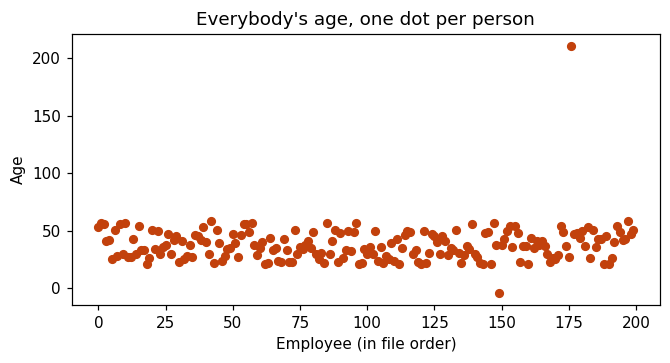
The session, as a run sheet

Everything in order. Seven steps, every click, every board item, every number it should produce. If you lose your place, this page alone is enough.

10 – 8

Open it again, and the three promises

Land this: open employees.xlsx, not the CSV. Make a backup copy first and tell them to. Today has three buttons that delete things, and Ctrl+Z is the only safety rule they need.

Name Box   M1:N202    then Delete     yesterday's two practice columns
           leave P and Q alone                the summary block. we need it.

View  ->  Freeze Panes  ->  Freeze Top Row   30 seconds, saves the session
Name the three promises out loud. One — 201 rows, 200 employees, somebody is in there twice. Two — the −4 and the 210 turn red by themselves. Three — yesterday you were told Aditya Gupta was on row 152, today you find him. All three get paid back today.
Yesterday was looking. Today is touching. Every formula yesterday went into an empty cell. Everything today reaches into the data itself.
28 – 28

Sort — and the one-column sort. The biggest moment of the module.

Land this: three correct sorts first so they trust it, then break it. Do not warn them — present the broken one as a quicker, more convenient way to do the same job, because that is exactly how it looks.

Sort one — age, smallest first

Name Box  A1:L202      then  Data -> Sort
          [x] My data has headers
          Sort by  age     Order  Smallest to Largest
row 2 Aditya Gupta HR -4 row 201 Lakshmi Singh 210 row 202 Sanjay Menon (empty)
Ask: “who is on row two?” — the MIN from yesterday, with a name. Then “the 210 is the biggest age, so why is it not on the last row?” — Excel always puts blanks last, in both directions. Sanjay Menon is the missing age they proved existed yesterday, and the sort just named him.

Sort two — salary, largest first

 2   Lakshmi Kumar   Tech        5200000
 3   Kavya Gupta     Tech         116894     44x smaller
 4   Suresh Patel    Marketing    106170
 5   Lakshmi Patel   Tech         106139
 6   Kavya Rao       Tech         105413
 7   Suresh Menon    Tech         103915
...
198  Karthik Patel   HR            36711
199  Pooja Iyer      HR            35118
200  Aditya Gupta    HR            33085
201  Manoj Kumar                 (empty)    blanks last again
202  Pooja Rao                   (empty)
The shape of an outlier when you sort: a big number, a cliff, then a gentle slope. And the lowest paid person in the file is Aditya Gupta — the same row that says he is −4 years old. Two impossible things on one row is almost never a coincidence.

One sentence on departments and no more: the five highest after the outlier are four Tech and one Marketing; the three lowest are all HR. Five rows out of two hundred — a hint, not a finding. Pivot tables are session five.
Ctrl+Z twice. Check A2 says 1001 on every laptop. There is no unsort button. The other way home is sorting by emp_id, because the ids run 1001, 1002, 1003 down the rows. That is what an id column is for — and it is used in step 4.

Now break it — click the letter K, then Sort

Sort Warning

Excel found data next to your selection. Since you have not
selected this data, it will not be sorted.

(o) Expand the selection                 already chosen. the right answer.
( ) Continue with the current selection   <-- pick this, on purpose
 2  1001  Rahul Sharma    HR     53   33085    was 47764
 3  1002  Karthik Kumar   Mktg   57   35118
 4  1003  Karthik Reddy   Tech   56   36711

columns A to J and L never moved. K is now sorted on its own.
Say nothing for ten seconds. Then: “Rahul Sharma's salary was 47,764. What is it now, and whose is it?” — 33,085, which is Aditya Gupta's. Everyone in the file is being paid somebody else's money.
                    before          after

 total salary    19034033        19034033
 average salary  95648.41        95648.41
 middle salary      68647           68647
 youngest              -4              -4
 oldest               210             210
Nothing changed. Not one number. The same 199 salaries are in the same column — only the order moved, and a total does not care about order. So every statistic you know how to calculate is identical on a file where every row is a lie. Nothing red, nothing said error, and no formula will ever warn you.

Ctrl+Z now. Check row 2 says Rahul Sharma, 47,764. And say it plainly: sorting by emp_id would NOT have saved you here. The rows were not reordered, they were torn apart, and nothing in the file records which salary belonged to whom. Undo, or reopen without saving. There is no third option.
On the board for the rest of the module: SELECT THE WHOLE TABLE, THEN SORT. A1:L202, every time. If Excel offers to expand the selection, say yes.
328 – 42

Filter — and they collect promise three

Land this: a filter hides rows and there are two proofs on one screen. Then stop talking and let them find Aditya Gupta.

A1:L202   then  Data -> Filter      or Ctrl + Shift + L

click the  department  arrow  ->  four values only: HR, Marketing, Sales, Tech
untick Select All, tick HR, OK
The dropdown is the fastest spell-check in Excel. Excel built that list by reading 201 rows. One row saying tech in small letters would make it five items. This file has four, and four is correct — that is unusual.
row numbers go blue and skip: 2, 8, 15, ... status bar: 45 of 201 records found column Q: rows STILL SAYS 201
Ask: “45 rows on screen, Q1 says 201. Did Excel delete the other 156?” No — two proofs at once. The row numbers skip, and a formula does not care what you are looking at. A filter is a pair of glasses, not a knife.
department   Sales 65      Tech 49       HR 45          Marketing 42   = 201
city         Chennai 61    Bangalore 54  Hyderabad 48   Pune 38        = 201
education    Bachelors 77  Masters 65    Diploma 59                    = 201
rating       Poor 58       Good 51       Excellent 49   Average 43     = 201
They read the numbers off their own status bar, not off you. All four columns add up to 201, so nothing is missing from any of them. That is value_counts with a mouse. Then the honest warning: in twenty minutes one of those numbers goes down by one, because they are counting rows, not people.

Clear (funnel with a red cross) shows all rows and keeps the arrows. Data → Filter again removes the arrows. Two different things.

Their turn — four clicks, and stop talking

age arrow  ->  Number Filters  ->  Less Than...  ->  0  ->  OK
row 152 Aditya Gupta HR -4 33085 1 of 201 records found then Greater Than 100: row 179 Lakshmi Singh 210 1 of 201 records found
Promise three, paid. Ask why the row number still says 152 — because a filter hides, it does not move. That is the row you were handed yesterday, and you found it yourself.

Then the line that matters: nobody will ever pay you to work out an average. They will pay you to notice that a row cannot possibly be true.
CLEAR THE FILTER BEFORE YOU GO ON. Data → Clear, and walk the room. A filter left on will confuse both of the next two blocks.

If asked about two filters at once: age Less Than 0 plus department HR is still 1 of 201. Switch to Tech and it is 0 of 201 and the sheet looks empty — show that once on purpose so it does not frighten them at home.
442 – 58

Red cells, then the extra row goes

Land this: colour first, delete second. Looking before deleting is the habit this block exists to build.

Name Box  I2:I202
Home -> Conditional Formatting -> Highlight Cells Rules -> Less Than     ->  0
                                                        -> Greater Than  ->  100

I152    -4     Aditya Gupta
I179   210     Lakshmi Singh
everything else - not coloured
Ask: “two red cells. How many of the other 199 ages did you look at?” None. You described what a wrong answer looks like and the sheet found them. Promise two, paid.

Then prove it is a rule: type 29 over the −4 and the red disappears on its own. Ctrl+Z and it comes back. Same idea as yesterday — rules that re-run themselves — applied to colour. Rules live under Manage Rules.

Then the duplicate — colour it before deleting it

Name Box  A2:A202
Conditional Formatting -> Highlight Cells Rules -> Duplicate Values

A22     1021    Anita Patel
A202    1021    Anita Patel
Ask: “where have you seen row 202 before?” — yesterday, Ctrl+↓ landed on A202, which is how they learned the file had 201 rows. The extra row is the last row of the file and they have been standing on it since day 1.

180 rows apart, so bring them together

A1:L202  ->  Data -> Sort -> emp_id, Smallest to Largest

 22   1021   2   Anita Patel   ...     all twelve columns
 23   1021   2   Anita Patel   ...     identical
Not two people with the same name — one row written into the file twice. A job ran twice, or somebody appended the same record again. Happens constantly.

And the red followed them through the sort — the colour was never attached to an address, it is attached to a value.

Now delete it — read the ticks out loud

A1:L202  ->  Data -> Remove Duplicates
             [x] My data has headers,  all twelve columns ticked
1 duplicate values found and removed; 200 unique values remain.
The ticks decide what the word duplicate means. All twelve = only delete a row that matches on all twelve. Tick only name and you delete real people — 20 first names and 10 last names means 200 possible names for 201 people, so names must repeat.

Remove Duplicates keeps the FIRST one it meets and asks you nothing. Here both copies are identical so it does not matter — one day two rows for one customer will have different addresses, and then the row order decides. That is why you coloured them first.
ON THE BOARD, NEW NUMBER: the data is now rows 2 to 201. Two hundred people. Ctrl+↓ lands on A201. From here on the range is A1:L201. Say it out loud or you will correct ranges one laptop at a time for the rest of the session.
                      before   after

Q1    rows              201     200     one row gone
Q2    ages              200     199     she had an age
Q8    salaries          199     198     she had a salary
Q5    youngest           -4      -4     she was not the -4
Q6    oldest            210     210
Nobody retyped a formula. Second time they have watched the summary block correct itself, and the first time it was because of a row they deleted.

Then the honest part: those department counts from twenty minutes ago are now wrong by one. Clean first, count second, always. Every number anybody got from this file in twenty sessions was computed on 201 rows for 200 people — not badly wrong, slightly wrong, and nothing told anybody.
558 – 72

Every blank at once, then split the name column

Land this: yesterday's counts said how many were missing. Go To Special says where. Then Text to Columns — teach the Destination box before you touch anything.

Name Box  A1:L201       select the data FIRST. not Ctrl+A.

Ctrl + G  ->  [ Special ]  ->  (o) Blanks  ->  OK
or        Home -> Find & Select -> Go To Special
K9 salary Manoj Kumar K44 salary Pooja Rao I93 age Sanjay Menon
K9 is the empty cell they spotted in the first ten minutes of day 1, before anybody scrolled. And Sanjay Menon is the man the age sort pushed to the bottom forty minutes ago. Two different tools, same man. That is what it feels like when your checks agree.
All three still selected, so do one thing to all three: Home → Fill Colour → yellow. Three cells, one click, nothing changed. You changed what you see, not what is there.

Then refuse to fill them. With all three selected you could type a value and press Ctrl+Enter to fill all three. Do not. Zero in a salary says this person earns nothing. Zero in an age says they were born this year. Mark them, write down the three addresses, ask whoever owns the data.

Text to Columns — the danger before the demo

Name Box  C2:C201    ->  Data -> Text to Columns

Step 1   (o) Delimited                      Next
Step 2   [x] Space      watch the Data preview turn into two columns   Next
Step 3   Destination:  $S$2    <-- IT SAYS $C$2. CHANGE IT.   Finish
Leave the destination at $C$2 and you lose the department column. First names land in C, last names land in D, which is department. Two hundred departments overwritten, no warning, no prompt, no red. Ctrl+Z fixes it if you noticed, and silent damage is the kind you do not notice. Never split into a column that has something to its right.
        S            T
 1   first name   last name     type these two labels by hand
 2   Rahul        Sharma
 3   Karthik      Kumar
 4   Karthik      Reddy
 5   Lakshmi      Kumar

V1   =COUNTA(T2:T201)    ->  200    every row split. yesterday's check, new job.
Then the payoff. Data → Filter off on the main table first (a plain sheet allows one filter at a time), then put a filter on T and open the arrow: exactly ten surnames — Gupta, Iyer, Kumar, Menon, Nair, Patel, Rao, Reddy, Sharma, Singh. Twenty first names in S. You added no information. You changed the shape, and an impossible question became a dropdown.
Why it split so cleanly, and why you should not expect it again: all 200 names are exactly two words. A real file has Rahul Kumar Sharma, which makes three pieces and writes the third into column U. And a double space gives an empty middle column unless you tick Treat consecutive delimiters as one. Look at the step 2 preview every time. Flash Fill (Ctrl+E) gets one mention and no more — it guesses.
672 – 84

A mess we make on purpose — the cuttable block

Land this first: “I am about to type five rows that are not real. They are not in your file.” Say it twice. This file has no stray spaces and nothing spelled two ways — they proved it themselves when every dropdown added up to 201. If you are short of time, cut this block and give it to session 3.

         A                   B           C

 206      rahul sharma       tech        Bengaluru     space BEFORE the r
 207    PRIYA IYER           HR          bangalore
 208    Anita Patel          hr          Bangalore     space AFTER the l
 209    sanjay  menon        Tech        BLR           TWO spaces in the middle
 210    Kavya Rao            marketing   Bangalore     clean, on purpose
E206   =LEN(A206)             fill down   ->  13  10  12  13   9
F206   =PROPER(TRIM(A206))    fill down
G206   =LEN(F206)             fill down   ->  12  10  11  12   9

       A                   F                E    G
206     rahul sharma       Rahul Sharma     13   12
207   PRIYA IYER           Priya Iyer       10   10
208   Anita Patel          Anita Patel      12   11
209   sanjay  menon        Sanjay Menon     13   12
210   Kavya Rao            Kavya Rao         9    9
Ask about row 208: “five letters, a space, five letters is eleven. Why does Excel say twelve?” LEN is how you prove an invisible problem is real.

Then ask which two rows did not shrink — 207 and 210, because they had no stray spaces. TRIM leaves clean data completely alone, which is why it is safe on a whole column. And 209 shrank with no space at either end — that is TRIM squeezing the double space in the middle.
=PROPER(B206)   tech       ->  Tech       correct
=PROPER(B210)   marketing  ->  Marketing  correct
=PROPER(B207)   HR         ->  Hr         WRONG
=UPPER(B208)    hr         ->  HR
=LOWER(B209)    Tech       ->  tech
PROPER turns HR into Hr. It is doing exactly what it was told — it does not know HR is two initials and not a word. No function knows what your data means, which is a sentence they have heard in this course before. So no single function fixes that column, and that is what the next tool is for.

Find & Replace — select first, always

select C206:C210 FIRST     then  Ctrl + H

BLR        ->  Bangalore                       1 changed
Bengaluru  ->  Bangalore                       1 changed
bangalore  ->  Bangalore   [x] Match case      1 changed
Ask: “why did I select five cells first?” With nothing selected, Replace All runs on the whole sheet — every column, the summary block, the split name columns — and it replaces inside words unless you tick Match entire cell contents. Replace All is the only tool today that changes data you are not looking at.
The half people forget: TRIM and PROPER did not fix column A, they built a clean copy in F. Copy F, Paste Special → Values over A, then delete F. Paste normally and you paste the formulas, which then point at the column you are deleting → #REF! everywhere.
Then delete rows 206–210 and columns E, F, G, and say it again: those five rows were never in the file. Your file is clean, and the next file you are sent will not be.
784 – 90

Close

1.  SELECT THE WHOLE TABLE, THEN SORT. one column alone = every row
    is a lie, and every total on the sheet is still correct.
2.  a filter HIDES rows. the row numbers skip and COUNTA does not move.
3.  conditional formatting is a RULE, not a colour. it corrects itself.
4.  before you delete anything, LOOK at it. remove duplicates keeps
    the FIRST one and asks you nothing.
5.  a blank is still not a zero. sorting pushes blanks to the bottom
    both ways, and you still do not get to invent what belongs there.
Count the wins out loud: who is −4 and who is 210, who has no age and no salary and exactly which three cells, a row removed so 201 became 200, a name turned into two columns and a question asked that was impossible an hour ago — and a file broken so badly that no number on it could tell us. Yesterday the file told them numbers. Today it told them names.
Say what you skipped, so the gaps are yours and not theirs: sorting by two columns (Add Level), Custom List order, sort and filter by colour, Flash Fill, Advanced Filter, data validation. Mentioned, not taught, on purpose.
Set up session 3: today they read 45 off the status bar — it is not on the sheet, it does not update, and it took four clicks. COUNTIF puts all four department counts on the sheet at once and they fix themselves. That is value_counts. Then IF — the first time a cell makes a decision instead of a calculation. Bring the cleaned file: 200 rows, no duplicate, three yellow cells, two red ones.

Ask them these before they leave

Thirteen questions, in order, with the answer under each one. Numbers 1, 3 and 9 are the three that matter. Take each answer from a different person.

I selected only the salary column and sorted it. What did I just do to the file?
Slid one column past the other eleven. Every person now has somebody else's salary. Nothing was deleted and nothing is red — and the total, the average and the median are all exactly the same as before, because the same numbers are still in the same column.
So how do you get the file back after a one-column sort?
Ctrl+Z, straight away, or close the file without saving. Sorting by emp_id will not help — the rows were not reordered, they were torn apart, and nothing in the file records which salary belonged to which person.
Does a filter delete the rows it hides? Give me two proofs from your own screen.
No. One: the row numbers turn blue and skip — 2, 8, 15 — and the missing numbers are the rows still sitting there. Two: =COUNTA(C2:C201) still counts every name. A formula does not care what you are looking at.
Sort the whole table by age, smallest first. Which row is at the very bottom, and why is it not the 210?
The person with no age at all — Sanjay Menon. Excel always puts blank cells last, in both directions. The 210 is on the last row that has a number in it, one above him.
Excel showed me a box called Sort Warning. What are the two choices and which one do I want?
Expand the selection — which is already chosen and is the one you want — and Continue with the current selection, which sorts your one column on its own and wrecks the file. Read that box. Do not close it.
In the Remove Duplicates box, what did you tick, and what would happen if you ticked only name?
All twelve columns, so a row is only a duplicate if it matches on all twelve. Tick only name and Excel deletes anybody who shares a name with somebody above them. There are 20 first names and 10 last names in this file — 200 possible names for 201 people — so names must repeat, and you would delete real people.
Two rows are duplicates. Which one does Excel keep, and when would that matter?
It keeps the first one it meets and deletes the rest. It never asks. Here both copies were identical so it made no difference — but the day two rows for one customer have different addresses, the order your rows happen to be in decides which address survives. That is why you colour them and look first.
201 rows became 200 and three numbers in column Q changed. Which three, and how many formulas did you retype?
rows 201→200, ages 200→199, salaries 199→198. And none — they corrected themselves, because a spreadsheet is rules that are always running. MIN and MAX did not move, because Anita Patel was neither the −4 nor the 210.
Conditional formatting turned two cells red. What did it change in the data?
Nothing at all. It only added colour. It is a rule — “go red if you are less than zero” — and it re-checks itself. Type 29 over the −4 and the red disappears on its own, because the cell stopped passing the test.
Go To Special → Blanks selected three cells. Which three, and what should you type into them?
K9 and K44, two missing salaries, and I93, one missing age. And you type nothing. A zero in a salary says this person earns nothing; a zero in an age says they were born this year. Mark them yellow, write down the three addresses, and ask whoever owns the data.
Column C is name and column D is department. What happens if I run Text to Columns on C and leave the Destination box alone?
First names stay in C and last names are written straight into D. Two hundred departments gone, with no warning and no prompt. Change the destination to an empty column — never split into a column that has something to its right.
I split the names into S and T. How do I check all 200 rows worked without scrolling?
=COUNTA(T2:T201). It should say 200 — 200 people, 200 last names. If it says 197, three names did not split and you now know how many to go and find. Yesterday's check, doing a new job.
=LEN(A208) says 12 and the cell looks like it says Anita Patel, which is eleven characters. And then TRIM gave me a clean name in another column — why is the job not finished?
The twelfth character is a space at the end, which nobody can see. And the job is not finished because TRIM did not fix the original column — it built a clean copy somewhere else. You have to Copy it and Paste Special → Values over the original, then delete the helper. Paste normally and you paste the formulas, and the whole thing turns into #REF!.

Questions you will get

“Why can't I just sort the one column I care about?”

“Because a row is only one person for as long as the twelve values stay side by side. There is nothing inside the file holding them together — no link, no key, nothing. Sort one column and that column slides past the other eleven, and now Rahul Sharma is being paid Aditya Gupta's salary. And the worst part is that every total on the sheet is still correct, because the same numbers are still in the same column. Select the whole table, every time. If Excel offers to expand the selection, say yes.”

“I sorted and now I cannot get the original order back.”

“There is no unsort button, and that catches everybody once. Ctrl+Z works if you do it now. After that, the only way home is a column that was already in order — and this file has one. emp_id runs 1001, 1002, 1003 straight down the rows, so sorting by emp_id smallest to largest puts the file back the way it was written. That is what an id column is for. Nobody ever reports on it and it is the only thing that can save you.”

“Is a filter the same as deleting? Where did my hundred and fifty-six rows go?”

“They are still there, behind the ones you can see. Look at the row numbers down the left — they went blue and they skip. Every number that is missing is a row that is still in the file. And your summary block has not moved either, because a formula does not care what you are looking at. That is the test: if the formula changed, something was deleted. If it did not, something was hidden.”

“Should we put zero in the three blank cells, or the average?”

“Neither, and not yet. A zero in a salary cell says this person earns nothing, which is a completely different fact from we do not know what they earn, and you proved yesterday that it drags the average down permanently and nothing warns you. Putting the average in is worse in a quiet way — the number stops being wrong and starts being invented, and nobody reading the file later can tell the difference. Mark the three cells, write the three addresses down, and ask whoever owns the data. That is the professional answer and it is the answer in an interview too.”

“My Remove Duplicates said zero duplicates found.”

“Then somebody has already run it, or your selection did not include the whole table. Press Ctrl+Home, type A1:L202 into the Name Box, and try again. And if it says 0 and your file still ends at row 202, check the My data has headers box — with it unticked Excel treats row 1 as an employee, which does not change the answer here but does change what it tells you.”

“Can I undo Remove Duplicates?”

“Yes. Ctrl+Z brings the row straight back. That is not the thing to be nervous about. The thing to be nervous about is that it deleted a row without showing you which one, and it told you the count afterwards. If you had ticked the wrong boxes it would have deleted thirty rows just as quietly and still only told you a number. Colour them first, look at them, then press the button.”

“Where is Go To Special on my laptop? Ctrl+G does nothing.”

“Use the ribbon and you never have to care: Home → Find & Select → Go To Special, on the far right of the Home tab. That route is the same on Windows and on a Mac and in every version. F5 usually opens the same Go To box if you prefer a key. Do not spend two minutes on a keyboard shortcut — the button is always there.”

“Does Google Sheets have all of this?”

“Almost all of it, under slightly different names. Data → Sort range, Data → Create a filter, Data → Data cleanup → Remove duplicates, Format → Conditional formatting, Data → Split text to columns, and TRIM, PROPER, UPPER, LOWER and LEN are identical. The one thing Sheets does not have is Go To Special. You find blanks there a different way — put a filter on the column and tick only (Blanks) in the dropdown, which gives you the same three rows. Same job, different door.”

“If our file is already clean, why are we learning TRIM?”

“Two honest reasons. One, it gets asked in interviews — TRIM and PROPER are two of the most asked text functions there are, and ‘our file did not need it’ is not an answer you can give in a room. Two, this file is the exception. A file with no stray spaces and nothing spelled two ways is rare, and the reason you could not find any dirt today is that I went and checked, not that dirt is unusual. That is why I typed those five rows in front of you instead of pretending they were yours.”

Excel day 3 · merged class · 90 minutes · full script · the session that pays for the module

Formulas That
Ask a Question

Every formula so far has worked on all the rows. Today one of them asks a question first and only counts the rows that answer yes — and the first thing it rebuilds is value_counts().

64in Sales, from a formula
198not 200. the blanks again
1,89,753a correct, useless average
2conditions, one answer

The whole day in one sentence

Up to now AVERAGE(K2:K201) has meant average everything. Today it becomes AVERAGEIF — average only the rows where something is true. That one change is the difference between a sheet that reports and a sheet that answers.

And it hands you the best mistake in the module. AVERAGEIF on the Tech department returns 1,89,753. The formula is perfectly correct. The answer is useless, and they already know exactly why.

Before you walk in

  1. Open the cleaned file from Thursday, not the original. It has 200 rows, so the data now runs 2 to 201, not 202. Every range on this page says 201. If somebody is on the old file their numbers will be one out all session and neither of you will know why.
  2. The summary block in P and Q should already read 200 / 199 / 198. It corrected itself when the duplicate went. Thirty seconds confirming that at the start saves twenty minutes of mismatched answers later.
  3. Teach IF before anything with the word COUNT in it. They need to see a condition on its own, on one row, before they see one buried inside a counting formula. The order matters more than it looks.
  4. Let the Tech average happen and do not warn them. AVERAGEIF on Tech returns 1,89,753 and it is the moment the session is built around. If you flag it in advance you have given away the answer and it becomes a demonstration instead of a discovery.
  5. Say the quotes rule once, early, and then point at it all day. Text in a condition needs quotes. A comparison needs quotes. A plain number does not. They will get this wrong four times before it sticks, and every one of those is a 0, not an error.
  6. COUNTIFS is the same function with more commas. Do not teach it as a new idea. Teach it as “the one you already know, asked twice”, and it costs you ten minutes instead of thirty.

Understand this yourself first

Three things: what a condition actually is to Excel, the quoting rule that causes every silent failure, and why the Tech average comes out the way it does. Part three is the session, so read it properly.

Part one · a condition is a question with a yes-or-no answer
Excel has been doing this quietly since day one

Type =K2>50000 into any empty cell. It returns TRUE or FALSE. Nothing else. That is a condition, and it is the whole building block.

Everything today is that one idea wrapped in something useful. IF picks between two answers depending on it. COUNTIF counts the rows where it came out TRUE. SUMIF adds up those rows. AVERAGEIF averages them.

The four shapes
IF
IF(test, what if yes, what if no) — works on one row at a time and returns a value.
COUNTIF
COUNTIF(where to look, what to look for) — works on a whole range and returns one number.
SUMIF
SUMIF(where to test, what to look for, what to add) — three parts, and the third is a different column from the first.
the trap
IF takes the test first. SUMIF takes the range first and the test second. The order is genuinely inconsistent and they will swap them.
Part two · the quotes, which cause every silent failure today
The rule, in three lines
COUNTIF(D2:D201, "Sales") text -> quotes COUNTIF(K2:K201, ">50000") a comparison -> quotes, the > INSIDE them COUNTIF(H2:H201, 10) a plain number -> no quotes needed

The one that catches everybody is the middle line. The greater-than sign goes inside the quotes, along with the number. ">50000" is a single piece of text that Excel reads as an instruction.

Pointing at a cell instead of typing the number

To compare against a cell — the average sitting in Q10, say — you cannot write ">Q10", because that is the literal text “greater than Q10”. You have to glue the two together with &:

=COUNTIF(K2:K201, ">"&Q10) correct =COUNTIF(K2:K201, ">Q10") gives 0, and no error
Both of those run. One is right and one returns zero. There is no red, no warning, no #VALUE!. This is the same shape of failure as the missing dollar sign on day 1 — a wrong answer that looks like a real answer, and it is worth saying out loud that this is now the second time.
What & actually does

It joins two things into one piece of text. ">"&Q10 becomes ">95829.66" before COUNTIF ever sees it. They do not need the theory, but they do need to know that the & is not decoration.

Part three · why the Tech average comes out at 1,89,753
The number, and why it is not a bug

=AVERAGEIF(D2:D201, "Tech", K2:K201) returns 1,89,753.54. Tech does not pay nineteen lakh. Nobody in Tech earns nineteen lakh.

There are 48 salaries in Tech. Forty-seven of them are between 56,727 and 1,16,894. The forty-eighth is 52,00,000 — Lakshmi Kumar on row 5, the same person they have been tripping over since statistics.

AVERAGEIF Tech, all 48 salaries 1,89,753.54 the same 47, without her 83,152.55
Why this is the most valuable thing on the page

Every previous mistake in this module was a mistake — a missing dollar sign, a one-column sort, a blank treated as a zero. You could fix the formula and the answer came right.

This one is different. The formula is correct. The range is correct, the condition is correct, the arithmetic is correct. And the answer is still useless, because one row in the data is nothing like the others.

A correct formula is not the same thing as a correct answer.

No software will ever tell you the difference. They first met this on day 1, when a perfectly correct average described a company containing somebody aged minus four. Today they meet it again in a formula they wrote themselves, and that is why the module keeps coming back to this file.
What to say when somebody asks what to do about it

Not “delete the row”. The honest answer is the one from statistics: report the median alongside the average, or report the average with the outlier named. The fix is in how you present the number, not in quietly changing the data.

There is no MEDIANIF in Excel. It genuinely does not exist. If somebody asks for it, say so plainly — it needs an array formula, and the clean way to get a median per department is a pivot table, which is session five. It is a good question and it deserves a straight answer rather than a workaround.

The session, minute by minute

Everything in a speech box is meant to be said more or less as written. Everything in a grey box is a direction for you, not words to say.

0 – 10

Check the file, and the question for today

Thirty seconds confirming the row count, then a question they can only answer by hand.

Everybody opens employees.xlsx — the cleaned one from Thursday, not the original. Check this before anything else. If somebody is on the old file their numbers will be one out all session.

Open Thursday's file. Look at your summary block in P and Q, and tell me the first three numbers.

rows 200 ages 199 salaries 198

Two hundred. Not two hundred and one, because the duplicate is gone. So our data now runs from row 2 to row 201.

Every formula today ends in 201. Write that on the corner of your screen.

“How many people are in Sales? You already know two ways to find out.”
Filter the department column and read the status bar. Or sort by department and count. Both work, and both are something you do with your hands. Let them say it, then ask the follow-up: “now how do you put that number in a cell, so it stays?” Nobody can.

Both of those work. And both of them are you, doing something, and then reading a number off the screen.

If the file changes tomorrow, you have to do it again. And you cannot put it in a report, because it is not in a cell.

Today every formula learns to ask a question first.

10 – 28

IF — the first formula that decides

A condition on one row, on its own, before it goes anywhere near a count.

Start with the condition completely bare. No IF around it yet — they need to see what a condition returns before they see what it is for.

Go to M1 and type a label: above or below. Then in M2, before we do anything clever, type this.

M2 — just the question, nothing around it
=K2>50000
FALSE

FALSE. Rahul Sharma earns 47,764, which is not more than fifty thousand.

That is a condition. You ask Excel a question that can only be answered yes or no, and it answers TRUE or FALSE. Nothing else.

Useful, and ugly. Nobody wants a report full of the word FALSE. So we wrap it in something that turns it into a real answer.

M2 again, this time wrapped in IF
=IF(K2>50000, "Above 50k", "Below 50k")
Below 50k
Three parts, on the board, and leave it up all session
  =IF(  the question  ,  what to put if YES  ,  what to put if NO  )

        K2>50000          "Above 50k"           "Below 50k"

  the question is the SAME condition you just typed on its own.
  IF only chooses between two answers based on it.

Three parts, separated by commas. The question, then what to put if the answer is yes, then what to put if it is no.

And notice the quotes around the two answers. They are text, so they need quotes. Keep looking at those quotes today — they are going to cause you trouble in about twenty minutes.

Now make it useful. Not a made-up fifty thousand, but a comparison against the real average sitting in the summary block. This is where the dollar sign comes back.

Fifty thousand is a number I invented. Let us compare against something real.

Your average salary is in Q10. Look at it — 95,829.66. That moved on Thursday when the duplicate went, and the formula corrected itself without being asked.

Now, every row has its own salary. But all two hundred rows share one average.

“So what do I need on the Q10, before I fill this down?”
The dollar signs. $Q$10. Second session in a row — and if somebody answers this without being prompted, that is the day 1 lesson landing.
M2, properly, then fill down to row 201
=IF(K2>$Q$10, "Above average", "Below average")
M2 Below average M3 Below average M4 Below average M5 Above average <-- the 52 lakh M6 Below average M7 Below average

Scroll down it. It is almost entirely Below average.

You saw this on day 1, when we drew the gap column and nearly every number came out negative. It is the same fact wearing different clothes.

In about half an hour you will be able to count these two words exactly, with one formula, and we will find out just how lopsided this company is.

Expect the blank rows, and answer it now rather than later. Row 9 is Manoj Kumar, who has no salary. His cell says Below average, because an empty cell in a comparison behaves like zero and zero is below the average. It is wrong, and nothing marks it as wrong. Third time this file has done that to them.
28 – 40

IFS — when two answers are not enough

Three bands instead of two. Twelve minutes, and resist going further.

IF gives you two answers. Real questions often have three.

Take experience, column H. Say under five years is Junior, five to nine is Mid, ten and above is Senior. That is three answers, and IF only has room for two.

N1 a label, then N2 — conditions in order, each with its answer after it
=IFS(H2>=10, "Senior", H2>=5, "Mid", H2>=0, "Junior")
N2 Junior (4 years) N3 Senior (13 years) N4 Junior (1 year) N5 Senior (11 years) N6 Mid (9 years) N7 Junior (3 years)

No nesting, no extra brackets. Just pairs: condition, answer, condition, answer, for as many as you need.

And the order matters more than anything else in this formula. IFS checks them top to bottom and stops at the first one that is true.

“Thirteen years. Is that greater than or equal to ten? Yes. Is it also greater than or equal to five?”
Also yes — and also greater than zero. All three conditions are true for that person. They get Senior because that one was written first and IFS stopped there. Make somebody say this out loud; it is the only idea in the block.
What happens if you write them the other way round
=IFS(H2>=0, "Junior", H2>=5, "Mid", H2>=10, "Senior")

   everyone is Junior. every single row.
   the first condition is true for everybody, so IFS never
   looks at the other two. no error. no warning.
Write the narrowest condition first.

Widest-first is not an error and does not look like one — it quietly returns the same answer for every row. If a column of 200 rows all says the same thing, that is the first thing to suspect.
IFS needs Excel 2019 or Microsoft 365. On an older copy it simply does not exist and you get #NAME?. The old way is nesting — =IF(H2>=10,"Senior",IF(H2>=5,"Mid","Junior")). Show it once, say it is what you will see in older files, and move on. Do not make them write it.
40 – 58

COUNTIF — and value_counts comes back

The question from minute five, answered in a cell. Then the blanks, one more time.

Back to the question I asked at the start. How many people are in Sales?

Not filter it and read a number off the bottom of the screen. Put the answer in a cell, so it is still there tomorrow and still right if the file changes.

Go to V1. Labels in V, formulas in W.
V1   Sales        W1   =COUNTIF(D2:D201, "Sales")
64

Two parts. Where to look — the whole department column. And what to look for — the word Sales, in quotes, because it is text.

Now do the other three.

V2 down to V4, same shape
V2   Tech         W2   =COUNTIF(D2:D201, "Tech")
V3   HR           W3   =COUNTIF(D2:D201, "HR")
V4   Marketing    W4   =COUNTIF(D2:D201, "Marketing")
V5   check        W5   =SUM(W1:W4)
Sales 64 Tech 49 HR 45 Marketing 42 check 200
“Why did I add that last row?”
Because 200 is the number of rows in the file. If the four counts add up to 200, every single person has been counted exactly once — no department was missed, nothing was spelled two different ways. If it came to 198, two people are in a department you have not listed. Teach the check, not just the count.

Four numbers, and they add to two hundred. Which means nothing is missing and nothing is double-counted.

Some of you have seen this exact output before. In pandas it was value_counts(), one line. Here it is four formulas and a check — and unlike value_counts, these four cells update themselves the moment somebody changes a department.

Now the numeric version, and the blank trap. Do not rush this — it is the third time the blanks have bitten them and the first time they can prove it.

Text is one thing. Now count a comparison — how many people earn more than the average?

And here is where the quotes get strange, so watch carefully. The greater-than sign goes inside the quotes.

W7 and W8 — note the ampersand
V7   above avg    W7   =COUNTIF(K2:K201, ">"&$Q$10)
V8   below avg    W8   =COUNTIF(K2:K201, "<"&$Q$10)
V9   check        W9   =W7+W8
above avg 12 below avg 186 check 198
“Twelve and one eighty-six. That is one hundred and ninety-eight. We have two hundred rows. Where are the other two?”
The two blank salaries. Manoj Kumar and Pooja Rao. A blank is not above the average and it is not below it — COUNTIF with a number test skips it entirely. Wait for them to find this. It is the third different way this file has taught them the same lesson.
Twelve people out of 198 earn more than the average salary of this company.

That is six per cent. Ninety-four per cent earn less than average. You told them that number on day 1 and they had to take your word for it — now they have counted it themselves, in two cells.

And look at what the check row did for us again. 198, not 200. The formula did not warn us — we caught it because we added the two numbers up and knew what the answer should be.

That is the habit. Every time you break a column into groups, add the groups back up.

The failure to show them, in a spare cell, so they recognise it later. Type =COUNTIF(K2:K201,">$Q$10") — with the Q10 inside the quotes and no ampersand. It returns 0. No error, no red, no warning. It is looking for salaries greater than the literal text “$Q$10”, and nothing matches. Second time this module a wrong answer has looked exactly like a real one.
58 – 74

SUMIF and AVERAGEIF — the answer that is wrong

Three columns instead of two, then the number the whole session is built around.

COUNTIF counts the rows that match. SUMIF adds up a number for those rows instead.

And it needs one more part, because the column you test and the column you add are not the same column. You test department and you add salary.

The three parts — put this on the board
  =SUMIF(  where to TEST  ,  what to look for  ,  what to ADD  )

           D2:D201            "Sales"             K2:K201
           department                             salary

  COUNTIF has two parts. SUMIF has three.
  the third one is the column you actually want the total of.
V11 down, total salary by department
W11   =SUMIF(D2:D201, "Sales",     K2:K201)
W12   =SUMIF(D2:D201, "Tech",      K2:K201)
W13   =SUMIF(D2:D201, "HR",        K2:K201)
W14   =SUMIF(D2:D201, "Marketing", K2:K201)
Sales 4264991 Tech 9108170 HR 2495026 Marketing 3106086

Tech is paying more than twice what Sales pays. But Tech only has 49 people and Sales has 64.

So totals are not comparable. We need the average per department. Same shape, one word different.

This is the moment. Let them type all four and read the output themselves. Say nothing.
V16 down — AVERAGEIF, same three parts
W16   =AVERAGEIF(D2:D201, "Sales",     K2:K201)
W17   =AVERAGEIF(D2:D201, "Tech",      K2:K201)
W18   =AVERAGEIF(D2:D201, "HR",        K2:K201)
W19   =AVERAGEIF(D2:D201, "Marketing", K2:K201)
Sales 66640.48 Tech 189753.54 HR 56705.14 Marketing 73954.43
Let them look at it. Then: “does the Tech number look right to you?”
No. Nearly nineteen lakh average, against about sixty to seventy thousand everywhere else. Somebody will say the formula is wrong. It is not. Let them check it against the other three — same formula, one word different, and those three are fine.

One lakh eighty-nine thousand. Tech does not pay that. Nobody in Tech earns that.

And the formula is right. Same formula as the other three. Same range, same column, correct arithmetic.

So who is doing this?

Wait. Do not answer it.
Somebody will get there: Lakshmi Kumar, row 5, Tech, 52,00,000. The same person from statistics, from the visualisation session, and from day 1 of this module. Let the room find her.
Prove it — take her out and run it again
AVERAGEIF Tech, all 48 salaries         189753.54
the same 47 people, without her          83152.55

one row in 200 moved the department average
by more than a lakh.
A correct formula is not the same thing as a correct answer.

Everything that has gone wrong in this module so far was a mistake — a missing dollar sign, a one-column sort, a blank read as a zero. You fixed the formula and the answer came right.

This one you cannot fix by fixing the formula. The formula is already right. The data has somebody in it who is nothing like the others, and no software on earth will tell you that.

So what do you actually do? You do not quietly delete her — she is a real employee and that is real money.

You report the median next to the average, which is exactly what you learned to do in statistics. Or you report the average and say out loud that one person is carrying it.

The fix is in how you present the number. Not in changing the data.

Expect “so is there a MEDIANIF?” and answer it straight. No. It does not exist in Excel. It is a fair question and the honest answer is that getting a median per department properly needs a pivot table, which is session five. Do not improvise an array formula at the board.
74 – 84

Two conditions at once — just add an S

Not a new idea. The same function, asked twice. Ten minutes.

Last thing, and it is the easiest of the day. A real question is rarely about one thing.

Not “how many in Sales”, but “how many in Sales have been here ten years or more”. Two conditions, one answer.

Add an S to the end of the function name and keep adding pairs.

The shape — and watch where the answer column moved
  =COUNTIFS(  range1, test1,  range2, test2  )

  =SUMIFS(  what to ADD  ,  range1, test1,  range2, test2  )
            ^^^^^^^^^^^
            in SUMIFS the thing you add comes FIRST.
            in SUMIF it came LAST. yes, really.
Try it
=COUNTIFS(D2:D201, "Sales", H2:H201, ">=10")
32

Thirty-two people in Sales with ten years or more. Half the department.

And the conditions are joined by AND, never OR. A row is counted only if it passes every test you listed.

Now the grid. This is the payoff for the whole session, and it previews the pivot table in session five without naming it yet.

Now watch what two conditions let you build. Set up a small grid — departments down the side, ratings across the top.

One formula, filled across and down. Note which half is locked.
=COUNTIFS($D$2:$D$201, $V23, $G$2:$G$201, W$22)

   $D$2:$D$201   the department column, locked completely
   $V23          the department name - column locked, row free
   $G$2:$G$201   the rating column, locked completely
   W$22          the rating name - row locked, column free
Poor Average Good Excellent total Sales 17 14 19 14 64 Tech 15 8 13 13 49 HR 12 9 11 13 45 Marketing 14 11 8 9 42 total 58 42 51 49 200
“Add the row totals. Now add the column totals. What do you get both times?”
200 both ways. Sixteen cells, one formula, and every single person counted exactly once. Same check as the department counts earlier, now in two directions.
The half-locks are the hard part and you said you would skip them on day 1. This is why they exist. $V23 keeps the department as you fill across; W$22 keeps the rating as you fill down. If anybody is stuck, let them write sixteen separate formulas — the grid is the point, not the shortcut. Fix it one to one while the rest move on.

Sixteen numbers, from one formula, and they add up correctly in both directions.

Hold on to this. In session five there is a tool that builds this entire grid by dragging two words, with no formula at all. You will appreciate it a great deal more having built it by hand first.

84 – 90

Close

The five lines. If everything else goes, keep these.
1.  a CONDITION is a question with a yes/no answer.
    =K2>50000 on its own returns TRUE or FALSE.
    everything today is that, wrapped in something useful.

2.  IF decides for ONE ROW.    COUNTIF / SUMIF / AVERAGEIF
    work on a WHOLE RANGE and give back one number.

3.  the quotes:
      "Sales"        text          -> quotes
      ">50000"       a comparison  -> quotes, > INSIDE
      ">"&$Q$10     vs a cell     -> join with &
    get this wrong and you get 0. not an error. ZERO.

4.  IFS stops at the FIRST condition that is true.
    narrowest first. widest first = every row the same answer.

5.  ALWAYS ADD THE GROUPS BACK UP.
    64+49+45+42 = 200   correct
    12+186      = 198   the two blank salaries, again

And the one that is not about Excel at all.

AVERAGEIF on Tech gave us one lakh eighty-nine thousand, and the formula was perfect.

You can write a formula correctly, point it at the right column, and still get an answer that would be a lie if you put it in a report. Excel will never tell you. Pandas never told you either. That part stays your job for the rest of your career.

Tuesday is the one every interview asks about. You have two sheets — a list of employees and a list of departments — and you need to pull information from one into the other.

That is VLOOKUP. It is the single most-asked Excel question for a fresher analyst, and it breaks in three specific ways that I am going to make happen on purpose.

The session, as a run sheet

Everything in order. Seven steps, every formula, every number it should produce. If you lose your place, this page alone is enough.

10 – 10

Check the file, and the question

Land this: everybody on Thursday's cleaned file. 200 rows, so data runs 2 to 201. Every range today ends in 201.

rows 200 | ages 199 | salaries 198
Ask: “how many people are in Sales?” — they say filter, or sort and count. Then the follow-up: “now put that number in a cell so it is still there tomorrow.” Nobody can. That is the session.
210 – 28

IF — the first formula that decides

Land this: show the condition bare before wrapping it. They need to see TRUE/FALSE on its own.

M2   =K2>50000                                          FALSE
M2   =IF(K2>50000, "Above 50k", "Below 50k")            Below 50k
M2   =IF(K2>$Q$10, "Above average", "Below average")   fill to 201
Three parts: the question, what if yes, what if no. Quotes on the text answers.

Ask before filling down: “what does Q10 need?” — the dollar signs. Every row has its own salary; all 200 share one average. Second session in a row.
Expect: row 9, Manoj Kumar, no salary, says Below average. Empty behaves like zero. Wrong, and nothing marks it wrong. Third time this file has done that.
328 – 40

IFS — three bands

N2   =IFS(H2>=10, "Senior", H2>=5, "Mid", H2>=0, "Junior")

     Senior 79 | Mid 65 | Junior 56
Ask: “13 years — is it >=10? yes. also >=5? also yes.” All three are true. They get Senior because it was written first and IFS stops at the first true one.

Write the narrowest condition first. Widest first and every row says Junior — no error, no warning.
If somebody gets #NAME? they are on Excel 2016 or older. Show the nested version once, do not make them write it.
440 – 58

COUNTIF, and the blanks again

W1   =COUNTIF(D2:D201, "Sales")          64
W2   =COUNTIF(D2:D201, "Tech")           49
W3   =COUNTIF(D2:D201, "HR")             45
W4   =COUNTIF(D2:D201, "Marketing")      42
W5   =SUM(W1:W4)                       200  <-- the check
Ask why the check row exists: four counts adding to 200 proves everybody was counted once. 198 would mean two people are in a department you did not list.

This is value_counts() — except these four cells update themselves.
W7   =COUNTIF(K2:K201, ">"&$Q$10)       12
W8   =COUNTIF(K2:K201, "<"&$Q$10)      186
W9   =W7+W8                            198  <-- not 200
Ask: “where are the other two?” — the two blank salaries. A blank is neither above nor below; COUNTIF skips it.

12 of 198 earn above average. Ninety-four per cent earn below it — you told them that on day 1 and now they have counted it.
Show the failure: =COUNTIF(K2:K201,">$Q$10") with Q10 inside the quotes returns 0. No error. Second time a wrong answer has looked like a real one.
558 – 74

SUMIF, AVERAGEIF — and the wrong answer

Land this: SUMIF has three parts — test range, what to look for, what to add. Then let the Tech average happen. Do not warn them.

=SUMIF(D2:D201, "Sales", K2:K201)       4264991
=SUMIF(D2:D201, "Tech", K2:K201)        9108170
=SUMIF(D2:D201, "HR", K2:K201)          2495026
=SUMIF(D2:D201, "Marketing", K2:K201)   3106086

=AVERAGEIF(D2:D201, "Sales", K2:K201)     66640.48
=AVERAGEIF(D2:D201, "Tech", K2:K201)     189753.54
=AVERAGEIF(D2:D201, "HR", K2:K201)        56705.14
=AVERAGEIF(D2:D201, "Marketing", K2:K201) 73954.43
Ask: “does Tech look right?” Somebody says the formula is broken. It is not — same formula as the other three.

Wait for them to name her: Lakshmi Kumar, row 5, Tech, 52,00,000. Same person from statistics, from visualisation, from day 1.

Without her: 83,152.55 across 47 people. One row moved a department average by over a lakh.
The line: a correct formula is not the same thing as a correct answer. Every earlier error was a mistake you could fix. This one you cannot fix by fixing the formula.

What to do: report the median beside the average, or name the outlier. Not delete the row.
Expect “is there a MEDIANIF?” — no, it does not exist. Median per department needs a pivot table, session five. Do not improvise at the board.
674 – 84

Two conditions — add an S

=COUNTIFS(D2:D201, "Sales", H2:H201, ">=10")        32

  in SUMIFS the column you ADD comes FIRST.
  in SUMIF it came LAST. yes, really.
Conditions are joined by AND, never OR. A row counts only if it passes every test.

Then the grid — one formula, filled both ways

=COUNTIFS($D$2:$D$201, $V23, $G$2:$G$201, W$22)

             Poor  Average  Good  Excellent   total
Sales          17       14    19         14      64
Tech           15        8    13         13      49
HR             12        9    11         13      45
Marketing      14       11     8          9      42
total          58       42    51         49     200
Add it both ways — 200 each time. Sixteen cells, one formula, everybody counted once.

The half-locks are why you skipped them on day 1. $V23 holds as you fill across, W$22 holds as you fill down. Anybody stuck writes sixteen formulas — the grid is the point.
Tease session five: a tool builds this whole grid by dragging two words. They will appreciate it having built it by hand.
784 – 90

Close

1.  a CONDITION is a question with a yes/no answer
2.  IF = one row.  COUNTIF/SUMIF/AVERAGEIF = a whole range
3.  "Sales" / ">50000" / ">"&$Q$10   - wrong quotes = 0, not an error
4.  IFS stops at the FIRST true condition - narrowest first
5.  ALWAYS ADD THE GROUPS BACK UP   64+49+45+42=200   12+186=198
The line that is not about Excel: AVERAGEIF gave 1,89,753 and the formula was perfect. You can write a formula correctly and still get an answer that would be a lie in a report. Excel will not tell you. Pandas never did either.
Set up Tuesday: two sheets, and you need to pull information from one into the other. VLOOKUP — the single most-asked Excel question for a fresher, and it breaks in three ways we will cause on purpose.

Ask them these before they leave

Thirteen questions, in order, with the answer under each one. Numbers 5, 9 and 12 are the three that matter. Take each answer from a different person.

What does =K2>50000 return on its own, with no IF around it?
TRUE or FALSE. Nothing else. That is a condition, and everything today is that one thing wrapped in something useful.
What are the three parts of an IF?
The question, what to put if yes, what to put if no — separated by commas. Text answers need quotes.
What is the difference between IF and COUNTIF?
IF works on one row and gives back a value for that row. COUNTIF works on a whole range and gives back one number for all of it.
Why did =IF(K2>Q10, ...) go wrong when you filled it down, and what fixed it?
Q10 moved down with the formula, so row 3 compared against Q11. Dollar signs — $Q$10. Every row has its own salary; all 200 rows share one average.
Write the condition for “more than fifty thousand” inside a COUNTIF. Where do the quotes go?
">50000" — the greater-than sign goes inside the quotes, together with the number. It is one piece of text that Excel reads as an instruction.
Why does =COUNTIF(K2:K201,">$Q$10") return 0 instead of an error?
Because it is looking for salaries greater than the literal text “$Q$10”, and nothing matches. You need ">"&$Q$10 to join the sign to the cell's value. A wrong answer that looks like a real one.
Your four department counts are 64, 49, 45 and 42. Why did you add them up?
They come to 200, which is the number of rows. That proves every person was counted exactly once — nothing missed, nothing spelled two ways. Always add the groups back up.
Above average is 12, below average is 186. That is 198. Where are the other two rows?
The two blank salaries. A blank is not above the average and not below it — COUNTIF with a number test skips it entirely.
How many parts does SUMIF have, and what is the extra one?
Three. Where to test, what to look for, and what to add — because the column you test (department) is not the column you add (salary).
AVERAGEIF on Tech returned 1,89,753. Is the formula wrong?
No. The formula is perfectly correct. One person in Tech earns 52,00,000 and she drags the average up on her own. Without her it is 83,152 across 47 people.
So should you delete her row?
No. She is a real employee earning real money. Report the median beside the average, or report the average and name the outlier. The fix is in how you present it, not in changing the data.
In an IFS, somebody with 13 years passes all three conditions. Why do they come out as Senior?
Because IFS checks top to bottom and stops at the first true one. Senior was written first. Put the narrowest condition first — widest first and every row gets the same answer, with no error.
In COUNTIFS with two conditions, does a row need to pass both or just one?
Both. The conditions are joined by AND, never OR. A row counts only if it passes every test you listed.

Questions you will get

“Can I use COUNTIF with two conditions?”

“No — that is exactly what COUNTIFS is for. The S means more than one. Same for SUMIFS and AVERAGEIFS. And once you are used to them you can just always write the S version, even with one condition; it works perfectly well.”

“Why does SUMIF put the column to add at the end, but SUMIFS puts it at the front?”

“Because SUMIFS takes any number of condition pairs after it, so the thing you are adding has to come first or Excel would not know where the list stops. It is inconsistent and it catches everybody. Check the order every single time you write a SUMIFS.”

“Is there a MEDIANIF?”

“No. It does not exist in Excel, and that is a real gap — you just saw exactly why you would want one. Getting a median per department properly needs a pivot table, which is session five.”

“My COUNTIF says 0 and I know the value is there.”

“Three usual causes. The quotes are in the wrong place — the sign has to be inside them. Or you are comparing against a cell and left out the &. Or there is a trailing space in the data, so "Sales" does not match "Sales ". That last one is what TRIM was for.”

“Does COUNTIF care about capital letters?”

“No. "sales", "Sales" and "SALES" all count the same rows. That is usually helpful and occasionally not — if you genuinely need case to matter, it takes a different formula and it is rare enough that you should look it up when it happens.”

“Can I use a wildcard, like counting everybody whose name starts with A?”

“Yes. =COUNTIF(C2:C201,"A*") gives 33. The * means any number of characters, the same as it did in Find and Replace on Thursday. It works on text, not on numbers.”

“I got #NAME? on the IFS.”

“Your Excel is older than 2019, so that function does not exist there. The old way is putting one IF inside another. It gives the same answer and it is much harder to read, which is why they added IFS.”

“Could we do all of this in pandas instead?”

“Yes, and in fewer lines — value_counts and groupby do most of today in two. The difference is the same one as day 1: these cells recalculate themselves when the data changes, and the person you hand the file to can see the formula and check it. You will use both.”

“Why do we build the grid by hand if a pivot table does it?”

“So that when the pivot table gives you a number you do not trust, you know what it is doing underneath and can check one cell of it yourself. People who only know the button cannot debug it.”

August B3 Python day 23 · 90 minutes · full script

The Loop You
Have Not Met

Every loop they have written knew how many times it would run before it started. Today, the one that does not — and the two keywords that let you leave a loop early or skip a turn.

7people, not known in advance
4checks saved by break
72.43not 50.7
3keywords, one session

Everything today is a plain list they type themselves

This batch has not met pandas or NumPy — those start at D28. No read_csv, no DataFrame, no file. Every example here is a list of ten numbers typed on screen, which they can read end to end and check by eye. That is also the right call teaching-wise: when the loop is the new thing, the data should be something they can already see.

Before you walk in

  1. Do not open with syntax. Open with a question a for loop cannot answer. If they do not feel the gap, while is just a second way to write something they can already do, and they will never reach for it.
  2. Write the infinite loop on purpose, and let it run. They will meet one by accident in their first week otherwise. Show it, stop it with the keyboard interrupt, and point at the missing line.
  3. Three lines are non-negotiable on the board. Start the counter, check the condition, change the counter. Forgetting the third is the entire bug.
  4. Teach break and continue inside a for, not a while. They know for cold, so all the attention goes to the new keyword rather than to a new loop shape at the same time.
  5. This is a guaranteed interview question. “Difference between break and continue?” comes up constantly. Make them say the one-line answer out loud before they leave.

Understand this yourself first

Three keywords, and the only one with a trap in it is while. Read part one properly.

Part one · what while is actually for
The difference from for, in one sentence

A for loop is handed a list and runs once per item. Before it starts, the number of turns is already decided.

A while loop is handed a condition. It keeps going for as long as that condition is true, and nobody knows how many turns that will be — including the person who wrote it.

Use for when you know how many times. Use while when you only know when to stop. That is the whole decision, and it is the interview answer too.
The three lines, and the one everybody forgets
1. start the counter i = 1 — before the loop, or the condition has nothing to check.
2. the condition while i <= 5: — checked before every turn, including the first.
3. change the counter i = i + 1 — inside the loop. Leave this out and the condition never becomes false.

Step three is the whole bug. Every infinite loop a beginner writes is a missing step three.

Show the infinite loop deliberately

If you only warn them about it, they meet their first one alone, at night, and panic. Run one in class, let it scroll, stop it with Ctrl + C (or the stop button in the editor), and point at the missing line. Thirty seconds, and it removes a whole category of fear.

Part two · break and continue
Two words, two very different jobs
break Leave the loop completely, right now. Nothing after it runs, and the loop does not take another turn.
continue Skip the rest of this turn only. Go straight back to the top and take the next one.

Students merge these constantly. The fix is a physical image: break is walking out of the room; continue is skipping your turn and staying in the game.

The continue example is the one that matters

A list of ten test marks where three students were absent, recorded as 0. Average all ten and you get 50.7. Skip the zeros and the real average is 72.43.

That is a twenty-two mark difference caused by counting absentees as if they scored nothing, and it is the kind of mistake that reaches a report. Worth more than any syntax explanation.

The session, minute by minute

Everything in a speech box is meant to be said more or less as written. Everything in a grey box is a direction for you, not words to say.

0 – 16

A question a for loop cannot answer

Make them feel the gap before you name the solution.

Do not say the word “while” yet. Put the list up, ask the question, and let them try.
Everyone types this list
salaries = [18000, 22000, 25000, 31000, 35000,
            42000, 48000, 55000, 60000, 72000]

print(len(salaries), "people")
print("total payroll:", sum(salaries))
10 people total payroll: 408000

Ten salaries, smallest to biggest. The whole payroll is four lakh eight thousand.

Now here is my question.

Start from the lowest paid person. Add the next. Then the next. Keep adding until the running total passes two lakh.

How many people is that?

“Write me a for loop for that.”
They cannot, and it is worth two minutes of them trying. A for loop has to be told how many turns — range(?). And nobody in the room knows the number. That is the point: the answer is the number of turns.

You cannot. And look at why you cannot.

Every for loop you have written says how many turns it gets up front. for i in range(10) is ten turns. for s in salaries is one turn per item. The number is decided before the loop starts.

But here, the number of turns is the answer. I do not know it. You do not know it. The computer has to find it.

So we need a different kind of loop. One that does not count turns — one that keeps going until something stops being true.

On the board
FOR    you know HOW MANY TIMES before you start
       for i in range(10):      <- ten turns, decided now

WHILE  you only know WHEN TO STOP
       while total < 200000:    <- as many turns as it takes
Use for when you know how many times. Use while when you only know when to stop.

Learn that one line. It is the answer to the interview question, and it is the only decision you ever have to make between them.
16 – 32

The three lines of a while loop

The smallest possible example, then the one that forgets step three.

Before we answer the payroll question, the shape — with the smallest example I can write.

Print the numbers one to five. You could do that with a for loop in your sleep. Watch what it looks like with while.

Type this
i = 1

while i <= 5:
    print(i)
    i = i + 1
1 2 3 4 5
Walk the three lines slowly. Four minutes. The third one is the whole session.

Three things are happening, and I want names for all three.

One. Start the counter. i = 1, and notice it is outside the loop, before it. The loop has to have something to check on its very first turn.

Two. The condition. while i <= 5:. Python checks this before every turn, including the first. True, take a turn. False, stop.

Three. Change the counter. i = i + 1, inside the loop.

And that third line is the one everybody forgets. Let me show you what happens.

Now break it on purpose. Warn them you are about to, so nobody panics, then run it and stop it in front of them.
Watch — I am going to delete one line
i = 1

while i <= 5:
    print(i)
    # i = i + 1      <- the line we removed
1 1 1 1 1 1 ... and it never stops

One, one, one, one, forever.

Why? Because i never changes. It is one at the start, still one at the end of the turn, so i <= 5 is still True. And it will be True for ever.

This is called an infinite loop. You will write one. Everybody writes one. So let me show you how to get out.

Press Control and C together. In most editors there is also a red stop button.

Actually run it and actually stop it in front of them. A student who has only been warned about infinite loops meets their first one alone at eleven at night and thinks they have broken their laptop. A student who has watched you stop one just presses the button.
Every infinite loop a beginner writes is a missing step three. If your loop will not stop, the first thing to check is: does the thing in the condition ever change inside the loop?
32 – 46

Now answer the payroll question

Back to the opening question, now that they have the tool.

Type this
total  = 0
people = 0

while total < 200000:
    total  = total + salaries[people]
    people = people + 1

print("people :", people)
print("total  :", total)
people : 7 total : 221000

Seven people.

And here is the thing I want you to notice. I did not tell the loop to run seven times. I could not have — I did not know it was seven until it finished.

I told it when to stop, and it worked out how many turns that took.

That is the only thing while does that for cannot.

Trace it on the board. It makes the timing of the condition check obvious, and explains the overshoot before anybody asks.
On the board — trace the turns
  start             total = 0        people = 0

  check 0 < 200000    yes -> add 18000   total 18000    people 1
  check 18000         yes -> add 22000   total 40000    people 2
  check 40000         yes -> add 25000   total 65000    people 3
  ...
  check 179000        yes -> add 42000   total 221000   people 7
  check 221000        NO  -> stop

  it checks AFTER adding, so it overshoots past 200000.

Look at the last two lines of that trace. The total came out at two lakh twenty-one thousand, not exactly two lakh.

It overshoots, because the condition is only checked between turns — never in the middle of one. It added the seventh salary, finished the turn, and only then looked.

“What if I write while total < 500000 — more than the whole payroll?”
It runs out of people and crashes with an IndexError, because salaries[people] eventually asks for position 10 in a list of 10. Run it for ten seconds — it shows that a while loop will walk off the end of your list if the condition never becomes false.
46 – 60

break — leave the loop early

Inside a for loop, so the only new thing is the keyword.

Two more keywords, and both go inside a loop. I am going to show them in a for loop, because you know for cold — so the only new thing on screen is the keyword itself.

First: break. I want the first salary above forty thousand.

Without break
checks = 0

for i in range(len(salaries)):
    checks = checks + 1
    if salaries[i] > 40000:
        found = i

print("checks made:", checks)
checks made: 10

The list is sorted, so once I find one above forty thousand, everybody after it is too. I have my answer early.

But the loop checked all ten. It kept going long after it knew.

With break
checks = 0

for i in range(len(salaries)):
    checks = checks + 1
    if salaries[i] > 40000:
        found = i
        break

print("found at position:", found)
print("that salary      :", salaries[found])
print("checks made      :", checks)
found at position: 5 that salary : 42000 checks made : 6

Six checks instead of ten. The moment it found what it wanted, it left.

break means: get out of this loop completely, right now. Nothing else in the loop runs, and it does not take another turn.

Position 5 but 6 checks — that is not a bug, and somebody will ask. Positions start at zero, so position 5 is the sixth item. And checks goes up before the if runs, so it counts the turn it found it on.
The honest use of break is searching. You are looking for the first thing that matches, and once you have it there is no reason to keep looking. On ten items saving four checks is nothing. On ten lakh rows it is the difference between an answer now and an answer after lunch.
60 – 76

continue — skip this one turn

The second keyword, and the example that shows why it matters.

Second keyword. continue. And this example is a real mistake people make at work.

Here are the marks for a test. Ten students. Three of them were absent, and whoever entered the data wrote their marks as zero.

Type this list
marks = [72, 0, 65, 88, 0, 91, 54, 77, 0, 60]

print("average of everything:", round(sum(marks) / len(marks), 2))
average of everything: 50.7
“Fifty point seven. Is that the class average?”
No. Three students did not sit the test. Counting them as having scored zero is counting a non-answer as a wrong answer. Let them spot it — the zeros are visible in the list.
Skip the absentees
total   = 0
counted = 0
absent  = 0

for m in marks:
    if m == 0:
        absent = absent + 1
        continue
    total   = total + m
    counted = counted + 1

print("absent  :", absent)
print("counted :", counted)
print("average :", round(total / counted, 2))
absent : 3 counted : 7 average : 72.43

Seventy-two point four three. Not fifty point seven.

That is a twenty-two mark difference, and it came from treating three absent students as if they had sat the test and scored nothing.

This is not a syntax point. This is the kind of mistake that goes into a report and makes a whole class look worse than it is.

Now the keyword itself. continue means: skip the rest of this turn, and go back to the top.

When m was zero, Python hit continue and jumped straight back up for the next student. The two lines below it never ran for that student.

But the loop kept going. That is the whole difference from break.

Put them side by side. This is the interview answer, so make them say it.
On the board
break      LEAVE THE LOOP COMPLETELY.
           nothing after it runs. no more turns. done.
           -> walking out of the room

continue   SKIP THE REST OF THIS TURN ONLY.
           go straight back to the top. the loop carries on.
           -> skipping your turn, but staying in the game
Ask it straight, and take the answer from three different people: “Difference between break and continue?”
This exact question is asked in interviews constantly. One sentence each. Do not let them leave without being able to say it without thinking.
Expect: “could I have just used an if instead?” Yes, and say so — if m != 0: around the two lines does the same job here. The difference is readability: with two or three things to skip, the if version drifts further and further right, and continue stays flat. Both are correct; one stays readable.
76 – 90

Practice, and close

Ten minutes on their own. Walk the room. Question 2 is the one that needs a while and they should feel that.
Their turn
# 1. print 10 down to 1 using a while loop
#    careful: which way does the counter move?

# 2. same payroll list. how many people before the total
#    passes 3 lakh? is it more or less than double 7? why?

# 3. loop over salaries and print the first one above 50000,
#    then stop

# 4. count how many students scored 70 or more,
#    skipping the absentees with continue
Question 1 catches people. Counting down needs i = i - 1 and the condition flips to while i >= 1. Somebody will write i = i + 1 from habit and get an infinite loop — which is the best possible time for that to happen, with you in the room.
The four lines. If everything else goes, keep these.
1.  FOR    -> you know HOW MANY TIMES before you start
    WHILE  -> you only know WHEN TO STOP

2.  a while loop needs THREE things:
      start the counter   (before the loop)
      the condition       (checked before every turn)
      CHANGE THE COUNTER  (inside the loop)  <- everybody forgets this

3.  break     leave the loop completely. no more turns.
    continue  skip the rest of THIS turn. the loop carries on.

4.  if your loop never stops: does the thing in the condition
    actually change inside the loop?  Ctrl + C to get out.

Tomorrow we do something you have not done once in this course — open a file from your own computer, read what is inside it, and write a new one.

Every list we have used so far, you typed yourself. Tomorrow you go and get the data instead.

The session, as a run sheet

Everything in order. Six steps, every code block, every board item written out. If you lose your place, this page alone is enough.

10 – 16

A question a for loop cannot answer

Land this: do not say “while” yet. Put the list up, ask the question, let them try to write a for loop, and let them fail.

Everyone types this

salaries = [18000, 22000, 25000, 31000, 35000,
            42000, 48000, 55000, 60000, 72000]

print(len(salaries), "people")
print("total payroll:", sum(salaries))
10 people total payroll: 408000
The question: start from the lowest paid, keep adding until the running total passes 2 lakh. How many people?

Why they cannot: for needs range(?) — and the number of turns is the answer.

On the board

FOR    you know HOW MANY TIMES before you start
WHILE  you only know WHEN TO STOP
216 – 32

The three lines

i = 1

while i <= 5:
    print(i)
    i = i + 1
1 2 3 4 5
1. start the counter — outside, before · 2. the condition — checked before every turn including the first · 3. change the counter — inside. Step 3 is the whole session.

Now break it on purpose — warn them, then run it

i = 1
while i <= 5:
    print(i)
    # i = i + 1   <- removed
1 1 1 1 ... never stops
Actually run it and actually stop it. Ctrl + C, or the red stop button. A student who has only been warned meets their first one alone at 11pm and thinks they broke the laptop.

Every infinite loop a beginner writes is a missing step three.
332 – 46

Answer the payroll question

total  = 0
people = 0

while total < 200000:
    total  = total + salaries[people]
    people = people + 1

print("people :", people)
print("total  :", total)
people : 7 total : 221000
The line: “I did not tell it to run seven times. I could not have — I did not know it was seven until it finished.”

Trace it on the board

check 0 < 200000   yes -> add 18000  total 18000   people 1
check 18000        yes -> add 22000  total 40000   people 2
...
check 179000       yes -> add 42000  total 221000  people 7
check 221000       NO  -> stop

it checks AFTER adding, so it overshoots past 200000.
Expect: “what if the target is more than the whole payroll?” — IndexError. Run it for ten seconds. A while loop will walk off the end of your list if the condition never goes false.
446 – 60

break

Land this: teach it inside a for, which they know cold, so the only new thing on screen is the keyword. Run it without break first.

checks = 0
for i in range(len(salaries)):
    checks = checks + 1
    if salaries[i] > 40000:
        found = i
        break

print("found at position:", found)
print("that salary      :", salaries[found])
print("checks made      :", checks)
found at position: 5 that salary : 42000 checks made : 6
Without break: 10 checks. With break: 6.

Somebody will ask about 5 vs 6: positions start at zero, so position 5 is the sixth item; and checks goes up before the if, so it counts the turn it found it on.

The honest use is searching. On 10 items saving 4 checks is nothing. On 10 lakh rows it is an answer now versus after lunch.
560 – 76

continue — and a real mistake

Land this: this is not a syntax point. Three absent students logged as 0 drag the class average from 72.43 down to 50.7.

marks = [72, 0, 65, 88, 0, 91, 54, 77, 0, 60]
print(round(sum(marks) / len(marks), 2))
50.7
Ask: “is that the class average?” — no. Three did not sit the test. Counting them as zero is counting a non-answer as a wrong answer.

Skip them

total   = 0
counted = 0
absent  = 0

for m in marks:
    if m == 0:
        absent = absent + 1
        continue
    total   = total + m
    counted = counted + 1

print("absent  :", absent)
print("counted :", counted)
print("average :", round(total / counted, 2))
absent : 3 counted : 7 average : 72.43
A 22-mark difference. “This is the kind of mistake that goes into a report and makes a whole class look worse than it is.”

On the board — the interview answer

break      LEAVE THE LOOP COMPLETELY. no more turns.
           -> walking out of the room

continue   SKIP THE REST OF THIS TURN ONLY. loop carries on.
           -> skipping your turn, but staying in the game
Take the answer from three people. Then expect “could I just use an if?” — yes, same job here. The difference is readability: with two or three skip conditions the if drifts right, continue stays flat.
676 – 90

Practice, and close

# 1. print 10 down to 1 with a while loop
# 2. same list - how many before the total passes 3 lakh?
#    more or less than double 7? why?
# 3. print the first salary above 50000, then stop
# 4. count students scoring 70+, skipping absentees
Q1 catches people: counting down needs i = i - 1 and while i >= 1. Somebody will write i = i + 1 from habit and get an infinite loop — the best possible time for that, with you in the room.
Tease tomorrow: “every list we have used, you typed yourself. Tomorrow you go and get the data instead” — open a file, read it, write a new one.

Ask them these before they leave

Twelve questions, in order, with the answer under each one. The first six are the ones that matter — if a student can answer those, they have the session. Take each answer from a different person.

What is the difference between a for loop and a while loop?
You use for when you know how many times before you start. You use while when you only know when to stop.
A while loop needs three things. What are they?
Start the counter (before the loop), the condition, and change the counter (inside the loop).
Which of those three does everybody forget?
Changing the counter. That is what an infinite loop is — the condition never becomes false because nothing in it ever moves.
Your loop is stuck and will not stop. What do you press, and what do you check?
Press Ctrl + C (or the red stop button). Then check whether the thing in the condition actually changes anywhere inside the loop.
When does Python check the condition — before each turn or after?
Before every turn, including the very first one. If it is false at the start, the loop body never runs at all.
Difference between break and continue?
break leaves the loop completely — no more turns. continue skips the rest of this turn only, and the loop carries on. Walking out of the room, versus skipping your turn and staying in the game.
We asked for 2 lakh and the total came out at 2,21,000. Why not exactly 2 lakh?
It checks between turns, never in the middle of one. It added the seventh salary, finished the turn, and only then looked. It overshoots by whatever that last salary was.
Seven people got us past 2 lakh. How many to get past 3 lakh — fourteen?
Nine. The list is sorted smallest first, so the first seven were the cheapest people. After that you are adding 55,000 and 60,000, so the next lakh only costs two more. The number of turns depends on what is in the list, not on the size of the target.
We found the salary at position 5, but the program said 6 checks. Is that a bug?
No. Positions start at zero, so position 5 is the sixth item. And checks goes up before the if runs, so it counts the turn it found it on.
Averaging all ten marks gave 50.7. Skipping the zeros gave 72.43. Which is the class average, and why?
72.43. Three students were absent — they did not sit the test. Recording them as zero and averaging it counts a non-answer as a wrong answer, and drags the whole class down by 22 marks.
Could you have used an if instead of continue there?
Yes — if m != 0: around the two lines does the same job. The difference is readability: with two or three things to skip, the if version keeps drifting right, and continue stays flat.
To count down from 10 to 1 instead of up, what two things change?
The counter becomes i = i - 1, and the condition flips to while i >= 1. Change only one of them and you get an infinite loop.

Questions you will get

“When would I actually use while instead of for?”

“Whenever you do not know how many turns you need. Asking the user for input until they type something valid, retrying something until it works, or today's example — adding things up until a total is reached. If you can count the turns in advance, use for: it is shorter and it cannot run forever.”

“My loop is stuck. What do I do?”

“Ctrl + C, or the red stop button. Then look at the thing in your condition and ask whether anything inside the loop actually changes it. Nine times out of ten you forgot the line that moves the counter.”

“Difference between break and continue?”

“break leaves the loop completely — no more turns at all. continue skips the rest of the current turn and goes back to the top, and the loop keeps running. Walking out of the room, versus skipping your turn and staying in the game.”

“Can I use break in a while loop too?”

“Yes, both work in both kinds of loop. We showed them in a for loop today only because you already know for well, so the keyword was the only new thing on screen.”

“Why did the total come to 2,21,000 and not exactly 2 lakh?”

“Because the condition is only checked between turns, never in the middle of one. The loop added the seventh salary, finished the turn, then checked and found the total had already passed. It overshoots by whatever that last salary was.”

“What is while True:? I have seen it online.”

“A loop with a condition that is always true, so it runs forever on purpose — and the only way out is a break inside it. It is a real pattern and you will meet it, but do not write it yet. Get comfortable with a condition that stops on its own first.”

“Does break get me out of both loops if they are nested?”

“No — only the inner one, the loop it is sitting directly inside. Getting out of both takes a bit more work and you do not need it today. Worth knowing the answer, because it is a favourite interview follow-up.”

August B3 Python day 24 · 90 minutes · full script

Going Outside
the Program

Every list they have ever used, they typed themselves. Today the data lives somewhere else — in a file on their own machine — and they go and get it.

5things to learn
1letter that wipes a file
\nthe one that bites
72.43same answer, new source

Write a file before you read one

Most courses start with “download this file and open it”, which means the first thing a student meets is a file they did not make and cannot see inside. Write first. They create the file, they know exactly what is in it, and reading it back is something they can check rather than trust.

Before you walk in

  1. Make them open the file in a text editor. Not once — every time they write one. A file stops being an abstraction the moment they can see it sitting in the folder next to their .py.
  2. The "w" trap is the one that will hurt them. Opening an existing file with "w" empties it immediately, before you write anything. Show it happening to a file with data in it. Nobody forgets after that.
  3. No try / except today. If the file is missing, the program crashes — let it, name the error, and say that tomorrow is about exactly that. Do not teach both in one session.
  4. Teach close() before with. If they meet with first it looks like decoration. Let them close files by hand for twenty minutes, then hand them the thing that does it for them.
  5. Finish by re-running yesterday's answer. Write yesterday's marks list to a file, read it back, and get 72.43 again. Same answer, and the data now lives outside the program.

Understand this yourself first

Five things, and only two of them have anything tricky in them — the mode letter, and the newline.

Part one · open, and the mode letter
Every file operation is three steps
open Tell Python which file, and what you intend to do with it.
read or write The actual work.
close Tell Python you are finished.

That is the whole shape. with, later in the session, does the third one for you — it does not replace the other two.

The mode letter, and the one that destroys data
"r" Read. The file must already exist, or the program crashes.
"w" Write. Empties the file the moment you open it, before you have written a single character. If it does not exist, it is created.
"a" Append. Adds to the end, keeps what was already there.
"w" is the one that will cost somebody their work. It does not wait to see whether you write anything — the file is empty as soon as it opens. Demonstrate it on a file that has data in it, because the warning alone does not land.
What write() will not do for you

write() puts down exactly the characters you give it and nothing else. No newline, no space. Write three numbers without \n and the file reads 726588. You have to add the line breaks yourself.

Part two · two ways to read, and the newline
read() against readlines()
read() The whole file as one long string, newlines and all. Good for looking at it; useless for working through it.
readlines() A list, one item per line. This is the one you will actually use, because a list is a thing they already know how to loop over.
The newline stays, and where it bites

readlines() keeps the \n on the end of every line, so you get ['72\n', '65\n', '88\n'], not ['72', '65', '88'].

Be precise about when this matters, because it does not always:

does NOT break int("72\n") works fine — Python ignores the trailing newline when converting.
DOES break comparing text. "Asha\n" == "Asha" is False, which is the kind of bug you stare at for an hour.
DOES look wrong printing. Every line comes out with a blank line under it.

.strip() removes it, and they already know .strip() from the string methods session. Nothing new — just a new reason to use it.

Part three · why with exists
What forgetting close() actually does

Nothing visible, most of the time — which is exactly why it is a bad habit rather than an obvious error. The file stays open, what you wrote may still be sitting in memory rather than on disk, and on a long-running program you eventually run out of file handles.

The honest teaching line is: it usually works, and that is the problem. You will not find out you were wrong until the one time it matters.

with closes it for you, even if the program crashes

That last part is the real argument. If an error happens halfway through reading, a hand-written close() never runs. with still closes the file on the way out.

The session, minute by minute

Everything in a speech box is meant to be said more or less as written. Everything in a grey box is a direction for you, not words to say.

0 – 14

You cannot type a thousand numbers

Make the problem obvious before naming the solution.

Put yesterday's list back on screen. They typed every character of it.
Yesterday
marks = [72, 0, 65, 88, 0, 91, 54, 77, 0, 60]

Ten marks. You typed all ten of them yesterday, by hand.

Now let me ask you three questions.

What if the class had five hundred students instead of ten?

What if the marks change tomorrow — do you want to edit your program every time?

And what if the person with the marks is not you? They are not going to send you a Python file.

“So where should the data actually live?”
Somewhere outside the program. A file. Somebody will say Excel — accept it, say we will get there, and that underneath it is the same idea.

The data should live outside your program, in a file. Then the program just goes and fetches it.

Change the file, run the same program, get a new answer. You never touch the code again.

That is today. And it is the first time in this course your program is going to touch anything outside itself.

On the board — the shape of everything today
  OPEN      which file, and what you plan to do with it
  READ      or WRITE
  CLOSE     tell python you are finished

  three steps. every single time.
14 – 30

Write one first

They make the file, so they know exactly what is in it.

We are going to write a file before we read one. On purpose.

If I hand you a file to read, you are trusting me about what is inside it. If you make it yourself, you know.

Type this
f = open("marks.txt", "w")

f.write("72")
f.write("65")
f.write("88")

f.close()

print("done")
done
Now make them go and look. Every student opens the folder their .py file is in and opens marks.txt in a text editor. Do not skip this.
“Open the folder your Python file is in. There is a new file there. Open it. What does it say?”
726588 — all on one line, stuck together. Let them find that themselves; it is the whole point of the next two minutes.

Seven two six five eight eight. All one line.

Because write() puts down exactly what you give it, and nothing else. No spaces. No line breaks. If you want a new line, you have to say so.

And the way you say so is \n. Backslash n. It means “new line”.

Again, with line breaks
f = open("marks.txt", "w")

f.write("72\n")
f.write("65\n")
f.write("88\n")

f.close()

Open the file again. Three lines now.

And look at the three steps. open, with the name of the file and the letter w for write. Then the writing. Then close.

Now the trap. Do this live, on the file that already has data in it.

One thing about that w, and I want you to watch carefully.

Your file has three marks in it right now. I am going to open it with w again, write nothing at all, and close it.

Watch
f = open("marks.txt", "w")
f.close()
“Open the file.”
Empty. All three marks gone. The w emptied it the moment it opened — it did not wait to see whether anything got written.
This is the one that will cost somebody real work. Say it plainly: "w" empties the file as it opens, not when you write. If you open a file full of data with "w" by accident, it is already gone. Show it; do not just warn.
The three letters — on the board, leave it up
  "r"    READ      the file must already exist, or it crashes
  "w"    WRITE     EMPTIES the file the moment it opens
  "a"    APPEND    adds to the end, keeps what was there

Put the three marks back with w, and then try a and see the difference for yourself.

30 – 46

Two ways to read it back

read() then readlines(). The second one is the one they will use.

The file exists and you know what is in it, because you put it there. Now read it.

The first way
f = open("marks.txt", "r")
data = f.read()
f.close()

print(data)
print("type   :", type(data))
print("length :", len(data))
72 65 88 type : <class 'str'> length : 9
“It printed three lines. But the length says nine. Nine what?”
Nine characters. Not three lines, not three marks. read() gives you one single string — 7, 2, newline, 6, 5, newline, 8, 8, newline. That is nine characters.

It is one string. The whole file, start to finish, as a single piece of text.

That is fine if you want to look at it. It is useless if you want to work through it, because you cannot loop over marks that are glued together in one string.

So there is a second way, and this is the one you will actually use.

The second way
f = open("marks.txt", "r")
lines = f.readlines()
f.close()

print(lines)
print("type  :", type(lines))
print("items :", len(lines))
['72\n', '65\n', '88\n'] type : <class 'list'> items : 3

A list. One item per line.

And that is the good news, because you have been looping over lists for weeks. Nothing about that changes.

But look carefully at what is inside it.

46 – 58

The backslash n that came along for the ride

Be precise about when it matters. It does not always.

Seventy-two backslash n. Not seventy-two.

The line break you wrote into the file is still attached to every item. readlines() does not take it off.

Now, how much of a problem is that? Let us actually check instead of guessing.

Does it break the maths?
print(int(lines[0]) + 10)
82

No. int() is relaxed about it — it ignores the newline and gives you seventy-two.

So for numbers, you often get away with it. Which is exactly why the next one catches people.

Now with text
f = open("names.txt", "w")
f.write("Asha\n")
f.write("Ravi\n")
f.close()

f = open("names.txt", "r")
names = f.readlines()
f.close()

print(names)
print("is the first one Asha?", names[0] == "Asha")
['Asha\n', 'Ravi\n'] is the first one Asha? False

False. The first name in the file is Asha, and Python says it is not Asha.

Because it is not. It is Asha-backslash-n, and that is a different string.

This is the bug you will stare at for an hour. Everything looks right on screen and the comparison keeps failing.

The fix, and you already know it
print(names[0].strip() == "Asha")
True

strip(). From the string methods session — it takes whitespace off both ends, and a newline is whitespace.

Nothing new today. Just a new reason to reach for it.

The habit: when you read lines from a file, strip() them. It costs nothing when it was not needed, and it saves you the hour when it was.
58 – 70

with — the one that closes it for you

They have closed files by hand for forty minutes. Now hand them the shortcut.

Every single thing we have written today has three lines around it. Open. Do the work. Close.

Now a question. What happens if you forget the close?

“What do you think goes wrong if I never close the file?”
Expect guesses about crashes and errors. The honest answer is worse than that: usually nothing visible happens. Which is exactly why it is a bad habit and not an obvious bug.

Usually, nothing. It looks like it worked.

And that is the problem. The file stays open, what you wrote might still be sitting in memory instead of on the disk, and you do not find out until the one time it matters.

So Python gives you a way to never have to remember.

The same read, written properly
with open("marks.txt", "r") as f:
    lines = f.readlines()

print(lines)
print("is the file closed?", f.closed)
['72\n', '65\n', '88\n'] is the file closed? True

No close anywhere, and the file is closed.

with means: open this, let me do my work indented underneath, and close it the moment I step back out.

Look at the indentation, because that is what marks the boundary. Everything indented under the with happens while the file is open. The first line that is not indented, it is already closed.

And here is the real reason to use it. If something goes wrong in the middle of your reading, a close() you wrote by hand never runs — the program has already crashed past it. with closes the file on its way out anyway.

From today, use with. Every time.
One thing that will happen, and today you let it crash. If somebody types the filename wrong, they get FileNotFoundError and the program stops. That is correct behaviour and there is a proper way to handle it — that is tomorrow. Today, name the error and move on.
70 – 82

Yesterday's answer, from a file

Full circle. Same number, data now outside the program.

Let us put the whole thing together, and I want to get back to a number you already know.

Yesterday we had ten marks with three absentees in them, and the real class average was seventy-two point four three.

We are going to write those marks to a file, read them back out, and get the same answer.

Step one — write the list out
marks = [72, 0, 65, 88, 0, 91, 54, 77, 0, 60]

with open("marks.txt", "w") as f:
    for m in marks:
        f.write(str(m) + "\n")

print("written")
written

One new thing in there. str(m).

write() only accepts text. m is a number. So we turn it into text first, then stick the newline on the end.

Go and open the file. Ten lines, one mark each.

Step two — read it back and work it out
with open("marks.txt", "r") as f:
    lines = f.readlines()

total   = 0
counted = 0
absent  = 0

for line in lines:
    mark = int(line.strip())
    if mark == 0:
        absent = absent + 1
        continue
    total   = total + mark
    counted = counted + 1

print("students in file:", len(lines))
print("absent          :", absent)
print("average         :", round(total / counted, 2))
students in file: 10 absent : 3 average : 72.43

Seventy-two point four three. The same number as yesterday.

But look at what changed. There is no list in this program any more. Not one mark is typed into the code.

Change the file to five hundred students, run the exact same program, and it gives you the answer for five hundred students.

That is the whole point of today.

Notice how little of that is new. The loop, the if, the continue, strip(), int() — all yours already. The only new part is where the numbers came from.
82 – 90

Practice, and close

Eight minutes. Walk the room. Everyone should open their files in a text editor to check, not just trust the printout.
Their turn
# 1. write the ten salaries from yesterday into salaries.txt,
#    one per line. open the file and check it.

# 2. read salaries.txt back and print the total payroll.
#    (you should get 408000)

# 3. append one more salary, 95000, WITHOUT losing the others.
#    which letter do you need?

# 4. read names.txt and print only the names that start with "A".
#    careful: strip() first.
Question 3 is the one to watch. Somebody will reach for "w" out of habit and wipe their file. That is a good thing to happen with you in the room — it is the second time today they will have seen it, and the last time they will do it.
The four lines. If everything else goes, keep these.
1.  OPEN -> READ or WRITE -> CLOSE.   three steps, every time.

2.  "r" read (must exist)   "w" write (EMPTIES IT)   "a" append
    "w" empties the file the moment it OPENS, not when you write.

3.  read()       -> one big string
    readlines()  -> a LIST, one item per line   <- use this one
    and the \n stays. strip() it.

4.  use WITH. it closes the file for you, even if the code crashes.
        with open("marks.txt", "r") as f:
            lines = f.readlines()

Tomorrow, two things.

Real data does not come as one number per line. It comes as rows with commas in them — a name, a department, a salary, all on one line. We are going to take that apart by hand.

And we are going to deal with the thing I let crash today: what happens when the file is not there.

The session, as a run sheet

Everything in order. Seven steps, every code block, every board item written out. If you lose your place, this page alone is enough.

10 – 14

You cannot type a thousand numbers

Land this: yesterday's list, typed by hand. Then three questions: what if there are 500 students? What if the marks change tomorrow? What if the person with the data is not you?

Answer: the data lives outside the program, in a file. Change the file, run the same code, get a new answer.

Somebody will say Excel — accept it, say we get there, same idea underneath.

On the board, leave it up

OPEN   which file, and what you plan to do with it
READ   or WRITE
CLOSE  tell python you are finished
214 – 30

Write one first

Land this: write before read, on purpose — they make the file so they know what is in it. Make every student open it in a text editor.

f = open("marks.txt", "w")
f.write("72")
f.write("65")
f.write("88")
f.close()
Send them to the folder. The file says 726588, all one line. write() puts down exactly what you give it — no spaces, no line breaks. You add \n yourself.

Then the trap — live, on the file with data in it

f = open("marks.txt", "w")
f.close()
Open it. EMPTY. Wrote nothing, lost everything. "w" empties the file as it opens, not when you write.

Show it, do not just warn. This is the one that costs somebody real work.
Three letters, on the board: "r" read, must exist · "w" write, EMPTIES IT · "a" append, keeps what was there.
330 – 46

Two ways to read it back

f = open("marks.txt", "r")
data = f.read()
f.close()
print(data)
print("length :", len(data))
72 65 88 length : 9
Ask: “it printed three lines but the length says nine. Nine what?” — nine characters. read() gives one single string. Fine for looking, useless for working through.

Then the one they will actually use

f = open("marks.txt", "r")
lines = f.readlines()
f.close()
print(lines)
['72\n', '65\n', '88\n']
A list, one item per line — and they have been looping over lists for weeks. But look what is inside it.
446 – 58

The \n that came along for the ride

Land this: be precise. It does not break the maths, which is exactly why the text case catches people.

print(int(lines[0]) + 10)
82
int() is relaxed about the newline. So for numbers you often get away with it.

Now text

f = open("names.txt", "w")
f.write("Asha\n")
f.write("Ravi\n")
f.close()

f = open("names.txt", "r")
names = f.readlines()
f.close()

print(names[0] == "Asha")
print(names[0].strip() == "Asha")
False True
False. “The first name in the file is Asha, and Python says it is not.” Because it is Asha\n, a different string. This is the bug you stare at for an hour.

strip() — from the string methods session. Nothing new, just a new reason.
558 – 70

with

Land this: they have closed files by hand for forty minutes. Ask what goes wrong if you forget — the honest answer is “usually nothing”, and that is the problem.

with open("marks.txt", "r") as f:
    lines = f.readlines()

print(lines)
print("is the file closed?", f.closed)
['72\n', '65\n', '88\n'] is the file closed? True
No close anywhere, and it is closed. The indentation marks the boundary: indented = file open; first unindented line = already closed.
The real argument: if something crashes mid-read, a hand-written close() never runs. with closes it on the way out anyway. From today, use with.
Expect a wrong filename → FileNotFoundError. Let it crash. Name it, say that is tomorrow, move on. No try/except today.
670 – 82

Yesterday's answer, from a file

marks = [72, 0, 65, 88, 0, 91, 54, 77, 0, 60]

with open("marks.txt", "w") as f:
    for m in marks:
        f.write(str(m) + "\n")
One new thing: str(m). write() only takes text, and m is a number.

Read it back

with open("marks.txt", "r") as f:
    lines = f.readlines()

total   = 0
counted = 0
absent  = 0

for line in lines:
    mark = int(line.strip())
    if mark == 0:
        absent = absent + 1
        continue
    total   = total + mark
    counted = counted + 1

print("students in file:", len(lines))
print("absent          :", absent)
print("average         :", round(total / counted, 2))
students in file: 10 absent : 3 average : 72.43
Same number as yesterday — and there is no list in the program any more. Not one mark typed into the code. Change the file to 500 students, run the same code, get the answer for 500.

The loop, the if, the continue, strip(), int() — all theirs already. The only new part is where the numbers came from.
782 – 90

Practice, and close

# 1. write the ten salaries into salaries.txt, one per line
# 2. read it back, print the total  (should be 408000)
# 3. append 95000 WITHOUT losing the others - which letter?
# 4. read names.txt, print only names starting with "A"
Q3 is the one to watch: somebody will reach for "w" out of habit and wipe the file. Good — second time today they have seen it, and the last time they will do it.
Tease tomorrow: real data is not one number per line — it is rows with commas, a name and a department and a salary all on one line. We take that apart by hand. And we deal with the crash I let happen today.

Ask them these before they leave

Twelve questions, in order, with the answer under each one. The first five are the ones that matter. Take each answer from a different person.

What are the three steps of working with a file?
Open, then read or write, then close. Every time.
What do the three letters "r", "w" and "a" mean?
r read, and the file must already exist. w write, and it empties the file. a append, adds to the end and keeps what was there.
I opened a file with "w" and immediately closed it without writing anything. What is in the file now?
Nothing. It is empty. "w" empties the file the moment it opens — it does not wait to see whether you write.
I wrote 72, 65 and 88 and the file says 726588. Why?
write() puts down exactly what you give it and nothing else — no spaces, no line breaks. You have to add \n yourself.
What is the difference between read() and readlines()?
read() gives the whole file as one string. readlines() gives a list, one item per line. Use readlines — you already know how to loop over a list.
The file has three lines but len(data) said 9. Nine what?
Nine characters — 7, 2, newline, 6, 5, newline, 8, 8, newline. That is what tells you read() gave you one string and not three lines.
Does the \n break int()?
No. int("72\n") is 72. Which is exactly why it catches people — numbers keep working, so you do not notice the problem until you compare text.
Then where does the \n actually bite?
Comparing text. "Asha\n" == "Asha" is False. And printing, where every line comes out with a blank line under it. Fix both with .strip().
What goes wrong if you forget to close() a file?
Usually nothing visible — and that is the problem. It looks like it worked. The file stays open, what you wrote may still be in memory rather than on disk, and you find out the one time it matters.
What does with do, and what marks where it ends?
It closes the file for you. The indentation marks the boundary — everything indented under it runs with the file open, and the first unindented line means it is already closed.
Why is with better than writing close() yourself, if you never forget?
Because if something crashes halfway through, your close() never runs — the program jumped past it. with closes the file on its way out anyway.
We got 72.43 yesterday from a list, and 72.43 today from a file. So what actually changed?
There is no list in the program any more. Not one mark is typed into the code. Change the file to 500 students and the same program gives you the answer for 500. That is the whole point of today.

Questions you will get

“Where does the file actually go?”

“Into the same folder as your Python file, unless you tell it otherwise. That is why we keep going and looking at it — it is a real file sitting next to your code, and you can open it, rename it or delete it like any other.”

“I ran it twice and my data disappeared.”

“You opened it with "w" the second time. That empties the file before it writes anything, so the first run's data is gone. If you wanted to add to it, the letter is "a".”

“Why str(m)? It was already a number.”

“That is the problem — write() only accepts text. A file is text all the way through; there is no such thing as a number inside one. So you convert on the way in with str(), and convert back on the way out with int().”

“Can I read the same file twice in one program?”

“Yes, but open it again. Once you have read to the end, a second read() on the same open file gives you an empty string, because it is already at the bottom. Open it fresh, or keep what you read in a variable and reuse that.”

“What if the file does not exist?”

“With "r" the program crashes with FileNotFoundError. With "w" or "a" Python just creates it. Handling that crash properly is tomorrow.”

“Is this how we will read Excel files?”

“Not quite — an Excel file is not plain text, so you cannot open it like this. But a CSV is plain text, and that is what most data actually moves around as. Tomorrow we read one by hand.”

“Do I have to use with, or is close() fine?”

“close() is not wrong, and you will see plenty of code that uses it. But with is shorter, you cannot forget it, and it survives a crash. There is no situation at your level where the longer version is better.”

August B3 Python day 25 · 90 minutes · full script

A CSV,
By Hand

Real data is not one number per line. It is rows with commas in them. Today they take one apart by hand — and then stop their program crashing when the file is missing.

1line, three pieces
257000payroll, from a file
2errors worth catching
0libraries used

This is the session that earns Pandas

Doing a CSV by hand is meant to be tedious. Split every line, convert every number, skip the header, build the structure yourself. When pd.read_csv arrives in a few weeks and does all of it in one line, they will know exactly what it saved them. Do not shorten this and do not import the csv module.

Before you walk in

  1. No import csv. Python has a csv module and it would make this easy, which is exactly why it is banned today. They split on commas themselves.
  2. The header row is the first trap. Everybody forgets it and tries to turn the word salary into a number. Let it happen, read the error out loud, then fix it.
  3. Make them see "72000" + "1000" give "720001000". That one line does more for why int() matters than any explanation.
  4. Catch the specific error, never a bare except. Show that catching ValueError does not catch a missing file. A bare except hides bugs for years.
  5. Finish on the deliberately broken row. One salary written as words. The program should skip it and carry on, not die — that is what error handling is actually for.

Understand this yourself first

Two halves that fit together: taking a row apart, and surviving a row that will not come apart.

Part one · what a CSV actually is
It is a text file. That is the whole secret.

CSV stands for comma separated values, and it is exactly that — a plain text file where each line is a row and the commas mark where one column ends and the next begins.

There is nothing special about it. They can open it in Notepad. Everything they learnt yesterday about reading files applies without change.

The three steps for every line
strip Take the newline off the end, same as yesterday.
split(",") Cut the line at every comma. Gives back a list of pieces.
int() the numbers Every piece comes back as text, including the salary. Nothing from a file is ever a number until you convert it.
The header row

The first line is column names, not data. Loop over lines[1:] and it is gone. They know slicing from D15, so this is one character of new idea, not a new concept.

Part two · try and except
The shape

try: holds the code that might fail. except SomeError: holds what to do if it does. If nothing fails, the except block never runs and nobody notices it is there.

Name the error you are expecting
FileNotFoundError The file is not there. Yesterday this crashed the program and we let it.
ValueError int() was handed something that is not a number — a blank, a word, a stray space.
Why a bare except: is the wrong habit

A bare except: catches everything, including bugs you did not anticipate and typos in your own code. The program then quietly does the wrong thing instead of telling you.

Catch the error you can actually do something about. If you cannot name the error you are expecting, you are not handling it — you are hiding it.

The session, minute by minute

Everything in a speech box is meant to be said more or less as written. Everything in a grey box is a direction for you, not words to say.

0 – 12

Real data has commas in it

Make the file first, so they can see what they are about to take apart.

Yesterday your file had one number per line. Real data is never that tidy.

Real data looks like this: a name, a department and a salary, all on one line, with commas between them.

That has a name. It is called a CSV — comma separated values — and it is the single most common way data moves around in the world.

Make the file
rows = ["name,department,salary",
        "Asha,Tech,72000",
        "Ravi,HR,48000",
        "Meera,Tech,60000",
        "Kiran,Sales,35000",
        "Divya,HR,42000"]

with open("staff.csv", "w") as f:
    for r in rows:
        f.write(r + "\n")

print("written")
written
Send them to the folder again. This one is worth opening because the extension is different and they will expect something exotic.
“Open staff.csv in a text editor. What is in it?”
Plain text, exactly what they wrote. A CSV is just a text file. There is nothing special inside it — the only thing that makes it a CSV is the commas and the name. Say that out loud; several of them will be expecting something more.

Nothing magic. A text file, with commas in it.

Which means everything you learnt yesterday still works. Let us read it.

12 – 28

Take one line apart

One line, slowly, before touching the loop.

Read it the way you already know
with open("staff.csv", "r") as f:
    lines = f.readlines()

print(len(lines), "lines")
print(lines[0])
print(lines[1])
6 lines name,department,salary Asha,Tech,72000

Six lines. And line zero is not a person — it is the column names. We will deal with that in a minute.

Take line one. It is one string: Asha comma Tech comma seventy-two thousand. I need those as three separate things.

And you already have the tool. From the string methods session.

Split it
parts = lines[1].strip().split(",")

print(parts)
print("pieces:", len(parts))
print("name  :", parts[0])
print("dept  :", parts[1])
print("salary:", parts[2])
['Asha', 'Tech', '72000'] pieces: 3 name : Asha dept : Tech salary: 72000

Two things in that one line of code, and both are yours already.

.strip() takes the newline off the end — yesterday's habit.

.split(",") cuts the string at every comma and hands back a list. Three pieces.

Now the trap. Do this before anybody needs it, because it is the one that will waste their time otherwise.
Add a thousand to that salary
print(parts[2] + "1000")
720001000
“Seventy-two thousand plus a thousand. Is that seven hundred and twenty thousand and one thousand?”
It is not addition at all — it is two bits of text stuck together. Everything that comes out of a file is text, including things that look like numbers.
The fix
print(int(parts[2]) + 1000)
73000
Nothing that comes out of a file is a number. Not ever. It looks like one, it prints like one, and it is text until you call int() on it.
28 – 46

All the rows, and the header trap

Let the header crash it first. The error message teaches better than you do.

One line works. Now all of them. Just put a loop around it.

The obvious version — type it and run it
for line in lines:
    parts = line.strip().split(",")
    print(parts[0], int(parts[2]))
ValueError: invalid literal for int() with base 10: 'salary'
“Read the error. What is it complaining about?”
It tried to turn the word salary into a number. That is the header row. It is column names, not data, and it went through the loop like everything else.

The first line of the file is not a person. It is the column names, and we fed it to int() along with everybody else.

So skip it. And you already know how — slicing, from the strings session.

Skip line zero
for line in lines[1:]:
    parts = line.strip().split(",")
    print(parts[0], int(parts[2]))
Asha 72000 Ravi 48000 Meera 60000 Kiran 35000 Divya 42000

lines[1:]. From line one to the end. One character of new idea, and the header is gone.

Now build the structure properly. This is where it starts to feel like work, and that is intentional.
Build a list of dictionaries
staff = []

for line in lines[1:]:
    parts = line.strip().split(",")
    person = {"name": parts[0],
              "dept": parts[1],
              "salary": int(parts[2])}
    staff.append(person)

for p in staff:
    print(p)
{'name': 'Asha', 'dept': 'Tech', 'salary': 72000} {'name': 'Ravi', 'dept': 'HR', 'salary': 48000} {'name': 'Meera', 'dept': 'Tech', 'salary': 60000} {'name': 'Kiran', 'dept': 'Sales', 'salary': 35000} {'name': 'Divya', 'dept': 'HR', 'salary': 42000}

A list of dictionaries. Five people, each one a dictionary with three labelled pieces.

Why bother? Because parts[2] tells you nothing and person["salary"] tells you everything. In two weeks you will not remember what was in position two.

And now it is just Python again
total = 0
for p in staff:
    total = total + p["salary"]

print("people :", len(staff))
print("payroll:", total)
print("average:", round(total / len(staff), 2))

print()
print("Tech only:")
for p in staff:
    if p["dept"] != "Tech":
        continue
    print("  ", p["name"], p["salary"])
people : 5 payroll: 257000 average: 51400.0 Tech only: Asha 72000 Meera 60000
Say this out loud, and mean it. Count the lines it took to get here. Read the file, strip, split, skip the header, convert the number, build the dictionary, append. Seven steps before any actual analysis. In a few weeks one line called pd.read_csv will do all of it. Today is so that you know what that line is doing.
46 – 62

The crash from yesterday

Second half. Start by reproducing the crash deliberately.

Yesterday somebody typed a filename wrong and the program died. I said we would come back to it.

Let us make it happen on purpose.

Ask for a file that is not there
with open("missing.csv", "r") as f:
    lines = f.readlines()

print("this line never runs")
FileNotFoundError: [Errno 2] No such file or directory: 'missing.csv'

The program stopped. Dead. Nothing after that line ran at all.

And notice Python told you exactly what went wrong. FileNotFoundError. It even named the file.

Sometimes stopping is correct. But often you want the program to notice, say something sensible, and carry on. That is what try and except are for.

Type this
try:
    with open("missing.csv", "r") as f:
        lines = f.readlines()
    print("read", len(lines), "lines")

except FileNotFoundError:
    print("That file is not there. Check the name.")

print("and the program carries on")
That file is not there. Check the name. and the program carries on

No crash. A sensible message, and the program kept going.

Read the shape of it. try holds the code that might fail. except holds what to do if it does.

And if nothing fails, the except block simply never runs. You would not even know it was there.

Prove that — point it at the real file
try:
    with open("staff.csv", "r") as f:
        lines = f.readlines()
    print("read", len(lines), "lines")

except FileNotFoundError:
    print("That file is not there. Check the name.")
read 6 lines
62 – 78

One bad row should not kill the file

The second error, and the reason you name the error you catch.

A missing file is one kind of problem. Here is the one you will actually meet more often — the file is there, and one row inside it is rubbish.

Somebody typed a salary in words.

Make a broken file
bad = ["name,department,salary",
       "Asha,Tech,72000",
       "Ravi,HR,forty eight thousand",
       "Meera,Tech,60000"]

with open("bad.csv", "w") as f:
    for r in bad:
        f.write(r + "\n")

with open("bad.csv", "r") as f:
    lines = f.readlines()

for line in lines[1:]:
    parts = line.strip().split(",")
    print(parts[0], int(parts[2]))
Asha 72000 ValueError: invalid literal for int() with base 10: 'forty eight thousand'

It did Asha, then died on Ravi. And Meera, who is perfectly fine, never got read at all.

One bad row out of three stopped the whole thing. If that file had ten thousand rows and row four was broken, you would lose nine thousand nine hundred and ninety-six good rows.

Skip the bad one, keep the rest
good    = 0
skipped = 0

for line in lines[1:]:
    parts = line.strip().split(",")

    try:
        salary = int(parts[2])
    except ValueError:
        print("  skipping", parts[0], "- salary is not a number")
        skipped = skipped + 1
        continue

    good = good + 1
    print("  ", parts[0], salary)

print()
print("usable:", good, " skipped:", skipped)
Asha 72000 skipping Ravi - salary is not a number Meera 60000 usable: 2 skipped: 1

Two good rows kept, one bad row reported and skipped, and the program finished.

Look at continue doing its job again. Same keyword as two days ago, now inside an except.

Last point of the session, and it is a habit point. Show them catching the wrong error.
What if you catch the wrong thing?
try:
    open("missing.csv", "r")
except ValueError:
    print("this will not run")
FileNotFoundError: [Errno 2] No such file or directory: 'missing.csv'

Still crashed. Because I asked it to catch a ValueError, and what happened was a FileNotFoundError. Different problem, so it was not caught.

Now, you can write except: on its own, with no error name, and it catches everything. And I want you to not do that.

Because it will also catch your own typos, and your own logic mistakes, and quietly swallow them. Your program will do the wrong thing and never tell you.

Name the error you are expecting. If you cannot name it, you are not handling the problem — you are hiding it.
78 – 90

Practice, and close

Their turn
# 1. from staff.csv, print only the people earning more than 45000

# 2. count how many people are in each department.
#    hint: a dictionary, dept -> count

# 3. write a NEW file, tech_only.csv, containing just the Tech rows
#    (header included)

# 4. wrap question 1 in try / except so that if staff.csv is
#    missing it prints a message instead of crashing
The four lines. If everything else goes, keep these.
1.  a CSV is a TEXT FILE with commas in it. nothing more.
    line.strip().split(",")  ->  a list of the pieces

2.  NOTHING out of a file is a number. int() it.
    "72000" + "1000" is "720001000", not 73000.

3.  the first line is the HEADER. skip it with  lines[1:]

4.  try:  the code that might fail
    except FileNotFoundError:   the file is not there
    except ValueError:          int() got something that isn't a number
    NAME the error. a bare except: hides your own bugs.

Count what we did today. Open, read, strip, split, skip the header, convert, build a dictionary, append it to a list. Eight steps before we had anything we could actually work with.

Remember that, because in a few weeks you will type pd.read_csv("staff.csv") and get all of it in one line.

Tomorrow, something different. Every piece of data we have had so far has been loose — a list here, a dictionary there. Tomorrow we start building our own types of thing.

The session, as a run sheet

Everything in order. Six steps, every code block, every board item written out. If you lose your place, this page alone is enough.

10 – 12

Real data has commas in it

rows = ["name,department,salary",
        "Asha,Tech,72000",
        "Ravi,HR,48000",
        "Meera,Tech,60000",
        "Kiran,Sales,35000",
        "Divya,HR,42000"]

with open("staff.csv", "w") as f:
    for r in rows:
        f.write(r + "\n")
Send them to open it. Several expect something exotic because of the .csv. It is a text file with commas in it. Everything from yesterday still works.
212 – 28

One line, slowly

parts = lines[1].strip().split(",")
print(parts)
['Asha', 'Tech', '72000']
.strip() takes the newline off · .split(",") cuts at every comma and returns a list. Both are theirs already.

Then the trap — before anybody needs it

print(parts[2] + "1000")
print(int(parts[2]) + 1000)
720001000 73000
NOTHING that comes out of a file is a number. It looks like one, prints like one, and is text until int().
328 – 46

All the rows, and the header trap

Land this: run the obvious loop without skipping the header and let it crash. The error message teaches it better than you can.

for line in lines:
    parts = line.strip().split(",")
    print(parts[0], int(parts[2]))
ValueError: invalid literal for int() with base 10: 'salary'
Ask them to read it: it tried to turn the word salary into a number. That is the header row. Fix: lines[1:] — slicing, from D15.

Then build the structure

staff = []
for line in lines[1:]:
    parts = line.strip().split(",")
    person = {"name": parts[0],
              "dept": parts[1],
              "salary": int(parts[2])}
    staff.append(person)

total = 0
for p in staff:
    total = total + p["salary"]
print("payroll:", total)
payroll: 257000
Why dictionaries: parts[2] tells you nothing; person["salary"] tells you everything.

Then say it and mean it: eight steps before any analysis. pd.read_csv does all of it in one line. Today is so they know what that line is doing.
446 – 62

The crash from yesterday

try:
    with open("missing.csv", "r") as f:
        lines = f.readlines()
    print("read", len(lines), "lines")

except FileNotFoundError:
    print("That file is not there. Check the name.")

print("and the program carries on")
That file is not there. Check the name. and the program carries on
try = the code that might fail · except = what to do if it does. If nothing fails, the except never runs.

Prove it by pointing the same block at the real file → read 6 lines.
562 – 78

One bad row should not kill the file

Land this: the missing file is rare. A broken row is normal.

bad = ["name,department,salary",
       "Asha,Tech,72000",
       "Ravi,HR,forty eight thousand",
       "Meera,Tech,60000"]
Asha 72000 ValueError: invalid literal for int() with base 10: 'forty eight thousand'
Meera never got read. One bad row out of three stopped everything. On 10,000 rows with row four broken, you lose 9,996 good ones.

Skip it and carry on

for line in lines[1:]:
    parts = line.strip().split(",")
    try:
        salary = int(parts[2])
    except ValueError:
        print("  skipping", parts[0])
        skipped = skipped + 1
        continue
    good = good + 1
usable: 2 skipped: 1
continue again, now inside an except. Same keyword as two days ago.

Last point — catch the WRONG error

try:
    open("missing.csv", "r")
except ValueError:
    print("this will not run")
FileNotFoundError: ...
Still crashed. Wrong error named.

You can write a bare except: that catches everything. Do not. It will swallow your own typos and logic mistakes, and the program will quietly do the wrong thing.

Name the error. If you cannot name it, you are hiding it, not handling it.
678 – 90

Practice, and close

# 1. print only people earning more than 45000
# 2. count how many people per department (a dict, dept -> count)
# 3. write tech_only.csv with just the Tech rows + header
# 4. wrap Q1 in try/except for a missing staff.csv
Close on the count: open, read, strip, split, skip header, convert, build dict, append — eight steps before any analysis. In a few weeks, pd.read_csv("staff.csv").

Tease tomorrow: all our data has been loose so far — a list here, a dictionary there. Tomorrow we start building our own kinds of thing.

Ask them these before they leave

Ten questions with the answer under each. Take each answer from a different person.

What is a CSV file, really?
A plain text file where each line is a row and the commas mark where one column ends and the next begins. Nothing special inside it — you can open it in Notepad.
What do .strip() and .split(",") each do to a line?
strip() takes the newline off the end. split(",") cuts the line at every comma and gives back a list of the pieces.
parts[2] holds 72000. Why did parts[2] + "1000" give 720001000?
Because it is text, not a number, so the + stuck two strings together. Nothing that comes out of a file is a number until you call int().
Our first loop crashed with invalid literal for int(): 'salary'. What had happened?
The header row went through the loop with everybody else, and we tried to turn the word salary into a number. Skip it with lines[1:].
Why build a list of dictionaries instead of just using parts[0], parts[1], parts[2]?
Because parts[2] tells you nothing and person["salary"] tells you everything. In two weeks you will not remember what was in position two.
What goes in the try block, and what goes in the except?
try holds the code that might fail. except holds what to do if it does. If nothing fails, the except block never runs.
Which error means the file is missing, and which means int() was handed rubbish?
FileNotFoundError for the missing file. ValueError for int() getting something that is not a number.
One row out of ten thousand has a broken salary. Without try, how many rows do you get?
However many came before the broken one. The program dies there, and everything after it is never read. One bad row can cost you the whole file.
I wrote except ValueError and the program still crashed with FileNotFoundError. Why?
You named the wrong error. except only catches the error you name, and a missing file is not a ValueError.
Why should you not just write except: with no error name?
Because it catches everything — including your own typos and logic mistakes. The program then quietly does the wrong thing instead of telling you. If you cannot name the error, you are hiding it, not handling it.

Questions you will get

“Can I open a CSV in Excel?”

“Yes, and Excel will show it as a nice grid, which is confusing — it makes the file look like a spreadsheet. It is not. Open the same file in Notepad and you will see the commas. Excel is just being helpful.”

“What if a name has a comma in it?”

“Then split(",") cuts it in the wrong place and your row falls apart. Real CSV files handle that with quotes, and handling it properly is exactly the sort of fiddly thing pd.read_csv does for you. Today, keep the commas out of your data.”

“Why not just import csv? I looked it up.”

“Good — and yes, it exists and it works. I am keeping it off the table today on purpose, because doing it by hand once is what makes you understand what the shortcut is doing. After today, use whichever you like.”

“Can I have more than one except?”

“Yes. Stack them — one for FileNotFoundError, another for ValueError — and Python runs whichever one matches. That is the right way to do it, and it is still naming your errors.”

“How do I know what error to expect?”

“Let it crash once and read the name. Python prints it for you, as the first word of the last line. That is the name you put after except. Crashing on purpose is a perfectly good way to find out.”

“Should I skip bad rows or stop?”

“Depends what the data is for, and it is a real decision rather than a technical one. For a rough average, skip and say how many you skipped. For a payroll run, stop — you do not want to pay people based on a file you know is broken. Either way, report the count.”

August B3 Python day 26 · 90 minutes · full script

Making Your
Own Kind of Thing

A dictionary can hold what a person is. It cannot hold what a person can do. Today they build something that holds both — one class, and nothing more.

3lists that fall out of step
selfthe only confusing word
1class, two methods
79200after a 10% raise

Two sessions on this, not six

An analyst writes groupby, not classes. But every interview asks what a class is, and every library they are about to meet is built out of them. So: one class, one __init__, two methods today, and inheritance tomorrow. No encapsulation, no polymorphism, no abstract base classes. That is a backend course.

Before you walk in

  1. Start from three parallel lists, not from a definition. Show the lists getting out of step when somebody is deleted. The class then arrives as a fix for a problem they have just watched happen.
  2. Go via the dictionary they already know. A dictionary solves the first half — it keeps one person's data together. Then ask what it cannot do, and that is the gap the class fills.
  3. self is the only genuinely confusing thing here. Budget real time for it. The one-line version: self means “the particular one we are talking about right now”.
  4. Make two objects, not one. With one object you cannot see that each has its own data. Give Asha a raise and show Ravi is untouched — that is the moment it clicks.
  5. Resist every extension. Somebody will ask about private variables or getters. Say it exists, say it is not for analysts, move on. The scope is the lesson.

Understand this yourself first

Three words to get right: class, object, and self. The third one is where the session is won or lost.

Part one · the problem, in two steps
Parallel lists fall out of step

Three lists — names, departments, salaries — and the only thing holding a person together is that their pieces happen to be at the same position. Delete from one list and forget the others, and from then on every row is wrong, silently.

A dictionary fixes half of it

They already know the fix for that: put one person in one dictionary. Now the pieces travel together and cannot drift apart.

So ask the better question: what can a dictionary still not do? It can hold what a person is. It cannot hold what a person can do. There is no way to say asha.give_raise(10).

A class is a dictionary that can also do things. That is close enough to true to teach, and it lands immediately because they already have the dictionary.
Part two · class, object, and the two pieces inside
Class against object
class The design. Written once. Employee describes what any employee has and can do.
object One actual thing built from that design. Asha is an object. Ravi is a different object. Both from the same class.

The form-and-filled-in-form comparison works well and costs nothing: the class is the blank form, each object is one filled-in copy.

__init__

It runs automatically the moment you make an object, and its job is to set up that object's data. Nobody calls it by hand. The double underscores look alarming and mean only “Python calls this one for you”.

self — budget time for this

Every method's first parameter is self, and students find it baffling because they never pass anything for it.

The honest explanation: one class, many objects. When you write asha.give_raise(10), Python has to tell the method which employee. It passes the object in automatically, and inside the method that object is called self.

self means “the particular one we are talking about right now”. And self.salary means “this employee's salary, not anybody else's”.

The session, minute by minute

Everything in a speech box is meant to be said more or less as written. Everything in a grey box is a direction for you, not words to say.

0 – 16

Three lists that drift apart

Let the bug happen on screen before naming any solution.

Suppose I am keeping track of three employees, and all I have is what you knew in week two.

Type this
names    = ["Asha", "Ravi", "Meera"]
depts    = ["Tech", "HR", "Tech"]
salaries = [72000, 48000, 60000]

print(names[0], depts[0], salaries[0])
print(names[1], depts[1], salaries[1])
Asha Tech 72000 Ravi HR 48000

That works. The only thing holding Asha together is that her three pieces all sit at position zero.

Now Ravi leaves the company, and I remove him. But I am in a hurry and I only remember two of the three lists.

Watch
names.remove("Ravi")
depts.remove("HR")

print(names[1], depts[1], salaries[1])
Meera Tech 48000
“Meera is in Tech and earns forty-eight thousand. Is that right?”
No. Meera earns 60,000 — 48,000 was Ravi's. The salaries list still has Ravi in it, so everything after him is shifted by one. And nothing crashed.

Meera is now being paid Ravi's salary, and every person after him in the list is wrong too.

And here is the dangerous part. Nothing went wrong. No error, no warning. The program will happily keep running and keep being wrong.

The problem is that Asha was never really one thing. She was three separate pieces that happened to be in the same place, and nothing was holding them together.

16 – 28

A dictionary gets you halfway

Use what they have, then find its limit honestly.

“You already know something that would keep Asha's three pieces together. What?”
A dictionary. They have had them since week two and used them again yesterday on the CSV.
The version you already know
asha = {"name": "Asha", "dept": "Tech", "salary": 72000}
ravi = {"name": "Ravi", "dept": "HR",   "salary": 48000}

print(asha["name"], "earns", asha["salary"])
Asha earns 72000

Much better. Asha is one thing now. Delete her and all three pieces go together, because they are together.

So, is that the end of the session? Almost. There is one thing a dictionary still cannot do, and it is worth seeing.

Ask it as a request, not a statement. They should feel the thing missing.

Give Asha a ten percent raise.

You can do it — asha["salary"] = asha["salary"] * 1.1. Fine.

Now do it for five hundred employees. Where does that line live? You write it out again every time, or you write a separate function and hope everybody remembers to use it.

The dictionary holds what Asha is. It has nowhere to keep what an employee can do.

That is the gap. A class is a dictionary that can also do things — the data and the actions that belong with it, kept in one place.
28 – 48

One class, built line by line

Type it in three stages. Do not show the finished thing first.

Build this in three passes: the shell, then __init__, then run it. Explaining a finished class is much harder than growing one.
Stage one — the shell
class Employee:
    pass

class, then the name. And the name starts with a capital letter — that is a convention everybody follows so you can tell a class from a variable at a glance.

pass just means “nothing here yet”. We are about to fill it in.

Right now this is a design for an employee. It is not an employee. Nobody has been hired.

Stage two — what every employee has
class Employee:

    def __init__(self, name, dept, salary):
        self.name   = name
        self.dept   = dept
        self.salary = salary
Stop here. Do not run it yet. Spend four minutes on these four lines, because everything confusing in the session is in them.

Four lines, and three things to explain.

__init__. Two underscores, the word init, two underscores. It is short for initialise, and it runs automatically the moment you create an employee. You never call it yourself.

Its job is to set up that employee's data.

self. This is the one everybody finds strange, so let me be clear about it.

You write one class, but you will make many employees from it. So when some code runs, Python has to know which employee we are talking about.

That is self. It means “the particular one we are dealing with right now”.

So self.name = name means: take the name that was handed in, and store it on this employee.

On the board — leave this up all session
  class        the DESIGN.  written once.  Employee
  object       one ACTUAL THING made from it.  Asha.  Ravi.

  __init__     runs automatically when you make one.
               its job: set up THIS one's data.

  self         "the particular one we are talking about right now"
               self.salary  =  THIS employee's salary
Stage three — now make two
e1 = Employee("Asha", "Tech", 72000)
e2 = Employee("Ravi", "HR", 48000)

print(e1.name, e1.dept, e1.salary)
print(e2.name, e2.dept, e2.salary)
print(type(e1))
Asha Tech 72000 Ravi HR 48000 <class '__main__.Employee'>

Two employees. One design.

Notice how you make one — Employee(...), like calling a function, and you hand it the three things __init__ asked for.

And notice what you did not hand it. You did not pass anything for self. Python filled that in for you, because it knows which one you are making.

Then e1.name with a dot. Not square brackets like a dictionary — a dot.

“What does type(e1) say?”
Employee. Not dict, not list. They have just created a brand new kind of thing that did not exist in Python until they wrote it. Say that out loud — it is the most satisfying moment in the session.
48 – 66

Now the part a dictionary could not do

Methods. And the demo that proves each object has its own data.

So far this is a dictionary with a different kind of bracket. Now the bit that is actually new.

We are going to give an employee something it can do.

Add two methods
class Employee:

    def __init__(self, name, dept, salary):
        self.name   = name
        self.dept   = dept
        self.salary = salary

    def details(self):
        print(self.name, "works in", self.dept)

    def raise_pay(self, percent):
        self.salary = self.salary + (self.salary * percent / 100)

Those are methods. A method is just a function that lives inside a class.

And look — both of them start with self, for the same reason as before. When details() runs, it needs to know whose details.

raise_pay takes two things: self, which Python fills in, and percent, which you hand over.

Use them
e1 = Employee("Asha", "Tech", 72000)
e2 = Employee("Ravi", "HR", 48000)

e1.details()
e2.details()

print()
print("before:", e1.salary)
e1.raise_pay(10)
print("after :", e1.salary)
print("Ravi  :", e2.salary)
Asha works in Tech Ravi works in HR before: 72000 after : 79200.0 Ravi : 48000
This is the moment. Point at the last two lines and wait.
“I gave a ten percent raise. Why did Ravi not get one?”
Because raise_pay was called on e1, so inside the method self was Asha. self.salary meant Asha's salary and nobody else's. Ravi was never involved. That is what self is for.

One class. Two employees. Each with their own data.

When I wrote e1.raise_pay(10), Python went into the method and set self to e1. So self.salary was Asha's seventy-two thousand.

If I had written e2.raise_pay(10), self would have been Ravi.

Same code. Different object. That is the whole idea.

Expect this question and answer it plainly: “why is it 79200.0 and not 79200?” Because dividing by 100 produces a decimal, and Python keeps it. It is correct, just untidy. round() fixes the display — do not get drawn into float representation today.
66 – 82

A list of objects, which is where this goes

Connect it back to yesterday's CSV so it is not an island.

Yesterday you read a CSV and built a list of dictionaries. Let us do the same thing with a list of employees instead.

Type this
staff = [
    Employee("Asha",  "Tech",  72000),
    Employee("Ravi",  "HR",    48000),
    Employee("Meera", "Tech",  60000),
    Employee("Kiran", "Sales", 35000)
]

for e in staff:
    e.details()

total = 0
for e in staff:
    total = total + e.salary

print()
print("payroll:", total)
Asha works in Tech Ravi works in HR Meera works in Tech Kiran works in Sales payroll: 215000

A normal list. A normal for loop. Nothing new except what is inside the list.

And now the useful bit — give everyone in Tech a raise.

One loop, and the method does the work
for e in staff:
    if e.dept != "Tech":
        continue
    e.raise_pay(10)

for e in staff:
    print(e.name, round(e.salary))
Asha 79200 Ravi 48000 Meera 66000 Kiran 35000

Both Tech people went up. The other two did not move.

And look at the loop. There is no arithmetic in it at all. The rule for how a raise works lives inside Employee, where it belongs. If the company changes how raises are calculated, you change one method and every piece of code that uses it is already correct.

That is the actual argument for classes, and it is the only one you need today.

82 – 90

Practice, and close

Their turn
# 1. add a method years_to_retire(self) that prints how many
#    years until 60. you will need an age in __init__.

# 2. make a Student class: name, marks. add a method
#    passed(self) that prints pass if marks >= 35, else fail.

# 3. make three Students in a list and loop over them,
#    calling passed() on each.

# 4. what happens if you forget self in a method's brackets?
#    try it. read the error.
Question 4 is deliberate. Leaving self out gives TypeError: details() takes 0 positional arguments but 1 was given — which is Python saying “you did not make room for the object I pass in”. That error message is the best explanation of self there is.
The four lines. If everything else goes, keep these.
1.  class  = the DESIGN, written once.     Employee
    object = one ACTUAL thing made from it.  Asha, Ravi

2.  __init__ runs AUTOMATICALLY when you make an object.
    its job is to set up that object's data. never call it yourself.

3.  self = "the particular one we are talking about right now"
    self.salary = THIS employee's salary, nobody else's.
    python fills self in for you. you never pass it.

4.  a METHOD is a function that lives inside a class.
    a dictionary holds what a thing IS.
    a class holds what it is AND what it can DO.

Tomorrow, two things.

First, what happens when one kind of thing is a special version of another — a manager is an employee, but with extra.

And then something I think you will enjoy. You have been typing a dot in front of things since week two. .upper(). .append(). .strip(). Tomorrow you will find out exactly what that dot has been doing.

The session, as a run sheet

Everything in order. Six steps, every code block, every board item written out. If you lose your place, this page alone is enough.

10 – 16

Three lists that drift apart

Land this: let the bug happen on screen. Do not define anything yet.

names    = ["Asha", "Ravi", "Meera"]
depts    = ["Tech", "HR", "Tech"]
salaries = [72000, 48000, 60000]

names.remove("Ravi")
depts.remove("HR")

print(names[1], depts[1], salaries[1])
Meera Tech 48000
Ask: “Meera earns 48,000. Is that right?” — no, that was Ravi's. And nothing crashed. No error, no warning, just wrong from now on.

Asha was never one thing — three pieces that happened to share a position.
216 – 28

A dictionary gets you halfway

Land this: let them name the dictionary. Then find its limit.

asha = {"name": "Asha", "dept": "Tech", "salary": 72000}
Then ask for a 10% raise. They can do it — but where does that line live? For 500 employees you rewrite it every time.

The gap: a dictionary holds what Asha is. It has nowhere for what an employee can do.

A class is a dictionary that can also do things.
328 – 48

One class, in three passes

Land this: grow it, do not reveal it. Shell → __init__ → run it. Stop after __init__ and spend four minutes on self.

class Employee:

    def __init__(self, name, dept, salary):
        self.name   = name
        self.dept   = dept
        self.salary = salary
Capital letter on the class name — universal convention · __init__ runs automatically, you never call it · self = “the particular one we are talking about right now”.

On the board, leave it up

class    the DESIGN. written once.
object   one ACTUAL THING made from it. Asha. Ravi.
__init__ runs automatically. sets up THIS one's data.
self     "the particular one we are talking about right now"

Then make TWO

e1 = Employee("Asha", "Tech", 72000)
e2 = Employee("Ravi", "HR", 48000)
print(e1.name, e1.dept, e1.salary)
print(type(e1))
Asha Tech 72000 <class '__main__.Employee'>
You did not pass anything for self — Python filled it in.

type(e1) says Employee. Not dict, not list. They just made a new kind of thing that did not exist in Python until they wrote it. Say it out loud.
448 – 66

Methods — the part a dictionary could not do

    def details(self):
        print(self.name, "works in", self.dept)

    def raise_pay(self, percent):
        self.salary = self.salary + (self.salary * percent / 100)

Then the demo that proves it

print("before:", e1.salary)
e1.raise_pay(10)
print("after :", e1.salary)
print("Ravi  :", e2.salary)
before: 72000 after : 79200.0 Ravi : 48000
THE MOMENT. Point at the last two lines and wait.

“I gave a 10% raise. Why did Ravi not get one?” — because it was called on e1, so inside the method self was Asha. Ravi was never involved.

That is what self is for.
Expect: “why 79200.0?” — dividing by 100 makes a decimal. Correct, just untidy. round() for display. Do not get drawn into floats.
566 – 82

A list of objects

Land this: connect it to yesterday — same shape as the list of dictionaries from the CSV.

staff = [
    Employee("Asha",  "Tech",  72000),
    Employee("Ravi",  "HR",    48000),
    Employee("Meera", "Tech",  60000),
    Employee("Kiran", "Sales", 35000)
]

for e in staff:
    if e.dept != "Tech":
        continue
    e.raise_pay(10)

for e in staff:
    print(e.name, round(e.salary))
Asha 79200 Ravi 48000 Meera 66000 Kiran 35000
The argument for classes, and the only one needed today: there is no arithmetic in that loop. The rule for a raise lives inside Employee. Change it once and every piece of code that uses it is already correct.
682 – 90

Practice, and close

# 1. add years_to_retire(self) - needs an age in __init__
# 2. a Student class: name, marks, passed() -> 35 or more
# 3. three Students in a list, loop and call passed()
# 4. forget self in a method's brackets. read the error.
Q4 is deliberate: TypeError: details() takes 0 positional arguments but 1 was given — Python saying “you did not make room for the object I pass in”. That error is the best explanation of self there is.
Tease tomorrow: a manager is an employee with extra. And — “you have been typing a dot since week two. .upper(), .append(), .strip(). Tomorrow you find out what that dot has been doing.”

Ask them these before they leave

Ten questions with the answer under each. Questions 4 to 6 are the ones that matter — if they can answer those, they have self.

Three parallel lists, and I removed Ravi from two of them. What went wrong, and why was there no error?
Everything after Ravi shifted out of step, so Meera got paid his salary. No error, because nothing is actually wrong as far as Python is concerned — the lists are just lists. It stays silently wrong.
A dictionary already fixes that. So what can it still not do?
It holds what a person is, but it has nowhere to keep what a person can do. There is no way to say asha.give_raise(10).
What is the difference between a class and an object?
The class is the design, written once. An object is one actual thing made from it. One Employee class; Asha and Ravi are two objects.
When does __init__ run, and who calls it?
It runs automatically, the moment you create an object. Nobody calls it by hand. Its job is to set up that object's data.
What does self mean?
“The particular one we are talking about right now.” One class, many objects — so the code needs to know which one. self.salary is this employee's salary.
I made an employee with Employee("Asha", "Tech", 72000) — three things. But __init__ has four in its brackets. Where did the fourth come from?
Python filled in self for you. You never pass it; it passes the object in automatically.
I called e1.raise_pay(10). Why did Ravi's salary not change?
Because it was called on e1, so inside the method self was Asha. self.salary meant her salary and nobody else's. Ravi was never involved.
What is a method?
A function that lives inside a class. That is the only difference — and it takes self as its first parameter.
What does type(e1) print, and why does that matter?
Employee. Not dict, not list. You have created a new kind of thing that did not exist in Python until you wrote it.
In the Tech-raise loop there was no arithmetic at all. Where did the maths go, and why is that good?
Inside the raise_pay method, where it belongs. If the company changes how raises work, you change one method and every piece of code that uses it is already correct.

Questions you will get

“Why not just use dictionaries? They are shorter.”

“For pure data, use dictionaries — and as an analyst you often will. The moment you want behaviour attached to the data, and the same behaviour used in twenty places, a class keeps it in one place. The honest answer is that you will use both.”

“Do I have to call it self?”

“Technically no — it is just the name of the first parameter and you could call it anything. In practice always call it self. Every Python programmer alive expects that word, and changing it only confuses whoever reads your code next.”

“Why the double underscores on __init__?”

“They mark it as a name Python itself uses — a method that gets called for you rather than by you. There are several of them. You only need this one.”

“Can a class have no __init__?”

“Yes — our first version had pass and nothing else. You just get an object with no data set up. It is rare to want that; almost every class you write will have one.”

“What about private variables? I read about those.”

“They exist, and the word is encapsulation. It matters when a team of people is sharing a large codebase and you want to stop them reaching inside your object. It does not matter for anything you will do as an analyst, so we are not covering it.”

“Will we actually use classes as data analysts?”

“You will write very few. But you will use them constantly, because every library you are about to meet is made of them. Knowing what a class is turns those libraries from magic into something you can reason about — and tomorrow makes that connection.”

“Why 79200.0 and not 79200?”

“Dividing by 100 produces a decimal, and Python keeps it rather than quietly rounding. The value is correct. If you want it tidy on screen, wrap it in round().”

August B3 Python day 27 · 90 minutes · full script · closes the core Python block

What the Dot
Has Been Doing

One class built out of another, and then the payoff: every .upper() and .append() they have typed since week two was a method, on an object, all along.

1parent, one child
0lines copied
.explained at last
27sessions, and it closes here

The second half is the reason for the first

Inheritance on its own is a backend topic they will rarely write. But it is the last piece needed to explain the dot — and the dot is something they have used a thousand times without being told what it was. Teach inheritance quickly, then spend the real time on "hello".upper().

Before you walk in

  1. Make them copy-paste first. Write Manager by duplicating the whole of Employee. It is obviously wrong and they will say so — inheritance then arrives as the fix for a mess they made.
  2. Stop at one parent and one child. No multiple inheritance, no super() chains three deep, no abstract classes. One override is enough to make the point.
  3. The second half is the real session. Budget 25 minutes for the dot. It reframes six weeks of typing and it is the thing they will remember from this module.
  4. Use type() relentlessly in that half. type("hello") is str; str is a class; .upper() is one of its methods. Each step is one line and they can run every one.
  5. Close the Python block properly. This is session 27 of core Python. Name what they have, and say plainly that from tomorrow everything is libraries.

Understand this yourself first

Two halves. The first is small. The second is the one worth preparing.

Part one · inheritance, kept small
The problem it solves

A manager is an employee — same name, same department, same salary, same raise rule — plus a team size. Writing a separate Manager class means copying all of Employee and adding one line, and then maintaining both forever.

The one line that does it

class Manager(Employee):. The brackets mean “start from this one”. Every attribute and method of Employee is now available on a Manager without being written again.

parent The class being inherited from. Employee.
child The class doing the inheriting. Manager.
override Writing a method the parent already has, to replace it for the child.
Calling the parent's __init__

The child's __init__ needs to set up the parent's fields too, and the plain way to say that is Employee.__init__(self, name, salary).

Do not teach super() today. It is the more common style and you should mention the word exists, but explaining why it is better needs the method resolution order, which is a rabbit hole. The explicit Employee.__init__(...) form reads exactly like what it does.
Part two · the dot, and why this is the real session
They have been using objects since week two

Every one of these is a method call on an object, and not one of them has ever been described that way:

"hello".upper() a str object, a str method
nums.append(5) a list object, a list method
line.strip() a str object again
f.readlines() a file object, a file method
e1.raise_pay(10) their own object, their own method

The last line is the point. The thing they built yesterday has exactly the same shape as everything Python has been handing them for six weeks.

The chain to walk, one line at a time

type("hello") says str. str is a class, written by somebody else. "hello" is an object made from it. .upper() is one of its methods. Nothing new — just a name for what was already happening.

The dot means “belonging to this object”. Six weeks of typing, explained in one sentence, and it is worth the twenty-five minutes.

The session, minute by minute

Everything in a speech box is meant to be said more or less as written. Everything in a grey box is a direction for you, not words to say.

0 – 16

Copy and paste it first

Let them build the mess, so the fix is a relief rather than a rule.

Yesterday you built an Employee. Today the company wants managers as well.

A manager is an employee. Same name, same department, same salary, same raise rule. The only extra thing is how many people they manage.

So go ahead and write me a Manager class.

Let them actually do it. They will copy the Employee class and add a line. That is exactly what you want.
What everybody writes
class Manager:

    def __init__(self, name, salary, team_size):
        self.name      = name
        self.salary    = salary
        self.team_size = team_size

    def details(self):
        print(self.name, "earns", self.salary)

    def raise_pay(self, percent):
        self.salary = self.salary + (self.salary * percent / 100)
“How much of that did you type fresh, and how much did you copy?”
Almost all copied. details and raise_pay are identical to Employee, word for word. Only team_size is new.

Nearly all of that is a copy. And copies are a problem.

Next month the company changes how a raise is calculated. You go and fix it in Employee. Do you remember to fix it in Manager too?

And when there are five kinds of employee, do you fix it in all five?

You do not. One of them gets missed, and from then on managers are paid by a different rule than everybody else — and nothing crashes to tell you.

16 – 34

Start from the other one instead

One line of new syntax. Then prove the child really got everything.

The whole of Manager, properly
class Employee:

    def __init__(self, name, salary):
        self.name   = name
        self.salary = salary

    def details(self):
        print(self.name, "earns", self.salary)


class Manager(Employee):

    def __init__(self, name, salary, team_size):
        Employee.__init__(self, name, salary)
        self.team_size = team_size

Look at the brackets. class Manager(Employee).

That means: start from Employee, and add to it. Everything Employee has, Manager now has too, without being written again.

Employee is the parent. Manager is the child.

And inside the child's __init__, that first line calls the parent's __init__ to do the name and salary, then we add the one new thing.

Prove it got everything
e = Employee("Ravi", 48000)
m = Manager("Asha", 95000, 6)

e.details()
m.details()

print()
print("m.name     :", m.name)
print("m.team_size:", m.team_size)
Ravi earns 48000 Asha earns 95000 m.name : Asha m.team_size: 6
“I never wrote a details method inside Manager. So why does m.details() work?”
Because Manager inherited it. Python looked on Manager, did not find it, looked at the parent, and found it there. Zero lines copied.

There is no details in Manager. Python went looking, did not find it, went up to Employee, and used that one.

So if we change details in Employee tomorrow, Manager changes too. Automatically. That is the entire point.

34 – 46

When the child needs to be different

Override. One method, and then stop.

Inheriting is useful when the child wants the same behaviour. What if it wants something different?

A manager's details should mention the team. So we write details again, inside Manager.

Write it again in the child
class Manager(Employee):

    def __init__(self, name, salary, team_size):
        Employee.__init__(self, name, salary)
        self.team_size = team_size

    def details(self):
        print(self.name, "earns", self.salary,
              "and manages", self.team_size, "people")
Run both again
e = Employee("Ravi", 48000)
m = Manager("Asha", 95000, 6)

e.details()
m.details()
Ravi earns 48000 Asha earns 95000 and manages 6 people

Same call — details() on both — and two different results.

Python looks on Manager first. It finds a details there now, so it uses that one and never goes up to the parent.

That is called overriding. The child's version wins.

On the board
  class Manager(Employee):     <- start from Employee

  PARENT     Employee      the one being inherited from
  CHILD      Manager       the one doing the inheriting
  OVERRIDE   writing a method the parent already has,
             so the child's version wins

  python looks on the CHILD first. then the parent.
Somebody will have read about super(). Say it exists, say it is the more common way to write that first line, and say we are using the explicit Employee.__init__(self, ...) form today because it reads like exactly what it does. Then move on — explaining why super() is better needs the method resolution order, and that is a rabbit hole.
46 – 72

Now the thing you have been doing since week two

The real session. Twenty-five minutes, one line at a time.

Slow down here. This is the part that reframes the whole module and it should not feel rushed.

Put the classes aside. I want to show you something about code you wrote weeks ago.

Type this.

Something from week two
text = "hello"
print(text.upper())
HELLO

You have typed that, or something like it, a hundred times.

Now I want you to look at the shape of it. A thing, then a dot, then a word with brackets.

Where else have you seen that shape?

Put these four on the board and ask what they have in common.
text.upper() · nums.append(5) · line.strip() · e1.raise_pay(10)

All four are a thing, a dot, and something it can do. And the last one they wrote themselves yesterday.

The last one is yours. You built that yesterday.

And it has exactly the same shape as the other three, which Python gave you.

So let us find out what the other three actually are.

One line at a time. Run each one.
text = "hello"
print(type(text))
<class 'str'>
Stop on that output. The word they need is sitting in it.
“Read that out. What is the first word inside the brackets?”
class. It has been saying that every time they have ever used type(), for six weeks, and nobody could read it until today.

Class.

Python has been telling you this since the first week. Every time you ran type(), it said class, and it meant nothing to you.

So: str is a class. Somebody wrote it, the same way you wrote Employee yesterday.

"hello" is an object made from that class — the same way Asha was an object made from Employee.

And .upper() is one of its methods.

Check the others
nums = [3, 1, 2]
print(type(nums))

e1 = Employee("Asha", 72000)
print(type(e1))
<class 'list'> <class '__main__.Employee'>

list is a class. Employee is a class.

One of them was written by the people who made Python. The other one you wrote yesterday afternoon.

Python does not treat them differently.

On the board — the whole thing, side by side
  text.upper()         text is a str OBJECT
                       upper is a METHOD of the str class
                       somebody else wrote that class

  nums.append(5)       nums is a list OBJECT
                       append is a METHOD of the list class

  f.readlines()        f is a file OBJECT
                       readlines is a METHOD of the file class

  e1.raise_pay(10)     e1 is an Employee OBJECT
                       raise_pay is a METHOD of YOUR class


  THE DOT MEANS "BELONGING TO THIS OBJECT".
  that is all it has ever meant.
You have been using objects since the second week of this course. Nobody told you, because there was no point until you had built one yourself.

Every library you are about to meet is made of classes like the one you wrote yesterday. That is why we spent two days on this.

And one last thing, which is practical.

The reason text.upper() works and nums.upper() does not is that upper belongs to the str class, and a list is a different class with a different set of methods.

So when you get AttributeError: 'list' object has no attribute 'upper' — and you will — that is Python saying: that method does not belong to this kind of thing.

See the error on purpose
nums = [3, 1, 2]
print(nums.upper())
AttributeError: 'list' object has no attribute 'upper'

Read it in your new vocabulary. A list object has no method called upper. Because upper lives on str, not on list.

That error used to be noise. It is now a sentence you can read.

72 – 90

Practice, and closing the Python block

Their turn
# 1. make an Intern class that inherits from Employee
#    and adds a months_left. override details() to show it.

# 2. make a list with an Employee, a Manager and an Intern
#    in it, and loop calling details() on each.
#    three different outputs, one line of code.

# 3. run type() on: a string, a list, a dictionary, a number,
#    and one of your own objects. read all five out loud.

# 4. cause an AttributeError on purpose, and read it back
#    in the new vocabulary.
Question 2 is the quiet one. One loop, one details() call, three different outputs depending on what the object is. That is polymorphism — and it is worth showing without spending a session on the word. If somebody names it, confirm it and move on.
Last ten minutes. This closes twenty-seven sessions of core Python. Say so properly.

That is core Python finished. Twenty-seven sessions.

Let me tell you what you actually have, because you have been looking at it one piece at a time.

You can store data — lists, tuples, sets, dictionaries, and now your own classes.

You can control what runs — if, for, while, break, continue.

You can package work up — functions, arguments, lambda, map, filter, reduce, recursion.

You can handle text — slicing, string methods, formatting, and regular expressions.

And you can get data in and out — files, CSVs, and errors that do not kill your program.

On the board
  CORE PYTHON - DONE.  27 sessions.

    store      list  tuple  set  dict  your own classes
    control    if  for  while  break  continue
    package    functions  arguments  lambda  map/filter/reduce
    text       slicing  methods  f-strings  regex
    in and out files  CSV  try/except

  from tomorrow: LIBRARIES.
  other people's classes, doing the heavy work for you.

From tomorrow, everything is libraries. Other people's classes, doing work you would otherwise write yourself.

And the first one is called NumPy.

Here is the question it answers. You have a list of a million numbers and you want to double every one of them. You know how to do that — a loop. Tomorrow I am going to show you that loop taking about fifty times longer than it needs to.

The session, as a run sheet

Everything in order. Six steps, every code block, every board item written out. If you lose your place, this page alone is enough.

10 – 16

Copy and paste it first

Land this: ask them to write Manager and let them copy the whole of Employee. Inheritance then fixes a mess they made, rather than arriving as a rule.

Ask: “how much did you type fresh, and how much did you copy?” — details and raise_pay word for word. Only team_size is new.
The argument: next month the raise rule changes. You fix Employee. Do you remember Manager? With five kinds of employee, one gets missed — and nothing crashes to tell you.
216 – 34

Start from the other one instead

class Manager(Employee):

    def __init__(self, name, salary, team_size):
        Employee.__init__(self, name, salary)
        self.team_size = team_size
The brackets mean start from Employee and add to it. Employee is the parent, Manager the child.

Prove it inherited everything

e = Employee("Ravi", 48000)
m = Manager("Asha", 95000, 6)
e.details()
m.details()
print("m.team_size:", m.team_size)
Ravi earns 48000 Asha earns 95000 m.team_size: 6
Ask: “I never wrote details in Manager. Why does it work?” — Python looked on Manager, did not find it, went up to the parent. Zero lines copied.
334 – 46

Override

    def details(self):
        print(self.name, "earns", self.salary,
              "and manages", self.team_size, "people")
Ravi earns 48000 Asha earns 95000 and manages 6 people
Same call, two results. Python looks on the child first, finds one, never goes up. That is overriding.
Expect super(): say it exists, say it is the more common style, say we use the explicit form because it reads like what it does. Then move on — explaining it properly needs the method resolution order.
446 – 72

What the dot has been doing — THE SESSION

Land this: 25 minutes, one line at a time. Slow down. This reframes six weeks of typing.

Put these four on the board and ask what they share

text.upper()
nums.append(5)
line.strip()
e1.raise_pay(10)      <- they wrote this one yesterday
All four: a thing, a dot, and something it can do. And the last is theirs.

Then one line, and stop on the output

text = "hello"
print(type(text))
<class 'str'>
“Read it out. What is the first word in the brackets?” — class.

“Python has been telling you this since week one. Every type() you ever ran said class, and it meant nothing to you.”

str is a class. "hello" is an object. .upper() is a method. Same as Employee and Asha.

Then the error, on purpose

nums = [3, 1, 2]
print(nums.upper())
AttributeError: 'list' object has no attribute 'upper'
Read it in the new vocabulary: a list object has no method called upper, because upper lives on str. That error used to be noise. It is now a sentence they can read.
572 – 82

Practice

# 1. an Intern class inheriting Employee, + months_left,
#    override details()
# 2. a list with an Employee, a Manager and an Intern.
#    loop, call details() on each. three outputs, one loop.
# 3. type() on a string, list, dict, number, your own object
# 4. cause an AttributeError and read it back properly
Q2 is the quiet one: one loop, one call, three different outputs depending on the object. That is polymorphism — worth showing without spending a session on the word. If somebody names it, confirm and move on.
682 – 90

Close the Python block

CORE PYTHON - DONE.  27 sessions.

  store      list  tuple  set  dict  your own classes
  control    if  for  while  break  continue
  package    functions  arguments  lambda  map/filter/reduce
  text       slicing  methods  f-strings  regex
  in and out files  CSV  try/except

from tomorrow: LIBRARIES.
Say it properly — this is session 27 and they have not seen the shape of it. Then the hook for tomorrow: “a list of a million numbers, double every one. You know how — a loop. Tomorrow I show you that loop taking about fifty times longer than it needs to.”

Ask them these before they leave

Ten questions with the answer under each. Questions 6 to 10 are the ones that matter today.

What does class Manager(Employee): mean?
Start from Employee and add to it. Manager gets everything Employee has without it being written again.
Which is the parent and which is the child?
Employee is the parent — the one being inherited from. Manager is the child — the one doing the inheriting.
I never wrote details inside Manager. Why does m.details() work?
Python looked on Manager, did not find it, went up to the parent and found it there.
What is overriding?
Writing a method the parent already has, inside the child, so the child's version wins. Python checks the child first and never goes up.
Why is copying the parent's code into the child a bad idea?
Because when the rule changes you have to remember every copy. One gets missed, and nothing crashes to tell you — it just behaves differently from then on.
print(type("hello")) gives <class 'str'>. What is the important word in that?
class. str is a class that somebody else wrote, exactly like the Employee class you wrote yesterday.
So what is "hello", and what is .upper()?
"hello" is an object made from the str class. .upper() is one of its methods. Same as Asha being an Employee object with a raise_pay method.
What does the dot actually mean?
“Belonging to this object.” That is all it has ever meant.
Why does nums.upper() fail when text.upper() works?
Because upper belongs to the str class, and a list is a different class with a different set of methods.
Read this out properly: AttributeError: 'list' object has no attribute 'upper'
A list object has no method called upper. That error used to be noise. Now it is a sentence you can read.

Questions you will get

“What is super()? I have seen it.”

“It is the more common way to write that first line — super().__init__(name, salary) instead of naming the parent. Both work. We used the explicit form because it reads like exactly what it does. Use super() once you are comfortable.”

“Can a class inherit from two parents?”

“Yes, and it gets complicated fast — Python needs rules for which parent wins when both have the same method. It is real, it has a name, and you will not need it. One parent covers essentially everything you will write.”

“How deep can inheritance go?”

“As deep as you like, and that is usually a warning sign. If you find yourself four levels down trying to work out where a method came from, the design has gone wrong. One level is almost always enough.”

“So is everything in Python an object?”

“Yes — strings, lists, dictionaries, numbers, even functions. That is why the dot appears everywhere. It is one idea used consistently, which is a large part of why Python is pleasant to learn.”

“Can I see all the methods a thing has?”

“dir(str) lists them, and most editors show you the same list when you type the dot. That autocomplete popup you have been using for six weeks — that is the class telling you what its methods are.”

“Will we write classes as analysts?”

“Rarely. But you will use them every single day, because every library is made of them. Knowing what a class is turns a library from magic into something you can reason about, and that is worth two sessions.”

August B3 Python day 28 · 90 minutes · full script · opens the library block

The First
Library

One line tells the whole story: [100, 200, 300] * 2 gives you six numbers, and np.array([100, 200, 300]) * 2 gives you three doubled ones. Everything else follows from that.

* 2two different answers
~50xfaster, on a million
0loops written
1type per array

Open on * 2 and nothing else

Do not open with “NumPy is a library for numerical computing”. Open by multiplying a list by two and an array by two, side by side, and letting them read the two outputs. That one contrast is the entire reason NumPy exists, and it needs no vocabulary at all.

Before you walk in

  1. Install NumPy before the session. pip install numpy on sixty laptops on college wifi will eat twenty minutes. Tell them the day before, and have a plan for the three who did not.
  2. The first thing on screen is * 2, twice. No definition, no history, no “NumPy stands for”. Show the two outputs and ask what happened.
  3. Make them write the loop before you remove it. They should see their own five-line loop collapse to arr * 2. Showing the short version first wastes the moment.
  4. Time the million-number comparison live. Not a slide with a number on it — run it in front of them and let the first one visibly take a moment. The exact multiple varies by machine; say “about fifty times”.
  5. Say plainly that this is the foundation, not the destination. They are learning NumPy because Pandas is built on it. Nobody becomes an analyst by writing raw NumPy all day.

Understand this yourself first

Two ideas: what an array does differently, and why it is faster. The second one has a real answer — do not hand-wave it.

Part one · the one behaviour that changes everything
Operations apply to every element

On a list, * means repeat. On an array it means multiply each element. Same symbol, completely different meaning, and the array version is what people actually want nine times out of ten.

This has a name — element-wise — and it extends to everything: arr + 50, a + b, a * b, a > 150.

Every one of those replaces a for loop they would otherwise have written. That is the offer: you stop writing loops for arithmetic.
Boolean arrays, and why they matter later

a > 150 returns an array of True and False, one per element. Feed that back in as a[a > 150] and you get only the matching values.

Worth showing today even though it looks strange, because it is exactly how Pandas filtering works. df[df.salary > 50000] is this idea, unchanged.

Part two · why it is faster, honestly
Two real reasons, both teachable
one type, packed together A list can hold anything, so each item is a separate object scattered in memory with a label saying what it is. An array is one type only, stored in a single continuous block.
the loop is not in Python arr * 2 still loops — but the loop runs in C, underneath, not line by line in Python.

That is enough. Do not go further into vectorisation or SIMD; it does not change anything they will do.

The honest size of the win

On a million numbers, roughly fifty times on a typical laptop. It varies, so run it live rather than quoting a figure. On ten numbers it is slower than a list, because building the array costs more than the work saved — worth admitting if asked.

The cost: one type only

np.array([1, 2, 3.0]) turns everything into floats. A list would have kept them as they were. That is the trade: arrays give up flexibility to get speed, and for columns of numbers that is exactly the right trade.

The session, minute by minute

Everything in a speech box is meant to be said more or less as written. Everything in a grey box is a direction for you, not words to say.

0 – 16

Double every number in this list

Their loop first. Then the one line that replaces it.

Yesterday I said everything from here is libraries. Here is the first one, and I am going to show you what it does before I tell you what it is.

Three prices. I want all of them doubled. Write it.

Everyone writes this
prices = [100, 200, 300]

doubled = []
for p in prices:
    doubled.append(p * 2)

print(doubled)
[200, 400, 600]

Correct. Five lines, and you could write it in your sleep by now.

Now somebody will have wondered this at some point — why not just multiply the list?

Try the obvious thing
print(prices * 2)
[100, 200, 300, 100, 200, 300]
“What did that do?”
It repeated the list twice. Six items, none of them doubled. For a list, * 2 means “give me two of these”.

It gave you the list twice over. For a list, star two means repeat, not multiply.

Which is reasonable. But it is almost never what you want when the list is full of numbers.

So, the library.

Type this
import numpy as np

arr = np.array([100, 200, 300])

print(arr)
print(arr * 2)
[100 200 300] [200 400 600]
Put the two results on the board together and stop. This is the whole session in two lines.
On the board
  list   * 2   ->  [100, 200, 300, 100, 200, 300]     repeated
  array  * 2   ->  [200 400 600]                      DOUBLED

Same symbol. Two completely different meanings.

On an array, an operation happens to every element. And that replaced your five-line loop with one line.

That is the whole reason this library exists. Everything else today follows from it.

Two small things about the code. import numpy as np — the nickname again, same as plt and pd. Everybody writes np.

And np.array(...) takes a list and gives you back an array. Notice when you print it there are no commas. That is how you can tell at a glance which one you are looking at.

16 – 34

Everything works that way

Five one-liners, each replacing a loop they can picture.

It is not just multiply. Every operation behaves like that.

Type all of these
a = np.array([100, 200, 300])
b = np.array([10, 20, 30])

print("a + 50 :", a + 50)
print("a + b  :", a + b)
print("a * b  :", a * b)
print("a / 10 :", a / 10)
a + 50 : [150 250 350] a + b : [110 220 330] a * b : [1000 4000 9000] a / 10 : [10. 20. 30.]

a + 50 added fifty to every one. a + b matched them up in pairs — first with first, second with second.

Every one of those is a for loop you did not have to write.

And there is a word for this, which you will see in documentation. It is called element-wise. It means exactly what you just watched: the operation happens to each element separately.

Expect: “why does a / 10 have dots in it?” Because dividing produces decimals, so NumPy switched the whole array to floats. An array is one type all the way through — it cannot have some integers and some decimals. That is the next block.
Now the comparison one. It looks strange and it is the most important thing today after the first slide, because Pandas filtering is this exact idea.
Compare a whole array at once
print(a > 150)
[False True True]
“I asked one question and got three answers. Why three?”
Element-wise again. It asked the question of every element — is 100 more than 150? No. Is 200? Yes. Is 300? Yes. One True or False per item.

Three answers, one per element. False, True, True.

Now the part that looks like a trick. Take that array of True and False, and put it back inside the square brackets.

Watch
print(a[a > 150])
[200 300]

Only the ones where the answer was True.

Read it out loud in the order it happens. a > 150 gives False, True, True. Then a[...] keeps the positions that said True.

I want you to remember this one, because in a few weeks you will write df[df.salary > 50000] to filter a table of employees — and that is this, exactly, with a bigger thing in front of it.

Condition in the brackets. It looks odd today and it is the single most used pattern in the whole of data analysis. Everything you filter from here on is this shape.
34 – 52

Now do it a million times

Run the timing live. Let the slow one be visibly slow.

Three numbers is a bad test. One line or five lines, neither takes any time.

So let us do a million.

Type this — we will run it in two halves
import numpy as np
import time

n = 1000000

# --- the way you already know ---
py_list = list(range(n))

start = time.time()
result = []
for x in py_list:
    result.append(x * 2)
list_time = time.time() - start

print("python loop:", round(list_time, 3), "seconds")
python loop: 0.069 seconds

time.time() gives you the clock. Take it before, take it after, subtract. That is all the timing is.

Now the same million numbers, the other way.

The array version
np_arr = np.arange(n)

start = time.time()
result2 = np_arr * 2
numpy_time = time.time() - start

print("numpy      :", round(numpy_time, 4), "seconds")
print("numpy is about", round(list_time / numpy_time), "times faster")
numpy : 0.0014 seconds numpy is about 51 times faster
The exact number will differ on your machine and theirs. Anywhere from about twenty to a hundred. Say “about fifty times” and do not promise a figure — the point is the order of magnitude, not the digit.

np.arange is the array version of range — same idea, gives you an array instead of a list.

And one line, roughly fifty times faster.

Now I want to tell you why, because there are two real reasons and neither is magic.

On the board — why it is faster
  1. ONE TYPE, PACKED TOGETHER

     a list can hold anything, so every item is a separate
     object sitting somewhere in memory with a label on it.
     an array is all one type, in one solid block.
     the computer can go straight down it.

  2. THE LOOP IS NOT IN PYTHON

     arr * 2 still loops. but that loop runs underneath,
     in C, not line by line in python.

  you did not stop looping. you stopped looping SLOWLY.

That last line matters. The loop did not disappear. It moved somewhere faster.

“So should I always use NumPy?”
No, and be honest about it. On ten numbers a list is faster, because building the array costs more than the work it saves. NumPy wins when there is a lot of data, and for columns of numbers. For a shopping list of strings, use a list.
52 – 68

What it costs you

One type only. Show the trade honestly.

Nothing is free. Here is what you give up.

A list will hold anything
mixed = [1, "two", 3.0, True]
print(mixed)
[1, 'two', 3.0, True]
An array will not
print(np.array([1, 2, 3]))
print(np.array([1, 2, 3.0]))
[1 2 3] [1. 2. 3.]
“I gave it two whole numbers and one decimal. What came back?”
Three decimals. It converted the lot. An array is one type all the way through, so it picked the type that could hold everything.

One decimal in, and all three came out as decimals. The array cannot hold a mix, so it picked the type that fits everybody.

There is a word for “what type is in here”, and you will see it constantly.

dtype
print(np.array([1, 2, 3]).dtype)
print(np.array([1, 2, 3.0]).dtype)
int64 float64

dtype. Data type. int64 for whole numbers, float64 for decimals.

You will see that word a lot from here on, and now you know what it is telling you.

The trade, in one line: an array gives up being able to hold anything, in exchange for being fast. For a column of numbers — which is what analysis is made of — that is exactly the right trade.
68 – 82

Summarising a whole array

The handful of functions they will actually use, on numbers they know.

Last piece. Once you have an array, there are ready-made ways to summarise it.

And I am going to use a list of salaries you have seen before.

Yesterday's salaries, as an array
salaries = np.array([18000, 22000, 25000, 31000, 35000,
                     42000, 48000, 55000, 60000, 72000])

print("how many :", len(salaries))
print("total    :", salaries.sum())
print("average  :", salaries.mean())
print("lowest   :", salaries.min())
print("highest  :", salaries.max())
how many : 10 total : 408000 average : 40800.0 lowest : 18000 highest : 72000

Four lakh eight thousand. The same total you got on Tuesday with a loop and a running variable.

And look at the shape of those calls. salaries.sum(). A thing, a dot, something it can do.

You know exactly what that is now. salaries is an object, and sum is a method of the array class. Same as yesterday.

Put it together with the filtering
high = salaries[salaries > 40000]

print("earning over 40000:", high)
print("how many          :", len(high))
print("their average     :", high.mean())
earning over 40000: [42000 48000 55000 60000 72000] how many : 5 their average : 55400.0

Filter, then summarise. Two lines, no loops anywhere.

On Tuesday that would have been a loop with an if inside it and three variables to keep track of.

82 – 90

Practice, and where this is going

Their turn
# 1. make an array of the ten marks from last week
#    [72, 0, 65, 88, 0, 91, 54, 77, 0, 60]
#    print its sum, mean, min and max

# 2. use a condition in the brackets to get only the marks
#    above 0, then take the mean of those.
#    you should get 72.43 - the same answer as last week,
#    with no loop and no continue.

# 3. add 5 bonus marks to everybody in one line

# 4. what is the dtype of np.array([1, 2, "three"]) ?
#    guess first, then run it.
Question 2 is the one to land on. It is last week's absentee problem solved with no loop, no if and no continue — and it gives the identical answer, 72.43. Let them get there and then point it out.

Question 4 surprises people: everything becomes a string, dtype <U21. The array picked the only type that could hold all three.
The four lines. If everything else goes, keep these.
1.  list  * 2  ->  REPEATS the list
    array * 2  ->  DOUBLES every element
    that one difference is why numpy exists.

2.  ELEMENT-WISE: the operation happens to every item.
    a + 50,  a + b,  a * b,  a > 150   - no loops.

3.  a[a > 150]   condition inside the brackets.
    remember this one. all filtering from here looks like it.

4.  an array is ONE TYPE all the way through  (.dtype)
    it gives up flexibility to get speed.
    ~50x faster on a million numbers. slower on ten.

Last thing, and it is about where this goes.

You are not learning NumPy because you will spend your career writing NumPy. You will not.

You are learning it because the thing you will use every day is built on top of it. It is called Pandas, and it takes everything you saw today and gives it column names.

Every condition in brackets, every dtype, every .mean() — all of it comes back, with labels on.

The session, as a run sheet

Everything in order. Six steps, every code block, every board item written out. If you lose your place, this page alone is enough.

10 – 16

Double every number

Land this: their loop first, then prices * 2 giving the wrong thing, then the array. No definitions, no history.

prices = [100, 200, 300]
doubled = []
for p in prices:
    doubled.append(p * 2)
print(doubled)

print(prices * 2)
[200, 400, 600] [100, 200, 300, 100, 200, 300]
Ask: “what did that do?” — repeated the list. For a list, * 2 means “two of these”.

Now the library

import numpy as np
arr = np.array([100, 200, 300])
print(arr)
print(arr * 2)
[100 200 300] [200 400 600]
Both results on the board, and stop:
list * 2 → repeated · array * 2 → DOUBLED

That one contrast is the whole session. Also: np is the universal nickname, and printed arrays have no commas — that is how you tell them apart.
216 – 34

Everything works that way

a = np.array([100, 200, 300])
b = np.array([10, 20, 30])
print(a + 50)
print(a + b)
print(a * b)
print(a / 10)
[150 250 350] [110 220 330] [1000 4000 9000] [10. 20. 30.]
The word is element-wise. Every one of those is a for loop they did not write.

Expect: “why the dots in a / 10?” — dividing makes decimals, so the whole array became floats. One type all the way through. That is the next block.

Then the important one

print(a > 150)
print(a[a > 150])
[False True True] [200 300]
Ask: “one question, three answers. Why?” — it asked every element.

Then the payoff: “in a few weeks you will write df[df.salary > 50000]. That is this, exactly.” Most-used pattern in all of data analysis.
334 – 52

A million numbers — run it live

import time
n = 1000000
py_list = list(range(n))

start = time.time()
result = []
for x in py_list:
    result.append(x * 2)
list_time = time.time() - start
print(round(list_time, 3), "seconds")

np_arr = np.arange(n)
start = time.time()
result2 = np_arr * 2
numpy_time = time.time() - start
print(round(numpy_time, 4), "seconds")
print(round(list_time / numpy_time), "times faster")
0.069 seconds 0.0014 seconds 51 times faster
The number varies by machine — 20 to 100. Say “about fifty”, do not promise a figure.

On the board — why

1. ONE TYPE, PACKED TOGETHER
   a list holds anything, so every item is a separate
   object somewhere in memory. an array is one solid block.

2. THE LOOP IS NOT IN PYTHON
   arr * 2 still loops - underneath, in C.

you did not stop looping. you stopped looping SLOWLY.
Expect: “should I always use NumPy?” — no. On ten numbers a list is faster; building the array costs more than it saves. Be honest about it.
452 – 68

What it costs you

mixed = [1, "two", 3.0, True]
print(mixed)

print(np.array([1, 2, 3]))
print(np.array([1, 2, 3.0]))
print(np.array([1, 2, 3]).dtype)
print(np.array([1, 2, 3.0]).dtype)
[1, 'two', 3.0, True] [1 2 3] [1. 2. 3.] int64 float64
Ask: “two whole numbers and one decimal went in. What came out?” — three decimals. It picked the type that fits everybody.

dtype = data type. They will see that word constantly from here on.

The trade: gives up holding anything, in exchange for speed. For a column of numbers that is the right trade.
568 – 82

Summarising a whole array

salaries = np.array([18000, 22000, 25000, 31000, 35000,
                     42000, 48000, 55000, 60000, 72000])
print(salaries.sum())
print(salaries.mean())
print(salaries.min())
print(salaries.max())
408000 40800.0 18000 72000
Same 408000 as Tuesday's loop.

And point at the shape: salaries.sum() — a thing, a dot, something it can do. They know exactly what that is now. An array object, a method of the array class.

Filter, then summarise

high = salaries[salaries > 40000]
print(high)
print(len(high))
print(high.mean())
[42000 48000 55000 60000 72000] 5 55400.0
Two lines, no loops. On Tuesday this was a loop with an if inside and three variables to track.
682 – 90

Practice, and where this goes

# 1. array of [72,0,65,88,0,91,54,77,0,60] - sum/mean/min/max
# 2. condition in brackets for marks above 0, then .mean()
#    -> 72.43, same as last week, NO loop and NO continue
# 3. add 5 bonus marks to everybody, in one line
# 4. dtype of np.array([1, 2, "three"]) - guess, then run
Q2 is the one to land on: last week's absentee problem, solved with no loop, no if, no continue — and the identical 72.43. Let them get there, then point it out.

Q4 surprises people: everything becomes a string, dtype <U21.
Close honestly: “you will not spend your career writing NumPy. You are learning it because Pandas is built on it — and Pandas takes everything you saw today and gives it column names.”

Ask them these before they leave

Ten questions with the answer under each. The first three are the session.

What does [100, 200, 300] * 2 give you, and what does np.array([100, 200, 300]) * 2 give you?
The list repeats — six items. The array doubles every element — three items. Same symbol, two completely different meanings.
What does “element-wise” mean?
The operation happens to every item separately. a + 50, a + b, a > 150 — each one replaces a for loop you would otherwise write.
a has three numbers in it. Why did a > 150 give three answers?
Because it asked the question of every element — one True or False per item.
What does a[a > 150] do, and why should you remember it?
Keeps only the elements where the condition was True. Remember it because all filtering from here on looks like this — df[df.salary > 50000] is the same shape with a table in front.
Give me the two reasons NumPy is faster.
One type packed in one block, instead of scattered separate objects. And the loop runs in C, not line by line in Python. You did not stop looping — you stopped looping slowly.
Should you always use NumPy instead of a list?
No. On ten numbers a list is faster — building the array costs more than it saves. NumPy wins on a lot of data, and on columns of numbers.
I put [1, 2, 3.0] into an array. What came out, and why?
[1. 2. 3.] — all three as decimals. An array is one type all the way through, so it picked the type that could hold everything.
What is dtype?
The data type of everything in the array. int64 for whole numbers, float64 for decimals. You will see the word constantly from here.
salaries.sum() — what kind of thing is that, in yesterday's vocabulary?
A method being called on an object. salaries is an array object; sum is a method of the array class. The same dot as always.
Why are we learning NumPy if analysts use Pandas?
Because Pandas is built on NumPy. Every condition in brackets, every dtype, every .mean() comes back in Pandas with column names attached.

Questions you will get

“Why np? Can I call it something else?”

“You can, and you should not. np is universal — every example, every answer online, every colleague's code uses it. Renaming it only makes your code harder for everybody else, including you in six months.”

“Why do printed arrays have no commas?”

“Just how NumPy displays them, and it is genuinely useful — commas mean you are looking at a list, no commas means an array. When something behaves unexpectedly, that is the fastest way to check which one you have.”

“Can an array hold text?”

“It can, and it is usually a sign you want something else. An array of strings loses the speed advantage, because the whole point was packing numbers tightly. For text columns you will use Pandas, which handles them properly.”

“What is the difference between range and np.arange?”

“Same idea, different output. range gives you something to loop over; np.arange gives you an array you can do element-wise maths on. Use whichever matches what you are going to do next.”

“Can I still loop over an array?”

“Yes, and mostly you should not. If you find yourself writing a for loop over an array to do arithmetic, there is nearly always a one-line version that is far faster. The loop is the thing NumPy is for avoiding.”

“Is this what makes machine learning work?”

“Underneath, largely yes — nearly every numeric library in Python sits on NumPy. That is not our course, but it is a fair reason to take it seriously.”

“My timing number is different from yours.”

“Expected. It depends on your laptop and what else it is doing. Anywhere from twenty to a hundred times is normal. The size of the gap is the point, not the exact figure.”

August B3 + September B2 · day 29 · 90 minutes · full script · closes object orientation

The Four Words,
And Where You
Already Knew Them

All four pillars in one session, at the depth a data analyst actually needs. The whole class is built on one eight-line class called Column — which turns out, in the last ten minutes, to be a pandas Series.

4words, one session
8lines of code, reused all day
0new ideas after the close
Serieswhat they built without knowing

Do not teach four separate topics. Teach one small class, four times.

Four pillars taught as four separate lectures is how this subject loses a room. Instead you build one tiny class — a Column that holds a name and some numbers and can average itself — and then you look at that same class four times, from four angles. Each pillar is a new question about code they already have on screen, never a new example.

Then in the last ten minutes you import pandas and show them that df["salary"] is exactly the class they just wrote, written properly by somebody else. Next week stops being a new subject and becomes the thing they were already doing.

Before you walk in

  1. Half this room has never written def on its own. The September batch joined at file handling on 8 October and skipped the whole functions block — no def, no arguments, no lambda. They have met methods inside a class over the last three sessions and nothing else. So the first fourteen minutes quietly repair that, framed as “let us look at the shape of a function on its own”, not as catch-up. Do not announce that anybody is behind.
  2. Open on type(), not on a definition. type(5) says class. So does type("hello"). They have been using classes since week one and nobody told them the word. That is the only hook this session needs, and it costs two minutes.
  3. One class, all day. Do not invent a second example. Every pillar is a new question about Column. The moment you reach for a dog and a cat, the thread breaks and they stop seeing what it has to do with data.
  4. Inheritance is the weakest one for a data analyst. Give it the least time. They will use it roughly never. Polymorphism and abstraction are what they meet every single day in pandas. Budget accordingly — 14 minutes for inheritance, 18 for polymorphism.
  5. Surface level means surface level. No private variables, no double underscore, no super(), no abstract base classes, no class variables against instance variables, no multiple inheritance. If somebody asks, answer in one sentence and say it is not needed for data work. The list of what you are deliberately leaving out is at the bottom of this page.
  6. Hold the pandas reveal to the last ten minutes. It is the payoff. If you show df at minute twenty, the four pillars become homework instead of a story.

Understand this yourself first

Three things: what each of the four words actually means in one plain sentence, the one distinction students always muddle, and why any of this matters to somebody who only wants to analyse data.

Part one · the four words, one sentence each
encapsulation
Keep the data and the things that work on it in one box. The box is the class.
abstraction
Give people a simple button and hide the complicated part behind it. They use it without knowing how it works.
inheritance
A new class starts with everything an existing class had, and adds to it. You do not write the old parts again.
polymorphism
The same word does the right thing for different kinds of data. len() on a word counts letters; on a list it counts items.

That is the whole vocabulary. Everything else in this session is those four sentences, shown on running code.

Part two · encapsulation against abstraction, which is the one they muddle
They sound the same and they are not

Both involve hiding something, which is why every student mixes them up. The difference is what is being hidden, and from whom.

encapsulation
Is about where the code lives. The salary numbers and the function that averages them live together inside one class instead of being two separate things you have to keep in step.
abstraction
Is about what you are allowed to ignore. You type .mean() and never find out there is a loop inside it.
say it like this
Encapsulation is packing the box. Abstraction is not having to look inside it. One is how the code is organised; the other is how little the user needs to know.
Why that distinction is worth two minutes of your time

It is the most common interview follow-up on this topic, and “both of them hide things” is the most common wrong answer. One sentence each, said clearly once, is enough.

Part three · why a data analyst should care at all
Be honest: they will almost never write a class

In a normal data job you are not going to design class hierarchies. If you tell them this is for building software, the half of the room that wants to analyse data will switch off, and they will be right to.

What is actually true

They will use classes other people wrote, constantly, for the rest of the course and the rest of their careers. Every single thing they touch in pandas is an object.

pd.DataFrame is a class df is an object df.head() is a method df.shape is an attribute
This session is not about writing classes. It is about being able to read the tool you are about to pick up.

Next week they type pd.read_csv() and get something back. Today decides whether that something is a mystery or a thing they understand the shape of.
The honest ranking for a data analyst
every day
Abstraction and polymorphism. df.describe() hides eight calculations. .mean() behaves differently on a number column and a text column.
often enough
Encapsulation — it is why df.mean() is attached to the data instead of being a separate function you feed the data into.
rarely
Inheritance. Worth knowing the word because it is asked in interviews. Not worth thirty minutes.

The session, minute by minute

Everything in a speech box is meant to be said more or less as written. Everything in a grey box is a direction for you, not words to say.

0 – 14

You have been using classes since week one

Two minutes to prove it, then twelve to put the shape of a function back on the board where everybody can see it.

Laptops open. Everybody types this. Say nothing about the four pillars yet — do not even write the word on the board.

Before we add anything new, type these four lines and tell me what you notice.

Type this
print(type(5))
print(type("hello"))
print(type([1, 2, 3]))
print(type({"a": 1}))
<class 'int'> <class 'str'> <class 'list'> <class 'dict'>
“What word is in all four answers?”
class. Wait for somebody to say it. Then do not explain — just let it sit for a second, because the next sentence is the whole hook.

Every one of them says class.

A number is a class. A piece of text is a class. A list is a class. A dictionary is a class.

You have been using classes since the first week of this course. Nobody told you the word, because you did not need it yet.

And every time you wrote .upper() on a string, or .append() on a list, or .keys() on a dictionary — that was a method. A function that belongs to a class.

Today is not a new subject.

It is four words put onto things you have been doing for six weeks without a name for them. That is the whole session.
Now the function shape, for twelve minutes. Frame it as “a method is a function that lives inside a class, so let us look at a plain function on its own first”. Do not frame it as revision and do not say anybody missed it.

A method is a function that lives inside a class. So before we go further, let us put a plain function on the screen on its own, with nothing around it.

Here is one that takes a list of numbers and gives back the average.

Type this — four parts to notice, and I will name them after
def average(numbers):
    total = 0
    for n in numbers:
        total = total + n
    return total / len(numbers)


print(average([50000, 62000, 48000, 60000]))
55000.0
The four parts, on the board, and leave this up all session
  def        the word that says "I am making a function"
  average    the name I chose. I will use this name to run it later
  numbers    what I must hand it. this is the PARAMETER
  return     what comes back out


  nothing happens when you write a function.
  it only runs when you CALL it by name.

Four parts. def, a name, what goes in, and what comes back out.

And notice the last line on the board, because it catches everybody once. Writing a function does nothing. It is a recipe sitting on a shelf. It only runs the moment you call its name.

“Look at the call. average(...). Where have you seen that shape before?”
Everywhere. len(x), print(x), sum(x), max(x). All of them are functions somebody else wrote and you called by name. The only new thing today is that you can write your own.
If anybody is stuck on the indentation, fix it now and not later. Everything indented under the def line belongs to the function. The first line that goes back to the left margin is outside it again. They will meet exactly the same rule inside a class in four minutes, so it is worth getting right once.
14 – 32

Encapsulation — put the data and the work in one box

Build the class that carries the entire session. Eight lines, and it does not change again.

Look at what we just wrote. The function average is in one place. The salary numbers are somewhere else, in a list. Every time I want an average I have to carry the numbers over to the function and hand them in.

That works. It also means the numbers and the thing that understands them are two separate objects that I have to keep in step myself.

So let us put them in one box instead.

This class is the whole session. Type it carefully.
class Column:

    def __init__(self, name, values):
        self.name   = name
        self.values = values

    def mean(self):
        return sum(self.values) / len(self.values)

    def biggest(self):
        return max(self.values)
Now use it
salary = Column("salary", [50000, 62000, 48000, 60000])

print(salary.name)
print(salary.values)
print(salary.mean())
print(salary.biggest())
salary [50000, 62000, 48000, 60000] 55000.0 62000
Put the two versions side by side on the board before you say anything. The difference is visual and they will spot it themselves.
The old way and the new way, side by side
  BEFORE                            AFTER

  values = [50000, 62000, ...]      salary = Column("salary", [50000, ...])
  average(values)                   salary.mean()

  two things I keep in step         one thing that knows its own numbers

average(values) needed me to hand it the data.

salary.mean() does not. The data is already inside. I never mention the numbers at all — the object is standing on them.

That is the first word. Encapsulation. The data and the things that work on that data, kept in one box.

Encapsulation is why you write df.mean() and not mean(df).

Next week, when you have a real table in pandas, you will not pass it into anything. You will put a dot after it, because everything that understands that table is already attached to it.
“Why does mean need self written inside the brackets, when I called it with empty brackets?”
Because self is the particular box we are talking about. When you write salary.mean(), Python quietly passes salary in as self. You do not type it because the thing before the dot is it. One sentence, then move — do not go deeper today.
32 – 48

Abstraction — one button, and you never look inside

Same class, nothing new typed. A different question about code already on screen.

Nothing new is typed in this block. Put the Column class back on screen and ask about it. The whole point is that the code has not changed.

Now I want to ask a completely different question about the same class.

When you ran salary.mean(), what did you have to know about how it works?

“Did you need to know there is a sum and a len and a division inside it?”
No. You typed the name and got the answer. Push once more: “if I went into that class right now and rewrote mean with a loop instead, would your line change?” It would not. That is the whole idea.

You typed six characters and got an answer. You never looked inside.

And if I rewrote the inside of mean tonight — made it faster, made it handle empty lists — your line of code would not change at all.

That is the second word. Abstraction. A simple button on the outside, the complicated part hidden behind it.

And you have been on the receiving end of this since day one.

On the board — things they use without ever having looked inside
  len("hello")        you have never seen how it counts
  sorted(marks)       you have never seen the sorting algorithm
  "abc".upper()       you have never seen it walk the letters
  open("data.txt")    you have never seen it talk to the hard disk

  every one of these is somebody else's complicated code
  behind a short, simple name.
Encapsulation is packing the box. Abstraction is not having to look inside it.

One is about where the code lives. The other is about how little you need to know to use it. They sound the same and they are not, and that difference is asked in interviews.

Here is why this matters more to you than to almost anybody else in the building.

Next week you will type one line to open a file with two hundred rows and twelve columns, work out the type of every column, and hand it back to you as a table.

That one line sits on top of thousands of lines somebody else wrote. You will never read one of them. That is not laziness. That is the deal.

Expect “so should we never look inside?” Answer it straight: look inside when it breaks, or when you are curious and have time. Not before. A data analyst who insists on understanding every line of pandas before using it will still be reading in March.
48 – 62

Inheritance — start with everything, then add

The shortest block on purpose. They need the word and one working example, not a hierarchy.

Fourteen minutes, and be disciplined about it. This is the pillar a data analyst uses least. Resist every invitation to go deeper — the time belongs to polymorphism.

Suppose I want a special kind of column, just for salaries, that can also show the numbers in lakhs.

I could write a whole new class. But it would need a name, and values, and a mean, and a biggest — and I have already written all of that.

So instead I say: this new class is a Column, plus one more thing.

Two lines in the brackets is the whole idea
class SalaryColumn(Column):

    def in_lakhs(self):
        return [v / 100000 for v in self.values]
Now watch what it can already do
pay = SalaryColumn("salary", [50000, 62000, 48000, 60000])

print(pay.mean())
print(pay.biggest())
print(pay.in_lakhs())
55000.0 62000 [0.5, 0.62, 0.48, 0.6]
Stop here and let them look at the first two lines of output before you explain anything.
“Scroll up to SalaryColumn. Where is mean written in it?”
It is not. There is no mean anywhere in that class, and no biggest, and no __init__. They all still work. Let the room sit with that for a moment — it is the only surprising thing in the block.

There is no mean in SalaryColumn. There is no __init__ either. I did not write them.

They came for free, because of the two words in brackets — (Column). That says start with everything Column has, then let me add.

That is the third word. Inheritance.

The two names, because interviews ask for them
  Column          the PARENT class   (also called the base class)
  SalaryColumn    the CHILD class    (also called the derived class)

  the child gets everything the parent had, and can add more.
Be straight with them about how much this matters. As a data analyst you will use inheritance roughly never. You should know the word and recognise the brackets, because it is an interview question. That is the honest size of it, and saying so buys you credibility for the next block, which does matter.
62 – 80

Polymorphism — the same word, the right behaviour

The one they have used the longest without a name. Start with what they already know, then do it to their own class.

Eighteen minutes, the longest block. Open with the built-ins, because they have been living with this since week one and recognising it is the whole lesson.

Last word, and it is the one you have been using the longest. Type these.

Six lines you can already predict
print(len("hello"))
print(len([1, 2, 3]))
print(len({"a": 1, "b": 2}))

print(2 + 3)
print("2" + "3")
print([1, 2] + [3])
5 3 2 5 23 [1, 2, 3]
“One word, len. It counted letters, then items, then keys. Did you ever have to tell it which one to do?”
Never. And the same with the plus sign — it added two numbers, it joined two pieces of text, and it stuck together two lists. Same symbol, three jobs. They have been relying on this since week one without a word for it.

One word, len. Three completely different kinds of thing. Three correct answers. And you never once had to say which kind you had.

Same with the plus sign. Two and three gives five. Text two and text three gives twenty-three — it joined them. Two lists gives one longer list.

That is the fourth word. Polymorphism. The same word, doing the right thing for whatever it is given.

Now do it to their own class. This is the moment the four pillars stop being vocabulary and start being something they built.

Now let us do that ourselves. What should happen if somebody asks a column of names for its average?

A second child class — and this time we replace a method instead of adding one
class TextColumn(Column):

    def mean(self):
        return "a text column has no average"
Now ask all three the same question
salary = Column("salary", [50000, 62000, 48000, 60000])
pay    = SalaryColumn("salary", [50000, 62000, 48000, 60000])
name   = TextColumn("name", ["Asha", "Ravi", "Meena", "Vikram"])

for c in [salary, pay, name]:
    print(c.name, "->", c.mean())
salary -> 55000.0 salary -> 55000.0 name -> a text column has no average

Look at that loop. It says c.mean() once.

It does not check what kind of column it has. It does not have an if-else in it. It just asks, and each object answers in its own way.

TextColumn has its own mean, so Python uses that one instead of the one it inherited. Same name, different behaviour. Nobody has to remember which one to call.

This is the pillar you will meet every single day next week.

df["salary"].mean() gives you a number. df["name"].mean() does not, because a column of names has no average. Same method name, different behaviour, decided by what is in the column. You will not have to think about it, and now you know why.
If you have a spare minute: “try name.biggest(). What do you expect?”
It returns Vikram. max on text gives the one that comes last alphabetically. Polymorphism again, and we did not write a line for it — it came from max being built that way. A nice bonus if time allows; skip it if you are behind.
80 – 90

Close — what you actually built today

The reveal. Ten minutes, and it sets up the whole of next week.

This is the payoff for the entire session. Do not rush it and do not run it early. If anybody still has the Column class on screen, tell them to keep it there.

Keep your Column class on the screen. I want to show you one thing and then we are finished.

Type this. Three lines.
import pandas as pd

df = pd.read_csv("employees.csv")

print(type(df))
print(type(df["salary"]))
<class 'pandas.core.frame.DataFrame'> <class 'pandas.core.series.Series'>

Both say class. Same word we started the session with.

And look at the second one. A single column of that file is a thing called a Series.

Now put them side by side
  WHAT YOU WROTE TODAY            WHAT PANDAS GIVES YOU

  Column                          Series
  salary.name                     df["salary"].name
  salary.values                   df["salary"].values
  salary.mean()                   df["salary"].mean()
  salary.biggest()                df["salary"].max()

That class you wrote today — a name, some values, and a mean — is a Series. Somebody wrote it properly, with four hundred methods instead of two, and tested it for fifteen years.

You wrote eight lines of it in forty minutes.

And every one of the four words is in there. The data and the methods are in one box — encapsulation. You type .mean() and never see inside — abstraction. A DataFrame is built on top of other pandas classes — inheritance. And .mean() behaves differently on numbers and on text — polymorphism.

The four lines. If everything else goes, keep these.
1.  ENCAPSULATION   data and the work on it, in one box.
                    that is why you write df.mean() and not mean(df).

2.  ABSTRACTION     a simple button, complicated part hidden.
                    pd.read_csv() is thousands of lines. you type one.

3.  INHERITANCE     class Child(Parent) - start with everything
                    the parent had, then add. you will rarely write it.

4.  POLYMORPHISM    same word, right behaviour for what it is given.
                    len("hi") is 2, len([1,2,3]) is 3. nobody told it which.


   encapsulation is PACKING the box.
   abstraction is NOT HAVING TO LOOK inside it.

Next week we stop writing classes and start using the best one ever written for this job.

You will not need to remember a single thing about self or __init__. You will need exactly one idea: the thing you get back knows how to do things to itself, and you reach them with a dot.

That is it. That is why we did today.

What you deliberately did not teach, so you can say so if challenged. Private variables and the double underscore, super(), abstract base classes, class variables against instance variables, multiple inheritance, @property, dunder methods beyond __init__, and method resolution order. None of it is needed to use pandas, and all of it would have cost you the pandas reveal at the end. If a student asks about one, answer in a sentence and move on.

The session, as a run sheet

Everything in order. Six steps, every line of code, every board item. If you lose your place, this page alone is enough.

10 – 14

Classes since week one, and the shape of a function

Land this: do not write “four pillars” on the board yet. Open cold on type().

print(type(5)); print(type("hello")); print(type([1,2,3])); print(type({"a":1}))
<class 'int'> <class 'str'> <class 'list'> <class 'dict'>
Ask: “what word is in all four?” — class. Then: six weeks of .upper(), .append(), .keys() were all methods. Today is not a new subject.

Then the function shape — frame as “a method is a function inside a class, so let us see one alone”. Never say revision.

def average(numbers):
    total = 0
    for n in numbers:
        total = total + n
    return total / len(numbers)

print(average([50000, 62000, 48000, 60000]))
55000.0
Four parts, leave on the board: def · the name you chose · the parameter · return.

And: writing a function does nothing. It runs only when you call it. Then point at len(x), sum(x), print(x) — same shape, somebody else's functions.
214 – 32

Encapsulation

Land this: this class carries the whole session. It does not change again.

class Column:
    def __init__(self, name, values):
        self.name   = name
        self.values = values
    def mean(self):
        return sum(self.values) / len(self.values)
    def biggest(self):
        return max(self.values)

salary = Column("salary", [50000, 62000, 48000, 60000])
print(salary.name, salary.mean(), salary.biggest())
salary 55000.0 62000
On the board, side by side: average(values) made you hand over the data · salary.mean() does not, the data is already inside.

Encapsulation is why you write df.mean() and not mean(df).
Expect: “why self in the brackets when I called it empty?” — self is the box we are talking about; the thing before the dot is it. One sentence, then move.
332 – 48

Abstraction — nothing new is typed

Land this: same class back on screen, different question. The code has not changed and that is the point.

Ask: “when you ran salary.mean(), what did you need to know about how it works?” — nothing. Then: “if I rewrote the inside tonight, would your line change?” — no.
len("hello")      sorted(marks)      "abc".upper()      open("data.txt")

somebody else's complicated code behind a short simple name.
The line that gets remembered: encapsulation is packing the box, abstraction is not having to look inside it. One is where code lives, the other is how little you need to know. Interviews ask for this difference.
Expect: “should we never look inside?” — look when it breaks, or when you are curious and have time. Not before.
448 – 62

Inheritance — keep it short on purpose

Land this: 14 minutes, no more. This is the pillar they use least. The time belongs to polymorphism.

class SalaryColumn(Column):
    def in_lakhs(self):
        return [v / 100000 for v in self.values]

pay = SalaryColumn("salary", [50000, 62000, 48000, 60000])
print(pay.mean()); print(pay.biggest()); print(pay.in_lakhs())
55000.0 62000 [0.5, 0.62, 0.48, 0.6]
Stop. Ask: “where is mean written in SalaryColumn?” — it is not. No __init__ either. All free, from the two words in brackets.

Column = parent / base · SalaryColumn = child / derived.
Be straight: as a data analyst you will use this roughly never. Know the word, recognise the brackets, it is an interview question. Saying so buys credibility for the next block.
562 – 80

Polymorphism — the longest block

Land this: open with built-ins. They have been using this since week one and recognising it is the lesson.

len("hello")  len([1,2,3])  len({"a":1,"b":2})      2+3   "2"+"3"   [1,2]+[3]
5 3 2 5 23 [1, 2, 3]
Ask: “did you ever tell len which one to do?” — never. Plus added, then joined, then stuck together. Same symbol, three jobs.

Then do it to their own class

class TextColumn(Column):
    def mean(self):
        return "a text column has no average"

name = TextColumn("name", ["Asha", "Ravi", "Meena", "Vikram"])
for c in [salary, pay, name]:
    print(c.name, "->", c.mean())
salary -> 55000.0 salary -> 55000.0 name -> a text column has no average
The loop says c.mean() once. No if-else, no type check. Each object answers in its own way.

Next week: df["salary"].mean() gives a number, df["name"].mean() does not. Same name, different behaviour, decided by what is in the column.
Spare minute only: name.biggest() returns Vikram — max on text is alphabetical. Polymorphism they did not write. Skip if behind.
680 – 90

The reveal

Do not run this early. It is the payoff for the whole session. Tell them to keep Column on screen.

import pandas as pd
df = pd.read_csv("employees.csv")
print(type(df)); print(type(df["salary"]))
<class 'pandas.core.frame.DataFrame'> <class 'pandas.core.series.Series'>
  WHAT YOU WROTE TODAY        WHAT PANDAS GIVES YOU

  Column                      Series
  salary.name                 df["salary"].name
  salary.values               df["salary"].values
  salary.mean()               df["salary"].mean()
  salary.biggest()            df["salary"].max()
Say it slowly: the class you wrote today is a Series. Somebody wrote it properly, with four hundred methods instead of two, and tested it for fifteen years. You wrote eight lines of it in forty minutes.

All four words are in there: one box (encapsulation) · never look inside (abstraction) · built on other pandas classes (inheritance) · .mean() differs on numbers and text (polymorphism).
Set up next week: “you will not need self or __init__ again. You need one idea — the thing you get back knows how to do things to itself, and you reach them with a dot.”

Ask them these before they leave

Twelve questions, in order, with the answer under each one. Numbers 3, 4 and 9 are the three that matter. Take each answer from a different person.

What did type(5) and type("hello") both say?
class. A number is a class, text is a class, a list is a class. You have been using them since week one.
What is a method?
A function that lives inside a class. Every .upper() and .append() you have ever written was one.
Say encapsulation in one sentence.
The data and the things that work on it, kept in one box. That is why salary.mean() needs nothing handed to it — the numbers are already inside.
Say abstraction in one sentence, and tell me how it is different from encapsulation.
A simple button with the complicated part hidden behind it. The difference: encapsulation is packing the box, abstraction is not having to look inside it. One is where the code lives; the other is how little you need to know.
SalaryColumn has only one method written in it. So why does pay.mean() work?
Because of (Column) in the brackets. It starts with everything Column had — __init__, mean and biggest all came free. That is inheritance.
What are the two names for the two classes in inheritance?
Parent and child — also called base and derived. The child gets everything the parent had and can add more.
len("hello") gave 5 and len([1,2,3]) gave 3. Did you have to tell len which kind of thing you had?
No. One word, the right answer for whatever it was given. That is polymorphism, and you have been using it since week one.
"2" + "3" gave 23, not 5. Is that a bug?
No. Plus means add for numbers and join for text. Same symbol, different job, decided by what you gave it.
The loop at the end said c.mean() once, with no if-else in it. How did it get a different answer for the name column?
Because TextColumn has its own mean, so Python uses that one instead of the inherited one. Each object answers in its own way and the loop never has to ask what it is holding.
What is self?
The particular box we are talking about. When you write salary.mean(), the thing before the dot is passed in as self. That is why you never type it yourself.
Does writing a function make it run?
No. It is a recipe on a shelf. It runs only when you call it by name.
type(df["salary"]) said Series. What is a Series, in terms of what we built today?
It is our Column class, written properly. A name, some values, and methods that work on them — except with four hundred methods instead of two. That is the whole point of today.

Questions you will get

“Will we have to write classes in our job?”

“Almost certainly not, and I am not going to pretend otherwise. As a data analyst you will use classes other people wrote, every single day, and design them roughly never. That is exactly why today was one session and not six — you need to be able to read the tool you are about to pick up, not build one.”

“Then why is it asked in interviews?”

“Because the four words are a quick way to find out whether you understand the language or only copy from it. You will not be asked to design a system. You will be asked what the four are and what the difference is between two of them. One clear sentence each is a better answer than a long one.”

“What is the difference between a class and an object again?”

“The class is the plan. The object is a thing built from that plan. We wrote Column once, and then made salary, pay and name from it — one class, three objects, each holding different numbers.”

“Why is it self? Can I call it something else?”

“You can, and it would still work — it is just the name of the first parameter. But every Python programmer on earth writes self, so anybody reading your code expects it. Write self and do not think about it again.”

“What is the double underscore in __init__?”

“It marks a name that Python itself uses, so you can tell it apart from one you invented. __init__ is the one Python runs automatically the moment you make an object. There are others and you do not need them for data work.”

“Can one class inherit from two classes?”

“Yes, Python allows it. It also creates questions about which parent wins when both have the same method, and the answer is a set of rules you will not need. Not for this course.”

“What is the point of TextColumn.mean() if it just returns a message?”

“It is there to show that a child can replace a method, not only add one. And it is exactly what pandas does — ask a text column for its average and it will refuse, in its own way. The refusal is the correct behaviour, not a failure.”

“Do we have to remember all this for next week?”

“One thing. What you get back knows how to do things to itself, and you reach them with a dot. If you remember that, you will not be confused by anything in pandas. The four words are for your interview, not for Monday.”

“Is this the same as the OOP in Java?”

“Same four ideas, different spelling. Java forces you to put everything inside a class and is much stricter about types. Python lets you write a plain function when a plain function is all you need, which is most of the time in data work.”

N1 · July B2 only · 90 minutes

NumPy — Arrays,
and How to Use Them

Ten minutes on why it exists, then the functions. Each one has the words to say, why an analyst actually needs it, and a worked example on real sales data.

90minutes
19functions
10min of theory
1dataset throughout
Pace note. Every function gets a short spoken framing, one reason it matters, and one example. Roughly two minutes each. The bordered text is what to say; you do not need to read it word for word, but the order matters — frame it, show it, then say where it gets used.

Before you walk in

  1. Run every line once. Roughly thirty short commands. Twenty minutes.
  2. NumPy is installed (2.0.2). Check: python3 -c "import numpy".
  3. One dataset runs through the whole session — six months of sales. Set it up at the start and never change it, so every example builds on something familiar.
On the board
  sales = six months of revenue for one shop
  q     = two regions x three months

  CREATE    array  arange  linspace  zeros  full  random
  INSPECT   shape  ndim  size  dtype
  GET OUT   [i]  [start:stop]  [row, col]  [:, col]  [condition]
  OPERATE   + - * /   comparisons   sum mean max   axis
0 – 10

Why NumPy — the short version

One demo, one word, move on. Ten minutes, hard stop.

Type this
import numpy as np

lst = [1, 2, 3, 4]
arr = np.array([1, 2, 3, 4])

print(lst * 2)     # [1, 2, 3, 4, 1, 2, 3, 4]
print(arr * 2)     # [2 4 6 8]

Same numbers, same operation, different answers. The list repeated itself. The array doubled every number.

To double every number in that list you would have to write a loop. With an array you type times two. That is called vectorisation, and it is the entire reason this library exists — shorter to write, and far faster on real data because the work goes to compiled code.

The price is one rule: an array holds one type only. Mix a number and a word and everything silently becomes text. That is the trade. Now let us use it.

Set up the dataset for the session
# monthly revenue for one shop, Jan to Jun
sales = np.array([45000, 52000, 48000, 61000, 55000, 58000])

# two regions, three months
q = np.array([[45000, 52000, 48000],
              [61000, 55000, 58000]])
Do not go further. No memory diagrams, no history, no benchmarks. If asked why it is faster: “compiled code on one solid block of memory” and move on.
10 – 34

Creating arrays

Six ways to build one. Roughly two minutes each.

From data you already have

np.array(list)

Turns a list into an array. A list of lists becomes a 2-D array.

This is the one you will use most. Anything already in a list — a column you read from a file, a set of results you collected — becomes an array by wrapping it in this.

And notice how it prints: no commas. That is how you tell at a glance whether you are looking at a list or an array.

Why it matters Data arrives as lists — from files, from APIs, from other people's code. This is the door between ordinary Python and everything fast. Until you cross it, you are writing loops.
Example
np.array([45000, 52000, 48000]) [45000 52000 48000] # a list of lists becomes a table np.array([[45000, 52000], [61000, 55000]]) [[45000 52000] [61000 55000]]
One type only. np.array([1, 2, "NA"]) gives dtype <U21 — everything became text, silently, no error. This is a real bug: one blank cell in a CSV column and your numbers stop being numbers.

Building a sequence

np.arange(start, stop, step)

A range, as an array. Use it when you care about the step size.

Same idea as range in a for loop, except this hands you a real array you can do maths on rather than something you can only iterate over.

One argument is the stop. Two is start and stop. Three adds a step.

Why it matters You constantly need a sequence to line up against your data — row numbers, month numbers, time buckets. Generating ten thousand IDs is one line instead of a loop.
Example
# month numbers to sit beside the sales figures np.arange(1, 7) [1 2 3 4 5 6] # 15-minute buckets across an hour np.arange(0, 60, 15) [ 0 15 30 45]
Stop is excluded. arange(1, 7) stops at 6. To get 1 to 10 you write arange(1, 11). Everybody gets this wrong once.
np.linspace(start, stop, n)

n evenly spaced values. Use it when you care about how many you get.

The sister function to arange, and the difference is what the third argument means. In arange it is the step. Here it is the count — how many numbers you want — and NumPy works out the spacing.

Why it matters Whenever you need evenly spaced divisions across a known range — tick marks on a chart axis, price bands, threshold values you want to test. You know the range and how many splits; you should not be computing the gap yourself.
Example
# five evenly spaced marks from 0 to 100 np.linspace(0, 100, 5) [ 0. 25. 50. 75. 100.]
Stop IS included — the opposite of arange. That is usually what you want for chart axes, which is precisely why both functions exist.

Building a filled array

np.zeros(shape)  /  np.ones(shape)

An array of all zeros or all ones, any shape.

These look pointless until you need them, and then you need them constantly. You are making an empty container of the right size to fill in as you go.

And note the dots in the output — these come out as decimals, not whole numbers.

Why it matters You know you need space for six months of results but do not have them yet, so you pre-allocate and fill positions as they arrive. Also the standard way to build a starting grid before a calculation.
Example
# a slot for each of six months, to fill in later np.zeros(6) [0. 0. 0. 0. 0. 0.] # a 2 x 3 grid of ones np.ones((2, 3)) [[1. 1. 1.] [1. 1. 1.]]
Two sets of brackets for 2-D. The shape is one tuple, not two arguments. np.zeros(2, 3) errors.
np.full(shape, value)

Filled with a value you choose.

Same as zeros, but you pick what goes in. Useful when zero would be a meaningful number in your data and you need something that clearly is not a real value.

Why it matters Placeholders that cannot be mistaken for data. If you fill missing sales with zero, later you cannot tell "no sales" from "not recorded yet". Filling with −1 makes it obvious.
Example
# -1 = not yet recorded, clearly not a real figure np.full(6, -1) [-1 -1 -1 -1 -1 -1]
np.random.randint(low, high, size)

Random integers. The fastest way to get data to practise on.

You will not always have real data in front of you. When you want to test whether your code works, generate some.

And seed matters more than it looks. It fixes the randomness, so you get the same random numbers every time you run it.

Why it matters Two reasons. Testing — you need a hundred rows to check your logic and the real file has not arrived. And reproducibility — with a seed set, your colleague running your code gets your numbers, not different ones. That is not a nicety; it is how analysis gets checked.
Example
np.random.seed(1) np.random.randint(40000, 70000, 6) [69733 40235 52172 45192 57289 50955] # same seed, same numbers, every single time
np.random.rand(n) gives decimals between 0 and 1 instead. High is excluded, same as arange.
34 – 46

Inspecting an array

Twelve minutes. These four are how you debug everything later.

The four questions

arr.shape

Size in each direction, as a tuple. Rows first, then columns.

The single most-used thing in NumPy, and it is not even a function — no brackets, because it is a fact the array already knows about itself.

Two rows, three columns. Rows always come first. Read it backwards and you will spend an afternoon confused.

Why it matters It is your primary debugging tool. Almost every NumPy error is a shape error — two things that will not combine because their dimensions do not line up. Print both shapes and the problem is usually obvious immediately.
Example
q [[45000 52000 48000] [61000 55000 58000]] q.shape (2, 3) 2 regions, 3 months
A 1-D array shows as (6,). The trailing comma means a one-item tuple — it is not a typo.
arr.ndim  /  arr.size

How many dimensions, and how many elements in total.

ndim is one for a line of numbers, two for a table. size is the total count — which is just the shape multiplied out.

Why it matters ndim tells you whether you are holding a list of values or a table, which decides whether you need one index or two. size matters when reshaping — you can only rearrange into shapes that preserve it.
Example
q.ndim 2 q.size 6 because 2 x 3
arr.dtype  /  arr.astype(type)

The one type it holds, and how to convert it.

Every array has exactly one type and every element is that type. When something behaves strangely, this is the first thing you check.

The classic failure: you read a column of numbers from a file, one row has a blank or the word NA, and the whole column silently becomes text. Your maths then fails somewhere completely different and you have no idea why.

Why it matters Type contamination is one of the most common real bugs in data work, and it produces no error at the point it happens. Knowing to check dtype first will save you hours in your first job.
Example
np.array([1, 2, 3]).dtype int64 np.array([1, 2, "NA"]).dtype <U21 all text now # the fix, when the values are recoverable np.array(["10", "20"]).astype(float) [10. 20.]
46 – 66

Getting data out

Twenty minutes. The core skill — worth slowing down for.

One dimension

arr[i]

One value by position. Counting starts at zero; negatives count from the end.

Position zero is the first item. That feels wrong for about a week and then never again.

And a negative number counts backwards, so minus one is always the last item — without you needing to know how long the array is.

Why it matters Minus one is the one you will actually reach for. "The most recent month", "the latest reading", "the final value" — you rarely know the length, and you should not have to.
Example
sales [45000 52000 48000 61000 55000 58000] sales[0] 45000 January sales[-1] 58000 June, whatever the length
arr[start:stop:step]

A slice. Leave a side blank to run to that end.

A colon means a range. And the rule that catches everyone: the start is included, the stop is not.

Why? Because it makes the arithmetic clean — three minus zero is three, and you got three items. Once you notice that, it stops feeling arbitrary.

Why it matters Time windows. First quarter, last three months, every second reading. Almost all reporting work is "this slice of the period", and this is how you take it.
Example
# Q1 - the first three months sales[0:3] [45000 52000 48000] # the last three months, however long the array is sales[-3:] [61000 55000 58000]
Number of items equals stop minus start. sales[0:3] gives three.

Two dimensions — row first, then column

arr[row, col]

One cell of a table.

With a table you need two numbers, and NumPy always wants them in the same order. Row first, then column. Say that to yourself every time until it is automatic.

Why it matters This is the pattern that carries into Pandas and into every table you will ever touch. Getting the order backwards gives you a real value from the wrong place — no error, just a wrong answer.
Example
q [[45000 52000 48000] [61000 55000 58000]] # region 0, month 1 = February in the north q[0, 1] 52000
q[0][1] also works but is slower and less common. Use the comma.
arr[row, :]  /  arr[:, col]

A whole row, or a whole column. The colon means everything on that axis.

This is the one to get right, so read the line out loud as you type it. q[1, :] is "row one, all columns". q[:, 0] is "all rows, column zero".

And look at what comes back for the column — those two numbers were sitting vertically, and NumPy handed them back flat. A single column pulled out is no longer a column.

Why it matters This is how you get one record or one variable out of a table. One customer's full history is a row; everyone's January figure is a column. Every real question is one or the other.
Example
# everything for the southern region q[1, :] [61000 55000 58000] # January across both regions q[:, 0] [45000 61000]
Ask for a range of rows or columns and you get a table back; ask for a single one and you get a flat line.
arr[condition]

Keep only the values where the condition holds. Preview — full session later.

I am showing you this early because it is the most useful thing in the library, and I want it in your head before you need it.

Put a question inside the brackets and you get back only the values that answered yes.

Why it matters Every real analysis is a subset. Not "all sales" but "months above target". This becomes Pandas filtering almost unchanged, and you will write it more than any other line.
Example
# which months beat 50,000? sales > 50000 [False True False True True True] sales[sales > 50000] [52000 61000 55000 58000]
Rapid fire from the board — ask, do not type
q[1,0]? 61000. q[0,2]? 48000. q[:,1]? [52000 55000]. q[0,:]? [45000 52000 48000]. sales[-2]? 55000. If anyone swaps row and column, stop and go back to the board diagram.
66 – 78

Operating on arrays

Twelve minutes. A preview of next session, kept shallow.

Arithmetic reaches every element

arr + − * / value

Applies to the whole array at once. No loop.

Here is the thing we opened the session with, now on real numbers. One operator, and it reaches every value.

Why it matters This is most of what an analyst does. Apply a growth rate, convert a currency, subtract a target, add tax. All of it is one line across an entire column.
Example
# what if every month grew 10%? sales * 1.1 [49500. 57200. 52800. 67100. 60500. 63800.] # how far above or below a 50,000 target? sales - 50000 [-5000 2000 -2000 11000 5000 8000]
arr > value

A comparison also reaches every element, returning True/False.

Notice what came back — not a single yes or no, but one answer per element. You asked the question of all six months at once.

Why it matters That array of trues and falses is called a mask, and it is the foundation of all filtering. Put it in brackets and you keep the matches; call .sum() on it and you count them.
Example
sales > 50000 [False True False True True True] # how many months beat target? (sales > 50000).sum() 4

Summarising

arr.sum() .mean() .min() .max()

Reduce a whole array to one number.

Four functions, and they do exactly what they say. Whole array in, single number out.

Why it matters These four are the headline figures in almost every report anyone asks you for — total revenue, average order, best month, worst month.
Example
sales.sum() 319000 half-year total sales.mean() 53166.67 monthly average sales.max() 61000 best month
arr.sum(axis=0)  /  arr.sum(axis=1)

On a table, summarise down or across.

One extra word, and it changes the question entirely. Down the rows gives you a total per month. Across the columns gives you a total per region.

I am showing it once today so you have seen it. Next session it gets twenty minutes, because it is the single most confused idea in NumPy.

Why it matters Real data is a table, and almost every question is "per something" — per month, per region, per customer. Axis is how you say which. And the same word means the same thing in Pandas.
Example
q.sum(axis=0) [106000 107000 106000] per month q.sum(axis=1) [145000 174000] per region
axis=0 goes down, axis=1 goes across. Say it, show it, stop there.
78 – 90

Practice

On screen
revenue = np.array([[120, 150,  90, 140],
                    [200, 180, 210, 190],
                    [ 80, 110, 130, 100]])
     rows = 3 shops,  columns = 4 quarters

 1.  Its shape, ndim, size and dtype
 2.  Shop 2's full year          (row 1)
 3.  Q3 across all shops         (column 2)
 4.  Shop 1's Q4 figure
 5.  The first two quarters for all shops
 6.  Total revenue
 7.  Total per quarter
 8.  Total per shop
 9.  Everything after a 15% uplift
10.  Which figures beat 150? How many?
Answers
 1.  (3, 4)  2  12  int64
 2.  revenue[1, :]            [200 180 210 190]
 3.  revenue[:, 2]            [ 90 210 130]
 4.  revenue[0, 3]            140
 5.  revenue[:, 0:2]
 6.  revenue.sum()            1700
 7.  revenue.sum(axis=0)      [400 440 430 430]
 8.  revenue.sum(axis=1)      [500 780 420]
 9.  revenue * 1.15
10.  revenue[revenue > 150]   [200 180 210 190]   count 4
Questions 2 and 3 are the real test
If a student reads "shop 2's full year" and reaches for a row, and "Q3 across all shops" and reaches for a column, the session worked. If they hesitate, the row/column order has not settled — go back to the board.

Nineteen functions. You can build an array, ask it what it is, pull out any piece, and do maths across the whole thing.

Next session is operations properly — all the aggregations, that axis idea with the time it deserves, and broadcasting. Then one more on filtering, sorting and reshaping, and NumPy is finished.

Questions you will get

Should I stop using lists?

"No. Lists for general programming and mixed data, arrays for numbers you compute with. You will use both every day."

Why do zeros and ones give decimals?

"NumPy defaults them to float, because most numeric work needs decimals eventually. Pass dtype=int if you want whole numbers."

Why two brackets in np.zeros((2,3))?

"The shape is one thing — a tuple. One set of brackets looks like two separate arguments and errors."

Why does a column come back flat?

"You asked for one column, and one column of numbers is just a line of numbers. NumPy drops any dimension you reduced to a single item."

Can I append like a list?

"np.append exists but rebuilds the whole array each time, so in a loop it is slower than the list you were avoiding. Collect in a list, convert at the end."

What is <U21?

"Text. Something non-numeric got in and everything converted. Usually a blank or an 'NA' in the source data."

If things go sideways

  • Running long — drop np.full and the operations block at 66–78. That block is a preview; next session covers it properly.
  • Running short — extend the practice: build a 4×4 of random integers, slice each quadrant, report the shape of each.
  • The 2-D bracket error keeps happening — write np.zeros((2,3)) on the board and circle the inner brackets. Leave it up.
  • Row/column confusion — stop the code and do five rapid-fire questions off the board diagram. The problem is spatial, not syntactic, and the screen is not helping.
  • Someone wants the memory explanation — "one type, one solid block, compiled code." One sentence, then move on.

Video reference for this session

The script above is self-contained — you can teach from it alone. These are for when you want to hear a topic explained a second time before you stand up.

What June B3 was shown — same trainer style, same cohort
B3 D25Files → NumPy Introduction — the “why” only77 min B3 D26NumPy Continuation — creating arrays, arange, zeros, dimensions67 min B3 D27NumPy Continuation — shape, ndim, indexing and slicing89 min
July B2's own introduction
B2NumPy Introduction — delivered 28 Aug, untitled in the playlist58 min
Compact alternative
Udemy §4Numpy In Python — the whole library in one lecture28:16
If you only watch one thing: the Udemy lecture at 28 minutes covers the same ground as three hours of B3 recordings. Use the B3 videos when you want to see how it was taught to this cohort — pacing, which bits they laboured, what questions came up — rather than to learn the content.

Summary — every line from today

19 functions

Put this on screen in the last two minutes, or paste it into a cell and let them keep it. Every command from the session, in order, with what it does.

import numpy as np

sales = np.array([45000,52000,48000,61000,55000,58000])   # 1-D from a list
q = np.array([[45000,52000,48000],[61000,55000,58000]])   # 2-D from list of lists

# ---- CREATE ----
np.arange(1, 7)              # [1 2 3 4 5 6]      range as array, stop EXCLUDED
np.arange(0, 60, 15)         # [0 15 30 45]       with a step
np.linspace(0, 100, 5)       # [0 25 50 75 100]   n values, stop INCLUDED
np.zeros(6)                  # [0. 0. ...]        empty container, floats
np.ones((2, 3))              # 2x3 of ones        NOTE the double brackets
np.full(6, -1)               # [-1 -1 ...]        placeholder that isn't 0
np.random.seed(1)            #                    makes randomness repeatable
np.random.randint(40000, 70000, 6)   #            random ints, high excluded

# ---- INSPECT ----
q.shape                      # (2, 3)             rows first, then columns
q.ndim                       # 2                  1 = line, 2 = table
q.size                       # 6                  total elements
q.dtype                      # int64              ONE type per array
np.array([1,2,"NA"]).dtype   # <U21               one string = all text
np.array(["10","20"]).astype(float)  #            convert back to numbers

# ---- GET DATA OUT ----
sales[0]                     # 45000              first, counting from 0
sales[-1]                    # 58000              last, whatever the length
sales[0:3]                   # first 3            start in, stop OUT
sales[-3:]                   # last 3
sales[::2]                   # every 2nd
q[0, 1]                      # 52000              row first, then column
q[1, :]                      # whole row 1        colon = everything on that axis
q[:, 0]                      # whole column 0     comes back FLAT
q[:, 1:3]                    # a block            a range gives a table back
sales[sales > 50000]         # filtering          preview of N3

# ---- OPERATE ----
sales * 1.1                  # 10% growth         reaches every element
sales - 50000                # vs target
sales > 50000                # True/False per row a MASK
sales.sum()                  # 319000
sales.mean()                 # 53166.67
sales.min(), sales.max()     # 45000  61000
q.sum(axis=0)                # per column         axis=0 goes DOWN
q.sum(axis=1)                # per row            axis=1 goes ACROSS

N2 · July B2 only · 90 minutes · fast pace

Operations
and Aggregation

Doing maths across whole arrays, summarising them down to numbers, and the one idea that confuses everybody — axis.

90minutes
16functions
22min on axis
4groups
Pace note. Blocks one and two are quick — sixty seconds a function. Block three is the exception. The axis rule gets twenty-two minutes because it is the single most confused idea in NumPy and it reappears in every Pandas session afterwards. Do not compress it to buy time elsewhere.

Before you walk in

  1. Draw the axis diagram on the board before they arrive (below). You will point at it for twenty minutes straight.
  2. Decide your axis phrasing and stick to it all session. Mixing “down the rows” and “along axis zero” mid-explanation is what loses people.
  3. Run the broadcasting block yourself. The column-vector example is the one that looks like magic if you have not seen it.
On the board — leave it up all session
                 axis=0  goes DOWN
                     |
                     v
              col0  col1  col2
    row0       10    20    30      --->  axis=1 goes ACROSS
    row1       40    50    60      --->

    a.sum(axis=0)  =  [50 70 90]     one number per COLUMN
    a.sum(axis=1)  =  [60 150]       one number per ROW

    THE RULE:  axis is the direction that DISAPPEARS
0 – 8

Set up and recap

Type this — used for the whole session
import numpy as np

b = np.array([15, 8, 42, 4, 23])

a = np.array([[10, 20, 30],
              [40, 50, 60]])

Last session you built arrays and pulled pieces out. Today you do maths on them.

Three things: arithmetic across a whole array, aggregation down to a single number, and axis — which is how you do that on a table instead of a line. The third one is the session; the first two are quick.

8 – 26

Arithmetic — everything is element-wise

Eighteen minutes. Brisk — the idea is identical for every operator.

Array and a single number

arr + − * / value

Applies to every element. No loop, ever.

b [15 8 42 4 23] b + 10 [25 18 52 14 33] b * 2 [30 16 84 8 46] b / 2 [ 7.5 4. 21. 2. 11.5]
/ always gives floats, even when it divides evenly.
arr **   //   %

Power, floor division, remainder — all element-wise too.

b ** 2 [ 225 64 1764 16 529] b // 2 [ 7 4 21 2 11] b % 2 [1 0 0 0 1]
% 2 gives 1 for odd, 0 for even — the standard way to split a column by parity.

Array and another array

arr1 + arr2

Adds them position by position. Same shape required.

c = np.array([1, 2, 3, 4, 5]) b + c [16 10 45 8 28]
Mismatched shapes raise a ValueError about broadcasting. When you see that word, print both shapes — the answer is always there.

Maths functions

np.sqrt()   np.log()   np.exp()   np.abs()

Also element by element.

np.sqrt(np.array([4, 9, 16])) [2. 3. 4.]
np.round(arr, decimals)

Rounds every value.

np.round(b / 3, 2) [ 5. 2.67 14. 1.33 7.67]
Say once and move on: every operator and every maths function works the same way — it goes to each element. You do not need to memorise a list. If it makes sense on one number, it works on the whole array.
26 – 42

Aggregation — array down to one number

Sixteen minutes. Nine functions, all the same shape of idea.

The six you will use daily

arr.sum() .mean() .min() .max()

Reduce the whole array to a single value.

b.sum() 92 b.mean() 18.4 b.min() 4 b.max() 42
arr.std()  /  np.median(arr)

Spread, and the middle value.

b.std() 13.46 np.median(b) 15.0
median is not a method — it is np.median(b), not b.median(). Odd inconsistency, and everyone trips on it once.

Position and running totals

arr.argmin()  /  arr.argmax()

The position of the smallest or largest value, not the value itself.

b [15 8 42 4 23] b.max() 42 the value b.argmax() 2 where it is
Use it to find which row had the highest sales, then index back into your other data with that position.
arr.cumsum()

Running total — same length, each value is everything so far.

b.cumsum() [15 23 65 69 92]
Standard for running revenue or cumulative counts over time.
42 – 64

axis — the one that matters

Twenty-two minutes. Slow down here. This reappears in every Pandas session for the rest of the course.

Everything so far was a straight line of numbers. Now a table — and a new question appears that did not exist before.

If I ask for the sum of this table, do I want the total? Or a total for each column? Or a total for each row? Three different questions, and NumPy needs you to say which. That is all axis is.

Three questions, three answers

a.sum()

No axis — the grand total. Everything collapses to one number.

a [[10 20 30] [40 50 60]] a.sum() 210
a.sum(axis=0)

Down the rows. One number per column.

a.sum(axis=0) [50 70 90] 10 + 40 = 50 20 + 50 = 70 30 + 60 = 90
Three columns in, three numbers out. The rows disappeared.
a.sum(axis=1)

Across the columns. One number per row.

a.sum(axis=1) [ 60 150] 10 + 20 + 30 = 60 40 + 50 + 60 = 150
Two rows in, two numbers out. The columns disappeared.
The rule to give them, and to repeat three times
axis is the direction that disappears.
Sum along axis 0 and the rows vanish — you are left with one value per column. Sum along axis 1 and the columns vanish. Students who memorise “0 is down” forget it in a week. Students who learn “the axis you name is the one that gets collapsed” can work it out forever.
Point at the board diagram, not the screen, while you say that. Then have the room predict the next three outputs before you run them.

It works on every aggregation

a.mean(axis=0)   a.max(axis=1)   a.min(axis=0)

Same rule, every function.

a.mean(axis=0) [25. 35. 45.] average per column a.max(axis=1) [30 60] largest in each row
Rapid fire — ask for the answer before running each
Using the 2×3 array: a.sum(axis=0)? [50 70 90]. a.max(axis=1)? [30 60]. a.mean()? 35.0. How many numbers does axis=0 return? Three — one per column. That last question is the real test of whether the rule landed.
Worth saying out loud: in Pandas, axis=0 means down the rows and axis=1 means across the columns — exactly the same. Learn it once here and it carries for the rest of the course.
64 – 78

Broadcasting

Fourteen minutes. Name the thing they have already been using.

You have been doing this since the first session without a name for it. When you write b * 2, that single number gets stretched to match every element. That stretching is called broadcasting.

It also works between arrays of different shapes, as long as the shapes are compatible.

Three levels

array + single number

The number is stretched to every element.

a + 100 [[110 120 130] [140 150 160]]
2-D array + row

A row of 3 is stretched down to match both rows.

row = np.array([1, 2, 3]) a + row [[11 22 33] [41 52 63]]
Adds 1 to the first column, 2 to the second, 3 to the third — for every row. Useful for applying per-column adjustments.
2-D array + column

A column of 2 is stretched across to match all three columns.

col = np.array([[100], [200]]) a + col [[110 120 130] [240 250 260]]
Note the double brackets — that makes it a column (shape 2,1) rather than a row. Get that wrong and you get a shape error.
The working rule: shapes are compared from the right. A dimension matches if the sizes are equal or one of them is 1. Do not go deeper than this — it is enough for everything they will meet, and the full rules are a rabbit hole.
78 – 90

Practice

On screen
sales = np.array([[120, 150, 90],
                  [200, 180, 210],
                  [ 80, 110, 130]])
      rows = 3 shops,  columns = Jan / Feb / Mar

 1.  Total sales across everything
 2.  Total per month          (one number per column)
 3.  Total per shop           (one number per row)
 4.  Average per shop
 5.  Best month for each shop
 6.  Which shop had the highest single figure? (position)
 7.  Add a 10% bonus to every value
 8.  Add 50 to January only, using broadcasting
 9.  Running total for the whole flattened array
Answers
 1.  sales.sum()                    1270
 2.  sales.sum(axis=0)              [400 440 430]
 3.  sales.sum(axis=1)              [360 590 320]
 4.  sales.mean(axis=1)             [120.  196.7 106.7]
 5.  sales.max(axis=1)              [150 210 130]
 6.  sales.argmax()                 5  (flattened position)
 7.  sales * 1.1
 8.  sales + np.array([50, 0, 0])
 9.  sales.flatten().cumsum()
Questions 2 and 3 are the whole lab
If a student can look at “total per month” and reach for axis=0 without pausing, the session worked. If they guess, go back to the board diagram and ask which direction has to disappear to leave one number per month.

Next session closes NumPy: filtering by condition, sorting, and reshaping. The filtering part is the most useful thing in the whole library — it is exactly how you will pull rows out of a table in Pandas.

Questions you will get

How do I remember which axis is which?

"Do not memorise the number. Ask which direction has to disappear to give you the answer you want. One number per column means the rows must collapse, and that is axis 0."

Why is it np.median(b) and not b.median()?

"Historical inconsistency in NumPy. Some things are methods on the array, some are functions in the module. Median, unique and concatenate are functions. You get used to it."

What is a ValueError about broadcasting?

"Your shapes are not compatible. Print both shapes. Compared from the right, each dimension must either match or be 1."

Does axis work on 3-D arrays?

"Yes, and there is an axis 2. Same rule — the axis you name collapses. You will meet it with images. Not today."

Is argmax the value or the position?

"The position. max gives the value, argmax gives you where it is. On a 2-D array without an axis it gives the position in the flattened version."

If things go sideways

  • Running long — cut broadcasting back to the single-number case only. The row and column cases can wait; the axis rule cannot.
  • Running short — give them a 4×5 array and ask for every aggregation both ways. Repetition is what fixes axis.
  • Axis is not landing — stop the code entirely. Go to the board and have them tell you how many numbers come back, before asking what those numbers are. Counting the output is easier than predicting it, and it teaches the same rule.
  • Someone asks about keepdims — it stops the dimension collapsing. One sentence, park it.

Video reference for this session

One B3 session covers everything in today's script.

What June B3 was shown
B3 D28Aggregate, Indexing & Slicing — sum/mean, the axis rule, broadcasting76 min
Compact alternative
Udemy §4Numpy In Python — aggregation section28:16
Worth watching D28 specifically for the axis explanation. It is the hardest idea in this session and it is useful to hear how it was pitched the first time round, before you decide how to pitch it yourself.

Summary — every line from today

16 functions

Put this on screen in the last two minutes, or paste it into a cell and let them keep it. Every command from the session, in order, with what it does.

import numpy as np
b = np.array([15, 8, 42, 4, 23])
c = np.array([1, 2, 3, 4, 5])
a = np.array([[10,20,30],[40,50,60]])

# ---- ARITHMETIC: every operator reaches every element ----
b + 10                       # [25 18 52 14 33]
b * 2                        # [30 16 84 8 46]
b / 2                        # floats always, even when it divides evenly
b ** 2                       # power
b // 2                       # floor division
b % 2                        # remainder: 1 = odd, 0 = even
b + c                        # position by position, same shape required
np.sqrt(np.array([4,9,16]))  # [2. 3. 4.]         maths funcs are element-wise too
np.round(b / 3, 2)           # round every value

# ---- AGGREGATION: array down to one number ----
b.sum()                      # 92
b.mean()                     # 18.4
b.min(), b.max()             # 4  42
b.std()                      # 13.46              spread
np.median(b)                 # 15.0               FUNCTION, not a method
b.argmin()                   # 3                  POSITION of the smallest
b.argmax()                   # 2                  POSITION of the largest
b.cumsum()                   # [15 23 65 69 92]   running total

# ---- AXIS: the one that matters ----
a.sum()                      # 210                grand total
a.sum(axis=0)                # [50 70 90]         DOWN the rows -> per column
a.sum(axis=1)                # [60 150]           ACROSS -> per row
a.mean(axis=0)               # per column average
a.max(axis=1)                # largest in each row
# RULE: axis is the direction that DISAPPEARS

# ---- BROADCASTING: shapes stretched to fit ----
a + 100                      # scalar stretched to every element
a + np.array([1,2,3])        # a row stretched down both rows
a + np.array([[100],[200]])  # a column stretched across, note double brackets

N3 · July B2 only · 90 minutes · closes NumPy

Filtering, Sorting
and Reshaping

The last NumPy session, and the most useful one. Filtering by condition is exactly how they will pull rows out of a table in Pandas — everything here transfers directly.

90minutes
15functions
24min on filtering
& | ~the operators
Pace note. Filtering is the block that matters — it earns twenty-four minutes because it is the single most transferable idea in NumPy. Reshaping is genuinely quick. If you run short, cut stacking, not filtering.

Before you walk in

  1. Rehearse the two-step filter. Show the mask on its own first, then put it in brackets. Doing it in one line looks like magic and teaches nothing.
  2. Be ready to break it deliberately — run the version with the word and and let the error appear. That error message is the lesson.
  3. Say the Pandas connection out loud at least twice. This is the session that pays off in three weeks, and they should know it while they are learning it.
On the board
   STEP 1     b > 20            →  [F F T F T]     a MASK
   STEP 2     b[b > 20]         →  [42 23]         keep the Trues

   COMBINE    &   and       |   or       ~   not
   ALWAYS     brackets around every condition

   COMING IN PANDAS:   df[df["salary"] > 80000]
0 – 6

Set up

Type this — used all session
import numpy as np

b = np.array([15, 8, 42, 4, 23])

a = np.array([[10, 20, 30],
              [40, 50, 60]])

Last session was maths across arrays. Today is choosing — keeping only the values you want, putting them in order, and changing the shape of the container.

The first part is the most useful thing in this whole library. Everything else today is housekeeping.

6 – 30

Filtering — the important one

Twenty-four minutes. Two steps, always shown separately before combining.

Step one — the mask

arr > value

Asks the question of every element at once. Returns True/False, same length.

b [15 8 42 4 23] b > 20 [False False True False True]
Five values in, five answers out. This array of booleans is called a mask. On its own it looks useless — that is fine, show it anyway.

Step two — use the mask

arr[mask]

Put the mask inside the brackets and you keep only the Trues.

b[b > 20] [42 23]
Read it inside out: b greater than 20 is the question, wrapping it in b[ ] means keep those. This exact shape of line becomes Pandas filtering.

Combining conditions

arr[(cond1) & (cond2)]

& for and, | for or, ~ for not.

b[(b > 10) & (b < 40)] [15 23] b[(b < 10) | (b > 40)] [ 8 42 4] b[~(b > 20)] [15 8 4]
Brackets around every condition, always. & binds tighter than >, so without them Python groups it wrongly and it breaks.
Now break it on purpose. Type the version with the word and and let the error appear on screen.
Deliberately wrong
b[(b > 10) and (b < 40)]
# ValueError: The truth value of an array with more
# than one element is ambiguous

Read that message. The truth value of an array is ambiguous.

The word and expects one true-or-false. You handed it five. It has no idea what you want, so it refuses. The symbol & works element by element, which is what you actually meant.

You will hit this error. Now you know what it is telling you.

Counting matches

(arr > value).sum()

Counts how many are True, because True counts as 1.

(b > 20).sum() 2 (b > 20).mean() 0.4 ← 40% of them
.mean() on a mask gives the proportion. That single trick answers "what percentage of customers churned" in one line.
arr.any()  /  arr.all()

Is any True? Are they all True?

(b > 40).any() True (b > 40).all() False
Say this before moving on: in three weeks you will write df[df["salary"] > 80000] and it will be exactly this line with a table instead of an array. Same ampersand, same brackets, same rules. Learn it properly now and Pandas filtering is free.
30 – 40

np.where — conditional replacement

Ten minutes. One function, two uses.

Vectorised if-else

np.where(condition, if_true, if_false)

Builds a new array, choosing per element.

np.where(b > 20, "hi", "lo") ['lo' 'lo' 'hi' 'lo' 'hi'] np.where(b > 20, b, 0) [ 0 0 42 0 23]
Second version keeps the original value where True and zeroes the rest — the standard way to suppress values without deleting rows.

The difference from filtering: filtering removes elements, where replaces them. Filtering gave you two values back from five. where gives you five back, with some changed.

Use filtering when you want a subset. Use where when you need to keep the shape — which matters when the array lines up with something else.

40 – 50

Sorting

Ten minutes. Two functions, one important distinction.

Values, and positions

np.sort(arr)

A sorted copy. The original is untouched.

np.sort(b) [ 4 8 15 23 42] b [15 8 42 4 23] unchanged
b.sort() as a method sorts in place and returns None. Same trap as list sorting.
np.argsort(arr)

The positions that would put it in order.

np.argsort(b) [3 1 0 4 2] position 3 holds the smallest (4) position 1 holds the next (8)
Feed it back in to sort: b[np.argsort(b)]. Sounds pointless until you need to sort one array by another — sort names by their scores, for instance.
Ask: "Why would I ever want positions instead of values?"
Because real data comes in parallel arrays. If you have names and scores separately, sorting the scores loses the link. argsort on scores gives you an order you can apply to both. That is the whole reason it exists.
50 – 68

Reshaping

Eighteen minutes. Straightforward — one law and four functions.

One rule governs all of this: you can rearrange the elements any way you like, as long as the count stays the same. Twelve elements can become 3×4, 4×3, 2×6 or 6×2. Never 5×3.

Changing the shape

arr.reshape(rows, cols)

Same elements, new arrangement. Count must be preserved.

m = np.arange(1, 13) [ 1 2 ... 12] 12 elements m.reshape(3, 4) [[ 1 2 3 4] [ 5 6 7 8] [ 9 10 11 12]]
m.reshape(5, 3) raises ValueError: cannot reshape array of size 12 into shape (5,3). The error tells you exactly what is wrong — read it.
arr.reshape(n, -1)

−1 means "work it out". NumPy computes the missing dimension.

m.reshape(4, -1) [[ 1 2 3] [ 4 5 6] [ 7 8 9] [10 11 12]]
You asked for 4 rows; NumPy worked out 3 columns. Saves you doing the division — and saves the code breaking when the data size changes.
arr.flatten()

Back to one dimension.

m.reshape(3, 4).flatten() [ 1 2 3 4 5 6 7 8 9 10 11 12]
ravel() does the same but returns a view where it can, so edits reach the original. flatten() always copies. Prefer flatten unless speed matters.
arr.T

Transpose — rows become columns.

a [[10 20 30] [40 50 60]] a.T [[10 40] [20 50] [30 60]]
Shape goes from (2,3) to (3,2). No brackets — it is a property.
68 – 78

Joining arrays

Ten minutes. Three functions, and the first one you can drop if short.

Stacking

np.vstack([a1, a2])

Stacks vertically — one on top of the other, adding rows.

x = np.array([1, 2, 3]) y = np.array([4, 5, 6]) np.vstack([x, y]) [[1 2 3] [4 5 6]]
np.hstack([a1, a2])

Stacks horizontally — end to end, staying 1-D.

np.hstack([x, y]) [1 2 3 4 5 6]
v for vertical adds rows; h for horizontal extends sideways. The mnemonic is the whole thing.
np.concatenate([a1, a2], axis=)

The general version — you choose the direction.

np.concatenate([a, a], axis=0) [[10 20 30] [40 50 60] [10 20 30] [40 50 60]]
axis=0 adds rows, axis=1 adds columns — same rule as last session.

One more worth knowing

np.unique(arr)

Distinct values, sorted. Deduplication in one call.

np.unique(np.array([3, 1, 3, 2, 1])) [1 2 3]
Add return_counts=True and you get how often each appears — a frequency table in one line.
78 – 90

Practice, and close

On screen
scores = np.array([72, 45, 88, 91, 33, 67, 95, 58])

 1.  Which scores are above 70?
 2.  How many passed (>= 40)?
 3.  What percentage passed?
 4.  Scores between 50 and 90
 5.  Label each as "pass" or "fail" (>= 40)
 6.  Replace every failing score with 0, keep the rest
 7.  Sorted list of scores
 8.  Positions that would sort them
 9.  Reshape into 2 rows
10.  Reshape into 4 rows, letting NumPy work out the columns
Answers
 1.  scores[scores > 70]            [72 88 91 95]
 2.  (scores >= 40).sum()           7
 3.  (scores >= 40).mean()          0.875  → 87.5%
 4.  scores[(scores > 50) & (scores < 90)]   [72 88 67 58]
 5.  np.where(scores >= 40, "pass", "fail")
 6.  np.where(scores >= 40, scores, 0)
 7.  np.sort(scores)                [33 45 58 67 72 88 91 95]
 8.  np.argsort(scores)             [4 1 7 5 0 2 3 6]
 9.  scores.reshape(2, 4)
10.  scores.reshape(4, -1)
Question 3 is the one to highlight
.mean() on a mask gives the proportion directly. Students who spot that they can go from a condition to a percentage in one line have understood what masks really are.

That closes NumPy. Three sessions, and you can now build arrays, inspect them, pull pieces out, do maths across them, summarise them in any direction, filter them, sort them and reshape them.

Next we start Pandas. And here is the thing — Pandas is built on top of everything you just learned. A Pandas column is a NumPy array with a name attached. Filtering a table is the line you learned today. The axis rule is identical.

You are not starting again. You are putting labels on what you already have.

Questions you will get

Why & instead of and?

"and expects a single true or false. A mask holds hundreds. & works element by element, which is what you meant."

Why do I need brackets around each condition?

"& binds more tightly than >. Without brackets Python groups it wrongly and errors. Two extra keystrokes, no thinking required."

What is the difference between filtering and np.where?

"Filtering removes elements — you get fewer back. where replaces them — you get the same number back, some changed."

sort vs argsort?

"sort gives values in order. argsort gives the positions. Use argsort when you need to reorder a second array the same way."

What does −1 mean in reshape?

"Work this dimension out for me. You can only use it once — NumPy can solve for one unknown, not two."

flatten or ravel?

"flatten always copies. ravel returns a view when it can, so edits reach the original. Use flatten unless you have a reason."

If things go sideways

  • Running long — cut stacking entirely (68–78). It is the least used block and Pandas has its own version. Never cut filtering.
  • Running short — give them two parallel arrays, names and scores, and have them sort the names by score using argsort. It is the exercise that makes argsort click.
  • The mask concept is not landing — go back to printing the mask on its own and counting the Trues by hand against the original array. Do not combine the two steps until they can read a mask.
  • Everyone keeps writing and — write & | ~ on the board and leave it up. Expect to point at it four or five times.
  • Someone asks about np.split — it is the reverse of stacking, rarely needed, park it.

Video reference for this session

Two B3 sessions map onto today's script.

What June B3 was shown
B3 D29Boolean Slicing & Sorting — masks, conditions, stacking75 min B3 D30Reshaping — reshape, flatten, transpose77 min
Compact alternative
Udemy §4Numpy In Python — indexing and reshaping sections28:16
Note on D30: the playlist titles it “Resharing”. That is a typo — the session is Reshaping. Worth knowing so you do not skip it looking for the right video.

Summary — every line from today

15 functions

Put this on screen in the last two minutes, or paste it into a cell and let them keep it. Every command from the session, in order, with what it does.

import numpy as np
b = np.array([15, 8, 42, 4, 23])
a = np.array([[10,20,30],[40,50,60]])

# ---- FILTERING: the most transferable idea in NumPy ----
b > 20                       # [F F T F T]        a MASK, one answer per element
b[b > 20]                    # [42 23]            keep only the Trues
b[(b > 10) & (b < 40)]       # [15 23]            & = and,  BRACKETS on each
b[(b < 10) | (b > 40)]       # [8 42 4]           | = or
b[~(b > 20)]                 # [15 8 4]           ~ = not
# b[(b>10) and (b<40)]       # ValueError         'and' expects ONE true/false
(b > 20).sum()               # 2                  True counts as 1
(b > 20).mean()              # 0.4                the PROPORTION, i.e. 40%
(b > 40).any()               # True               is any True?
(b > 40).all()               # False              are all True?

# ---- np.where: replace instead of remove ----
np.where(b > 20, "hi", "lo")  # ['lo','lo','hi','lo','hi']   vectorised if-else
np.where(b > 20, b, 0)        # [0 0 42 0 23]     keep value or zero it

# ---- SORTING ----
np.sort(b)                   # [4 8 15 23 42]     a sorted COPY
np.argsort(b)                # [3 1 0 4 2]        the POSITIONS that would sort
b[np.argsort(b)]             # sorted             use to reorder a second array

# ---- RESHAPING: element count must be preserved ----
m = np.arange(1, 13)         # 12 elements
m.reshape(3, 4)              # 3 rows, 4 cols
m.reshape(4, -1)             # -1 = "work it out" -> 3 columns
m.reshape(3, 4).flatten()    # back to 1-D, always a COPY
a.T                          # transpose, (2,3) -> (3,2), no brackets

# ---- JOINING ----
np.vstack([x, y])            # stack rows        v = vertical
np.hstack([x, y])            # end to end        h = horizontal
np.concatenate([a, a], axis=0)   # general form, you pick the direction
np.unique(np.array([3,1,3,2,1])) # [1 2 3]       distinct values, sorted

Pandas day 1 · merged class · 90 minutes · 23 functions

Why Pandas exists,
and getting at your data

They already met read_csv, head, info and describe in statistics day 1. So this session starts with why the library was built at all, revises what they know in twelve fast minutes, then goes properly into selecting and filtering.

90minutes
23functions
12min revision
201rows

The one idea today has to land

Pandas exists because real data is messy in ways NumPy cannot handle. Mixed types in one table, missing values, and names instead of positions. Everything else today is a consequence of those three.

Before you walk in

  1. Check your file path. Every example here uses pd.read_csv('../employees.csv') because it was run from a subfolder. Change it to match where your notebook actually sits, or the first line fails in front of the room.
  2. Run the NumPy failure demo yourself first. It is the opening of the session and it has to work exactly as shown.
  3. Keep the revision block to twelve minutes. Ask, do not explain. The moment you start re-teaching describe() you have lost the session.
  4. Call back to N3 when you reach filtering. They already did boolean masks in NumPy. Saying so out loud saves you ten minutes and makes them feel ahead rather than behind.
0 – 15

Why Pandas came into existence

Do not define pandas. Show them the problem it solves. Fifteen minutes.

You have been using pandas for a week now. Today I want to answer a question nobody asked: why does this library exist at all?

You already know NumPy. NumPy is fast, it does maths on whole arrays, it is excellent. So why did somebody sit down and write a second library on top of it?

Let me show you, rather than tell you.

The problem NumPy cannot solve
Definition
NumPy arrays hold ONE type only. Real data does not.
How it works

Try to put a name and a salary into the same NumPy array and watch what happens.

Type this
import numpy as np a = np.array(['Rahul', 72000, 28]) print(a) print('dtype:', a.dtype) try: print(a[1] + 1000) except TypeError as err: print('ERROR:', err)
You get
['Rahul' '72000' '28'] dtype: <U21 ERROR: can only concatenate str (not "int") to str
Watch out for
Everything silently became a string. The number is no longer a number.
What a DataFrame does instead
Definition
Each column keeps its own type.
How it works

The same data in pandas. Look at the dtypes.

Type this
d = pd.DataFrame({'name': ['Rahul'], 'salary': [72000], 'age': [28]}) print(d) print(d.dtypes) print(d['salary'][0] + 1000) # still a number
You get
name salary age 0 Rahul 72000 28 name object salary int64 age int64 dtype: object 73000
Missing values
Definition
NumPy has no real idea of a missing value. Pandas does.
How it works

Pandas uses NaN, and every function knows to skip it.

Type this
s = pd.Series([10, np.nan, 30]) print(s) print('mean skips the gap:', s.mean()) print('count skips it too:', s.count())
You get
0 10.0 1 NaN 2 30.0 dtype: float64 mean skips the gap: 20.0 count skips it too: 2
Watch out for
np.nan is a float, so a column with any missing value cannot be int.
Labels instead of positions
Definition
NumPy has positions only. Pandas has names.
How it works

This is why you can write df['salary'] instead of remembering it is column 10.

Type this
print(df['salary'].head(3).tolist()) print('column 10 is:', df.columns[10])
You get
[47764.0, 86052.0, 62990.0] column 10 is: salary

So that is the answer. NumPy was built for numbers — one type, no labels, no gaps. Real business data is none of those things. It has names and salaries and dates in the same table, it has blanks where somebody did not fill the form, and you need to say df['salary'] rather than remember it is column number ten.

A man called Wes McKinney was working at an investment firm in 2008, hit exactly these problems every day, and built pandas to fix them. The name comes from panel data, which is an economics term for tables measured over time.

Everything you learn today and tomorrow comes out of those three problems.

Put the three on the board and leave them there: mixed types · missing values · labels not positions.
15 – 27

Fast revision — ask, do not teach

They know these six. Twelve minutes, quiz format, no explaining.

Ask the question first, let somebody answer, then run the code. If you find yourself explaining, stop and move on. This block is to confirm, not to teach.
read_csv()
Definition
Loads a CSV file into a DataFrame.
How it works

They know this one. Run it and move on.

Type this
df = pd.read_csv('../employees.csv') print(df.shape)
You get
(201, 12)
head() / tail()
Definition
The first or last few rows.
How it works

Ask them what the default number is before you run it.

Type this
print(df.head(3))
You get
emp_id dept_id name department city education rating \ 0 1001 3 Rahul Sharma HR Hyderabad Masters Poor 1 1002 4 Karthik Kumar Marketing Bangalore Diploma Poor 2 1003 2 Karthik Reddy Tech Bangalore Masters Good experience age height_cm salary join_date 0 4 53.0 169.5 47764.0 2018-01-03 1 13 57.0 169.5 86052.0 2024-07-02 2 1 56.0 166.5 62990.0 2025-03-04
shape
Definition
Rows and columns as a pair.
How it works

Ask: how do you get just the row count?

Type this
print(df.shape) print(df.shape[0], 'rows')
You get
(201, 12) 201 rows
Watch out for
No brackets. df.shape() is an error.
info()
Definition
Column names, filled counts, and data types.
How it works

Ask them to spot which columns have missing values from this output alone.

Type this
df.info()
You get
<class 'pandas.core.frame.DataFrame'> RangeIndex: 201 entries, 0 to 200 Data columns (total 12 columns): # Column Non-Null Count Dtype --- ------ -------------- ----- 0 emp_id 201 non-null int64 1 dept_id 201 non-null int64 2 name 201 non-null object 3 department 201 non-null object 4 city 201 non-null object 5 education 201 non-null object 6 rating 201 non-null object 7 experience 201 non-null int64 8 age 200 non-null float64 9 height_cm 201 non-null float64 10 salary 199 non-null float64 11 join_date 201 non-null object dtypes: float64(3), int64(3), object(6) memory usage: 19.0+ KB
Watch out for
The Non-Null Count is the part that matters.
describe()
Definition
Summary statistics for the number columns.
How it works

Ask why emp_id and dept_id appear here, and whether those numbers mean anything.

Type this
print(df[['age','experience','salary']].describe().round(1))
You get
age experience salary count 200.0 201.0 199.0 mean 38.2 7.8 95648.4 std 16.6 4.5 364031.9 min -4.0 0.0 33085.0 25% 28.0 4.0 59003.5 50% 37.0 8.0 68647.0 75% 47.0 12.0 80599.5 max 210.0 15.0 5200000.0
Watch out for
It averages ID columns. That is the day 1 statistics hook, not a feature.
columns / dtypes
Definition
The column names and their types.
How it works

object means text.

Type this
print(list(df.columns)) print(df.dtypes.head(4))
You get
['emp_id', 'dept_id', 'name', 'department', 'city', 'education', 'rating', 'experience', 'age', 'height_cm', 'salary', 'join_date'] emp_id int64 dept_id int64 name object department object dtype: object
Close the block with this
“Everything so far tells you what is in the file. Nothing so far lets you get a specific piece of it out. That is the rest of today.”
27 – 55

Series, DataFrames, and selecting

The distinction most students never actually learn. Twenty-eight minutes.

1. pd.Series()
Definition
A Series is ONE column. A DataFrame is many Series side by side.
How it works

Most students use DataFrames without knowing this. Show it directly.

Type this
s = pd.Series([10, 20, 30]) print(s) print(type(df['salary'])) print(type(df[['salary']]))
You get
0 10 1 20 2 30 dtype: int64 <class 'pandas.core.series.Series'> <class 'pandas.core.frame.DataFrame'>
Watch out for
df['x'] gives a Series. df[['x']] gives a DataFrame. That is the only difference.
2. Selecting one column
Definition
Gets a single column as a Series.
How it works

One pair of brackets, name in quotes.

Type this
print(df['name'].head(3))
You get
0 Rahul Sharma 1 Karthik Kumar 2 Karthik Reddy Name: name, dtype: object
3. Selecting several columns
Definition
Gets a smaller table.
How it works

Two pairs of brackets. The inner one is a list.

Type this
print(df[['name','department','salary']].head(3))
You get
name department salary 0 Rahul Sharma HR 47764.0 1 Karthik Kumar Marketing 86052.0 2 Karthik Reddy Tech 62990.0
Watch out for
Forgetting the inner brackets is the most common error in this whole session.
4. loc[]
Definition
Selects by NAME - row labels and column names.
How it works

Write df.loc[rows, columns].

Type this
print(df.loc[0, 'name']) print(df.loc[0:2, ['name','salary']])
You get
Rahul Sharma name salary 0 Rahul Sharma 47764.0 1 Karthik Kumar 86052.0 2 Karthik Reddy 62990.0
Watch out for
loc INCLUDES the last row. 0:2 gives three rows.
5. iloc[]
Definition
Selects by POSITION - numbers only.
How it works

Write df.iloc[rows, columns].

Type this
print(df.iloc[0, 2]) print(df.iloc[0:2, 0:3])
You get
Rahul Sharma emp_id dept_id name 0 1001 3 Rahul Sharma 1 1002 4 Karthik Kumar
Watch out for
iloc EXCLUDES the last position. 0:2 gives two rows.
6. at[] and iat[]
Definition
Gets one single cell. Faster than loc for one value.
How it works

at uses names, iat uses numbers.

Type this
print(df.at[0, 'name']) print(df.iat[0, 2])
You get
Rahul Sharma Rahul Sharma
55 – 85

Filtering rows

The heart of the session. Thirty minutes.

Now, before we start — you have already done this. In NumPy, session three, we wrote a[a > 20], and I told you the idea would come back.

It is back. Same idea, same syntax, on a whole table instead of one array.

7. Boolean filtering
Definition
Keeps only the rows where a condition is true.
How it works

Exactly the same idea as the NumPy masks they did in N3.

Type this
print(df['salary'] > 150000) high = df[df['salary'] > 150000] print(high[['name','salary']].head(3)) print('rows kept:', len(high))
You get
0 False 1 False 2 False 3 True 4 False ... 196 False 197 False 198 False 199 False 200 False Name: salary, Length: 201, dtype: bool name salary 3 Lakshmi Kumar 5200000.0 rows kept: 1
Watch out for
Use == to compare. A single = is assignment.
8. Two or more conditions
Definition
& means and. | means or.
How it works

Every condition needs its own brackets.

Type this
r = df[(df['department']=='Tech') & (df['salary']>100000)] print(r[['name','department','salary']].head(3)) print('rows:', len(r))
You get
name department salary 3 Lakshmi Kumar Tech 5200000.0 31 Kavya Rao Tech 105413.0 32 Ramesh Sharma Tech 103136.0 rows: 8
Watch out for
The words 'and' and 'or' do not work here. You must use & and |.
9. isin()
Definition
Keeps rows where the value is in a list.
How it works

Shorter than writing many | conditions.

Type this
r = df[df['city'].isin(['Bangalore','Chennai'])] print(r['city'].value_counts())
You get
city Chennai 61 Bangalore 54 Name: count, dtype: int64
10. between()
Definition
Keeps rows where a number is inside a range.
How it works

Both ends are included.

Type this
r = df[df['salary'].between(50000, 60000)] print('rows:', len(r)) print(r[['name','salary']].head(3))
You get
rows: 28 name salary 20 Anita Patel 59760.0 22 Rahul Rao 58186.0 35 Deepa Singh 55611.0
11. str.contains()
Definition
Keeps rows where text contains something.
How it works

You must write .str first because it works on text.

Type this
r = df[df['name'].str.contains('Kumar')] print('rows:', len(r)) print(r[['name','department']].head(3))
You get
rows: 25 name department 1 Karthik Kumar Marketing 3 Lakshmi Kumar Tech 7 Manoj Kumar HR
Watch out for
Case sensitive by default. Add case=False to ignore capitals.
12. query()
Definition
Filters using a readable sentence.
How it works

The condition goes inside quotes.

Type this
r = df.query('salary > 100000 and department == "Tech"') print(r[['name','salary']].head(3))
You get
name salary 3 Lakshmi Kumar 5200000.0 31 Kavya Rao 105413.0 32 Ramesh Sharma 103136.0
Watch out for
Inside query you CAN use the words and / or.
13. ~ for NOT
Definition
Flips a condition.
How it works

Put ~ in front of the whole thing.

Type this
r = df[~(df['department']=='Tech')] print(r['department'].value_counts())
You get
department Sales 65 HR 45 Marketing 42 Name: count, dtype: int64
85 – 90

Close

Five minutes. Set up tomorrow.

Today you learned to find things. Tomorrow you learn to fix and summarise them.

Because here is the thing about this file. Some rows have no salary. Somebody's age is minus four. There is a duplicate row in there. And I have not told you how to deal with any of it.

That is tomorrow, and it is the part that is actually your job.

End of session — put this on screen
import pandas as pd

df = pd.read_csv("employees.csv")     # the function you will use most

# ---- WHAT THE TWO OBJECTS ACTUALLY ARE ----
pd.Series([10, 20, 30])                        # ONE column, index 0,1,2 added for you
pd.Series([87, 92], index=["Rahul", "Priya"])  # your own row labels
pd.DataFrame({"name": ["Rahul"], "age": [28]}) # a TABLE - dict keys become columns
type(df["salary"])                             # Series      <- ONE pair of brackets
type(df[["salary"]])                           # DataFrame   <- TWO pairs

# ---- LOOK BEFORE YOU TOUCH ----
df.head(3)                    # first 3 rows        always run this first
df.tail(2)                    # last 2 rows
df.shape                      # (201, 12)           NO brackets after shape
df.info()                     # types + non-null    the counts are the point
df.describe()                 # count mean std min max quartiles
df.columns                    # the column names
df.dtypes                     # object = text, int64/float64 = numbers

# ---- PICK COLUMNS AND ROWS ----
df["name"]                    # one column  -> Series
df[["name", "salary"]]        # two columns -> DataFrame, inner list required
df.loc[0, "name"]             # by LABEL      0:2 gives THREE rows, end included
df.iloc[0, 2]                 # by POSITION   0:2 gives TWO rows, end excluded
df.at[0, "name"]              # one single cell, faster than loc

# ---- FILTER ROWS ----
df[df["salary"] > 150000]                            # one condition
df[(df["department"] == "Tech") & (df["salary"] > 100000)]   # & not "and"
df[df["city"].isin(["Bangalore", "Chennai"])]        # value is in a list
df[df["salary"].between(50000, 60000)]               # range, both ends included
df[df["name"].str.contains("Kumar")]                 # text search, needs .str
df.query("salary > 100000")                          # readable string form
df[~(df["department"] == "Tech")]                    # ~ means NOT

Pandas day 2 · July B2 only · 27 functions · catching up to June B3

Catching B2 up
to where B3 already is

Every function in this session was already taught to June B3 in sessions D32 to D37 during August. Teach these and the two batches are level. Nothing here puts B2 ahead.

27functions
8blocks
B2only
Monmerge resumes

Why this session stops where it does

The merged class is paused until Monday. Tomorrow is B2 alone, so the goal is parity, not progress. Every function below was verified present in the B3 recordings:

D34 sorting and isnull · D35 missing values, dropna, fillna, mean/median/mode for filling · D36 duplicates, astype, new columns · D37 merge, concat, aggregate, group by.

Thirty further functions — value_counts, apply, map, pivot, dates, and the rest — are new to both batches. They are held for the merged class so everybody meets them together. That list is on the next card.

Before you walk in

  1. Do not teach beyond this list. Anything extra puts B2 ahead of B3 and you lose the merge on Monday. If you finish early, go deeper on groupby rather than adding functions.
  2. Fix your file path. Every example reads pd.read_csv('../employees.csv') because it was run from a subfolder.
  3. Know the planted flaws: two missing salaries, one missing age, one duplicate row, an age of minus four.
  4. The missing-values block is the heart of it. B3 spent a whole session on this (D35). Give it the time it deserves rather than rushing to reach merge.

The functions, in teaching order

Eight blocks. Every output is the real result of running that code against employees.csv.

Sorting 3

1. sort_values()
Definition
Arranges the rows in order of a column.
How it works

Smallest first by default.

Type this
print(df.sort_values('salary')[['name','salary']].head(3))
You get
name salary 150 Aditya Gupta 33085.0 169 Pooja Iyer 35118.0 192 Karthik Patel 36711.0
Watch out for
It returns a NEW table. The original df is unchanged unless you assign the result back.
2. sort_values() descending
Definition
Largest first.
How it works

Add ascending=False.

Type this
print(df.sort_values('salary', ascending=False)[['name','salary']].head(3))
You get
name salary 3 Lakshmi Kumar 5200000.0 130 Kavya Gupta 116894.0 159 Suresh Patel 106170.0
3. Sorting by two columns
Definition
Sort by the first, then break ties with the second.
How it works

Pass a list to both arguments to control each direction separately.

Type this
r = df.sort_values(['department','salary'], ascending=[True, False]) print(r[['department','name','salary']].head(5))
You get
department name salary 15 HR Ramesh Nair 80039.0 162 HR Sneha Gupta 75210.0 74 HR Sanjay Reddy 74401.0 119 HR Deepa Iyer 71760.0 18 HR Sanjay Nair 71154.0

Missing values 6

4. isnull() and notnull()
Definition
Marks each cell True or False depending on whether it is missing.
How it works

They are exact opposites. Use whichever reads more naturally.

Type this
print(df['age'].isnull().head(5)) print('any missing?', df['age'].isnull().any())
You get
0 False 1 False 2 False 3 False 4 False Name: age, dtype: bool any missing? True
Watch out for
You covered info() last class, which shows non-null counts. This is the same information as a value you can act on.
5. isnull().sum()
Definition
Counts the missing values in every column at once.
How it works

The single most useful line when you open a new file.

Type this
print(df.isnull().sum())
You get
emp_id 0 dept_id 0 name 0 department 0 city 0 .. experience 0 age 1 height_cm 0 salary 2 join_date 0 Length: 12, dtype: int64
Watch out for
Run it before anything else. Every decision after this depends on it.
6. dropna()
Definition
Removes rows that contain missing values.
How it works

Check the shape before and after, every time.

Type this
print('before :', df.shape) print('dropna() :', df.dropna().shape) print('salary only :', df.dropna(subset=['salary']).shape)
You get
before : (201, 12) dropna() : (198, 12) salary only : (199, 12)
Watch out for
Plain dropna() removes a row if ANY column is missing, which can delete far more than you intended.
7. dropna() on columns
Definition
Removes whole columns that contain gaps, rather than rows.
How it works

axis=1 switches it from rows to columns.

Type this
print('columns before:', df.shape[1]) print('columns after :', df.dropna(axis=1).shape[1])
You get
columns before: 12 columns after : 10
Watch out for
Rarely what you want, but worth showing so axis=1 makes sense.
8. fillna()
Definition
Fills the gaps with a value you choose.
How it works

A number, a label, or a calculation like the median.

Type this
print('missing before:', df['age'].isnull().sum()) filled = df['age'].fillna(df['age'].median()) print('missing after :', filled.isnull().sum()) print('median used :', df['age'].median())
You get
missing before: 1 missing after : 0 median used : 37.0
Watch out for
Use the median rather than the mean when the column has extreme values, because the mean gets dragged towards them.
9. fillna() on text
Definition
Fills a missing category with a label rather than a number.
How it works

Never leave a text gap as NaN if you are going to group by that column.

Type this
s = pd.Series(['Tech', None, 'Sales']) print(s.fillna('Unknown').tolist())
You get
['Tech', 'Unknown', 'Sales']

Duplicates 3

10. duplicated()
Definition
Marks rows that are exact copies of an earlier row.
How it works

Add .sum() to count them.

Type this
print('duplicate rows:', df.duplicated().sum())
You get
duplicate rows: 1
11. drop_duplicates()
Definition
Removes the repeated rows.
How it works

Always measure before and after so you know what you removed.

Type this
before = len(df) clean = df.drop_duplicates() print('removed:', before - len(clean))
You get
removed: 1
Watch out for
A cleaning step that silently deletes rows is dangerous. Report the number every time.
12. drop_duplicates() on chosen columns
Definition
Treats rows as duplicates based only on the columns you name.
How it works

subset= decides what counts as the same row.

Type this
print(df.drop_duplicates(subset=['department'])[['department','name']])
You get
department name 0 HR Rahul Sharma 1 Marketing Karthik Kumar 2 Tech Karthik Reddy 5 Sales Sneha Reddy
Watch out for
keep='first' is the default. keep='last' keeps the final one instead.

Data types 2

13. dtypes
Definition
The data type held in each column.
How it works

object means text. int64 and float64 are numbers.

Type this
print(df.dtypes)
You get
emp_id int64 dept_id int64 name object department object city object ... experience int64 age float64 height_cm float64 salary float64 join_date object Length: 12, dtype: object
Watch out for
A column of numbers showing as object means something non-numeric is hiding inside it.
14. astype()
Definition
Changes a column's data type.
How it works

Most often used to turn a number stored as text into a real number.

Type this
clean = df.dropna(subset=['age']).copy() clean['age'] = clean['age'].astype(int) print(clean['age'].head(3).tolist(), '|', clean['age'].dtype)
You get
[53, 57, 56] | int64
Watch out for
astype(int) fails while missing values are present, because NaN is a float. Clean the gaps first.

Changing the table 2

15. rename()
Definition
Changes column names.
How it works

Pass a dictionary of old name to new name.

Type this
r = df.rename(columns={'experience':'years_exp','department':'dept'}) print(list(r.columns))
You get
['emp_id', 'dept_id', 'name', 'dept', 'city', 'education', 'rating', 'years_exp', 'age', 'height_cm', 'salary', 'join_date']
Watch out for
Returns a new table. Assign it back or nothing changes.
16. Adding a new column
Definition
Creates a column from a calculation.
How it works

Assign to a new name in square brackets. The maths runs on the whole column at once.

Type this
d = df.copy() d['bonus'] = d['salary'] * 0.10 print(d[['name','salary','bonus']].head(3))
You get
name salary bonus 0 Rahul Sharma 47764.0 4776.4 1 Karthik Kumar 86052.0 8605.2 2 Karthik Reddy 62990.0 6299.0

Summary statistics 2

17. median() and mode()
Definition
The middle value, and the most common value.
How it works

Part revision. They already met the median as the 50% row of describe() — you called it “the middle value”. Now call it directly as a function. mode() is genuinely new, and is the only one of the three averages that works on text.

Type this
print('median salary :', df['salary'].median()) print('most common dept:', df['department'].mode()[0])
You get
median salary : 68647.0 most common dept: Sales
Watch out for
Neither was covered last class. mode() returns a Series because there can be more than one most-common value, hence the [0].
18. std() and var()
Definition
How spread out the values are.
How it works

Part revision. std already appeared in the describe() output in both classes. Calling it on its own is the new part. Variance is its square and is new.

Type this
print('std:', round(df['salary'].std())) print('var:', round(df['salary'].var()))
You get
std: 364032 var: 132519227501
Watch out for
The number here is huge because one person earns 52 lakh. That is the statistics day 3 conversation.

Grouping 5

19. groupby() with one summary
Definition
Splits the table into groups, then summarises each group.
How it works

Revision. You demonstrated this at the end of statistics day 1 — “finally you have something called group by, I will just show it to you”. It was rushed and nothing was built on it. Re-teach it slowly here: split, apply, combine. Everything after this block extends it.

Type this
print(df.groupby('department')['salary'].mean().round(0))
You get
department HR 56705.0 Marketing 73954.0 Sales 66535.0 Tech 189754.0 Name: salary, dtype: float64
20. groupby() with size() and count()
Definition
How many rows are in each group.
How it works

size() counts every row. count() skips missing values.

Type this
print(df.groupby('department').size()) print(df.groupby('department')['salary'].count())
You get
department HR 45 Marketing 42 Sales 65 Tech 49 dtype: int64 department HR 44 Marketing 42 Sales 65 Tech 48 Name: salary, dtype: int64
Watch out for
Where the two differ, that column has gaps in that group.
21. groupby() with agg()
Definition
Several summaries at once.
How it works

Pass a list of the summaries you want.

Type this
print(df.groupby('department')['salary'].agg(['count','mean','max']).round(0))
You get
count mean max department HR 44 56705.0 80039.0 Marketing 42 73954.0 106170.0 Sales 65 66535.0 93417.0 Tech 48 189754.0 5200000.0
22. agg() on different columns
Definition
A different summary for each column.
How it works

Pass a dictionary of column to function.

Type this
print(df.groupby('department').agg({'salary':'mean','experience':'max'}).round(0))
You get
salary experience department HR 56705.0 15 Marketing 73954.0 15 Sales 66535.0 15 Tech 189754.0 15
23. Grouping by two columns
Definition
Groups inside groups.
How it works

Pass a list of column names.

Type this
print(df.groupby(['department','city'])['salary'].mean().round(0).head(6))
You get
department city HR Bangalore 58425.0 Chennai 52352.0 Hyderabad 61062.0 Pune 55183.0 Marketing Bangalore 71691.0 Chennai 73025.0 Name: salary, dtype: float64

Joining tables 4

24. pd.concat()
Definition
Stacks tables on top of each other.
How it works

Use it when two files have the same columns.

Type this
a = df.head(2)[['name','department']] b = df.tail(2)[['name','department']] print(pd.concat([a, b]))
You get
name department 0 Rahul Sharma HR 1 Karthik Kumar Marketing 199 Kavya Singh Tech 200 Anita Patel Sales
25. pd.concat() side by side
Definition
Joins columns rather than rows.
How it works

axis=1 places tables next to each other, aligning on the index.

Type this
a = df[['name']].head(3) b = df[['salary']].head(3) print(pd.concat([a, b], axis=1))
You get
name salary 0 Rahul Sharma 47764.0 1 Karthik Kumar 86052.0 2 Karthik Reddy 62990.0
Watch out for
Alignment happens by index label, so mismatched indexes produce unexpected NaN rows.
26. pd.merge()
Definition
Joins two tables on a shared column. The same idea as a SQL join.
How it works

on= names the column they share.

Type this
emp = pd.DataFrame({'name':['Rahul','Priya'], 'dept_id':[1,2]}) dept = pd.DataFrame({'dept_id':[1,2], 'dept_name':['Tech','Sales']}) print(pd.merge(emp, dept, on='dept_id'))
You get
name dept_id dept_name 0 Rahul 1 Tech 1 Priya 2 Sales
27. merge() types
Definition
how= decides which rows survive the join.
How it works

inner keeps matches only. left keeps everything from the left table.

Type this
a = pd.DataFrame({'id':[1,2,3], 'x':['a','b','c']}) b = pd.DataFrame({'id':[2,3,4], 'y':['B','C','D']}) print(pd.merge(a,b,on='id',how='inner')) print(pd.merge(a,b,on='id',how='left'))
You get
id x y 0 2 b B 1 3 c C id x y 0 1 a NaN 1 2 b B 2 3 c C
Watch out for
inner is the default and it silently drops non-matching rows. Compare len() before and after, every time.
End of session — put this on screen
# ---- SORT ----
df.sort_values("salary")                        # smallest first, returns a NEW table
df.sort_values("salary", ascending=False)       # largest first
df.sort_values(["department", "salary"])        # tie-break with a second column

# ---- MISSING VALUES ----
df.isnull().sum()                       # gaps per column      RUN THIS FIRST
df["age"].isnull().any()                # is anything missing at all
df.dropna()                             # drop rows with ANY gap - check .shape
df.dropna(subset=["salary"])            # only look at one column
df.dropna(axis=1)                       # drop whole COLUMNS instead of rows
df["age"].fillna(df["age"].median())    # median, not mean, when skewed
df["department"].fillna("Unknown")      # label the gap in a text column

# ---- DUPLICATES ----
df.duplicated().sum()                   # how many repeated rows
df.drop_duplicates()                    # remove them - report the count
df.drop_duplicates(subset=["department"])      # duplicates on chosen columns only

# ---- TYPES AND COLUMNS ----
df.dtypes                               # object = text, int64/float64 = numbers
df["age"].astype(int)                   # fails while NaN is present - clean first
df.rename(columns={"experience": "years_exp"}) # new column names
df["bonus"] = df["salary"] * 0.10       # add a calculated column

# ---- SUMMARISE ----
df["salary"].median()                   # the honest middle
df["department"].mode()[0]              # the only average that works on text
df["salary"].std()                      # spread around the mean
df["salary"].var()                      # the square of the std

# ---- GROUP: split, apply, combine ----
df.groupby("department")["salary"].mean()              # one number per group
df.groupby("department").size()                        # rows per group
df.groupby("department")["salary"].agg(["count", "mean", "max"])
df.groupby("department").agg({"salary": "mean", "experience": "max"})
df.groupby(["department", "city"])["salary"].mean()    # groups inside groups

# ---- JOIN ----
pd.concat([a, b])                       # stack rows
pd.concat([a, b], axis=1)               # side by side, aligns on the index
pd.merge(emp, dept, on="dept_id")       # join on a shared column
pd.merge(a, b, on="id", how="left")     # keep every row from the left table
Where this leaves you. B2 now knows everything B3 knows. On Monday the merged class resumes with statistics, and the thirty remaining Pandas functions can be taught to both batches together whenever you want to give them that context.

Pandas extension · merged class · 30 functions · new to both batches

The Pandas neither
batch has seen

Thirty functions absent from both the June B3 recordings and the July B2 sessions. Teach these to the merged class whenever you want to give them the context — nobody is repeating anything.

30functions
10blocks
Bothbatches
2.32the close

Verified absent from both batches

Checked against the seven B3 Pandas recordings (D31–D37) and both July B2 sessions. None of the functions below appears in any of them.

value_counts is the one to open with. B2 watched it fail at the 80-minute mark of their intro class — “still we are not able to get the count” — and B3 has never seen it at all. It is also the correct summary for every text column, so it earns its place first.

Before you walk in

  1. Nothing here is revision for anybody. Both batches meet all of it for the first time, so pace it as new material throughout.
  2. Open on value_counts. B2 saw it fail. Getting it working in the first two minutes closes that loop.
  3. Call back to .str when you reach .dt. B2 learned .str in their intro class. Same idea, different data type.
  4. Do not resolve the 2.32 at the end if statistics day 2 has not run yet.

The functions, in teaching order

Ten blocks. Every output is real.

Finish what was left hanging 5

1. value_counts()
Definition
Counts how many times each value appears in a column.
How it works

You reached this at the very end of the last class and it did not land. Start here and do it properly, because it is the correct summary for any text column.

Type this
print(df['department'].value_counts())
You get
department Sales 65 Tech 49 HR 45 Marketing 42 Name: count, dtype: int64
Watch out for
It sorts by count, not by any logical order. For the rating column that means Poor comes first because it is most common, not because it is lowest.
2. value_counts() as a share
Definition
The same counts expressed as proportions.
How it works

Add normalize=True. Multiply by 100 for percentages.

Type this
print(df['department'].value_counts(normalize=True).round(3))
You get
department Sales 0.323 Tech 0.244 HR 0.224 Marketing 0.209 Name: proportion, dtype: float64
3. sample()
Definition
Shows random rows instead of the first few.
How it works

Better than head() when the file is sorted, because the top rows may not be typical.

Type this
print(df[['name','department','salary']].sample(3, random_state=1))
You get
name department salary 97 Divya Gupta Sales 77675.0 117 Meena Singh Sales 62973.0 59 Divya Menon Tech 69104.0
Watch out for
random_state keeps the same rows each time you run it, which matters when demonstrating live.
4. query()
Definition
Filters using a readable sentence instead of brackets.
How it works

You taught bracket filtering last class. This is the same thing in a form that reads like English.

Type this
print(df.query('salary > 150000 and department == "Tech"')[['name','salary']].head(3))
You get
name salary 3 Lakshmi Kumar 5200000.0
Watch out for
Inside query you CAN use the words and / or, unlike bracket filtering where you must use & and |.
5. unique() and nunique()
Definition
unique() lists the distinct values. nunique() counts them.
How it works

Run these before grouping, to see what you are about to group into.

Type this
print(df['city'].unique()) print('distinct cities:', df['city'].nunique())
You get
['Hyderabad' 'Bangalore' 'Chennai' 'Pune'] distinct cities: 4
Watch out for
If a column has more distinct values than you expect, it is usually inconsistent text: trailing spaces or different capitalisation.

Sorting 2

6. nlargest() and nsmallest()
Definition
The top or bottom few rows directly.
How it works

Shorter than sorting the whole table and taking the head.

Type this
print(df.nlargest(3,'salary')[['name','salary']]) print(df.nsmallest(2,'salary')[['name','salary']])
You get
name salary 3 Lakshmi Kumar 5200000.0 130 Kavya Gupta 116894.0 159 Suresh Patel 106170.0 name salary 150 Aditya Gupta 33085.0 169 Pooja Iyer 35118.0
7. sort_index()
Definition
Sorts by the row labels instead of a column.
How it works

Useful to restore the original order after sorting by a value.

Type this
print(df.sort_values('salary').sort_index()[['name','salary']].head(3))
You get
name salary 0 Rahul Sharma 47764.0 1 Karthik Kumar 86052.0 2 Karthik Reddy 62990.0

Data types 1

8. pd.to_numeric()
Definition
Converts to numbers and can turn bad values into NaN instead of failing.
How it works

errors='coerce' is the difference from astype.

Type this
s = pd.Series(['100', '200', 'abc']) print(pd.to_numeric(s, errors='coerce').tolist())
You get
[100.0, 200.0, nan]
Watch out for
Useful, but check how many NaNs you created afterwards. You have just discarded data silently.

Changing the table 2

9. drop()
Definition
Removes columns or rows.
How it works

Say columns= or index= explicitly.

Type this
print(list(df.drop(columns=['height_cm','join_date']).columns)) print('rows after dropping 2:', df.drop(index=[0,1]).shape[0])
You get
['emp_id', 'dept_id', 'name', 'department', 'city', 'education', 'rating', 'experience', 'age', 'salary'] rows after dropping 2: 199
Watch out for
df.drop('x') on its own assumes you meant a row label, which is rarely what you want.
10. copy()
Definition
Makes a genuinely independent table.
How it works

Without it, two names point at the same data and changing one changes both.

Type this
a = df[['name','salary']] b = a.copy() b['salary'] = 0 print('original untouched:', a['salary'].head(2).tolist())
You get
original untouched: [47764.0, 86052.0]
Watch out for
This is the same reference behaviour as Python lists. Skipping copy() is how people quietly corrupt their source data.

Transforming values 6

11. apply()
Definition
Runs your own function on every value in a column.
How it works

Use it when there is no built-in function for the logic you need.

Type this
def band(s): if s > 100000: return 'High' if s > 60000: return 'Medium' return 'Low' d = df.dropna(subset=['salary']).copy() d['band'] = d['salary'].apply(band) print(d['band'].value_counts())
You get
band Medium 135 Low 54 High 10 Name: count, dtype: int64
Watch out for
Slower than built-in pandas operations. Reach for it only when nothing built in will do.
12. apply() with lambda
Definition
The same thing, written inline for short logic.
How it works

A lambda is a one-line function with no name.

Type this
d = df.dropna(subset=['salary']) print(d['salary'].apply(lambda x: round(x/1000)).head(5).tolist())
You get
[48, 86, 63, 5200, 63]
Watch out for
Drop the missing values first. round() on a NaN raises an error, and apply will not skip it for you.
13. map()
Definition
Replaces values using a dictionary.
How it works

The standard way to turn ordered words into numbers.

Type this
order = {'Poor':1, 'Average':2, 'Good':3, 'Excellent':4} print(df['rating'].map(order).head(6).tolist())
You get
[1, 1, 3, 4, 4, 1]
Watch out for
Anything missing from your dictionary silently becomes NaN. Check with isnull().sum() afterwards.
14. replace()
Definition
Swaps specific values for other values.
How it works

Simpler than map when you only want to change a few values and leave the rest alone.

Type this
print(df['department'].replace({'Tech':'Engineering'}).value_counts())
You get
department Sales 65 Engineering 49 HR 45 Marketing 42 Name: count, dtype: int64
Watch out for
Unlike map, anything you do not mention is left as it is rather than becoming NaN.
15. np.where()
Definition
Picks one of two values based on a condition.
How it works

Shorter than apply when there are only two outcomes.

Type this
d = df.copy() d['level'] = np.where(d['salary'] > 80000, 'Senior', 'Junior') print(d['level'].value_counts())
You get
level Junior 147 Senior 54 Name: count, dtype: int64
16. pd.cut()
Definition
Puts numbers into named bands.
How it works

You supply the cut points and the labels.

Type this
bands = pd.cut(df['salary'], bins=[0,60000,100000,10**9], labels=['Low','Medium','High']) print(bands.value_counts().sort_index())
You get
salary Low 54 Medium 135 High 10 Name: count, dtype: int64
Watch out for
This is how a ratio column becomes an ordinal one. You can always go down a scale, never up.

Summary statistics 3

17. quantile()
Definition
The value below which a given share of the data falls.
How it works

Revision, then extend. You explained quantiles from the 25/50/75 rows of describe() in both classes. What is new is asking for any cut point you like, not just the three describe() gives you.

Type this
print(df['salary'].quantile([0.25, 0.5, 0.75]).round(0).tolist())
You get
[59004.0, 68647.0, 80600.0]
18. corr()
Definition
How strongly two numeric columns move together.
How it works

Always between -1 and 1.

Type this
print(round(df['experience'].corr(df['salary']), 3))
You get
0.079
Watch out for
A near-zero answer does not always mean no relationship. One outlier can destroy it, which is statistics day 5.
19. Mean against median
Definition
Comparing the two tells you whether the data is skewed.
How it works

Put them side by side and let the gap speak.

Type this
print('mean :', round(df['salary'].mean())) print('median:', round(df['salary'].median())) print('gap :', round(df['salary'].mean() - df['salary'].median()))
You get
mean : 95648 median: 68647 gap : 27001
Watch out for
A large gap means extreme values. This one line sets up the whole of statistics day 3.

Grouping 2

20. reset_index()
Definition
Turns the group labels back into a normal column.
How it works

Use it so the result is a proper table you can select from again.

Type this
g = df.groupby('department')['salary'].mean().round(0).reset_index() print(g)
You get
department salary 0 HR 56705.0 1 Marketing 73954.0 2 Sales 66535.0 3 Tech 189754.0
Watch out for
Without this the department names are the index, not a column, and df['department'] will fail.
21. Sorting a grouped result
Definition
Ranking the groups rather than the rows.
How it works

Chain sort_values onto the grouped output.

Type this
print(df.groupby('department')['salary'].mean().round(0).sort_values(ascending=False))
You get
department Tech 189754.0 Marketing 73954.0 Sales 66535.0 HR 56705.0 Name: salary, dtype: float64

Reshaping 4

22. pivot_table()
Definition
Summarises data into a grid. The same idea as a pivot table in Excel.
How it works

index goes down the side, columns across the top.

Type this
print(pd.pivot_table(df, values='salary', index='department', columns='city', aggfunc='mean').round(0))
You get
city Bangalore Chennai Hyderabad Pune department HR 58425.0 52352.0 61062.0 55183.0 Marketing 71691.0 73025.0 76685.0 75701.0 Sales 59223.0 72631.0 66964.0 68694.0 Tech 88365.0 383893.0 84007.0 70859.0
23. crosstab()
Definition
Counts how often each combination appears.
How it works

A frequency table of two categorical columns.

Type this
print(pd.crosstab(df['department'], df['city']))
You get
city Bangalore Chennai Hyderabad Pune department HR 13 12 10 10 Marketing 10 15 7 10 Sales 18 16 19 12 Tech 13 18 12 6
24. melt()
Definition
Turns wide data into long data.
How it works

One row per observation instead of one column per measurement.

Type this
w = pd.DataFrame({'name':['Rahul','Priya'],'maths':[87,92],'science':[78,85]}) print(pd.melt(w, id_vars='name', var_name='subject', value_name='marks'))
You get
name subject marks 0 Rahul maths 87 1 Priya maths 92 2 Rahul science 78 3 Priya science 85
25. set_index() and reset_index()
Definition
Makes a column the row label, or puts it back.
How it works

Useful when you want to look rows up by name.

Type this
d = df.set_index('name') print(d.loc['Rahul Sharma', ['department','salary']].head(1)) print(d.reset_index().columns[0])
You get
department HR Name: Rahul Sharma, dtype: object name

Dates 3

26. pd.to_datetime()
Definition
Turns a text column into real dates.
How it works

Until you do this, a date column is just text and cannot be sorted or subtracted properly.

Type this
d = df.copy() d['join_date'] = pd.to_datetime(d['join_date']) print(d['join_date'].dtype) print(d['join_date'].min().date(), 'to', d['join_date'].max().date())
You get
datetime64[ns] 2015-01-19 to 2025-12-21
27. .dt accessor
Definition
Pulls the year, month or day out of a date column.
How it works

.dt is to dates what .str is to text. You used .str last class, so call back to it.

Type this
d = df.copy() d['join_date'] = pd.to_datetime(d['join_date']) print(d['join_date'].dt.year.head(3).tolist()) print(d['join_date'].dt.month.head(3).tolist()) print(d['join_date'].dt.day_name().head(2).tolist())
You get
[2018, 2024, 2025] [1, 7, 3] ['Wednesday', 'Tuesday']
Watch out for
This only works after to_datetime. On a text column it fails.
28. Grouping by year
Definition
Counting how many joined each year.
How it works

Combine .dt.year with groupby.

Type this
d = df.copy() d['join_date'] = pd.to_datetime(d['join_date']) print(d.groupby(d['join_date'].dt.year).size().tail(5))
You get
join_date 2021 24 2022 25 2023 17 2024 17 2025 19 dtype: int64

Saving your work 2

29. to_csv()
Definition
Saves the cleaned table back to a file.
How it works

index=False stops pandas adding an extra unnamed column.

Type this
clean = df.dropna(subset=['salary']).drop_duplicates() clean.head(2).to_csv('cleaned.csv', index=False) print(open('cleaned.csv').read())
You get
emp_id,dept_id,name,department,city,education,rating,experience,age,height_cm,salary,join_date 1001,3,Rahul Sharma,HR,Hyderabad,Masters,Poor,4,53.0,169.5,47764.0,2018-01-03 1002,4,Karthik Kumar,Marketing,Bangalore,Diploma,Poor,13,57.0,169.5,86052.0,2024-07-02
Watch out for
Forgetting index=False is the most common mistake here. Open the file and check.
30. The closing hook
Definition
Everything they now know, pointed at statistics.
How it works

Run this last and let it sit without explaining it.

Type this
print('average department id:', round(df['dept_id'].mean(), 2)) print('departments :', df['department'].unique())
You get
average department id: 2.32 departments : ['HR' 'Marketing' 'Tech' 'Sales']
Watch out for
Do not resolve it. That is the whole of statistics day 2.
End of session — put this on screen
# ---- THE TEXT-COLUMN SUMMARY ----
df["department"].value_counts()          # counts per category
df["department"].value_counts(normalize=True)   # as shares
df["city"].unique()                      # the distinct values
df["city"].nunique()                     # how many distinct
df.sample(3, random_state=1)             # random rows, not the top ones
df.query("salary > 150000")              # filtering as a readable sentence

# ---- MORE SORTING ----
df.nlargest(3, "salary")                 # top 3 without sorting everything
df.sort_index()                          # back to the original row order

# ---- CLEANING EXTRAS ----
pd.to_numeric(s, errors="coerce")        # bad values become NaN, not an error
df.drop(columns=["height_cm"])           # remove a column
df.copy()                                # a genuinely independent table

# ---- TRANSFORM VALUES ----
df["salary"].apply(band)                 # run your own function
df["salary"].apply(lambda x: x / 1000)   # same thing, written inline
df["rating"].map({"Poor": 1, "Good": 3}) # replace using a dictionary
df["department"].replace({"Tech": "IT"}) # swap some, leave the rest
np.where(df["salary"] > 80000, "Senior", "Junior")     # two outcomes
pd.cut(df["salary"], bins=[0, 60000, 10**9], labels=["Low", "High"])

# ---- MORE STATISTICS ----
df["salary"].quantile([0.25, 0.5, 0.75]) # the quartiles
df["experience"].corr(df["salary"])      # between -1 and 1
df["salary"].mean() - df["salary"].median()    # the gap = how skewed it is

# ---- GROUPING EXTRAS ----
df.groupby("department")["salary"].mean().reset_index()   # index back to a column
df.groupby("department")["salary"].mean().sort_values()   # rank the groups

# ---- RESHAPE ----
pd.pivot_table(df, values="salary", index="department", columns="city", aggfunc="mean")
pd.crosstab(df["department"], df["city"])      # frequency of each combination
pd.melt(w, id_vars="name")               # wide -> long
df.set_index("name")                     # look rows up by name

# ---- DATES ----
pd.to_datetime(df["join_date"])          # text -> real dates
df["join_date"].dt.year                  # .dt is to dates what .str is to text
df["join_date"].dt.day_name()            # the weekday

# ---- SAVE ----
df.to_csv("cleaned.csv", index=False)    # index=False or you get a junk column

df["dept_id"].mean()                     # 2.32  <- there is no department 2.32